Page 307 of 380
9-69
Border Crossing Information
You can set whether or not to display the border crossing information on the screen.
Show Route Overview While Stopped
You can set to display the route overview from the start point to the destination when the
vehicle is stationary.
Alerts
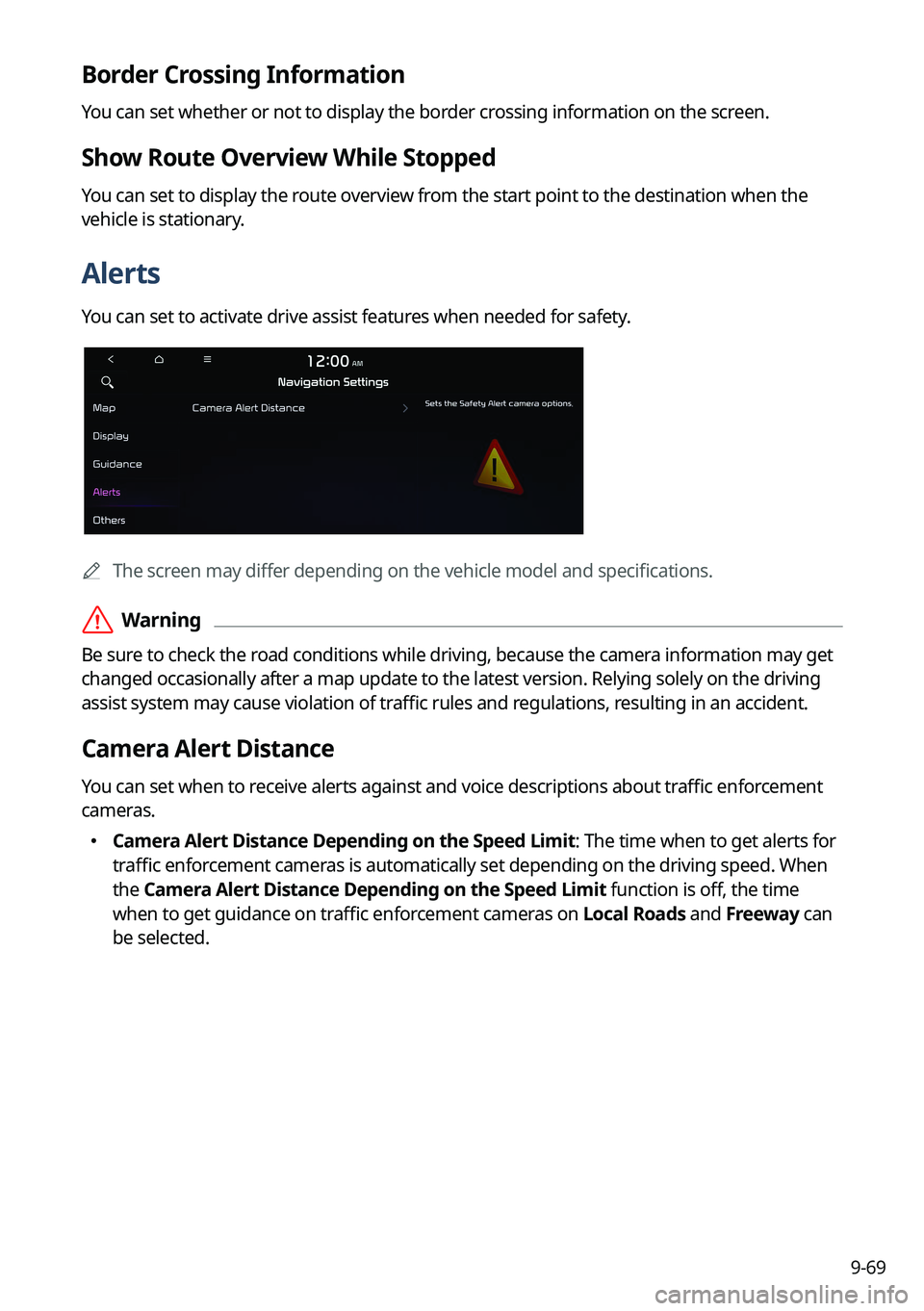
You can set to activate drive assist features when needed for safety.
A
The screen may differ depending on the vehicle model and specifications.
ÝWarning
Be sure to check the road conditions while driving, because the camera information may get
changed occasionally after a map update to the latest version. Relying solely on the driving
assist system may cause violation of traffic rules and regulations, resulting in an accident.
Camera Alert Distance
You can set when to receive alerts against and voice descriptions about traffic enforcement
cameras.
�Camera Alert Distance Depending on the Speed Limit: The time when to get alerts for
traffic enforcement cameras is automatically set depending on the driving speed. When
the Camera Alert Distance Depending on the Speed Limit function is off, the time
when to get guidance on traffic enforcement cameras on Local Roads and Freeway can
be selected.
Page 342 of 380
9-104
[Background Update
You can perform update while using the system.
1 On the SW Info/Update screen, press Update.
2 Press Background Update.
3 Press OK.
A
Compared to Update Now, it may take longer.
A
On the All Menus screen, press Setup >
General >
SW Info/Update to see the update
progress.
A
It is possible to start background updates only when the vehicle is on.
A
It is possible to continue to perform updates even after turning off the vehicle while
updates are in progress. On the notification window displayed when the vehicle is
turned off, press Update to perform the remaining updates to complete the process
successfully. For later update, press Later.
A
If the update process is not completed, a notification window appears asking if you want
to perform updates each time you turn off the vehicle.
A
All system functions, including the rear view camera, are disabled while updates are in
progress.
[Scheduling an update
When you set for scheduled update after downloading the latest data, the navigation map
and infotainment system can be updated while not using the vehicle.
1 On the SW Info/Update screen, press Update.
2 Press Install after Turning Off the Ignition.
3 Set the update time and press OK.
When scheduling the update is finished, the status indicator icon appears.
A
You can set to start the update within 12 hours or less after the vehicle is stopped.
4 Turn off the vehicle (ACC Off).
Page 349 of 380
10-5
2 Select Update After Vehicle is Turned Off.
3 Set the time to perform update and press OK.
When the update timer is set, the icon appears at the top right of the screen.
A
You can set to start the update within 12 hours or less after the vehicle is stopped. For
example, if you set the update timer to "+3," an update begins in 3 hours.
4 Turn off the vehicle (ACC Off).
A
If you set the update timer to "0," an update notification window appears. After a short
while, an update begins.
A
Once the update has started, you cannot cancel it. After the update, the system
automatically turns off.
A
Scheduled update is canceled when:
Low battery is detected when turning off the vehicle.
The vehicle is turned on before the scheduled update time.
The system has been turned off for more than 3 minutes with the vehicle turned off.
Page 352 of 380

11-2
Solutions
Before reporting a malfunctioning system, refer to the following table and see if you can
identify and fix the problem. If the problem persists or you are unable to locate your specific
need, contact your place of purchase or dealer.
Sound and display
SymptomPossible causeSolution
A blank screen
appears and sound
is not audible. The system is turned
off.
�
Check that the start switch is in "ACC" or
"ON."
�Press the Power button on the control
panel to turn on the system.
Sound volume is too
low. Use the Volume knob on the control panel to
adjust the volume.
Sound is muted. Press the Mute button on the steering wheel
to unmute.
Sound is audible
from only one side
of the speakers. Sound is
imbalanced.
On the All Menus screen, navigate to Setup
>
Sound and use the settings menu to
adjust the sound balance.
The sound is cut off
or noise is heard. Vibration occurs in
the system.When the system vibrates, the sound may
be cut off or noise may occur. This is not a
system failure. The system is restored as
soon as the vibration stops.
Page 353 of 380
11-3
SymptomPossible causeSolution
The image quality is
poor. Screen adjustment
is required.On the All Menus screen, navigate to Setup
>
Display and use the settings menu to
adjust the display settings.
Vibration occurs in
the system. The images may get distorted when vibration
occurs in the system. This is not a system
failure. The system is restored as soon as the
vibration stops.
The display is aged
or the system
performance is
degraded. If the problem persists, contact your place of
purchase or dealer.
Small red, blue,
and green dots
are shown on the
screen. LCD has very high-density pixels. For this
reason, there may be dead pixels (that are
always off) or lit pixels (that are always on)
within 0.01 percent of the total pixels.
Page 369 of 380

11-19
Important information
Before using your system, read and follow all instructions and safety information provided in
this user's guide ("User's Manual"). Not following precautions found in this guide can lead to
an accident or other serious consequences.
Keep this guide in your vehicle
When kept in the vehicle, this guide will be a ready reference for you and other users
unfamiliar with the system. Ensure that before using the system for the first time, all persons
have access to this guide and read its instructions and safety information carefully.
Warning
Operating certain parts of this system while driving can distract your attention away from the
road, and possibly cause an accident or other serious consequences. Do not change system
settings or enter data non-verbally (using your hands) while driving. Stop the vehicle in a safe
and legal manner before attempting these operations. This is important since setting up or
changing some functions as you drive may distract your attention away from the road and
removing your hands from the steering wheel may cause you to lose control of the vehicle.
General operation
Voice command control
Features within the system may be executed using only voice commands. Using voice
commands while driving allows you to operate the system without removing your hands
from the steering wheel.
Prolonged views of screen
Do not access any function requiring a prolonged view of the screen while you are driving.
Pull over in a safe and legal manner before attempting to access a function of the system
requiring prolonged attention. Even short views of the screen may be hazardous if your
attention has been diverted away from your driving.
Volume setting
Do not raise the volume excessively. Keep the volume at a level where you can still hear
outside traffic and emergency signals while driving. Driving while unable to hear these
sounds could cause an accident.
Page 370 of 380

11-20
Navigation features
Navigation features included in the system are intended to provide detailed instructions to
get you to a desired destination. Ensure that all persons using this system carefully read and
follow all instructions on safety information.
Distraction hazard
Some navigation features may require manual (non-verbal) setup. Attempting to perform
such setup or inputting data while driving can seriously distract your attention and could
cause an accident. Stop the vehicle in a safe and legal manner before attempting these
operations.
Let your judgment prevail
Any navigation features are provided only as an aid. Make your driving decisions based on
your observations of local conditions and existing traffic regulations. Any such feature is not
a substitute for your personal judgment. Any route suggestions made by this system should
never replace any local traffic regulations or your personal judgment or knowledge of safe
driving practices.
Route safety
Do not follow the route suggestions if doing so would result in an unsafe or illegal maneuver,
if you would be placed in an unsafe situation, or if you would be directed into an area that
you consider unsafe. The driver is ultimately responsible for the safe operation of the vehicle
and must evaluate whether it is safe to follow the suggested directions.
Potential map inaccuracy
Maps used by this system may be inaccurate because of changes in roads, traffic controls
or driving conditions. Always use good judgment and common sense when following the
suggested routes.
Emergency services
Do not rely on any navigation features included in the system to direct you to emergency
services. Ask local authorities or an emergency services operator for these locations. Not all
emergency services such as police, fire stations, hospitals and clinics are contained in the
map database for navigation features.
Use of speech recognition functions
Speech recognition software is inherently a statistical process which is subject to errors. It is
your responsibility to monitor any speech recognition functions included in the system and
address any errors.

