Page 134 of 638
Instrument cluster
4-36
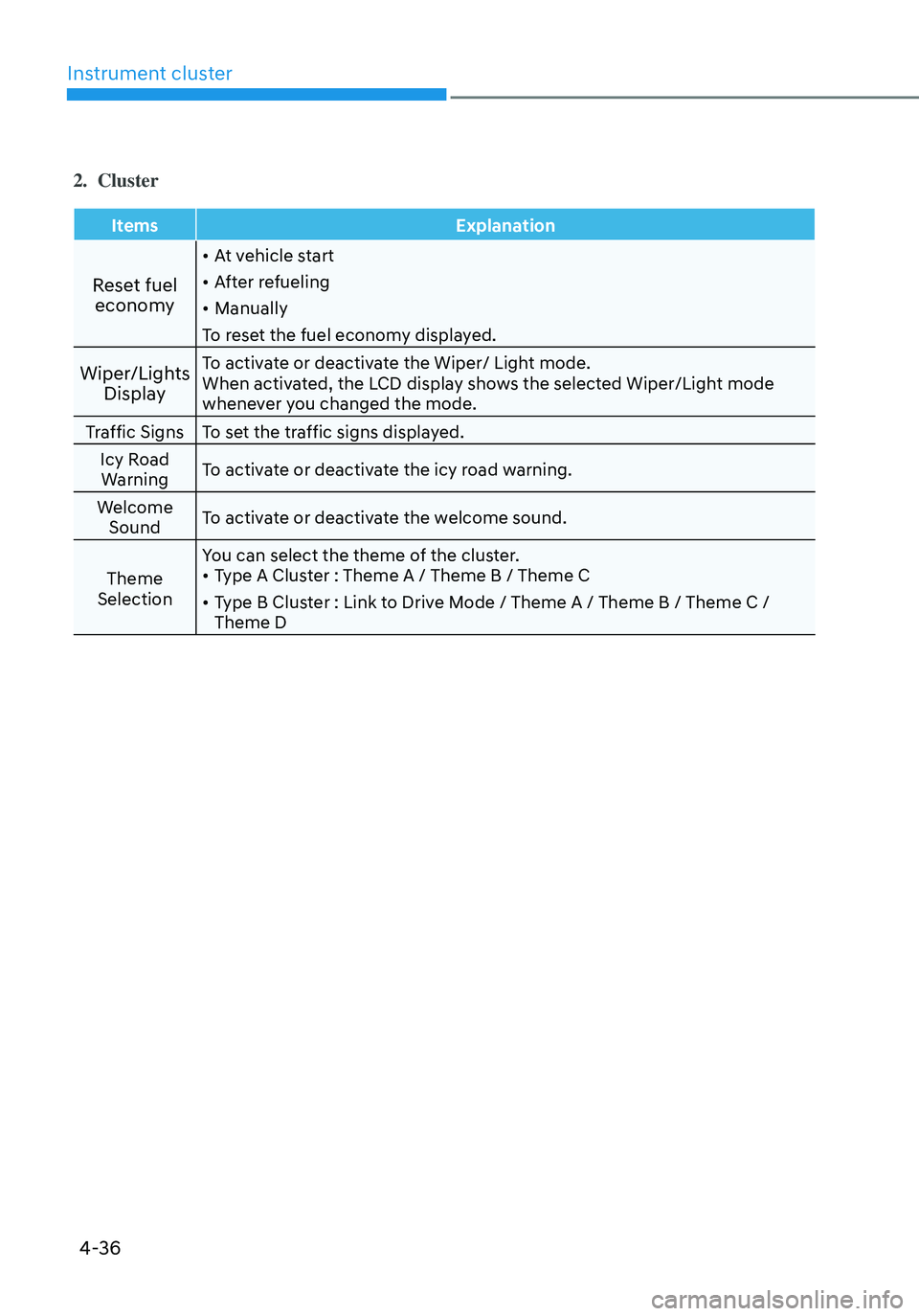
2. Cluster
ItemsExplanation
Reset fuel
economy
• At vehicle start
• After refueling
• Manually
To reset the fuel economy displayed.
Wiper/Lights DisplayTo activate or deactivate the Wiper/ Light mode.
When activated, the LCD display shows the selected Wiper/Light mode
whenever you changed the mode.
Traffic Signs To set the traffic signs displayed.
Icy Road Warning To activate or deactivate the icy road warning.
Welcome Sound To activate or deactivate the welcome sound.
Theme
Selection You can select the theme of the cluster.
• Type A Cluster : Theme A / Theme B / Theme C
• Type B Cluster : Link to Drive Mode / Theme A / Theme B / Theme C /
Theme D
Page 138 of 638
Instrument cluster
4-40
Trip computer (Type A)
The trip computer is a microcomputer-
controlled driver information system that
displays information related to driving.
Information
Some driving information stored in the
trip computer (for example Average
Vehicle Speed) resets if the battery is
disconnected.
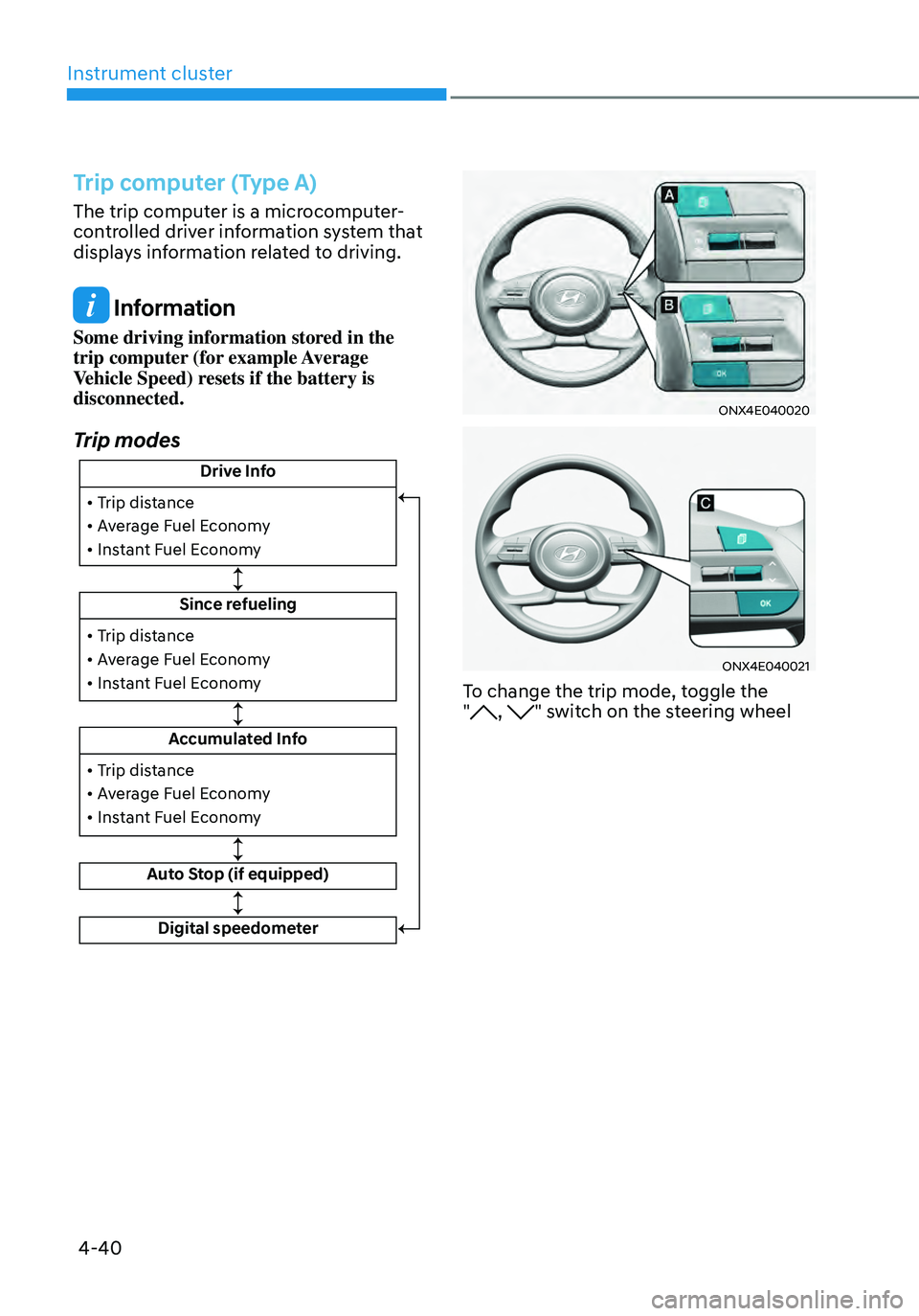
Trip modes
Drive Info
Since refueling
Accumulated Info
Auto Stop (if equipped)
• Trip distance
• Average Fuel Economy
• Instant Fuel Economy
• Trip distance
• Average Fuel Economy
• Instant Fuel Economy
Digital speedometer
• Trip distance
• Average Fuel Economy
• Instant Fuel Economy
ONX4E040020
ONX4E040021
To change the trip mode, toggle the
", " switch on the steering wheel
Page 141 of 638
04
4-43
Trip computer (Type B)
The trip computer is a microcomputer-
controlled driver information system that
displays information related to driving.
Information
Some driving information stored in the
trip computer (for example Average
Vehicle Speed) resets if the battery is
disconnected.
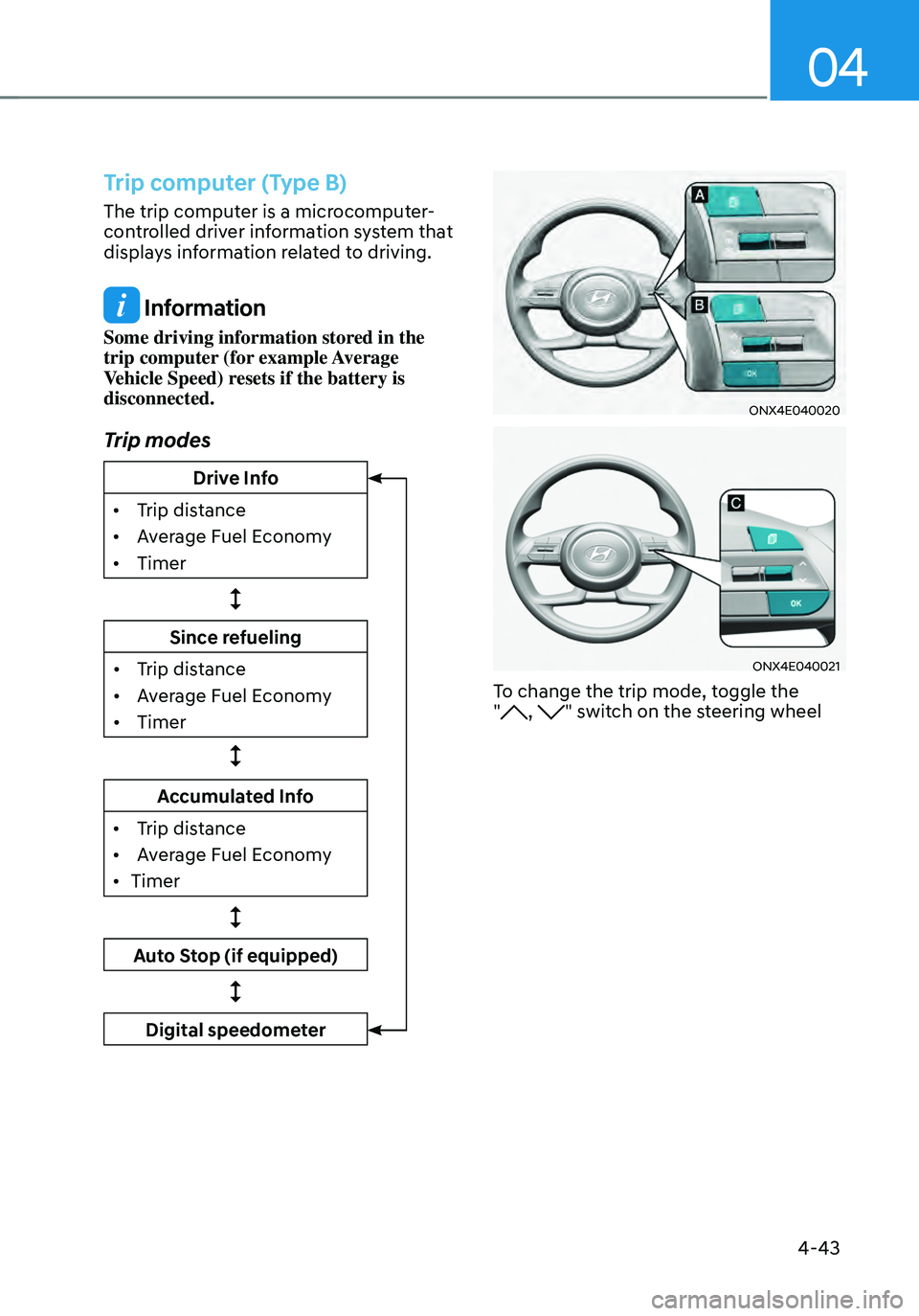
Trip modes
Drive Info
•
Trip dis
tance
•
Av
erage Fuel Economy
•
Timer
Since refueling
•
Trip dis
tance
•
Av
erage Fuel Economy
•
Timer
Accumulated Info
•
Trip dis
tance
•
Av
erage Fuel Economy
•
Timer
Auto Stop (if equipped)
Digital speedometer
ONX4E040020
ONX4E040021
To change the trip mode, toggle the
", " switch on the steering wheel
Page 144 of 638
Instrument cluster
4-46
ONX4E040028
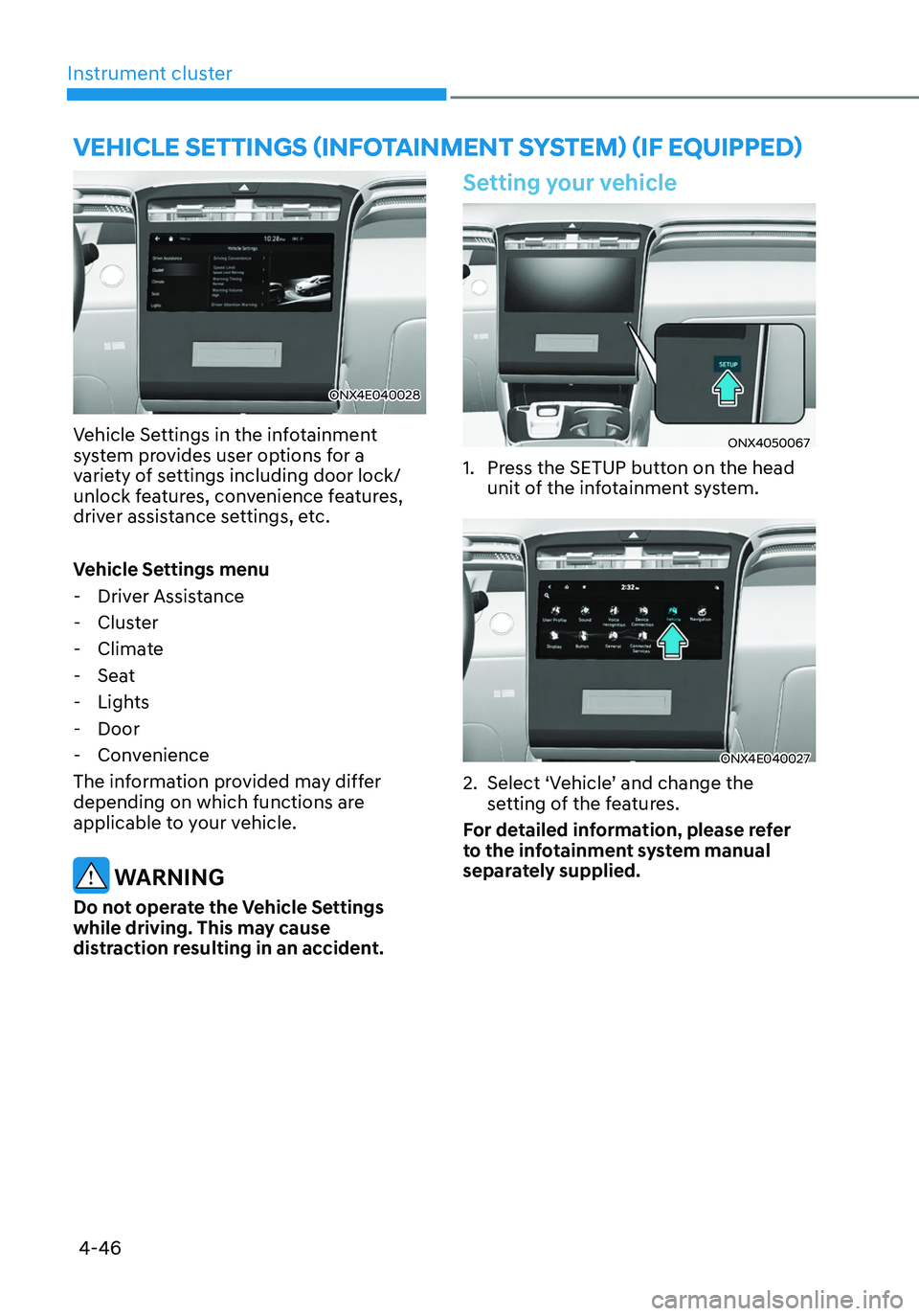
Vehicle Settings in the infotainment
system provides user options for a
variety of settings including door lock/
unlock features, convenience features,
driver assistance settings, etc.
Vehicle Settings menu
-Driver Assistance
-Cluster
-Climate
-Seat
-Lights
-Door
-Convenience
The information provided may differ
depending on which functions are
applicable to your vehicle.
WARNING
Do not operate the Vehicle Settings
while driving. This may cause
distraction resulting in an accident.
Setting your vehicle
ONX4050067
1. Press the SETUP button on the head
unit of the infotainment system.
ONX4E040027
2. Select ‘Vehicle’ and change the
setting of the features.
For detailed information, please refer
to the infotainment system manual
separately supplied.
VEHICLE SETTINGS (INFOTAINMENT SYSTEM) (IF EQUIPPED)
Page 150 of 638
Convenient features
5-6
When the remote key does not work
correctly, unlock and lock the door
with the mechanical key. If you have
a problem with the remote key, it is
recommended that you contact an
authorized HYUNDAI dealer.
If the remote key is in close proximity to
your mobile phone, the signal could be
blocked by your mobile phone’s normal
operational signals.
This is especially important when the
phone is active such as making and
receiving calls, text messaging, and/ or
sending/receiving emails.
Avoid placing the remote key and your
mobile phone in the same location and
always try to maintain an adequate
distance between the two devices.
Information
This device complies with Part 15 of the
FCC rules.
Operation is subject to the following three
conditions:
1. This device may not cause harmful
interference.
2. This device must accept any
interference received, including
interference that may cause undesired
operation.
3. Changes or modifications not expressly
approved by the party responsible
for compliance could void the user’s
authority to operate the device.
NOTICE
Keep the remote key away from
electromagnetic materials that block
electromagnetic waves to the key
surface.
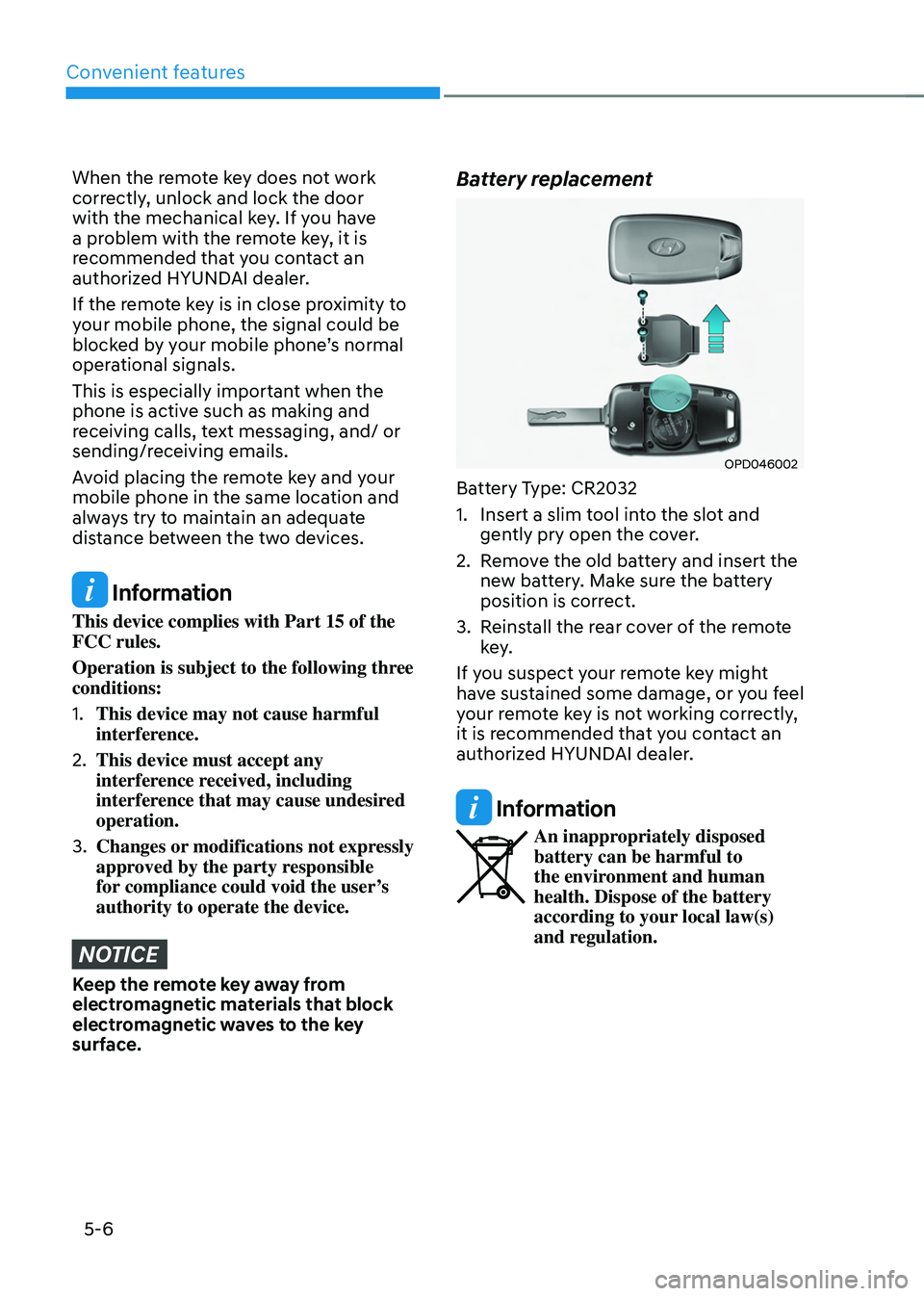
Battery replacement
OPD046002
Battery Type: CR2032
1. Insert a slim tool into the slot and
gently pry open the cover.
2. Remove the old battery and insert the
new battery. Make sure the battery
position is correct.
3. Reinstall the rear cover of the remote
key.
If you suspect your remote key might
have sustained some damage, or you feel
your remote key is not working correctly,
it is recommended that you contact an
authorized HYUNDAI dealer.
Information
An inappropriately disposed battery can be harmful to
the environment and human
health. Dispose of the battery
according to your local law(s)
and regulation.
Page 154 of 638
Convenient features
5-10
3. If you unlock the doors using the
passenger side door handle, all the
doors will unlock. If you unlock the
doors using the driver side door
handle, either the driver side door
will unlock or all the doors will unlock
depending on the setting for the Two
Press Unlock feature. Refer to User
Settings to change the Driver Door
unlock mode.• The door handle button will only
operate when the smart key is
within 28~40 inches (0.7~1 m) from
the outside door handle.
• If you do not open the door after
unlocking within 30 seconds, it will
return to the lock mode.
• If you unlocked the door with the
door handle, the doors cannot be
locked with the sensor within 2
seconds.
To prevent unintentional door lock or
unlock:
Press the lock button on the smart key
and immediately press the unlock button
along with the lock button for more than
4 seconds. The hazard warning lights will
blink four times. At this time, the doors
will not lock or unlock even though the
touch sensor is touched on the outside
door handle.
To deactivate the function, press the
door lock or unlock button on the smart
key. Opening or Unlocking the Liftgate
To open the liftgate:
1. If your vehicle has a Smart Key, make
sure you have the Smart Key in your
possession.
2. Press either the liftgate open/close
button on the vehicle or press and
hold the liftgate open button on
the smart key for more than one
second. The hazard warning lights
will blink twice and the liftgate will be
unlocked. Pull up on the liftgate to
open. If your vehicle is equipped with
power liftgate then the liftgate will
automatically open.
Remotely starting vehicle
(if equipped)
You can start the vehicle using the
Remote Start button on the smart key.
To start the vehicle remotely:
1. Before you can use remote start your
vehicle, the door lock button must be
pressed. Press the door lock button
on the Smart Key. You must be within
about 32 feet (10m) from your vehicle.
2. Press and hold the remote start
button on your Smart Key. You must
press the button within 4 seconds
from when you pressed the door lock
button to activate the remote start.
3. The hazard warning lights will blink
and the engine will start.
4. To turn off the remote start function,
press the Remote Start button once.
Page 157 of 638
05
5-13
Information
This device complies with Part 15 of the
FCC rules.
Operation is subject to the following three
conditions:
1. This device may not cause harmful
interference.
2. This device must accept any
interference received, including
interference that may cause undesired
operation.
3. Changes or modifications not expressly
approved by the party responsible
for compliance could void the user’s
authority to operate the device.
NOTICE
• Keep the smart key away from
electromagnetic materials that
blocks electromagnetic waves to the
key surface.
• Always have the smart key with
you when leaving the vehicle. If the
smart key is left near the vehicle, the
vehicle battery may be discharged.
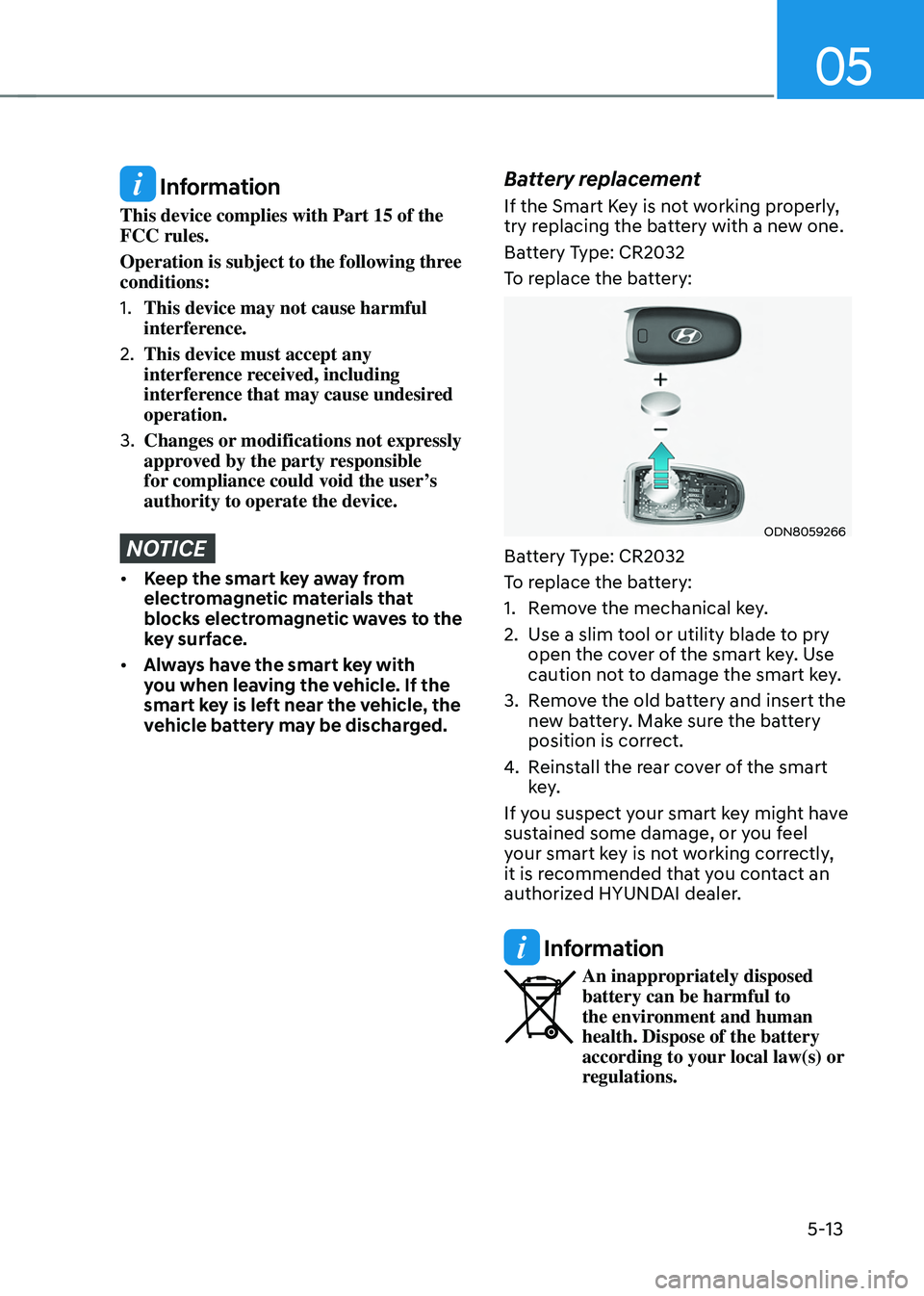
Battery replacement
If the Smart Key is not working properly,
try replacing the battery with a new one.
Battery Type: CR2032
To replace the battery:
ODN8059266
Battery Type: CR2032
To replace the battery:
1. Remove the mechanical key.
2. Use a slim tool or utility blade to pry
open the cover of the smart key. Use
caution not to damage the smart key.
3. Remove the old battery and insert the
new battery. Make sure the battery
position is correct.
4. Reinstall the rear cover of the smart
key.
If you suspect your smart key might have
sustained some damage, or you feel
your smart key is not working correctly,
it is recommended that you contact an
authorized HYUNDAI dealer.
Information
An inappropriately disposed battery can be harmful to
the environment and human
health. Dispose of the battery
according to your local law(s) or
regulations.
Page 158 of 638
Convenient features
5-14
Immobilizer system
The immobilizer system helps protect
your vehicle from theft. If an improperly
coded key (or other device) is used, the
engine’s fuel system is disabled.
When the Engine Start/Stop button
is pressed to the ON position, the
immobilizer system indicator should
come on briefly, then go off. If the
indicator starts to blink, the system does
not recognize the coding of the key.
Press the Engine Start/Stop button to
the OFF position, then press the Engine
Start/Stop button to the ON position
again.
The system may not recognize your
key’s coding if another immobilizer key
or other metal object (i.e., key chain) is
near the key. The engine may not start
because the metal may interrupt the
transponder signal from transmitting
normally.
If the system repeatedly does not
recognize the coding of the key, it is
recommended that you contact your
HYUNDAI dealer.
Do not attempt to alter this system
or add other devices to it. Electrical
problems could result that may make
your vehicle inoperable. WARNING
In order to prevent theft of your
vehicle, do not leave spare keys
anywhere in your vehicle. Your
immobilizer password is a customer
unique password and should be kept
confidential.
NOTICE
The transponder in your key is an
important part of the immobilizer
system. It is designed to give years
of trouble-free service, however you
should avoid exposure to moisture,
static electricity and rough handling.
Immobilizer system malfunction could
occur.
Information
This device complies with Part 15 of the
FCC rules.
Operation is subject to the following three
conditions:
1. This device may not cause harmful
interference.
2. This device must accept any
interference received, including
interference that may cause undesired
operation.
3. Changes or modifications not expressly
approved by the party responsible
for compliance could void the user’s
authority to operate the device.