2022 HYUNDAI KONA format
[x] Cancel search: formatPage 143 of 579
05
5-9
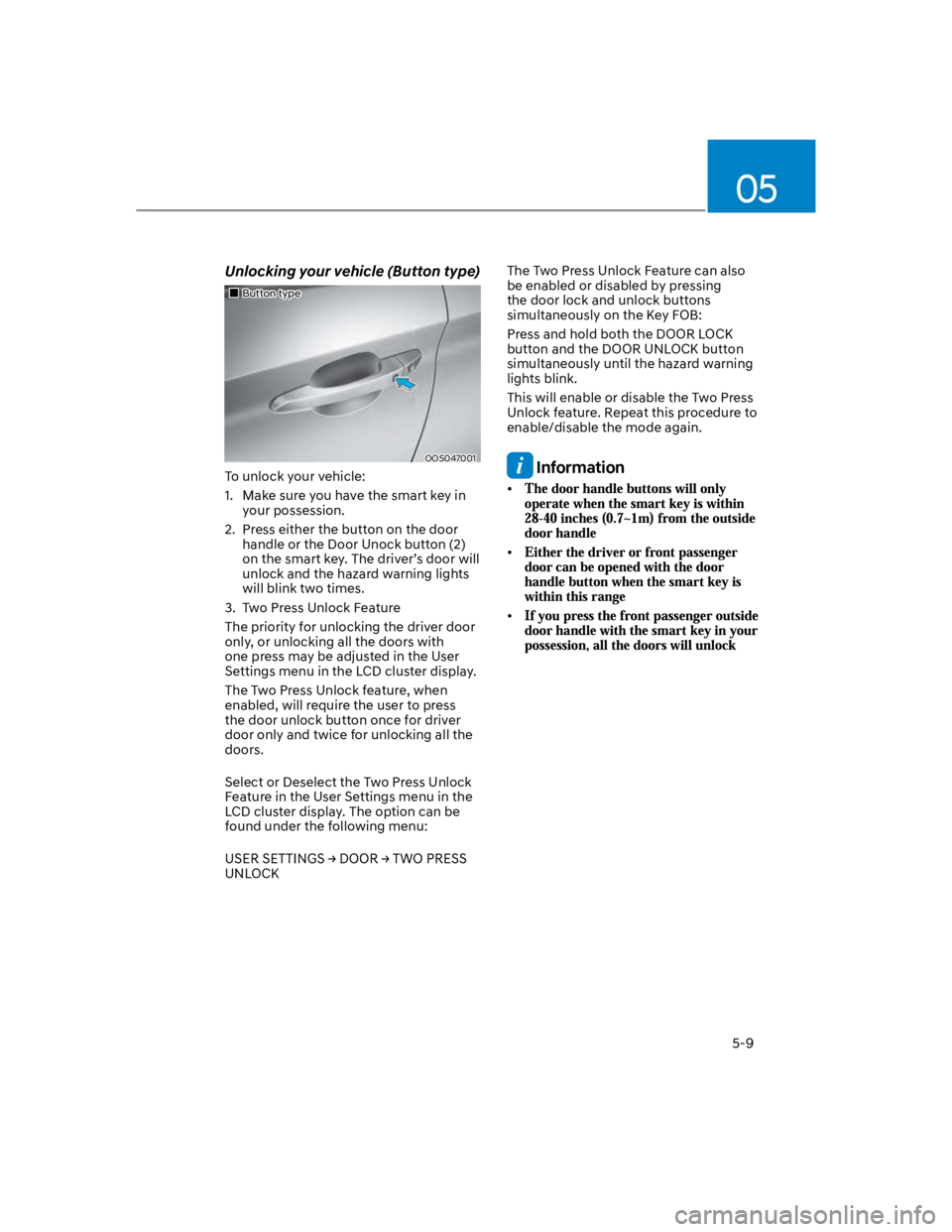
Unlocking your vehicle (Button type)
Button type
OOS047001
To unlock your vehicle:
1. Make sure you have the smart key in
your possession.
2. Press either the button on the door
handle or the Door Unock button (2)
on the smart key. The driver’s door will
unlock and the hazard warning lights
will blink two times.
3. Two Press Unlock Feature
The priority for unlocking the driver door
only, or unlocking all the doors with
one press may be adjusted in the User
Settings menu in the LCD cluster display.
The Two Press Unlock feature, when
enabled, will require the user to press
the door unlock button once for driver
door only and twice for unlocking all the
doors.
Select or Deselect the Two Press Unlock
Feature in the User Settings menu in the
LCD cluster display. The option can be
found under the following menu:
UNLOCK
The Two Press Unlock Feature can also
be enabled or disabled by pressing
the door lock and unlock buttons
simultaneously on the Key FOB:
Press and hold both the DOOR LOCK
button and the DOOR UNLOCK button
simultaneously until the hazard warning
lights blink.
This will enable or disable the Two Press
Unlock feature. Repeat this procedure to
enable/disable the mode again.
Information
Page 144 of 579
Convenient features
5-10
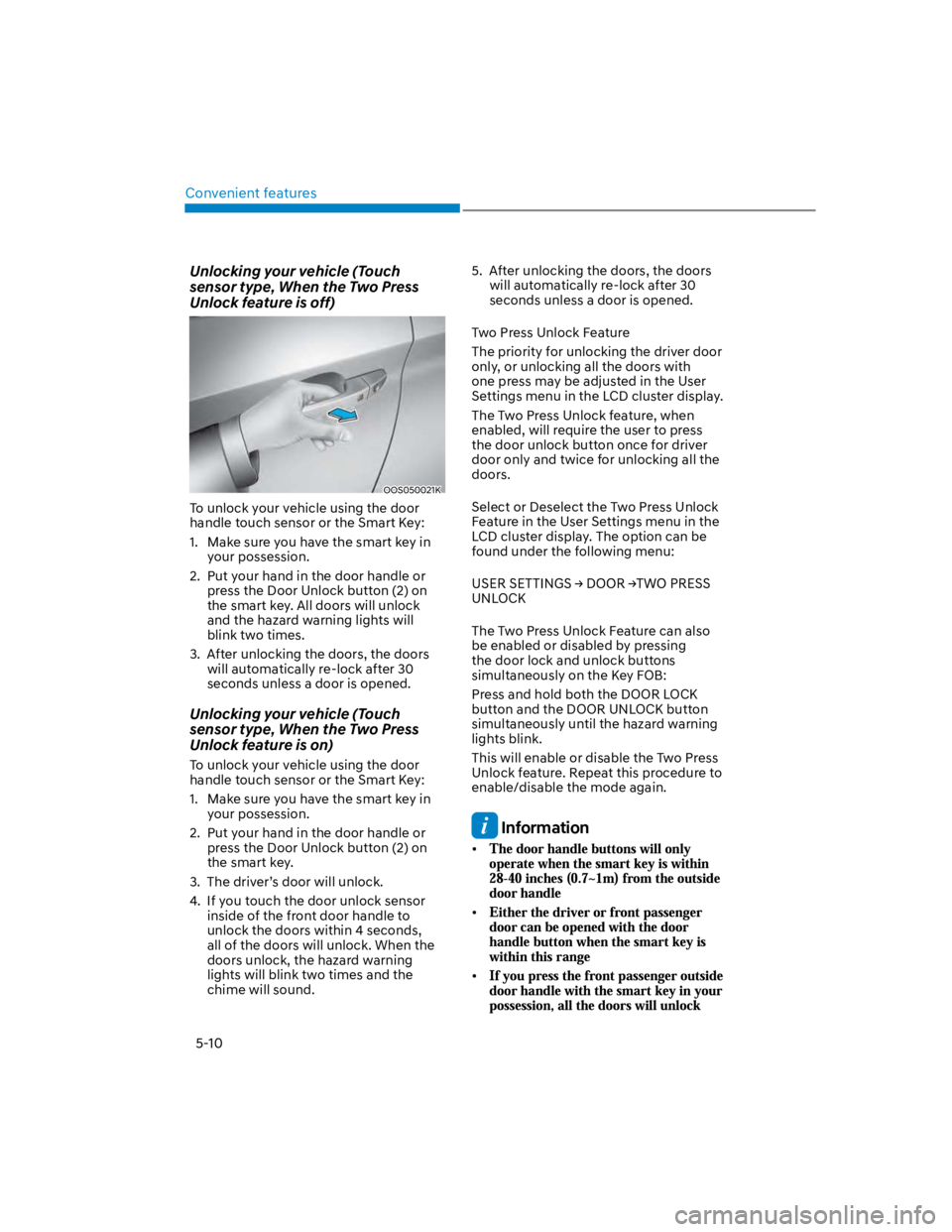
Unlocking your vehicle (Touch
sensor type, When the Two Press
Unlock feature is off)
OOS050021K
To unlock your vehicle using the door
handle touch sensor or the Smart Key:
1. Make sure you have the smart key in
your possession.
2. Put your hand in the door handle or
press the Door Unlock button (2) on
the smart key. All doors will unlock
and the hazard warning lights will
blink two times.
3. After unlocking the doors, the doors
will automatically re-lock after 30
seconds unless a door is opened.
Unlocking your vehicle (Touch
sensor type, When the Two Press
Unlock feature is on)
To unlock your vehicle using the door
handle touch sensor or the Smart Key:
1. Make sure you have the smart key in
your possession.
2. Put your hand in the door handle or
press the Door Unlock button (2) on
the smart key.
3. The driver’s door will unlock.
4. If you touch the door unlock sensor
inside of the front door handle to
unlock the doors within 4 seconds,
all of the doors will unlock. When the
doors unlock, the hazard warning
lights will blink two times and the
chime will sound.
5. After unlocking the doors, the doors
will automatically re-lock after 30
seconds unless a door is opened.
Two Press Unlock Feature
The priority for unlocking the driver door
only, or unlocking all the doors with
one press may be adjusted in the User
Settings menu in the LCD cluster display.
The Two Press Unlock feature, when
enabled, will require the user to press
the door unlock button once for driver
door only and twice for unlocking all the
doors.
Select or Deselect the Two Press Unlock
Feature in the User Settings menu in the
LCD cluster display. The option can be
found under the following menu:
UNLOCK
The Two Press Unlock Feature can also
be enabled or disabled by pressing
the door lock and unlock buttons
simultaneously on the Key FOB:
Press and hold both the DOOR LOCK
button and the DOOR UNLOCK button
simultaneously until the hazard warning
lights blink.
This will enable or disable the Two Press
Unlock feature. Repeat this procedure to
enable/disable the mode again.
Information
Page 145 of 579

05
5-11
Remotely starting vehicle
You can start the vehicle using the
Remote Start button on the smart key.
To start the vehicle remotely:
1. Press the door lock button on the
smart key within 32 feet (10 m) from
the vehicle.
2. Press the Remote Start button for
more than 2 seconds within 4 seconds
after pressing the door lock button.
3. The hazard warning lights will blink
and the engine will start.
4. To turn off the remote start function,
press the Remote Start button once.
Information
Panic button
Press and hold the Panic button (4) for
more than one second. The horn sounds
and hazard warning lights blink for about
30 seconds. To cancel the panic mode,
press any button on the Smart Key.
Start-up
You can start the vehicle without
inserting the key.
For more details, refer to the “Engine
Start/Stop Button” section in chapter 6.
Information
NOTICE
To prevent damaging the smart key:
Keep the smart key in a cool,
dry place to avoid damage or
malfunction. Exposure to moisture
or high temperature may cause
the internal circuit of the smart key
to malfunction which may not be
covered under warranty.
Avoid dropping or throwing the
smart key.
Protect the smart key from extreme
temperatures.
Page 147 of 579
05
5-13
Information
1.
2.
3.
NOTICE
Keep the smart key away from
electromagnetic materials that
blocks electromagnetic waves to the
key surface.
Always have the smart key with
you when leaving the vehicle. If the
smart key is left near the vehicle, the
vehicle battery may be discharged.
Battery replacement
If the Smart Key is not working properly,
try replacing the battery with a new one.
Battery Type: CR2032
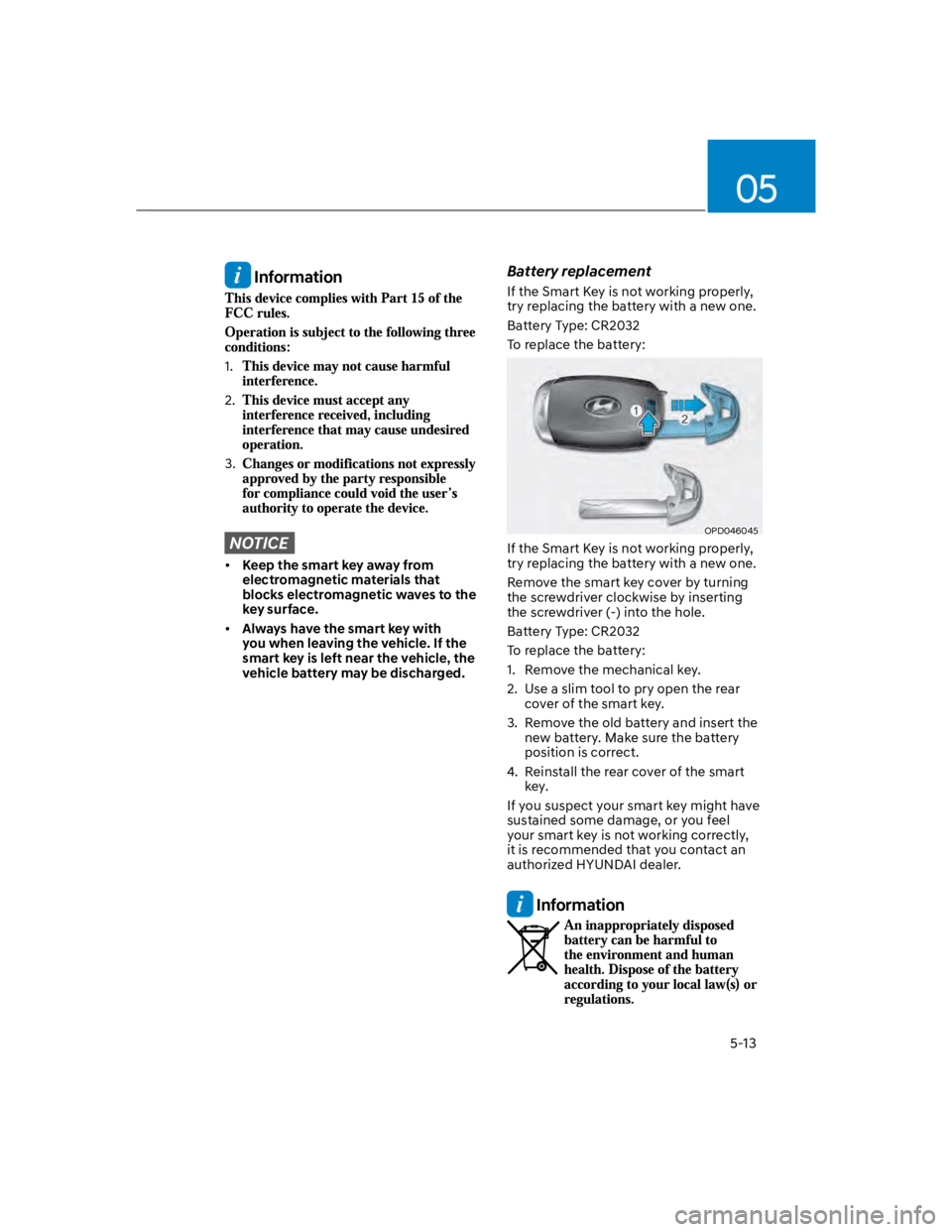
To replace the battery:
OPD046045
If the Smart Key is not working properly,
try replacing the battery with a new one.
Remove the smart key cover by turning
the screwdriver clockwise by inserting
the screwdriver (-) into the hole.
Battery Type: CR2032
To replace the battery:
1. Remove the mechanical key.
2. Use a slim tool to pry open the rear
cover of the smart key.
3. Remove the old battery and insert the
new battery. Make sure the battery
position is correct.
4. Reinstall the rear cover of the smart
key.
If you suspect your smart key might have
sustained some damage, or you feel
your smart key is not working correctly,
it is recommended that you contact an
authorized HYUNDAI dealer.
Information
Page 148 of 579

Convenient features
5-14
Immobilizer system (if equipped)
The immobilizer system helps protect
your vehicle from theft. If an improperly
coded key (or other device) is used, the
engine’s fuel system is disabled.
When the ignition switch is placed in
the ON position, the immobilizer system
indicator should come on briefly, then
go off. If the indicator starts to blink, the
system does not recognize the coding of
the key.
Place the ignition switch to the LOCK/
OFF position, then place the ignition
switch to the ON position again.
The system may not recognize your
key’s coding if another immobilizer key
or other metal object (i.e., key chain) is
near the key. The engine may not start
because the metal may interrupt the
transponder signal from transmitting
normally.
If the system repeatedly does not
recognize the coding of the key, it is
recommended that you contact your
HYUNDAI dealer.
Do not attempt to alter this system
or add other devices to it. Electrical
problems could result that may make
your vehicle inoperable.
WARNING
In order to prevent theft of your
vehicle, do not leave spare keys
anywhere in your vehicle. Your
immobilizer password is a customer
unique password and should be kept
confidential.
NOTICE
The transponder in your key is an
important part of the immobilizer
system. It is designed to give years
of trouble-free service, however you
should avoid exposure to moisture,
static electricity and rough handling.
Immobilizer system malfunction could
occur.
Information
1.
2.
3.
Page 150 of 579
Convenient features
5-16
Digital key (smartphone)
1. Turn the vehicle on with the Smart key
and make sure to keep the smart key
inside the vehicle during digital key
registration.
2. Register your Digital key from the
vehicle user setting menu as follows.
With Navigation screen :
From the infotainment screen menu,
go to [Setup] - [Vehicle] - [Digital Key]
- [Smart Phone Key] then select the
[Save] from submenu.
Without navigation screen :
From cluster menu, go to [Digital Key]
- [Smart Phone Key] and select [Save].
Information
3. Select the vehicle to save on your
Digital key application and activate
the save mode.
Save mode is available only on
the vehicle owner’s Digital key
application.
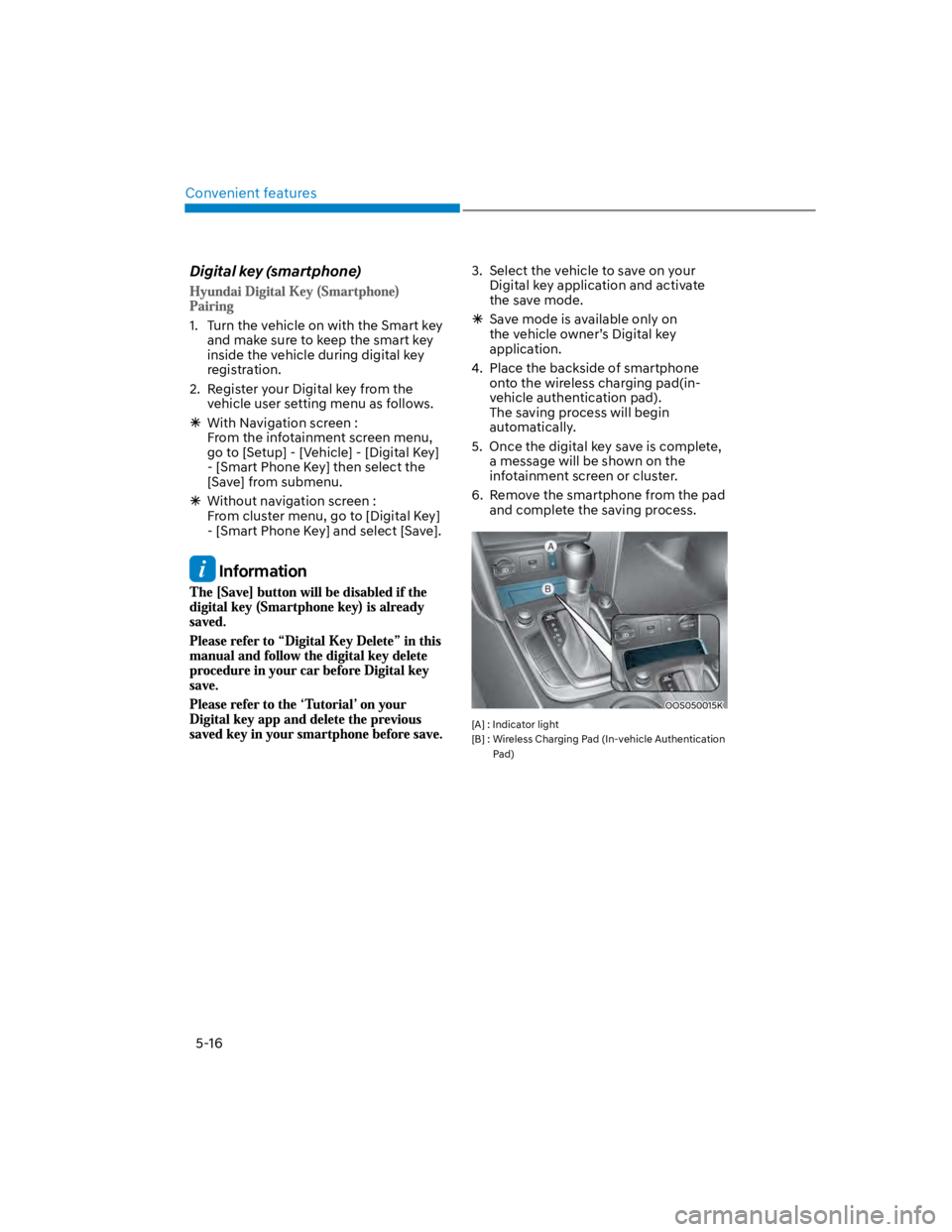
4. Place the backside of smartphone
onto the wireless charging pad(in-
vehicle authentication pad).
The saving process will begin
automatically.
5. Once the digital key save is complete,
a message will be shown on the
infotainment screen or cluster.
6. Remove the smartphone from the pad
and complete the saving process.
OOS050015K
[A] : Indicator light
[B] : Wireless Charging Pad (In-vehicle Authentication
Pad)
Page 151 of 579

05
5-17
1. Turn the vehicle on with the Smart
key and make sure to keep the smart
key inside the vehicle during delete
process.
2. Delete your Digital key from the
vehicle user setting menu as follows.
With Navigation screen :
From the infotainment screen menu,
go to [Setup] - [Vehicle] - [Digital Key]
- [Smart Phone Key] then select the
[Delete] from submenu.
Without navigation screen :
From cluster menu, go to [Digital
Key] - [Smart Phone Key] and select
[Delete].
Information
3. Once the digital key delete is
complete, a message will be shown
on the infotainment screen or cluster.
4. Go to [Initialize Digital Key] menu on
the digital key application and select
the vehicle to delete the digital key
information.
If the saved digital key information
in your car is deleted due to vehicle
maintenance, the digital key in your
smartphone should be deleted as well.
For more information, please refer to
the ‘Tutorial’ on your Digital key app.
CAUTION
If the smartphone is removed
from the interior authentication
pad during enrollment, the saving
process will be cancelled.
If the infotainment or instrument
cluster screen is changed during
enrollment, the saving process will
be cancelled.
If the vehicle is turned off during
enrollment, the saving process will
be cancelled.
If the gear is shifted, the saving
process will be cancelled.
If you try to save the smartphone
which is not logged in with the
vehicle owner’s ID or if you try to
save the Card key, the saving process
will not begin.
If the NFC setting on your
smartphone is off, the saving process
will not begin.
If the smartphone screen is changed
to off or locked status, the saving
process will be cancelled.
If there is no Smart key during the
save process, the saving process will
not begin.
Page 152 of 579

Convenient features
5-18
You can manage multiple digital keys
from the Digital key app. From the list of
digital keys you own, select the vehicle
you want to make your priority vehicle.
For more information, please refer to
the ‘Tutorial’ on your Digital key app.
OOS050002K
[1] : Door handle authentication pad
You should contact your smartphone’s
NFC antenna(backside of phone) to door
handle authentication pad (1) marked
position near by the lock button) of
driver’s (or front passenger’s) outside
door for 2 seconds to lock or unlock the
doors. If the Two Press Unlock feature
is applied (press twice for unlocking),
driver’s seat door will be unlocked by
contacting the digital key (smartphone
key). In this state, if you contact one
more time within 4 seconds, all the doors
unlock. Please make sure the doors are
locked. If you do not open any of the
doors after unlocking, it automatically
re-lock after 30 seconds.
Note that you cannot lock your vehicle
when you contact NFC antenna in the
smartphone to the door handle pad if
any of the following occurs:
The Proximity / Smart Key is in the
vehicle.
The Engine Start/Stop button is in
ACC or ON position.
Any of the doors, hood and trunk is
opened.
If the smartphone digital key does not
work, please remove the smartphone
more than 4 inches (0.1 m) from the door
handle authentication pad and try it
again.
After unlock the door or start up the
vehicle with digital key, even though
the driver tries to lock the doors by the
central door lock switch, the door lock
will be once locked and immediately
released at the moment of door closed.
1. After placing your registered
smartphone onto the interior
authentication pad (wireless charger),
step on the brake and press the
Engine Start/Stop button.
2. After start-up, the digital key data
will be automatically updated. It
takes 5 to 20 seconds, after that,
the smartphone can be go into the
wireless charging mode automatically.
Once the engine started, you can
remove the smartphone from the pad.