2022 HYUNDAI KONA display
[x] Cancel search: displayPage 131 of 579
Instrument cluster
4-38
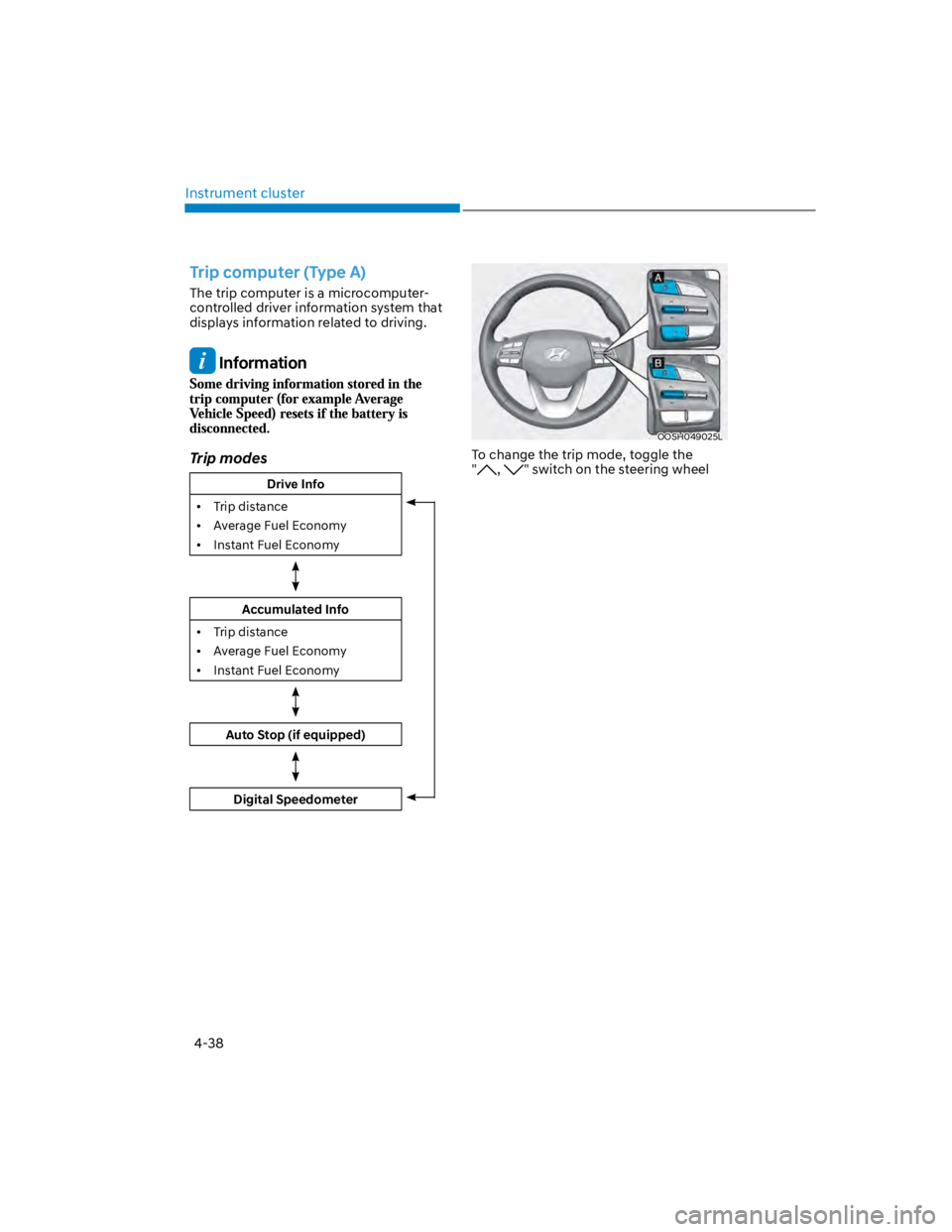
Trip computer (Type A)
The trip computer is a microcomputer-
controlled driver information system that
displays information related to driving.
Information
Trip modes
Drive Info
Trip distance
Average Fuel Economy
Instant Fuel Economy
Accumulated Info
Trip distance
Average Fuel Economy
Instant Fuel Economy
Auto Stop (if equipped)
Digital Speedometer
OOSH049025L
To change the trip mode, toggle the
", " switch on the steering wheel
Page 132 of 579
04
4-39
OTMA040004
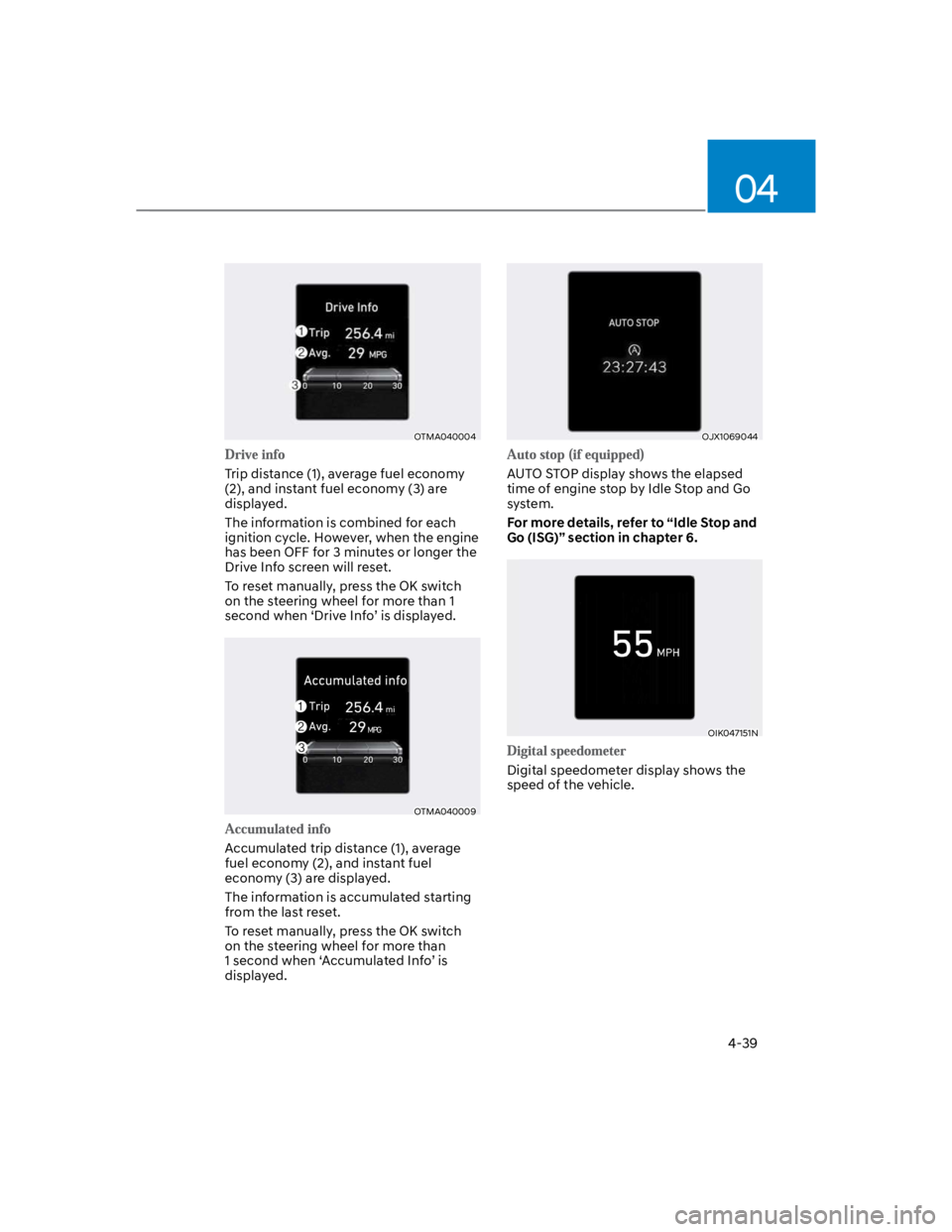
Trip distance (1), average fuel economy
(2), and instant fuel economy (3) are
displayed.
The information is combined for each
ignition cycle. However, when the engine
has been OFF for 3 minutes or longer the
Drive Info screen will reset.
To reset manually, press the OK switch
on the steering wheel for more than 1
second when ‘Drive Info’ is displayed.
OTMA040009
Accumulated trip distance (1), average
fuel economy (2), and instant fuel
economy (3) are displayed.
The information is accumulated starting
from the last reset.
To reset manually, press the OK switch
on the steering wheel for more than
1 second when ‘Accumulated Info’ is
displayed.
OJX1069044
AUTO STOP display shows the elapsed
time of engine stop by Idle Stop and Go
system.
For more details, refer to “Idle Stop and
Go (ISG)” section in chapter 6.
OIK047151N
Digital speedometer display shows the
speed of the vehicle.
Page 133 of 579
Instrument cluster
4-40
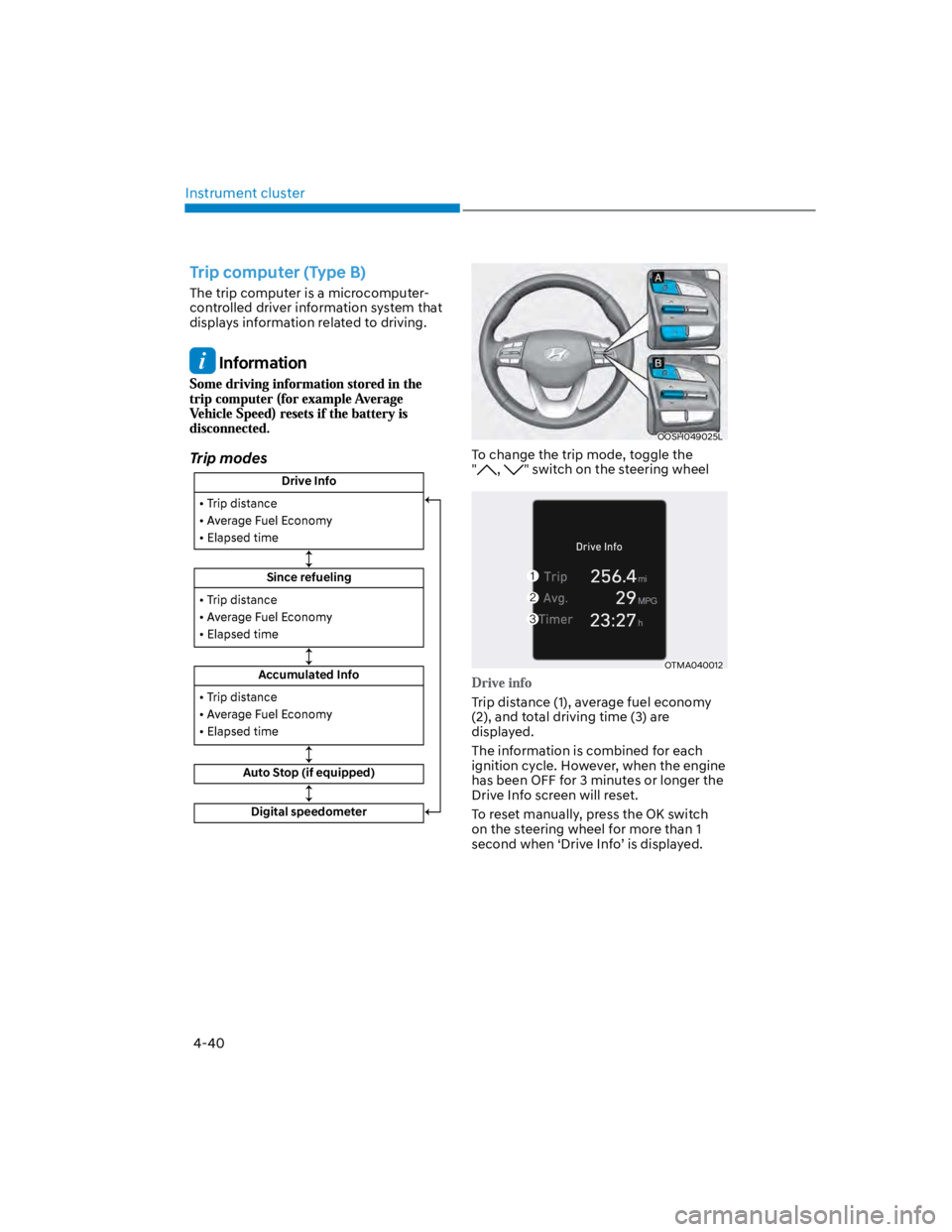
Trip computer (Type B)
The trip computer is a microcomputer-
controlled driver information system that
displays information related to driving.
Information
Trip modes
Drive Info
Since refueling
Accumulated Info
Auto Stop (if equipped)
Digital speedometer
OOSH049025L
To change the trip mode, toggle the
", " switch on the steering wheel
OTMA040012
Trip distance (1), average fuel economy
(2), and total driving time (3) are
displayed.
The information is combined for each
ignition cycle. However, when the engine
has been OFF for 3 minutes or longer the
Drive Info screen will reset.
To reset manually, press the OK switch
on the steering wheel for more than 1
second when ‘Drive Info’ is displayed.
Page 134 of 579
04
4-41
OTMA040014
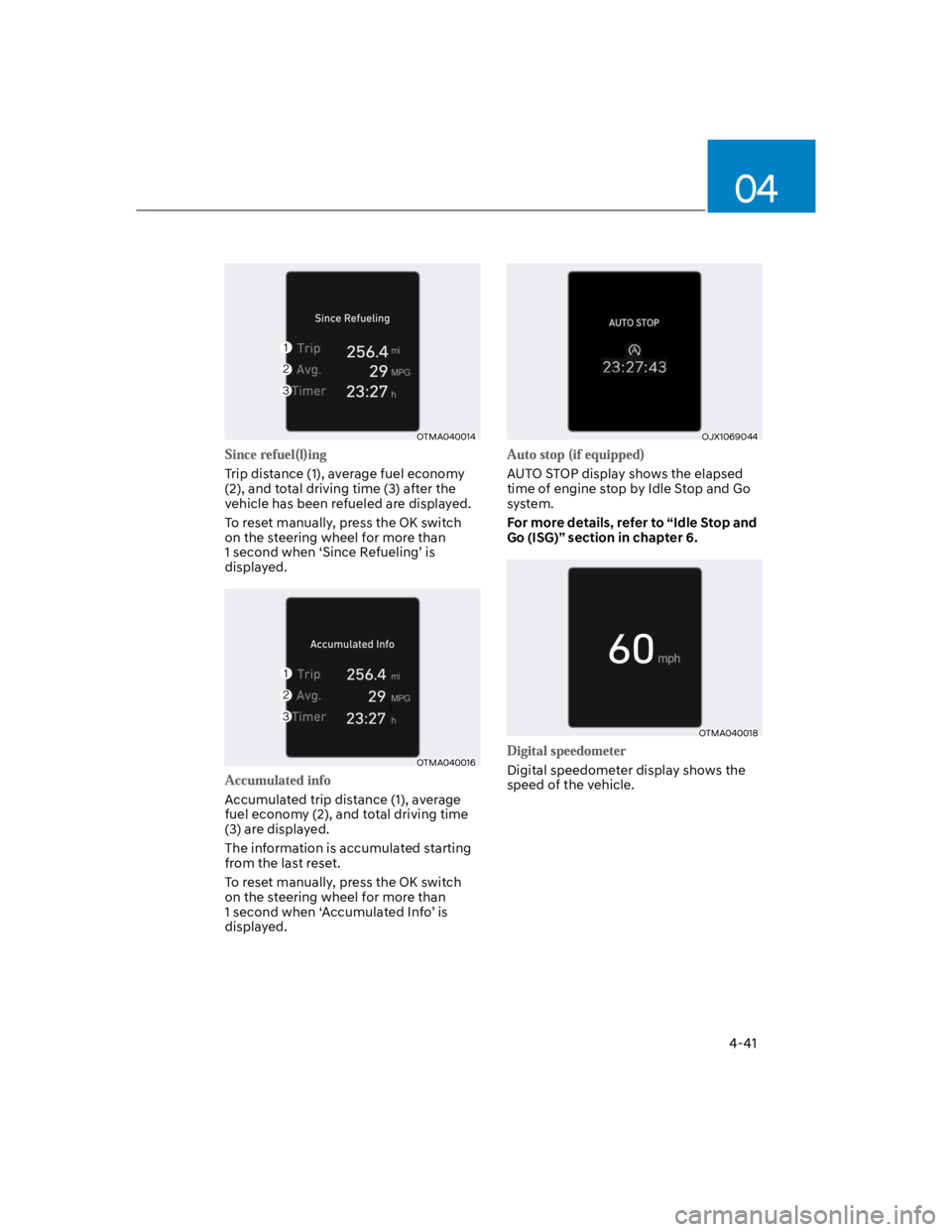
Trip distance (1), average fuel economy
(2), and total driving time (3) after the
vehicle has been refueled are displayed.
To reset manually, press the OK switch
on the steering wheel for more than
1 second when ‘Since Refueling’ is
displayed.
OTMA040016
Accumulated trip distance (1), average
fuel economy (2), and total driving time
(3) are displayed.
The information is accumulated starting
from the last reset.
To reset manually, press the OK switch
on the steering wheel for more than
1 second when ‘Accumulated Info’ is
displayed.
OJX1069044
AUTO STOP display shows the elapsed
time of engine stop by Idle Stop and Go
system.
For more details, refer to “Idle Stop and
Go (ISG)” section in chapter 6.
OTMA040018
Digital speedometer display shows the
speed of the vehicle.
Page 143 of 579
05
5-9
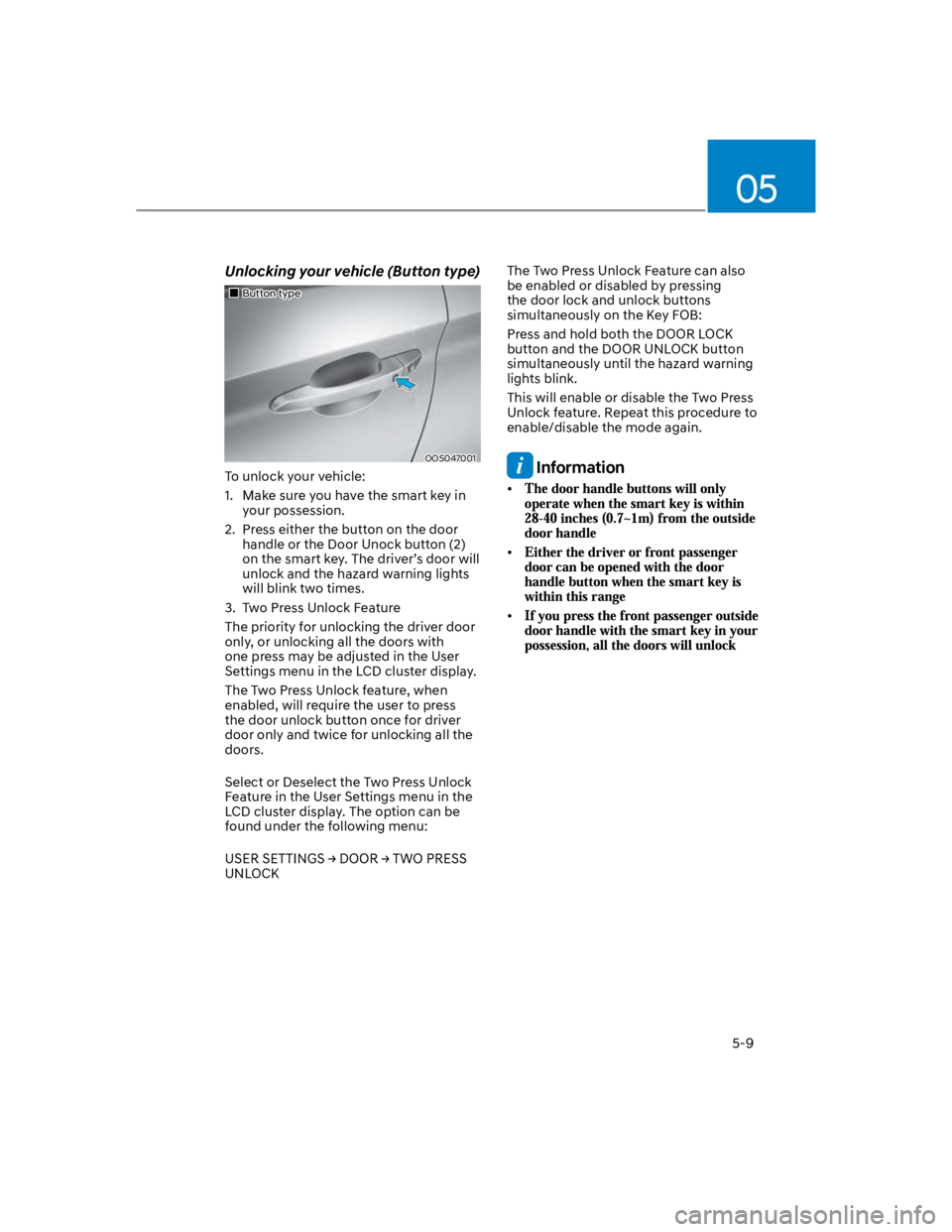
Unlocking your vehicle (Button type)
Button type
OOS047001
To unlock your vehicle:
1. Make sure you have the smart key in
your possession.
2. Press either the button on the door
handle or the Door Unock button (2)
on the smart key. The driver’s door will
unlock and the hazard warning lights
will blink two times.
3. Two Press Unlock Feature
The priority for unlocking the driver door
only, or unlocking all the doors with
one press may be adjusted in the User
Settings menu in the LCD cluster display.
The Two Press Unlock feature, when
enabled, will require the user to press
the door unlock button once for driver
door only and twice for unlocking all the
doors.
Select or Deselect the Two Press Unlock
Feature in the User Settings menu in the
LCD cluster display. The option can be
found under the following menu:
UNLOCK
The Two Press Unlock Feature can also
be enabled or disabled by pressing
the door lock and unlock buttons
simultaneously on the Key FOB:
Press and hold both the DOOR LOCK
button and the DOOR UNLOCK button
simultaneously until the hazard warning
lights blink.
This will enable or disable the Two Press
Unlock feature. Repeat this procedure to
enable/disable the mode again.
Information
Page 144 of 579
Convenient features
5-10
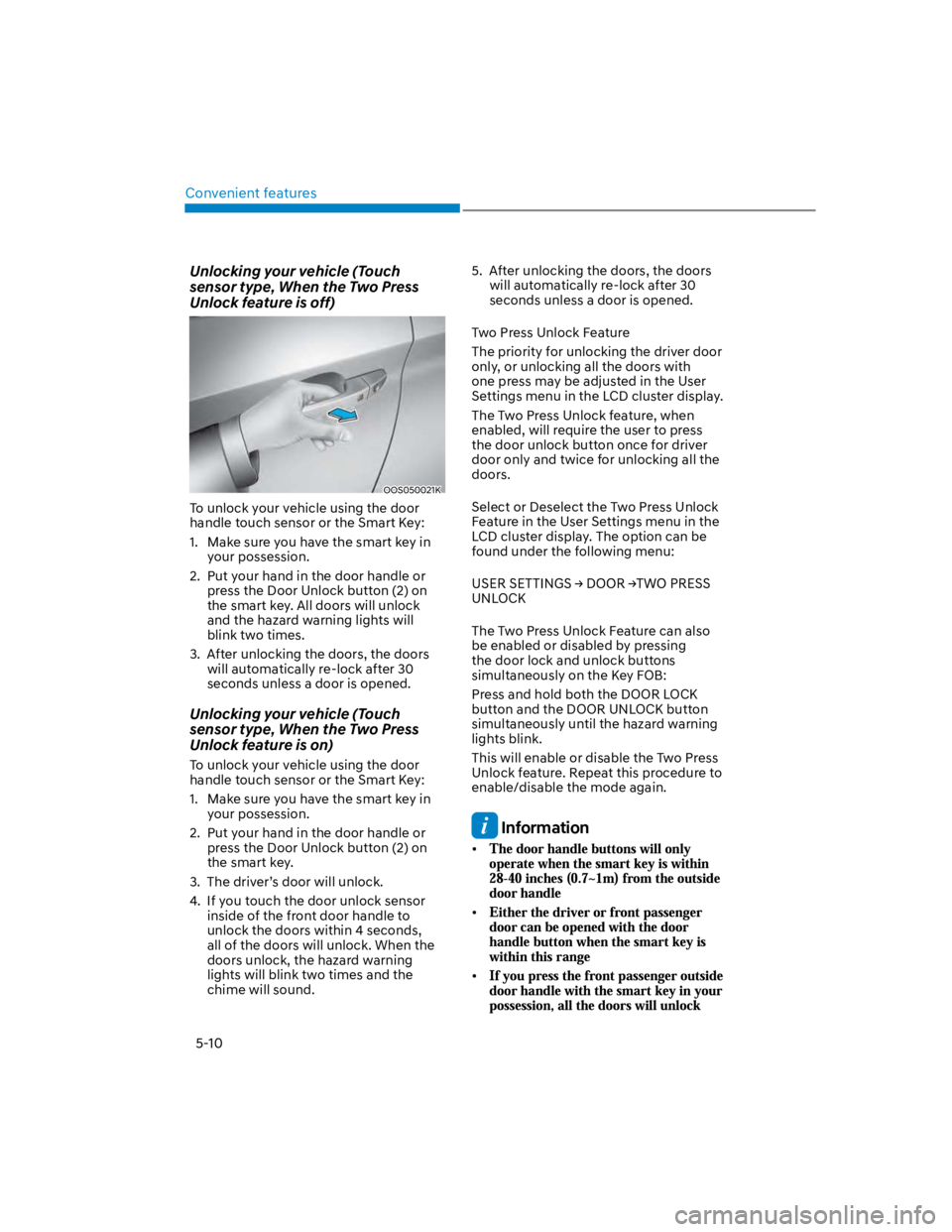
Unlocking your vehicle (Touch
sensor type, When the Two Press
Unlock feature is off)
OOS050021K
To unlock your vehicle using the door
handle touch sensor or the Smart Key:
1. Make sure you have the smart key in
your possession.
2. Put your hand in the door handle or
press the Door Unlock button (2) on
the smart key. All doors will unlock
and the hazard warning lights will
blink two times.
3. After unlocking the doors, the doors
will automatically re-lock after 30
seconds unless a door is opened.
Unlocking your vehicle (Touch
sensor type, When the Two Press
Unlock feature is on)
To unlock your vehicle using the door
handle touch sensor or the Smart Key:
1. Make sure you have the smart key in
your possession.
2. Put your hand in the door handle or
press the Door Unlock button (2) on
the smart key.
3. The driver’s door will unlock.
4. If you touch the door unlock sensor
inside of the front door handle to
unlock the doors within 4 seconds,
all of the doors will unlock. When the
doors unlock, the hazard warning
lights will blink two times and the
chime will sound.
5. After unlocking the doors, the doors
will automatically re-lock after 30
seconds unless a door is opened.
Two Press Unlock Feature
The priority for unlocking the driver door
only, or unlocking all the doors with
one press may be adjusted in the User
Settings menu in the LCD cluster display.
The Two Press Unlock feature, when
enabled, will require the user to press
the door unlock button once for driver
door only and twice for unlocking all the
doors.
Select or Deselect the Two Press Unlock
Feature in the User Settings menu in the
LCD cluster display. The option can be
found under the following menu:
UNLOCK
The Two Press Unlock Feature can also
be enabled or disabled by pressing
the door lock and unlock buttons
simultaneously on the Key FOB:
Press and hold both the DOOR LOCK
button and the DOOR UNLOCK button
simultaneously until the hazard warning
lights blink.
This will enable or disable the Two Press
Unlock feature. Repeat this procedure to
enable/disable the mode again.
Information
Page 155 of 579

05
5-21
Remote Start with Digital Key
When the shift button of your vehicle
is in P (Park) and all of the doors
including trunk and hood is locked
and the vehicle is off, press the Door
Lock button in the Hyundai Digital
Key app then press the Remote Start
button within 4 seconds.
You can confirm the engine is on if the
hazard warning lights blinks two times
and the chime sounds.
If you want to turn off the engine,
press Remote Engine Stop. Air
Conditioner / Heating system
maintains the same status as when
you last used the vehicle.
Unless you put the registered digital
key(smartphone) on the interior
authentication pad (wireless charger)
when the remote start function is on,
the engine will turn off.
If you do not get on the vehicle within
10 minutes after the engine turns on,
the vehicle will turn off.
For more information, refer to the Engine
Start/Stop button in chapter 6.
Vehicle information Display
The digital key application displays
the vehicle information such as
driving or door conditions through the
communication with the vehicle.
How to check : Select the vehicle
what you want to check and touch
the vehicle image, then vehicle
information display page will be
shown.
Contents : accumulated odometer,
latest fuel economy, driving range,
fuel remaining, tire pressure, doors
lock/unlock status and last data
updated time.
Displayed vehicle date could be
differed from the current vehicle
condition.
For more information, please refer to
the ‘Tutorial’ on your Digital key app.
If you change your smartphone or delete
the Hyundai Digital Key App, please refer
to the following to set up your Digital
Key:
Smartphone Change/ Reset
If you change or reset the smartphone,
the registered digital key in your previous
smartphone may not be used. Please
refer to following procedure to use the
digital key.
1. Install the digital key application and
log in.
2. If you are the owner, retry the Digital
key save process.
3. If you are the sharer, need to re-share
the key from owner.
App delete & reinstall/ Delete App data
You can re-download the digital key
from server in these cases as follow
procedure.
1. Reinstall the application and log in.
2. Input the PIN number for user
verification.
3. If PIN is correct, digital key data
will be re-downloaded to your
smartphone and you can use it
without any further registration or
sharing.
Smartphone operability with Digital Key
The digital key application may not
be available to old type smartphones.
Please check the available smartphone
models with your dealer. NFC antenna
position on the smartphone can be
confirmed on each smartphone’s manual
or contact to customer service center of
the smartphone manufacture.
Page 158 of 579
![HYUNDAI KONA 2022 Owners Manual Convenient features
5-24
3. Register the NFC card key on the
User’s Settings menu after turning on
the vehicle.
With Navigation screen : From the
infotainment screen menu, go to
[Setup] - [Veh](/manual-img/35/41169/w960_41169-157.png "HYUNDAI KONA 2022 Owners Manual Convenient features
5-24
3. Register the NFC card key on the
User’s Settings menu after turning on
the vehicle.
With Navigation screen : From the
infotainment screen menu, go to
[Setup] - [Veh")
Convenient features
5-24
3. Register the NFC card key on the
User’s Settings menu after turning on
the vehicle.
With Navigation screen : From the
infotainment screen menu, go to
[Setup] - [Vehicle] - [Digital Key] -
[Card Key] then select the [Save] from
submenu.
Without navigation screen : From
cluster menu, go to [Digital Key] -
[Card Key] and select [Save].
The [Save] button will be disabled if
the digital key (Card key) is already
saved.
Please refer to “Digital Key Delete” in
this manual and follow the digital key
delete procedure in your car before
Digital key save.
4. Place the NFC card key onto the
interior authentication pad (wireless
charger). The saving process will
begin automatically.
5. If the key is enrolled, the message
will be displayed on the infotainment
screen or instrument cluster.
Once the card key registration mode
is activated, the process should be
completed within 5 minutes. After
then, you should reactivate once
again for registration.
For the digital key(card key) saving,
the smart key(fob) must be exist inside
of vehicle.
Once a Card key is registered, it
cannot be reuse onto another vehicle.
You should have the smart key to delete
the digital key (card key) so please carry
around the key.
1. Get on the vehicle with the smart key.
2. Delete the NFC card key on the User’s
Settings menu after turning on the
engine.
With Navigation screen : From the
infotainment screen menu, go to
[Setup] - [Vehicle] - [Digital Key] -
[Card Key] then select the [Delete]
from submenu.
Without navigation screen : From
cluster menu, go to [Digital Key] -
[Card Key] and select [Delete].
If there is no saved digital key(card key),
[Delete] menu will not be activated.
To delete the saved digital key (card
key), the smart key must be exist
inside the vehicle.
The deleted digital key (card key) can
be re-registered before registering a
new digital key (card key).
If you try to register a new digital key
(card key), the previously registered
digital key (card key) cannot be used
again.