Page 382 of 737
380
uuBlu-ray/DVD Rear Entertainment System*uVideo Accessibility
Features
Press any of the following colored buttons on the RES remote three times to turn a
function on or off, or to change a function setting.
Red button: Accessibility
Green button: Subtitles
Yellow button: Secondary Audio
Blue button: Audio Format Switching
■Changing Function Status
22 PILOT-31TG76600.book 380 ページ 2021年6月11日 金曜日 午後4時40分
Page 383 of 737

381
uuBlu-ray/DVD Rear Entertainment System*uPlaying a DVD/Blu-rayTM
Continued
Features
Playing a DVD/Blu-rayTM
To play a DVD or Blu-rayTM, insert a DVD or Blu-rayTM into the lower slot of the front
audio system, and select Rear in the audio/information screen.
u The system automatically st arts the DVD or Blu-ray
TM. DVD or Blu-rayTM is
available for the rear seat passenger only.
■System Controls
(Power) Button
Press to turn the Blu-ray/DVD rear entertainment system
on or off.
(Home) Button
Press to display the home screen. (Light) Button
Press to illuminate the buttons for a few seconds.
/ Buttons
Press to change chapters.
(Play/Pause) Button
Press to pause or play a DVD or Blu-rayTM.
(Stop) Button
Press to stop a DVD or Blu-rayTM.
MENU Button
Press to display the menu items.
Red/Green/Yellow/Blue Button
Press to use on a DVD or Blu-ray
TM menu.
(Back) Button
Press to go back to the pr evious display or operation.
, , , and ENTER Buttons
Use , , , or to highlight a menu item, and
press the ENTER button to make a selection.34
34
22 PILOT-31TG76600.book 381 ページ 2021年6月11日 金曜日 午後4時40分
Page 384 of 737

uuBlu-ray/DVD Rear Entertainment System*uPlaying a DVD/Blu-rayTM
382
Features
1. Press the MENU button on the remote to display the menu screen.
2. Select an item and then press the ENTER button on the remote.
The following items are available:
• DVD Menu /Blu-ray Menu : Displays the top menu of the DVD or Blu-ray
TM.
• Aspect Ratio : Selects an aspect ratio of the image.
2Setting the Aspect Ratio P. 382
•Brightness: Adjusts the screen’s brightness.
• Contrast : Adjusts the screen’s contrast.
• Root Menu
*1: Displays the disc menu fo r the current playing title.
• Pop-up Menu*2: Displays the menu of the Blu-rayTM.
• Player Options : Displays while a DVD or Blu-rayTM is playing and changes the
DVD or Blu-rayTM preferences.
2 Setting the Player Options P. 383
■Setting the Aspect Ratio
1. Press the MENU button on the remote to display the menu screen.
2. Select Aspect Ratio .
3. Select the setting you want.
u You can select the three opti ons; normal, full, or zoom.
*1: Appears only when you select the DVD source.
*2: Appears only when you select the Blu-rayTM source.
■Rear DVD or Blu-rayTM Menu1Rear DVD or Blu-rayTM Menu
During DVD or Blu-ray
TM operation, when the source
is changed or the audio syst em is turned off, DVD or
Blu-ray
TM operation stops.
Depending on the disc you insert, some items may
not be displayed.
22 PILOT-31TG76600.book 382 ページ 2021年6月11日 金曜日 午後4時40分
Page 385 of 737

383
uuBlu-ray/DVD Rear Entertainment System*uPlaying a DVD/Blu-rayTM
Continued
Features
■Setting the Player Options
1. Press the MENU button on the remote to display the menu screen.
2. Select Player Options .
3. Select an item and then press the ENTER button on the remote.
The following items are available:
• Repeat:
Off : Repeat mode is off.
Title (only for DVD-V, AVCREC and B DAV): Repeats the current title.
Chapter (only for DVD-V, AVCREC and B DAV): Repeats the current chapter.
Program (only for DVD-VR): Repeats the current program if the disc has the
correspondence list.
Playlist (only for DVD-VR): Repeats the cu rrent playlist if the disc has the
correspondence list.
Entry Point (only for DVD-VR): Repeats the curr ent entry point if the disc has the
correspondence list.
• Subtitles and Audio : Selects the language of the DVD subtitle and audio.
• Angle : Selects the angle of the scen e shot with multiple cameras.
• Search : Skips to a title or chapter.
2Searching a title/chapter/program/playlist P. 384
•Change Order (only for DVD-VR, AVCREC and BDAV): Changes the order of
the program or playlist.
• Default Language : Selects the language for the menus, audio, and subtitle of
the DVD or Blu-ray
TM.
• Sound Leveling : Adjusts the range of the loud and soft sound. Select Auto, On
or Off .
• Secondary Audio (only for BDMV): Turns on and o ff the function that plays the
available commentary or narrator audi o along with the main disc track.
• Onscreen Remote : Displays the on-screen buttons for the remote.
22 PILOT-31TG76600.book 383 ページ 2021年6月11日 金曜日 午後4時40分
Page 389 of 737
387
uuBlu-ray/DVD Rear Entertainment System*uFront Control Panel Operation
Continued
Features
Front Control Panel Operation
You can operate the Blu-ray/DVD Rear En tertainment System (RES) from the audio/
information screen.
1.Select .
2. Select Rear Entertainment .
3. Select Rear if the power is off.
u If you select this ic on while the system is
operating, the system is turned off.
4. Select Rear Apps .
5. Select the app you want to use.
The following items are available on the audio/information screen:
• Rear : Turns the system on or off.
• Now Playing : Displays the current playing app.
• Rear Apps : Displays the home screen.
• CabinTalk : Displays the CabinTalk screen.
2CabinTalkTM * P. 502
•Remote: Disables controls from the remote.
• Settings : Changes the system settings.
2Rear System Setup P. 388
■Selecting the App using Front Control Panel
* Not available on all models
22 PILOT-31TG76600.book 387 ページ 2021年6月11日 金曜日 午後4時40分
Page 391 of 737
389
uuBlu-ray/DVD Rear Entertainment System*uFront Control Panel Operation
Features
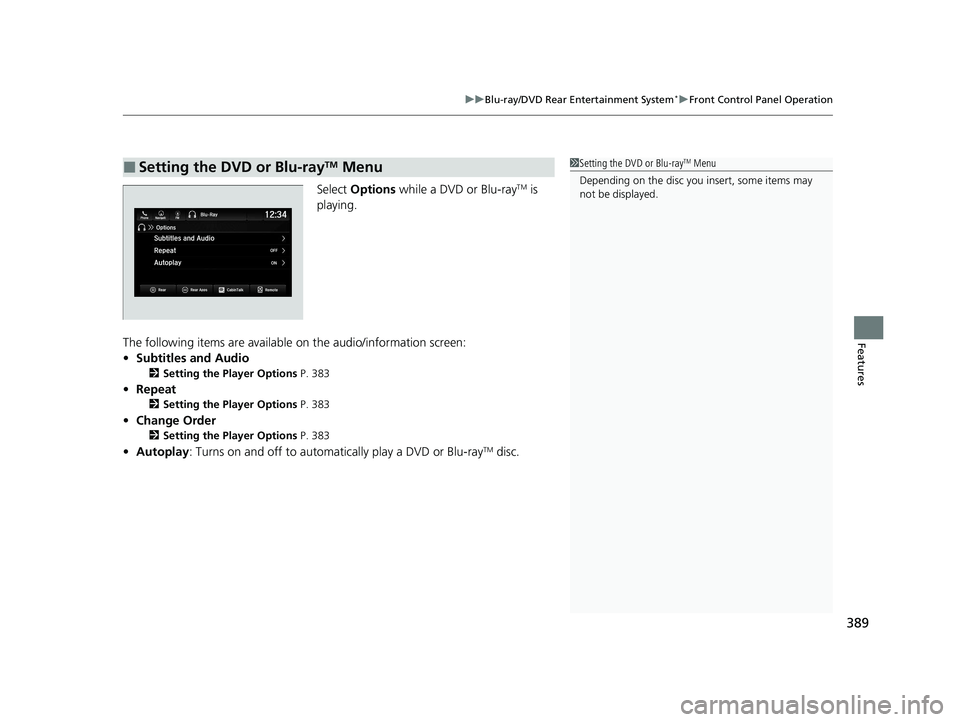
Select Options while a DVD or Blu-rayTM is
playing.
The following items are available on the audio/information screen:
• Subtitles and Audio
2 Setting the Player Options P. 383
•Repeat
2 Setting the Player Options P. 383
•Change Order
2 Setting the Player Options P. 383
•Autoplay: Turns on and off to automati cally play a DVD or Blu-rayTM disc.
■Setting the DVD or Blu-rayTM Menu1Setting the DVD or Blu-rayTM Menu
Depending on the disc you insert, some items may
not be displayed.
22 PILOT-31TG76600.book 389 ページ 2021年6月11日 金曜日 午後4時40分
Page 393 of 737
391
uuBlu-ray/DVD Rear Entertainment System*uPlaying Apps
Continued
Features
■System Controls
(Power) Button
Press to turn the Blu-ray/DVD rear entertainment system
on or off.
(Home) Button
Press to display the home screen. (Light) Button
Press to illuminate the buttons for a few seconds.
/ Buttons
Press to change videos or audio files.
(Play/Pause) Button
Press to pause or play a video or audio file. (Stop) Button
Press to stop a video or audio file.
MENU Button
Press to display the menu items.
(Back) Button
Press to go back to the pr evious display or operation.
, , , and ENTER Buttons
Use , , , or to highlight a menu item, and
press the ENTER button to make a selection.34
34
22 PILOT-31TG76600.book 391 ページ 2021年6月11日 金曜日 午後4時40分
Page 422 of 737

420
uuBlu-ray/DVD Rear Entertainment System*uDVD or Blu-rayTM Player Error Messages
Features
DVD or Blu-rayTM Player Error Messages
If a disc error occurs, you may see the following error messages.
Error Message in Audio/
Information ScreenError Message in Overhead ScreenCauseSolution
Problem ejecting disc from the
player. Contact Honda dealer to
fix this problem.Problem ejecting disc from the
player.
Contact Honda dealer to fix this
problem.
Disc stuck in player•Contact a dealer and the
player needs to be replaced.
There is a problem with the
player. Eject and re-insert the
disc. If this does not work, try
another disc. If the error
continues, contact Honda
dealer.
There seems to be a problems
playing this disc. Try inserting
the disc into th e Blu-ray player
again.
Focus error
Unsupported disc error
Mechanical error
Servo error
DRM file access
Error file access
Device error• Press the button and
remove the disc, and check
that the error message is
cleared.
• Check that the disc is not
damaged or deformed, and
insert the disc again.
2 Protecting CDs P. 351
The system has overheated. Try
to reduce the temperature by
tuning the audio system off
and allowing the player to cool
down.The Blu-ray player is too hot
right now.
Give it some time to cool off
and try again later.
High temperature
•Turn the audio system off and
allow the player to cool down
until the error message is
cleared.
Playback stopped. The content
being played is protected by
Cinavia and is not authorized
for playback on this device.
Playback stopped. The content
being played is protected by
Cinavia
TM and is not authorized
for playback on this device.
For more information, see
http://www.cin avia.com.
Message Code 1.
Cinavia 1 error
• Current track/file will be
skipped. The next supported
track/file plays automatically.
22 PILOT-31TG76600.book 420 ページ 2021年6月11日 金曜日 午後4時40分