Page 244 of 737
uuAudio System uAuxiliary Input Jack
242
Features
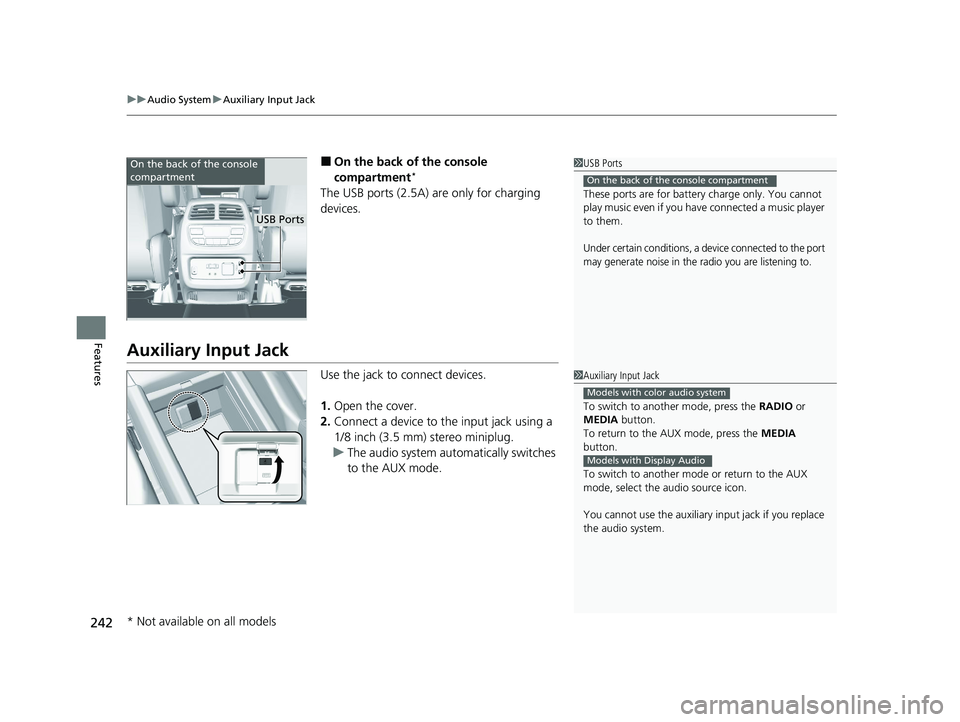
■On the back of the console
compartment*
The USB ports (2.5A) are only for charging
devices.
Auxiliary Input Jack
Use the jack to connect devices.
1. Open the cover.
2. Connect a device to the input jack using a
1/8 inch (3.5 mm) stereo miniplug.
u The audio system automatically switches
to the AUX mode.
1USB Ports
These ports are for battery charge only. You cannot
play music even if you have connected a music player
to them.
Under certain conditions, a device connected to the port
may generate noise in the radio you are listening to.
On the back of the console compartment
On the back of the console
compartment
USB Ports
1 Auxiliary Input Jack
To switch to another mode, press the RADIO or
MEDIA button.
To return to the AUX mode, press the MEDIA
button.
To switch to another mode or return to the AUX
mode, select the audio source icon.
You cannot use the auxiliary input jack if you replace
the audio system.
Models with color audio system
Models with Display Audio
* Not available on all models
22 PILOT-31TG76600.book 242 ページ 2021年6月11日 金曜日 午後4時40分
Page 246 of 737

244
uuAudio System uAudio Remote Controls
Features
Audio Remote Controls
Allow you to operate the audio system while driving.
SOURCE Button
Cycles through the audio modes as follows:
FM1FM2 AM USB/iPod Bluetooth®
Audio AUX
(+/(- (Volume) Bar
Press
(+: To increase the volume.
Press
(-: To decrease the volume.
/ Buttons
• When listening to the radio
Press : To select the next preset radio station.
Press : To select the previous preset radio station.
Press and hold : To select the next strong station.
Press and hold : To select the previous strong station.
• When listening to an iPod, USB flash drive, or Bluetooth ® Audio
Press : To skip to the next song.
Press : To go back to the beginning of the current or previous song.
• When listening to a USB flash drive, or Bluetooth® Audio
Press and hold : To skip to the next folder.
Press and hold : To go back to the previous folder.
1Audio Remote Controls
Some modes appear only when an appropriate
device or medium is used.
Depending on the Bluetooth® device you connect,
some functions may not be available.Models with color audio system
/
Buttons
SOURCE Button
(+/(-
Bar
22 PILOT-31TG76600.book 244 ページ 2021年6月11日 金曜日 午後4時40分
Page 248 of 737
246
uuAudio System uAudio Remote Controls
Features
/ / / /ENTER Buttons
• When selecting the audio mode
Press or to select Now Playing on the home screen of the driver
information interface, and then press the ENTER button.
Press or : To cycles through the audio modes as follows:
Android Auto/Apple CarPlay SiriusXM ®
*Rear Entertainment*AUX
Input AM Bluetooth ® AudioSocial Playlist FM My Honda Music USB/
iPod CD
*
• When listening to the radio
Press : To select the next preset radio station.
Press : To select the previous preset radio station.
• When listening to a CD
*, iPod, USB flash drive, My Honda Music, or Bluetooth®
Audio
Press : To skip to the next song.
Press : To go back to the beginning of the current or previous song.
34
34
34
* Not available on all models
22 PILOT-31TG76600.book 246 ページ 2021年6月11日 金曜日 午後4時40分
Page 256 of 737
254
uuAudio System Basic Operation uPlaying AM/FM Radio
Features
Playing AM/FM Radio
RADIO Button
Press to select a band.
(Back) Button
Press to go back to the previous
display or cancel a setting.
/ (Seek/Skip) Buttons
Press or to search up and
down the selected band for a station
with a strong signal.
VOL/ (Volume/Power) Knob
Press to turn the audio system
on and off.
Turn to adjust the volume.
Preset Buttons (1-6)
To store a station:
1. Tune to the selected station.
2. Pick a preset button and hold it until you hear a beep.
To listen to a stored station, select a band, then press the preset button. Selector Knob
Turn to tune the radio frequency.
Press, and then turn to select an
item. After that, press again to
make your selection.
MENU/CLOCK Button
Press to display the menu items. Audio/Information Screen
22 PILOT-31TG76600.book 254 ページ 2021年6月11日 金曜日 午後4時40分
Page 257 of 737

255
uuAudio System Basic Operation uPlaying AM/FM Radio
Features
Provides text data information related to your selected RDS capable FM station.
■To find an RDS station from Station List
1. Press while listening to an FM station.
2. Rotate to select the station, then press .
■Update List
Updates your available st ation list at any time.
1. Press while listening to an FM station.
2. Rotate to select Update List, then press .
■Radio text
Displays the radio text information of the selected RDS station.
1. Press the MENU/CLOCK button.
2. Rotate to select Settings, then press .
3. Rotate to select RDS Settings, then press .
4. Rotate to select Radio Text, then press .
■Scan
Samples each of the strongest stations on the selected band for 10 seconds.
1. Press the MENU/CLOCK button.
2. Rotate to select Scan, then press .
To turn off scan, press .
■Radio Data System (RDS)1 Playing AM/FM Radio
The ST indicator appears on the display indicating
stereo FM broadcasts.
Stereo reproduction in AM is not available.
You can store 6 AM stations and 12 FM stations into
reset button memory. FM1 and FM2 let you store 6
stations each.
Switching the Audio Mode
Press the SOURCE button on the steering wheel.
2 Audio Remote Controls P. 244
1Radio Data System (RDS)
When you select an RDS-capable FM station, the RDS
automatically turns on, and the frequency display
changes to the station name. However, when the
signals of that station become weak, the display
changes from the statio n name to the frequency.
22 PILOT-31TG76600.book 255 ページ 2021年6月11日 金曜日 午後4時40分
Page 300 of 737
298
uuAudio System Basic Operation uPlaying AM/FM Radio
Features
Playing AM/FM Radio
(Back) Icon
Select to go back to the previous
display.
Seek Icons
Select or to search up and down
the selected band for a station with a
strong signal.
VOL/ AUDIO (Volume/Power)
Knob
Push to turn the audio system on
and off.
Turn to adjust the volume.
Tune Icon
Select to use the on-screen keyboard for
entering the radio frequency directly. Audio/Information Screen
Scan Icon
Select to scan each station with a strong
signal.
Preset Icons
Tune the radio frequency for preset memory.
Select and hold the preset icon to store that
station. Select to display preset 5 onwards.
>
Settings Icon
Select whether to tune to
HD Radio
TM * automatically.
* Not available on all models
22 PILOT-31TG76600.book 298 ページ 2021年6月11日 金曜日 午後4時40分
Page 301 of 737

Continued299
uuAudio System Basic Operation uPlaying AM/FM Radio
Features
To store a station:
1. Tune to the selected station.
2. Select and hold the preset number for the station you want to store.
Lists the strongest stations on the selected band.
1. Select Station List to display a list.
2. Select the station.
■Manual update
Updates your available st ation list at any time.
1. Select Station List to display a list.
2. Select Refresh .
■Preset Memory
■Station List
1Preset Memory
The ST indicator appears on the display indicating
stereo FM broadcasts.
Stereo reproduction in AM is not available.
Switching the Audio Mode
Press the or button on the steering wheel or
select the audio source icon on the screen. 2 Audio Remote Controls P. 244
You can store 12 AM/FM st ations into preset
memory.
HD Radio Technology manufactured under license
from iBiquity Digi tal Corporation. U.S. and Foreign
Patents. HD Radio
TM and the HD, HD Radio, and
“Arc” logos are proprietary trademarks of iBiquity
Digital Corp.
34
Models with HD RadioTM feature
22 PILOT-31TG76600.book 299 ページ 2021年6月11日 金曜日 午後4時40分
Page 302 of 737
uuAudio System Basic Operation uPlaying AM/FM Radio
300
Features
Samples each of the strongest stations on th e selected band for 10 seconds. To turn
off scan, select Stop or .
Provides text data information related to your selected RDS-capable FM station.
■To find an RDS station from Station List
1. Select Station List to display a list while listening to an FM station.
2. Select the station.
■Manual update
Updates your available station list at any time.
1. Select Station List to display a list while listening to an FM station.
2. Select Refresh .
■Scan
■Radio Data System (RDS)1Radio Data System (RDS)
When you select an RDS-capable FM station, the RDS
automatically turns on, and the frequency display
changes to the station name. However, when the
signals of that station become weak, the display
changes from the statio n name to the frequency.
22 PILOT-31TG76600.book 300 ページ 2021年6月11日 金曜日 午後4時40分


