Page 246 of 692
244
Features
Audio System
About Your Audio System
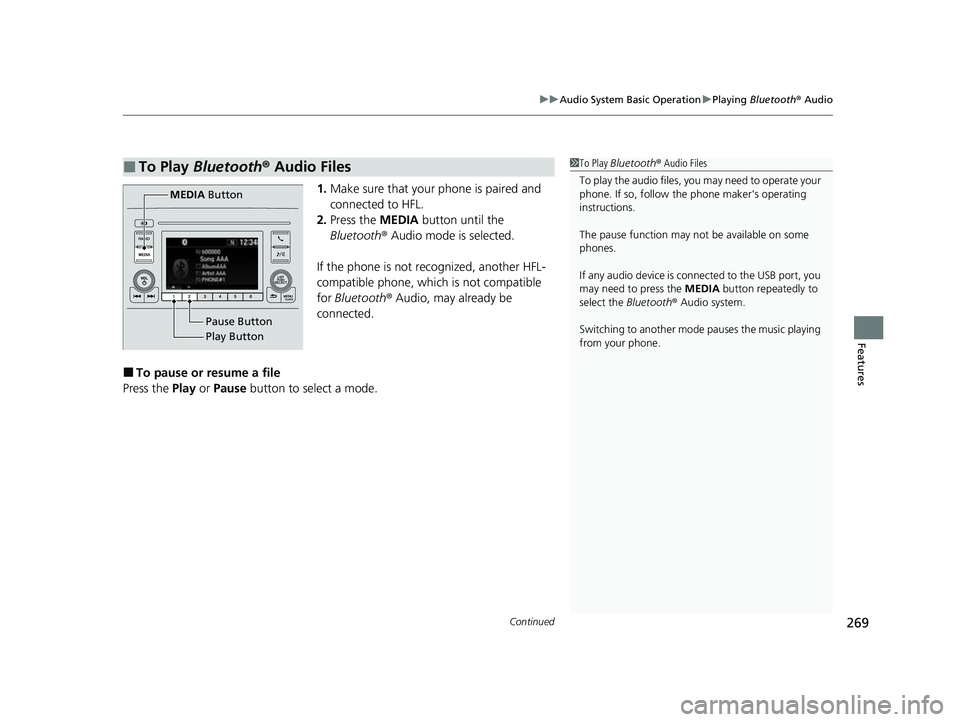
The audio system features AM/FM radio and SiriusXM® Radio service*. It can also
play USB flash drives, iPod, iPhone and Bluetooth® devices.
You can operate the audio system from the buttons and switches on the panel, the
remote controls on the steering wheel, or the icons on the touchscreen interface
*.
1 About Your Audio System
SiriusXM ® Radio
* is available on a subscription basis
only. For more information on SiriusXM ® Radio*,
contact a dealer. 2 General Information on the Audio System
P. 345
SiriusXM ® Radio
* is available in the United States and
Canada, except Ha waii, Alaska, and Puerto Rico.
SiriusXM ®
* is a registered tra demark of SiriusXM
Radio, Inc.
iPod ®, iPhone ® and iTunes ® are trademarks of Apple
Inc.
State or local laws may pr ohibit the operation of
handheld electronic devices while operating a
vehicle.
Remote Controls
iPod
USB Flash Drive
* Not available on all models
22 CR-V HEV ELP-31TPG6200.book 244 ページ 2021年6月30日 水曜日 午前11時6分
Page 247 of 692

245
uuAudio System uUSB Port(s)
Continued
Features
USB Port(s)
Install the USB connector or the USB flash drive to the USB port.
■On the front of the center console
The USB port (1.0A) is for playing audio files
on a USB flash drive, connecting a cellular
phone, and charging devices.
The USB port (1.5A) is for charging devices,
playing audio files and connecting compatible
phones with Apple CarPlay
TM or Android
AutoTM.
u To prevent any potenti al issues, be sure
to use an Apple MFi Certified Lightning
Connector for Apple CarPlay
TM, and for
Android AutoTM, the USB cables should
be certified by USB-IF to be compliant
with USB 2.0 Standard.
*1: Models with color audio system
*2: Models with Display Audio
1 USB Port(s)
•Do not leave the iPod or USB flash drive in the
vehicle. Direct sunlight and high temperatures may
damage it.
•We recommend that you us e a USB cable if you are
attaching a USB flash drive to the USB port.
•Do not connect the iPod or USB flash drive using a
hub.
•Do not use a device such as a card reader or hard
disk drive, as the device or your files may be
damaged.
•We recommend backing up yo ur data before using
the device in your vehicle.
•Displayed messages may vary depending on the
device model and software version.
If the audio system does not recognize the iPod, try
reconnecting it a few times or reboot the device. To
reboot, follow the manufac turer’s instructions
provided with the iPod or visit www.apple.com/ipod.
The USB port can supply up to 1.5A/2.5A of power. It
does not output 1.5A/2.5A unless the device
requests.
For amperage details, read the operating manual of
the device that ne eds to be charged.
Under certain condi tions, a device connected to the
port may generate noise to the radio station you are
listening to.
On the front of the center console
*1
*2
USB Port (1.0A)
USB Port (1.5A)*
* Not available on all models
22 CR-V HEV ELP-31TPG6200.book 245 ページ 2021年6月30日 水曜日 午前11時6分
Page 265 of 692

263
uuAudio System Basic Operation uPlaying Pandora ®
Continued
Features
Playing Pandora ®
Your audio system allows you to listen to music from the Pandora ® app on a
compatible smartphone.
This function is available when the phone is paired and connected to the vehicle’s
Bluetooth ® HandsFreeLink ® (HFL) system, or with an iPhone, you can connect using
your USB cable to the USB port.
2 Phone Setup P. 404
2 USB Port(s) P. 245
1Playing Pandora ®
Pandora ®, the Pandora logo, and the Pandora trade
dress are trademarks or registered trademarks of
Pandora Media, Inc., used with permission. Pandora
is only available in certai n countries. Visit the Pandora
website for more information.
To find out if your phone is compatible with this
feature, visit automobiles.honda.com/handsfreelink/ ,
or call 1-888-528-7876.
To use this service in your vehicle, the Pandora ® app
must first be installed on your phone. Visit
www.pandora.com . for more information.
Pandora ® is free, personalized radio that plays music
and comedy you’ll love. Just start with the name of
one of your favorite arti sts, tracks, comedians or
composers and Pandora ® will create a custom station
that plays similar tracks. Pandora ® also features
hundreds of genre stations ranging from Dubstep to
Smooth Jazz to Power Workout.
If you cannot operate Pandora ® through the audio
system, it may be streaming through Bluetooth®
Audio. Make sure Pandora ® mode on your audio
system is selected.
Audio/Information Screen Selector Knob
Turn to change a
station.
Press, and then turn to
select an item. After
that, press again to
make your selection.
VOL/ (Volume/Power)
Kn
ob
Pres
s to turn the audio
system on and off.
Turn to adjust the
volume.
(Back) Button
Press to go back to the previous
display or cancel a setting.
MEDIA Button
Press to select Pandora ®.
Play/Pause Button
Select to resume or play a track.
(Skip) Button
Press to skip a track.
Like/Dislike Buttons
Select to evaluate a track.
MENU/CLOCK Button
Press to display the menu
items.
Bookmark Button
Select to set a track as a bookmark.
22 CR-V HEV ELP-31TPG6200.book 263 ページ 2021年6月30日 水曜日 午前11時6分
Page 270 of 692
268
uuAudio System Basic Operation uPlaying Bluetooth ® Audio
Features
Playing Bluetooth ® Audio
Your audio system allows you to listen to music from your Bluetooth-compatible
phone.
This function is available when the phone is paired and connected to the vehicle’s
Bluetooth ® HandsFreeLink ® (HFL) system.
2 Phone Setup P. 404
1Playing Bluetooth ® Audio
Not all Bluetooth -enabled phones with streaming
audio capabilities are compatible with the system.
For a list of compatible phones, visit
automobiles.honda.com /handsfreelink/,
or call 1-888-528-7876.
In some states, it may be il legal to perform some data
device functions while driving.
Only one phone can be used with HFL at a time.
When there are more than two paired phones in the
vehicle, the system automatically connects to the
prioritized phone. You can a ssign priority to a phone
in the Priority Device Setup .
2 Customized Features P. 362
If more than one phone is paired to the HFL system,
there will be a delay before the system begins to play.
In some cases, the name of the artist, album, or track
may not appear correctly.
Some functions may not be available on some
devices.
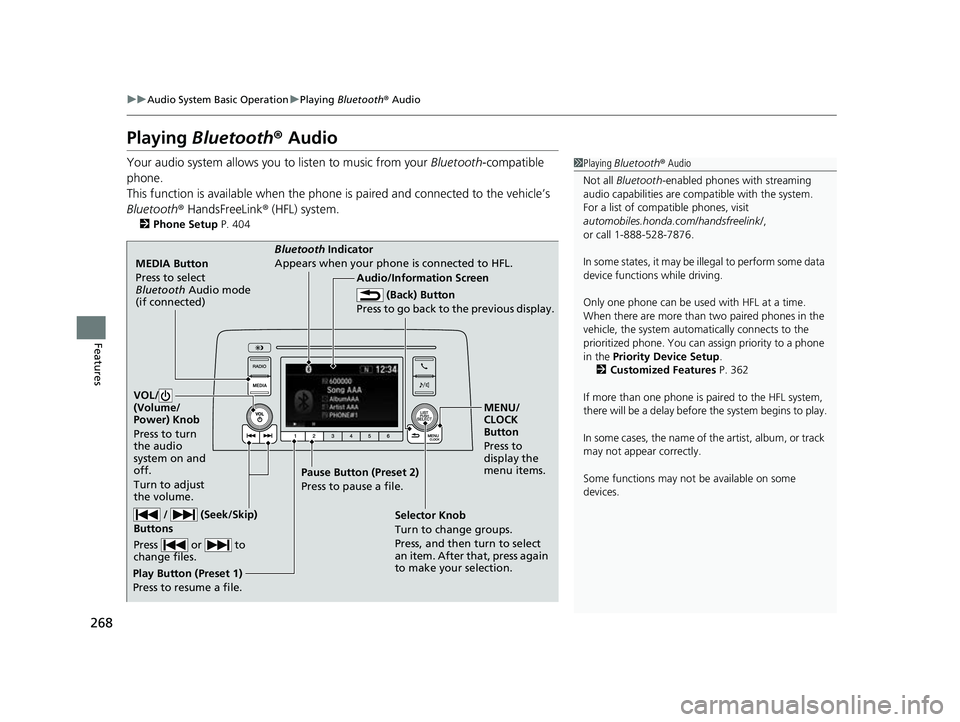
MEDIA Button
Press to select
Bluetooth Audio mode
(if connected)
VOL/
(Volume/
Power) Knob
Press to turn
the audio
system on and
off.
Turn to adjust
the volume.
MENU/
CLOCK
Button
Press to
display the
menu items.
Audio/Information Screen
Bluetooth Ind
icator
Appe ars
when your phone is connected to HFL.
/ (Seek/Skip)
Buttons
Press or to
change files.
Play Button (Preset 1)
Press to resume a file. Pause Button (Preset 2)
Press to pause a file.
Selector Knob
Turn to change groups.
Press, and then turn to select
an item. After that, press again
to make your selection.
(Back) Button
Press to go back to the previous display.
22 CR-V HEV ELP-31TPG6200.book 268 ページ 2021年6月30日 水曜日 午前11時6分
Page 271 of 692
Continued269
uuAudio System Basic Operation uPlaying Bluetooth ® Audio
Features
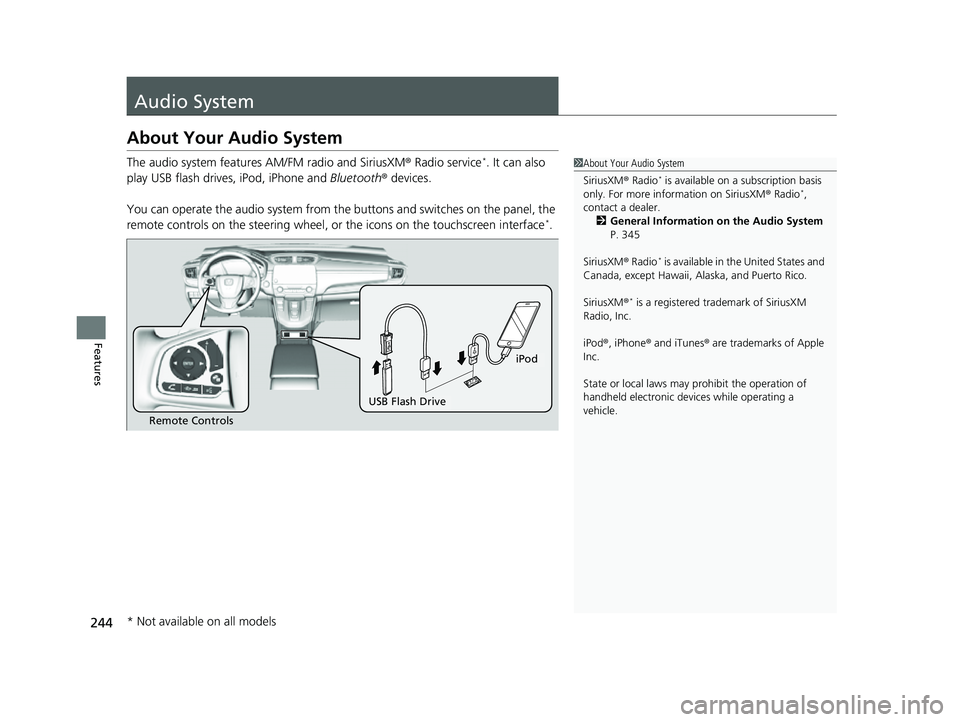
1. Make sure that your phone is paired and
connected to HFL.
2. Press the MEDIA button until the
Bluetooth ® Audio mode is selected.
If the phone is not recognized, another HFL-
compatible phone, which is not compatible
for Bluetooth ® Audio, may already be
connected.
■To pause or resume a file
Press the Play or Pause button to select a mode.
■To Play Bluetooth® Audio Files1To Play Bluetooth ® Audio Files
To play the audio files, y ou may need to operate your
phone. If so, follow the phone maker's operating
instructions.
The pause function may no t be available on some
phones.
If any audio device is connected to the USB port, you
may need to press the MEDIA button repeatedly to
select the Bluetooth® Audio system.
Switching to another mode pauses the music playing
from your phone.
Play Button Pause Button
MEDIA
Button
22 CR-V HEV ELP-31TPG6200.book 269 ページ 2021年6月30日 水曜日 午前11時6分
Page 273 of 692
271
uuAudio System Basic Operation uSiri ® Eyes Free
Features
Siri® Eyes Free
You can talk to Siri using the (Talk) button on the steering wheel when your
iPhone is paired to the Bluetooth® HandsFreeLink ® (HFL) system.
2Phone Setup P. 404
■Using Siri® Eyes Free
1Siri ® Eyes Free
Siri is a trademark of Apple Inc.
Check Apple Inc. website for features available for
Siri.
We recommend against using Siri other than in Siri ®
Eyes Free while operating a vehicle.
1 Using Siri ® Eyes Free
Some commands work only on specific phone
features or apps.
This audio system cannot operate the audio functions
by using Siri ® Eyes Free.
(Talk) Button
Press and hold until the display changes as shown.
(Hang-up/back) Button
Press to deactivate Siri ® Eyes Free.
While in Siri ® Eyes Free:
The display remains the same.
No feedback or commands
appear. Appears
when Siri is
activated in
Siri
® Eyes
Free
22 CR-V HEV ELP-31TPG6200.book 271 ページ 2021年6月30日 水曜日 午前11時6分
Page 274 of 692

272
Features
Audio System Basic Operation
To use the audio system function, the power mode must be in ACCESSORY or ON.
(Home): Select to go to the home screen.
2 Switching the Display P. 273
(Map)*: Select to display the map screen.
2Refer to the Navigation System Manual
(Audio): Select to disp lay the audio screen.
(Phone): Select to display the phone
screen.
(Back): Select to go back to the previous
screen when the icon is illuminated.
(Day/Night): Select to change the audio/
information screen brightness.
Select once and select
(- or (+ to make
an adjustment. u Each time you select , the mode
switches among the daytime mode,
nighttime mode and off mode.
1Audio System Basic Operation
Audio Menu Items
2 Station List P. 302, 304
2 Music Search List P. 313, 322
2 Scan P. 303, 311, 323
2 Play Mode P. 314, 323Models with Display Audio
(Map) Icon*
(Phone) Icon
(Back) Icon
(Day/Night) Icon
(Home) Icon
(Audio) Icon
* Not available on all models
22 CR-V HEV ELP-31TPG6200.book 272 ページ 2021年6月30日 水曜日 午前11時6分
Page 276 of 692
uuAudio System Basic Operation uAudio/Information Screen
274
Features
■Using the audio/information screen
Select to go to the home screen.
Select the following ic ons on the home screen.
■Phone
Displays the HFL information.
2 Bluetooth ® HandsFreeLink ® P. 422
1 Using the audio/in formation screen
Touchscreen operation
•Use simple gestures - in cluding touching, swiping
and scrolling - to operate certain audio functions.
•Some items may be grayed out during driving to
reduce the potential for distraction.
•You can select them when the vehicle is stopped or
use voice commands.
•Wearing gloves may limit or prevent touchscreen
response.
You can change the touchs creen sensitivity setting.
2 Customized Features P. 369
Home Screen
22 CR-V HEV ELP-31TPG6200.book 274 ページ 2021年6月30日 水曜日 午前11時6分