Page 229 of 692
Continued227
uuInterior Convenience Items uStorage Items
Controls
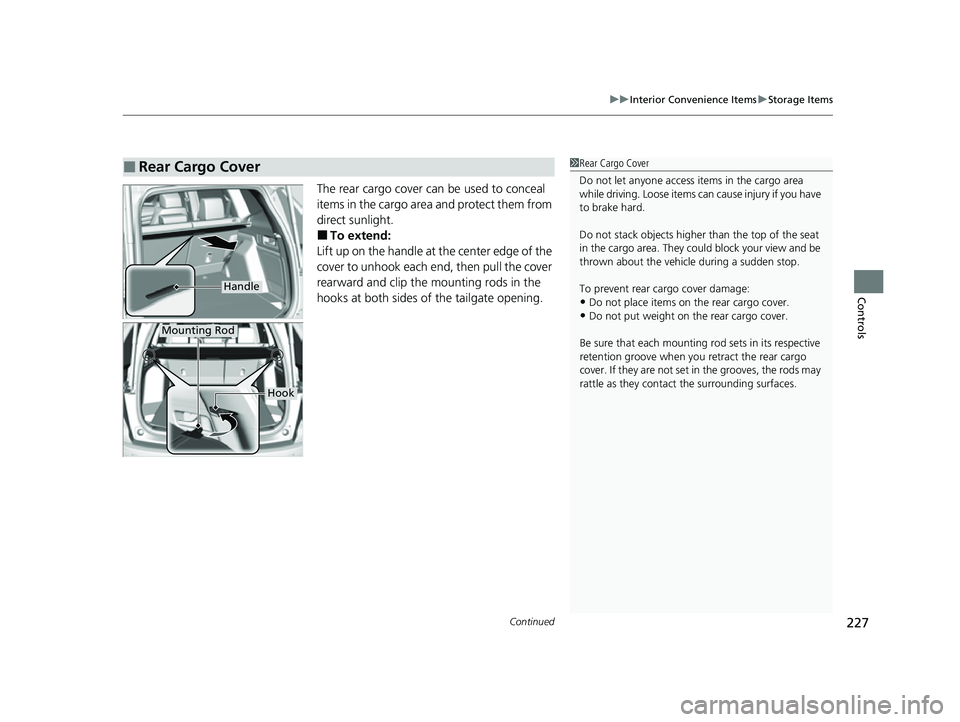
The rear cargo cover can be used to conceal
items in the cargo area and protect them from
direct sunlight.
■To extend:
Lift up on the handle at the center edge of the
cover to unhook each en d, then pull the cover
rearward and clip the mounting rods in the
hooks at both sides of the tailgate opening.
■Rear Cargo Cover1 Rear Cargo Cover
Do not let anyone access items in the cargo area
while driving. Loose items can cause injury if you have
to brake hard.
Do not stack objects higher than the top of the seat
in the cargo area. They could block your view and be
thrown about the vehicle during a sudden stop.
To prevent rear cargo cover damage:
•Do not place items on the rear cargo cover.•Do not put weight on the rear cargo cover.
Be sure that each mounting rod sets in its respective
retention groove when you retract the rear cargo
cover. If they are not set in the grooves, the rods may
rattle as they contac t the surrounding surfaces.
Handle
Mounting Rod
Hook
22 CR-V HEV ELP-31TPG6200.book 227 ページ 2021年6月30日 水曜日 午前11時6分
Page 253 of 692

251
Features
Audio System Basic Operation
To use the audio system, the power mode must be in ACCESSORY or ON.Use the selector knob or MENU/CLOCK
button to access some audio functions.
Press to switch between the normal and
extended display fo r some functions.
Selector knob: Rotate left or right to scroll
through the available choices. Press to set
your selection.
MENU/CLOCK button: Press to select any
mode.
The available modes include wallpaper,
display, clock, language setup, and play
modes. Play mode choices include scan,
random, repeat, and so on.
(Back) button: Press to go back to the previous display.
(Sound) button: Press to select the sound setting mode.
(Day/Night) button: Press to change the audio/information screen
brightness.
Press the button, then adjust the brightness using . u Each time you press the button, the mode switches between the daytime
mode, nighttime mode and off mode.
Models with color audio system1 Audio System Basic Operation
These indications are used to show how to operate
the selector knob.
Rotate to select.
Press to enter.
Menu Items 2 Adjust Clock P. 150
2 Wallpaper Setup P. 254
2 Display Setup P. 257
2 Customized Features P. 362
Press the buttons on the steering wheel to change
any audio setting. 2 Audio Remote Controls P. 248
(Back)
Button
Selector Knob MENU/
CLOCK
Button
(Day/Night) Button
(Sound) Button
Menu
Display
22 CR-V HEV ELP-31TPG6200.book 251 ページ 2021年6月30日 水曜日 午前11時6分
Page 254 of 692
252
uuAudio System Basic Operation uAudio/Information Screen
Features
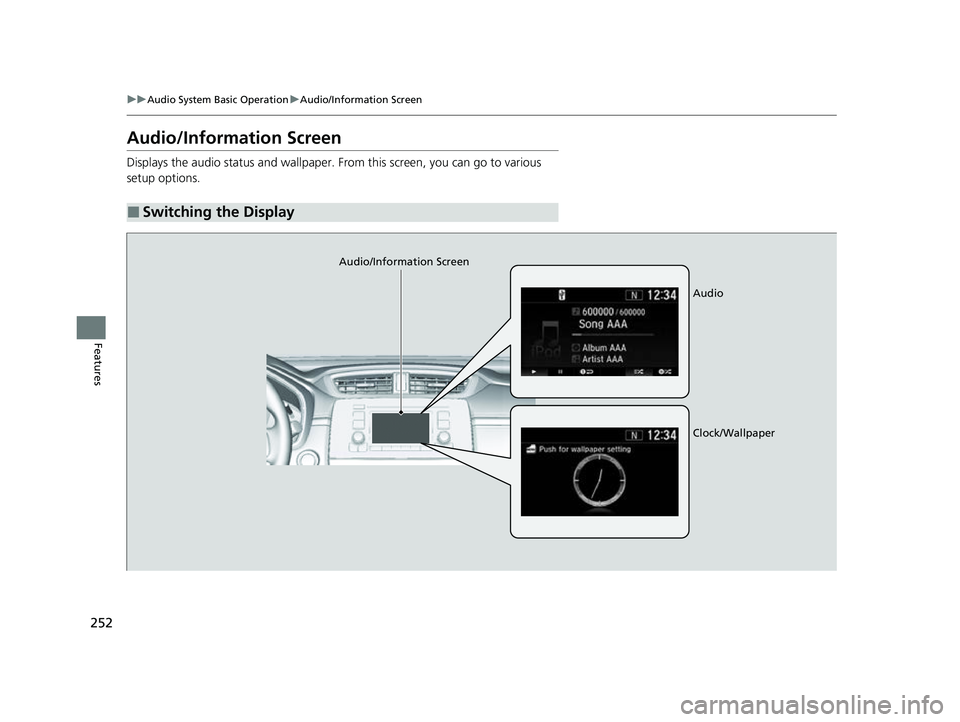
Audio/Information Screen
Displays the audio status and wallpaper. From this screen, you can go to various
setup options.
■Switching the Display
Audio/Information Screen
Audio
Clock/Wallpaper
22 CR-V HEV ELP-31TPG6200.book 252 ページ 2021年6月30日 水曜日 午前11時6分
Page 255 of 692
253
uuAudio System Basic Operation uAudio/Information Screen
Continued
Features
■Audio
Shows the current audio information.
■Clock/Wallpaper
Shows a clock screen or an image you import.
■Change display
1. Press the MENU/CLOCK button.
2. Rotate to select Settings, then press .
3. Rotate to select Display Change, then press .
4. Rotate to select Wallpaper, then press .
u If you want to return to the audio/information screen, select Audio.
22 CR-V HEV ELP-31TPG6200.book 253 ページ 2021年6月30日 水曜日 午前11時6分
Page 256 of 692

uuAudio System Basic Operation uAudio/Information Screen
254
Features
You can change, store, and delete the wallpaper on the audio/information screen.
■Import wallpaper
You can import up to three images, one at a time, for wallpaper from a USB flash
drive. 1.Connect the USB flash drive to the USB
port.
2 USB Port(s) P. 245
2.Press the MENU/CLOCK button.
3. Rotate to select Settings, then press
.
4. Rotate to select Wallpaper , then press
.
5. Rotate to select Import, then press .
u The picture name is displayed on the list.
6. Rotate to select a desired picture, then
press .
u The selected picture is displayed.
7. Press to save the picture.
8. Press to select OK.
9. Rotate to select a location to save the
picture, then press .
u The display will return to the wallpaper
setting screen.
■Wallpaper Setup1Wallpaper Setup
•When importing wallpaper f iles, the image must be
in the USB flash drive’s root directory. Images in a
folder cannot be imported.
•The file name must be fewer than 64 characters.•The file format of the im age that can be imported
is BMP (bmp) or JPEG (jpg).
•The individual file size limit is 2 MB.•The maximum image size is 1,920 x 936 pixels. If
the image size is less than 480 × 234 pixels, the
image is displayed in the middle of the screen with
the extra area appearing in black.
•Up to 255 files can be selected.
•If the USB flash drive doe s not have any pictures,
the error message appears.
•The wallpaper setup is limited while driving.
22 CR-V HEV ELP-31TPG6200.book 254 ページ 2021年6月30日 水曜日 午前11時6分
Page 257 of 692

255
uuAudio System Basic Operation uAudio/Information Screen
Features
■Select wallpaper
1. Press the MENU/CLOCK button.
2. Rotate to select Settings, then press .
3. Rotate to select Wallpaper, then press .
4. Rotate to select Select, then press .
u The screen changes to the wallpaper list.
5. Rotate to select a desired wallpaper, then press .
■To view wallpaper once it is set
1. Press the MENU/CLOCK button.
2. Rotate to select Settings, then press .
3. Rotate to select Display Change, then press .
4. Rotate to select Wallpaper, then press .
5. Press the (Back) button until the top screen is displayed.
■Delete wallpaper
1. Press the MENU/CLOCK button.
2. Rotate to select Settings, then press .
3. Rotate to select Wallpaper, then press .
4. Rotate to select Delete, then press .
u The screen changes to the wallpaper list.
5. Rotate to select a wallpaper that you want to delete, then press .
6. Rotate to select Yes, then press .
u The display will return to the wallpaper setting screen.
1Wallpaper Setup
To go back to the previous screen, press the
(Back) button.
When the file size is large, it takes a while to be
previewed.
22 CR-V HEV ELP-31TPG6200.book 255 ページ 2021年6月30日 水曜日 午前11時6分
Page 259 of 692
257
uuAudio System Basic Operation uDisplay Setup
Features
Display Setup
You can change the brightness or color theme of the audio/information screen.
1. Press the MENU/CLOCK button.
2. Rotate to select Settings, then press
.
3. Rotate to select Display Adjustment ,
then press .
4. Rotate to select Brightness, then press
.
5. Rotate to adjust th e setting, then press
.
1. Press the MENU/CLOCK button.
2. Rotate to select Settings, then press
.
3. Rotate to select Color Theme, then
press .
4. Rotate to select the setting you want,
then press .
■Changing the Screen Brightness1Changing the Screen Brightness
You can change the Contrast and Black Level
settings in the same manner.
■Changing the Screen’s Color Theme
22 CR-V HEV ELP-31TPG6200.book 257 ページ 2021年6月30日 水曜日 午前11時6分
Page 260 of 692
258
uuAudio System Basic Operation uPlaying AM/FM Radio
Features
Playing AM/FM Radio
RADIO Button
Press to select a band.
(Back) Button
Press to go back to the
previous display or cancel a
setting.
/ (Seek/Skip) Buttons
Press or to search up and down
the selected band for a station with a strong
signal.
VOL/ (Volume/Power) Knob
Press to turn the audio system
on and off.
Turn to adjust the volume.
Preset Buttons (1-6)
To store a station:
1. Tune to the selected station.
2. Pick a preset button and hold it until you hear a beep.
To listen to a stored station, select a band, then press the preset button. Selector Knob
Turn to tune the radio
frequency.
Press, and then turn to select an
item. After that, press again to
make your selection.
MENU/CLOCK Button
Press to display the menu
items.
Audio/Information Screen
22 CR-V HEV ELP-31TPG6200.book 258 ページ 2021年6月30日 水曜日 午前11時6分