2022 GMC YUKON lock
[x] Cancel search: lockPage 140 of 422

GMC Yukon/Yukon XL/Denali Owner Manual (GMNA-Localizing-U.S./
Canada/Mexico-15555988) - 2022 - CRC - 12/3/21
Lighting 139
The system turns the high-beam headlamps
on when it is dark enough and there is no
other traffic present.
This light comes on in the instrument
cluster when the IntelliBeam system is
enabled.
Turning On and Enabling IntelliBeam
To enable the IntelliBeam system, activate
the high/low-beam changer two times
within two seconds while the exterior lamp
control is in AUTO or
2.
Driving with IntelliBeam
The system only activates the high beams
when driving over 40 km/h (25 mph).
The blue high-beam on light appears on the
instrument cluster when the high beams
are on. There is a sensor near the top center of the
windshield that automatically controls the
system. Keep this area of the windshield
clear of debris to allow for best system
performance.
The high-beam headlamps remain on, under
the automatic control, until one of the
following situations occurs:
.The system detects an approaching
vehicle's headlamps.
.The system detects a preceding vehicle's
taillamps.
.The outside light is bright enough that
high-beam headlamps are not required.
.The vehicle's speed drops below 20 km/h
(12 mph).
.The IntelliBeam system can be disabled
by the High/Low-Beam Changer or the
Flash-to-Pass feature. If this happens, the
High/Low-Beam Changer must be
activated two times within two seconds
to reactivate the IntelliBeam system. The
instrument cluster light will come on to
indicate the IntelliBeam is reactivated. See
Headlamp High/Low-Beam Changer
0140
and
Flash-to-Pass 0140. The high beams may not turn off
automatically if the system cannot detect
another vehicle's lamps because of any of
the following:
.The other vehicle's lamps are missing,
damaged, obstructed from view,
or otherwise undetected.
.The other vehicle's lamps are covered
with dirt, snow, and/or road spray.
.The other vehicle's lamps cannot be
detected due to dense exhaust, smoke,
fog, snow, road spray, mist, or other
airborne obstructions.
.The vehicle's windshield is dirty, cracked,
or obstructed by something that blocks
the view of the light sensor.
.The vehicle is loaded such that the front
end points upward, causing the light
sensor to aim high and not detect
headlamps and taillamps.
.The vehicle is being driven on winding or
hilly roads.
The automatic high-beam headlamps may
need to be disabled if any of the above
conditions exist.
Page 158 of 422

GMC Yukon/Yukon XL/Denali Owner Manual (GMNA-Localizing-U.S./
Canada/Mexico-15555988) - 2022 - CRC - 12/3/21
Infotainment System 157
Screens can be locked via the front seat
control.
Sources
.HDMI 1
.HDMI 2
.Apps (if equipped)
Status Bar:
.}: Touch to turn off the screen.
Double-tap anywhere on the screen to
turn the screen on again.
.X: Touch to go to Bluetooth Headphone
Setup menu. See “Settings”later in this
section.
.*: Touch to go to the Settings menu.
HDMI Input
An HDMI cable is required to connect an
HDMI device to the RSI hub. The RSI HDMI
inputs allow connection to video games, disc
players, cameras, smartphones, tablets,
streaming devices, and A/V dongles that
have HDMI (version 1.4a) outputs.
App View
1. Touch to adjust the zoom level.
2. Touch to navigate page history back or forward.
3. Touch to reload the page.
4. Touch to share screen with the other rear screen. 5. Touch or swipe down to close the
overlay. Touching anywhere on the
screen or waiting about three seconds
will also slide the overlay down.
6. Touch to open the settings menu.
7. Touch to pair or connect the Bluetooth headphones, adjust the headphone
volume or have the audio play through
the vehicle’s interior speakers.
8. Touch to open the Home Screen.
Touch, swipe, or drag input to navigate
within an app.
Touching an ad will open it in a second tab.
To close the second tab, touch the first tab,
or touch the
z.
Rear Screen Settings
From the rear screen home page, touch*
to access the settings menu.
The menu may contain the following:
Screen Brightness
Select Screen Brightness. Move the bar left
or right to adjust the display brightness.
Each screen may be uniquely adjusted.
Page 162 of 422
GMC Yukon/Yukon XL/Denali Owner Manual (GMNA-Localizing-U.S./
Canada/Mexico-15555988) - 2022 - CRC - 12/3/21
Infotainment System 161
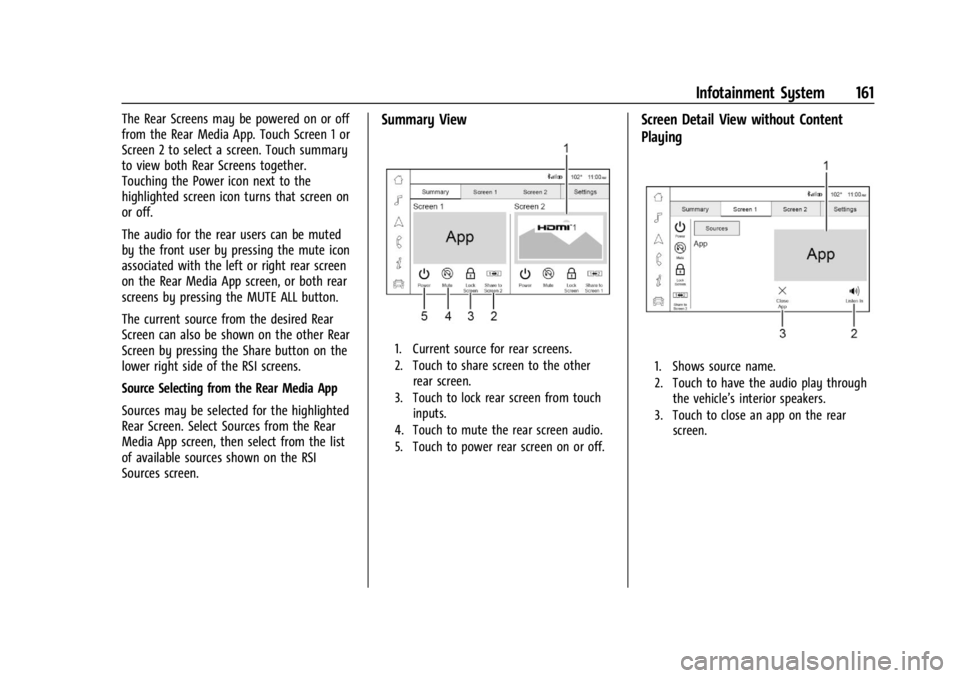
The Rear Screens may be powered on or off
from the Rear Media App. Touch Screen 1 or
Screen 2 to select a screen. Touch summary
to view both Rear Screens together.
Touching the Power icon next to the
highlighted screen icon turns that screen on
or off.
The audio for the rear users can be muted
by the front user by pressing the mute icon
associated with the left or right rear screen
on the Rear Media App screen, or both rear
screens by pressing the MUTE ALL button.
The current source from the desired Rear
Screen can also be shown on the other Rear
Screen by pressing the Share button on the
lower right side of the RSI screens.
Source Selecting from the Rear Media App
Sources may be selected for the highlighted
Rear Screen. Select Sources from the Rear
Media App screen, then select from the list
of available sources shown on the RSI
Sources screen.Summary View
1. Current source for rear screens.
2. Touch to share screen to the otherrear screen.
3. Touch to lock rear screen from touch inputs.
4. Touch to mute the rear screen audio.
5. Touch to power rear screen on or off.
Screen Detail View without Content
Playing
1. Shows source name.
2. Touch to have the audio play through the vehicle’s interior speakers.
3. Touch to close an app on the rear screen.
Page 175 of 422

GMC Yukon/Yukon XL/Denali Owner Manual (GMNA-Localizing-U.S./
Canada/Mexico-15555988) - 2022 - CRC - 12/3/21
174 Infotainment System
Wi-Fi Hotspot
Touch and the following may display:
.Wi-Fi Services: This allows devices to use
the vehicle hotspot.
Touch the controls on the infotainment
display to disable or enable.
.Wi-Fi Name: Touch to change the vehicle
Wi-Fi name.
.Wi-Fi Password: Touch to change the
vehicle Wi-Fi password.
.Share Hotspot Data: Touch On to allow
devices to use the vehicle hotspot and its
data, or touch Off to allow devices to
only use the vehicle hotspot but not
its data.
.Connected Devices: Touch to show
connected devices.
Vehicle-to-Phone Sharing
When this feature is on, this will allow GM
apps to use vehicle data on the listed shown
phones.
Vehicle
This menu allows adjustment of different
vehicle features. See Vehicle Personalization
0 130.
Apps & Permissions
Show all apps
Touch to view the App info screen.
Default apps
Touch to view the Default apps screen.
Touch each app listed to get more
information about that app.
App permisions
Touch to view the Permission manager
screen.
This shows apps using location and phone.
Special apps access
Touch to view the Special app access screen
and the following may display:
.Modify system settings: Touch to show
apps that can be enabled or disabled to
modify the system settings.
.Notification access: Touch to show the
notification access screen.
.Premium SMS access: This may cost
money to the carrier bill. If permission for
an app is enabled, premium SMS can be
sent using that app.
.Usage access: Touch to allow an app to
track what other apps are being used,
how often, carrier and language settings,
and other details
.Wi-Fi control: Touch to allow an app to
turn Wi-Fi on or off, scan and connect to
Wi-Fi networks, add or remove networks,
or start a local only hotspot.
Date/Time
Use the following features to set the clock:
.24-hour Format: Touch to specify the
clock format shown.
Touch Off or On.
.Automatic Time Zone (If Equipped): Touch
Off or On to disable or enable automatic
update of the time zone based on vehicle
location. When this feature is on, the
time zone cannot be manually set.
.Select Time Zone: Touch to manually set
the time zone. Touch a time zone from
the list.
.Automatic Date and Time: Touch Off or
On to enable or disable automatic update
of the time and date. Select Off to
manually set time and date
To manually set time or date, scroll up or
down on the month, day, year, hour,
minute and AM/PM.
Page 176 of 422

GMC Yukon/Yukon XL/Denali Owner Manual (GMNA-Localizing-U.S./
Canada/Mexico-15555988) - 2022 - CRC - 12/3/21
Infotainment System 175
Display
Touch and the following may display:
.Mode: This adjusts the appearance of the
navigation map view and any
downloaded apps optimized for day or
night time conditions. Set to Auto for the
display to automatically adjust based on
bright/dark conditions.
Touch Auto, Light, or Dark to adjust the
display.
.Turn Display Off: Touch to turn the
display off. Touch anywhere on the
infotainment display to turn the
display on.
Sounds
Touch and the following may display:
.Maximum Startup Volume: This feature
limits the volume of the infotainment
system when the vehicle is started. To set
the maximum startup volume, touch the
controls on the infotainment display to
increase or decrease.
.Audible Touch Feedback: This setting
determines if a sound plays when
touching the infotainment display or
radio controls. This feature can be turned
off or on.
Users
You can create multiple user profiles on the
vehicle. Most settings will be shared with
other user profiles on the vehicle. Settings
that are personalized to the user’s profile
include Accounts, Apps and Permissions,
Display, Google Settings (if applicable), and
various Vehicle settings. Between drive
cycles, the settings for the last logged in
user will remain active until a different user
profile is selected.
Touch and the following may display:
.You (Driver)
.Guest
Touch Add user to add another person to
the system.
Accounts
Touch to show Accounts for Driver and the
following may display:
.Accounts
.Automatically sync data: This feature can
be turned off or on.
Touch Add account to add a Google or
vehicle account and follow the on-screen
prompts.
Privacy
Touch and the following may display:
Location Services
.Location Services for Android: Touch to
show Recent Location Requests, App level
permissions, and Location Services.
.Location Services for OnStar: This feature
can be turned off or on.
App permissions
Activity controls
Autofill service from Google
Usage and diagnostics
GM Privacy Statement
Google legal
Storage
Touch to show the storage info for Music &
audio, Other apps, Files, and System.
Security
Touch and the following may display:
Choose a lock type
Touch and the following may display:
.None: Touch to have no screen lock.
Page 177 of 422

GMC Yukon/Yukon XL/Denali Owner Manual (GMNA-Localizing-U.S./
Canada/Mexico-15555988) - 2022 - CRC - 12/3/21
176 Infotainment System
.Pattern: Touch to choose an unlock
pattern to draw.
.PIN: Touch to create a PIN.
.Password: Touch to create a password
Trusted Device
Touch to set a phone as your trusted device.
Clear Credentials
Touch to remove all credentials.
Unlock profile with phone
System
The menu may contain the following:
Language
This will set the display language used on
the infotainment display. It may also use
the selected language for voice recognition
and audio feedback. Touch the preferred
language.
Keyboard & speech
Touch and the following may display:
.Autofill service: Touch to select None or
Google.
.Keyboard: Touch to select Google
Automotive Keyboard or Manage
keyboards.
.Text-to-speech output: Touch to select
Preferred engine, Speech Rate, Pitch,
or Reset.
Reset Options
Touch and the following may display:
.Reset Vehicle Settings: Resets all vehicle
settings for all users.
Touch Reset or Cancel.
.Reset App Preferences: Resets all
preferences for disabled apps, disabled
app notifications, default applications for
actions, background data restrictions for
apps, and any permission restrictions.
App data will not be lost.
Touch Reset or Cancel.
.Erase Infotainment Data: Erases
infotainment data.
TTY Mode
When on, OnStar calls are made as a series
of text exchanges. A keyboard is shown for
text entry and the phone audio is muted.
This feature can be turned off or on.
About
Touch to view the infotainment system
software information. Legal Information
Touch to view legal and license information.
Updates
Touch and the following may display:
.Check for Updates: Touch to see if the
software is up to date.
.Preferences: Touch to download new
updates in the background or download
updates via Wi-Fi when possible.
Touch Off or On.
Google
Touch and the following may display:
.Manage activity controls
.Autofill with Google
.Google Assistant
.Send feedback to Google
Teen Driver
If equipped, this allows multiple keys to be
registered for beginner drivers to encourage
safe driving habits. When the vehicle is
started with a Teen Driver key, it will
automatically activate certain safety
systems, allow setting of some features, and
limit the use of others. The Report Card will
record vehicle data about driving behavior
Page 180 of 422

GMC Yukon/Yukon XL/Denali Owner Manual (GMNA-Localizing-U.S./
Canada/Mexico-15555988) - 2022 - CRC - 12/3/21
Infotainment System 179
.Enhanced Low Fuel Warning
(if equipped)–When the vehicle is low
on fuel, the low fuel light on the
instrument cluster flashes and the DIC
low fuel warning cannot be dismissed.
.Do not tow a trailer if equipped with
Automatic Emergency Braking.
Report Card
The vehicle owner must secure the driver’s
consent to record certain vehicle data when
the vehicle is driven with a registered Teen
Driver key. There is one Report Card per
vehicle. Data is only recorded when a
registered Teen Driver key is used to
operate the vehicle.
The Report Card data is collected from the
time Teen Driver is activated or the last
time the Report Card was reset. The
following items may be recorded:
.Distance Driven –the total distance
driven.
.Maximum Speed –the maximum vehicle
speed detected.
.Overspeed Warnings –the number of
times the speed warning setting was
exceeded.
.Wide Open Throttle –the number of
times the accelerator pedal was pressed
nearly all the way down.
.Forward Collision Alerts (if equipped) –
the number of times the driver was
notified when approaching a vehicle
ahead too quickly and at potential risk for
a crash.
.Forward Automatic Braking, also called
Automatic Emergency Braking (if
equipped) –the number of times the
vehicle detected that a forward collision
was imminent and applied the brakes.
.Reverse Automatic Braking (if equipped) –
the number of times the vehicle detected
that a rearward collision was imminent
and applied the brakes.
.Traction Control –the number of times
the Traction Control System activated to
reduce wheel spin or loss of traction.
.Stability Control –the number of events
which required the use of electronic
stability control.
.Antilock Braking System Active –The
number of Antilock Brake System
activations.
.Tailgating Alerts (if equipped) –the
number of times the driver was alerted
for following a vehicle ahead too closely.
Report Card Data
Cumulative Data is saved for all trips until
the Report Card is reset or until the
maximum count is exceeded. If the
maximum count is exceeded for a Report
Card line item, that item will no longer be
updated in the Report Card until it is reset.
Each item will report a maximum of
1,000 counts. The distance driven will report
a maximum of 64,374 km (40,000 mi).
To delete Report Card data, do one of the
following:
.From the Report Card display, touch
Reset.
.Touch Clear PIN and All Teen Driver Keys
from the Teen Driver menu. This will also
unregister any Teen Driver keys and
delete the PIN.
Forgotten PIN
See your dealer to reset the PIN.
Page 181 of 422
GMC Yukon/Yukon XL/Denali Owner Manual (GMNA-Localizing-U.S./
Canada/Mexico-15555988) - 2022 - CRC - 12/3/21
180 Infotainment System
Trademarks and License
Agreements
FCC Information
SeeRadio Frequency Statement 0398.
If you decide to continue service after your
trial, your selected subscription plan will
automatically renew thereafter. You will be
charged at then-current rates. Fees and taxes
apply. Please see the SiriusXM Customer
Agreement at siriusxm.com for complete
terms and how to cancel, which includes
calling SiriusXM at 1-866-635-2349. All fees
and programming are subject to change.
Fees and Taxes: Subscription fee, taxes, one
time activation fee, and other fees may
apply. Subscription fee is consumer only. All
fees and programming subject to change.
Subscriptions subject to Customer
Agreement available at www.siriusxm.com.
SiriusXM service is only available in the
48 contiguous United States and Canada. In Canada: Some deterioration of service
may occur in extreme northern latitudes.
This is beyond the control of SiriusXM
Satellite Radio.
Explicit Language Notice: Channels with
frequent explicit language are indicated with
an
“XL” preceding the channel name.
Channel blocking is available for SiriusXM
Satellite Radio receivers by notifying
SiriusXM:
.USA Customers —See www.siriusxm.com
or call 1-888-601–6296.
.Canada Customers —See
www.siriusxm.ca or call 1-877-438-9677.
It is prohibited to copy, decompile,
disassemble, reverse engineer, hack,
manipulate, or otherwise make available any
technology or software incorporated in
receivers compatible with the SiriusXM
Satellite Radio System or that support the
SiriusXM website, the Online Service or any
of its content. Furthermore, the AMBER voice
compression software included in this
product is protected by intellectual property
rights including patent rights, copyrights,
and trade secrets of Digital Voice
Systems, Inc. General Requirements:
1. A License Agreement from SiriusXM is required for any product that
incorporates SiriusXM Technology and/or
for use of any of the SiriusXM marks to
be manufactured, distributed,
or marketed in the SiriusXM
Service Area.
2. For products to be distributed, marketed, and/or sold in Canada, a separate
agreement is required with Canadian
Satellite Radio Inc. (operating as SiriusXM
Canada).
TouchSense Technology and TouchSense
System 1000 Series Licensed from
Immersion Corporation. TouchSense System
1000 protected under one or more of the
U.S. Patents at the following address
www.immersion.com/patent-marking.html
and other patents pending.