2022 GMC YUKON infotainment
[x] Cancel search: infotainmentPage 210 of 422

GMC Yukon/Yukon XL/Denali Owner Manual (GMNA-Localizing-U.S./
Canada/Mexico-15555988) - 2022 - CRC - 12/3/21
Driving and Operating 209
Retained Accessory Power (RAP)
When the ignition is turned from on to off,
the following features (if equipped) will
continue to function for up to 10 minutes,
or until the driver door is opened. These
features will also work when the ignition is
in RUN or ACC/ACCESSORY:
.Infotainment System
.Power Windows (during RAP this
functionality will be lost when any door
is opened)
.Sunroof (during RAP this functionality will
be lost when any door is opened)
.Auxiliary Power Outlet
.Audio System
.OnStar System
Shifting Into Park
{Warning
It can be dangerous to get out of the
vehicle if the vehicle is not in P (Park)
with the parking brake set. The vehicle
can roll. If you have left the engine
running, the vehicle can move suddenly.
You or others could be injured. To be(Continued)
Warning (Continued)
sure the vehicle will not move, even
when you are on fairly level ground, use
the steps that follow. If you are pulling a
trailer, seeDriving Characteristics and
Towing Tips 0267.
1. Hold the brake pedal down and set the parking brake. See Electric Parking Brake
0 219.
2. Press the P (Park) switch on the center stack.
3. Press ENGINE START/STOP to turn the engine off.
If the vehicle is shifted into P (Park) on a
hill, the Electric Parking Brake (EPB) may
apply automatically. The driver may not be
able to release the EPB using the EPB
switch. It should automatically release when
the vehicle is shifted out of P (Park).
Leaving the Vehicle with the Engine
Running
{Warning
It can be dangerous to leave the vehicle
with the engine running. It could
overheat and catch fire.
It is dangerous to get out of the vehicle
if the vehicle is not in P (Park) with the
parking brake set. The vehicle can roll.
Do not leave the vehicle when the engine
is running. If you have left the engine
running, the vehicle can move suddenly.
You or others could be injured. To be
sure the vehicle will not move, even
when you are on fairly level ground,
always set the parking brake and shift
the vehicle to P (Park). See Shifting Into
Park 0209. If you are towing a trailer,
see Driving Characteristics and Towing
Tips 0267.
If you have to leave the vehicle with the
engine running, the vehicle must be in
P (Park) with the parking brake set.
Confirm that the vehicle is in P (Park).
Page 229 of 422

GMC Yukon/Yukon XL/Denali Owner Manual (GMNA-Localizing-U.S./
Canada/Mexico-15555988) - 2022 - CRC - 12/3/21
228 Driving and Operating
Changing Ride Height
Press the Ride Height button to open the
Ride Height Menu on the Instrument Panel.
Turn the knob left or right to select the
desired ride height in the menu. To finalize
the selection, either press the Ride Height
button again or wait three seconds for the
menu to timeout. Ride Heights that are
unavailable for selection will be greyed out
in the menu.
Ride Height Descriptions
Normal Height is the standard vehicle height
used for everyday driving.
Entry/Exit Height
Entry/Exit Height is 50 mm (2 in) lower than
Normal Height. This ride height lowers the
vehicle for easy entry and exit from the
vehicle as well as providing a lower height
for loading and unloading cargo from any
door or the rear liftgate.
This ride height can be selected in the Ride
Height Menu at any vehicle speed. When
Entry/Exit Height is selected at higher
speeds, the vehicle will wait to lower until
the vehicle slows to less than
12 km/h (7 mph).
The vehicle will automatically raise to
Normal Height from Entry/Exit Height when
speed increases above 8 km/h (5 mph). If no
door has been opened since lowering to
Entry/Exit Height, the vehicle will wait toraise to Normal Height until 30 km/h
(19 mph). This gives the driver more
flexibility when lowering to Entry/Exit
Height for passenger pick up and drop off.
The driver can enable Automatic Entry/
Egress Mode to automatically lower to
Entry/Exit Height when the vehicle is shifted
to P (PARK). Automatic Entry/Egress Mode
may be enabled via the infotainment screen
under Settings/Vehicle/Ride Height. When
the vehicle is higher than Normal Height,
Automatic Entry/Egress Mode is disabled.
When the vehicle is in Tow/Haul Driver
Mode, Off-Road Driver Mode, or it senses a
trailer is connected, Automatic Entry/Egress
Mode is disabled.
Increased Height
Increased Height is 25 mm (1 in) higher than
Normal Height. This ride height raises the
vehicle for off-road use, allows for higher
speeds than Maximum Height, and is only
available with specific optional content.
Increased Height can be selected in the Ride
Height Menu while vehicle speed is less
than 80 km/h (50 mph). If vehicle speed
exceeds 80 km/h (50 mph), the vehicle will
automatically lower to Normal Height.
Page 230 of 422

GMC Yukon/Yukon XL/Denali Owner Manual (GMNA-Localizing-U.S./
Canada/Mexico-15555988) - 2022 - CRC - 12/3/21
Driving and Operating 229
Off-Road Driver Mode and Terrain Driver
Mode will automatically set Increased
Height when vehicle speed is less than
80 km/h (50 mph). If vehicle speed exceeds
80 km/h (50 mph), the vehicle will lower to
Normal Height. Normal Height will be
maintained until vehicle speed is slowed to
less than 16 km/h (10 mph) and then the
vehicle will automatically raise back to
Increased Height.
The vehicle will automatically lower from
Increased Height to Normal Height to
provide improved stability if aggressive
maneuvers are detected.
Maximum Height
Maximum Height is 50 mm (2 in) higher
than Normal Height. This ride height raises
the vehicle for off-road use and is only
available with specific optional content.
To raise the vehicle to Maximum Height,
first shift the transfer case to 4
n. Once the
transfer case is in 4
nand vehicle speed is
less than 48 km/hr (30 mph), select
Maximum Height in the Ride Height Menu.
If vehicle speed exceeds 48 km/h, the
vehicle will automatically lower to Increased
Height. The vehicle will automatically lower from
Maximum Height to Normal Height to
provide improved stability if aggressive
maneuvers are detected.
Aerodynamic Height
Aerodynamic Height is 20 mm (0.75 in)
lower than Normal Height. This ride height
lowers the vehicle at higher vehicle speeds
to improve aerodynamics.
The vehicle will lower to Aerodynamic
Height when vehicle speed exceeds
105 km/h (65 mph) for a period of time. The
vehicle will raise to Normal Height when the
vehicle slows to less than 48 km/h
(30 mph).
Aerodynamic Height is automatically
disabled when a trailer is connected to the
vehicle or Tow/Haul Driver Mode is active.
Suspension Modes
The air suspension has two special modes
located in the infotainment screen under
Settings/Vehicle/Suspension. When either is
active, the following amber icon will be
illuminated in the instrument cluster.
See
Four Corner Air Suspension Light 0120.
Service Mode
Service Mode will disable all air suspension
operation including raising and lowering the
vehicle and operation of the air compressor.
This mode is useful when the vehicle is
being towed on a flat bed or when any
work under the vehicle is being performed.
Service Mode is automatically enabled when
the vehicle is put on a hoist or a floor jack
is used to raise a corner. Service Mode may
temporarily enable during intense off-road
situations to prevent damaging air
suspension activity. Service Mode
automatically disables when vehicle speed
exceeds 16 km/h (10 mph).
Alignment Mode
Alignment Mode will optimize the vehicle
height to provide the most accurate wheel
alignment. This mode should be enabled
once the vehicle is driven onto the
alignment station.
Page 244 of 422

GMC Yukon/Yukon XL/Denali Owner Manual (GMNA-Localizing-U.S./
Canada/Mexico-15555988) - 2022 - CRC - 12/3/21
Driving and Operating 243
.Front and rear bumpers and the area
below the bumpers
.Front grille and headlamps
.Front camera lens in the front grille or
near the front emblem
.Front side and rear side panels
.Outside of the windshield in front of the
rearview mirror
.Side camera lens on the bottom of the
outside mirrors
.Rear side corner bumpers
.Rear Vision Camera above the license
plate
Radio Frequency
This vehicle may be equipped with driver
assistance systems that operate using radio
frequency. See Radio Frequency Statement
0 398.
Assistance Systems for Parking or
Backing
If equipped, the Rear Vision Camera (RVC),
Rear Park Assist (RPA), Front Park Assist
(FPA), Surround Vision, and Rear Cross Traffic
Alert (RCTA) may help the driver park or
avoid objects. Always check around the
vehicle when parking or backing.
Rear Vision Camera (RVC)
When the vehicle is shifted into R (Reverse),
the RVC displays an image of the area
behind the vehicle in the infotainment
display. The previous screen displays when
the vehicle is shifted out of R (Reverse) after
a short delay. To return to the previous
screen sooner, press Home or Back on the
infotainment system, shift into P (Park),
or reach a vehicle speed of approximately
12 km/h (8 mph) while in D (Drive). The rear
vision camera is above the license plate.
1. View Displayed by the Camera
1. View Displayed by the Camera
2. Corners of the Rear Bumper
Displayed images may be farther or closer
than they appear. The area displayed is
limited and objects that are close to either
corner of the bumper or under the bumper
do not display.
A warning triangle may display to show
that RPA or RCTA has detected an object.
This triangle changes from amber to red and
increases in size the closer the object.
{Warning
The camera(s) do not display children,
pedestrians, bicyclists, crossing traffic,
animals, or any other object outside of
the cameras’ field of view, below the
bumper, or under the vehicle. Shown (Continued)
Page 245 of 422
GMC Yukon/Yukon XL/Denali Owner Manual (GMNA-Localizing-U.S./
Canada/Mexico-15555988) - 2022 - CRC - 12/3/21
244 Driving and Operating
Warning (Continued)
distances may be different from actual
distances. Do not drive or park the
vehicle using only these camera(s).
Always check behind and around the
vehicle before driving. Failure to use
proper care may result in injury, death,
or vehicle damage.
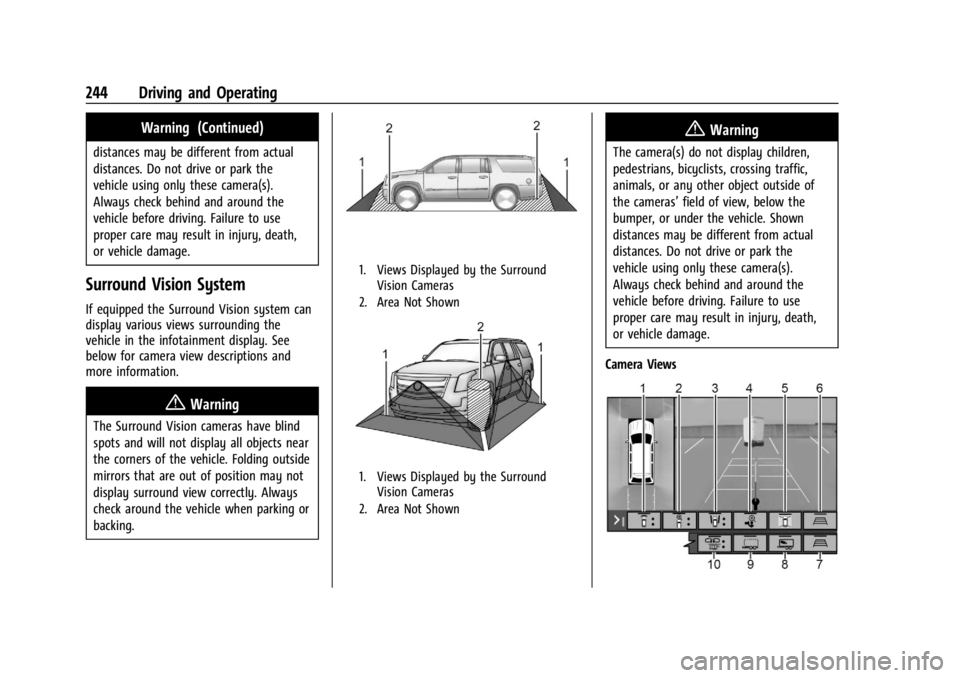
Surround Vision System
If equipped the Surround Vision system can
display various views surrounding the
vehicle in the infotainment display. See
below for camera view descriptions and
more information.
{Warning
The Surround Vision cameras have blind
spots and will not display all objects near
the corners of the vehicle. Folding outside
mirrors that are out of position may not
display surround view correctly. Always
check around the vehicle when parking or
backing.
1. Views Displayed by the SurroundVision Cameras
2. Area Not Shown
1. Views Displayed by the Surround Vision Cameras
2. Area Not Shown
{Warning
The camera(s) do not display children,
pedestrians, bicyclists, crossing traffic,
animals, or any other object outside of
the cameras’ field of view, below the
bumper, or under the vehicle. Shown
distances may be different from actual
distances. Do not drive or park the
vehicle using only these camera(s).
Always check behind and around the
vehicle before driving. Failure to use
proper care may result in injury, death,
or vehicle damage.
Camera Views
Page 246 of 422

GMC Yukon/Yukon XL/Denali Owner Manual (GMNA-Localizing-U.S./
Canada/Mexico-15555988) - 2022 - CRC - 12/3/21
Driving and Operating 245
Touch the camera view buttons along the
bottom of the infotainment display to
access each view (if equipped):
1. Front/Rear Standard View
Displays an image of the area in front
or behind the vehicle. To select, touch
Front/Rear Standard View on the
infotainment display when a camera
view is active.
When the hitch guidance is selected,
Rear Standard View will remain visible
across gear changes, otherwise the
view will toggle between Front and
Rear Standard View based on gear
position.
If equipped, the front view camera
also displays when the Park Assist
system detects an object within
30 cm (12 in).
To access this view when in a forward
gear above 12 km/h (8 mph), select
CAMERA on the infotainment display
and select Rear Standard View. The
view will close after 8 seconds and
can be closed early by selecting X,
Home or Back.
2. Front/Rear Top-Down View
Displays a front or rear overhead view
of the vehicle. To view, select Front/
Rear Top-Down View on the
infotainment display when the camera
app is active.
3. Front/Rear side View
Displays a view that shows objects
next to the front or rear sides of the
vehicle. To select, touch Front/Rear
Side View on the infotainment display
when a camera view is active. Touch
the button to toggle between front
and rear camera views. Park Assist and
RCTA overlays are not available when
Front/Rear Side View is active.
4. Hitch View
Displays a zoomed-in view of the hitch
area to assist with aligning the
vehicle’s hitch ball with the trailer
coupler and monitoring the trailer
connection. To view, select Hitch View
on the infotainment display when the
Camera App is active. To access this
view when in a forward gear above
12 km/h (8 mph), select CAMERA on
the infotainment display and select
Hitch View. The view will close after
eight seconds and can be closed earlyby selecting X, Home or Back. Shifting
into P (Park) while in this view will
automatically engage the Electric
Parking Brake (EPB).
5. Surround View
Displays an image of the area
surrounding the vehicle. Surround
View is displayed alongside the
currently selected view when below
12 kph (8 mph). Surround View is
disabled when above 12 kph (8 mph).
6. Camera App Guidance Lines
The Camera App supports three
possible guidance modes: No
Guidance, Vehicle Guidance and
Trailering Guidance. To change
guidance mode, select the appropriate
guidance icon. Depending on the
guidance mode and view selected,
different guidance lines may appear.
A grayed-out icon indicates that
guidance lines are not available.
Certain views do not support Guidance
lines.
.Standard Guidance Lines are
available in Front/Rear Standard
Views, Front/Rear Top-Down Views
and Surround View when the
Page 247 of 422

GMC Yukon/Yukon XL/Denali Owner Manual (GMNA-Localizing-U.S./
Canada/Mexico-15555988) - 2022 - CRC - 12/3/21
246 Driving and Operating
vehicle guidance mode is selected.
Standard Guidance Lines show
current and intended vehicle path.
.Hitch Guidance Line is available in
Rear Standard View when the
Trailering Guidance mode is
selected. Hitch Guidance displays a
single centered guidance line on
the infotainment display to assist
with aligning the vehicle’s hitch
with a trailer coupler. Align the
Hitch Guidance Line with the
trailer coupler by continuously
steering the vehicle to keep the
guidance line centered on the
coupler when backing. Park Assist
overlays will not display when the
Hitch Guidance Line is active.
.Rear Trailer Guidance Lines are
available in the Rear Trailer View
when the Trailering Guidance
mode is selected and the rear
trailer camera calibration has been
successfully completed. Rear Trailer
Guidance Lines show the intended
path (yellow) and the current path
(blue) of the trailer. The current
path guidance lines will converge
with the intended path guidance
lines.
7. Camera App Guidance Lines
Duplicate of item 6.
8. Interior Trailer View
Displays a view of the interior of the
trailer. The feature is available when a
trailer is connected. The feature
requires user installation of an
accessory trailer camera on the
interior of the trailer per the accessory
trailer camera installation instructions
(see your dealer for accessory trailer
camera(s) and information). To view,
select Interior Trailer View on the
infotainment display when the Camera
App is active. To access this view
when in a forward gear above
12 km/h (8 mph), select CAMERA on
the infotainment display and select
Interior Trailer View. The view will
close after 8 seconds and can be
closed early by selecting X, Home
or Back.
9. Transparent Trailer View
Displays a view that allows the driver
to virtually“see through” the trailer.
The feature is available when a
compatible trailer is connected, a valid
profile is selected and the vehicle is
not in Reverse. The feature requires user installation of an accessory trailer
camera on the rear exterior surface of
the trailer per the accessory trailer
camera installation instructions (see
your dealer for accessory trailer
camera(s) and information). To view,
select Transparent Trailer View on the
infotainment display when the Camera
App is active. To access this view
when in a forward gear above
12 km/h (8 mph), select CAMERA on
the infotainment display and select
Transparent Trailer View. The view can
be closed by selecting X, Home
or Back.
When the system is calibrated and
trailer position is known one of three
views will be shown; Transparent
Trailer View, Left Transparent Trailer
View or Right Transparent Trailer
View. The Transparent Trailer View is
shown when the position of the trailer
is relatively straight behind the
vehicle. The Left or Right Transparent
Trailer view is shown when the
position of the trailer is too far to the
left or right. When the system is not
calibrated or trailer position is not
known the Transparent Trailer
Picture-in-Picture View will be shown.
Page 248 of 422

GMC Yukon/Yukon XL/Denali Owner Manual (GMNA-Localizing-U.S./
Canada/Mexico-15555988) - 2022 - CRC - 12/3/21
Driving and Operating 247
10. Rear Trailer Views
.Rear Trailer View
Displays a view of the area behind
the trailer when a trailer is
connected. The feature requires
user installation of an accessory
trailer camera on the rear exterior
surface of the trailer per the
accessory trailer camera
installation instructions (see your
dealer for accessory trailer
camera(s) and information). To
view, select Rear Trailer View on
the infotainment display when the
Camera App is active. To access
this view when in a forward gear
above 12 km/h (8 mph), select
CAMERA on the infotainment
display and select Rear Trailer
View. The view can be closed by
selecting X, Home or Back.
.Rear Side View with Available
Articulation Functionality
Displays a rearward split view of
the left and right sides of the
vehicle and trailer, when a trailer is
connected. The view will
automatically pan to show more of
the left or right side based on theposition of the trailer when a
compatible profile is configured
and selected via the Trailering App.
To view, select Rear Side View with
Available Articulation Functionality
on the infotainment display when
the Camera App is active. To access
this view when in a forward gear
above 12 km/h (8 mph), select
CAMERA on the infotainment
display and select Rear Side View
with Available Articulation
Functionality. The view can be
closed by selecting X, Home
or Back.
.Picture-in-Picture Side View
Displays a rearward split view of
the left and right sides of the
vehicle and trailer with an overlay
view of the area behind the trailer
when a trailer is connected. The
feature requires user installation of
an accessory trailer camera on the
rear exterior surface of the trailer
per the accessory trailer camera
installation instructions (see your
dealer for accessory trailer
camera(s) and information). To
view, select Picture-in-Picture Side
View on the infotainment displaywhen the Camera App is active. To
access this view when in a forward
gear above 12 km/h (8 mph), select
CAMERA on the infotainment
display and select Picture-in-Picture
Side View. The view can be closed
by selecting X, Home or Back.
Additional Views and Alerts
.Turn Signal Activated Views
Displays a rearward view of the left or
right side of the vehicle and trailer when
a trailer is connected. Views are provided
based on turn signal activation with the
right-side view being shown when the
right turn signal is active and the left side
view being shown when the left turn
signal is active. The feature can be
enabled or disabled. See Vehicle
Personalization 0130. The view can be
closed early by selecting X, Home or Back.
A Trailer Length Indicator Overlay is
available in the Turn Signal Activated
Views when the trailer is relatively
straight behind the vehicle and a
compatible profile is configured and
selected via the Trailering App. The
overlay will not be visible when the
position of the trailer is too far to the left