2022 GMC YUKON ECO mode
[x] Cancel search: ECO modePage 154 of 422

GMC Yukon/Yukon XL/Denali Owner Manual (GMNA-Localizing-U.S./
Canada/Mexico-15555988) - 2022 - CRC - 12/3/21
Infotainment System 153
‐Driver: Adjusts the audio to provide the
best sound for the driver.
‐ Centerpoint: This setting creates a
surround sound from nearly any audio
source.
‐ Rear: Adjusts the audio to provide the
best sound for the rear seat passengers.
Bose AudioPilot : This feature adjusts the
volume based on the noise in the vehicle
and the speed.
Touch Off or On.
Manage Favorites : Touch to display a list of
Audio favorites.
Favorites can be moved or deleted.
To move, touch and hold the move icon, and
then drag up or down to rearrange the
position.
Radio Text (RDS) : This allows Radio Text
(RDS) to be turned on or off.
Touch Off or On.
AM Station Update : Touch to update the
AM station list. This is only shown when
tuned to AM.Radio Data System (RDS)
If equipped, RDS features are available for
use only on FM stations that broadcast RDS
information. With RDS, the radio can:
.Display a Station Name
.Display messages from radio stations.
This system relies on receiving specific
information from these stations and only
works when the information is available.
It is possible that a radio station could
broadcast incorrect information that causes
the radio features to work improperly.
When information is broadcast from a RDS
station, the station name or call letters
display on the audio screen. Radio text
supporting the currently playing broadcast
may also appear.
To turn this feature on or off, see “Audio
Settings” underAM-FM Radio 0152.
Satellite Radio
SiriusXM Radio Service
If equipped, vehicles with a valid SiriusXM
radio subscription can receive SiriusXM
programming. SiriusXM radio has a wide variety of
programming and commercial-free music,
coast to coast, in digital-quality sound. In
the U.S., see www.siriusxm.com or call
1-888-601-6296. In Canada, see
www.siriusxm.ca or call 1-877-438-9677.
When SiriusXM is active, the channel name,
number, song title, and artist appear on the
display.
SiriusXM with 360L
SiriusXM with 360L interface has enhanced
in-vehicle listening experience for
subscribers. The experience now offers more
categories and system learned
recommendations toward discovering more
personalized content.
To use the full SiriusXM 360L program,
including streaming content and listening
recommendations, OnStar Connected Access
is required. Connected vehicle services vary
by model and require a complete working
electrical system, cell reception, and GPS
signal. An active connected plan is required.
Reference the SiriusXM user guide for use
and subscription information.
Page 159 of 422

GMC Yukon/Yukon XL/Denali Owner Manual (GMNA-Localizing-U.S./
Canada/Mexico-15555988) - 2022 - CRC - 12/3/21
158 Infotainment System
Customer Owned Bluetooth Headphones
The RSI system supports Bluetooth
headphones. Up to four Bluetooth
headphones can be paired to each REAR
SCREEN. This screen provides a list of all
Bluetooth headphones that have been paired
to the RSI system, as well as control over
their use and settings. New Bluetooth
headphones can be connected, or the
Bluetooth headphone settings can be
changed from or on this screen.
To pair Bluetooth headphones to one of the
rear screens:1. Select Bluetooth Headphones or touch
Xfrom the desired Rear Screen
Home Page.
2. Select Connect Headphones.
3. Make sure the Bluetooth headphones are in pairing mode. Once recognized by the
system, the Bluetooth headphones are
displayed on the list of Available
Headphones.
4. Select the Bluetooth headphones from the list. The headphones may need to be
unpaired from your phone before pairing
to the RSI. 5. Once a headphone is paired, touch
options for that headphone to access the
menu where the headphone can be
renamed, connected, disconnected, or to
forget.
Provided Bluetooth Headphones
{Warning
The headphones have a built-in
rechargeable lithium ion battery pack
that presents a serious fire hazard if
damaged, defective, or improperly used.
To avoid battery leakage and/or a
potential fire:
.Do not attempt to burn, crush, or cut
the battery
.Do not expose the battery to
environments with extremely low air
pressures or temperatures above 60 °C
(140 °F)
.Do not charge the battery at
temperatures above 45 °C (113 °F)
.Do not charge the battery if the
headphones are defective or damaged
Caution
Do not store the headphones in heat or
direct sunlight. This could damage the
headphones and repairs would not be
covered by the vehicle warranty. Storage
in extreme cold can weaken the batteries.
Keep the headphones stored in a cool,
dry place.
Batteries in this product should not be
disposed of with household waste. Batteries
should be recycled at an appropriate facility.
Contact local authorities for details on
recycling.
Page 160 of 422

GMC Yukon/Yukon XL/Denali Owner Manual (GMNA-Localizing-U.S./
Canada/Mexico-15555988) - 2022 - CRC - 12/3/21
Infotainment System 159
1. CH-Channel Select
2. Power
3. Volume
4. USB-C Charging Port
The RSI includes two new Bluetooth wireless
headphones. The headphones are used to
listen to various multimedia. The wireless
headphones have a power button, channel
select button, and a volume control button.
To use the included Bluetooth Wireless
Headphones:
.Press the POWER button for one second
to turn the headphones on. The power
indicator will illuminate.
.While the headphones are powered off,
press and hold the power button for
two seconds to enter pairing mode. The
headphone name will display as“GM RSI
BT HP.” See“Pairing to RSI Screen” below
for pairing instructions with RSI screen.
.To power off, press and hold the power
button for two seconds while the power
is on.
Paring to RSI Screen
Only two headphones can be active per RSI
Screen.
To pair a Bluetooth headphone to one of
the rear screens: 1. Touch the Headphone icon from the desired Rear Screen Home Page.
2. Select Add New Headphones.
3. Make sure the Bluetooth headphone is in pairing mode.
4. Once recognized by the system, the Bluetooth headphone is displayed on the
list of Available Headphones.
5. Select the Bluetooth headphone from the list. Once connected, touch OK at the
Pairing Successful pop-up.
6. Touch OK. Voice Over
If equipped, the RSI system has a Voice Over
feature to benefit the visually and hearing
impaired.
When activated, Voice Over provides audible
feedback to the user about which area on
the screen they are touching, identifying
active buttons, as well as providing
information feedback of screen identification,
current status, list content, metadata, and
pop-up information. It allows for the user to
activate features through a double tap
anywhere on the screen which relates to the
last single touched and audibly announced
actionable button.
To turn Voice Over on or off, touch
*,
touch the toggle, and then press OK to
confirm. Voice Over turns off every time the
vehicle is turned off.
Reset Rear Media
Select to reset the Apps and log out users.
Open Source License
Select to show the license information.
Page 168 of 422

GMC Yukon/Yukon XL/Denali Owner Manual (GMNA-Localizing-U.S./
Canada/Mexico-15555988) - 2022 - CRC - 12/3/21
Infotainment System 167
“Play channel
SiriusXM”:Tune to the SiriusXM radio
station channel number identified in the
command. This command may require an
online connection.
“Play
Tune to the SiriusXM radio station channel
name identified in the command. This
command may require an online connection.
Voice Recognition for the Phone
Make sure the phone is paired using
Bluetooth to use the phone related voice
commands.
“Call
stored contact. The command may include
location if the contact has location numbers
stored.
“Call < phone number>” :Initiate a call to a
phone number of seven digits or 10 digits.
“Send a message to
a message to a stored contact.
Voice Recognition for Navigation
Navigation commands can be used to start,
cancel route, or add way points/POI. “Navigate to
:
Initiate navigation to the address in the
command.
“Add
way-point to the current route.
“Take me home” :Starts navigation to
Home location set in Google maps.
Onboard Vehicle Commands
These commands can be used to adjust
vehicle temperature, control window
defrosters and obtain fuel information.
“Turn on the A/C” :Turns on the air
conditioning.
“How much gas do I have left” :Find out
how much fuel your vehicle has left.
“Set temperature to
degrees” :Set to a specific temperature
inside your vehicle.
Phone Assistant Voice Recognition
While a device is connected via Bluetooth,
press and hold
gon the steering wheel
controls to pass through and launch Google
assistant on the phone or Siri.
Phone
Bluetooth (Overview)
The Bluetooth-capable system can interact
with many mobile devices to:
.Place and receive calls in a
hands-free mode.
.Share the device’s address book or
contact list with the vehicle.
.Stream audio (music, podcasts).
.Notify receipt of text messages.
To minimize driver distraction, before
driving, and with the vehicle parked:
.Become familiar with the features of the
mobile device. Organize the phone book
and contact lists clearly and delete
duplicate or rarely used entries.
.Review the controls and operation of the
infotainment system.
.Pair mobile device(s) to the vehicle. The
system may not work with all mobile
devices. See “Pairing”later in this section.
Vehicles with a Bluetooth system can use a
Bluetooth-capable mobile device with a
Hands-Free Profile to make and receive
phone calls. The infotainment system and
voice recognition are used to control the
Page 171 of 422

GMC Yukon/Yukon XL/Denali Owner Manual (GMNA-Localizing-U.S./
Canada/Mexico-15555988) - 2022 - CRC - 12/3/21
170 Infotainment System
Accessing the Device List Screen
There are two ways to access the device list
screen:
Using the Settings Icon1. Touch the Settings icon on the Home Page or the Settings icon on the shortcut
tray near the left of the display.
2. Touch Connections.
3. Touch Phones.
Using the Phone Icon 1. Touch the Phone icon on the Home Page or the Phone icon on the shortcut tray
near the left of the display.
2. Touch
*on the top right of the Phones
screen.
3. Touch Connected Phone.
Disconnecting a Connected Phone
To disconnect a phone: 1. Open the Device List Screen. See “Accessing the Device List Screen”
previously in this section.
2. Touch Option on the phone card to show the cell phone’s or mobile device’s
settings.
3. Touch Disconnect. Deleting a Paired Phone
To delete a paired phone:
1. Open the Device List Screen. See “Accessing the Device List Screen”
previously in this section.
2. Touch Option on the phone card to show the cell phone’s or mobile device’s
settings.
3. Touch Forget Phone.
Linking to a Different Phone
To link to a different cell phone, the new
cell phone must be in the vehicle and paired
to the Bluetooth system.
To link to a different phone: 1. Open the Device List Screen. See “Accessing the Device List Screen”
previously in this section.
2. Touch the new cell phone to link to from the list of available phones. See “First to
Connect Paired Phones” previously in this
section.
Switching to Handset or
Hands-Free Mode
To switch between handset or
hands-free mode:
.While the active call is hands-free, touch
the Audio Output option, then touch
Phone to switch to the handset mode.
The mute icon will not be available or
functional while Handset mode is active.
.While the active call is on the handset,
touch the Audio Output option, then
touch Car Speakers to switch to the
hands-free mode.
Making a Call Using Contacts
Calls can be made through the Bluetooth
system using personal cell phone contact
information for all cell phones that support
the Phone Book feature. Become familiar
with the cell phone settings and operation
and that the phone is set to allow the
sharing of contacts over Bluetooth with the
vehicle. Verify the cell phone supports this
feature and that the phone is set to allow
the sharing of contacts over Bluetooth with
the vehicle..
The Contacts menu accesses the phone book
stored in the cell phone.
Page 177 of 422

GMC Yukon/Yukon XL/Denali Owner Manual (GMNA-Localizing-U.S./
Canada/Mexico-15555988) - 2022 - CRC - 12/3/21
176 Infotainment System
.Pattern: Touch to choose an unlock
pattern to draw.
.PIN: Touch to create a PIN.
.Password: Touch to create a password
Trusted Device
Touch to set a phone as your trusted device.
Clear Credentials
Touch to remove all credentials.
Unlock profile with phone
System
The menu may contain the following:
Language
This will set the display language used on
the infotainment display. It may also use
the selected language for voice recognition
and audio feedback. Touch the preferred
language.
Keyboard & speech
Touch and the following may display:
.Autofill service: Touch to select None or
Google.
.Keyboard: Touch to select Google
Automotive Keyboard or Manage
keyboards.
.Text-to-speech output: Touch to select
Preferred engine, Speech Rate, Pitch,
or Reset.
Reset Options
Touch and the following may display:
.Reset Vehicle Settings: Resets all vehicle
settings for all users.
Touch Reset or Cancel.
.Reset App Preferences: Resets all
preferences for disabled apps, disabled
app notifications, default applications for
actions, background data restrictions for
apps, and any permission restrictions.
App data will not be lost.
Touch Reset or Cancel.
.Erase Infotainment Data: Erases
infotainment data.
TTY Mode
When on, OnStar calls are made as a series
of text exchanges. A keyboard is shown for
text entry and the phone audio is muted.
This feature can be turned off or on.
About
Touch to view the infotainment system
software information. Legal Information
Touch to view legal and license information.
Updates
Touch and the following may display:
.Check for Updates: Touch to see if the
software is up to date.
.Preferences: Touch to download new
updates in the background or download
updates via Wi-Fi when possible.
Touch Off or On.
Google
Touch and the following may display:
.Manage activity controls
.Autofill with Google
.Google Assistant
.Send feedback to Google
Teen Driver
If equipped, this allows multiple keys to be
registered for beginner drivers to encourage
safe driving habits. When the vehicle is
started with a Teen Driver key, it will
automatically activate certain safety
systems, allow setting of some features, and
limit the use of others. The Report Card will
record vehicle data about driving behavior
Page 191 of 422
GMC Yukon/Yukon XL/Denali Owner Manual (GMNA-Localizing-U.S./
Canada/Mexico-15555988) - 2022 - CRC - 12/3/21
190 Driving and Operating
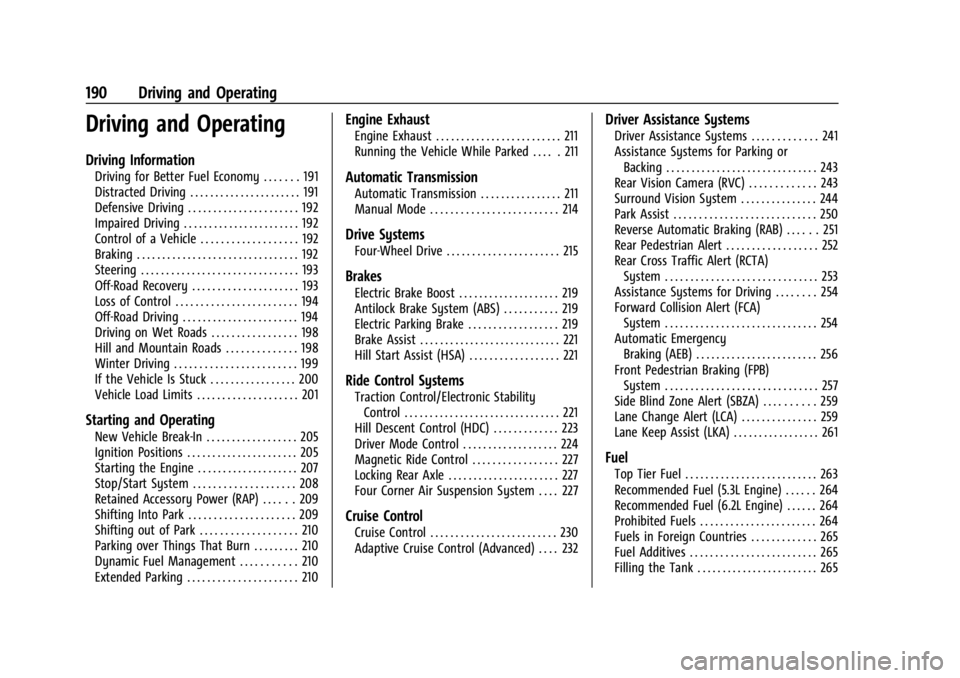
Driving and Operating
Driving Information
Driving for Better Fuel Economy . . . . . . . 191
Distracted Driving . . . . . . . . . . . . . . . . . . . . . . 191
Defensive Driving . . . . . . . . . . . . . . . . . . . . . . 192
Impaired Driving . . . . . . . . . . . . . . . . . . . . . . . 192
Control of a Vehicle . . . . . . . . . . . . . . . . . . . 192
Braking . . . . . . . . . . . . . . . . . . . . . . . . . . . . . . . . 192
Steering . . . . . . . . . . . . . . . . . . . . . . . . . . . . . . . 193
Off-Road Recovery . . . . . . . . . . . . . . . . . . . . . 193
Loss of Control . . . . . . . . . . . . . . . . . . . . . . . . 194
Off-Road Driving . . . . . . . . . . . . . . . . . . . . . . . 194
Driving on Wet Roads . . . . . . . . . . . . . . . . . 198
Hill and Mountain Roads . . . . . . . . . . . . . . 198
Winter Driving . . . . . . . . . . . . . . . . . . . . . . . . 199
If the Vehicle Is Stuck . . . . . . . . . . . . . . . . . 200
Vehicle Load Limits . . . . . . . . . . . . . . . . . . . . 201
Starting and Operating
New Vehicle Break-In . . . . . . . . . . . . . . . . . . 205
Ignition Positions . . . . . . . . . . . . . . . . . . . . . . 205
Starting the Engine . . . . . . . . . . . . . . . . . . . . 207
Stop/Start System . . . . . . . . . . . . . . . . . . . . 208
Retained Accessory Power (RAP) . . . . . . 209
Shifting Into Park . . . . . . . . . . . . . . . . . . . . . 209
Shifting out of Park . . . . . . . . . . . . . . . . . . . 210
Parking over Things That Burn . . . . . . . . . 210
Dynamic Fuel Management . . . . . . . . . . . 210
Extended Parking . . . . . . . . . . . . . . . . . . . . . . 210
Engine Exhaust
Engine Exhaust . . . . . . . . . . . . . . . . . . . . . . . . . 211
Running the Vehicle While Parked . . . . . 211
Automatic Transmission
Automatic Transmission . . . . . . . . . . . . . . . . 211
Manual Mode . . . . . . . . . . . . . . . . . . . . . . . . . 214
Drive Systems
Four-Wheel Drive . . . . . . . . . . . . . . . . . . . . . . 215
Brakes
Electric Brake Boost . . . . . . . . . . . . . . . . . . . . 219
Antilock Brake System (ABS) . . . . . . . . . . . 219
Electric Parking Brake . . . . . . . . . . . . . . . . . . 219
Brake Assist . . . . . . . . . . . . . . . . . . . . . . . . . . . . 221
Hill Start Assist (HSA) . . . . . . . . . . . . . . . . . . 221
Ride Control Systems
Traction Control/Electronic StabilityControl . . . . . . . . . . . . . . . . . . . . . . . . . . . . . . . 221
Hill Descent Control (HDC) . . . . . . . . . . . . . 223
Driver Mode Control . . . . . . . . . . . . . . . . . . . 224
Magnetic Ride Control . . . . . . . . . . . . . . . . . 227
Locking Rear Axle . . . . . . . . . . . . . . . . . . . . . . 227
Four Corner Air Suspension System . . . . 227
Cruise Control
Cruise Control . . . . . . . . . . . . . . . . . . . . . . . . . 230
Adaptive Cruise Control (Advanced) . . . . 232
Driver Assistance Systems
Driver Assistance Systems . . . . . . . . . . . . . 241
Assistance Systems for Parking or Backing . . . . . . . . . . . . . . . . . . . . . . . . . . . . . . 243
Rear Vision Camera (RVC) . . . . . . . . . . . . . 243
Surround Vision System . . . . . . . . . . . . . . . 244
Park Assist . . . . . . . . . . . . . . . . . . . . . . . . . . . . 250
Reverse Automatic Braking (RAB) . . . . . . 251
Rear Pedestrian Alert . . . . . . . . . . . . . . . . . . 252
Rear Cross Traffic Alert (RCTA) System . . . . . . . . . . . . . . . . . . . . . . . . . . . . . . 253
Assistance Systems for Driving . . . . . . . . 254
Forward Collision Alert (FCA) System . . . . . . . . . . . . . . . . . . . . . . . . . . . . . . 254
Automatic Emergency Braking (AEB) . . . . . . . . . . . . . . . . . . . . . . . . 256
Front Pedestrian Braking (FPB) System . . . . . . . . . . . . . . . . . . . . . . . . . . . . . . 257
Side Blind Zone Alert (SBZA) . . . . . . . . . . 259
Lane Change Alert (LCA) . . . . . . . . . . . . . . . 259
Lane Keep Assist (LKA) . . . . . . . . . . . . . . . . . 261
Fuel
Top Tier Fuel . . . . . . . . . . . . . . . . . . . . . . . . . . 263
Recommended Fuel (5.3L Engine) . . . . . . 264
Recommended Fuel (6.2L Engine) . . . . . . 264
Prohibited Fuels . . . . . . . . . . . . . . . . . . . . . . . 264
Fuels in Foreign Countries . . . . . . . . . . . . . 265
Fuel Additives . . . . . . . . . . . . . . . . . . . . . . . . . 265
Filling the Tank . . . . . . . . . . . . . . . . . . . . . . . . 265
Page 206 of 422

GMC Yukon/Yukon XL/Denali Owner Manual (GMNA-Localizing-U.S./
Canada/Mexico-15555988) - 2022 - CRC - 12/3/21
Driving and Operating 205
Starting and Operating
New Vehicle Break-In
Caution
The vehicle does not need an elaborate
break-in. But it will perform better in the
long run if you follow these guidelines:
.Do not drive at any one constant
speed, fast or slow, for the first
800 km (500 mi). Do not make
full-throttle starts. Avoid downshifting
to brake or slow the vehicle.
.Avoid making hard stops for the first
300 km (200 mi) or so. During this
time the new brake linings are not yet
broken in. Hard stops with new linings
can mean premature wear and earlier
replacement. Follow this breaking-in
guideline every time you get new
brake linings.
.Do not tow a trailer during break-in.
SeeTrailer Towing 0271 for the trailer
towing capabilities of the vehicle and
more information.
Following break-in, engine speed and load
can be gradually increased. On new vehicles, the various mechanical and
electrical systems experience a
“break-in”
period during the first 6 400 km (4,000 mi)
of routine driving. As the vehicle is driven,
the mechanical systems adjust to provide
optimal fuel economy and transmission shift
performance.
Electrical systems will adapt and calibrate
during the break-in period. A one-time
occurrence of clicks and similar vehicle
noises is normal during this process.
Normal driving charges the vehicle’s battery
to achieve the best operation of the vehicle,
including fuel economy and the Stop/Start
System. See Stop/Start System 0208.
Ignition Positions
Vehicles equipped with Keyless Access have
pushbutton starting.
The Remote Key must be in the vehicle for
the system to operate. If the pushbutton
start is not working, the vehicle may be
near a strong radio antenna signal causing
interference to the Keyless Access system.
See Remote Keyless Entry (RKE) System
Operation 08.
To shift out of P (Park), the ignition must be
on or in Service Mode, and the brake pedal
must be applied.