2022 GMC YUKON change wheel
[x] Cancel search: change wheelPage 127 of 422

GMC Yukon/Yukon XL/Denali Owner Manual (GMNA-Localizing-U.S./
Canada/Mexico-15555988) - 2022 - CRC - 12/3/21
126 Instruments and Controls
OUTPUT shows the power output to the
trailer any time a trailer with electric brakes
is connected. Output is displayed as a bar
graph. Dotted lines may appear in the
OUTPUT display if a trailer is not connected.
Off Road :If equipped, displays vehicle pitch
and roll information, road wheel angle, and
four-wheel drive (4WD) status. If the vehicle
has low traction, a low traction indicator
and the wheels affected will display amber
in the Off-Road page.
Engine Hours (Hourmeter) : Shows the total
number of hours the engine has run. This
display also shows the engine idle hours.
Average Speed : Displays the average
vehicle speed in kilometers per hour (km/h)
or miles per hour (mph). This average is
based on the various vehicle speeds
recorded since the last reset. Reset the
average speed by pressing the thumbwheel
while this display is active to show a
confirmation window to select Yes or No.
Transmission Fluid Temperature : Shows the
temperature of the automatic transmission
fluid in either degrees Celsius (°C) or degrees
Fahrenheit (°F). Coolant Temperature :
Shows the engine
coolant temperature in either degrees
Celsius (°C) or degrees Fahrenheit (°F).
Oil Temperature : Shows the engine oil
temperature in either degrees Celsius (°C) or
degrees Fahrenheit (°F).
Oil Pressure : Shows the current oil pressure
in either kilopascal (kPa) or in pounds per
square inch (psi).
Info Page Options : Scroll to choose which
info pages appear on the DIC. Press the
thumbwheel to select or deselect.
Blank Page : Shows no information.
Head-Up Display (HUD)
{Warning
If the HUD image is too bright or too
high in your field of view, it may take
you more time to see things you need to
see when it is dark outside. Be sure to
keep the HUD image dim and placed low
in your field of view. If equipped with HUD, some information
about the operation of the vehicle is
projected onto the windshield. The image is
projected through the HUD lens on top of
the instrument panel. The information
appears as an image focused out toward the
front of the vehicle.
Caution
If you try to use the HUD image as a
parking aid, you may misjudge the
distance and damage your vehicle. Do not
use the HUD image as a parking aid.
The HUD information can be displayed in
various languages. The speedometer reading
and other numerical values can be displayed
in either English or metric units.
The language selection is changed through
the radio, and the units of measurement is
changed through the instrument cluster. See
Settings 0173 and “Options” under
Instrument Cluster 0105.
Page 128 of 422

GMC Yukon/Yukon XL/Denali Owner Manual (GMNA-Localizing-U.S./
Canada/Mexico-15555988) - 2022 - CRC - 12/3/21
Instruments and Controls 127
HUD Display on the Windshield
Depending on how the vehicle is equipped,
the HUD may display some of the following
vehicle information and vehicle messages or
alerts:
.Speed
.Audio
.Phone
.Navigation
.Driver Assistance Features
.Vehicle Messages
Some vehicle messages or alerts displayed in
the HUD may be cleared by using the
steering wheel controls.
The HUD control is to the left of the
steering wheel.
To adjust the HUD image: 1. Adjust the driver seat.
2. Start the engine.
3. Use the following settings to adjust the HUD.
$:Press or pull to center the HUD image.
The HUD image can only be adjusted up and
down, not side to side.
!: Press to select the display view. Each
press will change the display view.
D: Pull and hold to brighten the display.
Press and hold to dim the display. Continue
to hold to turn the display off. The HUD image will automatically dim and
brighten to compensate for outside lighting.
Use
Dto adjust as needed.
The HUD image can temporarily light up
depending on the angle and position of
sunlight on the HUD display. This is normal.
Polarized sunglasses could make the HUD
image harder to see.
Head-Up Display (HUD) Rotation Option
If equipped, this feature under the Options
menu of the instrument cluster allows for
adjusting the angle of the HUD image and
changing or turning off the Speed
Limit Sign.
HUD Rotation: Press the thumbwheel while
Adjust Rotation is highlighted to enter
Adjust Mode. Scroll to adjust the angle of
the HUD display. Press the thumbwheel to
confirm and save the setting. This feature
may only be available in P (Park).
Speed Limit Style Adjustment
If equipped, the speed limit style can be
changed to a speed limit bar or speed limit
sign from the Options menu in the
instrument cluster. Press the thumbwheel
while Speed Limit Style is highlighted to
change the speed sign style or to turn it off.
Page 132 of 422

GMC Yukon/Yukon XL/Denali Owner Manual (GMNA-Localizing-U.S./
Canada/Mexico-15555988) - 2022 - CRC - 12/3/21
Instruments and Controls 131
To access the vehicle personalization menu:1. Touch the Settings icon on the Home Page of the infotainment display.
2. Touch Vehicle to display a list of available options.
3. Touch to select the desired feature setting.
4. Touch
9orRto turn a feature off or on.
The menu may contain the following:
Rear Seat Reminder
This allows for a chime and a message when
the rear door has been opened before or
during operation of the vehicle.
Touch Off or On.
Climate and Air Quality
Touch and the following may display:
.Auto Fan Speed
.Auto Cooled Seats
.Auto Heated Seats
.Auto Defog
.Auto Rear Defog Auto Fan Speed
This setting specifies the amount of airflow
when the climate control fan setting is
Auto Fan.
Touch Low, Medium, or High.
Auto Cooled Seats
This setting automatically turns on and
regulates the ventilated seats when the
cabin temperature is warm. See
Heated and
Ventilated Front Seats 043.
Touch Off or On.
Auto Heated Seats
This setting automatically turns on and
regulates the heated seats when the cabin
temperature is cool. The auto heated seats
can be turned off by using the heated seat
buttons on the center stack. See Heated and
Ventilated Front Seats 043.
If equipped with the auto heated steering
wheel, this feature will turn on when the
auto heated seats turn on.
Touch Off or On.
Auto Defog
This setting automatically directs air to the
windshield to assist in defogging, based on
temperature and humidity conditions. Touch Off or On.
Auto Rear Defog
This setting automatically turns the rear
defogger on based on temperature and
humidity conditions.
Touch Off or On.
Collision/Detection Systems
Touch and the following may display:
.Alert Type
.Automatic Emergency Braking
.Front Pedestrian Braking
.Adaptive Cruise Go Notifier
.Lane Change Alert
.Park Assist
.Rear Camera Park Assist Symbols
.Rear Cross Traffic Alert
.Rear Pedestrian Detection
Alert Type
This feature sets the type of alert from the
driver assistance systems to help avoid
crashes.
Touch Beeps or Safety Alert Seat.
Page 133 of 422

GMC Yukon/Yukon XL/Denali Owner Manual (GMNA-Localizing-U.S./
Canada/Mexico-15555988) - 2022 - CRC - 12/3/21
132 Instruments and Controls
Automatic Emergency Braking
This setting can alert of a potential crash
with a detected vehicle ahead and can apply
brakes to help reduce a collision’s severity.
Touch Off, Alert, or Alert and Brake.
Front Pedestrian Braking
This feature may help avoid or reduce the
harm caused by front-end crashes with
nearby pedestrians. SeeFront Pedestrian
Braking (FPB) System 0257.
Touch Off, Alert, or Alert and Brake.
Adaptive Cruise Go Notifier
This setting determines if an alert will
appear when Adaptive Cruise Control brings
the vehicle to a complete stop and the
vehicle ahead of you starts moving again.
See Adaptive Cruise Control (Advanced)
0 232.
Touch Off or On.
Lane Change Alert
This allows the feature to be turned on or
off. See Lane Change Alert (LCA) 0259.
Touch Off or On. Park Assist
This allows the feature to be turned on or
off. See
Assistance Systems for Parking or
Backing 0243.
Select Off or On.
Rear Camera Park Assist Symbols
This setting enables the Rear Camera Park
Assist Symbols. See Assistance Systems for
Parking or Backing 0243.
Touch Off or On.
Rear Cross Traffic Alert
This allows the Rear Cross Traffic Alert
feature to be turned on or off. See
Assistance Systems for Parking or Backing
0 243.
Touch Off or On.
Rear Pedestrian Braking
This setting specifies if alerts will display
when the vehicle detects pedestrians behind
when in R (Reverse). See Rear Pedestrian
Alert 0252.
Touch Off, Alert, or Alert and Brake.Comfort and Convenience
Touch and the following may display:
.Chime Volume
.Reverse Tilt Mirror
.Remote Mirror Folding
.Rain Sense Wipers
.Auto Wipe in Reverse Gear
Chime Volume
This determines the chime volume level.
Touch the controls on the infotainment
display to adjust the volume.
Reverse Tilt Mirror
When on, the driver, passenger, or both
driver and passenger outside mirrors will tilt
downward when the vehicle is shifted into
R (Reverse) to improve visibility of the
ground near the rear wheels. They may
move from their tilted position when the
vehicle is shifted out of R (Reverse) or
turned off. See Reverse Tilt Mirrors 029.
Touch Off, On - Driver and Passenger, On -
Driver, or On - Passenger.
Page 136 of 422

GMC Yukon/Yukon XL/Denali Owner Manual (GMNA-Localizing-U.S./
Canada/Mexico-15555988) - 2022 - CRC - 12/3/21
Instruments and Controls 135
Automatic Power Assist Steps
This feature specifies the position and use of
the running boards. SeePower Assist Steps
0 24.
Touch Off or On.
Move Power Assist Steps
This feature moves the running boards to a
deployed position so they can be used with
the doors closed.
Touch Off or Deploy.
Seating Position
Touch and the following may display:
.Seat Entry Memory
.Seat Exit Memory
Seat Entry Memory
This feature automatically recalls the
previously stored 1 or 2 button positions
when the ignition is changed from off to on
or ACC/ACCESSORY. See Memory Seats041.
Touch Off or On. Seat Exit Memory
This feature automatically recalls the
previously stored exit button position when
the ignition is changed from on or ACC/
ACCESSORY to off and the driver door is
open. See
Memory Seats 041.
Touch Off or On.
Suspension
Touch and the following may display:
.Service Mode
.Alignment Mode
Service Mode
This feature disables the air suspension
system and is used to prevent unintended
raising or lowering of the suspension..
Touch Off or On.
Alignment Mode
This feature will optimize the vehicle height
to provide the most accurate wheel
alignment.
Touch Off or On.
Teen Driver
See “Teen Driver” underSettings 0173.
Universal Remote System
See Radio Frequency Statement 0398.
Universal Remote System
Programming
If equipped, these buttons are in the
overhead console.
This system can replace up to three remote
control transmitters used to activate devices
such as garage door openers, security
systems, and home automation devices.
These instructions refer to a garage door
opener, but can be used for other devices.
Page 139 of 422
GMC Yukon/Yukon XL/Denali Owner Manual (GMNA-Localizing-U.S./
Canada/Mexico-15555988) - 2022 - CRC - 12/3/21
138 Lighting
Lighting
Exterior Lighting
Exterior Lamp Controls . . . . . . . . . . . . . . . . 138
Exterior Lamps Off Reminder . . . . . . . . . . 140
Headlamp High/Low-Beam Changer . . . 140
Flash-to-Pass . . . . . . . . . . . . . . . . . . . . . . . . . . . 140
Daytime Running Lamps (DRL) . . . . . . . . 140
Automatic Headlamp System . . . . . . . . . . 140
Hazard Warning Flashers . . . . . . . . . . . . . . . 141
Turn and Lane-Change Signals . . . . . . . . . 142
Fog Lamps . . . . . . . . . . . . . . . . . . . . . . . . . . . . . 142
Interior Lighting
Instrument Panel IlluminationControl . . . . . . . . . . . . . . . . . . . . . . . . . . . . . . 143
Dome Lamps . . . . . . . . . . . . . . . . . . . . . . . . . . 143
Reading Lamps . . . . . . . . . . . . . . . . . . . . . . . . 143
Lighting Features
Entry Lighting . . . . . . . . . . . . . . . . . . . . . . . . . 144
Exit Lighting . . . . . . . . . . . . . . . . . . . . . . . . . . . 144
Battery Load Management . . . . . . . . . . . . 144
Battery Power Protection . . . . . . . . . . . . . . 145
Exterior Lighting Battery Saver . . . . . . . . 145
Exterior Lighting
Exterior Lamp Controls
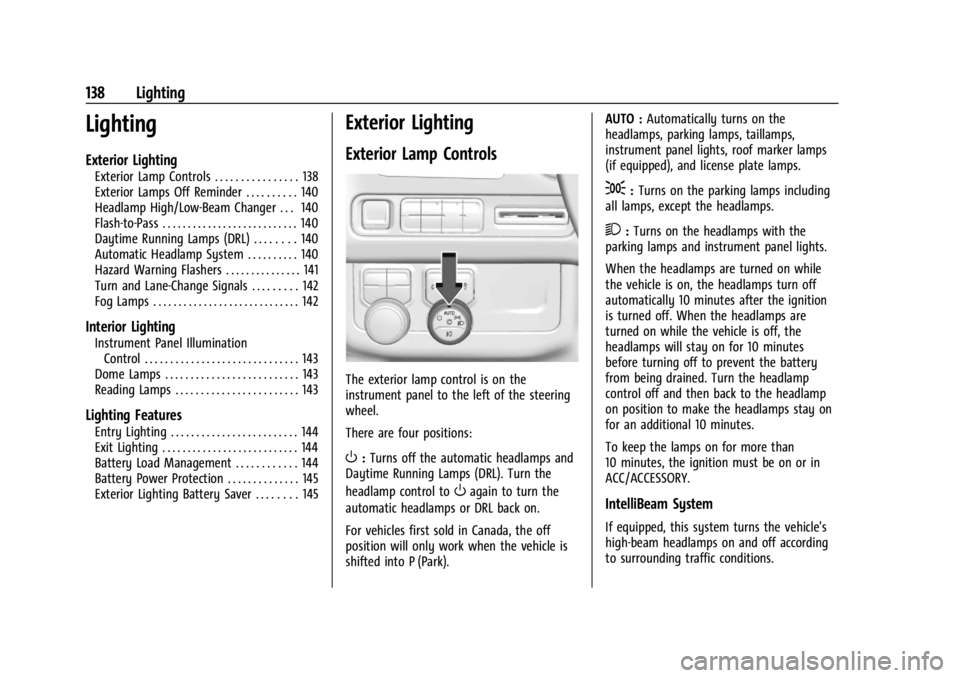
The exterior lamp control is on the
instrument panel to the left of the steering
wheel.
There are four positions:
O: Turns off the automatic headlamps and
Daytime Running Lamps (DRL). Turn the
headlamp control to
Oagain to turn the
automatic headlamps or DRL back on.
For vehicles first sold in Canada, the off
position will only work when the vehicle is
shifted into P (Park). AUTO :
Automatically turns on the
headlamps, parking lamps, taillamps,
instrument panel lights, roof marker lamps
(if equipped), and license plate lamps.
;: Turns on the parking lamps including
all lamps, except the headlamps.
2: Turns on the headlamps with the
parking lamps and instrument panel lights.
When the headlamps are turned on while
the vehicle is on, the headlamps turn off
automatically 10 minutes after the ignition
is turned off. When the headlamps are
turned on while the vehicle is off, the
headlamps will stay on for 10 minutes
before turning off to prevent the battery
from being drained. Turn the headlamp
control off and then back to the headlamp
on position to make the headlamps stay on
for an additional 10 minutes.
To keep the lamps on for more than
10 minutes, the ignition must be on or in
ACC/ACCESSORY.
IntelliBeam System
If equipped, this system turns the vehicle's
high-beam headlamps on and off according
to surrounding traffic conditions.
Page 149 of 422

GMC Yukon/Yukon XL/Denali Owner Manual (GMNA-Localizing-U.S./
Canada/Mexico-15555988) - 2022 - CRC - 12/3/21
148 Infotainment System
.USB/Bluetooth: Press and hold to
fast reverse the current song if
supported by the device. Release
to return to playing speed. See
USB Port0155 or
Bluetooth Audio 0156.
3.{
.Press to go to the Home Page. See
“Home Page” later in this section.
.Press to exit Android Auto or Apple
CarPlay. To enter back into Android
Auto or Apple CarPlay, press and
hold. SeeApple CarPlay and
Android Auto 0172.
4.6
.Radio: Press and release to go to
the next strong station or channel.
Press and hold to scroll through
the stations or channels. Release to
stop at the next strong station or
channel.
.USB/Bluetooth: Press and hold to
fast forward the current song if
supported by the device. Release
to return to playing speed. See
USB Port 0155 or
Bluetooth Audio 0156.
5.oBACK
.Press to return to the previous
display in a menu.
6.V
.Turn to change tuner sources only
(AM/FM/SXM/DAB where
available), while in the audio app.
Does not support non-tuner
sources. Turn to scroll through
selections in phone
projection apps.
Home Page
The Home Page is where vehicle application
icons are accessed. Some applications are
disabled when the vehicle is moving.
Swipe left or right across the display to
access the pages of icons.
Managing Home Page Icons 1. Touch and hold any of the Home Page icons to enter edit mode.
2. Continue holding the icon and drag it to the desired position.
3. Release your finger to drop the icon in the desired position. Move an Icon to Another Page
1. Drag the icon to the edge of the display toward the desired page.
2. Continue dragging and dropping application icons as desired.
Move an Icon to the Application Tray
For uplevel radio only:
To move an icon to the application tray on
the left side of the screen, drag the icon to
the applications tray.
Steering Wheel Controls
If equipped, some audio controls can be
adjusted at the steering wheel.
Page 167 of 422

GMC Yukon/Yukon XL/Denali Owner Manual (GMNA-Localizing-U.S./
Canada/Mexico-15555988) - 2022 - CRC - 12/3/21
166 Infotainment System
.The route prohibits the entry of a vehicle
due to a regulation by time or season or
any other regulation which may be given.
.Some routes might not be searched.
.The route to the destination might not be
shown if there are new roads, if roads
have recently changed, or if certain roads
are not listed in Maps.
To recalibrate the vehicle's position on the
map, park with the vehicle running for two
to five minutes, until the vehicle position
updates. Make sure the vehicle is parked in
a location that is safe and has a clear view
of the sky and away from large
obstructions.
Voice Recognition
If equipped, Google Assistant allows for
hands-free use of, media and messaging,
navigation and climate control functionality
in the vehicle. This feature can be started by
pressing
gon the steering wheel, touching
Google Assistant on the Home screen, or by
using the wake up words “Hey Google”or
“OK Google.” However, not all features within these areas
are supported by voice commands and
requires the user to have a data subscription
in order to use the Google Assistant feature.
Using Voice Recognition
Voice recognition becomes available once
the system is initialized. This begins when
the vehicle is turned on. Initialization may
take a few moments.
1. Press
gon the steering wheel controls,
touch Google Assistant on the Home
screen, or use the wake up words “Hey
Google” or“OK Google” to activate voice
recognition.
2. Clearly speak one of the commands described later in this section.
Canceling Google Assistant
.Presscon the steering wheel controls
to cancel the Google Assistant request.
Helpful Hints for Speaking Commands
Voice recognition identifies commands that
are naturally stated in sentence form,
or direct commands that state the
application and the task. For best results:
.Speak the command naturally, not too
fast, not too slow.
.Use direct commands without a lot of
extra words. For example,
“Call
at work,” “Play” followed by the artist or
song name, or “Play”followed by the
radio station number.
Direct commands are more clearly
understood by the system. An example of a
direct command is “Dial
If a cell phone number was saved with a
name and a place, the direct command
should include both. For example “Call
Voice Recognition for the Radio
If browsing the audio sources when voice is
touched, the voice recognition commands
for AM, FM, and SiriusXM (if equipped) are
available.
“Play
radio station frequency identified in the
command (like “nine fifty”).
“Play
radio station frequency identified in the
command (like “one oh one point one”).