2022 GMC YUKON center console
[x] Cancel search: center consolePage 92 of 422
GMC Yukon/Yukon XL/Denali Owner Manual (GMNA-Localizing-U.S./
Canada/Mexico-15555988) - 2022 - CRC - 12/3/21
Storage 91
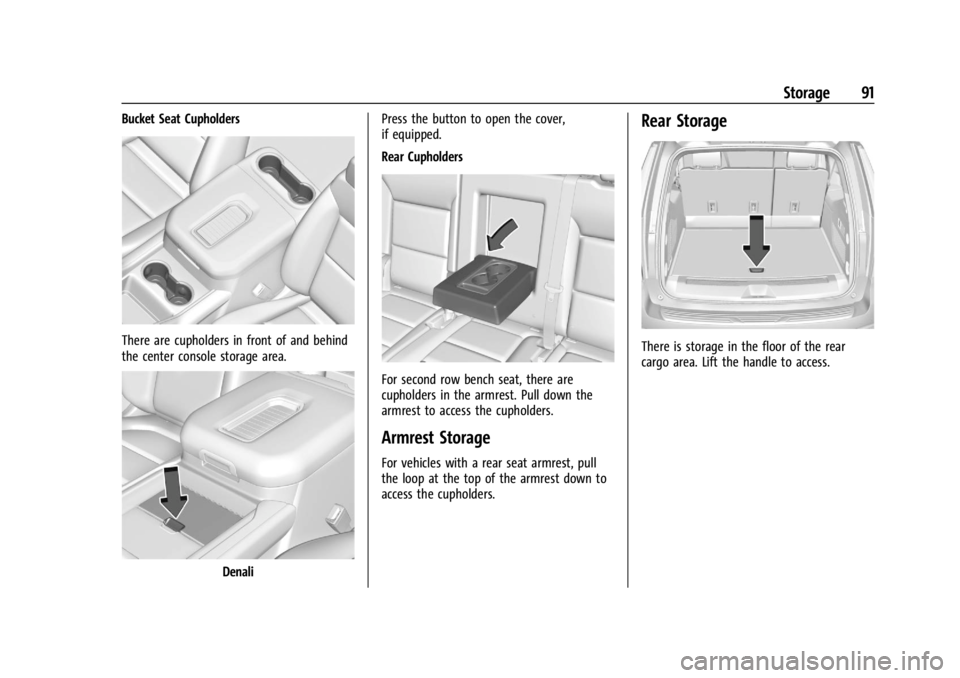
Bucket Seat Cupholders
There are cupholders in front of and behind
the center console storage area.
DenaliPress the button to open the cover,
if equipped.
Rear Cupholders
For second row bench seat, there are
cupholders in the armrest. Pull down the
armrest to access the cupholders.
Armrest Storage
For vehicles with a rear seat armrest, pull
the loop at the top of the armrest down to
access the cupholders.
Rear Storage
There is storage in the floor of the rear
cargo area. Lift the handle to access.
Page 93 of 422

GMC Yukon/Yukon XL/Denali Owner Manual (GMNA-Localizing-U.S./
Canada/Mexico-15555988) - 2022 - CRC - 12/3/21
92 Storage
Center Console Storage
Bench Seat
If equipped, pull the front center armrest
down to access the storage area with
cupholders.
Press the button and lift to open. There may
be a removable divider.
Bucket Seat
Bucket Seat (Denali)
The SD card is used for navigation. Do not
remove the card from the holder. See the
infotainment section.
If equipped, press the latch and lift to open.
Depending on the options, there may be a
removable storage tray, SD card holder,
auxiliary jack, and USB port(s) inside.
Power Sliding Center Console
If equipped, the center console moves
rearward and forward using a button on the
overhead console. There is more storage
when the center console is rearward.
Page 94 of 422

GMC Yukon/Yukon XL/Denali Owner Manual (GMNA-Localizing-U.S./
Canada/Mexico-15555988) - 2022 - CRC - 12/3/21
Storage 93
Press and holdRto move the center
console rearward.
Press and hold
Qto move the center
console forward.
When the center console is all of the way
back, there is a storage bin under the
armrest. Pull on the handle to open.
To move the armrest forward, push forward
on the center of the armrest with the palm
of your hand.
When Valet Mode is enabled, the center
console slide is locked. See Vehicle
Personalization 0130.
Floor Console Storage
If equipped with front center seat storage,
unlock with the mechanical key inside the
remote key. See Keys07.
Press the latch, and lift to open.
Page 102 of 422

GMC Yukon/Yukon XL/Denali Owner Manual (GMNA-Localizing-U.S./
Canada/Mexico-15555988) - 2022 - CRC - 12/3/21
Instruments and Controls 101
The compass system is designed to operate
for a certain number of miles or degrees of
turn before needing a signal from the GPS
satellites. When the compass display shows
CAL, drive the vehicle for a short distance in
an open area where it can receive a GPS
signal. The compass system will
automatically determine when a GPS signal
is restored and provide a heading again.
Clock
Set the time and date using the
infotainment system. See "Time/Date" under
Settings0173.
Power Outlets
Accessory power outlets can be used to plug
in electrical equipment, such as a cell phone
or MP3 player.
The vehicle has one 12 Volt accessory power
outlet under the climate control system and
one 110/120 Volt Alternating Current outlet
on the rear of the center console.
12 Volt Power Outlet
Caution
Do not insert metal objects such as USB
cord plugs, electronic accessories, keys,
or coins into the 12-volt power outlet.
Objects may become hot, melt, or cause
a spark damaging the outlet or the metal
object. Only use compatible 12-volt power
accessories in the power outlet.
Caution
Leaving electrical equipment plugged in
for an extended period of time while the
vehicle is off will drain the battery.
Always unplug electrical equipment when
not in use and do not plug in equipment
that exceeds the maximum 15 amp
rating.
Certain power accessory plugs may not be
compatible with the accessory power outlet
and could overload vehicle or adapter fuses.
If a problem is experienced, see your dealer.
When adding electrical equipment, be sure
to follow the proper installation instructions
included with the equipment. See Add-On
Electrical Equipment 0294.
Caution
Hanging heavy equipment from the
power outlet can cause damage not
covered by the vehicle warranty. The
power outlets are designed for accessory
power plugs only, such as cell phone
charge cords.
Page 103 of 422

GMC Yukon/Yukon XL/Denali Owner Manual (GMNA-Localizing-U.S./
Canada/Mexico-15555988) - 2022 - CRC - 12/3/21
102 Instruments and Controls
Power Outlet 110/120 Volt Alternating
Current
If equipped, the vehicle has two alternating
current power outlets. One on the back of
the center console and one in the rear of
the vehicle.
When the ignition is on, power to the 110
Volt outlet is enabled after the
-
button is pressed, seeInstrument Panel
Overview 04for button location. A green
indicator light on the button indicates when
the 110 Volt outlet is enabled. 110 Volt
power is supplied to the outlet when it is
enabled and electrical equipment is plugged
into that outlet. One power outlet can be used with electrical equipment that uses a
maximum of 400 watts. Ensure that all
connected devices do not exceed 400 watts.
The power outlet can be turned off by
pressing the
-button.
An indicator light on the outlet illuminates
when the system is enabled and no system
fault is detected. The outlet will not provide
power when the ignition is off, the
-
button is not pressed, or the plug is not
fully seated into the outlet. The outlet does
not operate while the engine is starting. If a
USB powered streaming device is being
used, it is suggested to use a USB Port for
power, see USB Port0155. If uninterrupted
power supply is required while driving,
disable the auto-stop feature, see Stop/Start
System 0208.
If equipment is connected using more than
400 watts or a system fault is detected, a
protection circuit shuts off the power supply
and the indicator light will flash.
Do not use a power outlet with a missing or
damaged cover. The power outlet is not designed for the
following, and may not work properly if
they are plugged in:
.Equipment with high initial peak wattage,
such as compressor-driven refrigerators
and electric power tools
.Other equipment requiring an extremely
stable power supply, such as
microcomputer-controlled electric blankets
and touch sensor lamps
.Medical equipment
Wireless Charging
If equipped and enabled, the vehicle has
wireless charging in the bin below the
climate control system. The system operates
at 145 kHz and wirelessly charges one Qi
compatible smartphone. The power output
of the system is capable of charging at a
rate up to 3 amp (15 W), as requested by
the compatible smartphone. See
Radio
Frequency Statement 0398.
Page 114 of 422

GMC Yukon/Yukon XL/Denali Owner Manual (GMNA-Localizing-U.S./
Canada/Mexico-15555988) - 2022 - CRC - 12/3/21
Instruments and Controls 113
Warning (Continued)
a crash, or they could even inflate
without a crash. To help avoid injury,
have the vehicle serviced right away.
If there is a problem with the airbag
system, a Driver Information Center (DIC)
message may also come on.
Passenger Airbag Status Indicator
The vehicle has a passenger sensing system.
See Passenger Sensing System 066 for
important safety information. The overhead
console has a passenger airbag status
indicator.
United States and Canada
When the vehicle is started, the passenger
airbag status indicator will light ON and OFF,
and the symbols for on and off, for several
seconds as a system check. Then, after
several more seconds, the status indicator will light either ON or OFF, and the symbol
for on or off, to let you know the status of
the front outboard passenger frontal airbag.
If the word ON, and the on symbol, are lit
on the passenger airbag status indicator, it
means that the front outboard passenger
frontal airbag is allowed to inflate.
If the word OFF, and the off symbol, are lit
on the passenger airbag status indicator, it
means that the passenger sensing system
has turned off the front outboard passenger
frontal airbag.
If, after several seconds, both status
indicator lights remain on, if there are no
lights at all, or if the airbag readiness light
is on, there may be a problem with the
lights or the passenger sensing system. See
your dealer for service right away.
{Warning
If the airbag readiness light ever comes
on and stays on, it means that
something may be wrong with the airbag
system. To help avoid injury to yourself
or others, have the vehicle serviced right
(Continued)
Warning (Continued)
away. SeeAirbag Readiness Light 0112
for more information, including important
safety information.
Charging System Light
The charging system light comes on briefly
when the ignition is turned on, but the
engine is not running, as a check to show
the light is working. It should go out when
the engine is started.
If the light stays on, or comes on while
driving, there may be a problem with the
electrical charging system. Have it checked
by your dealer. Driving while this light is on
could drain the battery.
When this light comes on, or is flashing, the
Driver Information Center (DIC) also displays
a message.
Page 156 of 422

GMC Yukon/Yukon XL/Denali Owner Manual (GMNA-Localizing-U.S./
Canada/Mexico-15555988) - 2022 - CRC - 12/3/21
Infotainment System 155
lines interfere with radio reception. When
this happens, try reducing the treble on the
radio.
SiriusXM Satellite Radio Service
If equipped, SiriusXM Satellite Radio Service
provides digital radio reception. Tall
buildings or hills can interfere with satellite
radio signals, causing the sound to fade in
and out. In addition, traveling or standing
under heavy foliage, bridges, garages,
or tunnels may cause loss of the SiriusXM
signal for a period of time. Some cellular
services may interfere with SXM reception
causing loss of signal.
Mobile Device Usage
Mobile device usage, such as making or
receiving calls, charging, or just having the
mobile device on may cause static
interference in the radio. Unplug the mobile
device or turn it off if this happens.
Multi-Band Antenna
The roof antenna may be used for radio,
navigation, and OnStar, depending on the
equipped options. Keep clear of obstructions
for clear reception. If the vehicle has a
sunroof, and it is open, reception can also
be affected.
Audio Players
Avoiding Untrusted Media Devices
When using media devices such as USB and
mobile devices, consider the source.
Untrusted media devices could contain files
that affect system operation or performance
and should be avoided.
USB Port
The vehicle may be equipped with two USB
ports in the center console under the
armrest and another two on the center
stack. These ports are for data and charging.
There may also be two USB ports at the
rear of the center console and a USB port on
each side of the third row seats for
charging only.
Caution
To avoid vehicle damage, unplug all
accessories and disconnect all accessory
cables from the vehicle when not in use.
Accessory cables left plugged into the
vehicle, unconnected to a device, could be
damaged or cause an electrical short if
(Continued)
Caution (Continued)
the unconnected end comes in contact
with liquids or another power source such
as the accessory power outlet.
Playing from a USB
A USB mass storage device can be connected
to the USB port.
USB MP3 Player and USB Devices
The USB MP3 players and USB devices
connected must comply with the USB Mass
Storage Class specification (USB MSC).
To play a USB device:1. Connect the USB.
2. Touch Audio.
3. Touch More from the top left of the main audio page.
4. Touch USB.
Use the following infotainment controls
when playing an active USB source:
r: Touch to play the current media source.
j: Touch to pause playback of the current
media source.
Page 161 of 422

GMC Yukon/Yukon XL/Denali Owner Manual (GMNA-Localizing-U.S./
Canada/Mexico-15555988) - 2022 - CRC - 12/3/21
160 Infotainment System
Rear Consumer Ports (RCP)
If equipped with RSI, the RCP are in the rear
of the center console. These include two
HDMI ports and two USB-C charge only
ports.
HDMI
The HDMI input allows an HDMI A/V cable
to be connected from an auxiliary device
such as a camcorder, video game system,
or Apple device. A cable from Apple is
required for Apple devices.
Touch the HDMI port that the external
device was connected to on the home
screen.
For certain HDMI devices that support USB
charging, the USB ports can be used as a
power source.Content from these HDMI ports are NOT
accessible through the infotainment display.
To use the HDMI input of the RSI system:
1. Connect the auxiliary device with an HDMI cable.
2. Power on both the auxiliary device and the RSI video screen.
3. Touch
{(Home) on the desired display
and select HDMI as the source.
HDMI
HDMI Connection
The RCP provides two HDMI ports to mirror
video devices.
Connect the external device to watch the
device content through the RSI screen.
Touch the HDMI port that was connected to
the external device on the home screen. HDMI Playing View
HDMI playing view shows the video content
and includes:
.{(Home): Touch{to return to the RSI
Home selection screen.
.X(Headphones): TouchXto access the
Bluetooth Headphone Setup menu. See
“Settings” later in this section.
.Share: Touch to share the screen with the
other rear screen. The screen can be
shared through the connected device.
Rear Media App from the Home Screen
The Rear Media App allows a front user to
control the Rear Seat Video Screen sources.
To access, touch the Rear Media App icon
from the Home Page.