2022 GMC SIERRA warning
[x] Cancel search: warningPage 272 of 474

GMC Sierra/Sierra Denali 1500 Owner Manual (GMNA-Localizing-U.S./
Canada/Mexico-15883563) - 2022 - CRC - 11/19/21
Driving and Operating 271
When the steering wheel is moved
manually, the steering wheel light bar
flashes blue and
^on the instrument
cluster turns blue to indicate Super Cruise is
not steering the vehicle.
When ready to allow Super Cruise to
resume steering again, position the vehicle
in the center of the lane, hold the steering
wheel until the steering wheel light bar
turns green, and then release the steering
wheel when it is safe to do so.
{Warning
To help prevent crashes before making a
lane change:
.Always check mirrors.
.Glance over your shoulder.
.Use the turn signals.
Super Cruise Lane Change
Super Cruise can steer to perform a single
lane change under certain conditions when
requested by the driver or initiated by the
Super Cruise System. To request a lane change:
1. Verify the lane next to your vehicle is clear and conditions are safe to make a
lane change.
2. Use the turn signal lever to activate the turn signal in the direction of the desired
lane change.
3. Return the turn signal lever to the neutral position after the lane change.
See Turn and Lane-Change Signals 0149.
Super Cruise System may initiate a single
lane change when enabled through Vehicle
Personalization under following conditions:
.The Super Cruise System may initiate a
lane change to the left to pass a slower
moving vehicle ahead and a subsequent
lane change to right to return to your
original lane.
.Super Cruise System may initiate a lane
change to left or right when current lane
is ending ahead.
.To cancel a Super Cruise lane change,
return the turn signal lever to the neutral
position or move the turn signal lever.
.Super Cruise steering can be overridden
with manual steering at any time to
cancel a Super Cruise lane change.
If Super Cruise detects that traffic is clear,
Super Cruise will steer the vehicle to
perform the lane change. A message appears
on the Driver Information Center (DIC)
during the lane change to provide more
information on the status of the lane
change.
Super Cruise Lane Change functionality is
only available on Super Cruise capable
divided roads.
The Super Cruise Lane Change feature can
be enabled or disabled through the vehicle
personalization menu. See “Super Cruise
Lane Change” underVehicle Personalization
0 137.
Super Cruise Lane Change may be disabled
when a trailer or other accessory (e.g. bike
rack, cargo tray, etc) is detected.
Do not use Super Cruise Lane Change
feature when towing a trailer.
Page 273 of 474

GMC Sierra/Sierra Denali 1500 Owner Manual (GMNA-Localizing-U.S./
Canada/Mexico-15883563) - 2022 - CRC - 11/19/21
272 Driving and Operating
{Warning
Super Cruise Lane Change may not detect
a vehicle in an adjacent lane. Always
supervise the driving task and monitor
traffic conditions when using the Super
Cruise Lane Change feature. Only request
a lane change when traffic conditions are
safe for a lane change, and always be
ready to manually steer the vehicle. See
“Steering Manually and Changing Lanes”
listed previously in this section.
Take Over Alert
{Warning
Super Cruise will not maintain the
vehicle’s speed while the steering wheel
light bar is flashing red. If the steering
wheel light bar flashes red, immediately
resume manual steering to prevent
serious injury or death. If you do not
resume manual steering, the vehicle will
begin to slow in the same lane and
eventually come to a complete stop on
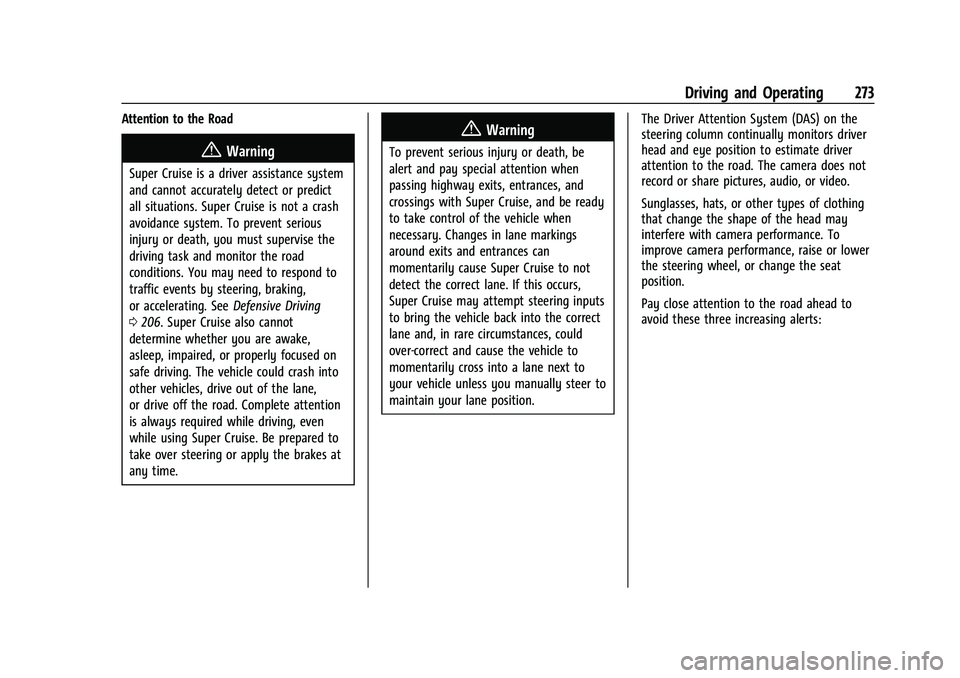
the road. To begin steering manually, hold the
steering wheel firmly (with both hands)
using the highlighted regions as shown in
the picture below.Any time the steering wheel light bar
flashes red, resume manual steering
immediately. The instrument cluster light
^, will also turn red and a message will
display in the Driver Information Center
(DIC). In addition, beeps will sound, or the
Safety Alert Seat will vibrate. See “Collision/
Detection Systems” underVehicle
Personalization 0137. After you begin
steering manually, then Super Cruise will
disengage. The red flashing steering wheel light bar
could occur under any of the following
conditions:
.Lane markings are poor, or visibility is
limited.
.The Driver Attention System (DAS) does
not detect that the driver's head and eyes
are directed toward the road.
.ACC is canceled.
.The vehicle is on a tight curve, or the
lanes are too wide, or the vehicle goes
into a curve too fast.
.The compatible road ends.
.The vehicle is approaching an intersection
controlled by a traffic light, stop sign,
or other traffic control device.
.A Super Cruise system fault occurs.
.Super Cruise is unable to complete the
lane change maneuver.
Page 274 of 474
GMC Sierra/Sierra Denali 1500 Owner Manual (GMNA-Localizing-U.S./
Canada/Mexico-15883563) - 2022 - CRC - 11/19/21
Driving and Operating 273
Attention to the Road
{Warning
Super Cruise is a driver assistance system
and cannot accurately detect or predict
all situations. Super Cruise is not a crash
avoidance system. To prevent serious
injury or death, you must supervise the
driving task and monitor the road
conditions. You may need to respond to
traffic events by steering, braking,
or accelerating. SeeDefensive Driving
0 206. Super Cruise also cannot
determine whether you are awake,
asleep, impaired, or properly focused on
safe driving. The vehicle could crash into
other vehicles, drive out of the lane,
or drive off the road. Complete attention
is always required while driving, even
while using Super Cruise. Be prepared to
take over steering or apply the brakes at
any time.
{Warning
To prevent serious injury or death, be
alert and pay special attention when
passing highway exits, entrances, and
crossings with Super Cruise, and be ready
to take control of the vehicle when
necessary. Changes in lane markings
around exits and entrances can
momentarily cause Super Cruise to not
detect the correct lane. If this occurs,
Super Cruise may attempt steering inputs
to bring the vehicle back into the correct
lane and, in rare circumstances, could
over-correct and cause the vehicle to
momentarily cross into a lane next to
your vehicle unless you manually steer to
maintain your lane position. The Driver Attention System (DAS) on the
steering column continually monitors driver
head and eye position to estimate driver
attention to the road. The camera does not
record or share pictures, audio, or video.
Sunglasses, hats, or other types of clothing
that change the shape of the head may
interfere with camera performance. To
improve camera performance, raise or lower
the steering wheel, or change the seat
position.
Pay close attention to the road ahead to
avoid these three increasing alerts:
Page 275 of 474

GMC Sierra/Sierra Denali 1500 Owner Manual (GMNA-Localizing-U.S./
Canada/Mexico-15883563) - 2022 - CRC - 11/19/21
274 Driving and Operating
First Alert
.If the steering wheel light bar flashes green, the system has detected that your head and eyes may not be
directed toward the road.
.The flashing will stop when the system detects that your head and eyes appear to be directed toward
the road.
Second Alert
.If the steering wheel light bar flashes green for too long, Super Cruise will alert the driver to take control of
steering immediately by flashing the light bar red. Also, either beeps will sound or the Safety Alert Seat will
vibrate. See “Collision/Detection Systems” underVehicle Personalization 0137.
.Take over steering, then Super Cruise will disengage.
.To re-engage Super Cruise, press]. See “Using Super Cruise” previously in this section.
Third Alert
.If the steering wheel light bar flashes red for too long, a voice command will tell you to take control of the
vehicle.
.Take control of the steering immediately; ACC and Super Cruise will disengage.
.A DIC message will indicate that Super Cruise is locked out. Super Cruise cannot be re-engaged until the next
ignition cycle.
.Continued failure to take over steering will cause the vehicle to brake to a stop and OnStar will be called. The
brake lamps and hazard warning flashers will come on.
.Take control of the vehicle and continue driving.
Page 276 of 474
GMC Sierra/Sierra Denali 1500 Owner Manual (GMNA-Localizing-U.S./
Canada/Mexico-15883563) - 2022 - CRC - 11/19/21
Driving and Operating 275
Stationary or Very Slow-Moving Objects;
Cross-Traffic
{Warning
Super Cruise is not a crash avoidance
system and will not steer or brake to
avoid a crash. Super Cruise does not steer
to prevent a crash with stopped or
slow-moving vehicles. You must supervise
the driving task and may need to steer
and brake to prevent a crash, especially
in stop-and-go traffic or when a vehicle
suddenly enters your lane. Always pay
attention when using Super Cruise.
Failure to do so could result in a crash
involving serious injury or death.
Curves in the Road
{Warning
The vehicle could drift out of your lane of
travel. To prevent crashes, always be
ready to manually steer.
Super Cruise may not detect your lane on
curves in the road. Super Cruise may not
detect the markings that show your lane. (Continued)
Warning (Continued)
You may not have time to react to a
vehicle in the lane next to your vehicle
while on curves in the road.
Super Cruise may hand control back to the
driver more often driving around a sharp
curve while towing a trailer.
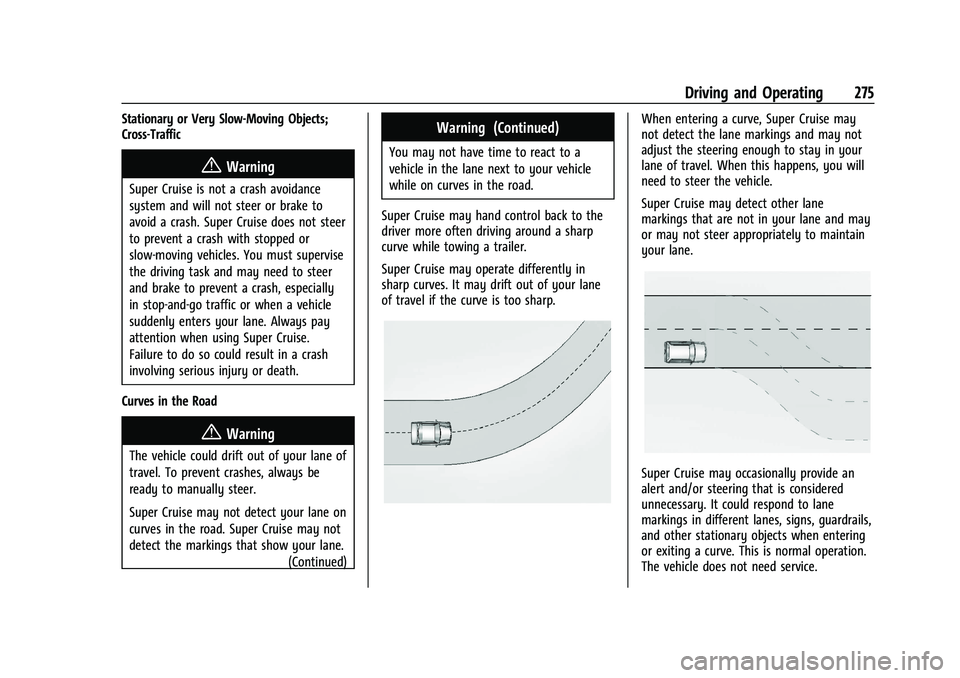
Super Cruise may operate differently in
sharp curves. It may drift out of your lane
of travel if the curve is too sharp.
When entering a curve, Super Cruise may
not detect the lane markings and may not
adjust the steering enough to stay in your
lane of travel. When this happens, you will
need to steer the vehicle.
Super Cruise may detect other lane
markings that are not in your lane and may
or may not steer appropriately to maintain
your lane.
Super Cruise may occasionally provide an
alert and/or steering that is considered
unnecessary. It could respond to lane
markings in different lanes, signs, guardrails,
and other stationary objects when entering
or exiting a curve. This is normal operation.
The vehicle does not need service.
Page 283 of 474

GMC Sierra/Sierra Denali 1500 Owner Manual (GMNA-Localizing-U.S./
Canada/Mexico-15883563) - 2022 - CRC - 11/19/21
282 Driving and Operating
Caution (Continued)
which your dealer has. Without proper
training and tools the vehicle may
become damaged.
Driver Assistance Systems
This vehicle may have features that work
together to help avoid crashes or reduce
crash damage while driving, backing, and
parking. Read this entire section before
using these systems.
{Warning
Do not rely on the Driver Assistance
Systems. These systems do not replace
the need for paying attention and driving
safely. You may not hear or feel alerts or
warnings provided by these systems.
Failure to use proper care when driving
may result in injury, death, or vehicle
damage. SeeDefensive Driving 0206.
Under many conditions, these systems
will not:
.Detect children, pedestrians, bicyclists,
or animals. (Continued)
Warning (Continued)
.Detect vehicles or objects outside the
area monitored by the system.
.Work at all driving speeds.
.Warn you or provide you with enough
time to avoid a crash.
.Work under poor visibility or bad
weather conditions.
.Work if the detection sensor is not
cleaned or is covered by ice, snow,
mud, or dirt.
.Work if the detection sensor is
covered up, such as with a sticker,
magnet, or metal plate.
.Work if the area surrounding the
detection sensor is damaged or not
properly repaired.
Complete attention is always required
while driving, and you should be ready to
take action and apply the brakes and/or
steer the vehicle to avoid crashes. Audible or Safety Alert Seat
Some driver assistance features alert the
driver of obstacles by beeping. To change
the volume of the warning chime, see
“Comfort and Convenience”
underVehicle
Personalization 0137.
If equipped with the Safety Alert Seat, the
driver seat cushion may provide a vibrating
pulse alert instead of beeping. To change
this, see “Collision/Detection Systems” under
Vehicle Personalization 0137.
Cleaning
Depending on vehicle options, keep these
areas of the vehicle clean to ensure the best
driver assistance feature performance. Driver
Information Center (DIC) messages may
display when the systems are unavailable or
blocked.
Page 285 of 474
GMC Sierra/Sierra Denali 1500 Owner Manual (GMNA-Localizing-U.S./
Canada/Mexico-15883563) - 2022 - CRC - 11/19/21
284 Driving and Operating
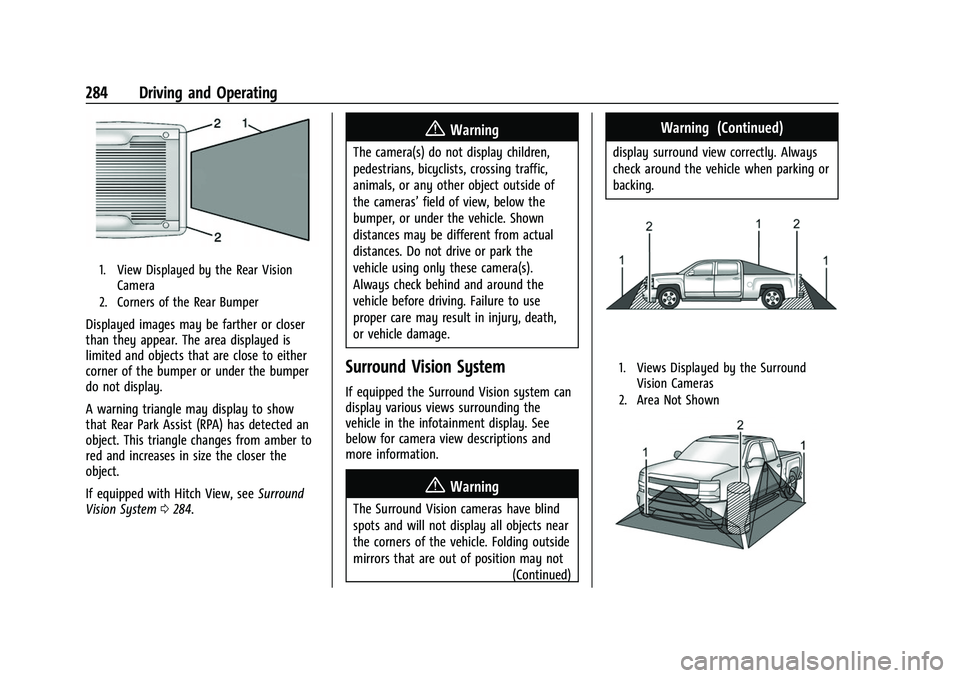
1. View Displayed by the Rear VisionCamera
2. Corners of the Rear Bumper
Displayed images may be farther or closer
than they appear. The area displayed is
limited and objects that are close to either
corner of the bumper or under the bumper
do not display.
A warning triangle may display to show
that Rear Park Assist (RPA) has detected an
object. This triangle changes from amber to
red and increases in size the closer the
object.
If equipped with Hitch View, see Surround
Vision System 0284.
{Warning
The camera(s) do not display children,
pedestrians, bicyclists, crossing traffic,
animals, or any other object outside of
the cameras’ field of view, below the
bumper, or under the vehicle. Shown
distances may be different from actual
distances. Do not drive or park the
vehicle using only these camera(s).
Always check behind and around the
vehicle before driving. Failure to use
proper care may result in injury, death,
or vehicle damage.
Surround Vision System
If equipped the Surround Vision system can
display various views surrounding the
vehicle in the infotainment display. See
below for camera view descriptions and
more information.
{Warning
The Surround Vision cameras have blind
spots and will not display all objects near
the corners of the vehicle. Folding outside
mirrors that are out of position may not (Continued)
Warning (Continued)
display surround view correctly. Always
check around the vehicle when parking or
backing.
1. Views Displayed by the SurroundVision Cameras
2. Area Not Shown
Page 286 of 474
GMC Sierra/Sierra Denali 1500 Owner Manual (GMNA-Localizing-U.S./
Canada/Mexico-15883563) - 2022 - CRC - 11/19/21
Driving and Operating 285
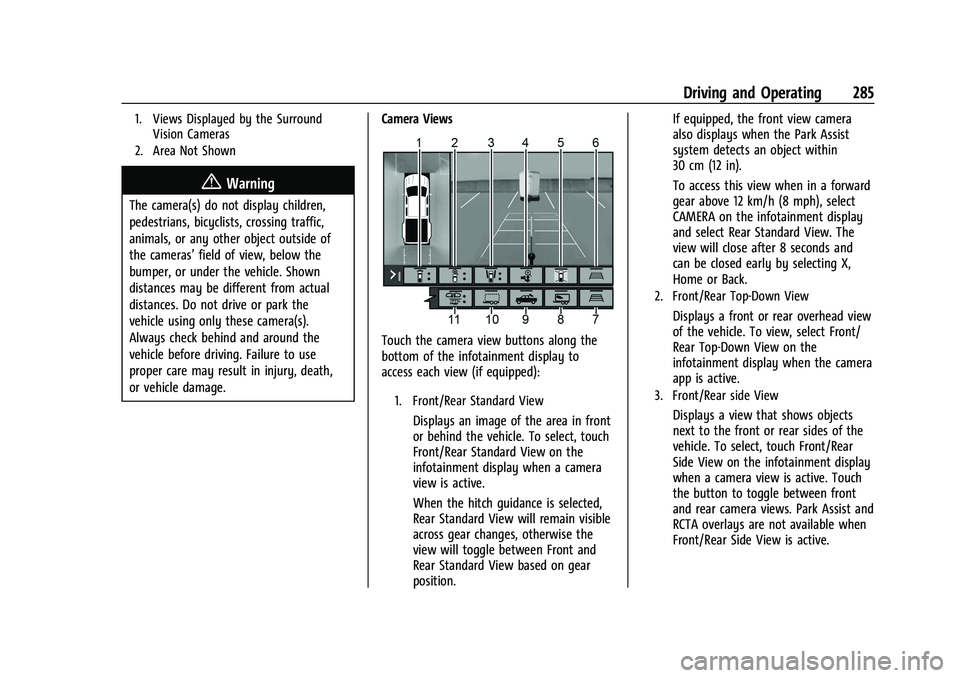
1. Views Displayed by the SurroundVision Cameras
2. Area Not Shown
{Warning
The camera(s) do not display children,
pedestrians, bicyclists, crossing traffic,
animals, or any other object outside of
the cameras’ field of view, below the
bumper, or under the vehicle. Shown
distances may be different from actual
distances. Do not drive or park the
vehicle using only these camera(s).
Always check behind and around the
vehicle before driving. Failure to use
proper care may result in injury, death,
or vehicle damage. Camera Views
Touch the camera view buttons along the
bottom of the infotainment display to
access each view (if equipped):
1. Front/Rear Standard View
Displays an image of the area in front
or behind the vehicle. To select, touch
Front/Rear Standard View on the
infotainment display when a camera
view is active.
When the hitch guidance is selected,
Rear Standard View will remain visible
across gear changes, otherwise the
view will toggle between Front and
Rear Standard View based on gear
position. If equipped, the front view camera
also displays when the Park Assist
system detects an object within
30 cm (12 in).
To access this view when in a forward
gear above 12 km/h (8 mph), select
CAMERA on the infotainment display
and select Rear Standard View. The
view will close after 8 seconds and
can be closed early by selecting X,
Home or Back.
2. Front/Rear Top-Down View
Displays a front or rear overhead view
of the vehicle. To view, select Front/
Rear Top-Down View on the
infotainment display when the camera
app is active.
3. Front/Rear side View
Displays a view that shows objects
next to the front or rear sides of the
vehicle. To select, touch Front/Rear
Side View on the infotainment display
when a camera view is active. Touch
the button to toggle between front
and rear camera views. Park Assist and
RCTA overlays are not available when
Front/Rear Side View is active.