2022 FORD ESCAPE radio
[x] Cancel search: radioPage 416 of 585
HD1 signifies the main programming status
and is available in both analog and digital
broadcasts. Other multicast stations are
only available digitally and could contain
new or different content.
Note:When the system first receives an
HD1 station, it plays the station in the analog
version until it verifies the station is an HD
Radio station. Then it shifts to the digital
version.
Note: There is an audio mute delay when
switching to an HD2 or HD3 station because
the system has to reacquire and decode the
digital signal.
DIGITAL RADIO LIMITATIONS
If you are outside the reception area, the
system could not work.
If you are on the fringe of the reception
area, the station could mute due to weak
signal strength.
Note: If you are listening to HD1, the system
changes back to the analog broadcast until
the digital broadcast is available again. If
you are listening to any other multicast
channels, the station mutes and stays
muted unless it is able to connect to the
digital signal again.
Depending on the station quality, you could
hear a slight sound change when the
station changes between analog and
digital audio.
You cannot access a saved HD station if
your vehicle is outside the station’s
reception area.
SWITCHING DIGITAL RADIO
RECEPTION ON AND OFF
1. Access the vehicle drawer on the touchscreen.
2. Press SETTINGS.
3. Press Radio. 4. Switch HD Radio on or off.
DIGITAL RADIO INDICATORS
HD Radio Indicator
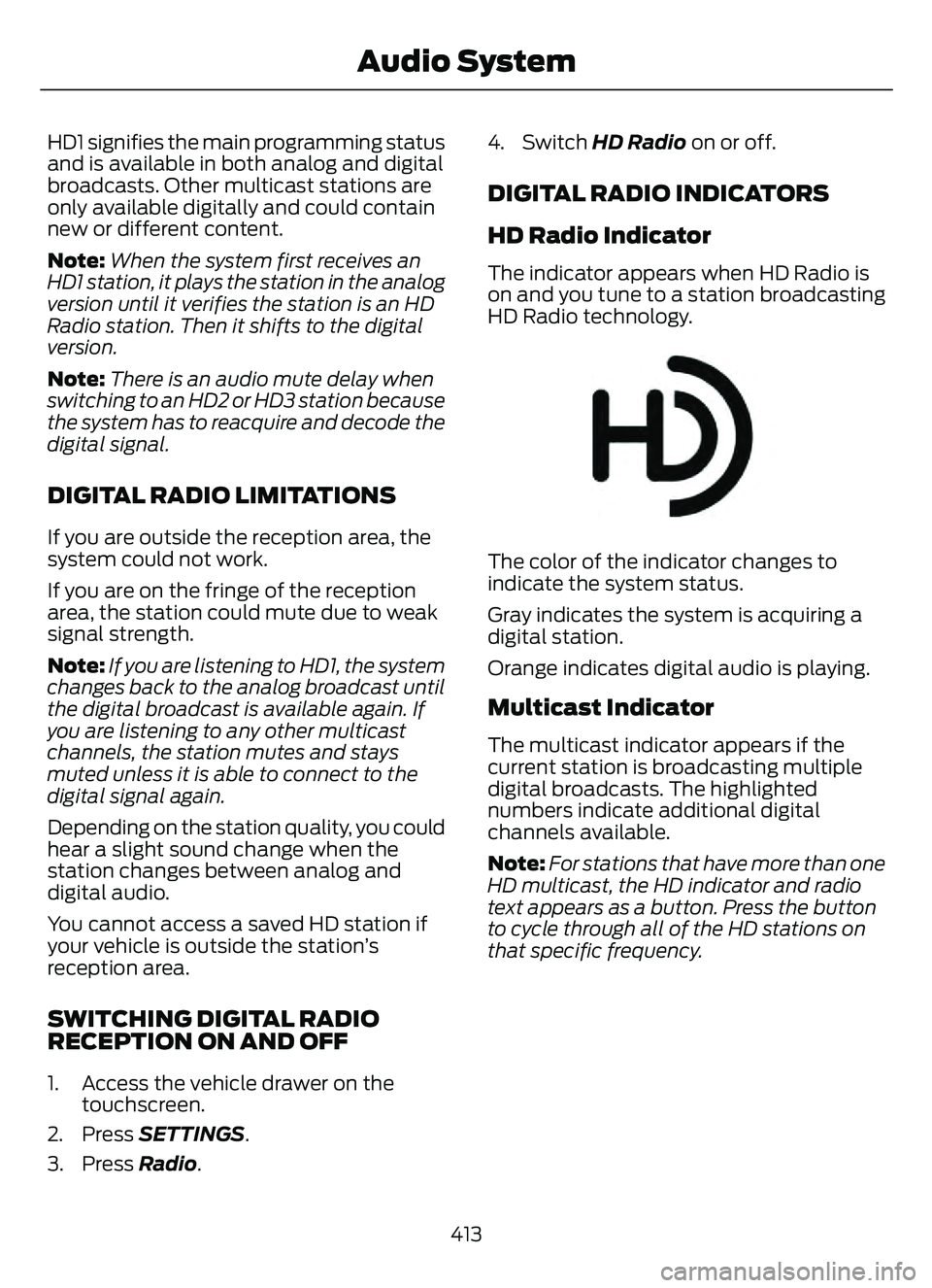
The indicator appears when HD Radio is
on and you tune to a station broadcasting
HD Radio technology.
E142616
The color of the indicator changes to
indicate the system status.
Gray indicates the system is acquiring a
digital station.
Orange indicates digital audio is playing.
Multicast Indicator
The multicast indicator appears if the
current station is broadcasting multiple
digital broadcasts. The highlighted
numbers indicate additional digital
channels available.
Note:
For stations that have more than one
HD multicast, the HD indicator and radio
text appears as a button. Press the button
to cycle through all of the HD stations on
that specific frequency.
413
Audio System
Page 417 of 585

SATELLITE RADIO
WHAT IS SATELLITE RADIO
Your factory-installed SiriusXM radio
system includes a limited subscription
term, which begins on the date of sale or
lease of your vehicle. See an authorized
dealer for availability.
For additional information about extended
subscription terms, visit www
.SiriusXM.comin the United States,www.SiriusXM.ca in
Canada, or call SiriusXM at
1-888-539-7474.
Note: SiriusXM reserves the unrestricted
right to change, rearrange, add or delete
programming including canceling, moving
or adding particular channels, and its prices,
at any time, with or without notice to you.
Neither SiriusXM and its affiliates nor Ford
Motor Company and its affiliates will be
liable to you or any third party for any such
modification, suspension or termination.
SATELLITE RADIO LIMITATIONS
For optimal reception performance, keep
the antenna clear of snow and ice build-up
and keep luggage and other material as
far away from the antenna as possible.
Placing luggage over the antenna may
reduce performance. Factory-installed and
aftermarket vehicle structures including,
but not limited to, roof racks and soft top
roofs in a partially open position could
reduce reception performance.
Hills, mountains, tall buildings, bridges,
tunnels, freeway overpasses, parking
garages, dense tree foliage and
thunderstorms can interfere with your
reception. When you pass a ground-based
broadcast-repeating tower, a stronger
signal may overtake a weaker one and
could result in the audio system muting.
Your display could show an error message
to indicate the interference.
LOCATING THE SATELLITE RADIO
IDENTIFICATION NUMBER
1. Select SiriusXM as the audio source.
2. Tune to channel 0.
414
Audio System
Page 421 of 585

USING SYNC™ WITH YOUR
PHONE
Hands-free calling is one of the main
features of SYNC. While the system
supports a variety of features, many are
dependent on your cellular phone's
functionality. At a minimum, most cellular
phones with Bluetooth wireless technology
support the following functions:
• Answering an incoming call.
• Ending a call.
• Dialing a number.
• Redialing.
• Call waiting notification.
• Caller identification.
Other features, such as text messaging
using Bluetooth® and automatic
phonebook download, are
phone-dependent features.
Pairing a Phone
Wirelessly pairing your phone with SYNC
allows you to make and receive hands-free
calls.
Note:Make sure to switch on the ignition
and the radio. Shift the transmission into
park (P) for automatic transmission or
neutral (N) for manual transmission.
Using the Audio System
Note: To scroll through the menus, press
the up and down arrows on your audio
system.
1. Make sure to switch on your phone's Bluetooth® feature before starting the
search. See your device's manual if
necessary.
2. Press the Settings button.
3. Select Bluetooth from the menu.
4. Press the OK button. 5. Select the option to add. This starts
the pairing process.
6. When a message to begin pairing appears in the center display, search
for SYNC on your device.
Depending on your phone's capability and
your market, the system may prompt you
with questions, such as setting the current
phone as the primary phone and
downloading your phonebook.
Using Voice Commands
E142599
Make sure to switch on your
phone's Bluetooth® feature
before starting the search. See
your device's manual if necessary.
Press the voice button and when
prompted say:
Action and Descrip-
tion
Voice Command
Follow the instruc-
tions on the center
display.
Pair Phone
Phone Voice Commands
E142599
Press the voice button. You can
do things like place a phone call
and access text messages.
When prompted, say a command. See the
following table for examples of
commands.
Voice Command
___ List of Commands
Help
Call ___
Dial ___
Text Messages
418
SYNC™ (If Equipped)
Page 424 of 585

Data is sent to Ford in the United States
through the connected device. The
information is encrypted and includes, for
example, the vehicle identification number
of your vehicle, the SYNC module serial
number, odometer, enabled apps, usage
statistics and debugging information.
Updates may take place.
Note:You must enable mobile apps for
each connected device the first time you
select a mobile app using the system.
Note: Standard data rates apply. Ford is
not responsible for any additional charges
you may receive from your service provider,
when your vehicle sends or receives data
through the connected device. This includes
any additional charges incurred due to
driving in areas when roaming out of a home
network.
USING SYNC™ WITH YOUR
MEDIA PLAYER
SYNC supports digital media sources
including: iPod, Bluetooth® devices, and
most USB drives. SYNC also supports
audio formats, such as MP3, WMA, WAV
and ACC.
Media Sources
The AUX or MEDIA button allows you to
view and select available media sources.
Press the AUX or MEDIA button to view
your sources. Use the directional arrows
and OK button to select your source. You
can also use the steering wheel audio
controls.
Audio Voice Commands
E142599
Press the voice button. You can
do things like play a specific song
or album, or tune to a radio
station. When prompted, say a command.
See the following table for example
commands. Not all commands may be
available on your vehicle.
Command
___ List of Commands
Help
Pause Play
AM ___ FM ___
CD Player
Sirius Channel ___ USB
Bluetooth Audio
__ is a dynamic listing, meaning that it
could be the name of anything, such as an
artist, station, or media source.
SYNC™ TROUBLESHOOTING
Your SYNC system is easy to use. However,
should questions arise, see the tables
below.
Use your local Ford website at any time to
check your phone's compatibility, register
your account and set preferences as well
as access a customer representative via
an online chat (during certain hours).
421
SYNC™ (If Equipped)
Page 428 of 585

USB and Media IssuesPossible Solution(s)
Possible Cause(s)
Issue
Make sure you correctly
connect the device to SYNC, and that you have pressed play on your device.
The device is not connected.
Make sure that all songdetails are populated.
Your music files may not
contain the correct artist,
song title, album or genre information.
SYNC does not recognize
music that is on my device. The file may be corrupted.
Some devices require you tochange the USB settings
from mass storage to MTP class.
The song may have copy-
right protection, which does not allow it to play.
Switch radio bands and
return to Sirius or switch the feature off. You can then
change the Sirius station using the directional buttons.
Sirius Replay is active.
I cannot change the Sirius
station.
Voice Command Issues
Possible Solution(s)
Possible Cause(s)
Issue
Review the phone voice
commands and the media voice commands at the
beginning of their respective sections.
You may be using the wrong
voice commands.
SYNC does not understand what I am saying. After pressing the voice icon,
wait until after the tonesounds and Listening
appears before saying a
command. Any command
spoken before this does not register with the system.
You may be speaking too
soon or at the wrong time.
Review the media voice
commands at the beginning of the media section.
You may be using the wrong
voice commands.
SYNC does not understand
the name of a song or artist.
425
SYNC™ (If Equipped)
Page 433 of 585
SYNC System Reset
The SYNC system in your vehicle has System Reset feature that can be performed if
the function of a SYNC feature is lost. This reset is intended to restore functionality and will not erase any information previously stored in the system (Such as paired devices, phonebook, call history, text messages, or user settings). To perform a System Reset,press and hold the Seek Up (>>) button while pressing and holding the Radio Power button. Release both buttons after 2-3 seconds. Please allow a few minutes for thereset to complete. After a few minutes has passed you can resume using the SYNC system.
430
SYNC™ (If Equipped)
Page 435 of 585

Automatic crash notification
system off.
Cell phone network signal
strength.
Vehicle data sharing on.
Vehicle location sharing on.
Vehicle data and vehicle location
sharing on.
Wireless charger active.
Feature Bar
E100027
Select to use the radio, a USB, a
media player or a Bluetooth®
device. See Entertainment
(page 440).
E283811
Select to adjust climate settings
See Manual Climate Control
(page 137).
Select to make calls and access
the phonebook on your cell
phone. See Phone (page 450).
Select to use the navigation
system. See Navigation (page
452).
Select to search for and use
compatible apps on your iOS or
Android device. See Apps (page
462).
E280315
Select to adjust system settings.
See Settings (page 464). Cleaning the Touchscreen
See
Cleaning Displays and Screens
(page 352).
Updating the System
Updating the System Using a USB Drive
Downloading an Update
1. Go to the SYNC update page on the local Ford website.
2. Download the update.
Note: The website notifies you if an update
is available.
3. Insert a USB drive into your computer.
Note: The USB drive needs to be empty and
meet the minimum requirements detailed
on the website.
4. Follow the instructions provided to download the update to the USB drive.
Installing an Update
Note: You can use the system when an
installation is in progress.
1. Disconnect all other USB devices from the USB ports.
2. Connect the USB drive with the update to a USB port.
Note: Installation starts automatically
within 10 minutes.
Updating the System Using a Wi-Fi
Network Connection
Connecting to a Wi-Fi Network
E280315
Select the settings option on the
feature bar.
1. Select Automatic Updates.
2. Select System Wi-Fi.
3. Switch System Wi-Fi on.
4. Select Available Wi-Fi Networks.
432
SYNC™ 3 (If Equipped)
Page 437 of 585

Action and Description
Voice Command
You can use this command to view the next page of options on
any screen where multiple pages of choices are given.
Next Page
You can use this command to view the previous page of options
on any screen where multiple pages of choices are given.
Previous Page
Gives you available commands you can use on the current
screen.
Help
Included here are some of the most
popular commands for each SYNC 3
feature.
Audio Voice Commands
___ is a dynamic listing, meaning that for
audio voice commands it can be the name
of a Sirius channel or a channel number, a
radio frequency number, or the name of an
artist, album, song or a genre.
To control the media features, press the voice button and when prompted, say:
Description
Voice Command
You can say the Sirius channel name or number
such as "Sirius channel 16".1Sirius Channel ___
You can also tune to a Sirius channel by saying the channel's name, such as "The Pulse".
Allows you to tune to a specific FM or AM
frequency such as "FM 88.7" or "AM 1580".
AM ___
FM ___
Allows you to tune to a specific HD frequency
such as “FM 88.7 HD 1”.
1FM ___ HD ___
Allows you to listen to music on your Bluetooth®
connected device.
Bluetooth Audio
Allows you to listen to music on your USB
connected device.
USB
For USB audio only, you can say the name of an
artist, album, song or a genre to listen to that
selection. Your system must finish indexing
before this option is available. For example, you
could say "Play artist The Beatles" or "Play song
Penny Lane".
Play Genre ___
Play Playlist ___
Play Artist ___
Play Album ___
Play Podcast ___
Play Song ___
434
SYNC™ 3 (If Equipped)