2022 FIAT 500X change time
[x] Cancel search: change timePage 68 of 312

66GETTING TO KNOW YOUR INSTRUMENT PANEL
Vehicle Info
Tire Pressure
Oil Temperature
Battery Voltage
Driver Assist
Lane Departure Warning
Adaptive Cruise Control
Stop/Start — If Equipped
Audio
Phone
Navigation
Messages
Settings
Display
Units
Clock and Date
Security
Safety & Assistance
Lights
Doors & Locks
Engine OFF Procedure — If Equipped
Speedometer
View and change the speedometer scale from mph
to km/h (km/h to mph).
Trip
This instrument cluster display menu item allows
you to view and select information about the "Trip
Computer”:
Instantaneous info
View the distance to empty (miles or km).
View the instantaneous consumption (mpg,
or l/100km or km/l).
Trip A
View Trip A distance (miles or km).
View travel time A (hours/minutes/
seconds).
View average consumption A (mpg, or
l/100km or km/l).
View average speed A (mph or km/h).
Trip B
View Trip B distance (miles or km).
View travel time B (hours/minutes/
seconds).
View average consumption B (mpg, or
l/100km or km/l).
View average speed B (mph or km/h).
Drive Mode Selector
This instrument cluster display menu/submenu
items allows you to view and select information
about the "Drive Mode".
Vehicle Info
Push and release the up or down arrow
button until "Vehicle Info" is highlighted in the
instrument cluster display. Push and release the
right arrow button and Coolant Temp will be
displayed. Push the right or left arrow button
to scroll through the following information displays:
Tire pressure
View the information relating to the Tire
Pressure Monitoring System (TPMS) (if
equipped).
Oil Temperature
View the engine oil temperature.
Battery Voltage
View the voltage value (state of charge) of
the battery.
22_FD_OM_EN_USC_t.book Page 66
Page 69 of 312

GETTING TO KNOW YOUR INSTRUMENT PANEL67
Driver Assist
This menu item allows you to change the settings
(Notice LaneSense and Intensity LaneSense)
relating to the LaneSense system (if equipped):
Notice LaneSense
By selecting this function, you can select the
“readiness” of LaneSense, choosing between
the options "Near," "Medium," or "Far."
Intensity LaneSense
Using this function, you can select the force
applied to the steering wheel to keep the car in
the roadway through the electrical drive system
due to LaneSense.
Stop/Start – If Equipped
Automatically stops the engine during a vehicle
stop under the right conditions to reduce fuel
consumption.
Push and release the up or down arrow
button until the Stop/Start menu title is displayed
in the instrument cluster. This menu shows
messages related to Stop/Start. Only one message
can be viewed at a time until the condition is
cleared.
When the Stop/Start is engaged (and the engine is
off), the associated hardware indicator light is
turned on. When the Stop/Start button on the central stack is pushed, a Stop/Start status
message will appear in the instrument cluster
display.
Audio
This menu item allows you to view the instrument
cluster display and the information present on the
display of the Uconnect system.
The information displayed is:
“Radio (AM or FM)”: view Radio Station Name (if
equipped), frequency, and graphical icon.
MP3: title display or song number playing.
USB: title display or song number playing.
Ipod: display the song title and graphic element.
Bluetooth®: displays the song title and a
graphic element.
SAT: displays the station name and a graphic
element.
APP: displays strings and a graphic element.
Phone
This menu displays the current status of a phone
connected to the vehicle via Bluetooth®.
If no phone is connected, the menu will not
function when the
OK button is pushed. Otherwise,
if a phone is connected, push the OK button to
enter the menu. The following items will display:
Recent calls: displays a list of the last 10 calls.
SMS reader: displays the last 10 text messages
and if they are read or unread.
Favorite numbers: displays a maximum of six
favorite numbers.
Navigation
If activated, this menu item will display navigation
status and directions.
Messages (Stored)
This menu item allows you to display the
information messages/malfunction stored.
The background color of the display varies
according to the priorities of the failure:
Failed Messages with low priority display in
yellow.
Failed Messages with high priority display in red.
Settings
This menu item allows you to change the settings
for the following:
Display
Units
Clock and Date
Security
Safety and Assistance
3
22_FD_OM_EN_USC_t.book Page 67
Page 84 of 312

82STARTING AND OPERATING
When the ignition is in the OFF position, the
window switches remains active for three minutes.
Opening a front door will cancel this function.
After severe driving, idle the engine to allow the
temperature inside the engine compartment to
cool before shutting off the engine.
TURBOCHARGER “COOL DOWN” —
I
F EQUIPPED
This vehicle is equipped with an after-run pump to
cool the turbocharger after the engine is shut off.
Depending on the type of driving and the amount
of cargo, the pump will run for up to 10 minutes
after the engine has been shut off to circulate
coolant through the turbocharger. Although the
pump is rubber-mounted for quiet operation, it is
normal to hear it running during this time.
ENGINE BREAK-IN RECOMMENDATIONS
A long break-in period is not required for the engine
and drivetrain (transmission and axle) in your
vehicle.
Drive moderately during the first 300 miles
(500 km). After the initial 60 miles (100 km),
speeds up to 50 or 55 mph (80 or 90 km/h) are
desirable.
While cruising, brief full-throttle acceleration within
the limits of local traffic laws contributes to a good break-in. Wide-open throttle acceleration in low
gear can be detrimental and should be avoided.
The engine oil installed in the engine at the factory
is a high-quality energy conserving type lubricant.
Oil changes should be consistent with anticipated
climate conditions under which vehicle operations
will occur. For the recommended viscosity and
quality grades Ú
page 293.
NOTE:A new engine may consume some oil during its first
few thousand miles (kilometers) of operation. This
should be considered a normal part of the break-in
and not interpreted as a problem.
ELECTRIC PARK BRAKE (EPB)
Your vehicle is equipped with an EPB that offers
simple operation, and some additional features
that make the parking brake more convenient and
useful.
The parking brake is primarily intended to prevent
the vehicle from rolling while parked. Before
leaving the vehicle, make sure that the parking
brake is applied. Also, be certain to leave the
transmission in PARK. The EPB switch is located in the center console.
You can engage the EPB in two ways;
Manually, by pulling up on the EPB switch
momentarily to apply.
Automatically, by enabling the Auto Park Brake
feature in the Customer Programmable
Features section of the Uconnect Settings.
Electric Park Brake Switch
To apply the EPB manually, pull up on the switch
momentarily. You may hear a sound from the back
of the vehicle while the EPB engages. Once the
parking brake is fully engaged, the Brake Warning
Light in the instrument cluster and an indicator on
the switch will illuminate. If your foot is on the
brake pedal while you apply the EPB, you may
notice a small amount of brake pedal movement.
The EPB can be applied even when the ignition is
in the OFF position however, it can only be released
when the ignition is in the RUN position.
CAUTION!
Never use Non-Detergent Oil or Straight Mineral
Oil in the engine or damage may result.
22_FD_OM_EN_USC_t.book Page 82
Page 101 of 312

STARTING AND OPERATING99
To increase the distance setting, push the
Distance Increase button and release. Each time
the button is pushed, the distance setting
increases by one bar (longer).
If there is no vehicle ahead, the vehicle will
maintain the set speed. If a slower moving vehicle
is detected in the same lane, the instrument
cluster display will show the ACC Set With Target
Detected Light. The system adjusts vehicle speed
automatically to maintain the distance setting,
regardless of the set speed.
The vehicle will then maintain the set distance
until:
The vehicle ahead accelerates to a speed above
the set speed.
The vehicle ahead moves out of your lane or
view of the sensor.
The distance setting is changed.
The system disengages Ú page 96.
The maximum braking applied by ACC is limited;
however, the driver can always apply the brakes
manually, if necessary.
NOTE:The brake lights will illuminate whenever the ACC
system applies the brakes. A Proximity Warning will alert the driver if ACC
predicts that its maximum braking level is not
sufficient to maintain the set distance. If this
occurs, a visual alert “BRAKE!” will appear in the
instrument cluster display and a chime will sound
while ACC continues to apply its maximum braking
capacity.
NOTE:The “BRAKE!” screen in the instrument cluster
display is a warning for the driver to take action
and does not necessarily mean that the Full Brake
Control system is applying the brakes autono
-
mously.
Overtake Aid
When driving with ACC engaged and following a
vehicle, the system will provide an additional
acceleration up to the ACC set speed to assist in
passing the vehicle. This additional acceleration is
triggered when the driver utilizes the left turn
signal and will only be active when passing on the
left hand side.
Display Warnings And Maintenance
“FRONT RADAR SENSOR TEMPORARILY
BLOCKED” WARNING
The “ACC Front Radar Sensor Temporarily
Blocked” warning will display and a chime will
sound when conditions temporarily limit system
performance.
This most often occurs at times of poor visibility,
such as in snow or heavy rain. The ACC system may
also become temporarily blinded due to
obstructions, such as mud, dirt or ice. In these
cases, the instrument cluster display will read
“ACC/FCW Unavailable Wipe Front Radar Sensor”
and the system will deactivate.
The “ACC Front Radar Sensor Temporarily
Blocked” message can sometimes be displayed
while driving in highly reflective areas (i.e. ice and
snow, or tunnels with reflective tiles). The ACC
system will recover after the vehicle has left these
areas. Under rare conditions, when the radar is not
tracking any vehicles or objects in its path this
warning may temporarily occur.
4
22_FD_OM_EN_USC_t.book Page 99
Page 110 of 312

108STARTING AND OPERATING
LANESENSE — IF EQUIPPED
LANESENSE OPERATION
The LaneSense system is operational at speeds
above 37 mph (60 km/h) and below 112 mph
(180 km/h). The LaneSense system uses a
forward looking camera to detect lane markings
and measure vehicle position within the lane
boundaries.
When both lane markings are detected and the
driver drifts out of the lane (no turn signal applied),
the LaneSense system provides a haptic warning
in the form of torque applied to the steering wheel
to prompt the driver to remain within the lane
boundaries. If the driver continues to drift out of
the lane, the LaneSense system provides a visual
warning through the instrument cluster display to
prompt the driver to remain within the lane
boundaries.
The driver may manually override the haptic
warning by applying force to the steering wheel at
any time.
When only a single lane marking is detected and
the driver drifts across the lane marking (no turn
signal applied), the LaneSense system provides a
visual warning through the instrument cluster display to prompt the driver to remain within the
lane. When only a single lane marking is detected,
a haptic (torque) warning will not be provided.NOTE:When operating conditions have been met, the
LaneSense system will monitor if the driver’s
hands are on the steering wheel and provides an
audible warning to the driver if removed. The
system will cancel if the driver does not return their
hands to the wheel.
TURNING LANESENSE ON OR OFF
The LaneSense button is located on the
end of the turn signal stalk, located on
the left side of the steering column.
To turn the LaneSense system on, push the
LaneSense button once. A “Lane Sense On”
message is shown in the instrument cluster
display.
To turn the LaneSense system off, push the
LaneSense button once.
NOTE:The LaneSense system will retain the last system
state (on or off) from the last ignition cycle when
the ignition is changed to the ON/RUN position.
LANESENSE WARNING MESSAGE
The LaneSense system will indicate the current
lane drift condition through the instrument cluster
display.
When the LaneSense system is on, the lane lines
are gray when both of the lane boundaries have
not been detected and the LaneSense telltale is
solid white.
System On (Gray Lines/White Telltale)
22_FD_OM_EN_USC_t.book Page 108
Page 111 of 312
STARTING AND OPERATING109
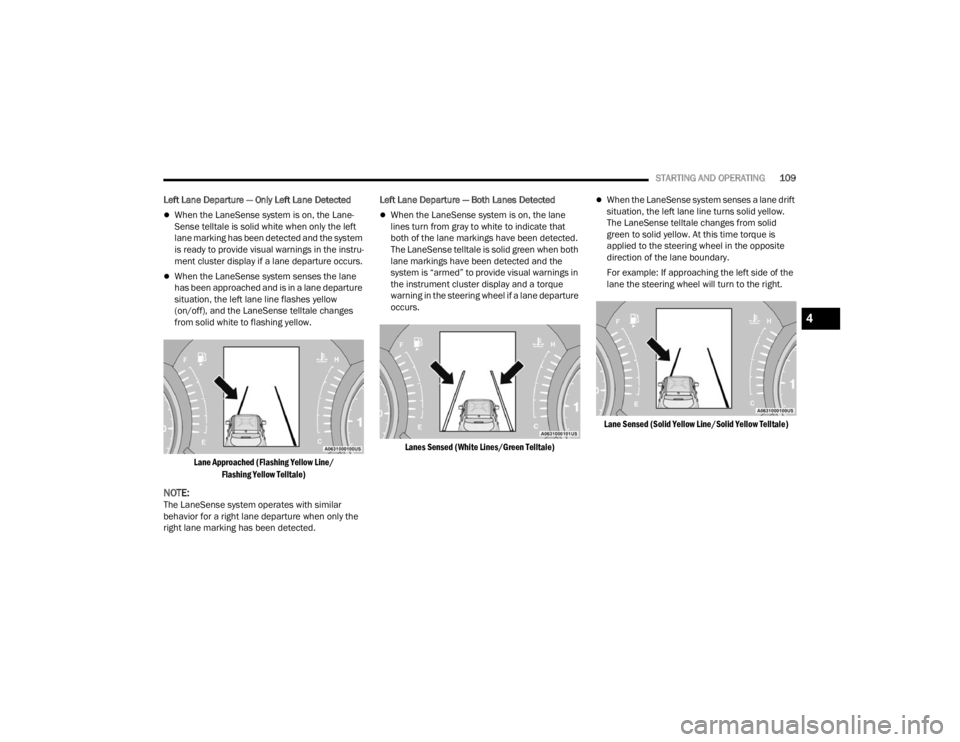
Left Lane Departure — Only Left Lane Detected
When the LaneSense system is on, the Lane-
Sense telltale is solid white when only the left
lane marking has been detected and the system
is ready to provide visual warnings in the instru -
ment cluster display if a lane departure occurs.
When the LaneSense system senses the lane
has been approached and is in a lane departure
situation, the left lane line flashes yellow
(on/off), and the LaneSense telltale changes
from solid white to flashing yellow.
Lane Approached (Flashing Yellow Line/ Flashing Yellow Telltale)
NOTE:The LaneSense system operates with similar
behavior for a right lane departure when only the
right lane marking has been detected. Left Lane Departure — Both Lanes Detected
When the LaneSense system is on, the lane
lines turn from gray to white to indicate that
both of the lane markings have been detected.
The LaneSense telltale is solid green when both
lane markings have been detected and the
system is “armed” to provide visual warnings in
the instrument cluster display and a torque
warning in the steering wheel if a lane departure
occurs.
Lanes Sensed (White Lines/Green Telltale)
When the LaneSense system senses a lane drift
situation, the left lane line turns solid yellow.
The LaneSense telltale changes from solid
green to solid yellow. At this time torque is
applied to the steering wheel in the opposite
direction of the lane boundary.
For example: If approaching the left side of the
lane the steering wheel will turn to the right.
Lane Sensed (Solid Yellow Line/Solid Yellow Telltale)
4
22_FD_OM_EN_USC_t.book Page 109
Page 112 of 312

110STARTING AND OPERATING
When the LaneSense system senses the lane
has been approached and is in a lane departure
situation, the left lane line flashes yellow (on/
off). The LaneSense telltale changes from solid
yellow to flashing yellow. At this time torque is
applied to the steering wheel in the opposite
direction of the lane boundary.
For example: If approaching the left side of the
lane the steering wheel will turn to the right.
Lane Approached (Flashing Yellow Line/ Flashing Yellow Telltale)
NOTE:The LaneSense system operates with similar
behavior for a right lane departure.
CHANGING LANESENSE STATUS
The LaneSense system has settings to adjust the
intensity of the torque warning and the warning
zone sensitivity (early/late) that you can configure
through the Uconnect system screen Úpage 123.
NOTE:
When enabled the system operates above
37 mph (60 km/h) and below 112 mph
(180 km/h).
Use of the turn signal suppresses the warnings.
The system will not apply torque to the steering
wheel whenever a safety system engages.
(Anti-Lock Brakes, Traction Control System,
Electronic Stability Control, Full Brake Control
system, etc.).
PARKVIEW REAR BACK UP CAMERA
The ParkView Rear Back Up Camera allows you to
see an on-screen image of the rear surroundings of
your vehicle when the gear selector is put into
REVERSE. The image will be displayed on the
touchscreen display along with a note to “Check
Entire Surroundings” across the top of the screen.
After five seconds this note will disappear. The
ParkView camera is located on the rear of the
vehicle above the rear license plate.
Back Up Camera Location
When the vehicle is shifted out of REVERSE with
camera delay turned off, the rear camera mode is
exited and the navigation or audio screen appears
again.
When the vehicle is shifted out of REVERSE with
camera delay turned on, the camera image will
continue to be displayed for up to 10 seconds
unless the vehicle speed exceeds 8 mph (13 km/
h), the vehicle is shifted into PARK, or the ignition
is placed in the OFF position.
A touchscreen button to disable the camera is
available when the vehicle is not in REVERSE.
Display of the camera image after shifting out of
REVERSE can be disabled via Uconnect Settings.
When enabled, active guidelines are overlaid on
the image to illustrate the width of the vehicle and
its projected backup path based on the steering
wheel position.
22_FD_OM_EN_USC_t.book Page 110
Page 125 of 312

MULTIMEDIA123
UCONNECT SETTINGS
The Uconnect system uses a combination of
buttons on the touchscreen and buttons on the
faceplate located on the center of the instrument
panel. These buttons allow you to access and
change the Customer Programmable Features.
Many features can vary by vehicle.
Buttons on the faceplate are located below and/or
beside the Uconnect system in the center of the
instrument panel. In addition, there is a Scroll/
Enter control knob located on the right side. Turn
the control knob to scroll through menus and
change settings. Push the center of the control
knob one or more times to select or change a
setting.
Your Uconnect system may also have Screen Off
and Mute buttons on the faceplate.
Push the Screen Off button on the faceplate to turn
off the Uconnect screen. Push the button again or
tap the screen to turn the screen on.
Press the Back Arrow button to exit out of a Menu
or certain option on the Uconnect system.
CUSTOMER PROGRAMMABLE FEATURES
Uconnect 4/4 NAV Touchscreen And Faceplate Buttons
For the Uconnect 4/4 NAV With 7-inch Display
Press the Apps button, then press the Settings
button on the touchscreen to display the menu
setting screen. In this mode, the Uconnect system
allows you to access programmable features.
NOTE:
Only one touchscreen area may be selected at a
time.
Depending on the vehicle’s options, feature
settings may vary.
When making a selection, only press one button at
a time to enter the desired menu. Once in the
desired menu, press and release the preferred
setting option until a check mark appears next to
the setting, showing that setting has been
selected. Once the setting is complete, press the X
button on the touchscreen to close out of the
settings screen. Pressing the Up or Down Arrow
button on the right side of the screen will allow you
to toggle up or down through the available settings.
1 — Buttons On The Touchscreen
2 — Buttons On The Faceplate
5
22_FD_OM_EN_USC_t.book Page 123