2022 CHRYSLER PACIFICA Touchscreen
[x] Cancel search: TouchscreenPage 210 of 384
208MULTIMEDIA
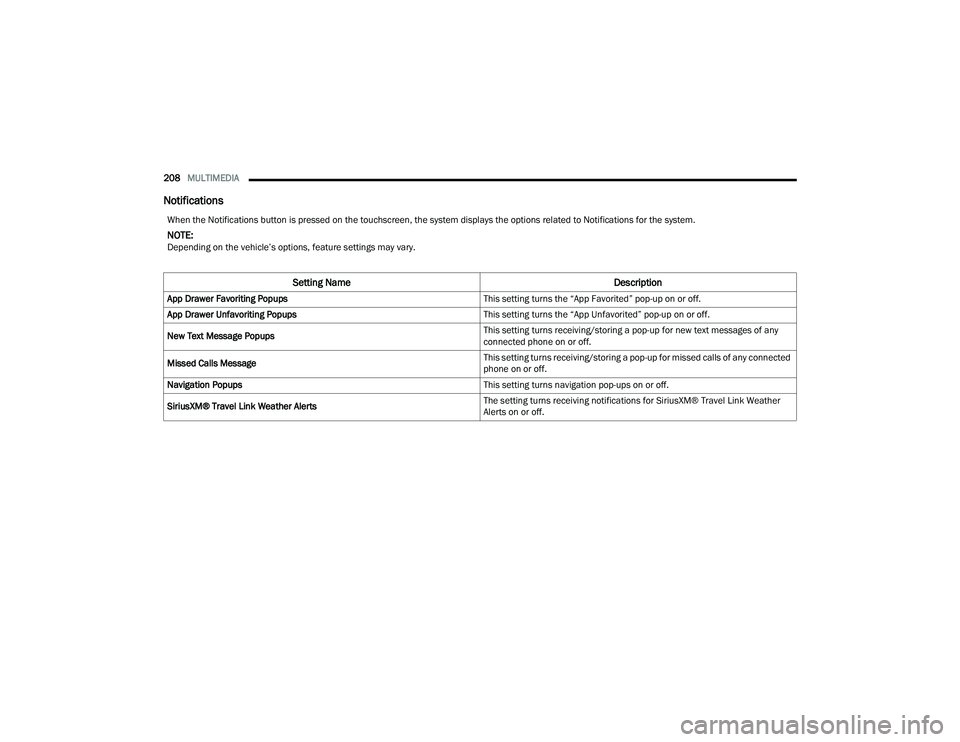
Notifications
When the Notifications button is pressed on the touchscreen, the system displays the options related to Notifications for the system.
NOTE:Depending on the vehicle’s options, feature settings may vary.
Setting Name Description
App Drawer Favoriting Popups This setting turns the “App Favorited” pop-up on or off.
App Drawer Unfavoriting Popups This setting turns the “App Unfavorited” pop-up on or off.
New Text Message Popups This setting turns receiving/storing a pop-up for new text messages of any
connected phone on or off.
Missed Calls Message This setting turns receiving/storing a pop-up for missed calls of any connected
phone on or off.
Navigation Popups This setting turns navigation pop-ups on or off.
SiriusXM® Travel Link Weather Alerts The setting turns receiving notifications for SiriusXM® Travel Link Weather
Alerts on or off.
22_RUP_OM_EN_USC_t.book Page 208
Page 211 of 384

MULTIMEDIA209
SiriusXM® Setup
When the SiriusXM® Setup button is pressed on the touchscreen, the system displays options related to SiriusXM® satellite radio. These settings can be used
to skip specific radio channels and restart favorite songs from the beginning.
NOTE:
A subscription to SiriusXM® satellite radio is required for these settings to be functional.
Depending on the vehicle’s options, feature settings may vary.
Setting Name Description
SiriusXM® Account, Profiles & Settings This setting will allow you to view your SiriusXM® account information, profiles
linked to the system, and the various settings you have saved and stored to
those profiles.
Block Explicit This setting will allow you to block explicit content by turning it on or off.5
22_RUP_OM_EN_USC_t.book Page 209
Page 212 of 384

210MULTIMEDIA
Accessibility — If Equipped
When pressing the Accessibility button on the touchscreen, the system will display options related to the vehicle’s theater system.
NOTE:Depending on the vehicle’s options, feature settings may vary.
Setting Name Description
Accessibility The Accessibility feature announces a function prior to performing the action
selected when using DVD/Blu-ray™ and USB Video functions, when it is
activated. For example, when activated, and the Play button is selected, the
system will announce “Play button selected”, and then once pressed again
the Play button will perform its action.
Video Button Readback This setting will turn the Video Button Readback feature on or off.
22_RUP_OM_EN_USC_t.book Page 210
Page 213 of 384
MULTIMEDIA211
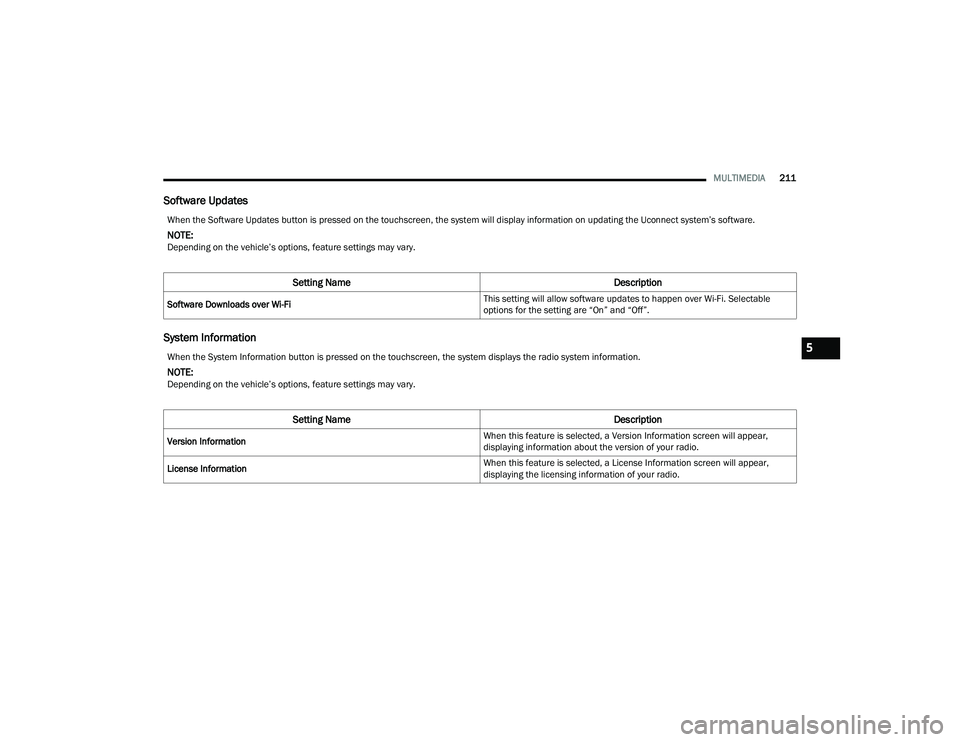
Software Updates
System Information
When the Software Updates button is pressed on the touchscreen, the system will display information on updating the Uconnect system’s software.
NOTE:Depending on the vehicle’s options, feature settings may vary.
Setting Name Description
Software Downloads over Wi-Fi This setting will allow software updates to happen over Wi-Fi. Selectable
options for the setting are “On” and “Off”.
When the System Information button is pressed on the touchscreen, the system displays the radio system information.
NOTE:Depending on the vehicle’s options, feature settings may vary.
Setting Name
Description
Version Information When this feature is selected, a Version Information screen will appear,
displaying information about the version of your radio.
License Information When this feature is selected, a License Information screen will appear,
displaying the licensing information of your radio.
5
22_RUP_OM_EN_USC_t.book Page 211
Page 214 of 384

212MULTIMEDIA
Reset
When the Reset button is pressed on the touchscreen, the system displays the options related to resetting the Uconnect system back to its default settings.
These settings can clear personal data and reset selected settings from other menus.
NOTE:Depending on the vehicle’s options, feature settings may vary.
Setting Name Description
Notifications Sounds Turn this setting on or off to hear notification sounds throughout your system.
Restart Radio This setting will restart the radio.
Reset App Drawer to Default Order This setting will reset the app drawer to its factory default layout.
Restore Settings to Default This setting will return all the previously changed settings to their
factory default.
Clear Personal Data This setting will display a pop-up that gives you the option to clear all personal
data from the system, including Bluetooth® devices and presets.
Reset Wi-Fi Password for Projection This setting will reset your Wi-Fi password for projection.
Factory Reset This setting will factory reset the radio. It may cause the radio to restart
multiple times and the backup camera, radio, SOS, and several driving
assistance features will not be available. Once the system resets, you will
need to turn the vehicle off then back on to complete the process.
22_RUP_OM_EN_USC_t.book Page 212
Page 215 of 384

MULTIMEDIA213
REAR SEAT ENTERTAINMENT WITH
AMAZON FIRE TV BUILT-IN — IF EQUIPPED
OVERVIEW
Rear Seat Entertainment with Fire TV built-in is
designed to give your family years of enjoyment.
Fire TV lets passengers enjoy a wide variety of
content from popular apps (subscriptions may be
required). Stream videos, play games, listen to
music, get information, and watch downloaded
programs all while on the road. In addition to
streaming and downloaded content, changing the
input in Fire TV also allows users to:
Play your favorite CDs, DVDs, or Blu-ray™ Discs
Mirror what’s on your phone or tablet to Fire TV
via Miracast capable devices (see support
here):
https://www.amazon.com/gp/help/
customer/display
Plug and play a variety of standard video games
or devices into the HDMI port
Listen to audio over wireless headphones
(not included, customer will have to provide
their own)
Plug and play a variety of devices into the
Video USB port
Plug in standard headphones to listen to audio
NOTE:Vehicle must be in an active and usable cellular
range and properly equipped with a Uconnect
5 NAV system and Rear Seat Entertainment with
Fire TV package. Streaming requires a Wi-Fi
connection and registered Amazon account to run
Fire TV in the vehicle. Streaming service subscrip -
tions are not included. Certain services are subject
to change or withdrawal at any time, may not be
available in all areas and languages, and may
require separate subscriptions.
GETTING STARTED
Rear Seat Entertainment for Uconnect 5/5 NAV
There are three different ways to operate the
features of Rear Seat Entertainment with Fire TV
built-in:
Rear Seat Entertainment Voice Remote with
Alexa
Front radio screen
Individual Rear Seat Entertainment with Fire TV
built-in Touchscreens
ACCESSING REAR SEAT
E
NTERTAINMENT WITH FIRE TV BUILT-IN
FROM THE FRONT RADIO SCREEN
You can access your Rear Seat Entertainment with
Fire TV built-in system by following these steps:
Option 1
1. Press the Media button.
2. Press the Rear Seat button icon.
Option 2
1. Press the Apps button on the bottom of the
touchscreen.
2. Press the Uconnect Theater button on the touchscreen. You may need to navigate to
different pages in the Apps drawer to find the
Uconnect Theater button.
1 — Rear Seat Entertainment (Rear Touchscreen)
2 — Headphone Jack
3 — HDMI Port
4 — USB C Charging Port
5 — Uconnect System (Front Touchscreen)5
22_RUP_OM_EN_USC_t.book Page 213
Page 220 of 384

218MULTIMEDIA
Access Using the Voice Remote with Alexa and
Rear Screens
Rear passengers will be able to access Rear Seat
Entertainment with Fire TV built-in streaming by
pressing the “Prime Video”, “Partner 1”, or
“Partner 2” button on the Voice Remote with Alexa.
Selecting one of those buttons on the Voice
Remote with Alexa will take you to the home page
for that respective streaming service. Turning on
either of the rear screens will launch Fire TV.
By default, the rear screens will always launch
in Fire TV.
Fire TV
Fire TV is your source for online streaming with
Rear Seat Entertainment with Fire TV built-in.
NOTE:4G Wi-Fi Hot Spot needs to be activated on the
vehicle for streaming to be accessible. This can be
set up when Rear Seat Entertainment with Fire TV
built-in is turned on for the first time from the rear
screens. A mobile device can also be used as the
Wi-Fi Hot Spot for the vehicle. A data source needs
to be either an in-vehicle Wi-Fi plan or through a 4G
or 5G device.
To access Fire TV on the front screen, select
“Launch Source”, then “Fire TV Home” under the
Inputs selection. The top menu bar for Fire TV will have the options
for “Home”, “Library”, “Brand”, “Live”, and “Apps”.
Below the top menu bar will be streaming options
linked to your Prime account like “Prime Video”.
The front radio screen offers some options:
Power — This will turn Fire TV on or off.
Screen 1 and Screen 2 Toggle
— This toggles
between the Rear Screens (for use with front
radio screen only).
Collapse — While viewing on the front radio
screen, this will collapse the screen to dash -
board view.
Source Drawer — This will open the “Source
Drawer” and the source logo will be displayed
on the icon.
Browse Media — This will open the “Browse
Media” pop-up.
Back — This will let you go back the previous
page.
Fire TV Home — This will take you back to the
Fire TV home page.
Menu — This will open the Fire TV menu.
Remote icon — This will display the on-screen
remote.
NOTE:Front screen viewing and watching can only be
done when the vehicle is in PARK.
The rear screens will always launch with Fire TV.
PLAY A BLU-RAY™ OR DVD —
I
F EQUIPPED
Playing a Blu-ray™ or DVD from the Front Radio
Screen
1. Insert a Blu-ray™ disc or DVD disc into the
disc player with the label facing up.
NOTE:The DVD/Blu-ray™ Disc player is located under the
radio controls in the instrument panel.
2. Press the Media button on the bottom menu bar. Then press the Rear Entertainment tab on
the top menu bar. Then select “Launch
Source” on the radio touchscreen.
3. Select the Blu-ray™ or DVD under inputs in the Launch Source menu
22_RUP_OM_EN_USC_t.book Page 218
Page 223 of 384
MULTIMEDIA221
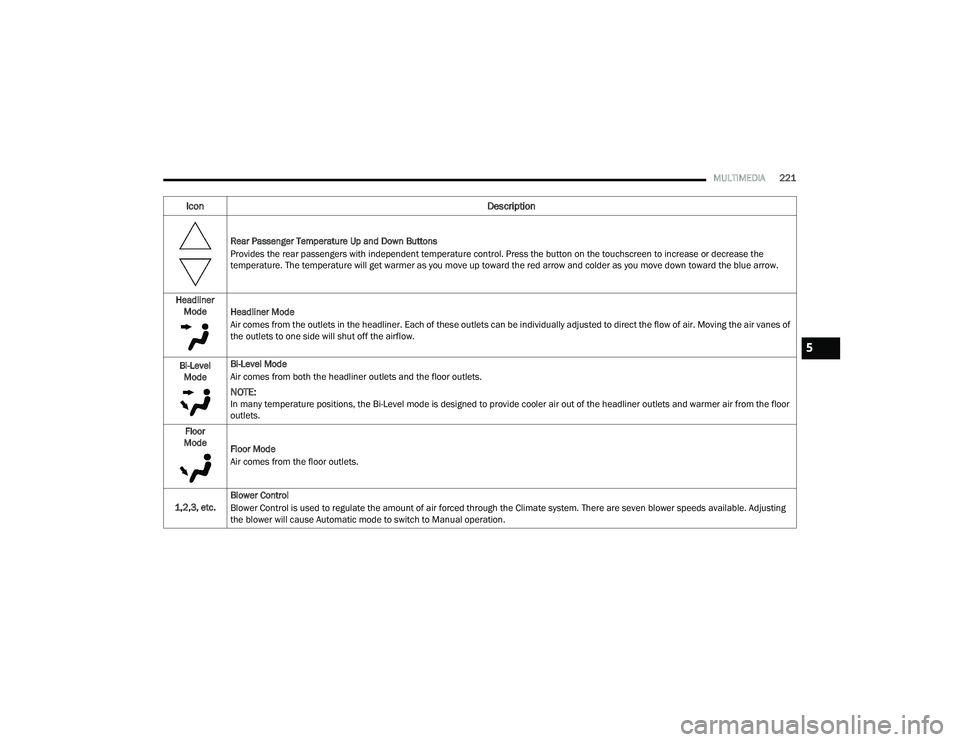
Rear Passenger Temperature Up and Down Buttons
Provides the rear passengers with independent temperature control. Press the button on the touchscreen to increase or decrease the
temperature. The temperature will get warmer as you move up toward the red arrow and colder as you move down toward the blue arrow.
Headliner Mode Headliner Mode
Air comes from the outlets in the headliner. Each of these outlets can be individually adjusted to direct the flow of air. Moving the air vanes of
the outlets to one side will shut off the airflow.
Bi-Level Mode Bi-Level Mode
Air comes from both the headliner outlets and the floor outlets.
NOTE:In many temperature positions, the Bi-Level mode is designed to provide cooler air out of the headliner outlets and warmer air from the floor
outlets.
Floor
Mode Floor Mode
Air comes from the floor outlets.
1,2,3, etc. Blower Control
Blower Control is used to regulate the amount of air forced through the Climate system. There are seven blower speeds available. Adjusting
the blower will cause Automatic mode to switch to Manual operation.
Icon
Description
5
22_RUP_OM_EN_USC_t.book Page 221