2022 CHRYSLER PACIFICA HYBRID Low
[x] Cancel search: LowPage 209 of 384

MULTIMEDIA207
Audio
When the Audio button is pressed on the touchscreen, the system displays options related to the vehicle’s sound system. These settings can change the audio
location within the vehicle, adjust the bass or treble levels, and auto-play settings from an audio device or smartphone.
NOTE:Depending on the vehicle’s options, feature settings may vary.
Setting Name Description
Balance/Fade This setting will adjust audio levels from specific speakers in the front/back
and left/right of the vehicle. The Speaker icon can be moved to set
audio location.
Equalizer This setting will adjust the “Bass”, “Mid”, and “Treble” ranges of the audio.
Speed Adjusted Volume This setting will adjust audio volume as speeds increase. At a higher setting,
the volume will increase more as the vehicle speeds up. The available settings
are “Off”, “1”, “2”, and “3”.
Surround Sound This setting will turn the Surround Sound system on or off.
AUX Volume Offset This setting will tune the audio levels from a device connected through the
AUX port. The available settings are “+” and “-”.
Auto Play This setting will automatically begin playing audio from a connected device.
Auto On Radio This setting will automatically turn on when the vehicle is in ON/RUN or will
recall whether it was on or off at last ignition OFF. The selectable options are
“On”, “Off”, and “Recall Last”.
Volume Adjustment This setting allows you to adjust the volume levels for features such as Media,
Phone, Navigation, and Voice Recognition.
5
22_RUP_OM_EN_USC_t.book Page 207
Page 211 of 384

MULTIMEDIA209
SiriusXM® Setup
When the SiriusXM® Setup button is pressed on the touchscreen, the system displays options related to SiriusXM® satellite radio. These settings can be used
to skip specific radio channels and restart favorite songs from the beginning.
NOTE:
A subscription to SiriusXM® satellite radio is required for these settings to be functional.
Depending on the vehicle’s options, feature settings may vary.
Setting Name Description
SiriusXM® Account, Profiles & Settings This setting will allow you to view your SiriusXM® account information, profiles
linked to the system, and the various settings you have saved and stored to
those profiles.
Block Explicit This setting will allow you to block explicit content by turning it on or off.5
22_RUP_OM_EN_USC_t.book Page 209
Page 213 of 384
MULTIMEDIA211
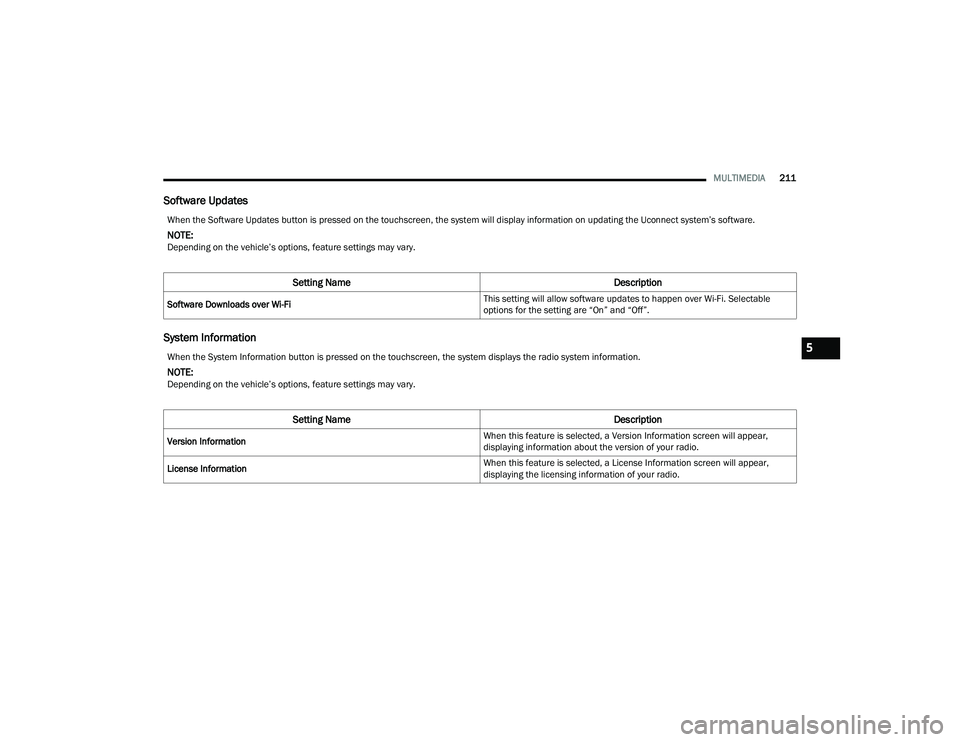
Software Updates
System Information
When the Software Updates button is pressed on the touchscreen, the system will display information on updating the Uconnect system’s software.
NOTE:Depending on the vehicle’s options, feature settings may vary.
Setting Name Description
Software Downloads over Wi-Fi This setting will allow software updates to happen over Wi-Fi. Selectable
options for the setting are “On” and “Off”.
When the System Information button is pressed on the touchscreen, the system displays the radio system information.
NOTE:Depending on the vehicle’s options, feature settings may vary.
Setting Name
Description
Version Information When this feature is selected, a Version Information screen will appear,
displaying information about the version of your radio.
License Information When this feature is selected, a License Information screen will appear,
displaying the licensing information of your radio.
5
22_RUP_OM_EN_USC_t.book Page 211
Page 215 of 384

MULTIMEDIA213
REAR SEAT ENTERTAINMENT WITH
AMAZON FIRE TV BUILT-IN — IF EQUIPPED
OVERVIEW
Rear Seat Entertainment with Fire TV built-in is
designed to give your family years of enjoyment.
Fire TV lets passengers enjoy a wide variety of
content from popular apps (subscriptions may be
required). Stream videos, play games, listen to
music, get information, and watch downloaded
programs all while on the road. In addition to
streaming and downloaded content, changing the
input in Fire TV also allows users to:
Play your favorite CDs, DVDs, or Blu-ray™ Discs
Mirror what’s on your phone or tablet to Fire TV
via Miracast capable devices (see support
here):
https://www.amazon.com/gp/help/
customer/display
Plug and play a variety of standard video games
or devices into the HDMI port
Listen to audio over wireless headphones
(not included, customer will have to provide
their own)
Plug and play a variety of devices into the
Video USB port
Plug in standard headphones to listen to audio
NOTE:Vehicle must be in an active and usable cellular
range and properly equipped with a Uconnect
5 NAV system and Rear Seat Entertainment with
Fire TV package. Streaming requires a Wi-Fi
connection and registered Amazon account to run
Fire TV in the vehicle. Streaming service subscrip -
tions are not included. Certain services are subject
to change or withdrawal at any time, may not be
available in all areas and languages, and may
require separate subscriptions.
GETTING STARTED
Rear Seat Entertainment for Uconnect 5/5 NAV
There are three different ways to operate the
features of Rear Seat Entertainment with Fire TV
built-in:
Rear Seat Entertainment Voice Remote with
Alexa
Front radio screen
Individual Rear Seat Entertainment with Fire TV
built-in Touchscreens
ACCESSING REAR SEAT
E
NTERTAINMENT WITH FIRE TV BUILT-IN
FROM THE FRONT RADIO SCREEN
You can access your Rear Seat Entertainment with
Fire TV built-in system by following these steps:
Option 1
1. Press the Media button.
2. Press the Rear Seat button icon.
Option 2
1. Press the Apps button on the bottom of the
touchscreen.
2. Press the Uconnect Theater button on the touchscreen. You may need to navigate to
different pages in the Apps drawer to find the
Uconnect Theater button.
1 — Rear Seat Entertainment (Rear Touchscreen)
2 — Headphone Jack
3 — HDMI Port
4 — USB C Charging Port
5 — Uconnect System (Front Touchscreen)5
22_RUP_OM_EN_USC_t.book Page 213
Page 216 of 384

214MULTIMEDIA
ACCESSING REAR SEAT
E
NTERTAINMENT WITH FIRE TV BUILT-IN
FROM THE REAR SCREENS
You can access your Rear Seat Entertainment with
Fire TV built-in system from the rear screens by just
flipping the screens open. Flipping open the rear
screens will automatically turn the system on.
Pushing the Power button on the Rear Seat
Entertainment Voice Remote with Alexa.
NOTE:While accessing on the rear screens, the system
will launch with the integrated Fire TV.
FIRST TIME STARTING UP
(U
SING THE REAR SCREENS)
Boot-Up Screen
When turning on the system for the first time from
the rear screens, a boot-up screen will appear on
the system displaying the Fire TV logo.
During this boot up sequence, language options
will be available for the system.
Voice Remote with Alexa Pairing
After the boot-up sequence is complete, the
system will then give the option to pair a Voice
Remote with Alexa (two are included with the
system). Follow the on-screen instructions to pair the Voice
Remote with Alexa to the system.
NOTE:If the Voice Remote with Alexa pairing fails,
on-screen instructions will appear for trying to pair
again.
Connecting to a Network
During the start-up process, the system will need to
be connected to a network. Multiple network
sources can be options for the system, and one will
need to be selected for the system to function.
Some options for a network connection are:
Wi-Fi Hotspot using a capable smartphone
(if activated, it will show as a possible network
for the system on the screen).
Outside connection like a home Wi-Fi network.
In-vehicle Wi-Fi.
NOTE:When a network is connected to the system for the
first time, an over-the-air software update will take
place using the Wi-Fi connection. After this
first-time update, updates will only accrue when
one is available. It is recommended that you
connect your RSE/Amazon Fire OS to a Wi-Fi
Hotspot with unlimited data and a good signal
(such as a home Wi-Fi network) in order to check
for future Fire OS updates.
Account Sign-in
The next step will be the option to sign in to your
Amazon account.
There are two options to sign into the system:
I already have an Amazon account:
Sign in with
an already existing Amazon account
I am new to Amazon: Create a new Amazon
Account
If “I am new to Amazon” is selected, follow the
on-screen steps to set up an Amazon account with
the system.
Parental Controls
Another feature that will appear during this first
time set up is parental controls.
When the parental controls page appears, it will
give the options to “Enable Parental Controls” and
“No Parental Controls”. If “Enable Parental
Controls” is selected, follow the on-screen steps to
set up parental controls for the system.
REAR SEAT ENTERTAINMENT WITH FIRE
TV B
UILT-IN ALEXA
A feature with Rear Seat Entertainment with Fire
TV built-in that enhances your experience is Alexa.
It is simple to get started using this feature. Push
the Voice button at the top of the Voice Remote
with Alexa to activate Alexa and get started.
22_RUP_OM_EN_USC_t.book Page 214
Page 217 of 384

MULTIMEDIA215
LISTEN VIA VEHICLE SPEAKERS
A feature within Rear Seat Entertainment with Fire
TV built-in is the front radio Listen feature. On the
front radio Home screen for Fire TV, select the
Listen button in the top right corner on either card
for Screen 1 or 2. This will allow you to have either
rear screen play audio through all the speakers in
the vehicle.
QUICK MENU
Accessing the Quick Menu will give you more
options for Fire TV.
To access the Quick Menu, tap the screen, and it
will appear. The Quick Menu is also accessible by
pushing the Gear/Settings button on the Voice
Remote with Alexa.
Some options of the Quick Menu are:
Power — This will power the screen off.
On-Screen Remote — This will bring up the
on-screen remote to use with the system.
Back — This will let you go back a page.
Home — This will take you to the Home screen.
Gear/Settings — This will let you access
certain settings in the system. For more setting
options, select “Settings” within the on-screen
Gear/Settings menu.
Vehicle — This will bring up the Vehicle menu.
From here you can adjust rear climate controls
and the Are We There Yet? app.
PARENTAL CONTROLS (USING THE REAR
S
CREENS)
If parental controls were not set during the first
time start up of the system, they can be set by
following these steps:
1. Push the Gear/Settings button on the Voice
Remote with Alexa or tap the screen to access
“Settings” in the Quick Menu.
2. Select the Gear/Settings icon on the screen.
3. Select “Settings” on the screen.
4. While in Settings, select “Preferences”.
5. Select “Parental Controls”. From here you can turn Parental Controls on or off and set up a
PIN for the controls using the Voice Remote
with Alexa.
PAIRING THE VOICE REMOTE WITH
A
LEXA (USING THE REAR SCREENS)
If the Voice Remote with Alexa needs to be paired
again or a new remote is being paired, follow these
procedures:
1. Install batteries into the remote.
2. Tap the screen and select the Gear/Settings
icon on the screen.
3. Select “Settings” on the screen.
4. In Settings, select “Controllers & Bluetooth® Devices”.
5. From this menu, select “Add New Remote”.
6. Follow the on-screen steps for Voice Remote with Alexa pairing.
A long press on the Home button can also re-pair a
Voice Remote with Alexa that has become
disconnected.
NOTE:Your vehicle is included with two Voice Remotes
with Alexa. Each Voice Remote with Alexa can be
paired with each rear screen. Pairing one with
either rear screen will pair that Voice Remote with
Alexa with that screen.
5
22_RUP_OM_EN_USC_t.book Page 215
Page 219 of 384
MULTIMEDIA217
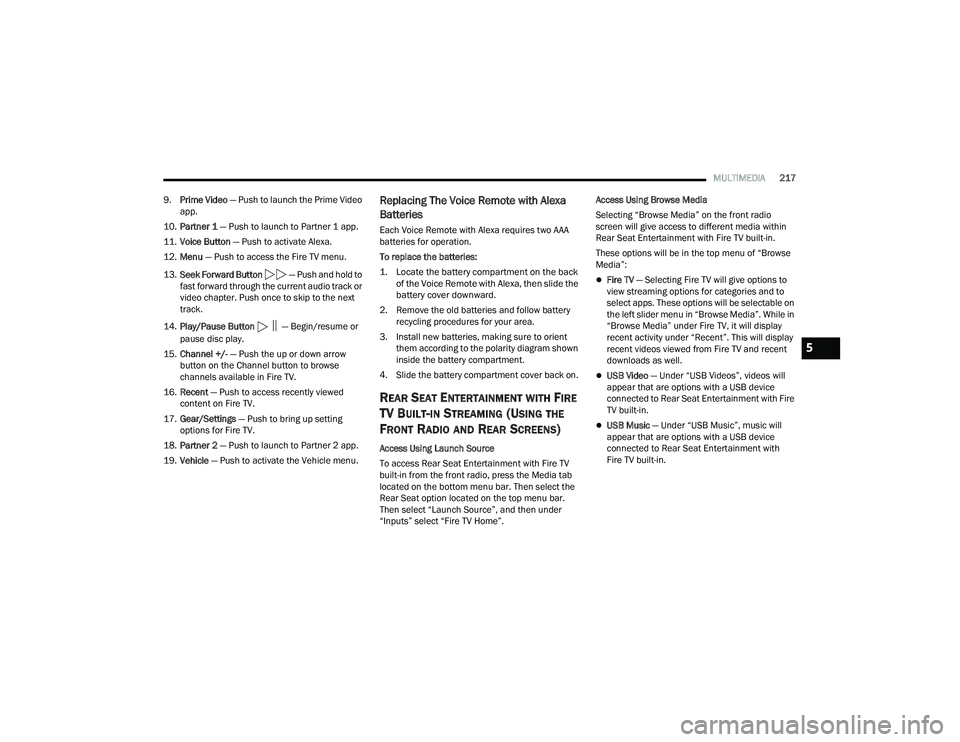
9. Prime Video — Push to launch the Prime Video
app.
10. Partner 1 — Push to launch to Partner 1 app.
11. Voice Button — Push to activate Alexa.
12. Menu — Push to access the Fire TV menu.
13. Seek Forward Button — Push and hold to
fast forward through the current audio track or
video chapter. Push once to skip to the next
track.
14. Play/Pause Button
‖ — Begin/resume or
pause disc play.
15. Channel +/- — Push the up or down arrow
button on the Channel button to browse
channels available in Fire TV.
16. Recent — Push to access recently viewed
content on Fire TV.
17. Gear/Settings — Push to bring up setting
options for Fire TV.
18. Partner 2 — Push to launch to Partner 2 app.
19. Vehicle — Push to activate the Vehicle menu.
Replacing The Voice Remote with Alexa
Batteries
Each Voice Remote with Alexa requires two AAA
batteries for operation.
To replace the batteries:
1. Locate the battery compartment on the back
of the Voice Remote with Alexa, then slide the
battery cover downward.
2. Remove the old batteries and follow battery recycling procedures for your area.
3. Install new batteries, making sure to orient them according to the polarity diagram shown
inside the battery compartment.
4. Slide the battery compartment cover back on.
REAR SEAT ENTERTAINMENT WITH FIRE
TV B
UILT-IN STREAMING (USING THE
F
RONT RADIO AND REAR SCREENS)
Access Using Launch Source
To access Rear Seat Entertainment with Fire TV
built-in from the front radio, press the Media tab
located on the bottom menu bar. Then select the
Rear Seat option located on the top menu bar.
Then select “Launch Source”, and then under
“Inputs” select “Fire TV Home”. Access Using Browse Media
Selecting “Browse Media” on the front radio
screen will give access to different media within
Rear Seat Entertainment with Fire TV built-in.
These options will be in the top menu of “Browse
Media”:
Fire TV
— Selecting Fire TV will give options to
view streaming options for categories and to
select apps. These options will be selectable on
the left slider menu in “Browse Media”. While in
“Browse Media” under Fire TV, it will display
recent activity under “Recent”. This will display
recent videos viewed from Fire TV and recent
downloads as well.
USB Video — Under “USB Videos”, videos will
appear that are options with a USB device
connected to Rear Seat Entertainment with Fire
TV built-in.
USB Music — Under “USB Music”, music will
appear that are options with a USB device
connected to Rear Seat Entertainment with
Fire TV built-in.
5
22_RUP_OM_EN_USC_t.book Page 217
Page 220 of 384

218MULTIMEDIA
Access Using the Voice Remote with Alexa and
Rear Screens
Rear passengers will be able to access Rear Seat
Entertainment with Fire TV built-in streaming by
pressing the “Prime Video”, “Partner 1”, or
“Partner 2” button on the Voice Remote with Alexa.
Selecting one of those buttons on the Voice
Remote with Alexa will take you to the home page
for that respective streaming service. Turning on
either of the rear screens will launch Fire TV.
By default, the rear screens will always launch
in Fire TV.
Fire TV
Fire TV is your source for online streaming with
Rear Seat Entertainment with Fire TV built-in.
NOTE:4G Wi-Fi Hot Spot needs to be activated on the
vehicle for streaming to be accessible. This can be
set up when Rear Seat Entertainment with Fire TV
built-in is turned on for the first time from the rear
screens. A mobile device can also be used as the
Wi-Fi Hot Spot for the vehicle. A data source needs
to be either an in-vehicle Wi-Fi plan or through a 4G
or 5G device.
To access Fire TV on the front screen, select
“Launch Source”, then “Fire TV Home” under the
Inputs selection. The top menu bar for Fire TV will have the options
for “Home”, “Library”, “Brand”, “Live”, and “Apps”.
Below the top menu bar will be streaming options
linked to your Prime account like “Prime Video”.
The front radio screen offers some options:
Power — This will turn Fire TV on or off.
Screen 1 and Screen 2 Toggle
— This toggles
between the Rear Screens (for use with front
radio screen only).
Collapse — While viewing on the front radio
screen, this will collapse the screen to dash -
board view.
Source Drawer — This will open the “Source
Drawer” and the source logo will be displayed
on the icon.
Browse Media — This will open the “Browse
Media” pop-up.
Back — This will let you go back the previous
page.
Fire TV Home — This will take you back to the
Fire TV home page.
Menu — This will open the Fire TV menu.
Remote icon — This will display the on-screen
remote.
NOTE:Front screen viewing and watching can only be
done when the vehicle is in PARK.
The rear screens will always launch with Fire TV.
PLAY A BLU-RAY™ OR DVD —
I
F EQUIPPED
Playing a Blu-ray™ or DVD from the Front Radio
Screen
1. Insert a Blu-ray™ disc or DVD disc into the
disc player with the label facing up.
NOTE:The DVD/Blu-ray™ Disc player is located under the
radio controls in the instrument panel.
2. Press the Media button on the bottom menu bar. Then press the Rear Entertainment tab on
the top menu bar. Then select “Launch
Source” on the radio touchscreen.
3. Select the Blu-ray™ or DVD under inputs in the Launch Source menu
22_RUP_OM_EN_USC_t.book Page 218