2022 CHEVROLET SUBURBAN light
[x] Cancel search: lightPage 156 of 438

Chevrolet Tahoe/Suburban Owner Manual (GMNA-Localizing-U.S./Canada/
Mexico-15555985) - 2022 - CRC - 12/3/21
Infotainment System 155
A valid AM or FM station automatically
tunes to the new frequency but will not
close the direct tune display. When listening
to SiriusXM, touch Go after entering the
channel. Touch
Sorzat the top of the
display to exit out of Direct Tune.
FM and SiriusXM Categories
From the FM or SXM screen, touch Browse
to display all available stations or channels.
Touch Categories at the top of the station
list to access a list of available genres. The
list contains genres associated with the FM
stations or SiriusXM channels. Touch a
category name to display a list of stations
or channels for that category. Touching a
station or channel from the list will tune the
radio to that station or channel.
Storing Radio Station Favorites
Favorites are displayed in the area at the
top of the display.
AM, FM, and SiriusXM Radio Stations :
Touch and hold Hold to Set or previously
stored station to overwrite it at the top of
the screen to store the current station or
channel as a favorite. Touch a saved favorite
to recall a favorite station or channel.
Favorites can also be stored by touching
H
in a station or channel list. It appears
highlighted once saved as a favorite.
The number of favorites displayed is
automatically adjusted by default, but can
be manually adjusted in Settings in the
System tab under Favorites and then Set
Number of Audio Favorites. It can also be
adjusted in Settings in the Apps tab under
Audio and then Set Number of Audio
Favorites.
AM-FM Radio (Uplevel Radio)
Playing the Radio
From the Home Page, touch the Audio icon
to display the active audio source page.
Touch the Source icon at the top left of the
now playing screen to select a new source.
Finding a Station
Seeking a Station
From the AM or FM screen, touch
sor\
on the infotainment display to search for
the previous or next strong station.
Page 164 of 438
Chevrolet Tahoe/Suburban Owner Manual (GMNA-Localizing-U.S./Canada/
Mexico-15555985) - 2022 - CRC - 12/3/21
Infotainment System 163
8. Touch to open the Home Screen.
Touch, swipe, or drag input to navigate
within an app.
Touching an ad will open it in a second tab.
To close the second tab, touch the first tab,
or touch the
z.
Rear Screen Settings
From the rear screen home page, touch*
to access the settings menu.
The menu may contain the following:
Screen Brightness
Select Screen Brightness. Move the bar left
or right to adjust the display brightness.
Each screen may be uniquely adjusted.
Customer Owned Bluetooth Headphones
The RSI system supports Bluetooth
headphones. Up to four Bluetooth
headphones can be paired to each REAR
SCREEN. This screen provides a list of all
Bluetooth headphones that have been paired
to the RSI system, as well as control over
their use and settings. New Bluetooth
headphones can be connected, or the
Bluetooth headphone settings can be
changed from or on this screen.To pair Bluetooth headphones to one of the
rear screens:
1. Select Bluetooth Headphones or touch
Xfrom the desired Rear Screen
Home Page.
2. Select Connect Headphones.
3. Make sure the Bluetooth headphones are in pairing mode. Once recognized by the
system, the Bluetooth headphones are
displayed on the list of Available
Headphones.
4. Select the Bluetooth headphones from the list. The headphones may need to be
unpaired from your phone before pairing
to the RSI.
5. Once a headphone is paired, touch options for that headphone to access the
menu where the headphone can be
renamed, connected, disconnected, or to
forget. Provided Bluetooth Headphones
{Warning
The headphones have a built-in
rechargeable lithium ion battery pack
that presents a serious fire hazard if
damaged, defective, or improperly used.
To avoid battery leakage and/or a
potential fire:
.Do not attempt to burn, crush, or cut
the battery
.Do not expose the battery to
environments with extremely low air
pressures or temperatures above 60 °C
(140 °F)
.Do not charge the battery at
temperatures above 45 °C (113 °F)
.Do not charge the battery if the
headphones are defective or damaged
Caution
Do not store the headphones in heat or
direct sunlight. This could damage the
headphones and repairs would not be
covered by the vehicle warranty. Storage
(Continued)
Page 167 of 438
Chevrolet Tahoe/Suburban Owner Manual (GMNA-Localizing-U.S./Canada/
Mexico-15555985) - 2022 - CRC - 12/3/21
166 Infotainment System
HDMI Playing View
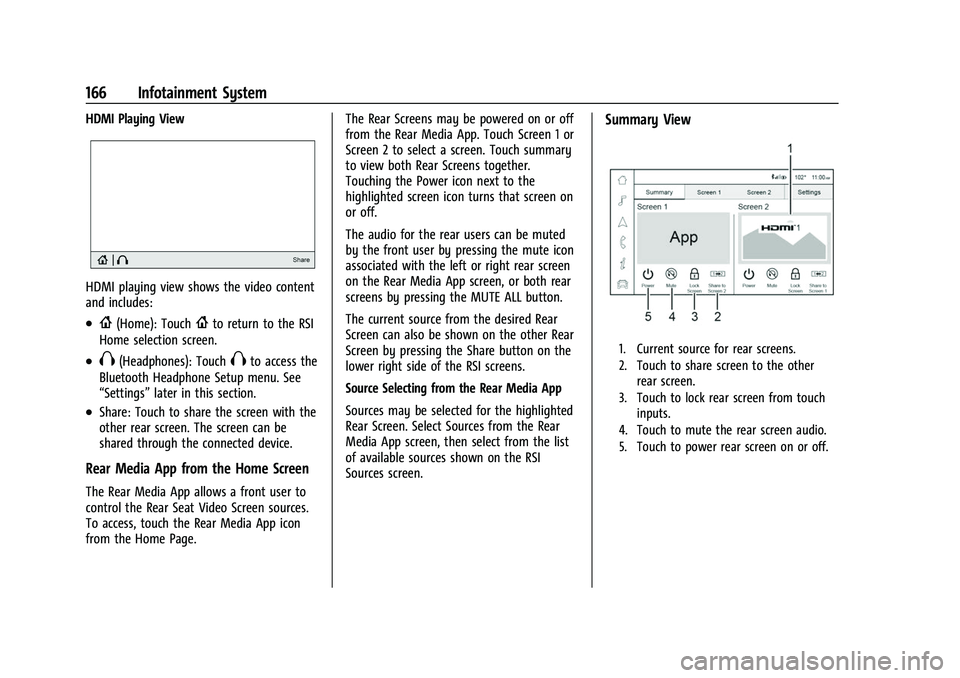
HDMI playing view shows the video content
and includes:
.{(Home): Touch{to return to the RSI
Home selection screen.
.X(Headphones): TouchXto access the
Bluetooth Headphone Setup menu. See
“Settings” later in this section.
.Share: Touch to share the screen with the
other rear screen. The screen can be
shared through the connected device.
Rear Media App from the Home Screen
The Rear Media App allows a front user to
control the Rear Seat Video Screen sources.
To access, touch the Rear Media App icon
from the Home Page. The Rear Screens may be powered on or off
from the Rear Media App. Touch Screen 1 or
Screen 2 to select a screen. Touch summary
to view both Rear Screens together.
Touching the Power icon next to the
highlighted screen icon turns that screen on
or off.
The audio for the rear users can be muted
by the front user by pressing the mute icon
associated with the left or right rear screen
on the Rear Media App screen, or both rear
screens by pressing the MUTE ALL button.
The current source from the desired Rear
Screen can also be shown on the other Rear
Screen by pressing the Share button on the
lower right side of the RSI screens.
Source Selecting from the Rear Media App
Sources may be selected for the highlighted
Rear Screen. Select Sources from the Rear
Media App screen, then select from the list
of available sources shown on the RSI
Sources screen.
Summary View
1. Current source for rear screens.
2. Touch to share screen to the other
rear screen.
3. Touch to lock rear screen from touch inputs.
4. Touch to mute the rear screen audio.
5. Touch to power rear screen on or off.
Page 169 of 438

Chevrolet Tahoe/Suburban Owner Manual (GMNA-Localizing-U.S./Canada/
Mexico-15555985) - 2022 - CRC - 12/3/21
168 Infotainment System
There is no sound from the headphones
with the indicator light on :Make sure the
headphones have sufficient charge. Plug the
headphones to a USB-C port to charge.
Check to see if headphones are paired to the
screens. Make sure that you are listening in
to the correct screen by pressing the
channel select button.
If the steps above do not work, then unpair
the headphones from the RSI screens, turn
the headphones off, turn them back on and
attempt to pair them. See pairing
procedures for the Bluetooth headphone
previously in this section.
Video Distortion
Video distortion can occur when operating
cellular phones, scanners, CB radios, Global
Positioning Systems (GPS), two-way radios,
mobile faxes, or walkie talkies.
It might be necessary to turn off the video
player when operating one of these devices
in or near the vehicle.
Navigation
Using the Navigation System
The Navigation software is provided by
Google Maps. The information provided in
this section is a general overview and is
subject to change. For the latest functional
information, see g.co/mapsincar.
Accept the Terms and Conditions to use.
Internet Connectivity
Google Maps relies on a subscription data
plan for full functionality, including
availability of offline maps. Google Maps can
be used offline when driving through
connectivity dead zones by
auto-downloading offline maps prior to
going offline.
Profiles
Sign in to a Google Account for personalized
service. Information available in the Google
Account will be shown.
To log into a profile, see Accounts under
Settings (Uplevel Radio) 0184 or
Settings (Base Radio) 0187. Voice Assistant
If equipped, Google Maps can be controlled
by voice commands, see Google Assistant
under
Voice Recognition 0171.
Language and Units
To change the language, see Settings
(Uplevel Radio) 0184 or
Settings (Base Radio) 0187.
To change the units, see Instrument Cluster
(Base Level) 0102 or
Instrument Cluster (Uplevel) 0104.
Mute Settings
During active route guidance, Google Maps
can give audible voice directions, traffic
alerts, or can be muted. In the Google Maps
app, touch Settings, then Mute settings to
access the options.
Compass
The Google Maps orientation can be
changed between the direction currently
traveling and pointing North. Touch the
compass to switch between these options.
To recenter the map to the current location,
touch the location icon.
Page 192 of 438

Chevrolet Tahoe/Suburban Owner Manual (GMNA-Localizing-U.S./Canada/
Mexico-15555985) - 2022 - CRC - 12/3/21
Infotainment System 191
audio volume. On some infotainment
systems, touch Set Audio Volume Limit to
choose the maximum allowable audio
volume level.
Set Audio Volume Limit :Use the arrows to
choose the maximum allowable level for the
audio volume.
Teen Driver Speed Limiter : Limits the
maximum speed of the vehicle. When the
speed limiter is turned on and the vehicle is
started with a Teen Driver key, the DIC
displays a message that the top speed is
limited.
On certain vehicles, when the Speed Limiter
is turned ON, the vehicle’s maximum
acceleration will be limited. The DIC will
display a message that the acceleration is
limited.
Teen Driver Speed Warning : Displays a
warning in the DIC when exceeding a
selectable speed. Turn the speed warning on
or off and choose the desired speed warning
level. The speed warning does not limit the
speed of the vehicle. On some infotainment
systems, touch Set Teen Driver Speed
Warning to set the warning speed. Set Teen Driver Speed Warning :
Choose the
desired speed warning level. The speed
warning does not limit the speed of the
vehicle.
SiriusXM Explicit Content Filter (if
equipped) : Allows the SiriusXM Explicit
Content Filter to be turned ON or OFF.
When ON, the teen driver will not be able
to listen to SiriusXM stations that contain
explicit content, and the Explicit Content
Filter selection in the Audio Settings will be
unavailable for change.
When Teen Driver is Active:
.The radio will mute when the driver seat
belt, and in some vehicles the front
passenger seat belt, is not buckled. The
audio from any device paired to the
vehicle will also be muted.
.An object placed on the front passenger
seat, such as a briefcase, handbag,
grocery bag, laptop, or other electronic
device, could cause the passenger sensing
system to falsely sense an unbuckled
front passenger and mute the radio.
If this happens, remove the object from
the seat. See Passenger Sensing System
0 64.
.Some safety systems, such as Automatic
Emergency Braking, if equipped, cannot
be turned off.
.The gap setting for Adaptive Cruise
Control and the alert timing setting for
Forward Collision Alert, if equipped,
cannot be changed.
.When trying to change a safety feature
that is not configurable in Teen Driver,
the DIC displays a message indicating
that Teen Driver is active and the action
is not available.
.Super Cruise, if equipped, is not available.
.Enhanced Low Fuel Warning (if equipped)
–When the vehicle is low on fuel, the
low fuel light on the instrument cluster
flashes and the DIC low fuel warning
cannot be dismissed.
.Do not tow a trailer if equipped with
Automatic Emergency Braking.
Report Card
The vehicle owner must secure the driver’s
consent to record certain vehicle data when
the vehicle is driven with a registered Teen
Driver key. There is one Report Card per
vehicle. Data is only recorded when a
registered Teen Driver key is used to
operate the vehicle.
Page 197 of 438

Chevrolet Tahoe/Suburban Owner Manual (GMNA-Localizing-U.S./Canada/
Mexico-15555985) - 2022 - CRC - 12/3/21
196 Climate Controls
Front Climate Control Display
Uplevel Shown
1. Driver and Passenger Temperature Settings
2. Fan Control
3. Driver and Passenger Temperature Controls
4. Recirculation
5. A/C (Air Conditioning)
6. Sync (Synchronized Temperature)
7. Auto (Automatic Operation)
8. Air Delivery Mode Controls
9. On/Off (Power)
10. Front Climate Selection The fan, air delivery mode, air conditioning,
driver and passenger temperatures, and Sync
settings can be controlled by touching
CLIMATE on the infotainment Home Page or
the climate button in the climate control
display application tray. A selection can then
be made on the front climate control page
displayed. See the infotainment manual.
Climate Control Status Display
The climate control status display appears
briefly when the center stack climate
controls are adjusted.
Automatic Operation
The system automatically controls the fan
speed, air delivery, air conditioning, and
recirculation in order to heat or cool the
vehicle to the desired temperature.
When AUTO is pressed, all four functions
operate automatically. Each function can
also be manually set and the selected
setting is displayed. Functions not manually
set will continue to be automatically
controlled, even if the AUTO indicator is
not lit.
For automatic operation:
1. Press AUTO.
2. Set the temperature. Allow the system time to stabilize. Adjust the temperature
as needed for best comfort.
To improve fuel efficiency and to cool the
vehicle faster, recirculation may be
automatically selected in warm weather.
The recirculation light will not come on
when automatically controlled. See@
under “Manual Operation” for more details.
During hands free calling the blower level
may automatically reduce. The blower level
can be manually adjusted if desired.
Page 198 of 438

Chevrolet Tahoe/Suburban Owner Manual (GMNA-Localizing-U.S./Canada/
Mexico-15555985) - 2022 - CRC - 12/3/21
Climate Controls 197
Manual Operation
Fan Control :Turn clockwise or
counterclockwise to increase or decrease the
fan speed. Press the knob to turn the fan
off. When off is selected, a small amount of
air may still come out of the outlets
depending on vehicle speed. If any buttons
are pressed or knobs are turned, the climate
control system will turn on and operate at
the current setting.
Press AUTO to return to automatic
operation.
Driver and Passenger Temperature Control :
The temperature can be adjusted separately
for the driver and passenger.
Turn the knob clockwise or counterclockwise
to increase or decrease the driver or
passenger temperature setting. The driver
side or passenger side temperature display
shows the temperature setting increasing or
decreasing.
SYNC : Press to link the passenger and rear
temperature setting to the driver setting.
The SYNC indicator light will turn on. When
the passenger setting is adjusted, the SYNC
indicator light will turn off. Air Delivery Mode Control :
Press
z,Y,
or
[to change the direction of the
airflow. Any combination of the three
controls can be selected. An indicator light
comes on in the selected mode button.
Changing the mode cancels the automatic
operation and the system goes into manual
mode. Press AUTO to return to automatic
operation.
To change the current mode, select one or
more of the following:
z: Air is directed to the windshield,
outboard a/c outlets, and side window
outlets.
Y: Air is directed to the a/c outlets.
[:Air is directed to the floor outlets,
with some air directed to the windshield,
outboard a/c outlets, and side window
outlets.
0MAX : Air is directed to the windshield
and the fan runs at a higher speed if not
already above a medium fan speed. This
mode overrides the previous mode selected
and clears fog or frost from the windshield
more quickly. When the control is pressed
again, the system returns to the previous
mode setting and fan speed. For best results, clear all snow and ice from
the windshield before defrosting.
@:
Press to turn on recirculation. An
indicator light comes on. Air is recirculated
to quickly cool the inside of the vehicle.
It can also be used to help reduce outside
air and odors that enter the vehicle.
Avoid using recirculation for long periods of
time in cold or damp conditions. Using
recirculation in cold or damp conditions can
result in window fogging.
A/C : Press to turn the air conditioning on
or off. An indicator light comes on to show
that the air conditioning is enabled. If the
fan is turned off, the air conditioner will not
run. The A/C light will stay on even if the
outside temperatures are below freezing.
Rear Window Defogger
1REAR : If equipped, press to turn the
rear window defogger on or off. An indicator
light on the button comes on to show that
the rear window defogger is on.
The rear window defogger only works when
the engine is running. The defogger turns
off if the ignition is turned off or to ACC/
ACCESSORY.
Page 199 of 438

Chevrolet Tahoe/Suburban Owner Manual (GMNA-Localizing-U.S./Canada/
Mexico-15555985) - 2022 - CRC - 12/3/21
198 Climate Controls
If equipped with heated outside mirrors,
press
fto turn them on or off. SeeHeated
Mirrors 027.
Caution
Using a razor blade or sharp object to
clear the inside rear window can damage
the rear window defogger. Repairs would
not be covered by the vehicle warranty.
Do not clear the inside rear window with
sharp objects.
Remote Start Climate Control Operation : If
Equipped: When the vehicle is started
remotely, the climate control system, rear
window defog— and if equipped, heated or
ventilated seats or a heated steering wheel
— may run based on climate conditions.
When this occurs, the window defog
indicator will not light up as it does
normally. See Remote Vehicle Start 012,
Heated and Ventilated Front Seats 041, and
Heated Steering Wheel 094.
Sensors
The solar sensor, on top of the instrument
panel near the windshield, monitors the
solar heat.
The climate control system uses the sensor
information to adjust the temperature, fan
speed, recirculation, and air delivery mode
for best comfort.
Do not cover the sensor; otherwise the
automatic climate control system may not
work properly. Afterblow Feature
If equipped, under certain conditions, the
fan may stay on or may turn on and off
several times after you turn off and lock the
vehicle. This is normal.
Rear Climate Control System
The rear climate control system is located
on the rear of the center console storage.
The rear climate settings can be adjusted
with this system.
1. Fan Control
2. TEMP (Temperature Control)
3. Heated Rear Seats (If Equipped)
4. MODE (Air Delivery Mode Control)