2022 CHEVROLET SUBURBAN bluetooth
[x] Cancel search: bluetoothPage 164 of 438
Chevrolet Tahoe/Suburban Owner Manual (GMNA-Localizing-U.S./Canada/
Mexico-15555985) - 2022 - CRC - 12/3/21
Infotainment System 163
8. Touch to open the Home Screen.
Touch, swipe, or drag input to navigate
within an app.
Touching an ad will open it in a second tab.
To close the second tab, touch the first tab,
or touch the
z.
Rear Screen Settings
From the rear screen home page, touch*
to access the settings menu.
The menu may contain the following:
Screen Brightness
Select Screen Brightness. Move the bar left
or right to adjust the display brightness.
Each screen may be uniquely adjusted.
Customer Owned Bluetooth Headphones
The RSI system supports Bluetooth
headphones. Up to four Bluetooth
headphones can be paired to each REAR
SCREEN. This screen provides a list of all
Bluetooth headphones that have been paired
to the RSI system, as well as control over
their use and settings. New Bluetooth
headphones can be connected, or the
Bluetooth headphone settings can be
changed from or on this screen.To pair Bluetooth headphones to one of the
rear screens:
1. Select Bluetooth Headphones or touch
Xfrom the desired Rear Screen
Home Page.
2. Select Connect Headphones.
3. Make sure the Bluetooth headphones are in pairing mode. Once recognized by the
system, the Bluetooth headphones are
displayed on the list of Available
Headphones.
4. Select the Bluetooth headphones from the list. The headphones may need to be
unpaired from your phone before pairing
to the RSI.
5. Once a headphone is paired, touch options for that headphone to access the
menu where the headphone can be
renamed, connected, disconnected, or to
forget. Provided Bluetooth Headphones
{Warning
The headphones have a built-in
rechargeable lithium ion battery pack
that presents a serious fire hazard if
damaged, defective, or improperly used.
To avoid battery leakage and/or a
potential fire:
.Do not attempt to burn, crush, or cut
the battery
.Do not expose the battery to
environments with extremely low air
pressures or temperatures above 60 °C
(140 °F)
.Do not charge the battery at
temperatures above 45 °C (113 °F)
.Do not charge the battery if the
headphones are defective or damaged
Caution
Do not store the headphones in heat or
direct sunlight. This could damage the
headphones and repairs would not be
covered by the vehicle warranty. Storage
(Continued)
Page 165 of 438

Chevrolet Tahoe/Suburban Owner Manual (GMNA-Localizing-U.S./Canada/
Mexico-15555985) - 2022 - CRC - 12/3/21
164 Infotainment System
Caution (Continued)
in extreme cold can weaken the batteries.
Keep the headphones stored in a cool,
dry place.
Batteries in this product should not be
disposed of with household waste. Batteries
should be recycled at an appropriate facility.
Contact local authorities for details on
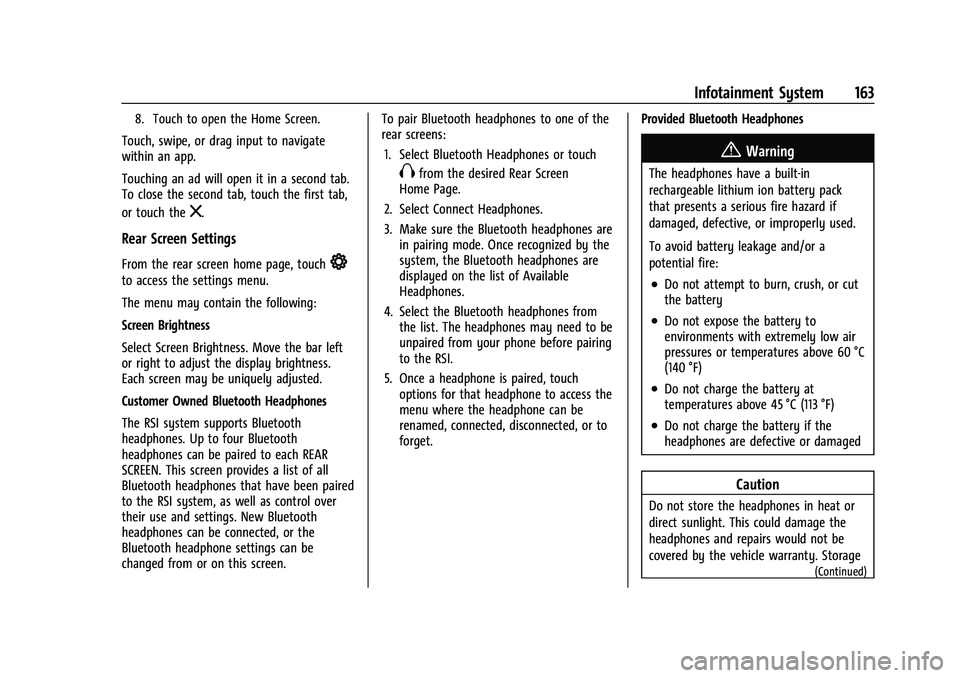
recycling.1. CH-Channel Select
2. Power
3. Volume
4. USB-C Charging Port
The RSI includes two new Bluetooth wireless
headphones. The headphones are used to
listen to various multimedia. The wireless
headphones have a power button, channel
select button, and a volume control button.
To use the included Bluetooth Wireless
Headphones:
.Press the POWER button for one second
to turn the headphones on. The power
indicator will illuminate.
.While the headphones are powered off,
press and hold the power button for
two seconds to enter pairing mode. The
headphone name will display as“GM RSI
BT HP.” See“Pairing to RSI Screen” below
for pairing instructions with RSI screen.
.To power off, press and hold the power
button for two seconds while the power
is on.
Paring to RSI Screen
Only two headphones can be active per RSI
Screen.
To pair a Bluetooth headphone to one of
the rear screens: 1. Touch the Headphone icon from the desired Rear Screen Home Page.
2. Select Add New Headphones.
3. Make sure the Bluetooth headphone is in pairing mode.
4. Once recognized by the system, the Bluetooth headphone is displayed on the
list of Available Headphones.
5. Select the Bluetooth headphone from the list. Once connected, touch OK at the
Pairing Successful pop-up.
6. Touch OK.
Page 167 of 438
Chevrolet Tahoe/Suburban Owner Manual (GMNA-Localizing-U.S./Canada/
Mexico-15555985) - 2022 - CRC - 12/3/21
166 Infotainment System
HDMI Playing View
HDMI playing view shows the video content
and includes:
.{(Home): Touch{to return to the RSI
Home selection screen.
.X(Headphones): TouchXto access the
Bluetooth Headphone Setup menu. See
“Settings” later in this section.
.Share: Touch to share the screen with the
other rear screen. The screen can be
shared through the connected device.
Rear Media App from the Home Screen
The Rear Media App allows a front user to
control the Rear Seat Video Screen sources.
To access, touch the Rear Media App icon
from the Home Page. The Rear Screens may be powered on or off
from the Rear Media App. Touch Screen 1 or
Screen 2 to select a screen. Touch summary
to view both Rear Screens together.
Touching the Power icon next to the
highlighted screen icon turns that screen on
or off.
The audio for the rear users can be muted
by the front user by pressing the mute icon
associated with the left or right rear screen
on the Rear Media App screen, or both rear
screens by pressing the MUTE ALL button.
The current source from the desired Rear
Screen can also be shown on the other Rear
Screen by pressing the Share button on the
lower right side of the RSI screens.
Source Selecting from the Rear Media App
Sources may be selected for the highlighted
Rear Screen. Select Sources from the Rear
Media App screen, then select from the list
of available sources shown on the RSI
Sources screen.
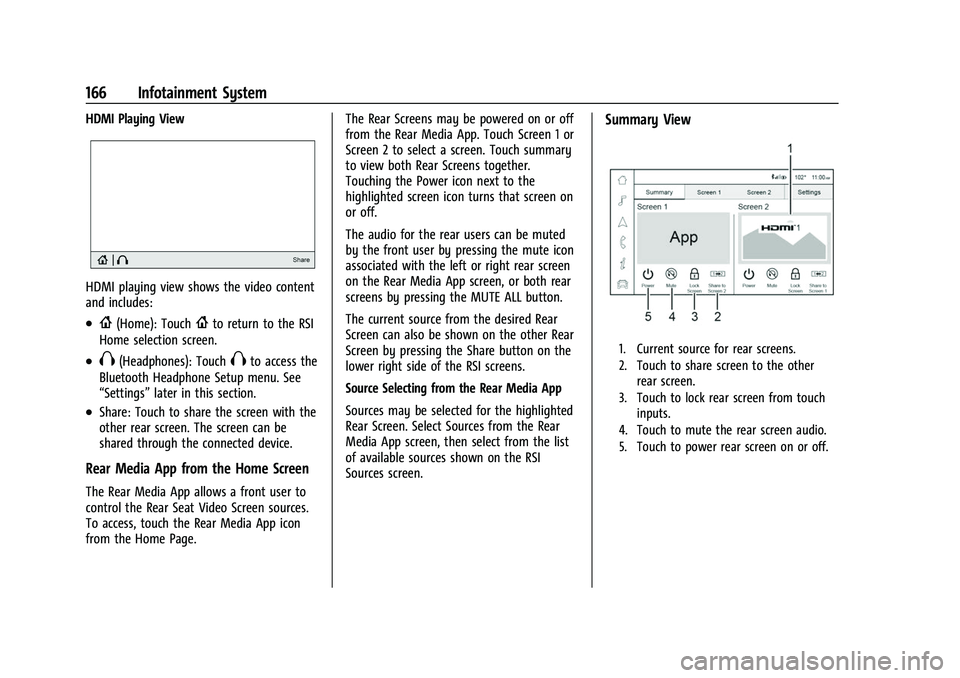
Summary View
1. Current source for rear screens.
2. Touch to share screen to the other
rear screen.
3. Touch to lock rear screen from touch inputs.
4. Touch to mute the rear screen audio.
5. Touch to power rear screen on or off.
Page 169 of 438

Chevrolet Tahoe/Suburban Owner Manual (GMNA-Localizing-U.S./Canada/
Mexico-15555985) - 2022 - CRC - 12/3/21
168 Infotainment System
There is no sound from the headphones
with the indicator light on :Make sure the
headphones have sufficient charge. Plug the
headphones to a USB-C port to charge.
Check to see if headphones are paired to the
screens. Make sure that you are listening in
to the correct screen by pressing the
channel select button.
If the steps above do not work, then unpair
the headphones from the RSI screens, turn
the headphones off, turn them back on and
attempt to pair them. See pairing
procedures for the Bluetooth headphone
previously in this section.
Video Distortion
Video distortion can occur when operating
cellular phones, scanners, CB radios, Global
Positioning Systems (GPS), two-way radios,
mobile faxes, or walkie talkies.
It might be necessary to turn off the video
player when operating one of these devices
in or near the vehicle.
Navigation
Using the Navigation System
The Navigation software is provided by
Google Maps. The information provided in
this section is a general overview and is
subject to change. For the latest functional
information, see g.co/mapsincar.
Accept the Terms and Conditions to use.
Internet Connectivity
Google Maps relies on a subscription data
plan for full functionality, including
availability of offline maps. Google Maps can
be used offline when driving through
connectivity dead zones by
auto-downloading offline maps prior to
going offline.
Profiles
Sign in to a Google Account for personalized
service. Information available in the Google
Account will be shown.
To log into a profile, see Accounts under
Settings (Uplevel Radio) 0184 or
Settings (Base Radio) 0187. Voice Assistant
If equipped, Google Maps can be controlled
by voice commands, see Google Assistant
under
Voice Recognition 0171.
Language and Units
To change the language, see Settings
(Uplevel Radio) 0184 or
Settings (Base Radio) 0187.
To change the units, see Instrument Cluster
(Base Level) 0102 or
Instrument Cluster (Uplevel) 0104.
Mute Settings
During active route guidance, Google Maps
can give audible voice directions, traffic
alerts, or can be muted. In the Google Maps
app, touch Settings, then Mute settings to
access the options.
Compass
The Google Maps orientation can be
changed between the direction currently
traveling and pointing North. Touch the
compass to switch between these options.
To recenter the map to the current location,
touch the location icon.
Page 173 of 438

Chevrolet Tahoe/Suburban Owner Manual (GMNA-Localizing-U.S./Canada/
Mexico-15555985) - 2022 - CRC - 12/3/21
172 Infotainment System
For best results:
.Speak the command naturally, not too
fast, not too slow.
.Use direct commands without a lot of
extra words. For example,“Call
at work,” “Play” followed by the artist or
song name, or “Play”followed by the
radio station number.
Direct commands are more clearly
understood by the system. An example of a
direct command is “Dial
If a cell phone number was saved with a
name and a place, the direct command
should include both. For example “Call
Voice Recognition for the Radio
If browsing the audio sources when voice is
touched, the voice recognition commands
for AM, FM, and SiriusXM (if equipped) are
available.
“Play
radio station frequency identified in the
command (like “nine fifty”).
“Play
radio station frequency identified in the
command (like “one oh one point one”). “Play channel
SiriusXM”
:Tune to the SiriusXM radio
station channel number identified in the
command. This command may require an
online connection.
“Play
Tune to the SiriusXM radio station channel
name identified in the command. This
command may require an online connection.
Voice Recognition for the Phone
Make sure the phone is paired using
Bluetooth to use the phone related voice
commands.
“Call
stored contact. The command may include
location if the contact has location numbers
stored.
“Call < phone number>” :Initiate a call to a
phone number of seven digits or 10 digits.
“Send a message to
a message to a stored contact.
Voice Recognition for Navigation
Navigation commands can be used to start,
cancel route, or add way points/POI. “Navigate to
:
Initiate navigation to the address in the
command.
“Add
way-point to the current route.
“Take me home” :Starts navigation to
Home location set in Google maps.
Onboard Vehicle Commands
These commands can be used to adjust
vehicle temperature, control window
defrosters and obtain fuel information.
“Turn on the A/C” :Turns on the air
conditioning.
“How much gas do I have left” :Find out
how much fuel your vehicle has left.
“Set temperature to
degrees” :Set to a specific temperature
inside your vehicle.
Phone Assistant Voice Recognition
While a device is connected via Bluetooth,
press and hold
gon the steering wheel
controls to pass through and launch Google
assistant on the phone or Siri.
Page 174 of 438

Chevrolet Tahoe/Suburban Owner Manual (GMNA-Localizing-U.S./Canada/
Mexico-15555985) - 2022 - CRC - 12/3/21
Infotainment System 173
Phone
Bluetooth (Overview)
The Bluetooth-capable system can interact
with many mobile devices to:
.Place and receive calls in a
hands-free mode.
.Share the device’s address book or
contact list with the vehicle.
.Stream audio (music, podcasts).
.Notify receipt of text messages.
To minimize driver distraction, before
driving, and with the vehicle parked:
.Become familiar with the features of the
mobile device. Organize the phone book
and contact lists clearly and delete
duplicate or rarely used entries.
.Review the controls and operation of the
infotainment system.
.Pair mobile device(s) to the vehicle. The
system may not work with all mobile
devices. See “Pairing”later in this section.
Vehicles with a Bluetooth system can use a
Bluetooth-capable mobile device with a
Hands-Free Profile to make and receive
phone calls. The infotainment system and
voice recognition are used to control the system. The system can be used while the
ignition is on or in accessory mode. The
range of the Bluetooth system can be up to
9.1 m (30 ft). Not all mobile devices support
all functions and not all mobile devices work
with the Bluetooth system. See
my.chevrolet.com for more information
about compatible mobile devices.
Controls
Use the controls on the infotainment display
and the steering wheel to operate the
Bluetooth system.
Steering Wheel Controls
g:
Press and release to answer incoming
calls on your connected Bluetooth mobile
device. Press and hold for mobile device
assistant.
c: Press to end a call, decline a call,
or cancel an operation. Press to mute or
unmute the infotainment system when not
on a call.
Infotainment System Controls
For information about how to navigate the
menu system using the infotainment
controls, see Using the System 0151.
Audio System
When using the Bluetooth mobile device
system, sound comes through the vehicle's
front audio system speakers and overrides
the audio system. The volume level while on
a mobile device call can be adjusted by
pressing the steering wheel controls or the
volume control on the center stack. The
adjusted volume level remains in memory
for later calls. The volume cannot be
lowered beyond a certain level.
Bluetooth (Pairing and Using a
Phone for Uplevel Radio)
Pairing
A Bluetooth-enabled mobile device must be
paired to the Bluetooth system and then
connected to the vehicle before it can be
used. See the mobile device manufacturer's
user guide for Bluetooth functions before
pairing the device.
Pairing Information
.Touch the Phone icon on the home page
of the infotainment display.
.If no mobile device has been paired, a
message on the infotainment display will
show the Manage Phones option. Touch
Page 175 of 438

Chevrolet Tahoe/Suburban Owner Manual (GMNA-Localizing-U.S./Canada/
Mexico-15555985) - 2022 - CRC - 12/3/21
174 Infotainment System
this option and the Phones screen will
display. See“Pairing a Phone” later in this
section.
.A Bluetooth smartphone with music
capability can be paired to the vehicle as
a smartphone and a music player at the
same time.
.Up to 10 devices can be paired to the
Bluetooth system.
.The pairing process is disabled when the
vehicle is moving.
.Pairing only needs to be completed once,
unless the pairing information on the cell
phone changes or the cell phone is
deleted from the system.
.If multiple paired cell phones are within
range of the system, the system connects
to the paired cell phone that is set to
First to Connect. If there is no cell phone
set to First to Connect, it will link to the
cell phone which was used last. To link to
a different paired cell phone, see “Linking
to a Different Phone” later in this section.
Pairing a Phone 1. Make sure Bluetooth has been enabled on the cell phone before starting the
pairing process.
2. Touch the Phone icon on the Home Page. 3. If no mobile device is connected, touch
Manage Phones and the Phones screen
will display.
If another mobile device is connected
already, touch Settings, Connections, and
then Phones.
4. Touch Add Phone. If a previously added phone is
disconnected, the "Add Phone" card will
just be a "+" card.
5. Follow the on-screen prompts to pair the cell phone.
6. Follow the instructions on the cell phone to confirm the six-digit code showing on
the infotainment display and touch Pair.
The code on the cell phone and
infotainment display needs to be
acknowledged for a successful pair.
7. Start the pairing process on the cell phone to be paired to the vehicle. See
the cell phone manufacturer's user guide
for information on this process. Once the
cell phone is paired, it will show as
Connected. 8. If the vehicle name does not appear on
your cell phone, there are a few ways to
start the pairing process over:
.Make sure there is not an entry for
the vehicle under the previously
connected list. If the vehicle and cell
phone were previously paired and
one still remembers the other, it will
not identify as a new device when
searching.
.Turn the Bluetooth off and on the
device.
.Go back to the beginning of the
Phone menus on the infotainment
display and restart the pairing
process.
.Turn the cell phone off and then
back on.
.Reset the cell phone, but this step
should be done as a last effort.
9. If the cell phone prompts to accept connection or allow phone book
download, touch Always Accept and
Allow. The phone book may not be
available if not accepted.
10. To pair additional cell phones, touch Settings, Connections, and then Phones.
Page 176 of 438

Chevrolet Tahoe/Suburban Owner Manual (GMNA-Localizing-U.S./Canada/
Mexico-15555985) - 2022 - CRC - 12/3/21
Infotainment System 175
First to Connect Paired Phones
If multiple paired cell phones are within
range of the system, the system connects to
the paired cell phone that is set as First to
Connect. To enable a paired cell phone as
the First to Connect phone:1. Make sure the cell phone is turned on.
2. Touch the Settings icon on the home page.
3. Touch Connections.
4. Touch Phone.
5. Touch Options under the connected phone.
6. Touch First to Connect from the cell phone’s settings menu. The settings will
be enabled for that device.
Cell phones and mobile devices can be
added, removed, connected, and
disconnected. A sub-menu will display
whenever a request is made to add or
manage cell phones and mobile devices.
Accessing the Device List Screen
There are two ways to access the device list
screen: Using the Settings Icon
1. Touch the Settings icon on the Home Page or the Settings icon on the shortcut
tray near the left of the display.
2. Touch Connections.
3. Touch Phones.
Using the Phone Icon 1. Touch the Phone icon on the Home Page or the Phone icon on the shortcut tray
near the left of the display.
2. Touch
*on the top right of the Phones
screen.
3. Touch Connected Phone.
Disconnecting a Connected Phone
To disconnect a phone: 1. Open the Device List Screen. See “Accessing the Device List Screen”
previously in this section.
2. Touch Option on the phone card to show the cell phone’s or mobile device’s
settings.
3. Touch Disconnect. Deleting a Paired Phone
To delete a paired phone:
1. Open the Device List Screen. See “Accessing the Device List Screen”
previously in this section.
2. Touch Option on the phone card to show the cell phone’s or mobile device’s
settings.
3. Touch Forget Phone.
Linking to a Different Phone
To link to a different cell phone, the new
cell phone must be in the vehicle and paired
to the Bluetooth system.
To link to a different phone: 1. Open the Device List Screen. See “Accessing the Device List Screen”
previously in this section.
2. Touch the new cell phone to link to from the list of available phones. See “First to
Connect Paired Phones” previously in this
section.