2022 CHEVROLET EQUINOX sD card location
[x] Cancel search: sD card locationPage 135 of 360
Chevrolet Equinox Owner Manual (GMNA-Localizing-U.S./Canada-
16540728) - 2023 - crc - 6/16/22
134 Infotainment System
When the Nav application is launched for
the first time, a product walkthrough is
available. Use of the feature requires the
Terms and Conditions and the Privacy
statement to be confirmed. If available and
signed into a profile, it is also suggested to
enable and confirm Predictive Navigation.
Predictive Navigation (If Equipped)
If Predictive Navigation is available and
confirmed, this feature learns preferences by
remembering where the vehicle has been.
It uses the locations and navigation history
to personalize routes and results.
Predictive Navigation may learn elements
such as:
.Personalized routes based on preferred
streets.
.Search results that provide best matches
at the top of the list.
.Predictive traffic.
.Local map content updating.
Predictive Navigation can also be enabled or
disabled at a later time by touching
A
(Options). While in Options, touch Settings,
then Map and Navigation Settings, and then
Predictive Navigation. Navigation Map View
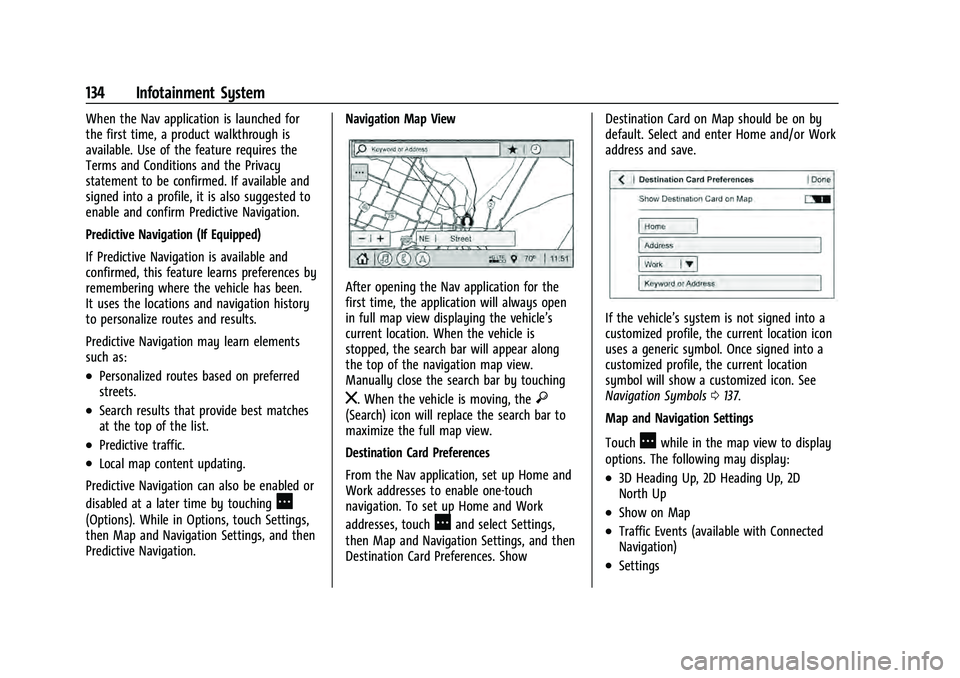
After opening the Nav application for the
first time, the application will always open
in full map view displaying the vehicle’s
current location. When the vehicle is
stopped, the search bar will appear along
the top of the navigation map view.
Manually close the search bar by touching
z. When the vehicle is moving, the}(Search) icon will replace the search bar to
maximize the full map view.
Destination Card Preferences
From the Nav application, set up Home and
Work addresses to enable one-touch
navigation. To set up Home and Work
addresses, touch
Aand select Settings,
then Map and Navigation Settings, and then
Destination Card Preferences. Show Destination Card on Map should be on by
default. Select and enter Home and/or Work
address and save.
If the vehicle’s system is not signed into a
customized profile, the current location icon
uses a generic symbol. Once signed into a
customized profile, the current location
symbol will show a customized icon. See
Navigation Symbols
0137.
Map and Navigation Settings
Touch
Awhile in the map view to display
options. The following may display:
.3D Heading Up, 2D Heading Up, 2D
North Up
.Show on Map
.Traffic Events (available with Connected
Navigation)
.Settings
Page 138 of 360
Chevrolet Equinox Owner Manual (GMNA-Localizing-U.S./Canada-
16540728) - 2023 - crc - 6/16/22
Infotainment System 137
.The SD card has initialized for the first
time:“Once initialized, this SD card can
only be used for navigation in this
vehicle.”
.The SD card is not working properly: “SD
card is not functioning properly.
(Error Code).”
See your dealer if this message appears.
.The SD card is not paired with the
existing system: “This SD card is not valid
in this vehicle for navigation. See Owner’s
Manual for more detail or visit your
dealer. (Error Code).”
.The SD card has been removed from the
slot: “SD card has been removed.
(Error Code).”
Make sure the SD card is in the slot. If it
was removed and inserted and you still
receive an error code, see your dealer.
Touch Confirm to resume after the
initialization error message. For the other
messages, touch OK to return to the
Home Page.
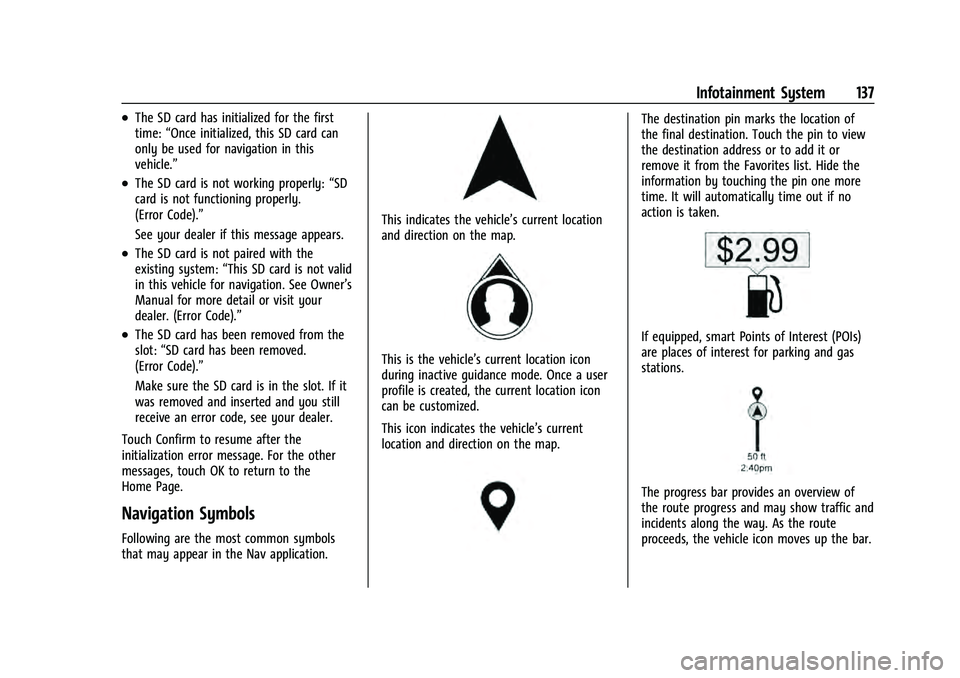
Navigation Symbols
Following are the most common symbols
that may appear in the Nav application.
This indicates the vehicle’s current location
and direction on the map.
This is the vehicle’s current location icon
during inactive guidance mode. Once a user
profile is created, the current location icon
can be customized.
This icon indicates the vehicle’s current
location and direction on the map.
The destination pin marks the location of
the final destination. Touch the pin to view
the destination address or to add it or
remove it from the Favorites list. Hide the
information by touching the pin one more
time. It will automatically time out if no
action is taken.
If equipped, smart Points of Interest (POIs)
are places of interest for parking and gas
stations.
The progress bar provides an overview of
the route progress and may show traffic and
incidents along the way. As the route
proceeds, the vehicle icon moves up the bar.
Page 145 of 360
Chevrolet Equinox Owner Manual (GMNA-Localizing-U.S./Canada-
16540728) - 2023 - crc - 6/16/22
144 Infotainment System
.The GPS signal is not received.
.A roof carrier is installed on the vehicle.
.Tire chains are installed on the vehicle.
.The tires are replaced or worn.
.The tire pressure for the tires is incorrect.
.This is the first navigation use after the
map data is updated.
.The 12-volt battery has been disconnected
for several days.
.The vehicle is driving in heavy traffic
where driving is at low speeds, and the
vehicle is stopped and started repeatedly.
Problems with Route Guidance
Inappropriate route guidance can occur
under one or more of the following
conditions:
.The turn was not made on the road
indicated.
.Route guidance might not be available
when using automatic rerouting for the
next right or left turn.
.The route might not be changed when
using automatic rerouting.
.There is no route guidance when turning
at an intersection.
.Plural names of places might be
announced occasionally.
.It could take a long time to operate
automatic rerouting during high-speed
driving.
.Automatic rerouting might display a route
returning to the set waypoint if heading
for a destination without passing through
a set waypoint.
.The route prohibits the entry of a vehicle
due to a regulation by time or season or
any other regulation which may be given.
.Some routes might not be searched.
.The route to the destination might not be
shown if there are new roads, if roads
have recently changed, or if certain roads
are not listed in the map data. SeeMaps
0 136.
To recalibrate the vehicle's position on the
map, park with the vehicle running for two
to five minutes, until the vehicle position
updates. Make sure the vehicle is parked in
a location that is safe and has a clear view
of the sky and away from large
obstructions.
If the System Needs Service
If the navigation system needs service, see
your dealer.
Map Data Updates
The map data in the vehicle is the most
up-to-date information available when the
vehicle was produced. The map data is
updated periodically, provided that the map
information has changed and the vehicle has
a relevant service plan.
See www.gmnavdisc.com for details on
ordering, purchasing, and installing a new or
replacement SD card. Features are subject to
change. For more information on this
feature, visit your brand website. See Online
Account 0329 for details.
If the vehicle is equipped with Connected
Navigation, which is a subscription service
that enables certain features of the
navigation system, such as Traffic, Smart
Search/Routing, and Predictive Navigation,
then the system will download the latest
map data from the cloud.
Database Coverage Explanations
Coverage areas vary with respect to the
level of map detail available for any given
area. Some areas feature greater levels of
detail than others. If this happens, it does
not mean there is a problem with the
system. As the map data is updated, more
Page 160 of 360
Chevrolet Equinox Owner Manual (GMNA-Localizing-U.S./Canada-
16540728) - 2023 - crc - 6/16/22
Infotainment System 159
Touch No or Yes.
Vehicle Name
Touch to edit your vehicle name.
Vehicle Account
Touch to view the vehicle account
information and to change the account
password.
Delete Profile
Touch to remove the profile from the
vehicle.
Touch Remove or Cancel.
Teen Driver
If equipped, this allows multiple keys to be
registered for beginner drivers to encourage
safe driving habits. When the vehicle is
started with a Teen Driver key, it will
automatically activate certain safety
systems, allow setting of some features, and
limit the use of others. The Report Card will
record vehicle data about driving behavior
that can be viewed later. When the vehicle
is started with a registered key, the Driver
Information Center (DIC) displays a message
that Teen Driver is active.To access:
1. Touch Settings on the Home Page, then touch Vehicle, and then Teen Driver.
2. Create a Personal Identification Number (PIN) by choosing a four-digit PIN.
Re-enter the PIN to confirm. To change
the PIN, touch Change PIN.
The PIN is required to:
.Set up/Add or remove keys.
.Change Teen Driver settings.
.Change or clear the Teen Driver PIN.
.Access or delete Report Card data.
Set up/Add keys to activate Teen Driver and
assign restrictions to the key:
Any vehicle key can be registered, up to a
maximum of eight keys. Label the key to
tell it apart from the other keys.
For a pushbutton start system: 1. Start the vehicle.
2. For automatic transmissions, the vehicle must be in P (Park). For manual
transmissions, the vehicle must be
stopped with the parking brake set.
3. From the Settings menu, touch Vehicle and then Teen Driver.
4. Enter the PIN. 5. Place the remote key you wish to
register in the transmitter pocket. The
key does not need to be the one that
started the vehicle. See Remote Key
Operation 08for transmitter pocket
location.
6. From the Teen Driver menu, touch Setup Keys or Add/Remove Teen Driver Keys.
.If the remote key has not previously
been registered, the option to add
the key displays. Touch Add and a
confirmation message displays. Teen
Driver restrictions will be applied
whenever this remote key is used to
operate the vehicle.
.If the remote key has already been
registered, the option to remove the
key displays. If Remove is touched,
the remote key is no longer
registered. A confirmation message
displays, and Teen Driver restrictions
will not be applied if this remote key
is used to operate the vehicle.
In vehicles with a pushbutton start system,
if a Teen Driver and a non-Teen Driver key
are both present at start up, the vehicle will
recognize the non-Teen Driver key to start
the vehicle. The Teen Driver settings will not
be active.
Page 163 of 360
Chevrolet Equinox Owner Manual (GMNA-Localizing-U.S./Canada-
16540728) - 2023 - crc - 6/16/22
162 Infotainment System
To delete Report Card data, do one of the
following:
.From the Report Card display, touch
Reset.
.Touch Clear PIN and All Teen Driver Keys
from the Teen Driver menu. This will also
unregister any Teen Driver keys and
delete the PIN.
Forgotten PIN
See your dealer to reset the PIN.
Trademarks and License
Agreements
FCC Information
See Radio Frequency Statement 0335.
"Made for iPhone," means that an electronic
accessory has been designed to connect
specifically to iPhone, and has been certified
by the developer to meet Apple
performance standards. Apple is not responsible for the operation of this device
or its compliance with safety and regulatory
standards. Please note that the use of this
accessory with iPhone may affect wireless
performance. iPhone are trademarks of
Apple Inc., registered in the U.S. and other
countries.
Trial length and service availability may vary
by model, model year or trim. Service will
automatically stop at the end of your trial
subscription period unless you decide to
continue service. If you do not wish to enjoy
your trial, you can cancel by calling the
number below. All SiriusXM services require
a subscription, each sold separately by
SiriusXM after the trial period. Service
subject to the applicable SiriusXM Customer
Agreement and Privacy Policy, visit
www.siriusxm.com (USA) or www.siriusxm.ca
(Canada) to see complete terms and how to
cancel which includes calling 1-866-635-2349
(USA) or 1-888-539-7474 (Canada). Some
services and features are subject to device
capabilities and location availability. Content
varies by SiriusXM subscription package. All
fees, content and features are subject to
change.
SiriusXM with 360L: Some features,
including steaming content and listening
recommendations, require an active OnStar
Connected Access plan and may vary by
vehicle model. Content varies by SiriusXM
subscription plan. GM connected vehicle
services vary by vehicle model and require
active service plan, working electrical
system, cell reception and GPS signal. See
onstar.com for details and limitations.
SiriusXM, Pandora, Stitcher and all related
logos are trademarks of Sirius XM Radio Inc.
and its respective subsidiaries.
SiriusXM satellite service is only available in
the 48 contiguous United States (and Puerto
Rico with limited availability) and Canada.
In Canada: Some deterioration of service
may occur in extreme northern latitudes.
This is beyond the control of SiriusXM.
Explicit Language Notice: Channels with
frequent explicit language are indicated with
an
“XL” preceding the channel name.
Family-friendly packages are available by
contacting SiriusXM:
Page 331 of 360
Chevrolet Equinox Owner Manual (GMNA-Localizing-U.S./Canada-
16540728) - 2023 - crc - 6/16/22
330 Customer Information
D:Select a preferred dealer and view
locations, maps, phone numbers, and hours.
r: Track your vehicle’s warranty
information.
J: View active recalls by Vehicle
Identification Number (VIN). See Vehicle
Identification Number (VIN) 0323.
H:Manage your profile and payment
information. View your GM Rewards Card
earnings and My Chevrolet Rewards points.
F: Chat with online help representatives.
Visit chevrolet.com and create an account
today.
Chevrolet Owner Centre (Canada)
mychevrolet.ca
Visit the Chevrolet Owner Centre at
mychevrolet.ca (English) or my.chevrolet.ca
(French) to access similar benefits to the
U.S. site.
GM Mobility Reimbursement
Program
This program is available to qualified
applicants for cost reimbursement, up to
certain limits, of eligible aftermarket
adaptive equipment required for the vehicle,
such as hand controls or a wheelchair/
scooter lift for the vehicle.
To learn about the GM Mobility program,
see www.gmmobility.com or call the GM
Mobility Assistance Center at 1-800-323-9935.
Text Telephone (TTY) users, please dial the
national 711 relay service and contact
1-800-323-9935.
General Motors of Canada also has a
Mobility program. See www.gm.ca, or call
1-800-GM-DRIVE (800-463-7483) for details.
TTY users call 1-800-263-3830.
Roadside Assistance Program
For U.S.-purchased vehicles, call
1-800-243-8872. (Text Telephone (TTY):
1-888-889-2438.)
For Canadian-purchased vehicles, call
1-800-268-6800.
Service is available 24 hours a day, 365 days
a year.
Calling for Assistance
When calling Roadside Assistance, have the
following information ready:
.Your name, home address, and home
telephone number
.Telephone number of your location
.Location of the vehicle
.Model, year, color, and license plate
number of the vehicle
.Odometer reading and Vehicle
Identification Number (VIN)
.Description of the problem
Coverage
Services are provided for the duration of the
vehicle’s powertrain warranty.