2022 CHEVROLET CORVETTE audio
[x] Cancel search: audioPage 36 of 338
Chevrolet Corvette Owner Manual (GMNA-Localizing-U.S./Canada/Mexico-
15342622) - 2022 - CRC - 5/4/21
Keys, Doors, and Windows 35
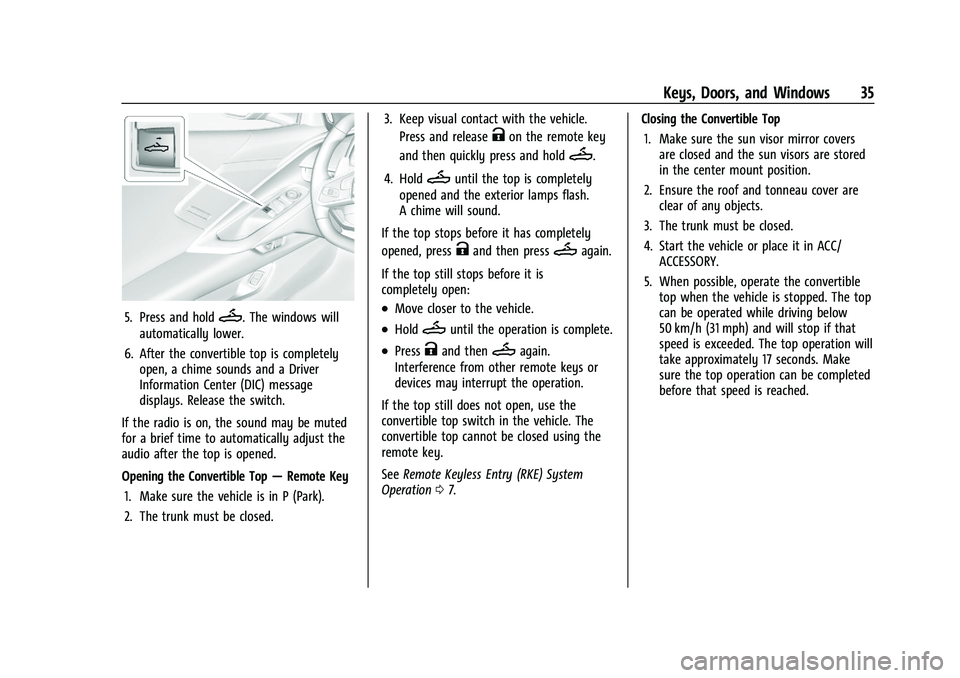
5. Press and holdM. The windows will
automatically lower.
6. After the convertible top is completely open, a chime sounds and a Driver
Information Center (DIC) message
displays. Release the switch.
If the radio is on, the sound may be muted
for a brief time to automatically adjust the
audio after the top is opened.
Opening the Convertible Top —Remote Key
1. Make sure the vehicle is in P (Park).
2. The trunk must be closed. 3. Keep visual contact with the vehicle.
Press and release
Kon the remote key
and then quickly press and hold
M.
4. Hold
Muntil the top is completely
opened and the exterior lamps flash.
A chime will sound.
If the top stops before it has completely
opened, press
Kand then pressMagain.
If the top still stops before it is
completely open:
.Move closer to the vehicle.
.HoldMuntil the operation is complete.
.PressKand thenMagain.
Interference from other remote keys or
devices may interrupt the operation.
If the top still does not open, use the
convertible top switch in the vehicle. The
convertible top cannot be closed using the
remote key.
See Remote Keyless Entry (RKE) System
Operation 07. Closing the Convertible Top
1. Make sure the sun visor mirror covers are closed and the sun visors are stored
in the center mount position.
2. Ensure the roof and tonneau cover are clear of any objects.
3. The trunk must be closed.
4. Start the vehicle or place it in ACC/ ACCESSORY.
5. When possible, operate the convertible top when the vehicle is stopped. The top
can be operated while driving below
50 km/h (31 mph) and will stop if that
speed is exceeded. The top operation will
take approximately 17 seconds. Make
sure the top operation can be completed
before that speed is reached.
Page 37 of 338

Chevrolet Corvette Owner Manual (GMNA-Localizing-U.S./Canada/Mexico-
15342622) - 2022 - CRC - 5/4/21
36 Keys, Doors, and Windows
6. Pull and holdMon the driver door
switch. The windows will automatically
lower.
7. After the convertible top is completely closed, a chime sounds and a DIC
message displays. Release the switch.
Raise the windows if needed. If the
switch is held after the chime sounds,
the windows will start to raise.
If the radio is on, the sound may be muted
for a brief time to automatically adjust the
audio after the top is closed. Troubleshooting the Convertible Top
Check the following if the convertible top
switch
Mis not operating:
.The ignition should be on or in ACC/
ACCESSORY, or Retained Accessory Power
(RAP) should be active.
.The trunk lid must be closed. If it is not,
a DIC message will display.
.At cooler outside temperatures, the
convertible top may not operate. It is
possible to open the top down to
temperatures of about 0 °C (32 °F) and
close the top down to temperatures of
about
−10 °C (14 °F). A DIC message will
display if the top will not operate due to
low temperature. If necessary, move the
vehicle to a heated indoor area to operate
the top.
.If the top has recently been opened and
closed repeatedly, it will be temporarily
disabled. A DIC message displays. Normal
operation will be restored within
10 minutes after the system has cooled.
.If the vehicle battery is low, the top
operation may be disabled. Try to start
the vehicle. A DIC message displays.
.If the battery has recently been
reconnected or if the vehicle has been
jump started, the top may not operate
until the power windows have been
programmed. Complete the power
window programming procedure. See
Power Windows 028.
Other features may be affected while
operating the convertible top:
.If you start the vehicle while using the
remote key to open the convertible top,
the convertible top will halt the motion.
After starting the vehicle, use the
convertible top switch inside the vehicle
to continue the top motion.
.The windows cannot close while the top
is moving.
.When driving with the top not fully
secured, chimes can be heard above
50 km/h (31 mph).
.The Rear Camera Mirror will not work
with the convertible top down. Use the
tab to switch to the standard mirror
display.
If the vehicle battery has been disconnected
and reconnected, if the fuses were pulled or
replaced, or if a jump start was performed, a
message indicating the top is not secure
Page 82 of 338

Chevrolet Corvette Owner Manual (GMNA-Localizing-U.S./Canada/Mexico-
15342622) - 2022 - CRC - 5/4/21
Instruments and Controls 81
.Info Pages: The selected Driver
Information Center (DIC) displays can be
viewed. SeeDriver Information Center
(DIC) 092.
.Performance
.Audio
.Options
.Simplify
Performance
Press the thumbwheel to enter the
Performance menu. Scroll through the
available items.
G-force : Gives the driver an indication of
the vehicle performance in cornering. The
G-force gauge will show as an info tile on
the left side of the cluster, if selected.
Friction Bubble : A four quadrant visual
display, indicative of the four corners of the
car, with a “bubble”showing where the
most inertia is being exerted on the vehicle.
Performance Timer : Press the thumbwheel
to enter the setup menu, then select Set
Start Speed. Scroll to desired Start Speed,
then press the thumbwheel to save it. While
on this menu, to change the End Speed,
scroll to End Speed and use the thumbwheel
to scroll to desired End Speed. Press the thumbwheel to save it. On the next
acceleration, the performance timer will
record the time. Pressing the thumbwheel
while the timer is running will cancel the
timer if done before reaching the End Speed.
Lap Timer (without PDR) :
Press
Twhen
Lap Timer is displayed to start, stop, or reset
the lap timer. Press the thumbwheel while
the Lap Timer page is active to start the
timer. If the lap timer is active, pressing the
thumbwheel will stop the current lap timer
and start a new lap. Pressing the
thumbwheel within 10 seconds after
completing the last lap (Stop Lap Timer
option is displayed), the Lap Timer will stop.
Lap Timer (with PDR) : The lap times
recorded with the PDR system will
automatically be displayed in this window.
This only happens if a track has been
selected in the PDR system and a video
recording is started. See Performance Data
Recorder (PDR) 0140.
Oil Temperature : Shows the current oil
temperature in either degrees Celsius (°C) or
degrees Fahrenheit (°F).
Oil Pressure : Shows the current oil pressure
in either kilopascal (kPa) or in pounds per
square inch (psi). Battery Voltage :
Shows the current battery
voltage.
Transmission Fluid Temperature : Shows the
temperature of the transmission fluid in
either degrees Celsius (°C) or degrees
Fahrenheit (°F).
Tire Status : Shows individual tire pressures
and overall temperature as either Cold, Cool,
Normal, Warm, or Hot. Normal is typical for
normal driving while Warm is typical for
aggressive driving. Unknown may be
displayed if tire temperature information is
unavailable.
eLSD (Z51 Only) : Displays the amount of
rear differential coupling when the Electronic
Limited-Slip Differential (eLSD) is active and
functioning during vehicle operation.
A reading of 1% is an open differential and
100% is locked. It is normal for the value to
make small or large changes due to driving
conditions and driver inputs. See Limited-Slip
Differential (Without Z51) 0216 or
Limited-Slip Differential (With Z51) 0216.
Front Lift : During a driver requested Front
Lift (if equipped), the driver may
"remember" using the
S, or dismiss the
display by pressing the thumbwheel. When
the Front Lift is Raised due to location, the
Page 83 of 338

Chevrolet Corvette Owner Manual (GMNA-Localizing-U.S./Canada/Mexico-
15342622) - 2022 - CRC - 5/4/21
82 Instruments and Controls
driver may delete that stored location using
the
S, or dismiss the display by pressing
the thumbwheel.
See Front Lift System 0212.
Audio
In the Audio menu, use the thumbwheel to
scroll through audio presets.
Options
Use the thumbwheel to scroll through items
in the Options menu.
Units
Press the thumbwheel while Units is
displayed to enter the Units menu. Choose
US or metric units by pressing the
thumbwheel while the desired item is
highlighted. A selected mark will be
displayed next to the selected item.
Display Themes
Press the thumbwheel to enter the Display
menu. There are six instrument cluster
display configurations to choose from. Sport,
Tour, Track, Weather, My Mode, and
Z-Mode. The style of the cluster will change
depending on the theme selected. Default is linked to Driver mode. Other
display themes can be set
If in Z-Mode or My Mode then those
displays plus HUD (if equipped) can be set.
.Sport/Z-Mode: Displays Coolant
Temperature, Fuel Gauge, Compass, Drive
Mode Indicator, Odometer, Speed,
Tachometer, Electronic Transmission
Range, Current Gear, Active Fuel
Management (AFM), Peak Performance,
Performance Shift Lights, Speed Limit, Info
Area, and Interaction Area.
.Tour/Weather/My Mode: Displays Coolant
Temperature, Fuel Gauge, Compass, Drive
Mode Indicator, Odometer, Speed,
Tachometer, Electronic Transmission
Range, Current Gear, Active Fuel
Management (AFM), Peak Performance,
Speed Limit, Info Area, and
Interaction Area.
.Track: Displays Coolant Temperature, Fuel
Gauge, Performance Traction
Management, Drive Mode Indicator,
Speed, Tachometer, Electronic
Transmission Range, Current Gear, Info
Area, and Interactive Area.
Preset info tiles shown on each layout:
Sport :
G-Force, Oil Temperature
Track : Oil Pressure, Transmissions Fluid
Temperature, Tire Pressure & Tire
Temperature, Oil Temperature
Tour : Time & Outside Air Temperature, Oil
Pressure
Weather : Time & Outside Air Temperature,
Tire Status
Z-Mode : Oil Temperature, G-Force
My Mode : Economy Trend, Oil Pressure
Head-Up Display (HUD) Rotation
Press the thumbwheel while Adjust Rotation
is highlighted to enter Adjust Mode. Scroll
to adjust the angle of the HUD display.
Press the thumbwheel to confirm and save
the setting. This feature may only be
available in P (Park).
Speed Warning
The Speed Warning display allows the driver
to set a speed that they do not want to
exceed. To set the Speed Warning, press the
thumbwheel when Speed Warning is
displayed, or press the thumbwheel on the
main view to set the speed value. Scroll to
adjust the value. Press the thumbwheel to
Page 97 of 338

Chevrolet Corvette Owner Manual (GMNA-Localizing-U.S./Canada/Mexico-
15342622) - 2022 - CRC - 5/4/21
96 Instruments and Controls
Metric
English
Sport : Displays the vehicle speed, a circular
tachometer, gear position, shift indicator,
and G-Force meter.
Sport view is only available in My Mode or
Z-Mode. See Driver Mode Control 0206.
Track : Displays the vehicle speed, gear
position, shift lights, and current/best lap
times. This includes Gain/Loss of Current Lap
compared to Best Lap.
Track view is only available in My Mode or
Z-Mode. See Driver Mode Control 0206.
Interrupts
The interrupt information temporarily
displays in any HUD view. Once displayed,
HUD returns to the previous HUD view.
Interrupts may include:
.Navigation Turn-by-Turn Information
.Incoming Call Information
.Vehicle Alerts
.Audio Selections
Metric
English
Audio : May display when a new source,
radio station, or media type is selected.
Navigation : Turn-by-turn navigation
information may be displayed when
Navigation is active and an upcoming
maneuver is pending. It appears until the
maneuver is complete and then the HUD
display returns to the previous view.
Page 111 of 338

Chevrolet Corvette Owner Manual (GMNA-Localizing-U.S./Canada/Mexico-
15342622) - 2022 - CRC - 5/4/21
110 Infotainment System
Infotainment System
Introduction
Introduction . . . . . . . . . . . . . . . . . . . . . . . . . . . 110
Overview . . . . . . . . . . . . . . . . . . . . . . . . . . . . . . . 111
Steering Wheel Controls . . . . . . . . . . . . . . . 113
Using the System . . . . . . . . . . . . . . . . . . . . . . 114
Software Updates . . . . . . . . . . . . . . . . . . . . . . 116
Radio
AM-FM Radio . . . . . . . . . . . . . . . . . . . . . . . . . . 116
HD Radio Technology . . . . . . . . . . . . . . . . . . 118
Radio Data System (RDS) . . . . . . . . . . . . . . 119
Satellite Radio . . . . . . . . . . . . . . . . . . . . . . . . . 119
Radio Reception . . . . . . . . . . . . . . . . . . . . . . . . 119
Diversity Antenna System . . . . . . . . . . . . . 120
Audio Players
Avoiding Untrusted Media Devices . . . . 120
USB Port . . . . . . . . . . . . . . . . . . . . . . . . . . . . . . 120
Auxiliary Jack . . . . . . . . . . . . . . . . . . . . . . . . . . 123
Bluetooth Audio . . . . . . . . . . . . . . . . . . . . . . . 123
Navigation
Using the Navigation System . . . . . . . . . . 124
Maps . . . . . . . . . . . . . . . . . . . . . . . . . . . . . . . . . . 127
Navigation Symbols . . . . . . . . . . . . . . . . . . . . 127
Destination . . . . . . . . . . . . . . . . . . . . . . . . . . . . 128
Global Positioning System (GPS) . . . . . . . 133
Vehicle Positioning . . . . . . . . . . . . . . . . . . . . 134
Problems with Route Guidance . . . . . . . . 134If the System Needs Service . . . . . . . . . . . 134
Map Data Updates . . . . . . . . . . . . . . . . . . . . . 135
Database Coverage Explanations . . . . . . . 135
Voice Recognition
Voice Recognition . . . . . . . . . . . . . . . . . . . . . . 135
Performance Data Recorder (PDR)
Performance Data Recorder (PDR) . . . . . 140
Phone
Bluetooth (Overview) . . . . . . . . . . . . . . . . . . 145
Bluetooth (Pairing and Using a
Phone) . . . . . . . . . . . . . . . . . . . . . . . . . . . . . . . 146
Apple CarPlay and Android Auto . . . . . . . 150
Settings
Settings . . . . . . . . . . . . . . . . . . . . . . . . . . . . . . . . 151
Teen Driver . . . . . . . . . . . . . . . . . . . . . . . . . . . . 157
Trademarks and License Agreements
Trademarks and License Agreements . . . . . . . . . . . . . . . . . . . . . . . . . 160
Introduction
Read the following pages to become familiar
with the features.
{Warning
Taking your eyes off the road for too
long or too often while using any
infotainment feature can cause a crash.
You or others could be injured or killed.
Do not give extended attention to
infotainment tasks while driving. Limit
your glances at the vehicle displays and
focus your attention on driving. Use voice
commands whenever possible.
The infotainment system has built-in
features intended to help avoid distraction
by disabling some features when driving.
These features may gray out when they are
unavailable. Many infotainment features are
also available through the instrument cluster
and steering wheel controls.
Page 112 of 338

Chevrolet Corvette Owner Manual (GMNA-Localizing-U.S./Canada/Mexico-
15342622) - 2022 - CRC - 5/4/21
Infotainment System 111
Before driving:
.Become familiar with the operation,
center stack controls, steering wheel
controls, and infotainment display.
.Set up the audio by presetting favorite
stations, setting the tone, and adjusting
the speakers.
.Set up phone numbers in advance so they
can be called easily by pressing a single
control or by using a single voice
command.
See Distracted Driving 0174.
Active Noise Cancellation (ANC)
If equipped, ANC reduces engine noise in the
vehicle’s interior. ANC requires the
factory-installed audio system, radio,
speakers, amplifier (if equipped), induction
system, and exhaust system to work
properly. Deactivation is required by your
dealer if related aftermarket equipment is
installed.
Overview
Infotainment System
The infotainment system is controlled by using the infotainment display, controls on the
center stack, steering wheel controls, and voice recognition.
1. Power/Volume
.When off, press to turn the system
on. Press and hold to turn off.
.When on, press to mute the
system. Press again to unmute the
system.
Page 113 of 338

Chevrolet Corvette Owner Manual (GMNA-Localizing-U.S./Canada/Mexico-
15342622) - 2022 - CRC - 5/4/21
112 Infotainment System
.When the power is on and the
system is not muted, a quick
status pane will display when
pressed. Pressing will mute the
system and trigger this pane to
show a long press is required to
actually power down the system.
.Turn to increase or decrease the
volume.
2.{(Home Page)
.Press to go to the Home Page. See
“Home Page”in this section.
Pressing
{again displays the
porch view screen showing audio,
phone, and navigation (if
equipped) information.
.Press to exit Android Auto or Apple
CarPlay. To enter back into Android
Auto or Apple CarPlay, press and
hold. See Apple CarPlay and
Android Auto 0150. Home Page
The Home Page is where vehicle application
icons are accessed. Some applications are
disabled when the vehicle is moving.
Swipe left or right across the display to
access the pages of icons.
At the bottom of the Home page, in the
status bar, is the notification icon. This
displays the number of notifications.
Touching the icon shows the notifications.
The notification icon may display for a few
seconds and then go away, depending on
the number of icons in the status bar.
Managing Home Page Icons
1. Touch and hold any of the Home Page icons to enter edit mode.
2. Continue holding the icon and drag it to the desired position.
3. Release your finger to drop the icon in the desired position.
4. To move an application to another page, drag the icon to the edge of the display
toward the desired page.
5. Continue dragging and dropping application icons as desired.