Page 261 of 709

259
uuAudio System uAudio Remote Controls
Features
Roll up or down:
To cycle through the modes, roll up or down and then press the left selector
wheel:
After an audio mode is selected, the left selector wheel can be operated for the
following functions.
• When listening to the radio
Move to the right: To select the next favorite radio station or channel.
Move to the left: To select the previous favori te radio station or channel.
• When listening to an iPod, USB flash drive, Bluetooth® Audio, or Smartphone
Connection
Move to the right: To skip to the next song.
Move to the left: To go back to the beginning of the current or previous song.
*1 : Model with head-up display
1Audio Remote Controls
You can customize the items on the multi-
information display or the head-up display
*.
2 Customizing the Meter or Head-Up
Display
* P. 276
You cannot operate the a udio functions while the
following functions are be ing operated on the multi-
information display or head-up display
*.•Mode selection by pressing APPS button
•Navigation*1
•Phone
•Select Driving View*1
•Customize Apps
Navigation*1
Phone
Audio Modes (FM Radio, USB
Audio , etc.)
Select Driving View*1
Customize Apps
* Not available on all models
22 ACURA RDX-31TJB6300.book 259 ページ 2021年8月2日 月曜日 午前11時0分
Page 266 of 709

264
uuAudio System Basic Operation uAudio/Information Screen
Features
Audio/Information Screen
Displays each mode status. From this display, you can go to various setup options.
■Switching the display
Press the (home) button to go to the home screen.
Select the following icon s on the home screen or All Apps list.
■Navigation*
Displays the navigation screen.
2Refer to the Navigation System Manual
■Phone
Displays the HFL information.
2 Bluetooth ® HandsFreeLink ® P. 389
■FM Radio/AM Radio/SiriusXM /USB Audio/Bluetooth Audio
Displays the audio information for each.
■A-Zone
1 Audio/Information Screen
All Apps list
You can select any of the apps from the All Apps list.
To display the All Apps list, place your finger on the
A-zone touchpad and swipe right. 2 Home Screen P. 269
You can add or remove any of the apps in the home
screen through the All Apps list.
2 To add app icons to the home screen and
the head-up display
* P. 270
Home Screen
A-Zone
* Not available on all models
22 ACURA RDX-31TJB6300.book 264 ページ 2021年8月2日 月曜日 午前11時0分
Page 287 of 709
Continued285
uuAudio System Basic Operation uSystem Updates
Features
■Download the up date files from the server
1.Press the (home) button.
2. Select System Updates .
3. Select via USB .
u A notification appears on the screen.
4. Connect a USB device into the USB port in
the console compartment.
u The inventory data is copied into the USB
device.
2 USB Ports P. 255
5.Remove the USB device from the USB port.
6. Connect the USB device into your
computer, and then do wnload the update
files.
u Follow the link to do wnload the required
software update files. Refer to
https://usb.acura.com for instructions.
■How to Update with a USB Device1How to Update with a USB Device
A USB device with a minimum of 8 GB of free space
or more is recommended.
Be sure to delete any pr evious inventory or update
files from the USB device before starting the USB
update process.
22 ACURA RDX-31TJB6300.book 285 ページ 2021年8月2日 月曜日 午前11時0分
Page 288 of 709

uuAudio System Basic Operation uSystem Updates
286
Features
■Update the audio system
1.Press the (home) button.
2. Select System Updates .
3. Select via USB .
u A notification appears on the screen.
4. Connect the USB device with the update
files into the USB port.
u A notification appears on the screen.
2 USB Ports P. 255
5.Select Install Now or Install while
Vehicle OFF .
u A notification appears on the screen if
the update is successful when Install
Now is selected.
u When you select Install while Vehicle
OFF go to step 6.
6. Set the power mode to VEHICLE OFF
(LOCK).
u A notification appears on the screen. If
you select Postpone Update , the
update is postponed.
7. Exit from your vehicle.
u The system will start the firmware
update.
u A notification appears on the screen if
the update is successful at the next time
you set the power mode to ON.
1Update the audio system
The system may stop the firmware update when
battery is low on power, even when you selected
Install while Vehicle OFF .
If you want to install the updated data, recharge the
battery or select Install Now.
22 ACURA RDX-31TJB6300.book 286 ページ 2021年8月2日 月曜日 午前11時0分
Page 289 of 709

287
uuAudio System Basic Operation uAdjusting the Sound
Features
Adjusting the Sound
1. Press the (home) button.
2. Select an audio source icon.
3. Select SOUND.
4. Select the setting you want.
3. Select MENU .
4. Select Sound Settings.
5. Select the setting you want.
Select an item from the following choices:
•Bass / Treble : Treble, Midrange, Bass
• Roof / Center Volume
*: Roof speaker,
center speaker
• Audio Zones & Balance / Fader
*: Driver
Only, Front Only, Rear Only, Full Vehicle,
Balance, Fader
• Balance / Fader
*: Balance, Fader
• Speed Volume Compensation : Speed
Volume Compensation (SVC)
• DTS Neural Surround
*: DTS Neural
SurroundTM
• Compressed Audio Enhancement*:
Enhancement for compressed audio quality
1 Adjusting the Sound
The SVC adjusts the volume level based on the
vehicle speed. As you go faster, audio volume
increases. As you slow down, audio volume
decreases.
You can also adjust the sound the following
procedure.
1. Press the (home) button.
2. Select Settings .
3. Select Sound .
Audio Zones & Balance / Fader
You can change where the sound comes from by
selecting one of the speaker options below:
•Full Vehicle: All the speakers emit sound.•Driver Only: Allows driver to listen to the audio
system while maintaini ng a quieter environment
for the other occupants.
•Front Only : Allows front seat occupants to listen
to the audio system while maintaining a quieter
environment for occupants in the rear.
•Rear Only : Allows rear seat o ccupants to listen to
the audio system while maintaining a quieter
environment for occupants in the front.
Reset to Default
Select to reset the followi ng settings from the pop-up
menu to their factory default.
•Bass / Treble
•Roof / Center Volume*
•Audio Zones & Balance / Fader*
•Balance / Fader*
USB Audio mode
FM Radio, AM Radio, Siri usXM, Bluetooth Audio mode
* Not available on all models
22 ACURA RDX-31TJB6300.book 287 ページ 2021年8月2日 月曜日 午前11時0分
Page 294 of 709
292
uuAudio System Basic Operation uVoice Control Operation
Features
■Sirius XM Commands
• Play XM radio
• Play XM
• Listen to on XM
• Play XM Channel
• Tune to
• Listen to on the
satellite radio
■USB Commands
• Play USB
• Play iPod
• Play genre
• Play
• Play
• Play
• Play
■Bluetooth ® Audio Commands
• Play Bluetooth
2 Refer to the Navigation System Manual
•Help
• Cancel
• Repeat
Help provides guidan ce for the current
screen.
You can search for the desired item on each
search screen with your voice.
• Next Page
• Previous Page
• Back
• Go to
• Select
*1: Models with navigation system
■Navigation Commands*1
■Standard Commands
■Letter Input Commands
■List Commands
2 Alexa Built-In P. 289
2 Apple CarPlay P. 322
2 Android Auto P. 327
■Amazon Alexa Commands
■Apple CarPlay Commands
■Android Auto Commands
22 ACURA RDX-31TJB6300.book 292 ページ 2021年8月2日 月曜日 午前11時0分
Page 312 of 709
310
uuAudio System Basic Operation uPlaying an iPod
Features
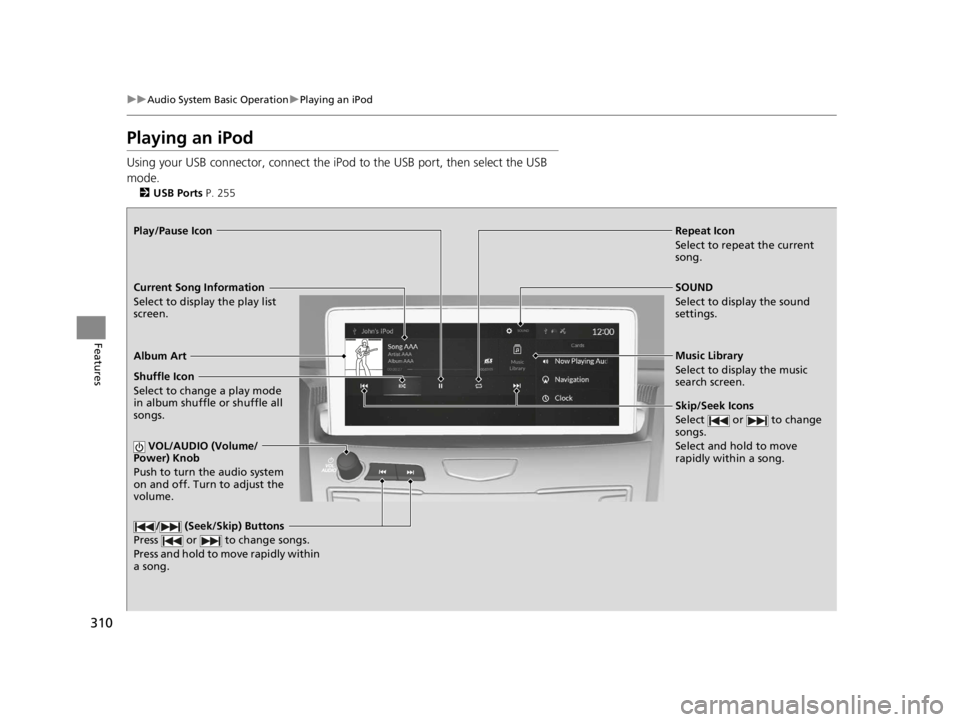
Playing an iPod
Using your USB connector, connect the iPod to the USB port, then select the USB
mode.
2 USB Ports P. 255
Repeat Icon
Select to repeat the current
song.
SOUND
Select to display the sound
settings.
Music Library
Select to display the music
search screen.
Skip/Seek Icons
Select or to change
songs.
Select and hold to move
rapidly within a song.
Shuffle Icon
Select to change a play mode
in album shuffle or shuffle all
songs.
VOL/AUDIO (Volume/
Power) Knob
Push to turn the audio system
on and off. Turn to adjust the
volume.
/ (Seek/Skip) Buttons
Press or to change songs.
Press and hold to move rapidly within
a song.
Play/Pause Icon
Album Art
Current Song Information
Select to display the play list
screen.
22 ACURA RDX-31TJB6300.book 310 ページ 2021年8月2日 月曜日 午前11時0分
Page 313 of 709
Continued311
uuAudio System Basic Operation uPlaying an iPod
Features
1. Select Music Library .
2. Select a search catego ry (e.g., Artists,
Albums, etc.).
3. Continue making selections until you find
the song of your choice.
■How to Select a Song from the Music Search List1Playing an iPod
Available operating functi ons vary on models or
versions. Some functions ma y not be available on the
vehicle’s audio system.
If there is a problem, you may see an error message
on the audio/information screen. 2 iPod/USB Flash Drive P. 332
If you operate the musi c app on your iPhone/iPod
while the phone is connected to the audio system,
you may no longer be able to operate the same app
on the audio/information screen.
Reconnect the devi ce if necessary.
Select SEARCH LIST, then trace the letters and/or
numbers of the song on the A-zone touchpad. When
KEYBOARD is selected, the on-screen keyboard
appears.
22 ACURA RDX-31TJB6300.book 311 ページ 2021年8月2日 月曜日 午前11時0分