Page 64 of 310

64
2. CONNECTIVITY SETTINGS
PRIUS PRIME_Navi_OM47D79U_(U)
20.04.20 13:56
1Select “Device Name” .
2Enter the name and select “OK”.
1Select “Connect Audio Player from” .
2Select the desired connection method.
“Vehicle” : Select to connect the audio
system to the audio player.
“Device” : Select to connect the audio
player to the audio system.
Depending on the audio player, the “Vehi-
cle” or “Device” connection method may
be best. As such, refer to the manual that
comes with the audio player.
To reset the connection method, select
“Default”.
When the connection method is set to
“Device”, the automatic connection is not
be made even if “Bluetooth* Power” is on.
( P.64)
1Display the “Bluetooth* Setup” screen.
( P.58)
2Select “System Settings” .
3Select the desired item to be set.
*: Bluetooth is a registered trademark of Bluetooth SIG, Inc.
CHANGING A DEVICE NAME
INFORMATION
● Even if the device name is changed, the
name registered in your Bluetooth®
device does not change.
SETTING AUDIO PLAYER
CONNECTION METHOD
“System Settings” SCREEN
The Bluetooth® settings can be con-
firmed and changed.
No.FunctionPage
Select to set Bluetooth®
power on/off.65
Select to change the auto-
matic connection priority of
the registered Bluetooth
®
devices.
65
Select to edit the system in-
formation.66
Select to reset all setup
items.
Page 65 of 310

65
2. CONNECTIVITY SETTINGS
PRIUS PRIME_Navi_OM47D79U_(U)
20.04.20 13:56
BASIC FUNCTION
21Select “Bluetooth* Power”.
When “Bluetooth* Power” is on :
The Bluetooth
® device is automatically
connected when the power switch is in AC-
CESSORY or ON mode.
When “Bluetooth* Power” is off :
The Bluetooth
® device is disconnected,
and the system will no t connect to it next
time.
*: Bluetooth is a registered trademark of Bluetooth SIG, Inc.
1Select “Preferred Device Settings” .
2Select the desired item to be set.
CHANGING “Bluetooth*
Power”
INFORMATION
●While driving, the auto connection state
can be changed from off to on, but can-
not be changed from on to off.
SETTING AUTOMATIC
CONNECTION PRIORITY
The automatic connection priority of
the registered Bluetooth
® devices can
be changed.
No.FunctionPage
Select to set automatic
connection priority on/off.
Select to change the auto-
matic connection priority of
the registered Bluetooth
®
phones.
66
Select to change the auto-
matic connection priority of
the registered Bluetooth
®
audio players.
66
Select to reset all setup
items.
INFORMATION
● A newly registered Bluetooth® device
will automatically be given the highest
automatic connection priority.
Page 66 of 310
66
2. CONNECTIVITY SETTINGS
PRIUS PRIME_Navi_OM47D79U_(U)
20.04.20 13:56
■CHANGING PHONE AUTOMATIC
CONNECTION PRIORITY
1Select “Preferred Phones” .
2Select the desired Bluetooth® device
and select “Up” or “Down” to change
the preferred order.
■CHANGING AUDIO PLAYER AUTO-
MATIC CONNECTION PRIORITY
1Select “Preferred Audio Players” .
2Select the desired Bluetooth® device
and select “Up” or “Down” to change
the preferred order.
1Select “System Information” .
2Select the desired item to be set.
EDITING THE SYSTEM
INFORMATION
Page 67 of 310
67
2. CONNECTIVITY SETTINGS
PRIUS PRIME_Navi_OM47D79U_(U)
20.04.20 13:56
BASIC FUNCTION
2
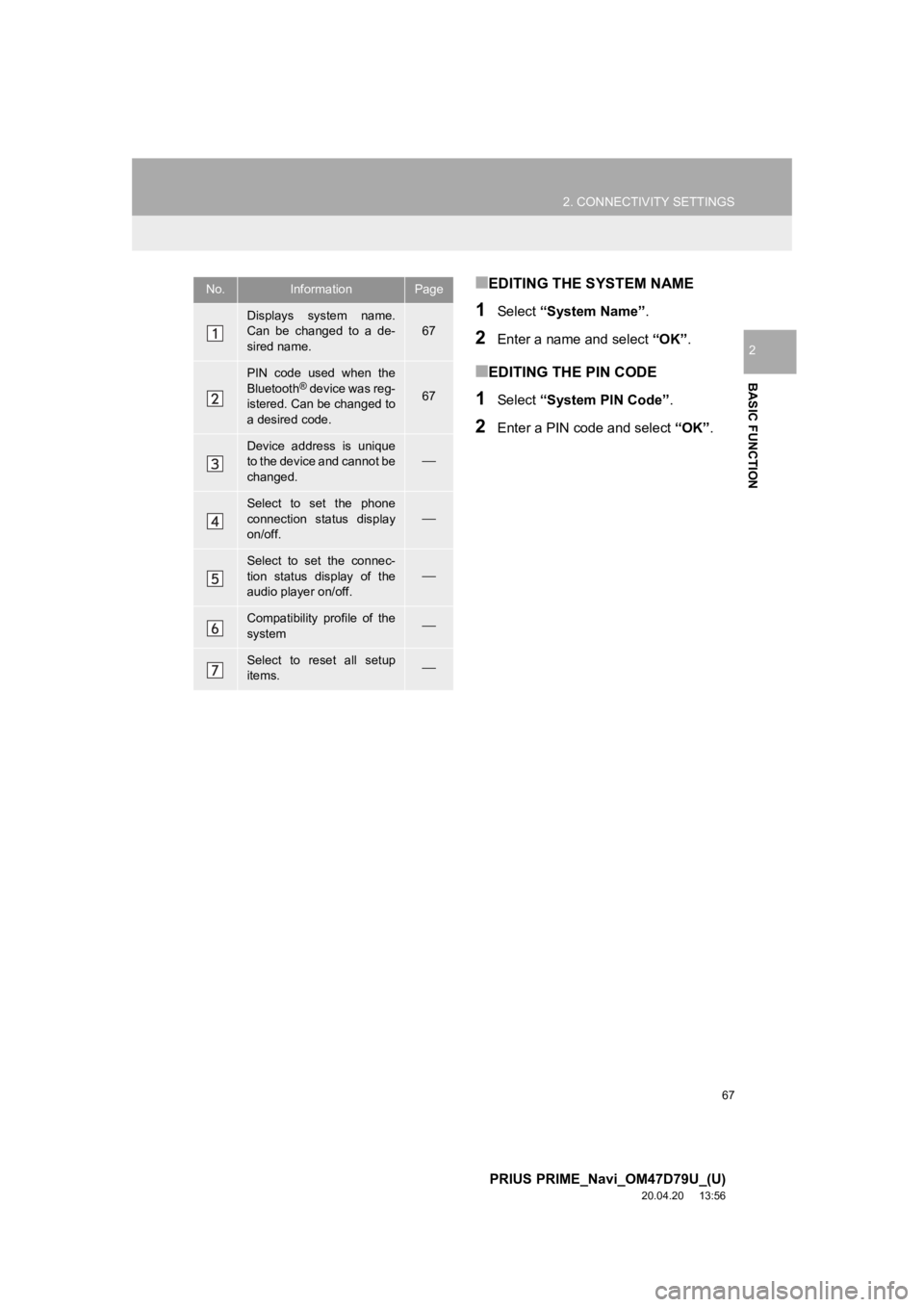
■EDITING THE SYSTEM NAME
1Select “System Name” .
2Enter a name and select “OK”.
■EDITING THE PIN CODE
1Select “System PIN Code” .
2Enter a PIN code and select “OK”.
No.InformationPage
Displays system name.
Can be changed to a de-
sired name.67
PIN code used when the
Bluetooth® device was reg-
istered. Can be changed to
a desired code.67
Device address is unique
to the device and cannot be
changed.
Select to set the phone
connection status display
on/off.
Select to set the connec-
tion status display of the
audio player on/off.
Compatibility profile of the
system
Select to reset all setup
items.
Page 68 of 310

68
2. CONNECTIVITY SETTINGS
PRIUS PRIME_Navi_OM47D79U_(U)
20.04.20 13:56
3. Apple CarPlay®*
1Enable Siri on the device to be con-
nected.
2Connect the device to the USB port.
(P.85)
3Select “Always Enable” or “Enable
Once” .
If “Do Not Enable” is selected, an Apple
CarPlay connection will not be estab-
lished. In this case, the device can be
operated as a normal Apple device, such
as an iPod.
Depending on the device connected, it
may take approximately 3 to 6 seconds
before an Apple CarPlay connection is
established.
4Check that home screen of Apple Car-
Play is displayed.Apple CarPlay allows some applica-
tions, such as Map, Phone, and Music,
to be used on the system.
When an Apple CarPlay connection is
established, Apple CarPlay compatible
applications will be displayed on the
system display.
Compatible device
Apple iPhone (iOS Ver. 9.3 or later)
that supports Apple CarPlay.
For details, refer to
https://www.apple.com/ios/carplay/
.
ESTABLISHING AN Apple
CarPlay CONNECTION
*: This function is not made avai lable in some countries or areas.
No.Function
Select to display the home screen of
Apple CarPlay.
Touch and hold to activate Siri.
Select to start the application.
User can use any iPhone applica-
tion supported by Apple CarPlay.
Select to display the system screen.
INFORMATION
●When an Apple CarPlay connection is
established, the function of some sys-
tem buttons will change.
● When an Apple CarPlay connection is
established, some system functions,
such as the following, will be replaced by
similar Apple CarPlay functions or will
become unavailable:
• iPod (Audio Playback)
• Hands-free Phone
• USB audio/USB video
•Bluetooth
® audio
•Bluetooth® phone
• Entune App Suite
● The guidance volume can be changed
on the voice settings screen. ( P. 7 5 )
● To disable Apple CarPlay while a device
is connected, set “Apple CarPlay” on
the “Projection Settings” screen to off.
( P.74)
Page 70 of 310

70
2. CONNECTIVITY SETTINGS
PRIUS PRIME_Navi_OM47D79U_(U)
20.04.20 13:56
TROUBLESHOOTING
If you are experiencing difficulties with Apple CarPlay, check the following table.
SymptomSolution
An Apple CarPlay connection
cannot be established.
Check if the device supports Apple CarPlay.
Check if Apple CarPlay is enabled on the connected device.
For details, refer to https://www.apple.com/ios/carplay/
.
Check if “Apple CarPlay” on the “Projection Settings”
screen is set to on. ( P.74)
Check if the Lightning cable bei ng used is certified by Apple
Inc., and if it is securely connected to the device and USB
port.
When the iPhone is connected using a USB hub, etc., an
Apple CarPlay connection may not be established. Connect
the lightning cable to USB the port directly.
After checking all of the above, t ry to establish an Apple Car-
Play connection. ( P.68)
When an Apple CarPlay connec-
tion is established and a video is
being played, the video is not dis-
played, but audio is output
through the system.
As the system is not designed to play video through Apple
CarPlay, this is not a malfunction.
Although an Apple CarPlay con-
nection is established, audio is
not output through the system.The system may muted or the volume may be low. Increase
the system volume.
The Apple CarPlay screen has
artifacts and/or audio from Apple
CarPlay has noise.
Check if the Lightning cable being used to connect the de-
vice to the system is damaged.
To check if the Lightning cable is damaged internally, con-
nect the device to another system, such as a PC, and check
if the device is recognized by the connected system. (The
device should begin char ging when connected.)
After checking all of the above, t ry to establish an Apple Car-
Play connection. ( P.68)
The map display of the Apple
CarPlay Maps app cannot be en-
larged or contracted with pinch
multi-touch gestures.As the Apple CarPlay Maps app is not compatible with pinch
multi-touch gestures, this is not a malfunction.
Page 71 of 310

71
2. CONNECTIVITY SETTINGS
PRIUS PRIME_Navi_OM47D79U_(U)
20.04.20 13:56
BASIC FUNCTION
2
*: Applications not compatible with Apple CarPlay are applications installed on the iP-
hone that are not displayed on the Apple CarPlay screen applica tion list. (such as vi-
sual voicemail)
During Apple CarPlay music ap-
plication (Apple Music, Spotify,
etc.) playback, if the iPhone is
operated to start and play audio
from an application that is not
compatible with Apple CarPlay*
and the onboard device volume
is changed, the audio of the in-
compatible application stops and
the system resumes playback of
the original mus ic application.
This operation is performed according to the specification of
the onboard device, this is not a malfunction.
After interrupt audio (such as
navigation route guidance) is
played from an application that is
not compatible with Apple Car-
Play while the onboard device is
playing audio (FM/AM, CD, etc.),
the system does not resume
playback of the original audio
(FM/AM, CD, etc.).This operation is performed according to the specification of
the onboard device, this is not a malfunction.
Manually change the audio source by yourself. Or, do not
use applications that are not compatible with Apple Car-
Play.* Due to some navigati on applications are compatible
from iOS 12, update to the latest iOS and application ver-
sions.
SymptomSolution
Page 74 of 310

74
3. OTHER SETTINGS
PRIUS PRIME_Navi_OM47D79U_(U)
20.04.15 12:51
■SETTING THE TIME ZONE
1Select “Time Zone” .
2Select the desired time zone.
If “Other” is selected, the zone can be
adjusted manually. Select “+” or “-” to
adjust the time zone.
1Display the “General Settings” screen.
(P.72)
2Select “Projection Settings” .
3Select the items to be set.
1Display the “General Settings” screen.
(P.72)
2Select “Delete Personal Data” .
3Select “Delete” .
4Select “Yes” when the confirmation
screen appears.
Registered or changed personal settings
will be deleted or returned to their default
conditions.
For example:
• General settings
• Navigation settings
• Audio settings
• Phone settings
PROJECTION SETTINGS
No.Function
Select to turn automatic Apple Car-
Play connection establishment on/off
when a compatible iPhone is con-
nected to the system via USB.
( P.68)
DELETING PERSONAL DATA
NOTICE
● Make sure the map microSD card is
inserted when deleting personal data.
The personal data cannot be deleted
when the map microSD card is
removed. To delete the data, after insert-
ing the map microSD card, turn the
power switch to ACCESSORY or ON
mode.