Page 15 of 68

13
OVERVIEW FEATURES & OPERATIONS TOYOTA SAFETY SENSE SAFETY & EMERGENCY FEATURES
TIPS FOR IMPROVED FUEL ECONOMY
STARTING YOUR VEHICLE
NOTE: Fuel consumption and energy information of the Hybrid System are
shown on the Multi-Information Display (MID) screen or the audio system
screen.
The Hybrid Synergy Drive System utilizes a computer-controlled gasoline engine
and electric motor to provide the most efficient combination of power for the vehicle.
To conserve energy, when the brakes are applied, the braking force generates
electricity which is then sent to the traction battery. In addition, the engine shuts
off when the vehicle is stopped. The benefits are better fuel economy and reduced
vehicle emissions.
- Ensure tire pressures are maintained at levels specified in the Owner’s Manual.
- When possible, link trips to reduce engine cold starts.
- Avoid driving at speeds that are higher than necessary, especially on the highway.
- When possible, avoid sudden stops to maximize regenerative braking energy.
- Minimize use of the air conditioning.
1. Put the shift lever in “P.”
2. Depress the brake pedal, and “
” will be displayed on the Multi-Information
Display (MID).
3. Press the “POWER” button briefly and firmly.
4. The “READY” light will blink. After a few seconds, when the light remains steady
and a beep sounds, you may begin driving.
Hybrid Synergy Drive System (Camry HV only)
Page 18 of 68

16
FEATURES & OPERATIONS
Multi-Information Display (MID)
VEHICLES EQUIPPED WITH 4.2-in DISPLAY
VEHICLES EQUIPPED WITH 7-in DISPLAY
Press meter control switches to change and select information in the following:
Press meter control switches to change and select information in the following:
Refer to the Owner’s Manual for more details.Drive information
Warning message display
Warning message display
Audio system-linked display
Audio system-linked display
Eco-friendly driving information
Settings display
Vehicle information
Driving assist system information
Driving assist system informationSettings display
IndicatorsRSA
Menu icons
Shift position Outside temperatureSpeed limit display (with navigation system*)/RSA
Clock Dynamic Radar Cruise Control (DRCC)
or Full-Speed Range DRCC and
LDA/LTA display
Return to the
previous screen
Return to the
previous screen
Speedometer IndicatorsContent
display area Menu icon
display area Shift position
IndicatorsRSA
Press: Enter/Set
Press and hold: Reset
Press: Enter/Set
Press and hold: Reset/
Display next screen
Scroll/search screens
Scroll/search screens
“ODO/TRIP” switch
“ODO/TRIP” switch
Odometer/trip meter
Content display area Odometer/
trip meter
* If equipped
Page 25 of 68
23
OVERVIEW FEATURES & OPERATIONS TOYOTA SAFETY SENSE SAFETY & EMERGENCY FEATURES
Moonroof (if equipped)
Recommended open position
to minimize wind noise. Push once to open partway.
Push again to open completely.
SLIDING OPERATION
TILTING OPERATION
Lightly press either side of the moonroof switch while opening/tilting is in progress,
the moonroof stops partway.
Push once to open completely.
TiltClose
OpenClose
1) Push “MENU” button next to the screen.
2) Select “Setup” or “General” in the touchscreen to access the general setting
screen.
3) Select “Clock.”
4) Select desired items to be set.
Refer to the “Navigation and Multimedia System Owner’s Manual” for more details.
1 Premium Audio only2 Audio Plus/Premium Audio only
Clock
Select to change the time zone.
Select to set daylight saving
time ON/OFF/Auto1.
Select to set automatic GPS
adjustment of clock.2
Select to set the 24 hour time
format on/off.
Page 26 of 68
24
FEATURES & OPERATIONS
Bluetooth® technology allows dialing or receipt of calls without removing your hands
from the steering wheel.
Refer to the Bluetooth
® device pairing in this guide or the Navigation and
Multimedia System Owner’s Manual for additional user instructions.
NOTE: Always use safe driving practices and follow all traffic rules.
Steering wheel switches
& telephone controls (Bluetooth®)
Volume control
Microphone Voice command
switch Receive/end call
“MODE”
Push to change audio mode.
Push and hold to mute or
pause the audio.
“ ”
Use to search within the
selected audio feature.
Return to previous
screen
Page 27 of 68
25
OVERVIEW FEATURES & OPERATIONS TOYOTA SAFETY SENSE SAFETY & EMERGENCY FEATURES
Refer to the “Navigation and Multimedia System Owner’s Manual” or visit
www.toyota.com/audio-multimedia for additional resources.
NOTE: Always use safe driving practices and follow all traffic rules.
Touchscreen display
Turn to tune radio stations
manually or select tracks or files Access
MENU screen Access
HOME screen
Access
AUDIO screen
Access
MAP screenPush to turn ON/OFF
or turn to adjust volume
Access
Bluetooth®
hands-free system Seek station/track/
file select
Access
Apps screen
USB charge ports
The vehicle must be in the “ACC” or “ON” position (without Smart Key) /
“ACCESSORY” or ”IGNITION ON” mode (with Smart Key) for use.
(Charge only)
USB media port
Open lid
Connecting a compatible device and cable into the USB media port will support
charging and music playback through the audio multimedia system.
Audio
Page 33 of 68

31
OVERVIEW FEATURES & OPERATIONS TOYOTA SAFETY SENSE SAFETY & EMERGENCY FEATURES
Rear view monitor system
The rear view monitor system displays an image of the view from the bumper of
the rear area of the vehicle. The camera for the rear view monitor system is located
above the license plate.
To adjust the image on the rear view monitor screen, press the “MENU” button and
select “Display.” Select “Camera” to adjust the screen contrast and brightness.
Refer to the Navigation and Multimedia System Owner’s Manual for limitations and
more details on this system.
The VSC OFF switch can be used to help free a stuck vehicle in surroundings like
mud, dirt or snow. While the vehicle is stopped, press switch to disable the TRAC
system.
To disable both VSC and TRAC systems, press and hold the switch for at least 3
seconds.
Refer to the Owner’s Manual for limitations and more details. The Dynamic Torque Control AWD system is designed to help to enhance
performance and ensure reliable handling and stability.
The system will automatically switch from front-wheel drive to all-wheel drive (AWD)
according to the driving conditions such as when cornering, going uphill, starting off
or accelerating, and when the road surface is slippery due to snow, rain, etc.
DO NOT DRIVE THE VEHICLE OFF-ROAD.
This is not an AWD vehicle designed for off-road driving, proceed with all due
caution if it becomes unavoidable to drive off-road.
Refer to the Owner’s Manual for limitations and more details.
Vehicle Stability Control (VSC)/
TRAC OFF switch
Dynamic Torque Control AWD system
(Camry AWD only)
Page 34 of 68
32
Blind Spot Monitor (BSM) and Rear Cross
Traffic Alert (RCTA)
(if equipped)
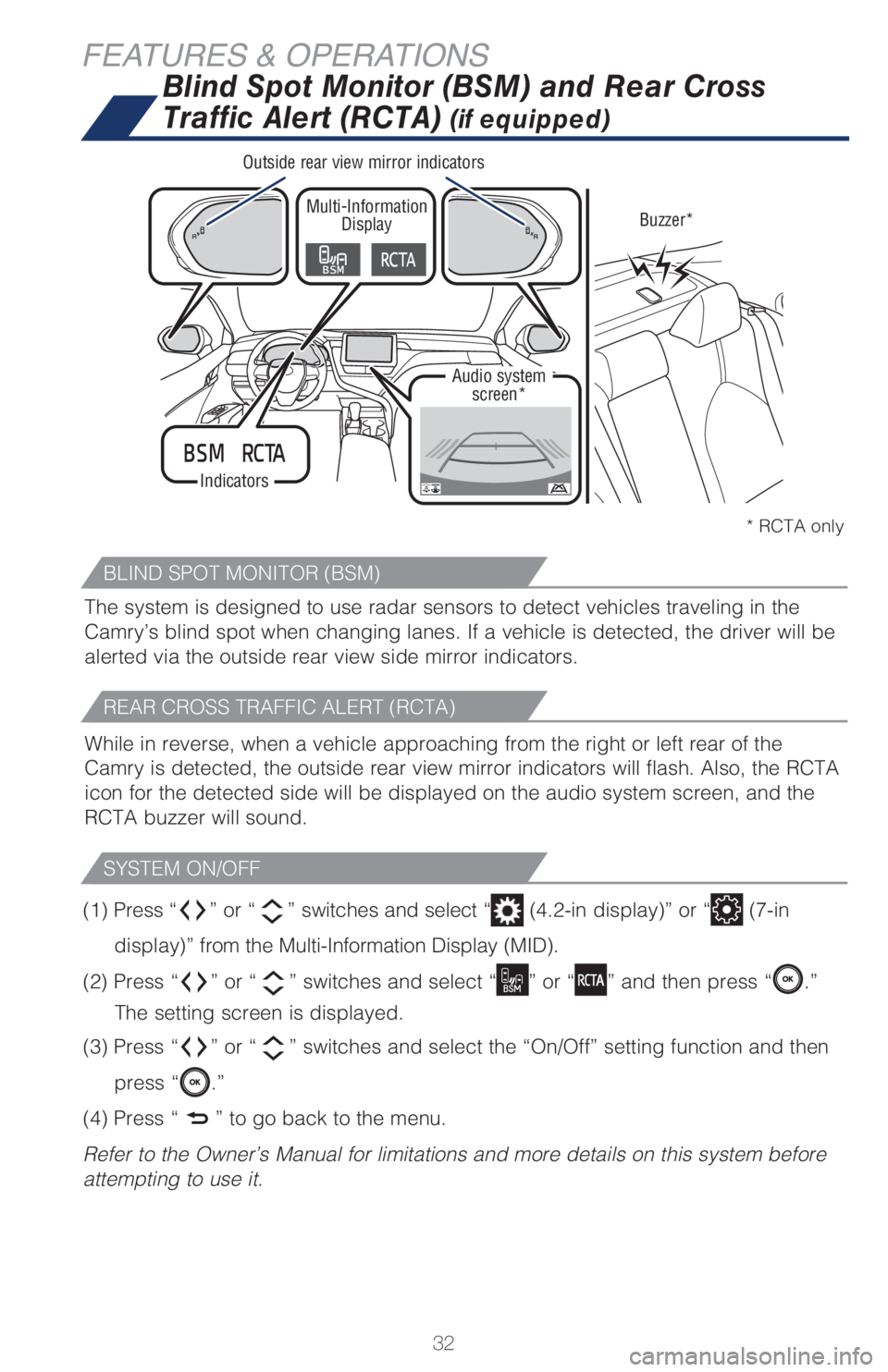
IndicatorsMulti-Information
Display
Audio system
screen*Buzzer* Outside rear view mirror indicators
The system is designed to use radar sensors to detect vehicles traveling in the
Camry’s blind spot when changing lanes. If a vehicle is detected, the driver will be
alerted via the outside rear view side mirror indicators.
While in reverse, when a vehicle approaching from the right or left rear of the
Camry is detected, the outside rear view mirror indicators will flash. Also, the RCTA
icon for the detected side will be displayed on the audio system screen, and the
RCTA buzzer will sound.
BLIND SPOT MONITOR (BSM)
REAR CROSS TRAFFIC ALERT (RCTA)
SYSTEM ON/OFF
* RCTA only
(1) Press “” or “” switches and select “ (4.2-in display)” or “ (7-in
display)” from the Multi-Information Display (MID).
(2) Press “
” or “” switches and select “” or “” and then press “.”
The setting screen is displayed.
(3) Press “
” or “” switches and select the “On/Off” setting function and then
press “
.”
(4) Press “
” to go back to the menu.
Refer to the Owner’s Manual for limitations and more details on this system before
attempting to use it.
FEATURES & OPERATIONS
Page 35 of 68
33
OVERVIEW FEATURES & OPERATIONS TOYOTA SAFETY SENSE SAFETY & EMERGENCY FEATURES
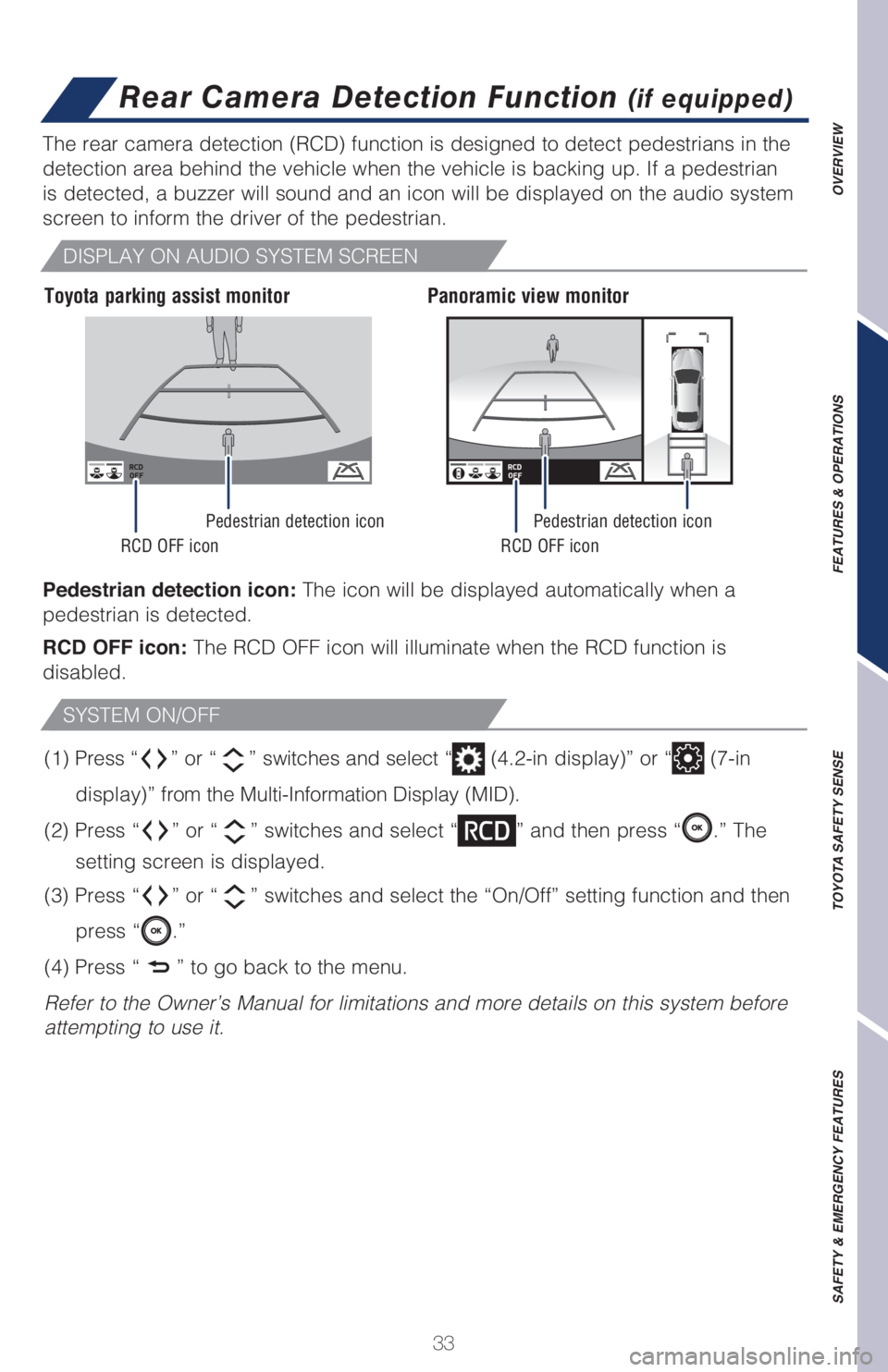
Pedestrian detection icon: The icon will be displayed automatically when a
pedestrian is detected.
RCD OFF icon: The RCD OFF icon will illuminate when the RCD function is
disabled. The rear camera detection (RCD) function is designed to detect pedestrians in the
detection area behind the vehicle when the vehicle is backing up. If a pedestrian
is detected, a buzzer will sound and an icon will be displayed on the audio system
screen to inform the driver of the pedestrian.
DISPLAY ON AUDIO SYSTEM SCREEN
SYSTEM ON/OFF
(1) Press “” or “” switches and select “ (4.2-in display)” or “ (7-in
display)” from the Multi-Information Display (MID).
(2) Press “
” or “” switches and select “” and then press “.” The
setting screen is displayed.
(3) Press “
” or “” switches and select the “On/Off” setting function and then
press “
.”
(4) Press “
” to go back to the menu.
Refer to the Owner’s Manual for limitations and more details on this system before
attempting to use it.
Rear Camera Detection Function (if equipped)
Toyota parking assist monitorPanoramic view monitor
Pedestrian detection icon
RCD OFF icon RCD OFF iconPedestrian detection icon


