Page 4 of 172
PASSENGER/CARGO AREAS
FOLDING THE REAR SEATS...51
CHILD SAFETY LOCKS.......52
LATCH/ANCHOR............53
REAR SEAT REMINDER.......54
CARGO COVER.............55
SPARE TIRE................56
ENGINE COMPARTMENT
HOOD PROP................57
2.5L ENGINE................58
2.4L TURBO ENGINE.........59
ADDITIONAL SPECIFICATIONS
NEW VEHICLE BREAK-IN......60
ENGINE OIL................60
ENGINE OIL CAPACITY.......60
ROOF RAIL CAPACITY.......61
TRAILER TOWING CAPACITY . . 61
TIRE PRESSURE MONITORING
SYSTEM (TPMS).............62
STARLINK OVERVIEW
OVERVIEW OF YOUR MULTIMEDIA
SYSTEM...................65
BUTTONS..................67
TOUCHSCREEN.............68
STEERING WHEEL CONTROLS . . 69
VOICE RECOGNITION........70
STARLINK HOME
HOME SCREEN ICONS.......72
REARRANGING ICONS.......73
ADDING SHORTCUTS........74
CREATING A DRIVER PROFILE
CREATING A DRIVER PROFILE . . 76
HOW TO CREATE A PROFILE . . 76
MULTIMEDIA
RADIO.....................80
MEDIA.....................82
PHONE
PAIRING A PHONE...........83
MAKING A CALL.............84
RECEIVING A CALL..........85
TEXT MESSAGES............86
APPS
SUBARU STARLINK®IN-VEHICLE
APPS......................87
SUBARU STARLINK
®MOBILE
APP.......................88
MYSUBARU................90
MAPS
MAPS OVERVIEW............91
STARLINK SAFETY AND
SECURITY
SAFETY AND SECURITY
OVERVIEW.................92
ENROLLMENT..............93
MYSUBARU INTEGRATION....94
SUBARU STARLINK
®WI-FI
HOTSPOT..................94
SETTINGS AND UPDATES
SETTINGS AND UPDATES
OVERVIEW.................95
SOUND....................96
PHONE....................97
MAPS/NAVIGATION..........98
CLOCK....................99
EYESIGHT
EYESIGHT®OVERVIEW......100
OPERATION...............101
FUNCTIONS...............101
STEERING WHEEL
CONTROLS................107
EYESIGHT
®ASSIST MONITOR
(EAM).....................109
LANE DEPARTURE WARNING AND
PRE-COLLISION BRAKING
SYSTEM OFF..............110
DRIVER ASSIST
TECHNOLOGIES
REAR-VISION CAMERA......111
FRONT VIEW MONITOR.....112
BLIND-SPOT DETECTION (BSD)/
REAR CROSS-TRAFFIC ALERT
(RCTA)...................112
HIGH BEAM ASSIST (HBA)...113
STEERING RESPONSIVE
HEADLIGHTS (SRH).........114
TABLE OF CONTENTS
2
Page 37 of 172
INSTRUMENT PANEL SWITCHES (LOWER LEFT)
The switches in the lower left of the instrument panel allow you to control convenient
features. The switches include:
1Power Rear Gate (p. 12)
2Illumination Brightness
(p. 37)
3Hands-free Power Rear Gate
OFF (p. 14)
For more information, please
refer to your Owner’s Manual.
AUDIO CONTROLS
1Presets/Skip
2Volume
3Source
4Voice Recognition
5Call/End
For more information about your audio
system and controls, please refer to page 69
or the SUBARU STARLINK
®Owner’s Manual.
123
CONTROLS
35
Page 71 of 172
STEERING WHEEL CONTROLS
1Presets/Skip:Press to toggle through
your presets or change a track or media
file. Press and hold to fast-forward or
rewind.
2Volume:Press the volume switch up or
down to increase or decrease the
volume.
3Source:Press the source button to
change the audio sources between radio
modes and media modes.
4Voice Recognition:Press to initiate the
built-in voice recognition system. If you
have an Android or Apple device paired,
press and hold to start the Apple
CarPlay
®/Android Auto™ voice recognition function.
5Call/End:Press to receive or end a call without taking your hands off of the steering
wheel.
Starlink Audio Controls
STARLINK OVERVIEW
69
Page 72 of 172
VOICE RECOGNITION
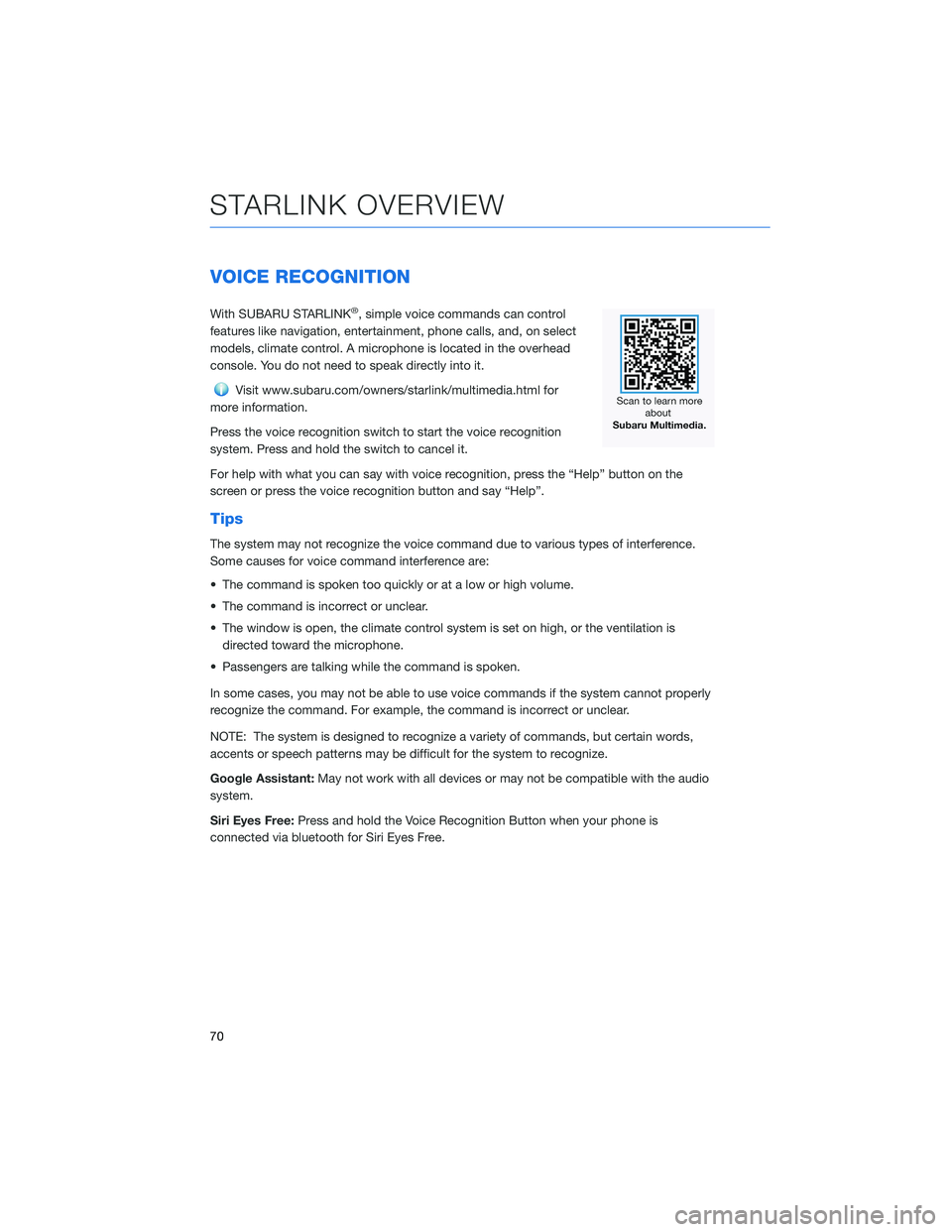
With SUBARU STARLINK®, simple voice commands can control
features like navigation, entertainment, phone calls, and, on select
models, climate control. A microphone is located in the overhead
console. You do not need to speak directly into it.
Visit www.subaru.com/owners/starlink/multimedia.html for
more information.
Press the voice recognition switch to start the voice recognition
system. Press and hold the switch to cancel it.
For help with what you can say with voice recognition, press the “Help” button on the
screen or press the voice recognition button and say “Help”.
Tips
The system may not recognize the voice command due to various types of interference.
Some causes for voice command interference are:
• The command is spoken too quickly or at a low or high volume.
• The command is incorrect or unclear.
• The window is open, the climate control system is set on high, or the ventilation is
directed toward the microphone.
• Passengers are talking while the command is spoken.
In some cases, you may not be able to use voice commands if the system cannot properly
recognize the command. For example, the command is incorrect or unclear.
NOTE: The system is designed to recognize a variety of commands, but certain words,
accents or speech patterns may be difficult for the system to recognize.
Google Assistant:May not work with all devices or may not be compatible with the audio
system.
Siri Eyes Free:Press and hold the Voice Recognition Button when your phone is
connected via bluetooth for Siri Eyes Free.
STARLINK OVERVIEW
70
Page 73 of 172

Common Commands
Below is a list of some of the common commands that you can use with the voice
recognition system. Please refer to your SUBARU STARLINK®Owner’s Manual for a
complete list.
VOICE COMMAND FUNCTION EXAMPLE
Dial [Number] Places a call to the phone
numberDial 555-123-4567
Call [Name] [Phone Type] Places a call to the contact
name and phone type of the
contact from the phonebookCall John Doe mobile
Navigate to [House Number,
Street, City, State]
1Sets a destination to the
addressNavigate to 1234 Main
Street, Lincoln, Washington
Show Map
1Displays the map screen Show Map
Where am I
1Displays current location on
mapWhere am I
Tune to [Frequency]
(AM / FM)Switches to AM/FM and
tunes to spoken frequencyTune to 99.5 FM
Preset [Number] Switches to the preset
channelPreset 3
Satellite Channel [Name /
Channel Number]Switches to satellite channel
numberSatellite Channel Prime
Country 55
Set Fan Speed to [1-7]
2Sets the fan speed to the
spoken fan speedSet fan speed to 4
Set Temperature to
[Number]
2, 3Sets the temperature to the
spoken temperatureSet temperature to 70
Help Changes to help screen Help
Phone Help Displays a list of voice
commands related to
controlling your phonePhone Help
Media Help Displays a list of commands
related to the mediaMedia Help
Radio Help Displays a list of commands
related to the radioRadio Help
Navigation Help
1Displays a list of voice
commands related to
navigationNavigation Help
111.6-inch Multimedia Navigation system only211.6-inch Multimedia Plus and 11.6-inch Multimedia Navigation system only3When the A/C is off, the A/C setting will not change even if the voice command is accepted
STARLINK OVERVIEW
71
Page 85 of 172
PAIRING A PHONE
Using a Bluetooth®connection with the Touchscreen allows you to
use the voice recognition system to make and receive calls. It
provides access to your phone book on your phone and can read
incoming text messages as well as reply via voice recognition. It
remembers your driver profile when your phone pairs via
Bluetooth
®.
For instructions on how to pair your phone to the Touchscreen, see
page 130 for Android devices or page 133 for Apple devices.
Visit www.subaru.com/owners/starlink/multimedia.html for complete
details on what is available by connecting a phone to the Touchscreen.
PHONE
83
Page 86 of 172
MAKING A CALL
You can make a call through voice recognition
by touching the “Voice Recognition Switch” on
the steering wheel to start the voice
recognition system. After pressing the “Voice
Recognition Switch”, wait for the “Voice
Guidance” screen to appear on the
Touchscreen and say “Call [name and phone
type]” or “Dial [number]”.
To make a call from the Touchscreen, start by
pushing the “Home” button and then select
“Phone”. After the phone screen displays,
select the method you would like to use to
make a call.
• Recent – Allows you to call someone that
has recently called you or that you called.
• Favorites – Allows you to place a call to one
of your favorites on your phone.
• Phonebook – Will display the phonebook
that is on your phone.
• Messages – Allows you to call someone that
recently sent you a text message.
• Keypad – Allow you to dial any number you
would like.
PHONE
84
Page 99 of 172
SETTING FUNCTION
Incoming
Call
VolumeSets the volume of the received call.
Call
VolumeSets the call volume.
SMS/MMS
Ringtone
VolumeSets the SMS/MMS ringtone volume.
SMS/MMS
Read Out
VolumeSets the SMS/MMS read out volume.
Voice
VolumeSets the voice recognition prompts volume.
PHONE
This system supports Bluetooth®, a wireless data system, allowing you to make and
receive calls without taking your hands off the steering wheel.
In the settings menu, you will be able to manage devices, adjust phone book and message
settings, and adjust other phone/Bluetooth
®settings.
To access the phone settings screen, press the “Home” button, select “Settings”, then
select the “Phone” menu.
SETTINGS AND UPDATES
97


