2021 RAM 1500 wheel
[x] Cancel search: wheelPage 236 of 496

234STARTING AND OPERATING
(Continued)
(Continued)
DRIVING TIPS
DRIVING ON SLIPPERY SURFACES
Acceleration
Rapid acceleration on snow covered, wet, or
other slippery surfaces may cause the driving
wheels to pull erratically to the right or left. This
phenomenon occurs when there is a difference
in the surface traction under the rear (driving)
wheels.
DRIVING THROUGH WATER
Driving through water more than a few inches/
centimeters deep will require extra caution to
ensure safety and prevent damage to your
vehicle.
Flowing/Rising Water
Shallow Standing Water
Although your vehicle is capable of driving
through shallow standing water, consider the
following Cautions and Warnings before doing
so.
WARNING!
Rapid acceleration on slippery surfaces is
dangerous. Unequal traction can cause sud
-
den pulling of the rear wheels. You could lose
control of the vehicle and possibly have a col -
lision. Accelerate slowly and carefully when -
ever there is likely to be poor traction (ice,
snow, wet, mud, loose sand, etc.).
WARNING!
Do not drive on or across a road or path
where water is flowing and/or rising (as in
storm run-off). Flowing water can wear away
the road or path's surface and cause your
vehicle to sink into deeper water. Further -
more, flowing and/or rising water can carry
your vehicle away swiftly. Failure to follow this
warning may result in injuries that are serious
or fatal to you, your passengers, and others
around you.
WARNING!
Driving through standing water limits your
vehicle’s traction capabilities. Do not
exceed 5 mph (8 km/h) when driving
through standing water.
Driving through standing water limits your
vehicle’s braking capabilities, which
increases stopping distances. Therefore,
after driving through standing water, drive
slowly and lightly press on the brake pedal
several times to dry the brakes.
Failure to follow these warnings may result
in injuries that are serious or fatal to you,
your passengers, and others around you.
CAUTION!
Always check the depth of the standing
water before driving through it. Never drive
through standing water that is deeper than
the bottom of the tire rims mounted on the
vehicle.
Determine the condition of the road or the
path that is under water and if there are any
obstacles in the way before driving through
the standing water.
Do not exceed 5 mph (8 km/h) when
driving through standing water. This will
minimize wave effects.
WARNING! (Continued)
21_DT_OM_EN_USC_t.book Page 234
Page 237 of 496

STARTING AND OPERATING235
OFF-ROAD DRIVING TIPS
Care should be taken when attempting to climb
steep hills or driving diagonally across a hill or
slope. If natural obstacles force you to travel
diagonally up or down a hill, choose a mild angle
and keep as little side tilt as possible. Keep the
vehicle moving and make turns slowly and
cautiously. If you must back down a hill, back straight down
using REVERSE gear. Never back down in
NEUTRAL or diagonally across the hill.
When driving over sand, mud, and other soft
terrain, shift to low gear and drive steadily.
Apply the accelerator slowly to avoid spinning
the wheels.
Do not reduce the tire pressures for this type of
driving.
After Driving Off-Road
Off-road operation puts more stress on your
vehicle than does most on-road driving. After
going off-road, it is always a good idea to check
for damage. That way you can get any problems
taken care of right away and have your vehicle
ready when you need it.
Completely inspect the underbody of your
vehicle. Check tires, body structure, steering,
suspension, and exhaust system for damage.
Inspect the radiator for mud and debris and
clean as required.
Check threaded fasteners for looseness,
particularly on the chassis, drivetrain compo
-
nents, steering, and suspension. Retighten
them, if required, and torque to the values
specified in the Service Manual.
Check for accumulations of plants or brush.
These things could be a fire hazard. They
might hide damage to fuel lines, brake hoses,
axle pinion seals, and propeller shafts.
After extended operation in mud, sand,
water, or similar dirty conditions, have the
radiator, fan, brake rotors, wheels, brake
linings, and axle yokes inspected and
cleaned as soon as possible.
If you experience unusual vibration after
driving in mud, slush or similar conditions,
check the wheels for impacted material.
Impacted material can cause a wheel imbal-
ance and freeing the wheels of it will correct
the situation.
Driving through standing water may cause
damage to your vehicle’s drivetrain compo -
nents. Always inspect your vehicle’s fluids
(i.e., engine oil, transmission, axle, etc.) for
signs of contamination (i.e., fluid that is
milky or foamy in appearance) after driving
through standing water. Do not continue to
operate the vehicle if any fluid appears
contaminated, as this may result in further
damage. Such damage is not covered by
the New Vehicle Limited Warranty.
Getting water inside your vehicle’s engine
can cause it to lock up and stall out, and
cause serious internal damage to the
engine. Such damage is not covered by the
New Vehicle Limited Warranty.
CAUTION! (Continued)
WARNING!
Abrasive material in any part of the brakes
may cause excessive wear or unpredictable
braking. You might not have full braking
power when you need it to prevent a collision.
If you have been operating your vehicle in
dirty conditions, get your brakes checked and
cleaned as necessary.
4
21_DT_OM_EN_USC_t.book Page 235
Page 245 of 496

MULTIMEDIA243
LaneSense Warning This setting will change the distance at which the steering wheel will
provide lane departure feedback. The available settings are “Early”,
“Medium”, and “Late”.
LaneSense Strength
This setting will change the strength of the steering wheel feedback
during a lane departure. The available setting are “Low”, “Medium”, and
“High”.
ParkSense This setting will change the type of ParkSense alert when a close object is
detected. The “Sound Only” setting will provide an audible chime when
an object is detected. The “Sound and Display” setting will provide both
an audible chime and a visual display when an object is detected.
Front ParkSense Volume This setting adjusts the volume of the Front ParkSense system. The
available settings are “Low”, “Medium”, and “High”.
Rear ParkSense Volume This setting adjusts the volume of the Rear ParkSense system. The
available settings are “Low”, “Medium”, and “High”.
Rear ParkSense Braking Assist This setting will turned the Rear ParkSense Braking Assist on or off.
Blind Spot Alert This setting will change the type of alert provided when an object is
detected in a vehicle’s blind spot. The “Off” setting will turn off Blind Spot
Alert. The “Lights” setting will activate the Blind Spot Alert lights on the
outside mirrors. The “Lights & Chime” setting will activate both the lights
on the outside mirrors and an audible chime.
Trailer Length For Blind Spot Alert This setting will auto detect the length of an attached trailer. The “Auto”
setting will have the system automatically set the trailer length. The
“Max” setting will always set the length to the maximum 39.5 ft (12 m).
Hill Start Assist This setting will turn the Hill Start Assist system on or off.
Setting NameDescription
5
21_DT_OM_EN_USC_t.book Page 243
Page 248 of 496

246MULTIMEDIA
Doors & Locks
When the Doors & Locks button is pressed on the touchscreen, the system displays the options related to locking and unlocking the vehicle’s doors.Auto Dim High Beams — If Equipped
This setting will allow you to turn the Auto Dim High Beams on or off.
Steering Directed Lights — If Equipped This setting will turn the headlights with the steering wheel. The available
options are “On” or “Off”.
Setting Name
Description
Setting NameDescription
Auto Door Locks This setting will allow you to change if the doors lock automatically when
the vehicle reaches 12 mph (19 km/h).
Auto Unlock On Exit This setting will unlock the doors when any of the doors are opened from
the inside.
Flash Lights With Lock This setting will allow you to turn the flashing of the lights when the Lock
button is pushed on the key fob on or off.
Sound Horn With Lock This setting will sound the horn when the Lock button is pushed on the
key fob. The “Off” setting will not sound the horn when the Lock button is
pushed. The “1st Press” setting will sound the horn when the Lock button
is pushed once. The “2nd Press” setting will sound the horn when the
Lock button is pushed twice.
Sound Horn With Remote Start This setting will sound the horn when the remote start is activated from
the key fob.
21_DT_OM_EN_USC_t.book Page 246
Page 250 of 496
248MULTIMEDIA
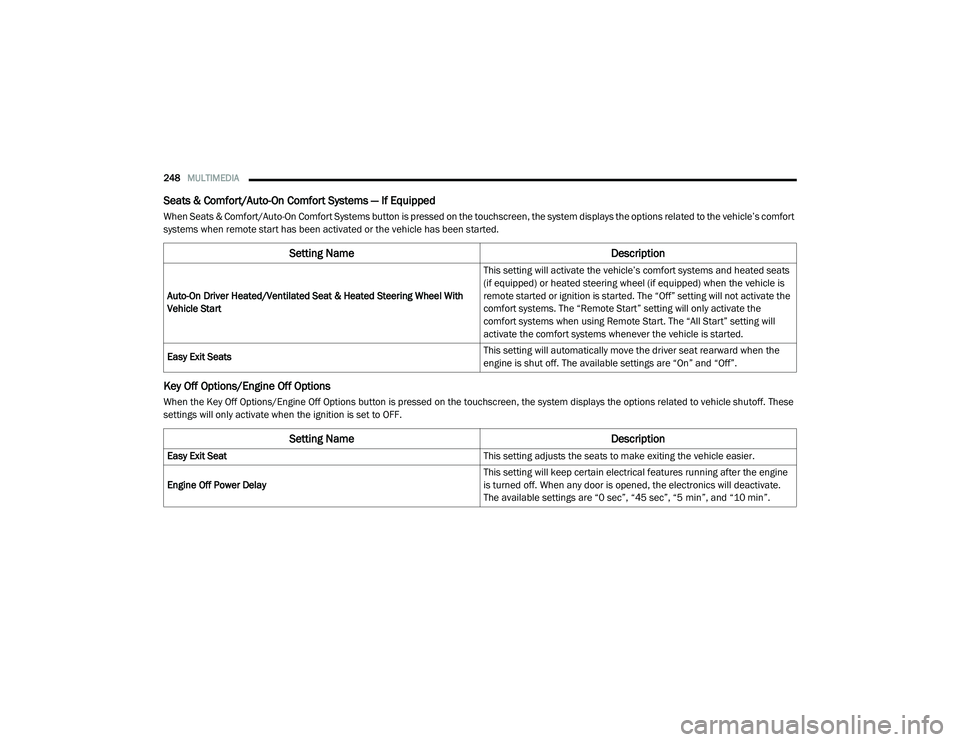
Seats & Comfort/Auto-On Comfort Systems — If Equipped
When Seats & Comfort/Auto-On Comfort Systems button is pressed on the touchscreen, the system displays the options related to the vehicle’s comfort
systems when remote start has been activated or the vehicle has been started.
Key Off Options/Engine Off Options
When the Key Off Options/Engine Off Options button is pressed on the touchscreen, the system displays the options related to vehicle shutoff. These
settings will only activate when the ignition is set to OFF.
Setting Name Description
Auto-On Driver Heated/Ventilated Seat & Heated Steering Wheel With
Vehicle Start This setting will activate the vehicle’s comfort systems and heated seats
(if equipped) or heated steering wheel (if equipped) when the vehicle is
remote started or ignition is started. The “Off” setting will not activate the
comfort systems. The “Remote Start” setting will only activate the
comfort systems when using Remote Start. The “All Start” setting will
activate the comfort systems whenever the vehicle is started.
Easy Exit Seats This setting will automatically move the driver seat rearward when the
engine is shut off. The available settings are “On” and “Off”.
Setting Name
Description
Easy Exit Seat This setting adjusts the seats to make exiting the vehicle easier.
Engine Off Power Delay This setting will keep certain electrical features running after the engine
is turned off. When any door is opened, the electronics will deactivate.
The available settings are “0 sec”, “45 sec”, “5 min”, and “10 min”.
21_DT_OM_EN_USC_t.book Page 248
Page 252 of 496

250MULTIMEDIA
AUX Switches — If Equipped
When the AUX Switches button is pressed on the touchscreen, the system displays the options related to the four vehicle AUX switches.Wheel Alignment Mode
This setting must be activated before performing a wheel alignment.
Refer to an authorized dealer for further information.
Four Corner Air Suspension Modes There are three air suspension modes designed to protect the system in
unique situations. Tire Jack Mode is selected to assist in changing a
spare tire. Transport Mode is selected to assist when the vehicle is being
flat bed towed. Wheel Alignment Mode is selected before performing a
wheel alignment. Refer to an authorized dealer for information.
Setting Name
Description
Setting NameDescription
AUX 1-4 This setting will adjust the type and power source for the four vehicle AUX
switches. There are two types: “Latching” and “Momentary”. The power
source for the AUX switches can either be set to run off the “Battery” or
from the “Ignition”. In addition to setting the type and power source, you
can set if the vehicle will recall the previous state at which the AUX
switches were set. The Recalled Last State setting can be set to “On” or
“Off”. Last state conditions are met only if the type is set to Latching and
the power source is set to Ignition.
21_DT_OM_EN_USC_t.book Page 250
Page 253 of 496

MULTIMEDIA251
Trailer Brake/Trailer
When the Trailer Brake/Trailer button is pressed on the touchscreen, the system will display settings related to trailer towing.
Audio
When the Audio button is pressed on the touchscreen, the system displays options related to the vehicle’s sound system. These settings can change
the audio location within the vehicle, adjust the bass or treble levels, and auto-play settings from an audio device or smartphone.
Setting Name Description
Trailer Select Select from Trailer 1, Trailer 2, Trailer 3, and Trailer 4. These trailer
designations can be used to save different trailer settings.
Trailer Brake Type This setting will set the system to a specific trailer type. The available
options are “Light Electrics”, “Heavy Electric”, “Light
Electric-Over-Hydraulic”, and “Heavy Electric-Over-Hydraulic”.
Trailer Name This setting will personalize the trailer name depending on the type of
trailer you are hauling. Select the trailer name from the following list:
trailer, boat, car, cargo, dump, equipment, flatbed, gooseneck, horse,
livestock, motorcycle, snowmobile, travel, utility, and 5th wheel.
Setting Name
Description
Balance/Fade This setting will adjust audio levels from specific speakers in the front/
back and left/right of the vehicle. The Speaker icon can be moved to set
audio location.
Equalizer This setting will adjust the “Bass”, “Mid”, and “Treble” ranges of the
audio.
5
21_DT_OM_EN_USC_t.book Page 251
Page 256 of 496

254MULTIMEDIA
HEAD-UP DISPLAY (HUD)
The Head-Up Display layout on the instrument
cluster can be customized through the
Uconnect touchscreen. Each customized layout
can be saved to the Driver Profiles that are
created by the different drivers.
This feature is only accessed through the
instrument cluster display once the “Custom”
option is selected through the “Content &
Layout” tab. To begin customizing the HUD
layout through the instrument cluster display,
follow these steps:
1. Through the instrument cluster display,
using the Up and Down Arrow buttons on
the steering wheel, select the Content &
Layout option by pressing the OK button on
the steering wheel.
NOTE:
This option will not be available if the vehicle is
going more than 5 mph (8 km/h). 2. Select the Custom option by pushing the
Right Arrow button on the steering wheel.
NOTE:
A message will appear on the instrument cluster
display stating “Set Custom Layout in Radio”.
On the Uconnect touchscreen, you can select
between four different custom layouts: Two
icons, Three icons, Four icons, and Five icons.
Press the Right or Left Arrow buttons, or the
dots towards the bottom of the screen, to
change your layout.
With your desired layout selected, you can drag
and drop the available icons into the desired
zones to customize the layout of your display.
HUD Layout
21_DT_OM_EN_USC_t.book Page 254