2021 PEUGEOT 208 buttons
[x] Cancel search: buttonsPage 51 of 276

49
Ease of use and comfort
3It is possible to activate the following buttons
simultaneously:
–
Central and side air vents + footwells
–
Windscreen and side windows + footwells
Air conditioning on/off
The air conditioning system is designed to
operate effectively in all seasons, with the
windows closed.
It is used to:
–
lower the temperature in summer
,
–
increase the effectiveness of the demisting in
winter
, above 3°C.
►
Press button
4 to activate/deactivate the air
conditioning system.
Air conditioning does not operate when the air flow is disabled.
To obtain cool air more quickly, enable interior
air recirculation for a brief period. Then return
to the intake of exterior air.
Switching off the air conditioning may result in
some discomfort (humidity or misting).
Automatic Comfort programme
This automatic mode ensures optimum
management of the passenger compartment
temperature, air flow and air distribution, based
on the selected comfort level.
►
Press button
5 to activate or deactivate the
air conditioning system’s automatic mode .
The indicator lamp in the button lights up
when the air conditioning system is operating
automatically.
You can adjust the intensity of the
automatic Comfort programme by using the
"OPTIONS "
button to select one of the available
settings:
–
"Soft": provides soft and quiet operation by
limiting air flow.
–
"Normal": offers the best compromise
between a comfortable temperature and quiet
operation (default setting).
–
"Fast": provides strong and effective air flow.
To change the current setting (shown by the
corresponding indicator lamp), press button
7
repeatedly until the desired setting is displayed.
To ensure passenger comfort in the rear seats,
favour "Normal" and "Fast" settings.
This setting is associated with automatic mode
only. However, on deactivation of
AUTO mode,
the indicator lamp for the most recently selected
setting remains on.
Changing the setting does not reactivate AUTO
mode if it was deactivated.
In cold weather with the engine cold, the
air flow is increased gradually until the
comfort setting has been reached, in order to
limit the delivery of cold air into the passenger
compartment.
On entering the vehicle, if the interior
temperature is much colder or warmer than
the comfort setting requested, there is no
need to alter the value displayed to more
quickly reach the required level of comfort.
The system automatically corrects the
temperature difference as quickly as possible.
Interior air recirculation
The intake of exterior air prevents the formation
of mist on the windscreen and side windows.
Recirculating the interior air isolates the
passenger compartment from outside odours
and fumes and allows the desired passenger
compartment temperature to be achieved more
rapidly.
► Press this button to activate/deactivate
the function (confirmed by the
illumination/extinction of the indicator lamp).
This function is activated automatically when reverse gear is engaged.
Maximum air conditioning
This function automatically adjusts the
temperature setting to the lowest possible, the
air distribution towards the central and side air
vents, the air flow to maximum and, if necessary,
activates interior air recirculation.
► Press this button to activate/deactivate
the function (confirmed by the
illumination/extinction of the indicator lamp).
Page 69 of 276

67
Safety
5Data processing
All processing of personal information by
the "Peugeot Connect SOS" system (PE112)
complies with the framework for protection
of personal information established by
Regulation 2016/679 (GDPR) and Directive
2002/58/EC of the European Parliament
and the Council, and in particular, seeks to
protect the vital interests of the data subject,
in accordance with Article
6.1, paragraph d) of
Regulation 2016/679.
Personal information processing is strictly
limited to the management of the "Peugeot
Connect SOS" system used with the “112”
European single emergency call number.
The "Peugeot Connect SOS" system is able
to collect and process only the following
data relating to the vehicle: chassis number,
type (passenger vehicle or light commercial
vehicle), fuel type or power source, most
recent three locations and direction of travel,
and a timestamped log file recording the
automatic activation of the system.
The recipients of the processed data are the
emergency call handling centres designated
by the relevant national authorities in the
territory in which they are located, enabling
priority reception and handling of calls to the
“112” emergency number.
* According to the geographic coverage of ‘Peugeot Connect SOS’, ‘Peugeot Connect Assistance’ and the official national language chosen by the owner
of the vehicle.
The list of countries covered and telematic services provided is availab\
le from dealers or on the website for your country
.
Data storage
Data contained in the system’s memory
is not accessible from outside the system until
a call is made. The system is not traceable
and is not continuously monitored in its
normal operating mode.
The data in the system's internal memory is
automatically and continuously erased. Only
the vehicle’s three most recent locations are
stored.
When an emergency call is triggered, the data
log is stored for no more than 13
hours.
Access to data
You have the right to access the data
and, if necessary, submit a request to
rectify, erase or restrict the processing of
any personal information not processed in
accordance with the provisions of Regulation
2016/679 (GDPR). Third parties to which data
has been communicated shall be notified of
any rectification, erasure or restriction carried
out in accordance with the aforementioned
Directive, unless doing so would be
impossible or require a disproportionate effort.
You also have the right to lodge a complaint
with the relevant data protection authority.
Peugeot Connect
Assistance
► If the vehicle breaks down, press button 2
for more than 2 seconds to request assistance
(confirmed by a voice message*).
►
Pressing again immediately cancels the
request.
Privacy mode allows you to manage the
level of sharing (data and/or location)
between your vehicle and PEUGEOT.
It can be configured in the Settings menu on
the touch screen.
By default, depending on equipment,
deactivate/reactivate geolocation by
simultaneously pressing the 2 buttons, then
press the "Peugeot Connect Assistance"
button to confirm.
If you purchased your vehicle outside the
PEUGEOT dealer network, we invite you
to have a dealer check the configuration of
these services and, if desired, modify them to
suit your wishes. In a multilingual country,
configuration is possible in the official national
language of your choice.
Page 111 of 276
109
Driving
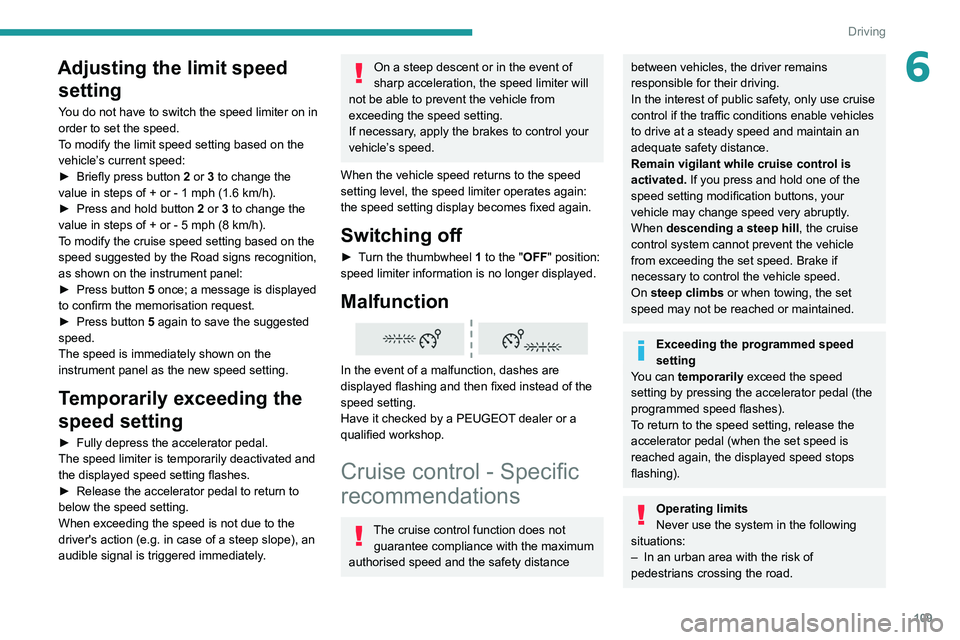
6Adjusting the limit speed setting
You do not have to switch the speed limiter on in
order to set the speed.
To modify the limit speed setting based on the
vehicle’s current speed:
►
Briefly press button
2 or 3 to change the
value in steps of +
or - 1 mph (1.6 km/h).
►
Press and hold button
2
or 3 to change the
value in steps of +
or - 5 mph (8 km/h).
To modify the cruise speed setting based on the speed suggested by the Road signs recognition,
as shown on the instrument panel:
►
Press button
5 once; a message is displayed
to confirm the memorisation request.
►
Press button
5 again to save the suggested
speed.
The speed is immediately shown on the
instrument panel as the new speed setting.
Temporarily exceeding the
speed setting
► Fully depress the accelerator pedal.
The speed limiter is temporarily deactivated and
the displayed speed setting flashes.
►
Release the accelerator pedal to return to
below the speed setting.
When exceeding the speed is not due to the
driver's action (e.g.
in case of a steep slope), an
audible signal is triggered immediately.
On a steep descent or in the event of
sharp acceleration, the speed limiter will
not be able to prevent the vehicle from
exceeding the speed setting.
If necessary, apply the brakes to control your
vehicle’s speed.
When the vehicle speed returns to the speed
setting level, the speed limiter operates again:
the speed setting display becomes fixed again.
Switching off
► Turn the thumbwheel 1 to the "OFF" position:
speed limiter information is no longer displayed.
Malfunction
In the event of a malfunction, dashes are
displayed flashing and then fixed instead of the
speed setting.
Have it checked by a PEUGEOT dealer or a
qualified workshop.
Cruise control - Specific
recommendations
The cruise control function does not guarantee compliance with the maximum
authorised speed and the safety distance
between vehicles, the driver remains
responsible for their driving.
In the interest of public safety, only use cruise
control if the traffic conditions enable vehicles
to drive at a steady speed and maintain an
adequate safety distance.
Remain vigilant while cruise control is
activated. If you press and hold one of the
speed setting modification buttons, your
vehicle may change speed very abruptly.
When descending a steep hill , the cruise
control system cannot prevent the vehicle
from exceeding the set speed. Brake if
necessary to control the vehicle speed.
On steep climbs or when towing, the set
speed may not be reached or maintained.
Exceeding the programmed speed
setting
You can temporarily exceed the speed
setting by pressing the accelerator pedal (the
programmed speed flashes).
To return to the speed setting, release the
accelerator pedal (when the set speed is
reached again, the displayed speed stops
flashing).
Operating limits
Never use the system in the following
situations:
–
In an urban area with the risk of
pedestrians crossing the road.
Page 190 of 276

188
Touch screen BLUETOOTH audio system
Telephone
Connect a mobile phone via Bluetooth®.
Driving
Activate, deactivate or configure certain vehicle functions (depending on
equipment/version).
Short press: display the list of radio stations.
Long press: update the list.
Media:
Short press: display the list of folders.
Long press: display the available sorting options.
Short press: change audio source (radio;
USB; AUX if equipment connected; CD;
streaming).
Long press: display the call log.
Short press during an incoming call: accept the
call.
Short press during a call in progress: end the
call.
Confirm a selection.
Increase volume.
Decrease volume.
Mute/restore sound by simultaneously
pressing the increase and decrease
volume buttons.
Steering mounted controls -
Type 2
Voice commands:
This control is located on the steering
wheel or at the end of the lighting control stalk
(depending on equipment). Short press, smartphone voice commands via
the system.
Increase volume.
Decrease volume.
Mute by pressing the volume increase
and decrease buttons simultaneously
(depending on equipment).
Restore the sound by pressing one of the two
volume buttons.
Change the multimedia source.
Short press: display the calls log.
Short press during an incoming call:
accept the call.
Long press during an incoming call: reject the
call.
Short press during a call in progress: end the
call.
Radio (rotate): previous/next preset
station.
Media (rotate): previous/next track, move in a
list.
Short press: confirm a selection; if nothing
selected, access to presets.
Radio: display the list of stations.
Media: display the list of tracks.
Menus
Radio
Select a radio station.
Media
Select an audio source.
Page 191 of 276

189
Touch screen BLUETOOTH audio system
10Telephone
Connect a mobile phone via Bluetooth®.
Driving
Activate, deactivate or configure certain vehicle functions (depending on
equipment/version).
Settings
Adjust the sound settings (balance, ambience, etc.), the display (language,
units, date, time, etc.) or configure the system
(privacy).
Air conditioning/Heating
Depending on equipment/Depending on version.Manage various temperature and air flow
settings.
Radio
Choose the band
Press the "Radio" menu.
Press the "SOURCE" button.
Choose the band: FM, AM or DAB, depending
on equipment.
Selecting a station
Press one of the buttons for an automatic
search for radio stations.
Or
Press on the displayed frequency.
Enter the FM and AM waveband values
using the virtual keypad.
Or
Press this button to display the list of
stations received and available on the
waveband.
Radio reception may be affected by the
use of electrical equipment not approved
by the Brand, such as a USB charger
connected to the 12 V socket.
The exterior environment (hills, buildings,
tunnels, basement car parks, etc.) may block
reception, including in RDS mode. This
behaviour is normal in propagation of radio
waves and does not indicate any failure of the
audio system.
Page 193 of 276

191
Touch screen BLUETOOTH audio system
10when the system switches to "FM" analogue
radio with sometimes a variation in volume.
Once the digital signal quality is restored, the
system automatically changes back to "DAB".
If the "DAB" station being listened to is
not available on "FM", or if the "FM-DAB
tracking" is not activated, the sound will cut
out while the digital signal is too weak.
Media
Selecting the source
Press the "Media" menu.
Press the "SOURCE" button.
Select the source (USB, Bluetooth or AUX,
depending on equipment).
USB port
Insert the USB memory stick into the USB
port or connect the USB device to the
USB port using a suitable cable (not supplied).
To protect the system, do not use a USB hub.
The system builds playlists (in temporary
memory); this operation can take from a
few seconds to several minutes at the first
connection. Playlists are updated whenever a USB memory
stick is connected or the contents of a particular
USB memory stick are changed. The lists
are memorised: if they are not modified, the
subsequent loading time will be shorter.
Auxiliary (AUX) jack socket
Depending on equipmentConnect a portable device (MP3 player,
etc.) to the auxiliary jack socket using an
audio cable (not supplied).
This source is only available if " Aux
Amplification " has been selected in the audio
settings.
First adjust the volume on the portable device
(to a high level). Then adjust the volume of the
audio system.
Controls are managed via the portable device.
Bluetooth Streaming®
Streaming allows you to listen to the audio feed
from your smartphone.
The Bluetooth profile must be activated.
First adjust the volume on the portable device
(to a high level). Then adjust the volume of the
system.
If play does not start automatically, it may be
necessary to start the audio playback from the
smartphone.
Control is from the portable device or by using
the system's touch buttons.
Once connected in Streaming mode, the
smartphone is considered to be a media
source.
Connecting Apple® players
Connect the Apple® player to the USB socket
using a suitable cable (not supplied).
Play starts automatically.
Control is via the audio system.
The classifications available are those of the portable device connected (artists/
albums/genres/playlists/audio books/
podcasts). It is also possible to use a
classification structured in the form of a
library.
The default classification used is by artist. To
modify the classification used, return to the
first level of the menu then select the desired
classification (playlists for example) and
confirm to go down through the menu to the
desired track.
The version of software in the audio system may
not be compatible with the generation of the
Apple
® player.
Media settings
Press the "Media Settings" button.
Activate/deactivate track playback options and
access the audio settings.
Page 196 of 276

194
Touch screen BLUETOOTH audio system
Some radio stations send other information
in place of their name (the title of the song for
example).
The system interprets these details as the station
name.
► Press the "Radio Settings " button then
select "Update list". The radio reception is
cut off while searching for available stations
(approximately 30 seconds).
Media
Playback of my USB memory stick starts only
after a very long wait (around 2 to 3 minutes).
Some files supplied with the memory stick may
greatly slow down access to reading the memory
stick (multiplication by 10 of the cataloguing
time).
► Delete the files supplied with the memory
stick and limit the number of sub-folders in the
file structure on the memory stick.
Some characters in information about the
currently playing media are not displayed
correctly.
The audio system is unable to process certain
types of character.
► Use standard characters to name tracks and
folders.
Playback of streaming files does not start.
The connected device does not automatically
launch playback.
► Start playback from the device.
Track names and playing times are not
displayed on the audio streaming screen.
Settings
Adjusting the brightness
Press "Settings".
Select "Display".
Press the buttons to adjust the
brightness of the screen and/or of
the instrument panel (depending on version).
Modifying system settings
Press "Settings".
Press "System ".
Press "Privacy" to access the privacy
settings.
Select "Units" to change the units of
distance, fuel consumption and
temperature.
Press "Factory settings" to return to the
initial settings.
Press "System Info" to check the system
version.
Privacy settings
Three data privacy options are available:"No data sharing (data, vehicle
position) "
"Only data sharing"
“Data and vehicle position sharing "
When data and vehicle position sharing
are enabled, this symbol is displayed in
the upper bar of the touch screen.
Selecting the language
Press "Settings".
Select "Languages" to change the
language.
Set date and time
Press "Settings".
Press "Date/Time".
Setting the date:
Press the arrows to set the day, month
and year.
Setting the time:
Press these buttons to set hours and
minutes.
Select or deselect the 24h format.
In 12h format, choose "AM" or "PM".
The system does not automatically manage the change between winter and
summer time.
Date format:
Select the display format of the date.
Frequently asked
questions
The following information groups together the answers to the most frequently asked questions
concerning the system.
Radio
The reception quality of the tuned radio
station gradually deteriorates or the station
presets are not working (no sound, 87.5 MHz
is displayed, etc.).
The vehicle is too far from the selected station’s
transmitter, or no transmitter is present in the
geographical area.
►
Activate the "RDS" function in the upper bar
to enable the system to check whether there is
a more powerful transmitter in the geographical
area.
The environment (hills, buildings, tunnels,
basement car parks, etc.) is blocking reception,
including in RDS mode.
This is a perfectly normal phenomenon, and is
not indicative of an audio system malfunction.
The aerial is missing or has been damaged
(for example while entering a car wash or
underground car park).
►
Have the aerial checked by a dealer
.
I cannot find some radio stations in the list of
received stations.
The name of the radio station changes.
The station is no longer received or its name has
changed in the list.
Page 198 of 276

196
PEUGEOT Connect Radio
PEUGEOT Connect
Radio
Multimedia audio system -
Applications - Bluetooth
®
telephone
The functions and settings described
vary according to the vehicle version and
configuration, as well as the country of sale.
For safety reasons and because they
require sustained attention by the driver,
the following operations must be carried out
with the vehicle stationary and the ignition
on:
–
Pairing the smartphone with the system via
Bluetooth.
–
Using the smartphone.
– Connecting to the CarPlay® or Android
Auto applications (certain applications stop
displaying when the vehicle is moving).
–
Changing the system settings and
configuration.
The system is protected so that it only operates in the vehicle.
The message Energy economy mode is
displayed when the system is about to go into
standby.
The system’s Open Source Software (OSS) source codes are available at the
following addresses:
https://www.groupe-psa.com/fr/oss/
https://www.groupe-psa.com/en/oss/
First steps
With the engine running, a press mutes
the sound.
With the ignition off, a press turns the system on.
Increase or decrease the volume using
the wheel or the "plus" or "minus" buttons
(depending on the equipment).
Use the buttons on either side of or below the
touch screen to access the menus, then press
the virtual buttons on the touch screen.
Depending on the model, use the "Source" and
"Menu" buttons on the left of the touch screen to
access the menus, then press the virtual buttons
on the touch screen.
At all times it is possible to display the rolling
menus by pressing the screen briefly with three
fingers.
All touch-sensitive areas on the screen are
white.
On pages with multiple tabs at the bottom of the
screen, you can switch between pages either
by tapping the tab for the desired page or by
swiping the pages to the left or right with your
finger.
Press in the shaded area to go back up a level
or confirm.
Press the back arrow to go back a level or
confirm.
The touch screen is of the "capacitive" type.
To clean the screen, use a soft, non-abrasive
cloth (e.g. spectacles cloth) with no additional
product.
Do not use sharp objects on the screen.
Do not touch the screen with wet hands.
Certain information is displayed permanently in
the upper bar of the touch screen:
–
Air conditioning status information (depending
on version), and direct access to the
corresponding menu.
–
Radio Media and
Telephone menu status
information.
–
Privacy status information.