2021 NISSAN SENTRA climate control
[x] Cancel search: climate controlPage 11 of 528

Table of
contents
Safety-Seats, seat belts and supplemental restraint system
Instruments and controls
Pre-driving checks and adjustments
Monitor, climate, audio, phone and voice recognition systems
Starting and driving
In case of emergency
Appearance and care
Do-it-yourself
Maintenance and schedules
Technical and consumer information
Index
0
1
2
3
4
5
6
7
8
9
10
11
Page 18 of 528

1. Headlight/fog light (if so equipped)/turn signal switch (P. 2-55)
2. Steering wheel switch (P. 2-17) Audio controls (P. 4-45)
Bluetooth® Hands-Free Phone System
(P. 4-67)
3. Driver's supplemental air bag (P. 1-44) Horn (P. 2-62)
4. Meters and gauges (P. 2-4) Warning and indicators lights (P. 2-8)
Vehicle information display (P. 2-17),
(P. 2-34)
5. Cruise control switches (P. 5-58) Intelligent Cruise Control (ICC) switches
(if so equipped) (P. 5-59)
Bluetooth® Hands-Free Phone System
(P. 4-67)
6. Wiper and washer switch (P. 2-54)
7. Vents (P. 4-32)
8. Hazard warning flasher switch (P. 6-2)
9. Front passenger air bag status light
(P. 1-44)
10. Audio system (P. 4-45)
11. Front passenger supplemental air bag
(P. 1-44)
12. Glove box (P. 2-66)
13. Passenger supplemental knee air bag
(P. 1-44)
14. Shif t lever (P. 5-16)
15. Push-button ignition switch (P. 5-11)
16. Climate controls (P. 4-33, 4-40)
LII2638
INSTRUMENT PANEL
Page 92 of 528

1. Headlight/fog light (if so equipped)/turn signal switch (P. 2-55)
2. Steering wheel switch (P. 2-17) Audio controls (P. 4-45)
Bluetooth® Hands-Free Phone System
(P. 4-67)
3. Driver's supplemental air bag (P. 1-44) Horn (P. 2-62)
4. Meters and gauges (P. 2-4) Warning and indicators lights (P. 2-8)
Vehicle information display (P. 2-17),
(P. 2-34)
5. Cruise control switches (P. 5-58) Intelligent Cruise Control (ICC) switches
(if so equipped) (P. 5-59)
Bluetooth® Hands-Free Phone System
(P. 4-67)
6. Wiper and washer switch (P. 2-54)
7. Vents (P. 4-32)
8. Hazard warning flasher switch (P. 6-2)
9. Front passenger air bag status light
(P. 1-44)
10. Audio system (P. 4-45)
11. Front passenger supplemental air bag
(P. 1-44)
12. Glove box (P. 2-66)
13. Passenger supplemental knee air bag
(P. 1-44)
14. Shif t lever (P. 5-16)
15. Push-button ignition switch (P. 5-11)
16. Climate controls (P. 4-33, 4-40)
LII2638
INSTRUMENT PANEL
Page 190 of 528

Thebutton will be on the NISSAN
Intelligent Key® if the vehicle has Remote
Engine Start. This feature allows the engine
to start from outside the vehicle.
The following features may be affected
when the Remote Engine Start feature is
used:
• Vehicles with a manual climate control system (if so equipped) will default to the
last used heating or cooling mode. • Vehicles with an automatic climate con-
trol system (if so equipped) will default to
either heating or cooling mode. For addi-
tional information, refer to “Remote En-
gine Start with Intelligent Climate Control”
in the “Monitor, climate, audio, phone and
voice recognition systems” section of this
manual.
Laws in some local communities may re-
strict the use of remote starters. For ex-
ample, some laws require a person using
Remote Engine Start to have the vehicle in
view. Check local regulations for any re-
quirements.
Other conditions may affect the function of
the Remote Engine Start feature. For addi-
tional information, refer to “Conditions the
Remote Engine Start will not work” in this
section.
Other conditions can affect the perfor-
mance of the Intelligent Key transmitter.
For additional information, refer to “NISSAN
Intelligent Key®” in this section.
REMOTE ENGINE START
OPERATING RANGE
CAUTION
When the Intelligent Key battery is dis-
charged or other strong radio wave
sources are present near the operating
location, the Intelligent Key operating
range becomes narrower, and the Intel-
ligent Key may not function properly.
The Remote Engine Start function can only
be used when the Intelligent Key is within
the specified operating range from the ve-
hicle.
LPD2995
REMOTE ENGINE START (if so
equipped)
Page 191 of 528

The Remote Engine Start operating range
is approximately 197 f t (60 m) from the ve-
hicle.
REMOTE STARTING THE VEHICLE
To use the Remote Engine Start feature to
start the engine perform the following:
1. Aim the Intelligent Key at the vehicle.
2. Press the
button to lock all doors.
3. Within 5 seconds press and hold the
button until the turn signal lights
flash and the tail lamps turn on. If the
vehicle is not within view press and hold
the
button for at least 2 seconds.
The following events will occur when the
engine starts:
• The parking lights will turn on and remain on as long as the engine is running.
• The doors will be locked and the climate control system may come on.
• The engine will continue to run for 10 min- utes. Repeat the steps to extend the time
for an additional 10 minutes. For addi-
tional information, refer to “Extending en-
gine run time” in this section.
Depress and hold the brake then push the
push-button ignition switch to the ON po-
sition before driving. For additional infor- mation, refer to “Driving the vehicle” in the
“Starting and driving” section of this
manual.
EXTENDING ENGINE RUN TIME
The Remote Engine Start feature can be
extended one time by performing the
steps listed in “Remote starting the vehicle”
in this section. Run time will be calculated
as follows:
• The first 10 minute run time will start
when the Remote Engine Start function is
performed.
• The second 10 minutes will start immedi- ately when the Remote Engine Start
function is performed again. For example,
if the engine has been running for 5 min-
utes, and 10 minutes are added, the en-
gine will run for a total of 15 minutes.
• Extending engine run time will bring you to the two Remote Engine Start limit.
A maximum of two Remote Engine Starts,
or a single start with an extension, are al-
lowed between ignition cycles.
The ignition switch must be cycled to the
ON position and then back to the OFF po-
sition before the Remote Engine Start pro-
cedure can be used again.
CANCELING A REMOTE ENGINE
START
To cancel a Remote Engine Start, perform
one of the following:
• Aim the Intelligent Key at the vehicle and press
until the parking lights turn off.
• Turn on the hazard warning flashers.
• Cycle the ignition switch on and then off.
• The extended engine run time has ex- pired.
• The first 10 minute timer has expired.
• The engine hood has been opened.
• The shif t lever is moved out of park.
• The alarm sounds due to illegal entry into the vehicle.
• The ignition switch is pushed without an Intelligent Key in the vehicle.
• The ignition switch is pushed with an In- telligent Key in the vehicle but the brake
pedal is not depressed.
Pre-driving checks and adjustments3-21
Page 202 of 528
4 Monitor, climate, audio, phone and
voice recognition systems
NissanConnect® Owner’s Manual...............4-2
Control panel buttons ...........................4-3
How to use the touch-screen ................4-4
How to use the
MENU button ...........4-6(brightness control) button .............4-8
How to use the VOL (volume) knob /
PUSH
(power)button....................4-8
Selecting menu from launch bar .............4-8
RearView Monitor (if so equipped) ...............4-9
RearView Monitor system operation .........4-10
How to read the displayed lines .............4-10
Difference between predicted and
actual distances ............................. 4-11
How to park with predicted course
lines (if so equipped) ........................ 4-12
Adjusting the screen ........................ 4-14
How to turn on and off predicted
course lines (if so equipped) .................4-14
RearView Monitor system limitations ........4-14
System maintenance ....................... 4-15
Intelligent Around View Monitor
(if so equipped) ................................. 4-16
Intelligent Around View Monitor system
operation ................................... 4-17
Difference between predicted and
actual distances ............................ 4-21How to park with predicted course
lines
......................................... 4-23
How to switch the display ...................4-24
Adjusting the screen ........................ 4-24
Intelligent Around View Monitor system
limitations .................................. 4-25
System maintenance .......................4-27
Moving Object Detection (MOD)
(if so equipped) ................................. 4-28
MOD system operation ......................4-29
Turning MOD on and off (if so equipped) .....4-30
MOD system limitations .....................4-31
System maintenance .......................4-32
Vents .......................................... 4-32
Heater and air conditioner (manual)
(if so equipped) ................................. 4-33
Controls ..................................... 4-34
Heater operation ............................ 4-34
Air conditioner operation ....................4-35
Air flow charts ............................... 4-37
Heater and air conditioner (automatic)
(if so equipped) ................................. 4-40
Automatic operation ........................ 4-41
Manual operation ........................... 4-42
Operating tips ............................... 4-43
Page 205 of 528
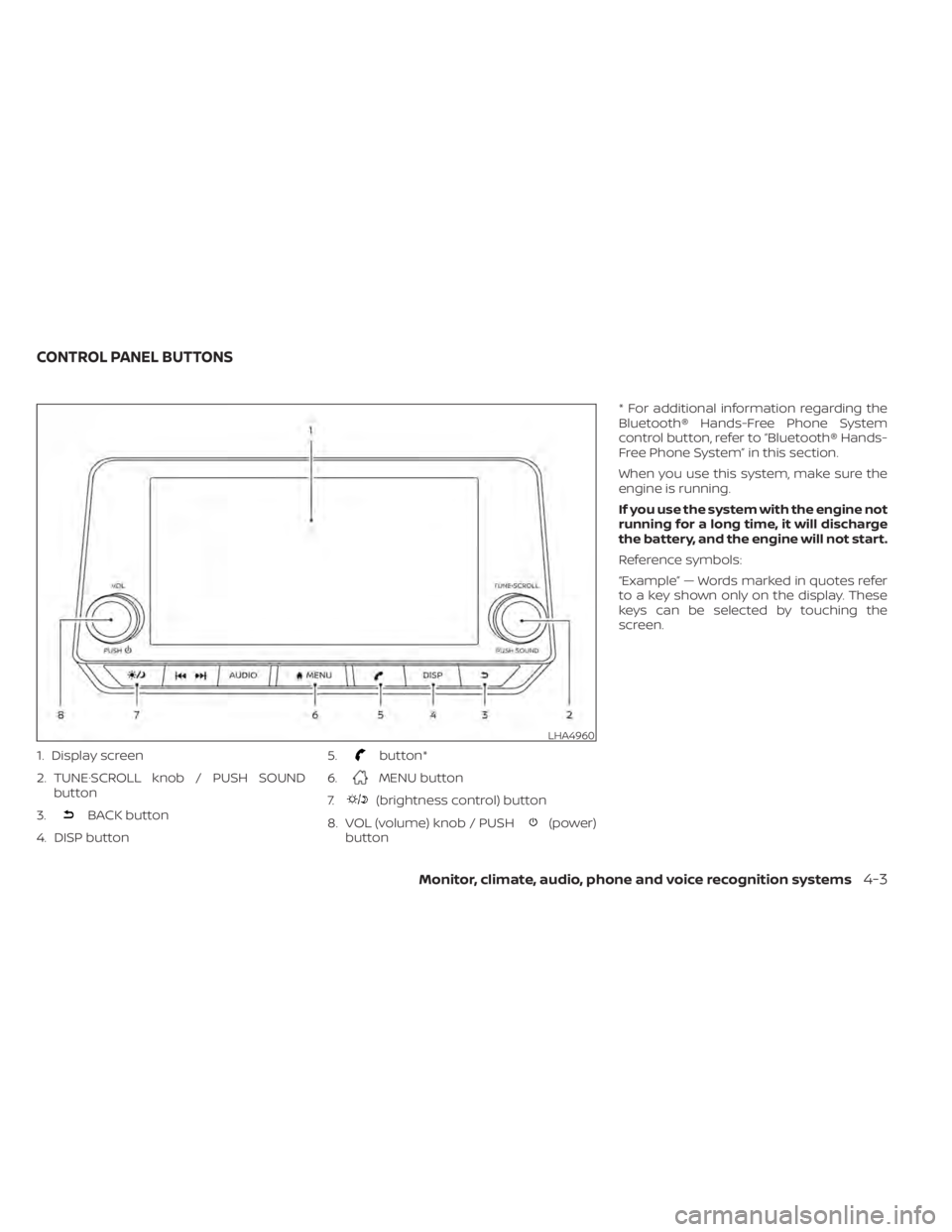
1. Display screen
2. TUNE·SCROLL knob / PUSH SOUNDbutton
3.
BACK button
4. DISP button 5.
button*
6.
MENU button
7.
(brightness control) button
8. VOL (volume) knob / PUSH
(power)
button * For additional information regarding the
Bluetooth® Hands-Free Phone System
control button, refer to “Bluetooth® Hands-
Free Phone System” in this section.
When you use this system, make sure the
engine is running.
If you use the system with the engine not
running for a long time, it will discharge
the battery, and the engine will not start.
Reference symbols:
“Example” — Words marked in quotes refer
to a key shown only on the display. These
keys can be selected by touching the
screen.
LHA4960
CONTROL PANEL BUTTONS
Monitor, climate, audio, phone and voice recognition systems4-3
Page 210 of 528
(brightness control) BUTTON
To change the display brightness, press thebutton. Pressing the button again will
change the display to the day or the night
display.
Press and hold the
button for more
than 2 seconds to turn the display off. Press
and hold the button again to turn the dis-
play on.
HOW TO USE THE VOL (volume)
KNOB / PUSH
(power)
BUTTON
Press the PUSH(power) button to turn
audio function on and off. Turn the VOL
(volume) knob to adjust audio volume.
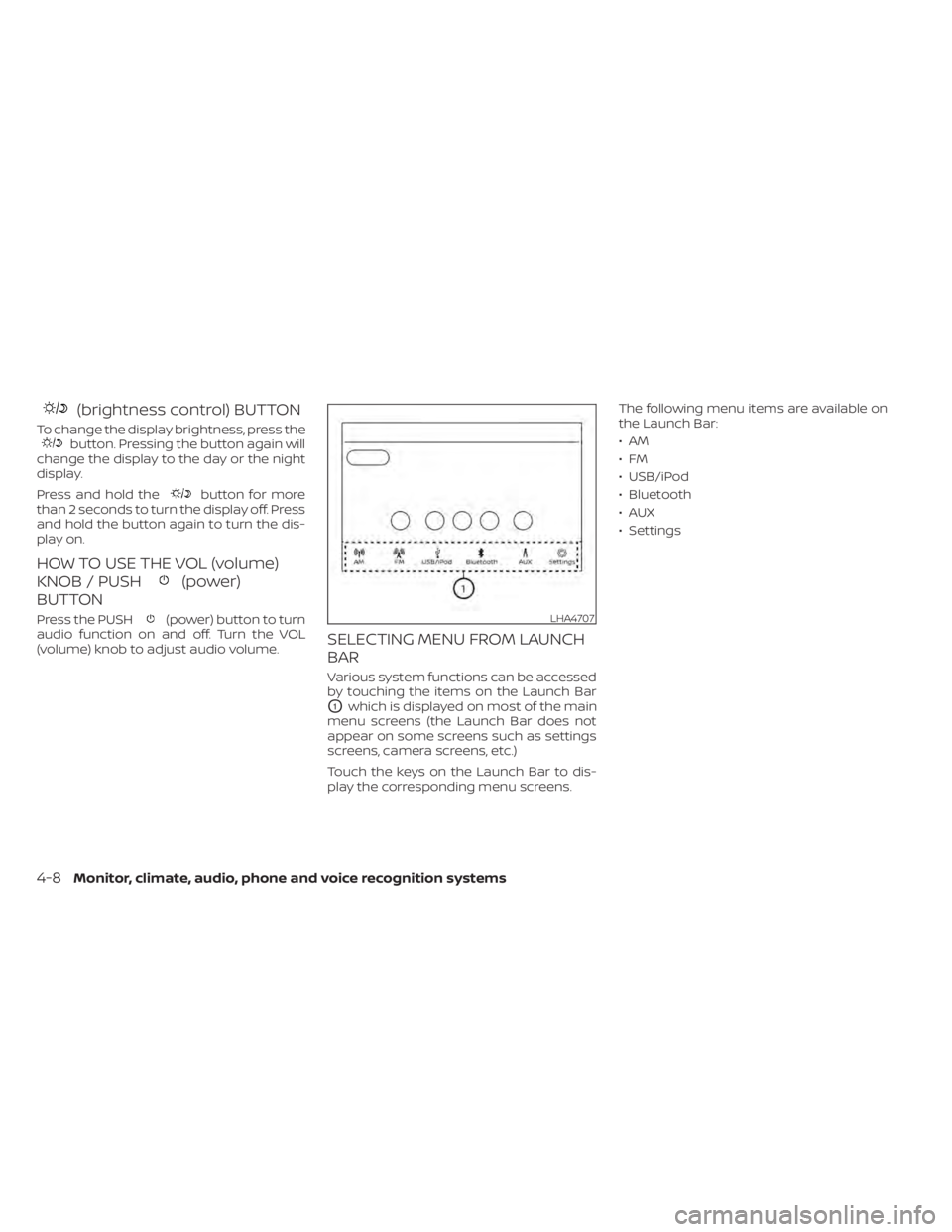
SELECTING MENU FROM LAUNCH
BAR
Various system functions can be accessed
by touching the items on the Launch Bar
O1which is displayed on most of the main
menu screens (the Launch Bar does not
appear on some screens such as settings
screens, camera screens, etc.)
Touch the keys on the Launch Bar to dis-
play the corresponding menu screens. The following menu items are available on
the Launch Bar:
•AM
•FM
• USB/iPod
• Bluetooth
•AUX
• Settings
LHA4707
4-8Monitor, climate, audio, phone and voice recognition systems