2021 NISSAN ROGUE lock
[x] Cancel search: lockPage 115 of 556
Tire Pressure Unit:
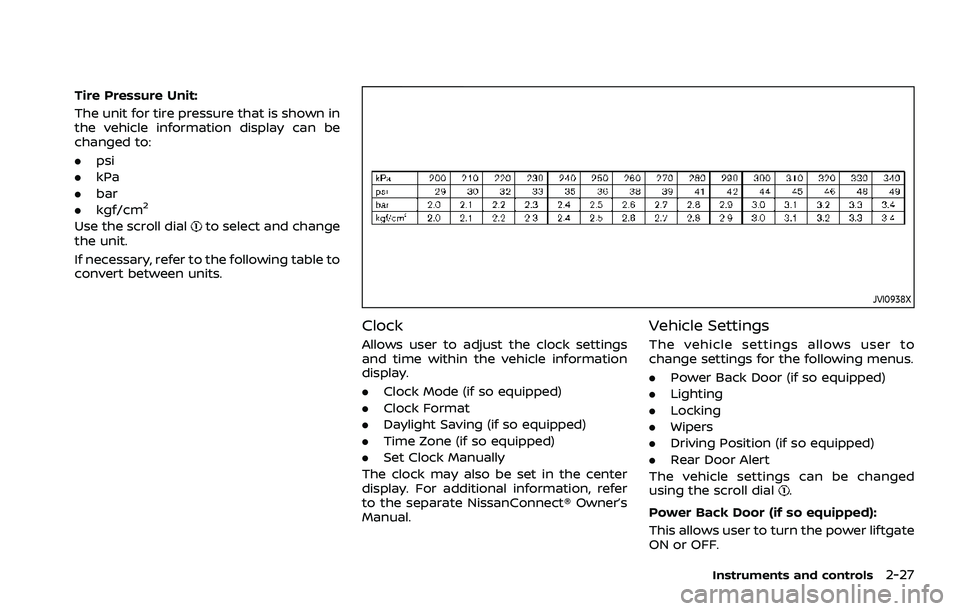
The unit for tire pressure that is shown in
the vehicle information display can be
changed to:
.psi
. kPa
. bar
. kgf/cm
2
Use the scroll dialto select and change
the unit.
If necessary, refer to the following table to
convert between units.
JVI0938X
Clock
Allows user to adjust the clock settings
and time within the vehicle information
display.
. Clock Mode (if so equipped)
. Clock Format
. Daylight Saving (if so equipped)
. Time Zone (if so equipped)
. Set Clock Manually
The clock may also be set in the center
display. For additional information, refer
to the separate NissanConnect® Owner’s
Manual.
Vehicle Settings
The vehicle settings allows user to
change settings for the following menus.
. Power Back Door (if so equipped)
. Lighting
. Locking
. Wipers
. Driving Position (if so equipped)
. Rear Door Alert
The vehicle settings can be changed
using the scroll dial
.
Power Back Door (if so equipped):
This allows user to turn the power liftgate
ON or OFF.
Instruments and controls2-27
Page 116 of 556

2-28Instruments and controls
Lighting:
The “Lighting” menu has the following
options:
.Welcome Headlight
The welcome lighting can be set to be
ON or OFF. Use the scroll dial
to turn
this feature ON or OFF.
. Auto Room Lamp
The interior light can be set to be ON
or OFF. Use the scroll dial
to turn
this feature ON or OFF.
. Accent Lighting (if so equipped)
The brightness of the Accent Lighting
can be adjusted. Use the scroll dial
to select the brightness.
. Auto Headlight
The sensitivity of the Intelligent Auto
Headlight can be adjusted. Use the
scroll dial
to select the required
sensitivity. The following options are
available:
— Turn on earliest
— Turn on earlier
— Turn on standard
— Turn on later
. Light Off Delay
The duration of the automatic head-
lights can be changed from 0 to 180
seconds. Use the scroll dial
to
change the duration. Locking:
The “Locking” menu has the following
options:
.
Ext. Door Switch (if so equipped)
When this item is turned on, the
request switch on the door is acti-
vated. Use the scroll dial
to activate
or deactivate this function.
. Selective Unlock (if so equipped)
When this item is turned on, and the
door handle request switch is pushed,
only the corresponding door is un-
locked. All the doors can be unlocked
if the door handle request switch is
pushed again within 1 minute. When
this item is turned to off, all the doors
will be unlocked when the door han-
dle request switch is pushed once. Use
the scroll dial
to activate or deacti-
vate this function.
. Auto Door Unlock
The “Auto Door Unlock” feature allows
user to customize the auto door
unlock options. Use the scroll dial
to change the mode.
— Shift to P
— IGN OFF
— OFF
. Horn beeps on lock (if so equipped)
When this item is turned on, the horn
will chirp and the hazard indicators will flash twice when locking the
vehicle with the Intelligent Key. Use
the scroll dial
to activate or deacti-
vate this function.
Wipers:
The “Wipers” menu has the following
options:
. Speed Dependent
The “Speed Dependent” feature can be
activated or deactivated. Use the
scroll dial
to turn this feature ON
or OFF.
. Reverse Link
The “Reverse Link” wiper feature can
be set to be ON or OFF. Use the scroll
dial
to turn this feature ON or OFF.
Driving Position (if so equipped):
. Exit Seat Slide
This allows user to turn the entry/exit
function ON or OFF. Use the scroll dial
to turn this function ON or OFF. (See
“Memory seat” (P.3-36).)
Rear Door Alert:
The “Rear Door Alert” feature allows user
to customize the Rear Door Alert options.
Use the scroll dial
to change the mode.
. Horn & Alert
When selected, the alert is displayed
and the horn sounds.
Page 127 of 556

40. Not Available System Malfunc-
tion warning
This warning appears when the following
systems malfunction.
.Lane Departure Warning (LDW)
. Intelligent Lane Intervention (I-LI)
. Blind Spot Warning (BSW)
. Intelligent Blind Spot Intervention (I-
BSI) (if so equipped)
. ProPILOT Assist (if so equipped)
(See “Lane Departure Warning (LDW)” (P.5-
46), “Intelligent Lane Intervention (I-LI)”
(P.5-51), “Blind Spot Warning (BSW)” (P.5-
57) or “ProPILOT Assist” (P.5-84).)
41. Unavailable High Cabin Tem-
perature warning
This warning appears if the interior tem-
perature of the vehicle has reached such
a high temperature that the sensor for
the following systems can no longer
function reliably.
. Lane Departure Warning (LDW)
. Intelligent Lane Intervention (I-LI)
. Automatic Emergency Braking (AEB)
with pedestrian detection
. Intelligent Blind Spot Intervention (I-
BSI)
. Traffic Sign Recognition (TSR) (if so
equipped) Once the interior temperature has
reached normal levels, the warning
should disappear.
If the warning continues to display, have
the system checked. It is recommended
that you visit a NISSAN dealer for this
service.
For additional information, refer to “Lane
Departure Warning (LDW)” (P.5-46), “Intel-
ligent Lane Intervention (I-LI)” (P.5-115),
“Automatic Emergency Braking (AEB) with
pedestrian detection system” (P.5-122),
“Intelligent Blind Spot Intervention (I-BSI)”
(P.5-65) or “Traffic Sign Recognition (TSR)”
(P.5-43).
42. Currently not available warning
This warning appears when the Intelli-
gent Lane Intervention (I-LI), Intelligent
Blind Spot Intervention (I-BSI) (if so
equipped) or the Intelligent Cruise Control
(ICC) system (if so equipped) becomes
unavailable in the following conditions:
.
The Vehicle Dynamic Control (VDC)
system is turned off
. The SNOW mode or the OFF-ROAD
mode is selected (AWD models).
For additional information, refer to “In-
telligent Lane Intervention (I-LI)” (P.5-51),
“Intelligent Blind Spot Intervention (I-BSI)”
(P.5-65) or “Intelligent Cruise Control (ICC)”
(P.5-97).
43. Forward Driving Aids tempora-
rily disabled Front Sensor blocked
warning
If the front radar sensor area on the front
of the vehicle is covered with dirt or
obstructed, making it impossible to de-
tect a vehicle ahead, the following system
is automatically turned off.
. Intelligent Cruise Control (ICC) (on
ProPILOT Assist system) (if so
equipped)
. Automatic Emergency Braking (AEB)
with pedestrian detection
. Intelligent Forward Collision Warning
(I-FCW)
If the warning message appears, park the
vehicle in a safe location and turn the
engine off.
Check to see if the sensor area is blocked.
If the sensor area is blocked, remove the
blocking material. Restart the engine. If
the warning message continues to ap-
pear, have the system checked. It is
recommended that you visit a NISSAN
dealer for this service.
For more details, see “ProPILOT Assist”
(P.5-84), “Automatic Emergency Braking
(AEB) with pedestrian detection system”
(P.5-122) or “Intelligent Forward Collision
Warning (I-FCW)” (P.5-132).
Instruments and controls2-39
Page 128 of 556

2-40Instruments and controls
44. Unavailable Side Radar Ob-
struction warning
This warning appears when the following
systems become unavailable because a
radar blockage is detected.
.Blind Spot Warning (BSW)
. Intelligent Blind Spot Intervention (I-
BSI) (if so equipped)
. Rear Cross Traffic Alert (RCTA)
(See “Blind Spot Warning (BSW)” (P.5-57),
“Intelligent Blind Spot Intervention (I-BSI)”
(P.5-65) or “Rear Cross Traffic Alert (RCTA)”
(P.5-76).)
45. I-LI ON indicator/I-BSI ON indi-
cator/ProPILOT Assist status indi-
cator
This indicator appears when the following
systems are turned on:
. Intelligent Lane Intervention (I-LI)
. Intelligent Blind Spot Intervention (I-
BSI) (if so equipped)
. ProPILOT Assist (if so equipped)
See “Intelligent Lane Intervention (I-LI)”
(P.5-51), “Intelligent Blind Spot Intervention
(I-BSI)” (P.5-65) or “ProPILOT Assist” (P.5-
84).
46. Steering Assist indicator (if so
equipped)
This indicator appears when the Steering
Assist system is engaged.
See “ProPILOT Assist” (P.5-84).
47. Hands on detection warning (if
so equipped)
This warning may appear when the
Steering Assist system is engaged and
the following condition(s) occur:
. When not holding the steering wheel
. When there is no steering wheel
operation
Hold on the steering wheel immediately.
When the steering operation is detected,
the warning turns off and the Steering
Assist function is automatically restored.
For additional information, refer to “Pro-
PILOT Assist” (P.5-84).
48. Press Brake Pedal indicator (if
so equipped)
This message may appear when the
Intelligent Cruise Control (ICC) system is
engaged and the following condition
occurs:
. While the vehicle is stopped by the ICC
system, the driver’s door is opened but
the electronic parking brake was not
activated. Step on the brake pedal immediately.
49. Not Available Poor Road Condi-
tions warning (if so equipped)
This warning appears when the following
systems become unavailable because the
road is slippery.
.
Intelligent Lane Intervention (I-LI)
. Intelligent Blind Spot Intervention (I-
BSI) (if so equipped)
. Intelligent Cruise Control (ICC) (if so
equipped)
(See “Intelligent Lane Intervention (I-LI)”
(P.5-51), “Intelligent Blind Spot Intervention
(I-BSI)” (P.5-65) or “Intelligent Cruise Con-
trol (ICC)” (P.5-97).)
50. Not Available Seat Belt Not
Fastened indicator (if so equipped)
This message may appear when the
Intelligent Cruise Control (ICC) system is
engaged.
Under the following condition, the ICC
system is automatically canceled:
. When the driver’s seat belt is not
fastened.
The ICC system cannot be used when the
driver’s seat belt is not fastened.
Page 134 of 556

2-46Instruments and controls
11. Driver Assistance
The Driver Assistance mode shows the
operating condition for the following
systems.
.Forward:
— Automatic Emergency Braking
(AEB) with pedestrian detection
system
— Intelligent Forward Collision Warn- ing (I-FCW)
. Lane:
— Lane Departure Warning (LDW)
— Intelligent Lane Intervention (I-LI)
. Blind Spot:
— Blind Spot Warning (BSW)
— Intelligent Blind Spot Intervention
(I-BSI) (if so equipped)
For more details, see “Automatic Emer-
gency Braking (AEB) with pedestrian de-
tection system” (P.5-122), “Lane Departure
Warning (LDW)” (P.5-46), “Intelligent Lane
Intervention (I-LI)” (P.5-51), “Blind Spot
Warning (BSW)” (P.5-57) or “Intelligent
Blind Spot Intervention (I-BSI)” (P.5-65).
12. ProPILOT Assist (if so equipped)
The ProPILOT Assist mode shows the
operating conditions for the following
systems:
. Intelligent Cruise Control (ICC)
. Steering Assist
The display will also be shown when the
ProPILOT Assist is turned on. For addi-
tional information, see “ProPILOT Assist”
(P.5-84).
13. Traffic Sign Recognition (if so
equipped)
The Traffic Sign Recognition (TSR) system
provides the driver with information
about the most recently detected speed
limit. See “Traffic Sign Recognition (TSR)”
(P.5-43) for more details.WAC0521X
CLOCK AND OUTSIDE AIR TEM-
PERATURE
The clockand outside air temperatureare displayed on the upper side of the
vehicle information display.
Clock
For clock adjustment, see “Clock” (P.2-27)
or the separate NissanConnect® Owner’s
Manual (if so equipped).
Page 137 of 556

JVI1787X
HOW TO USE THE HUD
To turn the HUD on, push the HUD switch.
To turn the HUD off, push the switch
again.
If the HUD is turned off, it will remain off
even if the vehicle is restarted.
The following settings can be changed in
the vehicle information display:
.Brightness
. Height
. Rotation
. Contents selection
— Navigation (if so equipped) — Driving Assist
— Speed Limit Sign
— Audio
— TEL/SMS
. Reset
NOTE:
Emergency information may display
even if the HUD is turned off.
This product includes the following soft-
ware.
(1) Panasonic Corporation or software
developed for Panasonic Corporation
(2) Third-party software licensed to Pana-
sonic Corporation
(3) Open source software
Regarding (3) Open source software, it
includes open source software (OSS),
including various software to which li-
cense information applies.
Refer to the license web site at: http://car.
panasonic.jp/oss/i02lln39
Display brightness
The brightness of the display may be
controlled in the vehicle information dis-
play. The brightness will also be adjusted
automatically according to the exterior
ambient lighting brightness.
WAC0516X
NOTE:
. The HUD has a built-in sensorthat
controls the brightness of the dis-
played image. If you block the sen-
sor with an object, the display will
darken, making it difficult to see.
Instruments and controls2-49
Page 139 of 556

theft of interior or exterior vehicle com-
ponents in all situations. Always secure
your vehicle even if parking for a brief
period. Never leave your keys in the
vehicle, and always lock it when unat-
tended. Be aware of your surroundings,
and park in secure, well-lit areas when-
ever possible.
Many devices offering additional protec-
tion, such as component locks, identifica-
tion markers, and tracking systems, are
available at auto supply stores and speci-
alty shops. Your NISSAN dealer may also
offer such equipment. Check with your
insurance company to see if you may be
eligible for discounts for various theft
protection features.
How to arm the vehicle security
system
1. Close all windows.The system can be
armed even if the windows are open.
2. Remove the keys from the vehicle.
3. Close all doors, hood and liftgate. Lock all doors. The doors can be locked
with Intelligent Key, door handle re-
quest switch (if so equipped).
Even when the driver and/or passen-
gers are in the vehicle, the system will
activate with all the doors, hood and
liftgate locked with the ignition switch
placed in the OFF position. When pla- cing the ignition switch in the ON
position, the system will be released.
Vehicle security system activation
The vehicle security system will give the
following alarm:
.
The headlights or the hazard indicator
lights blink and the horn sounds
intermittently.
. The alarm automatically turns off
after approximately 30 seconds. How-
ever, the alarm reactivates if the
vehicle is tampered with again.
The alarm is activated by:
. opening any doors, the hood or lift-
gate without using Intelligent Key
(even if the door is unlocked by
releasing the door inside lock knob).
How to stop an activated alarm
The alarm stops by pushing the UNLOCKbutton on the Intelligent Key, pushing
the request switch (if so equipped) in
range of the door handle or placing the
ignition switch in the ON position.
NISSAN VEHICLE IMMOBILIZER SYS-
TEM
The NISSAN Vehicle Immobilizer System
will not allow the engine to start without
the use of the registered key.
If the engine does not start using the
registered Intelligent Key, it may be due to
interference caused by:
. Another Intelligent Key.
. Automated toll road device.
. Automated payment device.
. Other devices that transmit similar
signals.
Start the engine using the following
procedure:
1. Remove any items that may be caus- ing the interference away from the
Intelligent Key.
2. Start the engine again.
If this procedure allows the engine to
start, NISSAN recommends placing the
registered Intelligent Key separate from
other devices to avoid interference.
Statement related to section 15 of FCC
rules for NISSAN Vehicle Immobilizer
System (CONT ASSY-SMART KEYLESS)
FCC Notice:
For USA:
FCC ID : KR5HFM401
Instruments and controls2-51
Page 142 of 556

2-54Instruments and controls
.Pre-mix washer fluid concen-
trates with water to the manu-
facturer’s recommended levels
before pouring the fluid into the
window washer reservoir tank. Do
not use the window washer re-
servoir tank to mix the washer
fluid concentrate and water.
If the rear window wiper operation is
interrupted by snow or ice, the wiper
may stop moving to protect its motor. If
this occurs, turn the wiper switch to the
OFF position and remove the snow or
ice that is on and around the wiper
arms. In approximately 1 minute, turn
the switch on again to operate the
wiper.
WAC0318X
The rear window wiper and washer
operate when the ignition switch is in
the ON position.
Turn the switch clockwise from the OFF
position to operate the wiper.
Intermittent (INT) — intermittent opera-
tion (not adjustable)
Low (ON) — continuous low speed opera-
tion
Push the switch forwardto operate the
washer. Then the wiper will also operate
several times.
Reverse Link feature:
When the windshield wiper switch is on,
moving the shift lever to the R (Reverse)
position will operate the rear window wiper.
NOTE:
The Reverse Link feature may be dis-
abled. For additional information, refer
to “Vehicle Settings” (P.2-27).