Page 312 of 545
-
Edge lighting
- Day/night design
R Control elements
- Keyboard language and handwriting rec‐
ognition
- Sensitivity of theto uchpad
- Sensitivity of theTo uch Controls
R LINGU ATRO NIC
R Sound
- Enter tainment
- Navigation and traf fic announcements
- Telephone
- Voice amplification tothere ar
R Connectivity
- Wi-Fi, Blu etoo th®
, NFC
R Time & date
R Language
R Units for dis tance
R Software upda tes
R Data impo rt/export R
PIN pr otection
R System Reset Information on important sy
stem updates Impor
tant sy stem updates may be necessary for
th e security of your multimedia sy stem's data.
Ins tallth ese updates, or else the security of your
multimedia sy stem cann otbe ensured.
A sy stem update consists of thre esteps:
R Downloading or copying of the data requ ired
fo r ins tallation
R Installation of the downloaded sy stem update
R Activation of the downloaded sy stem update
by restarting the sy stem
% If automatic software updates are activated,
the sy stem updates will be downloaded auto‐
maticall y.
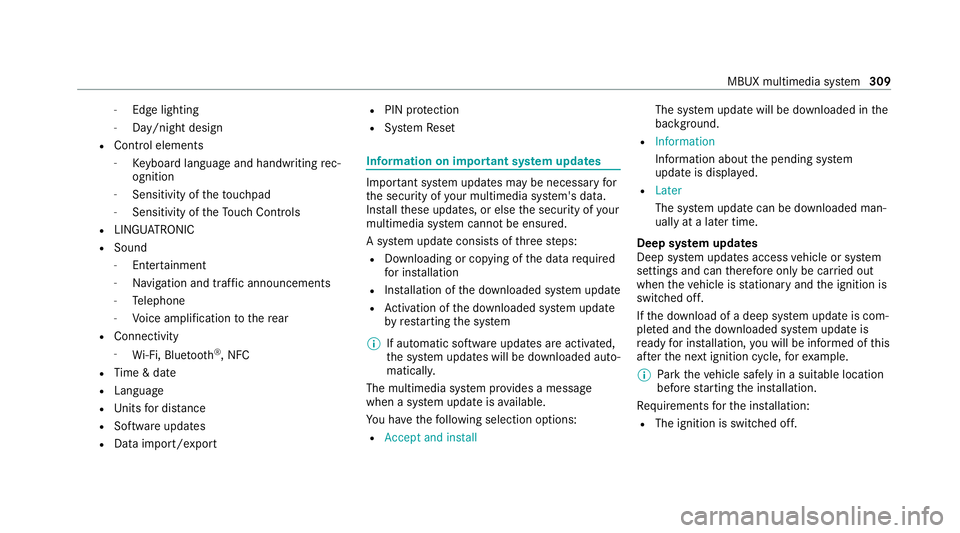
The multimedia sy stem pr ovides a message
when a sy stem update is available.
Yo u ha vethefo llowing selection options:
R Accept and install The sy
stem update will be downloaded in the
bac kground.
R Information
Info rm ation about the pending sy stem
update is displa yed.
R Later
The sy stem update can be downloaded man‐
ually at a later time.
Deep sy stem updates
Deep sy stem updates access vehicle or sy stem
settings and can therefore only be car ried out
when theve hicle is stationary and the ignition is
switched off.
If th e download of a deep sy stem update is com‐
ple ted and the downloaded sy stem update is
re ady for ins tallation, you will be informed of this
af te rth e next ignition cycle, forex ample.
% Park theve hicle safely in a suitable location
before starting the ins tallation.
Re quirements forth e ins tallation:
R The ignition is switched off. MBUX multimedia sy
stem 309
Page 315 of 545
#
Select Generate security key .
A connection will be es tablished with the
newly crea ted security key. #
Tosave a security key:select Save.
When a new security key is sa ved, all existing
Wi -Fi connections are then disconnected. If
th eWi -Fi connections are being re-es tab‐
lished, the new security key must be ente red. Sy
stem language Note
s onthe sy stem language
This function allo wsyouto determ ine the lan‐
guage forth e menu displa ysand the navigation
announcements. The selected language af fects
th ech aracters available for entr y.The navigation
announcements are not available in all lan‐
guages. If a language is not available, the naviga‐
tion announcements will be in Engl ish.
Setting the sy stem language
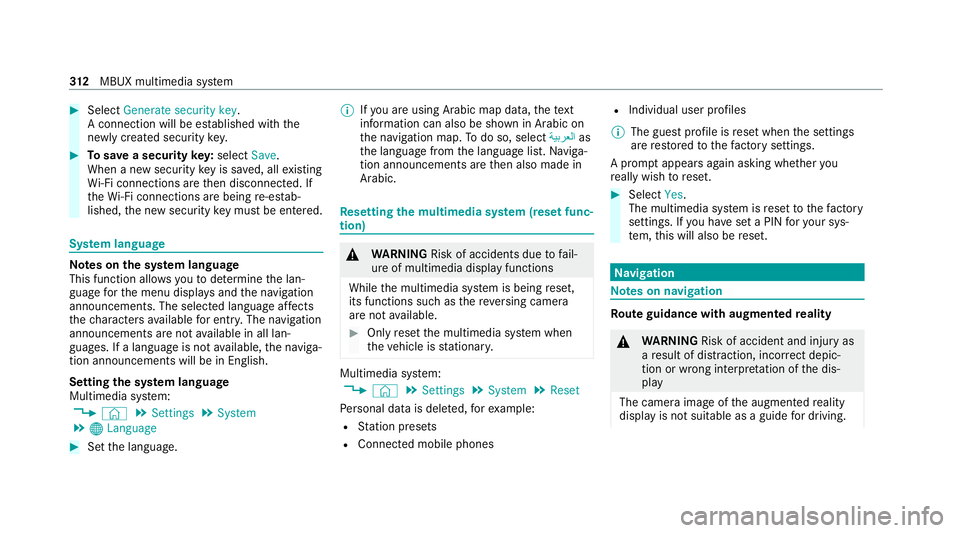
Multimedia sy stem:
4 © 5
Settings 5
System
5 00A7 Language #
Set the language. %
Ifyo u are using Arabic map data, thete xt
information can also be shown in Arabic on
th e navigation map. Todo so, select �
Page 316 of 545
#
Alw ayske ep an eye on the actual traf fic
situation. #
Avoid extended obser vation of the cam‐
era image. &
WARNING Risk of accident and inju ry
due toimprecise positioning of addi‐
tional information
The additional information from the augmen‐
te dre ality display is not a substitute for
observing the actual driving situation. #
Alw ayske ep an eye on the actual traf fic
situation when car rying out all driving
manoeuvres. Switching navigation on
Multimedia sy
stem:
4 © 5
Navigation (Navigation) #
Alternatively: press thez button.
The map displa ys the cur rent vehicle posi‐
tion. The navigation menu is shown. The navigation menu is hidden if
route guid‐
ance is active. #
Tosho w:tap on theto uchsc reen.
The menu is hidden automaticall y. MBUX multimedia sy
stem 313
Page 317 of 545
Na
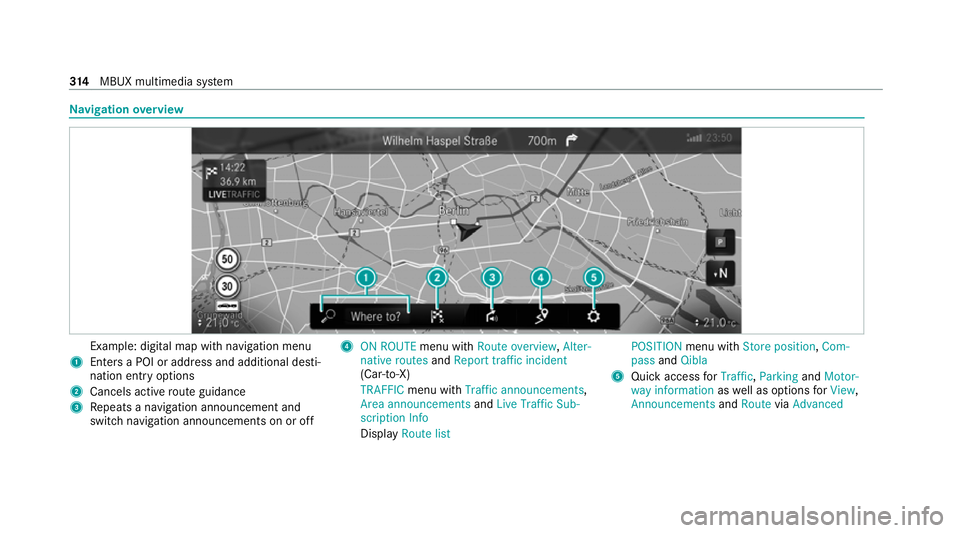
vigation overview Example: digital map with navigation menu
1 Enters a POI or address and additional desti‐
nation ent ryoptions
2 Cancels active route guidance
3 Repeats a navigation announcement and
switch navigation announcements on or off 4
ON ROUTE menu withRoute overview, Alter-
native routes andReport traffic incident
(Car-to-X)
TRAFFIC menu with Traffic announcements,
Area announcements andLive Traffic Sub-
scription Info
Display Route list POSITION
menu with Store position, Com-
pass andQibla
5 Quick access forTraffic, Parking andMotor-
way information aswell as options forView,
Announcements andRoute viaAdvanced 314
MBUX multimedia sy stem
Page 318 of 545
Entering a destination
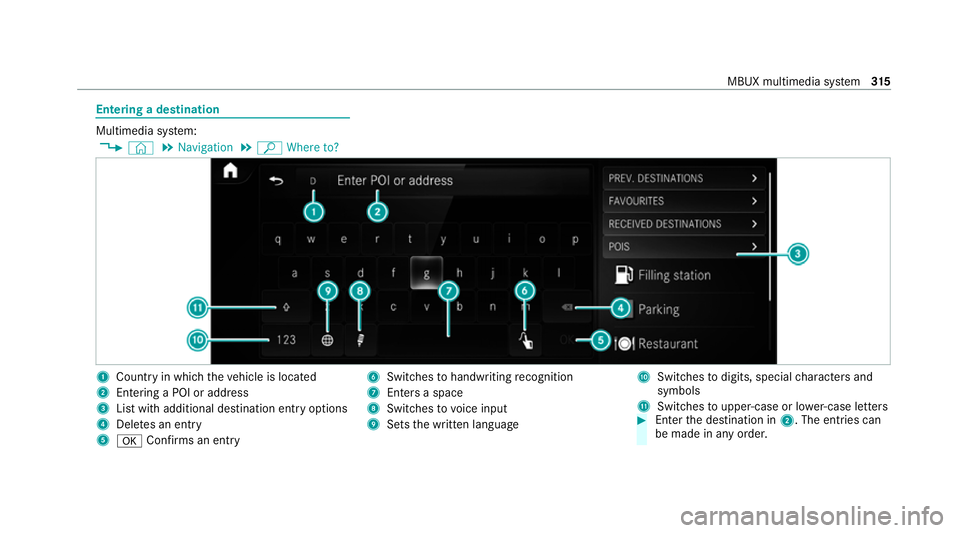
Multimedia sy
stem:
4 © 5
Navigation 5
ª Where to? 1
Country in which theve hicle is located
2 Entering a POI or address
3 List with additional destination entry options
4 Dele tes an entry
5 0076 Confirms an entry 6
Switches tohandwriting recognition
7 Enters a space
8 Switches tovoice input
9 Sets the written language A
Switches todigits, special characters and
symbols
B Swit ches toupper-case or lo wer-case letters #
Enter the destination in 2. The entries can
be made in any order. MBUX multimedia sy
stem 315
Page 319 of 545
The
following ent ries can be made, forex ample:
R Town, stre et, house number
R Street,to wn
R Postcode
R POI name or POI catego ry, e.g. Parking
R Contact name #
Select a sear chresult in list 3. #
Calculate thero ute (/ page316).
% You can find fur ther information about desti‐
nation entry , e.g. 3wordaddresses, in the
Digital Owner's Manual.
Changing country #
Select the count ryindicator in 1. #
Enterth e count ryindicator. #
Select the count ryin3.
Using online sear ch
Destination entry uses online map services. If
th e on-board sear chfinds no suitable dest ina‐
tions or if youch ange countries, the online
sear chisavailable. Fo
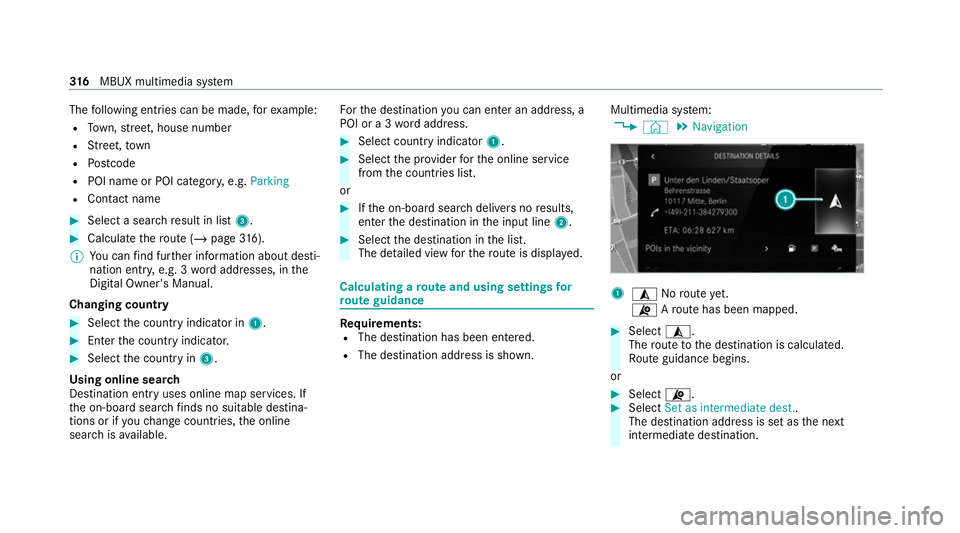
rth e destination you can en ter an addre ss, a
POI or a 3 wordaddress. #
Select country indicator 1. #
Select the pr ovider forth e online service
from the count ries list.
or #
Ifth e on-board sear chdelivers no results,
enter the destination in the input line 2. #
Select the destination in the list.
The de tailed view forth ero ute is displ ayed. Calculating a
route and using settings for
ro ute guidance Re
quirements:
R The destination has been entered.
R The destination address is shown. Multimedia sy
stem:
4 © 5
Navigation 1
¥ Noroute yet.
¦ Aro ute has been mapped. #
Select ¥.
The route tothe destination is calculated.
Ro ute guidance begins.
or #
Select ¦. #
Select Set as intermediate dest..
The destination address is set as the next
intermediate destination. 316
MBUX multimedia sy stem
Page 320 of 545
or
#
Select Start new route guidance.
The destination address is set as the new
destination. The pr evious destination and the
intermediate destinations are dele ted. Ro ute
guidance tothe new destination begins.
Selecting route settings #
Select Z. #
Select Advanced . #
Select Route. #
Select thero ute type. #
Take traf fic information into consideration
wi th Dynamic route guidance 0048.#
Select route options with Avoid options. #
Activate Suggest alternative route.
Alternati veroutes are calculated forev ery
ro ute. #
Activate Activate commuter route .
If th ere qu irements are met, the multimedia
sy stem automatically de tects that theve hicle
is on a commuter route. Route guidance
begins without voice output. Ac
tivating route guidance with augmented
re ality #
During route guidance, tap on the camera
symbol on the media displa y.
The camera image will be shown ins tead of
th e navigation map before a turning manoeu‐
vre and will show additional information. #
Toreturn tothe navigation map: tapon
th e camera symbol again.
Displaying additional information in the cam‐
era ima ge #
Select Z. #
Select Advanced . #
Select Augmented Reality. #
Activate Street names andHouse numbers.
During route guidance, stre et names and
house numbe rsare shown in the camera
image. Using map functions
Multimedia sy
stem:
4 © 5
Navigation
Setting the map scale #
Tozoom in: tap twice quickly with one finger
on the media displa y. #
Tozoom out: tap with two fingers on the
media displa y.
Moving the map #
Moveone finger in any di rection on the
to uchsc reen. #
Toreset the map tothe cur rent vehicle
position: press\briefly.
Selecting map orientation #
Tapre peatedly on theÄ compass symbol
on the map.
The view changes in the sequence 3D,2D
heading up to2D north up .
Switching mo torw ay information on/off #
Select Z. MBUX multimedia sy
stem 317
Page 321 of 545
#
Switch Motorway information on or off.Using se
rvices Re
quirements:
R There is an Internet connection.
R Mercedes me connect is available.
R You ha veset up a user account in the
Mercedes me Portal.
R The vehicle is connected toa user account
and you ha veaccep tedth e conditions of use
fo rth e service.
Fu rther information can be found at:
https://www.mercedes.me
R The service is available and has been activa‐
te d.
R The following requirements apply tothePa rk‐
ing service:
- The navigation services option is availa‐
ble, subsc ribed toand activated in the
Mercedes me Portal.
- The parking service is within the scope of
th e navigation service. Multimedia sy
stem:
4 © 5
Navigation
Displaying the traf fic situation with Live Traf‐
fi c Information #
Select Z. #
Activate Traffic. #
Select Advanced . #
Select View. #
Select Map elements. #
Switch on Traffic incidents ,Free-flowing traf-
fic and Delay.
If traf fic information has been recei ved, then
tra ffic incidents such as roadwor ks,ro ad
bloc ks, local area reports (e.g. fog) and warn‐
ing messages are displa yed.
The tra ffic delay is displa yedfo rth e cur rent
ro ute. Traf fic del ays lasting one minute or
longer are take n into conside ration.
Displ aying hazard warnings with Car-to-X-
Communication
If hazard warnings are available these can be
shown as symbols on the map. The display depends on
the settings forth eTraffic andTraf-
fic incidents options. #
Set the options.
If Traffic is switched off and Traffic incidents
is switched on, the symbols are shown on
th e prospective route.
Displaying weather information and other
map contents #
Select Z. #
Select Advanced . #
Select View. #
Select Map elements. #
Scroll up and show theONLINE MAP CON-
TENTS categor y. #
Switch on a service, e.g. Weather.
Cu rrent weather information is displa yed on
th e navigation map, e.g. temp erature or
cloud co ver. 318
MBUX multimedia sy stem