2021 LINCOLN NAVIGATOR warning
[x] Cancel search: warningPage 439 of 639

7.
Reinstall the jack properly on the bracket
and secure with the wing nut. 8. Close the access hole with the rubber
plug. 9. If the vehicle has an access panel,
reinstall.
10. Unblock the wheel.
TECHNICAL SPECIFICATIONS
Wheel Lug Nut Torque Specifications WARNING: When you install a wheel, always remove any corrosion, dirt or foreign m\
aterials present on the mounting surfaces of the
wheel or the surface of the wheel hub, brake drum or brake disc that contacts the wheel. Make sure to secure any fasteners that attach
the rotor to the hub so they do not interfere with the mounting surfaces\
of the wheel. Installing wheels without correct metal-to-metal contact
at the wheel mounting surfaces can cause the wheel nuts to loosen and th\
e wheel to come off while your vehicle is in motion, resulting in
loss of vehicle control, personal injury or death. lb.ft (Nm)
1
Bolt Size
150 lb.ft (204 Nm)
M14 x 1.5
1 Torque specifications are for nut and bolt threads free of dirt and rust.\
Use only our recommended replacement fasteners.
Retighten the lug nuts to the specified torque within 100 mi (160 km) a\
fter any wheel disturbance, such as tire rotation, changing a flat tire or
wheel removal.
436
Navigator (TB9) Canada/United States of America, enUSA, First-Printing Wheels and Tires
Page 443 of 639

VEHICLE IDENTIFICATION
NUMBER
The vehicle identification number is located
on the left-hand side of the instrument panel.
Please note that in the graphic, XXXX is
representative of your vehicle identification
number.
The Vehicle Identification Number contains
the following information: World manufacturer identifier
A
Brake system, Gross Vehicle
Weight Rating, Restraint Devices
and their locations
B
Make, vehicle line, series, body
type
C
Engine type
D
Check digit
E
Model year
F
Assembly plant
G
Production sequence number
H CAPACITIES AND SPECIFICATIONS
Use oil and fluid that meets the defined
specification and viscosity grade.
If you do not use oil and fluid that meets the
defined specification and viscosity grade, it
could result in:
•
Component damage that your vehicle
warranty does not cover.
• Longer engine cranking periods.
• Increased emission levels.
• Reduced engine performance.
• Reduced fuel economy.
• Reduced brake performance.
Air Conditioning System WARNING: The air conditioning
refrigerant system contains refrigerant
under high pressure. Only qualified
personnel should service the air
conditioning refrigerant system. Opening
the air conditioning refrigerant system can
cause personal injury.
440
Navigator (TB9) Canada/United States of America, enUSA, First-Printing Capacities and SpecificationsE142476 E142477
Page 464 of 639

GENERAL INFORMATION
WARNING: Driving while distracted
can result in loss of vehicle control, crash
and injury. We strongly recommend that
you use extreme caution when using any
device that may take your focus off the road. Your primary responsibility is the safe
operation of your vehicle. We recommend
against the use of any hand-held device
while driving and encourage the use of
voice-operated systems when possible.
Make sure you are aware of all applicable
local laws that may affect the use of
electronic devices while driving.
Radio Frequencies and Reception
Factors
Note:
Listening to loud audio for long
periods of time could damage your hearing. Radio Reception Factors
The further you travel from an AM or FM station, the weaker the signal and the weaker the reception.
Distance and strength
Hills, mountains, tall buildings, bridges, tunnels, freeway overpasses, \
parking garages, dense tree foliage and
thunderstorms can interfere with the reception.
Terrain
When you pass a ground-based broadcast repeating tower, a stronger signal may overtake a weaker one and
result in the audio system muting.
Station overload
461
Navigator (TB9) Canada/United States of America, enUSA, First-Printing Audio System
Page 465 of 639

AUDIO UNIT
WARNING: Driving while distracted
can result in loss of vehicle control, crash
and injury. We strongly recommend that
you use extreme caution when using any
device that may take your focus off the
road. Your primary responsibility is the safe
operation of your vehicle. We recommend
against the use of any hand-held device
while driving and encourage the use of
voice-operated systems when possible.
Make sure you are aware of all applicable
local laws that may affect the use of
electronic devices while driving. Note:
Depending on your vehicle option
package, the controls may look different
from what you see here.
Note: Some features, such as satellite radio,
may not be available in your location. Check
with an authorized dealer.
Note: The touchscreen system controls most
of the audio features.
Adjusting the Volume Turn to adjust the volume.Changing Radio Stations
In radio mode, turn to search through the
radio frequency band.
In satellite radio mode, turn to find the
previous or next available satellite radio
station.
462
Navigator (TB9) Canada/United States of America, enUSA, First-Printing Audio SystemE293087 E265373 E265696
Page 474 of 639

Action
Condition
Message
Use the channel guide to turn off the Lock or
Skip function on that station.
All the channels in the selected category are
either skipped or locked.
None found
Check Channel Guide
No action required.
SiriusXM has updated the channels available
for your vehicle.
Subscription Updated
USB PORT WARNING: Driving while distracted
can result in loss of vehicle control, crash
and injury. We strongly recommend that
you use extreme caution when using any
device that may take your focus off the
road. Your primary responsibility is the safe
operation of your vehicle. We recommend
against the use of any hand-held device
while driving and encourage the use of
voice-operated systems when possible.
Make sure you are aware of all applicable
local laws that may affect the use of
electronic devices while driving. USB A USB C
The USB port allows you to plug in media
playing devices, memory sticks and charge
devices.
Note:
We recommend using only USB-IF
certified cables and adapters. Non-certified
cables and adapters may not work.
471
Navigator (TB9) Canada/United States of America, enUSA, First-Printing Audio SystemE201595 E301114
Page 476 of 639
GENERAL INFORMATION
WARNING: Driving while distracted
can result in loss of vehicle control, crash
and injury. We strongly recommend that
you use extreme caution when using any
device that may take your focus off the
road. Your primary responsibility is the safe
operation of your vehicle. We recommend
against the use of any hand-held device
while driving and encourage the use of
voice-operated systems when possible.
Make sure you are aware of all applicable
local laws that may affect the use of
electronic devices while driving.
About SYNC
The system allows you to interact with the
entertainment, information and
communication systems on your vehicle
using voice commands and a touchscreen.
The system provides easy interaction with
audio, phone, navigation, mobile apps and
settings. Note:
You can switch the system on and use
it for up to an hour without switching the
ignition on.
Note: You can use the system after you
switch the ignition off for up to 10 minutes or
until you open a door.
Note: For your safety, some features are
speed-dependent. Their use is limited to
when your vehicle speed is less than 3 mph
(5 km/h)
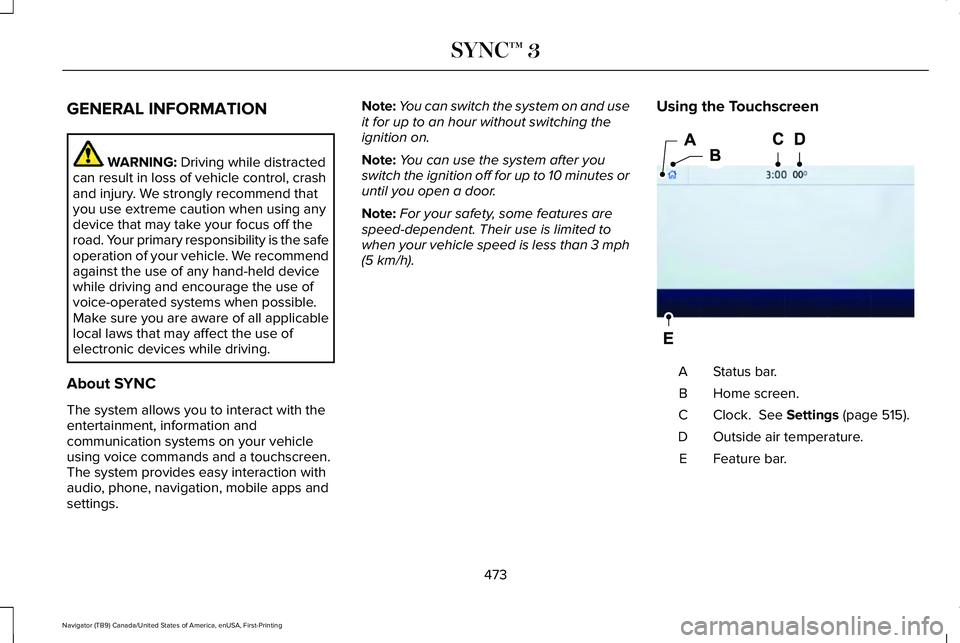
. Using the Touchscreen Status bar.
A
Home screen.
B
Clock.
See Settings (page 515).
C
Outside air temperature.
D
Feature bar.
E
473
Navigator (TB9) Canada/United States of America, enUSA, First-Printing SYNC™ 3E293823
Page 505 of 639

Switching the Ventilated Seats On and
Off
Touch the button to cycle through
the various ventilated seat settings.
Accessing Rear Climate Controls Touch the button to access
additional controls for the rear
climate system.
Rear Climate Control Lock Indicator Touch the button.
When on, you can only operate the
rear passenger settings through
the front controls.
Switching Rear Auto Mode On and Off Touch the button to switch on rear
automatic operation, then set the
temperature. Switching the Rear Climate Controlled
Seats On and Off Touch the button to cycle through
the various climate controlled seat
settings.
Switching the Rear Heated Seats On
and Off Touch the button to cycle through
the various heat settings.
Switching the Rear Ventilated Seats
On and Off Touch the button to cycle through
the various ventilated seat settings.PHONE WARNING: Driving while distracted
can result in loss of vehicle control, crash
and injury. We strongly recommend that
you use extreme caution when using any
device that may take your focus off the
road. Your primary responsibility is the safe
operation of your vehicle. We recommend
against the use of any hand-held device
while driving and encourage the use of
voice-operated systems when possible.
Make sure you are aware of all applicable
local laws that may affect the use of
electronic devices while driving.
Check the compatibility of your device on
the regional website.
Pairing Your Cell Phone for the First
Time
Go to the settings menu on your cell phone
and switch Bluetooth on. Select the phone option on the
feature bar.
502
Navigator (TB9) Canada/United States of America, enUSA, First-Printing SYNC™ 3E268558 E270447 E265289 E265282 E268558
Page 516 of 639

5. Select the app that you want to use on
the touchscreen.
Note: Connect your device to a USB port if
you want to use a navigation app. When
using a navigation app, keep your device
unlocked and the app open.
Using Apps on an Android Device Select the apps option on the
feature bar.
1. If your device is connected via USB, switch Android Auto off. See Phone
(page 502).
2. Pair your device. See Phone (page 502).
3. Start the apps on your device that you want to use through SYNC.
Note: If you close the apps on your device,
you will not be able to use them through the
system.
4. Select
Find Mobile Apps.
Note: The system searches and connects to
compatible apps that are running on your
device. 5. Select the app that you want to use on
the touchscreen.
Note: Mobile Apps on your device use the
USB port to establish a connection with
SYNC. Some devices may lose the ability to
play music over USB when Mobile Apps are
enabled.
Using Mobile Navigation on an Android
Device
1. Connect your device to a USB port.
2. Switch Android Auto off.
See Phone
(page 502).
3. Switch on
Enable Mobile Apps via USB
in the Mobile Apps Settings tile.
4. Select the apps option on the feature bar.
5. Select the navigation app that you want to use on the touchscreen.
Note: When using a navigation app, keep
your device unlocked and the app open. SiriusXM Traffic and Travel Link
(If
Equipped) WARNING:
Driving while distracted
can result in loss of vehicle control, crash
and injury. We strongly recommend that
you use extreme caution when using any
device that may take your focus off the
road. Your primary responsibility is the safe
operation of your vehicle. We recommend
against the use of any hand-held device
while driving and encourage the use of
voice-operated systems when possible.
Make sure you are aware of all applicable
local laws that may affect the use of
electronic devices while driving.
Note: SiriusXM Traffic and Travel Link may
not be available in all markets.
Note: In order to use SiriusXM Traffic and
Travel Link, your vehicle must have
navigation.
Note: A paid subscription is required to
access and use these features. Go to
www.siriusxm.com/travellink for more
information.
513
Navigator (TB9) Canada/United States of America, enUSA, First-Printing SYNC™ 3