2021 HYUNDAI PALISADE Button
[x] Cancel search: ButtonPage 124 of 612

3-28
Convenient features of your vehicle
Recalling Positions from
Memory
1. Shift to P (Park) while the ignition
switch is in the ON position.
2. Press the desired memory button
(1 or 2). The system will beep
once, and then the driver's seat
position, side view mirror position,
instrument panel illumination
intensity and head-up display
height/brightness will automatical-
ly adjust to the stored positions.
3. "Driver 1 (or 2) settings applied"
will appear on the cluster LCD dis-
play.
Information
• While recalling the "1" memory
position, pressing the SET or 1 but-
ton temporarily stops the adjust-
ment of the recalled memory posi-
tion. Pressing the 2 button recalls
the "2" memory position.
• While recalling the "2" memory
position, pressing the SET or 2 but-
ton temporarily stops the adjust-
ment of the recalled memory posi-
tion. Pressing the 1 button recalls
the "1" memory position.• While recalling the stored positions,
pressing one of the control buttons
for the driver's seat, side view mir-
ror, instrument panel illumination
or head-up display will cause the
movement of that component to stop
and move in the direction that the
control button is pressed.
Resetting the Driver's Seat
Memory System
Take the following procedures to reset
the driver's seat memory system,
when it does not operate properly.
To reset the driver's seat memo-
ry system
1. Place the ignition switch to the ON
position, shift to P (Park), and
open the driver's door.
2. Operate the control switch to set
the driver's seat and seatback to
the foremost position.
3. Simultaneously press the SET
button and push forward the seat
movement switch over 2 seconds.
While resetting the driver's seat
memory system
1. It starts with the notification sound.
2. The driver's seat and seatback is
adjusted to the rearward position
with the notification sound.
3. The driver's seat and seatback is
re-adjusted to the default position
(central position) with the notifica-
tion sound.
However, in the following cases, the
resetting procedure and the notifica-
tion sound may stop.
- The memory button is pressed.
- The control switch is operated.
- The driving speed exceeds 2 mph
(3 km/h).
- The driver's door is closed.
i
Page 125 of 612
3-29
Convenient features of your vehicle
3
Reattempt to do the resetting
procedure again, when the
resetting procedure incomplete-
ly stops or the notification
sound do not stop.
Make sure that there is no obsta-
cle around the driver's seat in
advance of resetting the driver's
seat memory system.
Easy Access Function
The system will move the driver's
seat automatically as follows:
With remote key
- It will move the driver's seat rear-
ward and downward when the igni-
tion key is removed.
- It will move the driver's seat for-
ward and upward when the ignition
key is inserted.
With smart key
- It will move the driver's seat rear-
ward and downward when the
Engine Start/Stop button is
pressed to the OFF position.
- It will move the driver's seat forward
and upward when the Engine
Start/Stop button is pressed to the
ACC or START position.
You can activate or deactivate the
Easy Access Function from the User
Settings mode in the cluster LCD dis-
play.
'Convenience →Seat Slide Easy
Access →Off/Normal/Extended'.
'Convenience→Seat Height Easy
Access'.❈"Seat (upward/downward) Easy
Access" function may not operate
below the specific seat height for
preventing injury of the passenger.
For more details, refer to "LCD
Display" in this chapter.
NOTICE
Driver should be cautious when
using this function to assure no
injury to passenger or child in
the back seat. In case of emer-
gency the driver has to stop
movement of front seat (when
easy access feature is activat-
ed) by pressing SET button or
any of the driver seat control
switches.
CAUTION
If the reset is failed, initialize
the system once again.
Initialize the system after
cleaning the obstacles sur-
rounding of seat.
After completing the initializa-
tion, adjust the driver position
memory system again.
CAUTION
Page 128 of 612
3-32
Convenient features of your vehicle
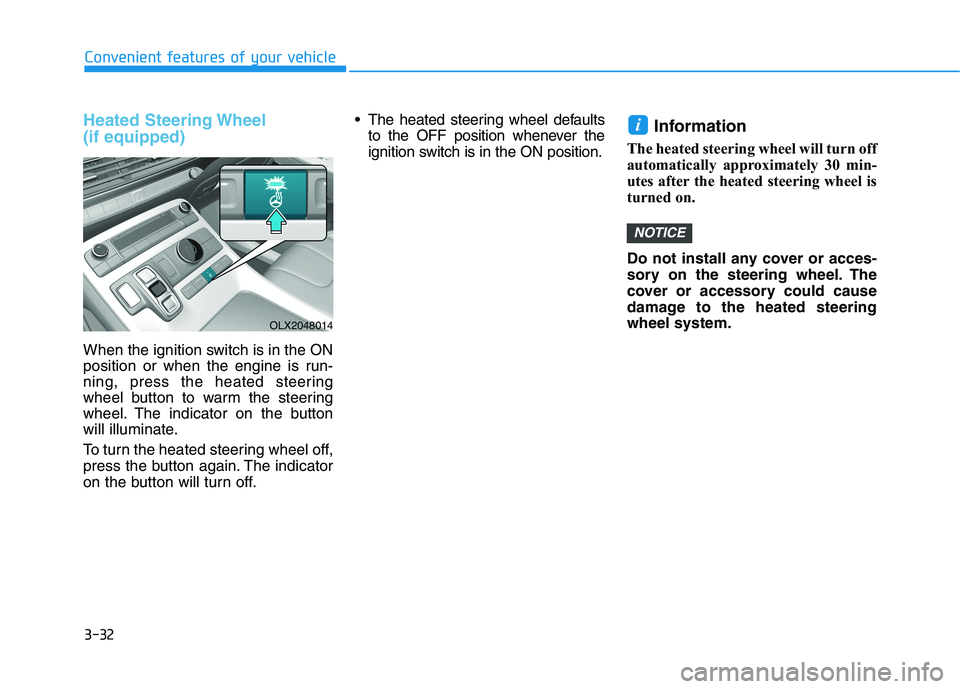
Heated Steering Wheel
(if equipped)
When the ignition switch is in the ON
position or when the engine is run-
ning, press the heated steering
wheel button to warm the steering
wheel. The indicator on the button
will illuminate.
To turn the heated steering wheel off,
press the button again. The indicator
on the button will turn off. The heated steering wheel defaults
to the OFF position whenever the
ignition switch is in the ON position.
Information
The heated steering wheel will turn off
automatically approximately 30 min-
utes after the heated steering wheel is
turned on.
Do not install any cover or acces-
sory on the steering wheel. The
cover or accessory could cause
damage to the heated steering
wheel system.
NOTICE
i
OLX2048014
Page 130 of 612

3-34
Convenient features of your vehicle
Electrochromatic Mirror (ECM)
(if equipped)
Some vehicles come equipped with
an electrochromic mirror that helps
control glare while driving at night or
under low light driving conditions.
When the engine is running, the
glare is automatically controlled by
the sensor mounted in the rearview
mirror. The sensor detects the light
level around the vehicle, and auto-
matically adjusts to control the head-
lamp glare from vehicles behind you.
Whenever the shift button is placed
in R (Reverse), the mirror will auto-
matically go to the brightest setting in
order to improve the driver’s view
behind the vehicle.
[A] : Indicator
When cleaning the mirror, use a
paper towel or similar material
dampened with glass cleaner. Do
not spray glass cleaner directly on
the mirror as that may cause the
liquid cleaner to enter the mirror
housing.
Electrochromatic Mirror (ECM)
with homelink system
(if equipped)
To operate the electric rearview
mirror
Press the I button (1) to turn the
automatic- dimming function on. The
mirror indicator light will illuminate.
Press the O button (2) to turn the
automatic- dimming function off. The
mirror indicator light will turn off.
NOTICE
OLX2048099L
OHD046025N
Page 131 of 612

3-35
Convenient features of your vehicle
HomeLink®Wireless Control System
Your new mirror comes with an inte-
grated HomeLink Universal
Transceiver, which allows you to pro-
gram the mirror to activate your
garage door(s), estate gate, home
lighting, etc. The mirror actually
learns the codes from your various
existing transmitters.Retain the original transmitter for
future programming procedures (i.e.,
new vehicle purchase). It is also sug-
gested that upon the sale of the vehi-
cle, the programmed HomeLink but-
tons be erased for security purposes
(follow step 1 in the "Programming"
portion of this text).
Programming
Your vehicle may require the ignition
switch to be turned to the ACC posi-
tion for programming and/or operation
of HomeLink. It is also recommended
that a new battery be replaced in the
hand-held transmitter of the device
being programmed to HomeLink for
quicker training and accurate trans-
mission of the radio-frequency.
Follow these steps to train your
HomeLink mirror:
3
OHD046305N
Glare detection sensorIndicator light
Homelink buttons
When programming the
HomeLink®Wireless Control
System, you may be operating
a garage door or gate operator.
Make sure that people and
objects are out of the way of
the moving door or gate to pre-
vent potential harm or damage.
Do not use HomeLink with
any garage door opener that
lacks the safety stop and
reverse feature as required by
U.S. federal safety standards.
(This includes any garage
door opener model manufac-
tured before April 1, 1982.) A
garage door opener which
cannot detect an object, sig-
naling the door to stop and
reverse, does not meet cur-
rent U.S. federal safety stan-
dards. Using a garage door
opener without these features
increases risk of serious
injury or death. For more
details, call 1-800-355-3515 or
on the internet at www.home-
link.com.
WARNING
Page 132 of 612
3-36
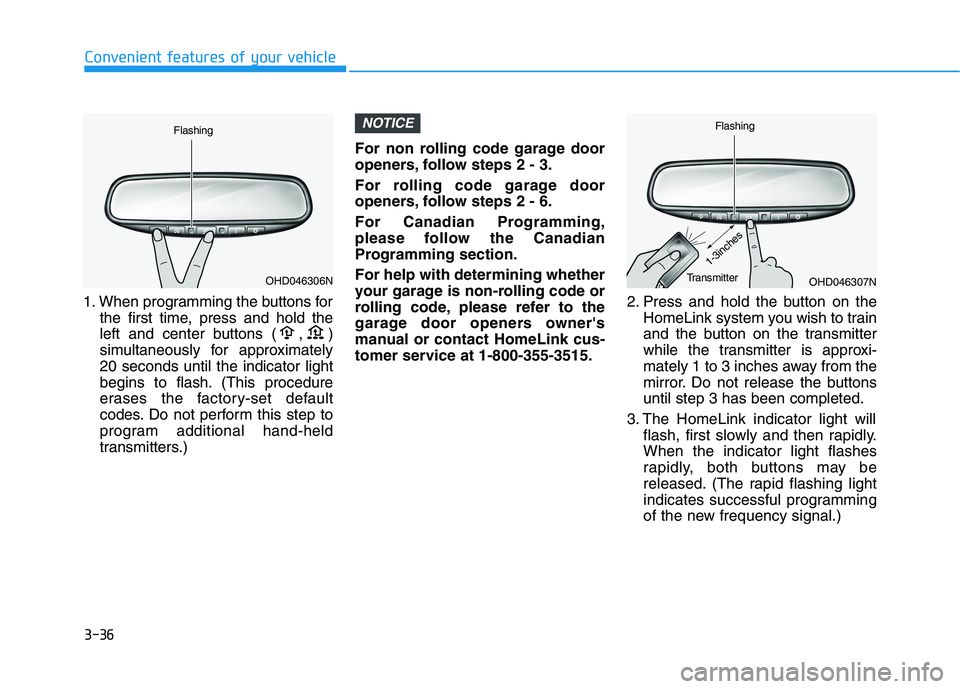
1. When programming the buttons for
the first time, press and hold the
left and center buttons ( , )
simultaneously for approximately
20 seconds until the indicator light
begins to flash. (This procedure
erases the factory-set default
codes. Do not perform this step to
program additional hand-held
transmitters.)For non rolling code garage door
openers, follow steps 2 - 3.
For rolling code garage door
openers, follow steps 2 - 6.
For Canadian Programming,
please follow the Canadian
Programming section.
For help with determining whether
your garage is non-rolling code or
rolling code, please refer to the
garage door openers owner's
manual or contact HomeLink cus-
tomer service at 1-800-355-3515.2. Press and hold the button on the
HomeLink system you wish to train
and the button on the transmitter
while the transmitter is approxi-
mately 1 to 3 inches away from the
mirror. Do not release the buttons
until step 3 has been completed.
3. The HomeLink indicator light will
flash, first slowly and then rapidly.
When the indicator light flashes
rapidly, both buttons may be
released. (The rapid flashing light
indicates successful programming
of the new frequency signal.)
NOTICE
Convenient features of your vehicle
OHD046307N
Flashing
1-3inchesTransmitterOHD046306N
Flashing
Page 133 of 612
3-37
Convenient features of your vehicle
Some gate operators and garage
door openers may require you to
replace step #3 with the "cycling"
procedure noted in the "Canadian
Programming" section of this doc-
ument.
Rolling code programming
To train a garage door opener (or
other rolling code equipped devices)
with the rolling code feature, follow
these instructions after completing
the "Programming" portion of this
text. (A second person may make the
following training procedures quicker
& easier.)
4. Locate the "learn" or "smart" but-
ton on the device's motor head
unit. Exact location and color of
the button may vary by product
brand. If there is difficulty locating
the "learn" or "smart" button, refer-
ence the device's owner's manual
or contact HomeLink at 1-800-
355-3515 or on the internet at
www.homelink.com.5. Press and release the "learn" or
"smart" button on the device’s
motor head unit. You have 30 sec-
onds to complete step number 6.
6. Return to the vehicle and firmly
press and release the pro-
grammed HomeLink button up to
three times. The rolling code
equipped device should now rec-
ognize the HomeLink signal and
activate when the HomeLink but-
ton is pressed. The remaining two
buttons may now be programmed
if this has not previously been
done. Refer to the "Programming"
portion of this text.
Operating HomeLink
To operate, simply press the pro-
grammed HomeLink button.
Activation will now occur for the
trained product (garage door, securi-
ty system, entry door lock, estate
gate, or home or office lighting). For
convenience, the hand-held trans-
mitter of the device may also be used
at any time. The HomeLink Wireless
Controls System (once programmed)
or the original hand-held transmitter
may be used to activate the device
(e.g. garage door, entry door lock,
etc.). In the event that there are still
programming difficulties, contact
HomeLink at 1-800-355-3515 or on
the internet at www.homelink.com.
NOTICE
3
Page 134 of 612
3-38
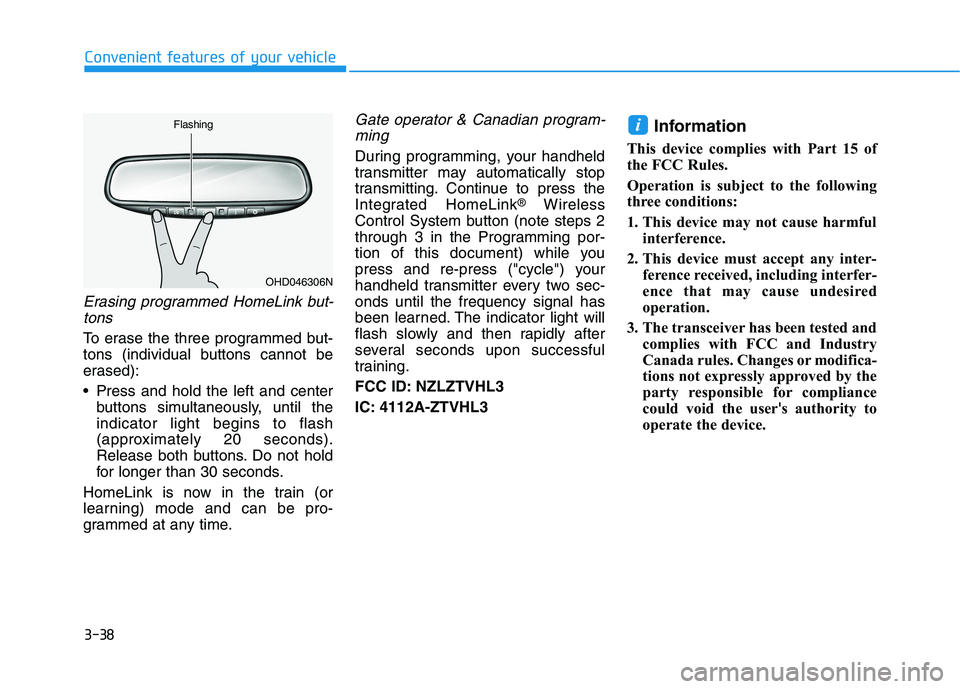
Erasing programmed HomeLink but-
tons
To erase the three programmed but-
tons (individual buttons cannot be
erased):
Press and hold the left and center
buttons simultaneously, until the
indicator light begins to flash
(approximately 20 seconds).
Release both buttons. Do not hold
for longer than 30 seconds.
HomeLink is now in the train (or
learning) mode and can be pro-
grammed at any time.
Gate operator & Canadian program-
ming
During programming, your handheld
transmitter may automatically stop
transmitting. Continue to press the
Integrated HomeLink
®Wireless
Control System button (note steps 2
through 3 in the Programming por-
tion of this document) while you
press and re-press ("cycle") your
handheld transmitter every two sec-
onds until the frequency signal has
been learned. The indicator light will
flash slowly and then rapidly after
several seconds upon successful
training.
FCC ID: NZLZTVHL3
IC: 4112A-ZTVHL3
Information
This device complies with Part 15 of
the FCC Rules.
Operation is subject to the following
three conditions:
1. This device may not cause harmful
interference.
2. This device must accept any inter-
ference received, including interfer-
ence that may cause undesired
operation.
3. The transceiver has been tested and
complies with FCC and Industry
Canada rules. Changes or modifica-
tions not expressly approved by the
party responsible for compliance
could void the user's authority to
operate the device.
i
Convenient features of your vehicle
OHD046306N
Flashing