2021 HYUNDAI ELANTRA SEL stop start
[x] Cancel search: stop startPage 156 of 570
Convenient Features
5-20
Remote Control with Digital Key
To use the remote control function with
your android smartphone, Bluetooth
must be turned on.
Remote Control Connection with Digital
Key
1.
Open Hyundai digital ke
y application
on the smartphone. Select the
vehicle to activate the remote control
function as a main vehicle.
2.
Approach with the activ
ated
smartphone app to your vehicle
and you can check whether the
connection is available. If it enables
your smartphone to connect, connect
with your vehicle by pressing the
connect button. The remote control
function is activated after completing
the process.
Remote Control Operation with Digital
Key
You can execute the remote control
operation including door lock/unlock,
panic on/off, remote start / remote
stop and trunk opening. The icon for
each function will be highlighted and
alarm/vibration also provided when the
operation is performed.
Note that you cannot lock your vehicle
using the Hyundai digital key app if any
of the following occurs:
• The POWER button is in ACC or ON
position.
• Any doors are open.
When the smartphone and the vehicle
are connected by the Bluetooth function
but the remote control command
cannot be received over 5 minutes, the
remote control connection is cancelled
automatically. CAUTION
• If metallic window tint was applied
to your vehicle, it may cause
bad Bluetooth connection or
performance degradation of the
digital key.
• If multiple users operate the remote
control function simultaneously, the
connection between the digital key
and the vehicle might result in failed
commands. Please connect and
operate the remote control function
only with the necessary user.
• When using the remote control
operation, the driver (the remote
control user) should leave the vehicle
after confirming the door lock (the
chime sounds once and the hazard
warning lights blink).
• The remote functions of the Digital
Key app enables the vehicle to be
controlled from a set distance. If
the digital key or the vehicle goes
beyond the operable distance, the
remote control function might be
disconnected or cancelled.
• If the digital key (smartphone) is
connected with the vehicle for the
remote control, the driver with the
key goes far away from the vehicle,
the function might not work.
• If the remote control operation
is executed where the mobile
connection is weak, Bluetooth
connection is poor due to several
Bluetooth devices or there is an
object such as metal or concrete, it
might be delayed or the operable
distance might decrease. You should
not cover the smartphone with your
hand or place other devices which
can cause frequency interference. It
may result in poor performance.
• If the remote control function is not
available, please use NFC function to
lock or unlock the doors.
Page 157 of 570
05
5-21
Remote Start with Digital Key
• When the shift lever of your vehicle
is in P (Park) and all of the doors
including trunk and hood is locked
and the vehicle is off, press the Door
Lock button in the Hyundai Digital
Key app then press the Remote Start
button within 4 seconds.
You can confirm the engine is on if the
hazard warning lights blinks two times
and the chime sounds.
• If you want to turn off the engine,
press Remote Engine Stop. Air
Conditioner / Heating system
maintains the same status as when
you last used the vehicle.
• Unless you put the registered digital
key(smartphone) on the interior
authentication pad (wireless charger)
when the remote start function is on,
the engine will turn off.
• If you do not get into the vehicle
within 10 minutes after the engine
turns on, the vehicle will turn off.
For more information, refer to the Engine
Start/Stop button in chapter 6.
Vehicle information Display
The digital key application displays
the vehicle information such as
driving or door conditions through the
communication with the vehicle.
• How to check : Select the vehicle
what you want to check and touch
the vehicle image, then vehicle
information display page will be
shown.
• Contents : accumulated odometer,
latest fuel economy, driving range,
fuel remaining, tire pressure, doors
lock/unlock status and last data
updated time.
ÃDisplay
ed vehicle date could be
differed from the current vehicle
condition.
à For mor
e information, please refer to
the ‘Tutorial’ on your Digital key app. Smartphone change/App deletion
If you change your smartphone or delete
the Hyundai Digital Key App, please refer
to the following to set up your Digital
Key:
Smartphone Change/ Reset
If you change or reset the smartphone,
the registered digital key in your previous
smartphone may not be used. Please
refer to following procedure to use the
digital key.
1.
Install the digital k
ey application and
log in.
2.
If you ar
e the owner, retry the Digital
key save process.
3.
If you ar
e the sharer, need to re-share
the key from owner.
App delete & reinstall/ Delete App data
You can re-download the digital key from
the server and follow these procedures.
1.
Reins
tall the application and log in.
2.
Input the PIN number for user
v
erification.
3.
If PIN is correct, digital k
ey data
will be re-downloaded to your
smartphone and you can use it
without any further registration or
sharing.
Smartphone operability with Digital Key
The digital key application may not be
available to older type smartphones.
Please check the available smartphone
models with your dealer. NFC antenna
position on the smartphone can be
confirmed on each smartphone’s manual
or contact to customer service center of
the smartphone manufacture.
Page 162 of 570
Convenient Features
5-26
If the digital key (card key) does not
work, please detach the key around
4 inches (0.1 m) from the handle
authentication pad and retry to contact.
The card key may be damaged by the
impact. It would not work properly if
the key is damaged. You should buy a
new card and register again. Long-time
exposure to high temperature may cause
the card key to malfunction. Please be
careful not to expose the key to direct
sunlight or high temperature.Start-up with Card key
After placing your registered card key
onto the interior authentication pad
(wireless charger), step on the brake and
press the Engine Start/Stop button.
WARNING
•
If you do not place the digital key
(card key) onto the center of the
interior authentication pad (wireless
charger) exactly, the card key may
not be recognized. If the engine is
not turned on, adjust and place the
key again.
• If you overlap and use the key
with NFC-enabled cards such as
transportation card or credit card,
the card key may not be recognized.
• If the digital key (card key) does not
work, please detach the key around
4 inches (0.1 m) from the handle
authentication pad and retry to
contact.
• The card key may be damaged due to
impact. It would not work properly if
the key is damaged. You should buy a
new card and register again.
For more information, refer to the
Engine Start/Stop button in chapter 6.
Page 163 of 570
05
5-27
„„Type A
ODN8A059133
„„Type B
ODN8A059247
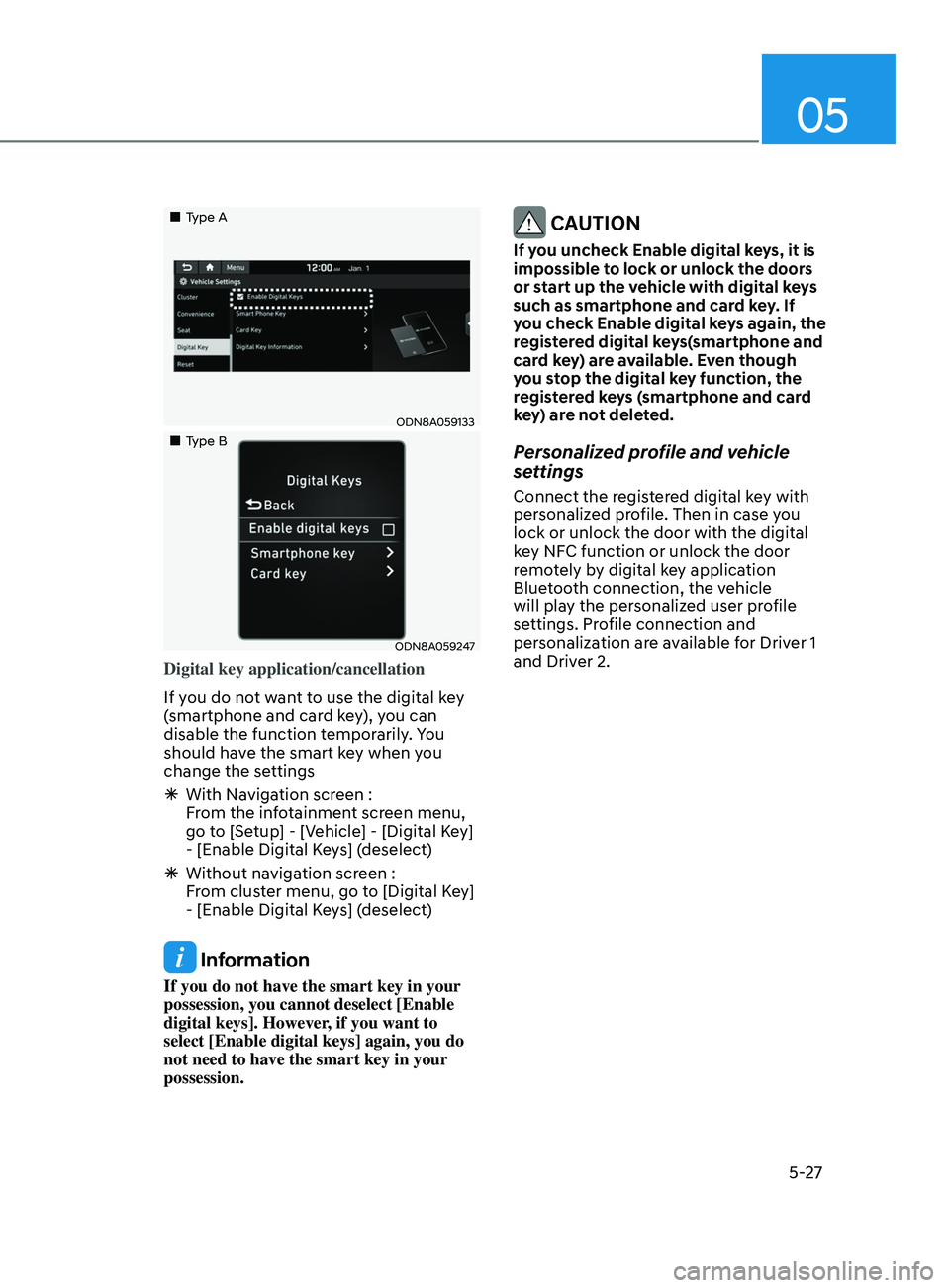
Digital key application/cancellation
If you do not want to use the digital key
(smartphone and card key), you can
disable the function temporarily. You
should have the smart key when you
change the settings
ÃWith Naviga
tion screen :
From the infotainment screen menu,
go to [Setup] - [Vehicle] - [Digital Key]
- [Enable Digital Keys] (deselect)
à Without naviga
tion screen :
From cluster menu, go to [Digital Key]
- [Enable Digital Keys] (deselect)
Information
If you do not have the smart key in your
possession, you cannot deselect [Enable
digital keys]. However, if you want to
select [Enable digital keys] again, you do
not need to have the smart key in your
possession.
CAUTION
If you uncheck Enable digital keys, it is
impossible to lock or unlock the doors
or start up the vehicle with digital keys
such as smartphone and card key. If
you check Enable digital keys again, the
registered digital keys(smartphone and
card key) are available. Even though
you stop the digital key function, the
registered keys (smartphone and card
key) are not deleted.
Personalized profile and vehicle
settings
Connect the registered digital key with
personalized profile. Then in case you
lock or unlock the door with the digital
key NFC function or unlock the door
remotely by digital key application
Bluetooth connection, the vehicle
will play the personalized user profile
settings. Profile connection and
personalization are available for Driver 1
and Driver 2.
Page 247 of 570
05
5-111
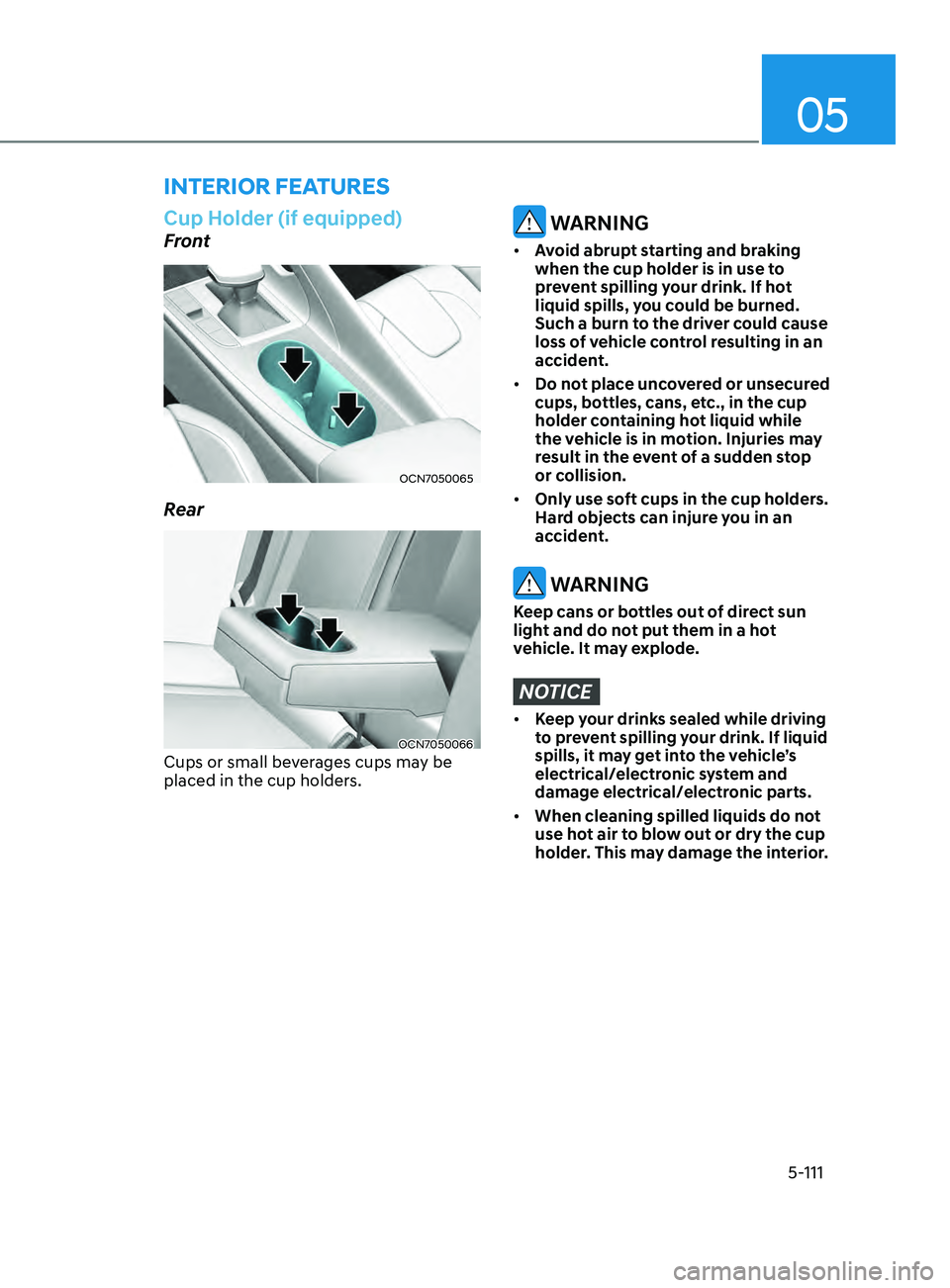
Cup Holder (if equipped)
Front
OCN7050065
Rear
OCN7050066
Cups or small beverages cups may be
placed in the cup holders.
WARNING
• Avoid abrupt starting and braking
when the cup holder is in use to
prevent spilling your drink. If hot
liquid spills, you could be burned.
Such a burn to the driver could cause
loss of vehicle control resulting in an
accident.
• Do not place uncovered or unsecured
cups, bottles, cans, etc., in the cup
holder containing hot liquid while
the vehicle is in motion. Injuries may
result in the event of a sudden stop
or collision.
• Only use soft cups in the cup holders.
Hard objects can injure you in an
accident.
WARNING
Keep cans or bottles out of direct sun
light and do not put them in a hot
vehicle. It may explode.
NOTICE
• Keep your drinks sealed while driving
to prevent spilling your drink. If liquid
spills, it may get into the vehicle’s
electrical/electronic system and
damage electrical/electronic parts.
• When cleaning spilled liquids do not
use hot air to blow out or dry the cup
holder. This may damage the interior.
interior FeAtures
Page 251 of 570
5-115
05
Information
For some manufacturers’ cellular phones,
the system may not warn you even though
the cellular phone is left on the wireless
charging unit. This is due to the particular
characteristic of the cellular phone and
not a malfunction of the wireless charging.
NOTICE
• The wireless cellular phone charging
system may not support certain
cellular phones, which are not
verified for the Qi specification (
).
•
When placing your c
ellular phone
on the charging mat, position the
phone in the middle of the mat for
optimal charging performance. If
your cellular phone is off to the side,
the charging rate may be less and in
some cases the cellular phone may
experience higher heat conduction.
•
In some cases, the wireless char
ging
may stop temporarily when the
Remote Key or Smart Key is used,
either when starting the vehicle or
locking/unlocking the doors, etc.
•
The wireless char
ging process may
temporarily stop, when temperature
abnormally increases inside the
wireless cellular phone charging
system. Stop the charging cellular
phone and wait until temperature
falls to a certain level.
•
The wireless char
ging process may
temporarily stop when there is
any metallic item, such as a coin,
between the wireless cellular phone
charging system and the cellular
phone. •
When charging some c
ellular phones
with a self-protection feature,
the wireless charging speed may
decrease and the wireless charging
may stop.
•
If the c
ellular phone has a thick
cover, the wireless charging may not
be possible.
•
If the c
ellular phone is not
completely contacting the charging
pad, wireless charging may not
operate properly.
• Some magnetic it ems like credit
cards, phone cards or rail tickets may
be damaged if left with the cellular
phone during the charging process.
•
When any c
ellular phone without
a wireless charging function or a
metallic object is placed on the
charging pad, a small noise may
sound. This small sound is due to the
vehicle discerning compatibility of
the object placed on the charging
pad. It does not affect your vehicle or
the cellular phone in any way.
Information
If the ignition switch is in the LOCK/ OFF
position, the charging also stops.
Information
This device complies with part 15 of the
FCC Rules.
Operation is subject to the following two
conditions:
1.
This device may not cause harmful
interference, and
2.
This device must accept any
interference r
eceived, including
interference that may cause undesired
operation.
Page 260 of 570

6
6. While Driving
Before Driving ........................................................................\
........................6-4Before Entering the Vehicle ........................................................................\
.............6-4
Bef ore Starting ........................................................................\
................................. 6-4
Ignition Switch ........................................................................\
.......................6-5Key Ignition Switch ........................................................................\
.......................... 6-5
Engine S tart/Stop Button ........................................................................\
................ 6-8
Intelligent variable transmission ..................................................................6-12Intelligent variable transmission operation ...........................................................6-12
P arking ........................................................................\
............................................. 6-
17
Good driving practices
........................................................................\
.................... 6-
18
Brake System ........................................................................\
........................6-19Power Brakes ........................................................................\
...................................6-19
Disc Brak es Wear Indicator........................................................................\
.............6-19
Parking brake
........................................................................\
.................................. 6-
20
Electronic Parking Brake (EPB)
........................................................................\
..... 6-22
A
uto Hold
........................................................................\
.....................................
...6-26
Anti-lock Brake System (ABS) ..................................................................... 6-29Electronic Stability Control (ESC) ........................................................................\
.. 6-31
V ehicle Stability Management (VSM) .................................................................. 6-
33
Hill-Start Assist Control (HAC)
........................................................................\
....... 6-
34
Good Braking Practices
........................................................................\
................. 6-
34
ISG (Idle Stop and Go) system..................................................................... 6-35To Activate the ISG System ........................................................................\
............6-35
T o Deactivate the ISG System ........................................................................\
....... 6-37
ISG System Malfunction
........................................................................\
................ 6-
37
Battery Sensor Deactivation
........................................................................\
.......... 6-
38
Drive Mode Integrated Control System ......................................................6-39Drive Mode ........................................................................\
..................................... 6-39
Smart shift on trip comput er ........................................................................\
......... 6-42
Special Driving Conditions ........................................................................\
..6-43Hazardous Driving Conditions ........................................................................\
...... 6-43
Rocking the V ehicle ........................................................................\
....................... 6-43
Smoo
th Cornering
........................................................................\
.......................... 6-44
Driving a
t Night
........................................................................\
.............................. 6-44
Driving in the Rain ........................................................................\
.......................... 6-44
Driving in Flooded Ar
eas
........................................................................\
................ 6-45
High
way Driving
........................................................................\
............................. 6-45
Page 266 of 570
06
6 -7
Starting the engine
WARNING
Always wear appropriate shoes when
operating your vehicle.
Unsuitable shoes, such as high heels,
ski boots, sandals, flip-flops, etc., may
interfere with your ability to use the
brake and accelerator pedals.
Vehicle with intelligent variable
transmission:
1.
Make sur
e the parking brake is
applied.
2.
Make sur
e the shift lever is in P (Park).
3.
Depress the br
ake pedal.
4.
Turn the ignition s
witch to the START
position. Hold the key (maximum of
10 seconds) until the engine starts and
release it.
Information
• It is best to maintain a moderate engine
speed until the vehicle engine comes
up to normal operating temperature.
Avoid harsh or abrupt acceleration or
deceleration while the engine is still
cold.
• Whether the engine is cold or warm,
always start the vehicle with your foot
on the brake pedal. Do not depress the
accelerator while starting the vehicle.
Do not rev the engine while warming
it up.
NOTICE
To prevent damage to the vehicle:
• Do not hold the ignition key in the
START position for more than 10
seconds. Wait 5 to 10 seconds before
trying again.
• Do not push or tow your vehicle to
start the engine.
Turning off the engine
1. Stop the vehicle and depress the
br
ake pedal fully.
2.
Shift the gear to P (P
ark).
3.
Turn the ignition s
witch to the off
position and apply the parking brake.