Page 277 of 659

275
uuAudio System Basic Operation uVoice Control Operation
Continued
Features
Voice Control Operation
Your vehicle has a voice control syst em that allows hands-free operation.
The voice control system uses the (tal k) and (back) buttons on the steering
wheel and a microphone near the map lights on the ceiling.
To achieve optimum voice recognition when using the voice control system:
• Make sure the correct screen is displa yed for the voice command that you are
using.
The system recognizes only certain commands.
Available voice commands.
2 Voice Portal Screen P. 276
•Close the windows and moonroof*.
• Adjust the dashboard and side vents so air does not blow onto the microphone
on the ceiling.
• Speak clearly in a clear, natural speaking voice without pausing between words.
• Reduce any background noise if possible. The system may misinterpret your
command if more than one person is speaking at the same time.
■Voice Recognition
1Voice Control Operation
When you press the button, a helpful prompt asks
what you would like to do. Press and release the
button again to bypass this prompt and give a
command.
* Not available on all models
Page 281 of 659
Continued279
uuAudio System Basic Operation uPlaying AM/FM Radio
Features
To store a station:
1. Tune to the selected station.
2. Select and hold the preset icon fo r the station you want to store.
Lists the strongest stations on the selected band.
1. Select Station List to display a list.
2. Select the station.
■Manual update
Updates your available st ation list at any time.
1. Select Station List to display a list.
2. Select Refresh .
■Preset Memory
■Station List
1Preset Memory
The ST indicator appears on the display indicating
stereo FM broadcasts.
Stereo reproduction in AM is not available.
Switching the Audio Mode
Roll the left selector wheel or select the audio source
icon on the screen. 2 Audio Remote Controls P. 250
You can store 12 AM/FM stations into preset memory.
HD Radio Technology manufactured under license
from iBiquity Digi tal Corporation. U.S. and Foreign
Patents. For patents see http://dts.com/patents. HD
Radio, Artist Experience, and the HD, HD Radio, and
“ARC” logos are registered trademarks or
trademarks of iBiquity Di gital Corporation in the
United States and/ or other countries.
Models with HD RadioTM feature
Page 285 of 659
Continued283
uuAudio System Basic Operation uPlaying SiriusXM ® Radio*
Features
1. Select Settings .
2. Select Tune Mode .
3. Select Channel or Category .
■To Change the Tune Mode1Playing SiriusXM ® Radio*
In the channel mode, all available channels are
selectable. In the categor y mode, you can select a
channel within a ca tegory (Jazz, Rock, Classical, etc.).
There may be instances when SiriusXM ® Radio does
not broadcast all the data fi elds (artist name, title).
This does not indicate a problem with your audio
system.
SiriusXM ® Radio stations load in ascending order,
which can take about a minute. Once they have
loaded you will be able to scroll up or down to make
your selections.
Switching the Audio Mode
Roll up or down the left se lector wheel to select
Audio or select the audio source icon on the screen.
2 Audio Remote Controls P. 250
Tune Start:
When you change to a preset channel, a song being
played on that channel restarts from the beginning
with this function. This can be turned on or off by the
following procedure.
1. Select Settings .
2. Select Tune Start .
3. Select ON or OFF .
To change a category, select Category icons, or
select More and then select Category List.
* Not available on all models
Page 310 of 659
uuAudio System Basic Operation uHondaLink ® Service*
308
Features
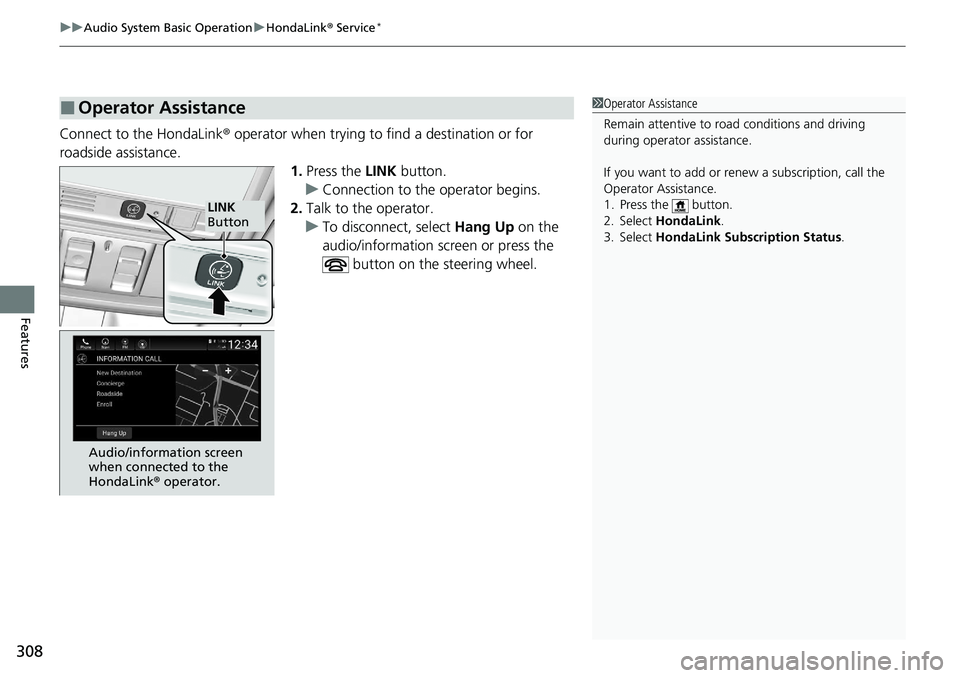
Connect to the HondaLink ® operator when trying to find a destination or for
roadside assistance. 1.Press the LINK button.
u Connection to the operator begins.
2. Talk to the operator.
u To disconnect, select Hang Up on the
audio/information screen or press the
button on the steering wheel.
■Operator Assistance1Operator Assistance
Remain attentive to road conditions and driving
during operator assistance.
If you want to add or re new a subscription, call the
Operator Assistance.
1. Press the button.
2. Select HondaLink .
3. Select HondaLink Subscription Status .
LINK
Button
Audio/information screen
when connected to the
HondaLink ® operator.
Page 315 of 659
313
uuAudio System Basic Operation uSiri Eyes Free*
Features
Siri Eyes Free*
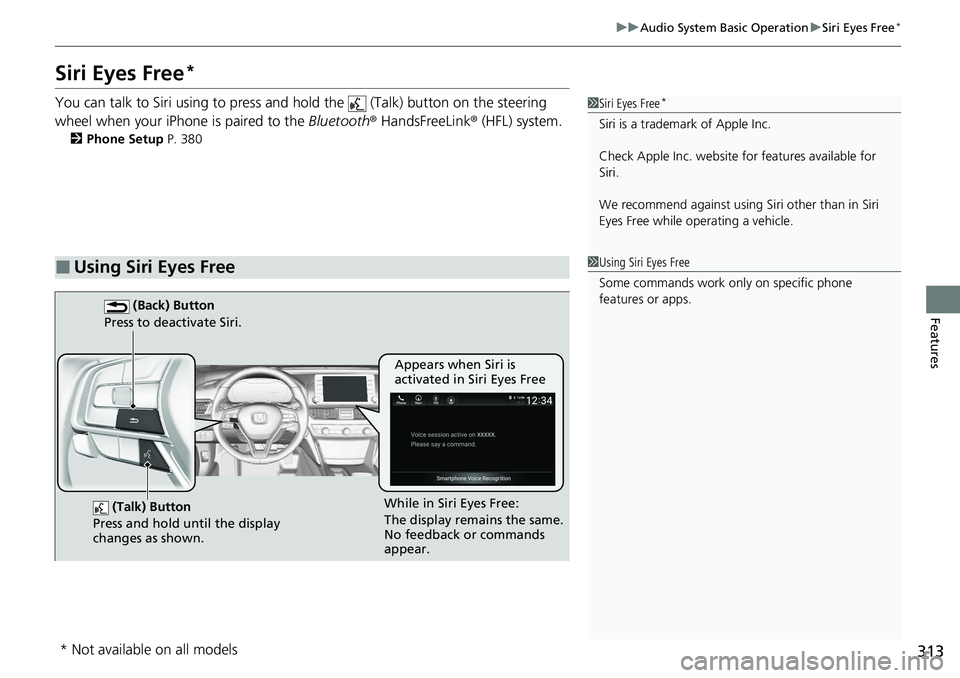
You can talk to Siri using to press and hold the (Talk) button on the steering
wheel when your iPhone is paired to the Bluetooth® HandsFreeLink ® (HFL) system.
2 Phone Setup P. 380
■Using Siri Eyes Free
1Siri Eyes Free*
Siri is a trademark of Apple Inc.
Check Apple Inc. website for features available for
Siri.
We recommend against using Si ri other than in Siri
Eyes Free while operating a vehicle.
1 Using Siri Eyes Free
Some commands work only on specific phone
features or apps.
(Talk) Button
Press and hold until the display
changes as shown.
(Back) Button
Press to deactivate Siri.
While in Siri Eyes Free:
The display remains the same.
No feedback or commands
appear. Appears when Siri is
activated in Siri Eyes Free
* Not available on all models
Page 321 of 659
319
uuAudio System Basic Operation uApple CarPlay
Continued
Features
■Connect Apple CarPlay wirelessly with the steering wheel
1. Press and hold the (talk) button on the steering wheel.
2. Pair the iPhone to the vehicle’s Bluetooth® HandsFreeLink ® (HFL) system.
2Phone Setup P. 380
3.Check the box on Apple CarPlay.
u If you select Apple CarPlay , you cannot select Audio and Phone .
4. Select Connect .
5. Select Yes.
u If your iPhone asks to accept for connecting Apple CarPlay, accept for
connection.
Page 328 of 659
326
uuAudio System Basic Operation uAndroid Auto
Features
■Connect Android Auto wirelessly on the Bluetooth® device list
1. Press the button.
2. Select Settings .
3. Select Connections .
4. Select Bluetooth .
5. Select + Connect New Device.
6. Pair the Android phone to the vehicle’s Bluetooth® HandsFreeLink ® (HFL) system.
2Phone Setup P. 380
7.Check the box on Android Auto.
u If you select Android Auto , you cannot select Audio and Phone .
8. Select Connect .
9. Select Yes.
u If your Android phone asks to accept for connecting Android Auto, accept for
connection.
■Connect Android Auto wirele ssly with the steering wheel
1. Press and hold the (talk) button on the steering wheel.
2. Pair the Android phone to the vehicle’s Bluetooth® HandsFreeLink ® (HFL) system.
2Phone Setup P. 380
3.Check the box on Android Auto.
u If you select Android Auto , you cannot select Audio and Phone .
4. Select Connect .
5. Select Yes.
u If your Android phone asks to accept for connecting Android Auto, accept for
connection.
Page 332 of 659
330
Features
General Information on the Audio System
SiriusXM® Radio Service*
1. You need your radio ID ready before regist ering for subscription. To see the ID in
the screen, select Channel to 0.
2. Have your radio ID ready, and either call or visit the SiriusXM ® website to
subscribe.
Switch to the SiriusXM ® mode by using the audio remote controls on the steering
wheel, or through the audio/information screen, and stay in this mode for about 30
minutes until the service is activated. Make sure your vehicle is in an open area with
good reception.
Channel **** is not subscribed. Call SiriusXM to subscribe.
*1
You are not subscribed to the channel selected.
Subscription updated:
SiriusXM ® radio is receiving informat ion update from the network.
Channel Not Available:
No such channel exits, or the artist or title information is unavailable.
No Signal:
The signal is too weak in the current location.
Check Tuner:
There is a problem with the SiriusXM ® tuner. Contact a dealer.
Check Antenna:
There is a problem with the SiriusXM ® antenna. Contact a dealer.
*1 : ****part is variable characters, and w ill change depending upon where an subscribe.
■Subscribing to SiriusXM® Radio
■Receiving SiriusXM ® Radio
■SiriusXM ® Radio Display Messages
1 Subscribing to SiriusXM ® Radio
Contact Information for SiriusXM ® Radio:
•US: SiriusXM ® Radio at
www.siriusxm.com/subscribenow , or 1-866-635-
2349
•Canada: SiriusXM ® Canada at
www.siriusxm.ca/subscribe-now , or 1-877-209-
0079
1 Receiving SiriusXM ® Radio
The SiriusXM ® satellites are in orbit over the equator;
therefore, objects south of the vehicle may cause
satellite reception interruptions. Sa tellite signals are
more likely to be blocked by tall buildings and
mountains the farther north you travel from the
equator.
You may experience rece ption problems under the
following circumstances:
•In a location with an obstruction to the south of
your vehicle.
•In tunnels
•On the lower level of a multi-tiered road•Large items carried on the roof rack
* Not available on all models