2021 GMC TERRAIN instrument cluster
[x] Cancel search: instrument clusterPage 120 of 377
GMC Terrain/Terrain Denali Owner Manual(GMNA-Localizing-U.S./Canada/
Mexico-14420055) - 2021 - CRC - 11/13/20
Lighting 119
Hazard Warning Flashers
|:Press to make the front and rear turn
signal lamps flash on and off. This warns
others that you are having trouble.
Press
|again to turn the flashers off.
Turn and Lane-Change Signals
Move the lever all the way up or down to
signal a turn.
An arrow on the instrument cluster flashes
in the direction of the turn or lane change.
Raise or lower the lever until the arrow
starts to flash to signal a lane change. Hold
it there until the lane change is completed.
If the lever is briefly pressed and released,
the turn signal flashes three times.
The turn and lane-change signal can be
turned off manually by moving the lever
back to its original position.
If after signaling a turn or lane change, the
arrow flashes rapidly or does not come on, a
signal bulb may be burned out. Replace any burned out bulbs. If a bulb is
not burned out, check the fuse. See
Fuses
and Circuit Breakers 0280.
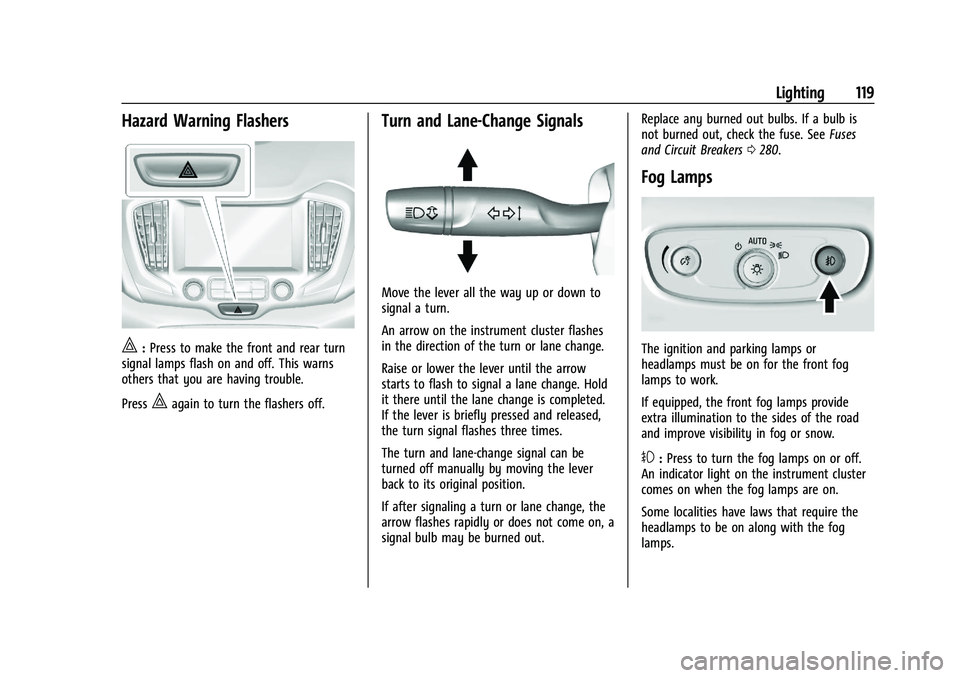
Fog Lamps
The ignition and parking lamps or
headlamps must be on for the front fog
lamps to work.
If equipped, the front fog lamps provide
extra illumination to the sides of the road
and improve visibility in fog or snow.
#:Press to turn the fog lamps on or off.
An indicator light on the instrument cluster
comes on when the fog lamps are on.
Some localities have laws that require the
headlamps to be on along with the fog
lamps.
Page 124 of 377

GMC Terrain/Terrain Denali Owner Manual(GMNA-Localizing-U.S./Canada/
Mexico-14420055) - 2021 - CRC - 11/13/20
Infotainment System 123
Infotainment System
Introduction
Introduction . . . . . . . . . . . . . . . . . . . . . . . . . . . 123
Overview . . . . . . . . . . . . . . . . . . . . . . . . . . . . . . 124
Steering Wheel Controls . . . . . . . . . . . . . . . 126
Using the System . . . . . . . . . . . . . . . . . . . . . . 127
Software Updates . . . . . . . . . . . . . . . . . . . . . 130
Radio
AM-FM Radio . . . . . . . . . . . . . . . . . . . . . . . . . . 130
HD Radio Technology . . . . . . . . . . . . . . . . . . 132
Radio Data System (RDS) . . . . . . . . . . . . . . 132
Satellite Radio . . . . . . . . . . . . . . . . . . . . . . . . . 133
Radio Reception . . . . . . . . . . . . . . . . . . . . . . . . 133
Multi-Band Antenna . . . . . . . . . . . . . . . . . . . 133
Audio Players
Avoiding Untrusted Media Devices . . . . . 134
USB Port . . . . . . . . . . . . . . . . . . . . . . . . . . . . . . . 134
Bluetooth Audio . . . . . . . . . . . . . . . . . . . . . . . 136
OnStar System
OnStar System . . . . . . . . . . . . . . . . . . . . . . . . . 137
Navigation
Using the Navigation System . . . . . . . . . . 138
Maps . . . . . . . . . . . . . . . . . . . . . . . . . . . . . . . . . . 141
Navigation Symbols . . . . . . . . . . . . . . . . . . . . 141
Destination . . . . . . . . . . . . . . . . . . . . . . . . . . . . 142
OnStar System . . . . . . . . . . . . . . . . . . . . . . . . 148Global Positioning System (GPS) . . . . . . . 148
Vehicle Positioning . . . . . . . . . . . . . . . . . . . . 148
Problems with Route Guidance . . . . . . . . 149
If the System Needs Service . . . . . . . . . . . 149
Map Data Updates . . . . . . . . . . . . . . . . . . . . 149
Database Coverage Explanations . . . . . . . 150
Voice Recognition
Voice Recognition . . . . . . . . . . . . . . . . . . . . . 150
Phone
Bluetooth (Overview) . . . . . . . . . . . . . . . . . . 155
Bluetooth (Pairing and Using a
Phone) . . . . . . . . . . . . . . . . . . . . . . . . . . . . . . . 156
Apple CarPlay and Android Auto . . . . . . 160
Settings
Settings . . . . . . . . . . . . . . . . . . . . . . . . . . . . . . . 160
Teen Driver . . . . . . . . . . . . . . . . . . . . . . . . . . . . 167
Trademarks and License Agreements
Trademarks and License Agreements . . . . . . . . . . . . . . . . . . . . . . . . . 169
Introduction
Read the following pages to become familiar
with the features.
{Warning
Taking your eyes off the road for too
long or too often while using any
infotainment feature can cause a crash.
You or others could be injured or killed.
Do not give extended attention to
infotainment tasks while driving. Limit
your glances at the vehicle displays and
focus your attention on driving. Use voice
commands whenever possible.
The infotainment system has built-in
features intended to help avoid distraction
by disabling some features when driving.
These features may gray out when they are
unavailable. Many infotainment features are
also available through the instrument cluster
and steering wheel controls.
Before driving:
.Become familiar with the operation,
center stack controls, steering wheel
controls, and infotainment display.
Page 152 of 377

GMC Terrain/Terrain Denali Owner Manual(GMNA-Localizing-U.S./Canada/
Mexico-14420055) - 2021 - CRC - 11/13/20
Infotainment System 151
Hybrid Speech Recognition
If equipped, this feature helps distinguish
words by using Internet-based information
along with the system’s voice recognition
database. This allows you to speak more
naturally when using voice recognition.
Using Voice Recognition
Voice recognition becomes available once
the system has been initialized. This begins
when the ignition is turned on. Initialization
may take a few moments.1. Press
gon the steering wheel controls
to activate voice recognition.
2. The audio system mutes and the system plays a prompt.
3. Clearly speak one of the commands described in this section.
A voice recognition system prompt can
be interrupted while it is playing by
pressing
gagain.
Once voice recognition is started, both the
infotainment display and instrument cluster
show the selections and visual dialog
content. These displays can be turned on or
off in the Tutorial Mode under Settings
0 160. There are three voice prompt modes
supported:
.Informative verbal prompts: This type of
prompt will provide more information
regarding the supported actions.
.Short prompts: This type of prompt will
provide simple instructions about what
can be stated.
.Auto informative prompts: This type of
prompt plays during the first few speech
sessions, then automatically switches to
the short prompt after some experience
has been gained through using the
system.
If a command is not spoken, the voice
recognition system says a help prompt.
Prompts and Infotainment Displays
While a voice recognition session is active,
there may be corresponding options
showing on the displays. A selection can be
made by manually touching the option,
or by speaking the number for the option to
select. Manual interaction in the voice
recognition session is permitted. Interaction
during a voice session may be completed
entirely using voice commands while some
manual commands may expedite a task. If a
selection is made using a manual control, the voice recognition dialog will progress in
the same way as if the selection were made
using a voice command. Once the system
completes the task, or the session is
terminated, the voice recognition dialog
stops.
An example of this type of manual
intervention is touching an entry of a
displayed number list instead of speaking
the number associated with the entry
desired.
Canceling Voice Recognition
.Touch or say
“Cancel”or“Exit” to
terminate the voice recognition session
and show the display where voice
recognition was initiated.
.Pression the steering wheel controls
to terminate the voice recognition session
and show the display where voice
recognition was initiated.
Natural Language Commands
Most languages do not support natural
language commands in sentence form. For
those languages, use direct commands like
the examples shown on the display.
Page 167 of 377

GMC Terrain/Terrain Denali Owner Manual(GMNA-Localizing-U.S./Canada/
Mexico-14420055) - 2021 - CRC - 11/13/20
166 Infotainment System
.Set Up My Places
.Map Preferences
.Route Preferences
.Navigation Voice Control
.Traffic Preferences
.Alert Preferences
.Manage History
.Predictive Navigation
.About
See Using the Navigation System 0138.
Phone
Touch and the following may display:
.My Number: Displays the cell phone
number of the Bluetooth connected
device.
.Active Call View: Shows active call display
when answering a call.
Touch the controls on the infotainment
display to disable or enable.
.Privacy: Only show call alerts in the
instrument cluster.
Touch Off or On.
.Sort Contacts: Touch to sort by first or
last name.
.Re-sync Device Contacts: This allows the device contacts to re-sync
if you are having difficulty accessing all of
the contacts on your cell phone.
.Delete All Vehicle Contacts: Touch to
delete all vehicle stored contacts.
.OnStar Phone TTY Mode: This enables
OnStar cell phone TTY mode.
Touch Disable or Enable.
Vehicle
This menu allows adjustment of different
vehicle features. See
Vehicle Personalization
0 108.
Personal
If equipped, this menu allows adjustment of
different user profile settings. See “Users”in
Using the System 0127 for information on
setting up user profiles.
The menu may contain the following:
Name
Touch to edit your user name that will be
displayed in the vehicle.
Vehicle Account Information
Touch to view the vehicle account
information and to change the account
password. An
“unverified user account” pop-up will
display until the account information
verification process has been completed on
the Internet. Check your registered e-mail
account for an activation e-mail to complete
the verification process.
Profile Picture
Touch to choose or change your profile
picture.
Profile Identifiers
Touch to have the vehicle recognize the
identifier you choose.
Touch Vehicle Key 1 and/or Vehicle Key 2.
If the Remote Key is lost or stolen, see your
dealer.
Security
Touch to have your profile secured with a
Personal Identification Number (PIN).
Touch No or Yes.
Vehicle Name
Touch to edit your vehicle name.
Vehicle Account
Touch to view the vehicle account
information and to change the account
password.
Page 170 of 377

GMC Terrain/Terrain Denali Owner Manual(GMNA-Localizing-U.S./Canada/
Mexico-14420055) - 2021 - CRC - 11/13/20
Infotainment System 169
.Enhanced Low Fuel Warning (if equipped)
–When the vehicle is low on fuel, the
low fuel light on the instrument cluster
flashes and the DIC low fuel warning
cannot be dismissed.
.Do not tow a trailer.
Report Card
The vehicle owner must secure the driver’s
consent to record certain vehicle data when
the vehicle is driven with a registered Teen
Driver key. There is one Report Card per
vehicle. Data is only recorded when a
registered Teen Driver key is used to
operate the vehicle.
The Report Card data is collected from the
time Teen Driver is activated or the last
time the Report Card was reset. The
following items may be recorded:
.Distance Driven –the total distance
driven.
.Maximum Speed –the maximum vehicle
speed detected.
.Overspeed Warnings –the number of
times the speed warning setting was
exceeded.
.Wide Open Throttle –the number of
times the accelerator pedal was pressed
nearly all the way down.
.Forward Collision Alerts –the number of
times the driver was notified when
approaching a vehicle ahead too quickly
and at potential risk for a crash.
.Forward Automatic Braking, also called
Automatic Emergency Braking (if
equipped) –the number of times the
vehicle detected that a forward collision
was imminent and applied the brakes.
.Reverse Automatic Braking (if equipped) –
the number of times the vehicle detected
that a rearward collision was imminent
and applied the brakes.
.Traction Control –the number of times
the Traction Control System activated to
reduce wheel spin or loss of traction.
.Stability Control –the number of events
which required the use of electronic
stability control.
.Antilock Braking System Active –The
number of Antilock Brake System
activations.
.Tailgating Alerts –the number of times
the driver was alerted for following a
vehicle ahead too closely. Report Card Data
Cumulative Data is saved for all trips until
the Report Card is reset or until the
maximum count is exceeded. If the
maximum count is exceeded for a Report
Card line item, that item will no longer be
updated in the Report Card until it is reset.
Each item will report a maximum of
1,000 counts. The distance driven will report
a maximum of 64 374 km (40,000 mi).
To delete Report Card data, do one of the
following:
.From the Report Card display, touch
Reset.
.Touch Clear All Teen Keys and PIN from
the Teen Driver menu. This will also
unregister any Teen Driver keys and
delete the PIN.
Forgotten PIN
See your dealer to reset the PIN.
Trademarks and License
Agreements
FCC Information
See Radio Frequency Statement 0354.
Page 216 of 377

GMC Terrain/Terrain Denali Owner Manual(GMNA-Localizing-U.S./Canada/
Mexico-14420055) - 2021 - CRC - 11/13/20
Driving and Operating 215
It is recommended to leave both systems on
for normal driving conditions, but it may be
necessary to turn TCS off if the vehicle gets
stuck in sand, mud, ice, or snow. SeeIf the
Vehicle Is Stuck 0195 and “Turning the
Systems Off and On” later in this section.
The indicator light for both systems is in the
instrument cluster. This light will:
.Flash when TCS is limiting wheel spin
.Flash when StabiliTrak/ESC is activated
.Turn on and stay on when either system
is not working
If either system fails to turn on or to
activate, a message displays in the Driver
Information Center (DIC), and
dcomes on
and stays on to indicate that the system is
inactive and is not assisting the driver in
maintaining control. The vehicle is safe to
drive, but driving should be adjusted
accordingly. If
dcomes on and stays on:
1. Stop the vehicle.
2. Turn the engine off and wait 15 seconds.
3. Start the engine.
Drive the vehicle. If
dcomes on and stays
on, the vehicle may need more time to
diagnose the problem. If the condition
persists, see your dealer.
Turning the Systems Off and On
(Uplevel Cluster)
Caution
Do not repeatedly brake or accelerate
heavily when TCS is off. The vehicle
driveline could be damaged.
At speeds of 56 km/h (35 mph) or above,
this ability to turn off or on is disabled.
TCS and StabiliTrak/ESC can be turned off or
on using the DIC controls as follows:
Pressoorpto scroll to the Options
application.
Press
worxto scroll through the items
in the Options menu.
Press
Vto select the Traction and Stability
page, then press
Vto select the menu. Use
worxto select Traction (TCS) or
Stability (ESC).
To turn TCS off, select Traction, then press
V. The TCS icon on the DIC will change
from On to Off and
iilluminates in the
instrument cluster.
Page 217 of 377

GMC Terrain/Terrain Denali Owner Manual(GMNA-Localizing-U.S./Canada/
Mexico-14420055) - 2021 - CRC - 11/13/20
216 Driving and Operating
To turn TCS back on, select Traction, then
press
V. The TCS icon on the DIC will
change from Off to On and
igoes out in
the instrument cluster. TCS cannot be on
when StabiliTrak/ESC is off.
To turn StabiliTrak/ESC off, select Stability,
then press
V. The StabiliTrak/ESC icon on
the DIC will change from On to Off. If TCS
was on when StabiliTrak/ESC was turned off,
both will turn off and
iandgilluminate.
To turn StabiliTrak/ESC back on, select
Stability then press
V. The StabiliTrak/ESC
icon on the DIC will change from Off to On
and
ggoes out in the instrument cluster.
To turn both StabiliTrak/ESC and TCS back
on, select Traction, then press
V. The
StabiliTrak/ESC and TCS icons on the DIC will
change from Off to On and
gandigo
out in the instrument cluster.
Adding accessories can affect the vehicle
performance. See Accessories and
Modifications 0258.
Turning the Systems Off and On
(Midlevel Cluster)
Caution
Do not repeatedly brake or accelerate
heavily when TCS is off. The vehicle
driveline could be damaged.
At speeds of 56 km/h (35 mph) or above,
this ability to turn off or on is disabled.
TCS and StabiliTrak/ESC can be turned off or
on using the DIC controls as follows:
Pressoto access the cluster applications.
Use
worxto scroll through the list of
available applications. Press
Vto select the Options application,
then press
pto enter the Options menu.
Use
worxto scroll through items in the
Options menu.
Press
Vto select the Traction and Stability
page, then press
pto select Traction menu.
Use
worxto select Traction (TCS) or
Stability (ESC).
To turn TCS off, select Traction, then press
V. The TCS icon on the DIC will change
from On to Off and
iilluminates in the
instrument cluster.
To turn TCS back on, select Traction, then
press
V. The TCS icon on the DIC will
change from Off to On and
igoes out in
the instrument cluster. TCS cannot be on
when StabiliTrak/ESC is off.
To turn StabiliTrak/ESC off, select Stability,
then press
V. The StabiliTrak/ESC icon on
the DIC will change from On to Off. If TCS
was on when StabiliTrak/ESC was turned off,
both will turn off and
iandgilluminate.
Page 218 of 377

GMC Terrain/Terrain Denali Owner Manual(GMNA-Localizing-U.S./Canada/
Mexico-14420055) - 2021 - CRC - 11/13/20
Driving and Operating 217
To turn StabiliTrak/ESC back on, select
Stability then press
V. The StabiliTrak/ESC
icon on the DIC will change from Off to On
and
ggoes out in the instrument cluster.
To turn both StabiliTrak/ESC and TCS back
on, select Traction, then press
V. The
StabiliTrak/ESC and TCS icons on the DIC will
change from Off to On and
gandigo
out in the instrument cluster.
Adding accessories can affect the vehicle
performance. See Accessories and
Modifications 0258.
Turning the Systems Off and On (Base
Level DIC)
Caution
Do not repeatedly brake or accelerate
heavily when TCS is off. The vehicle
driveline could be damaged.
At speeds of 56 km/h (35 mph) or above,
this ability to turn off or on is disabled.
TCS and StabiliTrak/ESC can be turned off or
on using the DIC controls as follows:
Pressoorpto select VEHICLE menu, then
use
worxto scroll through the menu
items to select TCS/StabiliTrak/ESC.
Press
Vto enter TCS/StabiliTrak/ESC, and
then use
worxto select TCS or
StabiliTrak/ESC.
To turn TCS off, select TCS, then press
V.i
will illuminate in the instrument cluster.
To turn TCS back on, select TCS, then press
V.igoes out in the instrument cluster.
TCS cannot be on when StabiliTrak/ESC
is off. To turn StabiliTrak off, select StabiliTrak/ESC,
then press
V. If TCS was on when
StabiliTrak/ESC was turned off, both will
turn off and
iandgilluminate in the
instrument cluster.
To turn StabiliTrak/ESC back on, select
StabiliTrak/ESC then press
V.ggoes out in
the instrument cluster.
To turn both StabiliTrak/ESC and TCS back
on, select Traction, then press
V.gandi
go out in the instrument cluster.
Adding accessories can affect the vehicle
performance. See Accessories and
Modifications 0258.
Hill Descent Control (HDC)
HDC can be used when driving downhill.
It sets and maintains vehicle speed while
descending a very steep incline in a forward
or reverse gear.
The HDC switch is on the center console.
Press
5to enable or disable HDC. Vehicle
speed must be below 50 km/h (31 mph).