2021 FORD SUPER DUTY ECO mode
[x] Cancel search: ECO modePage 252 of 666
A message displays if something obstructs
the radar signals from the sensor. The
sensor is in the lower grille. The system
cannot detect a vehicle ahead and does
not function when something blocks the
sensor.
Note:
You cannot see the sensor. It is
behind a fascia panel.
Keep the front of your vehicle free of dirt,
metal badges or objects. Vehicle front
protectors and aftermarket lights may also
block the sensor.
Possible Causes and Actions for This Message Displaying: Action
Cause
Clean the grille surface in front of the radar
or remove the object causing the obstruc-
tion.
The surface of the radar is dirty or
obstructed.
Wait a short time. It may take several
minutes for the radar to detect that it is free
from obstruction.
The surface of the radar is clean but the
message remains in the display.
Do not use the system in these conditions
because it may not detect any vehicles
ahead.
Heavy rain or snow is interfering with the
radar signals.
Do not use the system in these conditions
because it may not detect any vehicles
ahead.
Water, snow or ice on the surface of the
road may interfere with the radar signals.
Wait a short time or switch to normal cruise
control.
You are in a desert or remote area with no
other vehicles and no roadside objects.
Due to the nature of radar technology, it is possible to get a blockage warning with no
actual block. A false blocked condition either self clears, or clears after you restart your
vehicle.
Switching to Normal Cruise
Control WARNING: Normal cruise control
will not brake when your vehicle is
approaching slower vehicles. Always be
aware of which mode you have selected
and apply the brakes when necessary. The cruise control indicator light
replaces the adaptive cruise
control indicator light if you
select normal cruise control. The gap
setting does not display, and the system
does not respond to lead vehicles.
Automatic braking remains active to
maintain set speed.
You can change from adaptive cruise
control to normal cruise control through
the information display.
249
Super Duty (TFE) Canada/United States of America, enUSA, Edition date: 202008, Second-Printing Cruise Control
(If Equipped)E71340
Page 255 of 666
When you switch the system on and it
detects an unintentional drift out of your
lane is likely to occur, the system notifies
or assists you to stay in your lane through
the steering system and information
display. The system provides an audible
warning and by vibrating the steering
wheel.
Switching the System On and Off
Note:
The system on or off setting is stored
until it is manually changed, unless a MyKey
is detected. If the system detects a MyKey,
it defaults to on and the mode is set to alert.
Note: If a MyKey is detected, pressing the
button does not affect the on or off status
of the system. You can only change the
mode and intensity settings. Press the button to switch the
system on or off. The button is
above the audio unit or on the
center console.
System Settings
The system sensitivity and intensity can
be adjusted through the display screen.
See General Information (page 110). The
system remembers the last selection. You
do not need to readjust the setting each
time you turn on your vehicle.
Sensitivity: This setting allows you to
select where in the lane a warning is
provided. Increasing the sensitivity setting
moves the warning zones in closer to your
vehicle. Normal
A
Increased
B
Note: The alert diagram illustrates general
zone coverage. It does not provide exact
zone parameters.
Intensity: This setting affects the intensity
of the steering wheel vibration. Increasing
the intensity causes a higher rate of haptic
feedback.
• High.
• Normal.
• Low.
System Display When you switch on the system, a graphic
with lane markings appears in the display
screen.
252
Super Duty (TFE) Canada/United States of America, enUSA, Edition date: 202008, Second-Printing Driving AidsE173233 E165517 E233874
Page 268 of 666
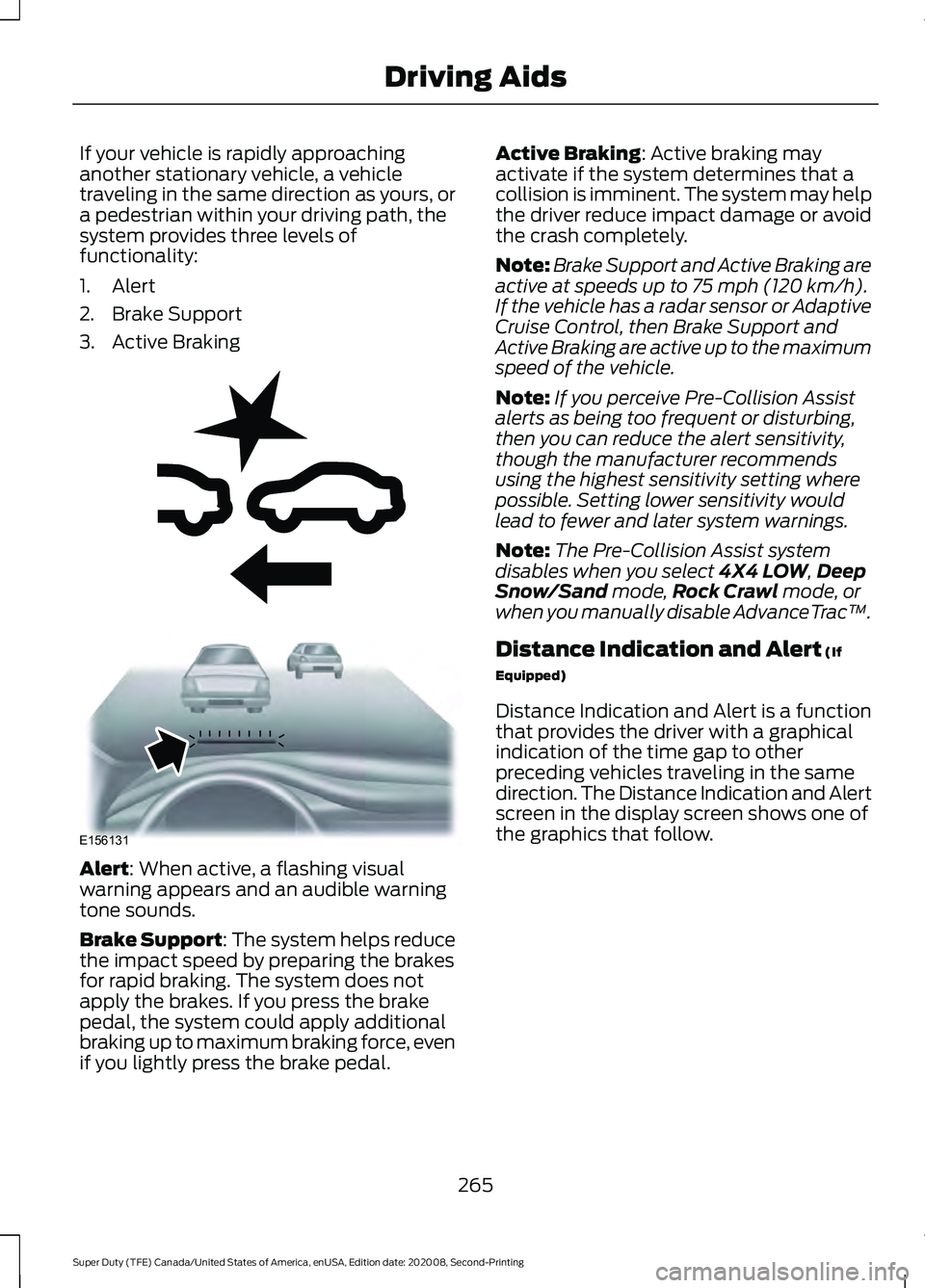
If your vehicle is rapidly approaching
another stationary vehicle, a vehicle
traveling in the same direction as yours, or
a pedestrian within your driving path, the
system provides three levels of
functionality:
1. Alert
2. Brake Support
3. Active Braking
Alert: When active, a flashing visual
warning appears and an audible warning
tone sounds.
Brake Support
: The system helps reduce
the impact speed by preparing the brakes
for rapid braking. The system does not
apply the brakes. If you press the brake
pedal, the system could apply additional
braking up to maximum braking force, even
if you lightly press the brake pedal. Active Braking
: Active braking may
activate if the system determines that a
collision is imminent. The system may help
the driver reduce impact damage or avoid
the crash completely.
Note: Brake Support and Active Braking are
active at speeds up to
75 mph (120 km/h).
If the vehicle has a radar sensor or Adaptive
Cruise Control, then Brake Support and
Active Braking are active up to the maximum
speed of the vehicle.
Note: If you perceive Pre-Collision Assist
alerts as being too frequent or disturbing,
then you can reduce the alert sensitivity,
though the manufacturer recommends
using the highest sensitivity setting where
possible. Setting lower sensitivity would
lead to fewer and later system warnings.
Note: The Pre-Collision Assist system
disables when you select
4X4 LOW, Deep
Snow/Sand mode, Rock Crawl mode, or
when you manually disable AdvanceTrac ™.
Distance Indication and Alert
(If
Equipped)
Distance Indication and Alert is a function
that provides the driver with a graphical
indication of the time gap to other
preceding vehicles traveling in the same
direction. The Distance Indication and Alert
screen in the display screen shows one of
the graphics that follow.
265
Super Duty (TFE) Canada/United States of America, enUSA, Edition date: 202008, Second-Printing Driving AidsE255268 E156131
Page 271 of 666
Radar Troubleshooting (If Equipped)
Action
Cause
Clean the grille surface in front of the radaror remove the object causing the obstruc- tion.
The surface of the radar in the grille is dirty
or obstructed in some way.
Wait a short time. It may take several
minutes for the radar to detect that there is no obstruction.
The surface of the radar in the grille is clean
but the message remains in the display screen.
Pre-Collision Assist disables itself. The
system automatically reactivates a short
time after the weather conditions improve.
Heavy rain, spray, snow or fog is interfering
with the radar signals.
Pre-Collision Assist disables itself. The
system automatically reactivates a short
time after the weather conditions improve.
Swirling water or snow or ice on the surface
of the road may interfere with the radar signals.
Contact an authorized dealer to have theradar checked for proper coverage and operation.
Radar is out of alignment due to a front end
impact.
Note: Proper system operation requires a
clear view of the road by the camera. Have
any windshield damage in the camera's field
of view repaired.
Note: If something hits the front end of your
vehicle or damage occurs and your vehicle
has a radar sensor, the radar sensing zone
may change. This could cause missed or
false vehicle detections. Contact an
authorized dealer to have the radar checked
for proper coverage and operation.
Note: If your vehicle detects excessive heat
at the camera or a potential misalignment
condition, a message may display in the
information display indicating temporary
sensor unavailability. When operational
conditions are correct, the message
deactivates. For example, when the ambient
temperature around the sensor decreases
or the sensor automatically recalibrates
successfully. DRIVE CONTROL (IF EQUIPPED)
Selectable Drive Modes
The system delivers a driving experience
through a suite of sophisticated electronic
vehicle systems. These systems optimize
steering, handling and powertrain
response. This provides a single location
to control multiple system's performance
settings.
Changing the drive mode automatically
changes the functionality of the following
systems:
268
Super Duty (TFE) Canada/United States of America, enUSA, Edition date: 202008, Second-Printing Driving Aids
Page 272 of 666
•
Electronic stability control and traction
control maintains your vehicle control
in adverse conditions or
high-performance driving.
• Electronic throttle control enhances
the powertrain response to your inputs.
• Transmission controls are optimized
with shift schedules tuned to each
terrain.
Using the System
The system tailors your vehicle
configuration for each mode you select.
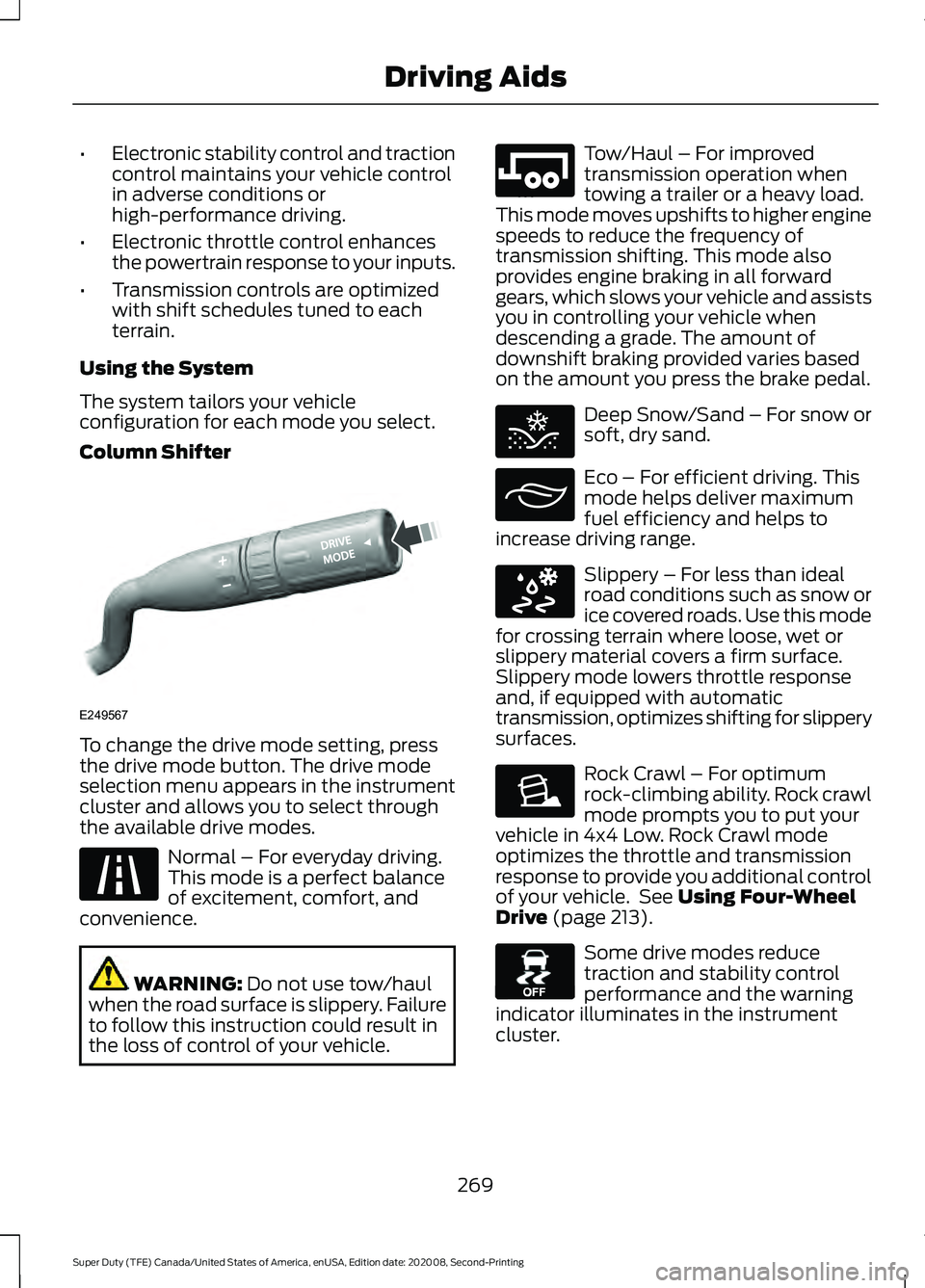
Column Shifter To change the drive mode setting, press
the drive mode button. The drive mode
selection menu appears in the instrument
cluster and allows you to select through
the available drive modes.
Normal – For everyday driving.
This mode is a perfect balance
of excitement, comfort, and
convenience. WARNING: Do not use tow/haul
when the road surface is slippery. Failure
to follow this instruction could result in
the loss of control of your vehicle. Tow/Haul – For improved
transmission operation when
towing a trailer or a heavy load.
This mode moves upshifts to higher engine
speeds to reduce the frequency of
transmission shifting. This mode also
provides engine braking in all forward
gears, which slows your vehicle and assists
you in controlling your vehicle when
descending a grade. The amount of
downshift braking provided varies based
on the amount you press the brake pedal. Deep Snow/Sand – For snow or
soft, dry sand.
Eco – For efficient driving. This
mode helps deliver maximum
fuel efficiency and helps to
increase driving range. Slippery – For less than ideal
road conditions such as snow or
ice covered roads. Use this mode
for crossing terrain where loose, wet or
slippery material covers a firm surface.
Slippery mode lowers throttle response
and, if equipped with automatic
transmission, optimizes shifting for slippery
surfaces. Rock Crawl – For optimum
rock-climbing ability. Rock crawl
mode prompts you to put your
vehicle in 4x4 Low. Rock Crawl mode
optimizes the throttle and transmission
response to provide you additional control
of your vehicle. See
Using Four-Wheel
Drive (page 213). Some drive modes reduce
traction and stability control
performance and the warning
indicator illuminates in the instrument
cluster.
269
Super Duty (TFE) Canada/United States of America, enUSA, Edition date: 202008, Second-Printing Driving AidsE249567 E225310 E246592 E295420 E295413 E295414 E225315 E130458
Page 273 of 666
Note:
Your vehicle starts in the last selected
drive mode for appropriate modes when
starting the vehicle within two hours of the
last key off. If the vehicle has been off for
more than two hours, a drive mode reminder
prompt displays on the instrument cluster
which requires you to confirm before the
vehicle returns to the last selected drive
mode.
Note: Mode changes are not available when
the vehicle ignition is off. In drive (D), only
some modes may be available.
Note: The system has diagnostic checks
that continuously monitor the system for
proper operation. Certain drive modes are
not available based on the gearshift
position. If a mode is unavailable due to a
system fault or change in gearshift position,
the mode defaults to Normal.
270
Super Duty (TFE) Canada/United States of America, enUSA, Edition date: 202008, Second-Printing Driving Aids
Page 293 of 666
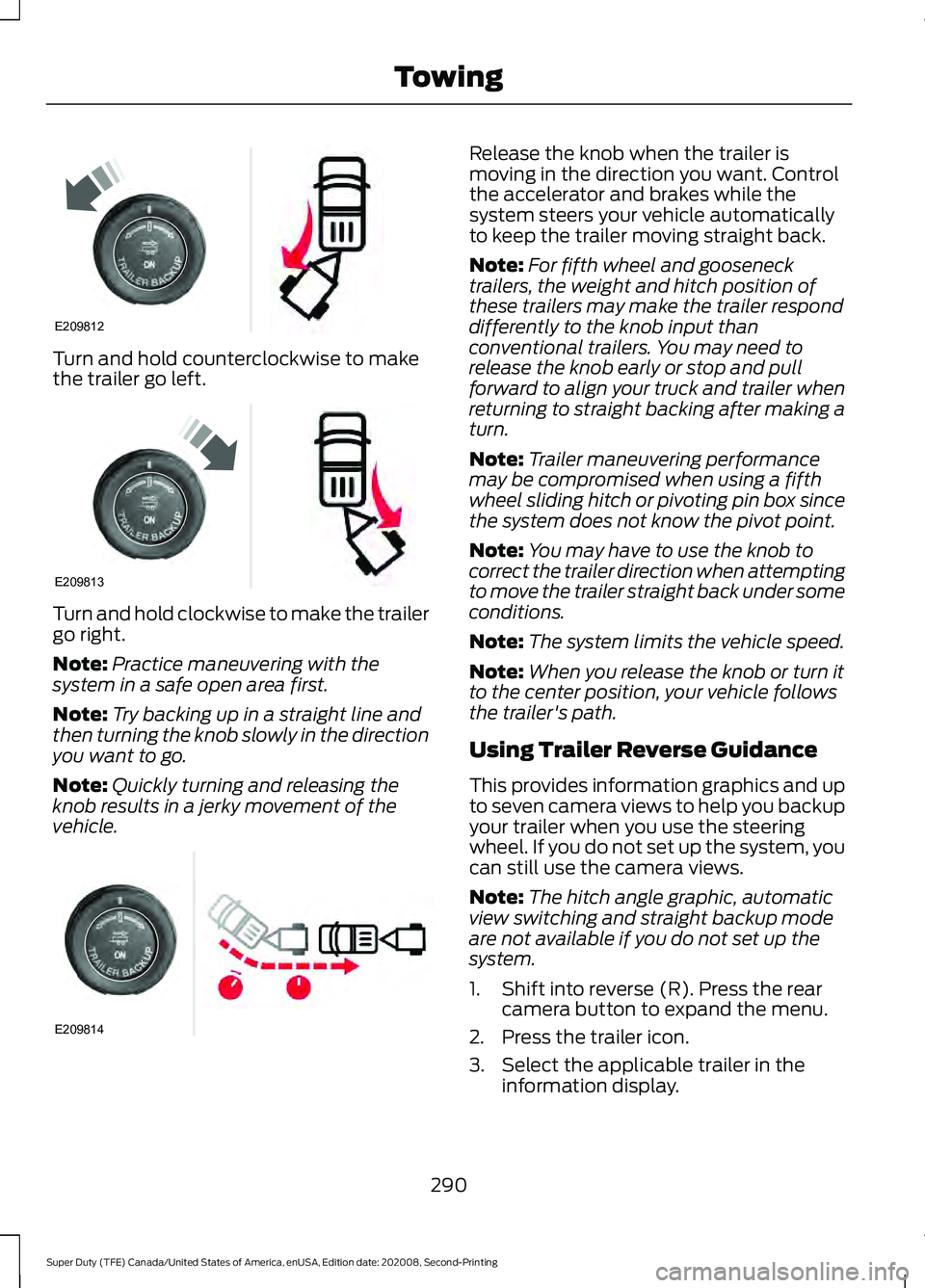
Turn and hold counterclockwise to make
the trailer go left.
Turn and hold clockwise to make the trailer
go right.
Note:
Practice maneuvering with the
system in a safe open area first.
Note: Try backing up in a straight line and
then turning the knob slowly in the direction
you want to go.
Note: Quickly turning and releasing the
knob results in a jerky movement of the
vehicle. Release the knob when the trailer is
moving in the direction you want. Control
the accelerator and brakes while the
system steers your vehicle automatically
to keep the trailer moving straight back.
Note:
For fifth wheel and gooseneck
trailers, the weight and hitch position of
these trailers may make the trailer respond
differently to the knob input than
conventional trailers. You may need to
release the knob early or stop and pull
forward to align your truck and trailer when
returning to straight backing after making a
turn.
Note: Trailer maneuvering performance
may be compromised when using a fifth
wheel sliding hitch or pivoting pin box since
the system does not know the pivot point.
Note: You may have to use the knob to
correct the trailer direction when attempting
to move the trailer straight back under some
conditions.
Note: The system limits the vehicle speed.
Note: When you release the knob or turn it
to the center position, your vehicle follows
the trailer's path.
Using Trailer Reverse Guidance
This provides information graphics and up
to seven camera views to help you backup
your trailer when you use the steering
wheel. If you do not set up the system, you
can still use the camera views.
Note: The hitch angle graphic, automatic
view switching and straight backup mode
are not available if you do not set up the
system.
1. Shift into reverse (R). Press the rear camera button to expand the menu.
2. Press the trailer icon.
3. Select the applicable trailer in the information display.
290
Super Duty (TFE) Canada/United States of America, enUSA, Edition date: 202008, Second-Printing TowingE209812 E209813 E209814
Page 294 of 666
4. When in this mode, you can see the
camera view on the side your trailer is
moving, or both sides when the trailer
is straight behind you. When the views
change with the trailer direction, it is
called auto mode. For example, if you
turn the trailer to the right, you see the
right side of your vehicle and trailer.
You can manually switch this view at
any time by using the arrow keys. To
return to auto mode, press the auto
button. Straight backup mode. Use this
view when you want to keep your
trailer completely in line with
your truck. In this mode, a steering wheel
graphic shows you which way to turn your
steering wheel to keep your trailer straight.
Note: It may be helpful to shift your vehicle
into drive (D), pull forward and straighten
out the vehicle and trailer before engaging
straight backup mode.
System Camera Views
Use the view that helps you the most when
reversing your vehicle and trailer. You can
use these views in either mode.
Left and right arrows let you see other
views regardless of your trailer angle in rear
split view camera and Trailer Reverse
Guidance view.
Auto mode is the default view if you have
set up Trailer Reverse Guidance. 360 camera. Shows a 360
degree view on the right-hand
side of the screen, with the keep
out zone on the left-hand side of the
screen. Rear view camera. Use this view
when you want to see your trailer
hitch or what is directly behind
your vehicle. Rear split view camera. Shows
a 180 degree view of behind your
vehicle.
Bed camera. Shows the truck
bed and can be used for a fifth
wheel or gooseneck trailer.
Trailer AUX camera. Shows a
rear view camera image of what
is behind your trailer. This
camera needs to be purchased and
separately installed. Trailer Reverse Guidance view.
Shows you a view of the sides of
your truck and your trailer. In
auto mode, this view moves as your trailer
moves so that you do not have to adjust
the camera as you turn. This takes you back to the
360-degree camera system and
out of the Trailer Reverse
Guidance feature. Auto. This feature returns you to
auto view.
Hitch Angle Graphic
After setting up a trailer, the display shows
a small top-view representation of your
truck and trailer.
This representation shows two,
different-colored lines. A black line shows
you where your trailer is in relation to your
vehicle. For Trailer Backup Assist, the white
line represents the amount the trailer can
turn based on knob input. For Trailer
Reverse Guidance, the white line
represents the amount the trailer can turn
based on steering wheel position.
291
Super Duty (TFE) Canada/United States of America, enUSA, Edition date: 202008, Second-Printing TowingE224484 E310996 E310967 E310974 E310995 E311776 E310965 E224486 E315644