2021 FORD EXPLORER ECU
[x] Cancel search: ECUPage 378 of 577

•
Use commercial car washing
equipment.
• Try to repair the dissimilar spare tire.
Use of one of the dissimilar spare tires
listed above at any one wheel location can
lead to impairment of the following:
• Handling, stability and braking
performance.
• Comfort and noise.
• Ground clearance and parking at curbs.
• Winter weather driving capability.
• Wet weather driving capability.
• Four-wheel driving capability.
3. Full-size dissimilar spare without
label on wheel.
When driving with the full-size dissimilar
spare wheel and tire assembly, do not:
• Exceed 70 mph (113 km/h).
• Use more than one dissimilar spare
wheel and tire assembly at a time.
• Use commercial car washing
equipment.
• Use snow chains on the end of the
vehicle with the dissimilar spare wheel
and tire assembly.
The usage of a full-size dissimilar spare
wheel and tire assembly can lead to
impairment of the following:
• Handling, stability and braking
performance.
• Comfort and noise.
• Ground clearance and parking at curbs.
• Winter weather driving capability.
• Wet weather driving capability.
• Four-wheel driving capability. When driving with the full-size dissimilar
spare wheel and tire assembly additional
caution should be given to:
•
Towing a trailer.
• Driving vehicles equipped with a
camper body.
• Driving vehicles with a load on the
cargo rack.
Drive cautiously when using a full-size
dissimilar spare wheel and tire assembly
and seek service as soon as possible.
Tire Change Procedure WARNING:
The jack supplied with
this vehicle is only intended for changing
wheels. Do not use the vehicle jack other
than when you are changing a wheel in
an emergency. WARNING: Check that the vehicle
jack is not damaged or deformed and
the thread is lubricated and clean. WARNING:
To help prevent your
vehicle from moving when changing a
wheel, shift the transmission into park
(P), set the parking brake and use an
appropriate block or wheel chock to
secure the wheel diagonally opposite to
the wheel being changed. For example,
when changing the front left wheel,
place an appropriate block or wheel
chock on the right rear wheel. WARNING:
Always use the jack
provided as original equipment with your
vehicle. If using a jack other than the one
provided, make sure the jack capacity is
adequate for the vehicle weight,
including any vehicle cargo or
modifications. If you are unsure if the jack
capacity is adequate, contact the
authorized dealer.
375
Explorer (CTW), enUSA, Edition date: 202007, Second-Printing Wheels and Tires
Page 380 of 577
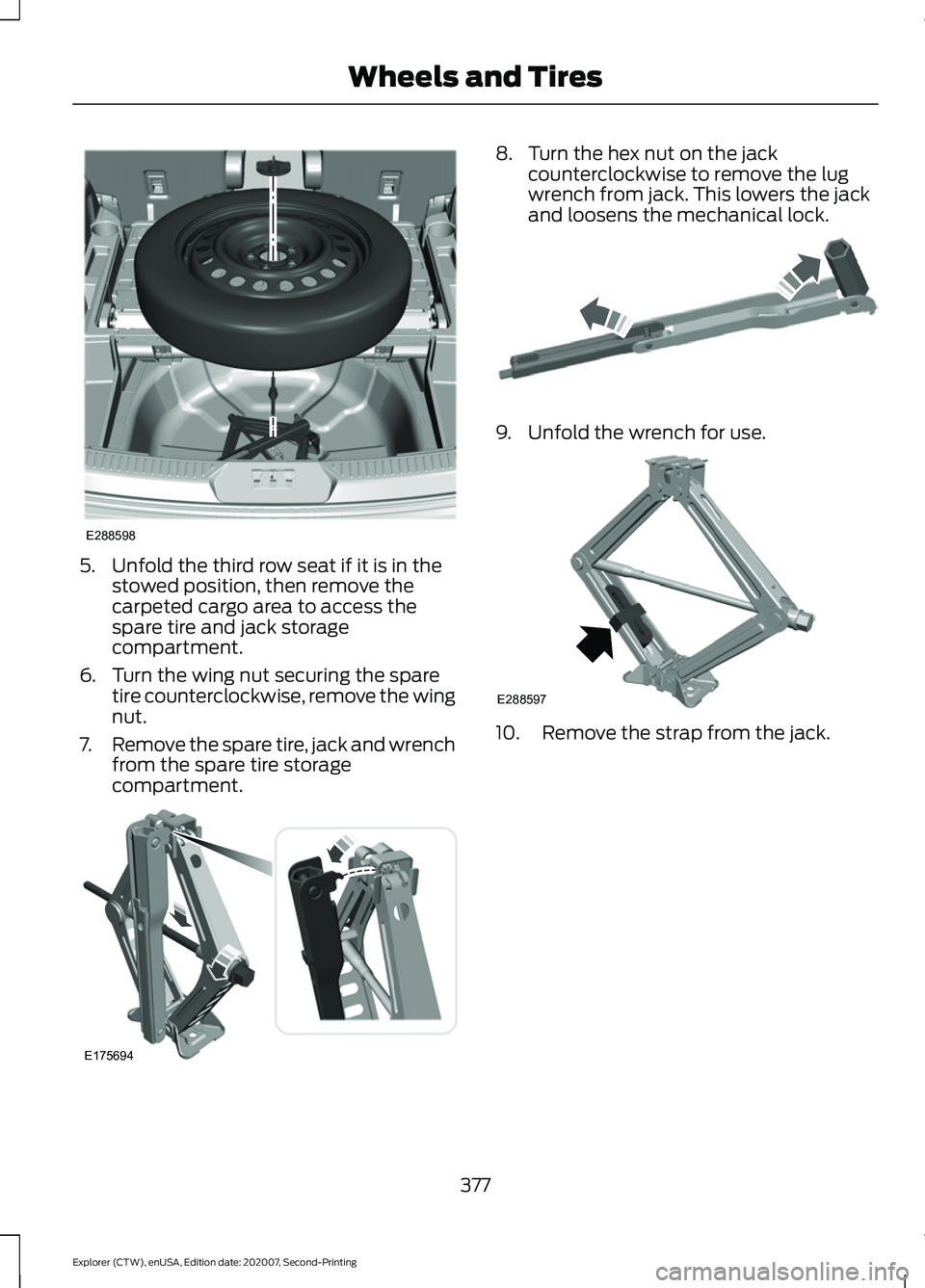
5. Unfold the third row seat if it is in the
stowed position, then remove the
carpeted cargo area to access the
spare tire and jack storage
compartment.
6. Turn the wing nut securing the spare tire counterclockwise, remove the wing
nut.
7. Remove the spare tire, jack and wrench
from the spare tire storage
compartment. 8. Turn the hex nut on the jack
counterclockwise to remove the lug
wrench from jack. This lowers the jack
and loosens the mechanical lock. 9. Unfold the wrench for use.
10. Remove the strap from the jack.
377
Explorer (CTW), enUSA, Edition date: 202007, Second-Printing Wheels and TiresE288598 E175694 E181744 E288597
Page 382 of 577
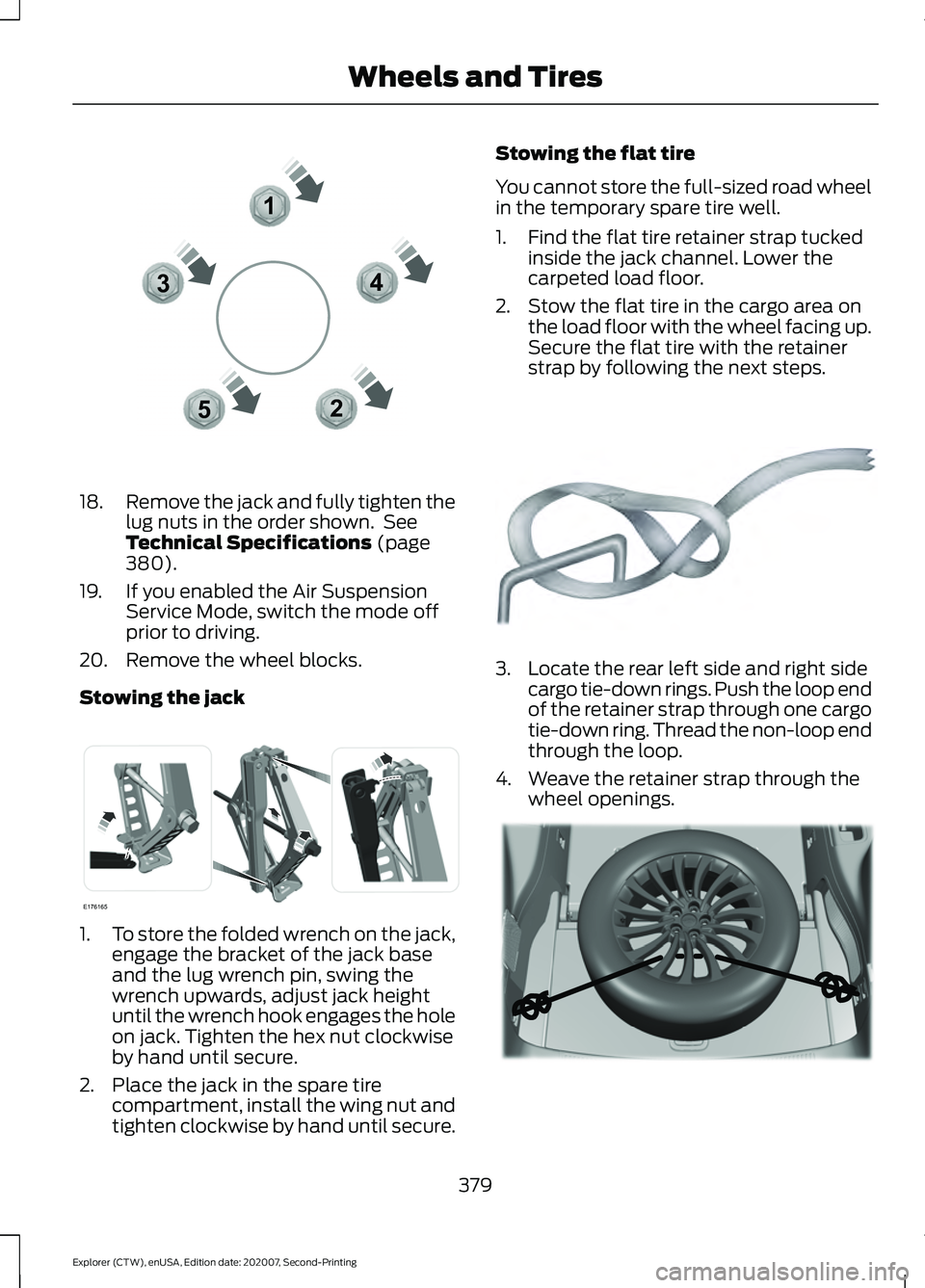
18.
Remove the jack and fully tighten the
lug nuts in the order shown. See
Technical Specifications (page
380).
19. If you enabled the Air Suspension Service Mode, switch the mode off
prior to driving.
20. Remove the wheel blocks.
Stowing the jack 1.
To store the folded wrench on the jack,
engage the bracket of the jack base
and the lug wrench pin, swing the
wrench upwards, adjust jack height
until the wrench hook engages the hole
on jack. Tighten the hex nut clockwise
by hand until secure.
2. Place the jack in the spare tire compartment, install the wing nut and
tighten clockwise by hand until secure. Stowing the flat tire
You cannot store the full-sized road wheel
in the temporary spare tire well.
1. Find the flat tire retainer strap tucked
inside the jack channel. Lower the
carpeted load floor.
2. Stow the flat tire in the cargo area on the load floor with the wheel facing up.
Secure the flat tire with the retainer
strap by following the next steps. 3. Locate the rear left side and right side
cargo tie-down rings. Push the loop end
of the retainer strap through one cargo
tie-down ring. Thread the non-loop end
through the loop.
4. Weave the retainer strap through the wheel openings. 379
Explorer (CTW), enUSA, Edition date: 202007, Second-Printing Wheels and Tires12
3
4
5E306781 E176165 E142906 E294325
Page 383 of 577
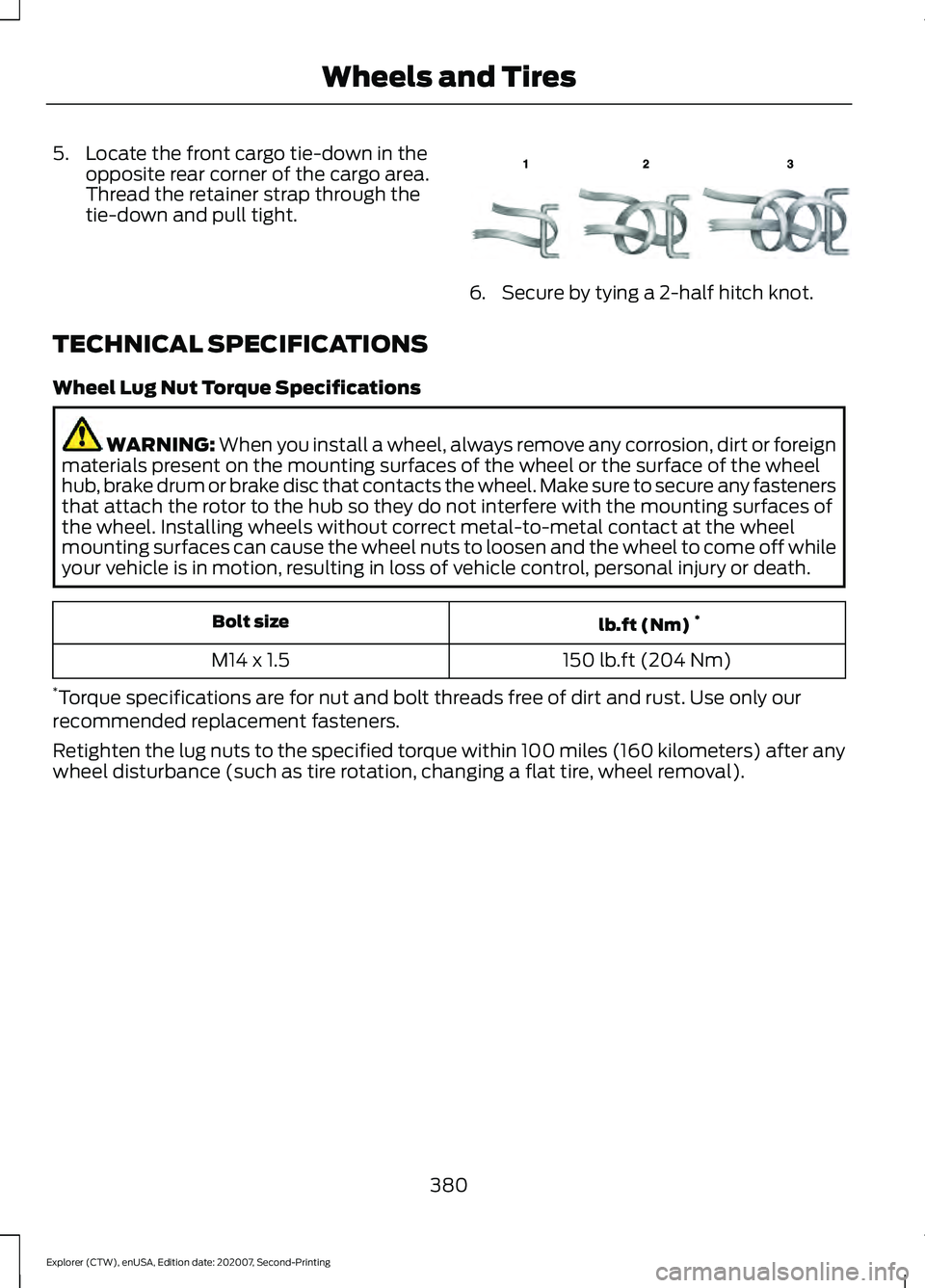
5. Locate the front cargo tie-down in the
opposite rear corner of the cargo area.
Thread the retainer strap through the
tie-down and pull tight. 6. Secure by tying a 2-half hitch knot.
TECHNICAL SPECIFICATIONS
Wheel Lug Nut Torque Specifications WARNING: When you install a wheel, always remove any corrosion, dirt or foreign
materials present on the mounting surfaces of the wheel or the surface of the wheel
hub, brake drum or brake disc that contacts the wheel. Make sure to secure any fasteners
that attach the rotor to the hub so they do not interfere with the mounting surfaces of
the wheel. Installing wheels without correct metal-to-metal contact at the wheel
mounting surfaces can cause the wheel nuts to loosen and the wheel to come off while
your vehicle is in motion, resulting in loss of vehicle control, personal injury or death. lb.ft (Nm)
*
Bolt size
150 lb.ft (204 Nm)
M14 x 1.5
* Torque specifications are for nut and bolt threads free of dirt and rust. Use only our
recommended replacement fasteners.
Retighten the lug nuts to the specified torque within 100 miles (160 kilometers) after any
wheel disturbance (such as tire rotation, changing a flat tire, wheel removal).
380
Explorer (CTW), enUSA, Edition date: 202007, Second-Printing Wheels and TiresE143746
Page 424 of 577
WHAT IS A CONNECTED
VEHICLE
A connected vehicle has technology that
allows your vehicle to connect to a mobile
network and for you to access a range of
features. When used in conjunction with
the FordPass app, it could allow you to
monitor and control your vehicle further,
for example checking the tire pressures,
the fuel level and the vehicle location. For
additional information, refer to the local
Ford website.
CONNECTED VEHICLE
REQUIREMENTS
Connected service and related feature
functionality requires a compatible vehicle
network.
Some remote features require additional
service activation. Log in to your Ford
account for details. Some restrictions, third
party terms and message or data rates
may apply.
CONNECTED VEHICLE
LIMITATIONS
Evolving technology, cellular networks, or
regulations could affect functionality and
availability, or continued provision of some
features. These changes could even stop
some features from functioning.
CONNECTING THE VEHICLE TO
A MOBILE NETWORK
What Is the Modem
The modem allows access to a
range of features built into your
vehicle. Enabling and Disabling the Modem
1. Press Settings.
2. Press
FordPass Connect.
3. Press
Connectivity Settings.
4. Switch connectivity features on or off.
Connecting FordPass to the
Modem
1. Make sure that the modem is enabled using the vehicle settings menu.
2. Open the FordPass app on your device
and log in.
3. Add your vehicle or select your vehicle if already added.
4. Select the option for vehicle details.
5. Select the option to activate your vehicle.
6. Make sure that the name on the screen
matches the name shown in your
FordPass account.
7. Confirm that FordPass account is connected to the modem.
CONNECTING THE VEHICLE TO
A WI-FI NETWORK - VEHICLES
WITH: SYNC 3
1. Press
Settings.
2. Press
Wi-Fi.
3. Switch
Wi-Fi on.
4. Press
View Available Networks.
5. Select an available Wi-Fi network.
Note: Enter the network password to
connect to a secure network.
421
Explorer (CTW), enUSA, Edition date: 202007, Second-Printing Connected Vehicle
Page 428 of 577
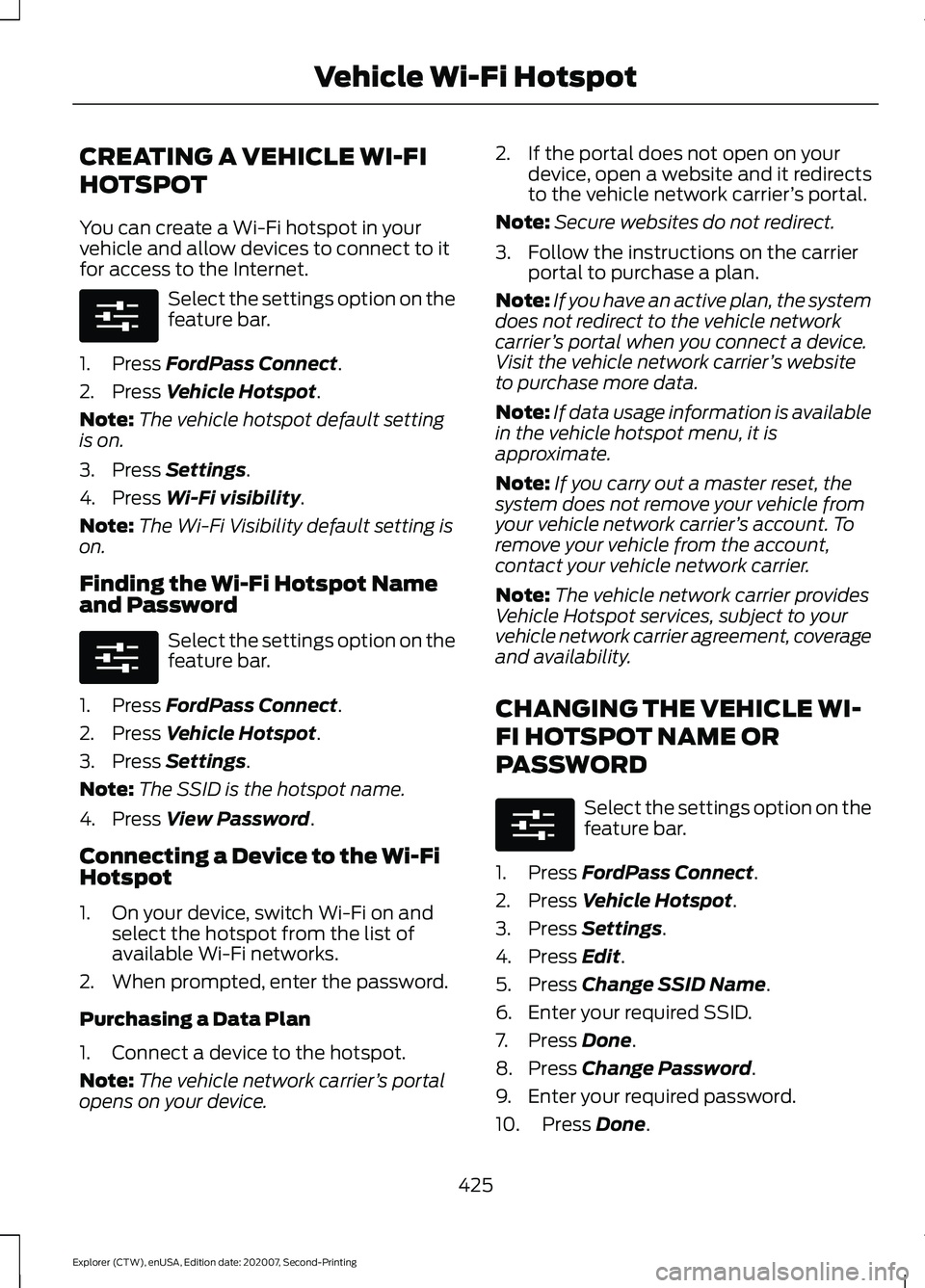
CREATING A VEHICLE WI-FI
HOTSPOT
You can create a Wi-Fi hotspot in your
vehicle and allow devices to connect to it
for access to the Internet.
Select the settings option on the
feature bar.
1. Press FordPass Connect.
2. Press
Vehicle Hotspot.
Note: The vehicle hotspot default setting
is on.
3. Press
Settings.
4. Press
Wi-Fi visibility.
Note: The Wi-Fi Visibility default setting is
on.
Finding the Wi-Fi Hotspot Name
and Password Select the settings option on the
feature bar.
1. Press
FordPass Connect.
2. Press
Vehicle Hotspot.
3. Press
Settings.
Note: The SSID is the hotspot name.
4. Press
View Password.
Connecting a Device to the Wi-Fi
Hotspot
1. On your device, switch Wi-Fi on and select the hotspot from the list of
available Wi-Fi networks.
2. When prompted, enter the password.
Purchasing a Data Plan
1. Connect a device to the hotspot.
Note: The vehicle network carrier ’s portal
opens on your device. 2. If the portal does not open on your
device, open a website and it redirects
to the vehicle network carrier ’s portal.
Note: Secure websites do not redirect.
3. Follow the instructions on the carrier portal to purchase a plan.
Note: If you have an active plan, the system
does not redirect to the vehicle network
carrier ’s portal when you connect a device.
Visit the vehicle network carrier ’s website
to purchase more data.
Note: If data usage information is available
in the vehicle hotspot menu, it is
approximate.
Note: If you carry out a master reset, the
system does not remove your vehicle from
your vehicle network carrier ’s account. To
remove your vehicle from the account,
contact your vehicle network carrier.
Note: The vehicle network carrier provides
Vehicle Hotspot services, subject to your
vehicle network carrier agreement, coverage
and availability.
CHANGING THE VEHICLE WI-
FI HOTSPOT NAME OR
PASSWORD Select the settings option on the
feature bar.
1. Press
FordPass Connect.
2. Press
Vehicle Hotspot.
3. Press
Settings.
4. Press
Edit.
5. Press
Change SSID Name.
6. Enter your required SSID.
7. Press
Done.
8. Press
Change Password.
9. Enter your required password.
10. Press
Done.
425
Explorer (CTW), enUSA, Edition date: 202007, Second-Printing Vehicle Wi-Fi HotspotE280315 E280315 E280315
Page 437 of 577
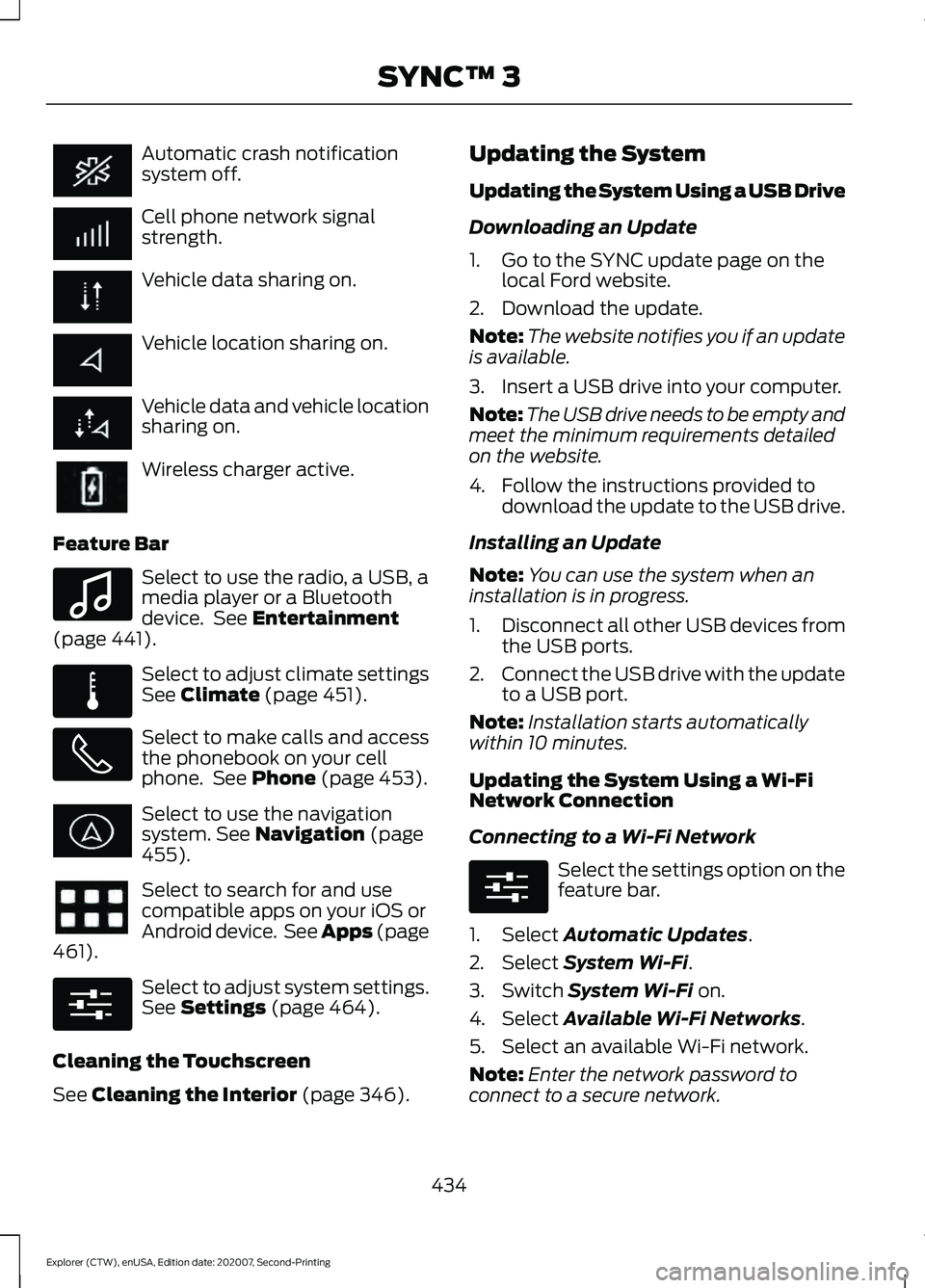
Automatic crash notification
system off.
Cell phone network signal
strength.
Vehicle data sharing on.
Vehicle location sharing on.
Vehicle data and vehicle location
sharing on.
Wireless charger active.
Feature Bar Select to use the radio, a USB, a
media player or a Bluetooth
device. See Entertainment
(page 441). Select to adjust climate settings
See
Climate (page 451).
Select to make calls and access
the phonebook on your cell
phone. See
Phone (page 453).
Select to use the navigation
system.
See Navigation (page
455). Select to search for and use
compatible apps on your iOS or
Android device. See Apps (page
461
). Select to adjust system settings.
See
Settings (page 464).
Cleaning the Touchscreen
See
Cleaning the Interior (page 346). Updating the System
Updating the System Using a USB Drive
Downloading an Update
1. Go to the SYNC update page on the
local Ford website.
2. Download the update.
Note: The website notifies you if an update
is available.
3. Insert a USB drive into your computer.
Note: The USB drive needs to be empty and
meet the minimum requirements detailed
on the website.
4. Follow the instructions provided to download the update to the USB drive.
Installing an Update
Note: You can use the system when an
installation is in progress.
1. Disconnect all other USB devices from
the USB ports.
2. Connect the USB drive with the update
to a USB port.
Note: Installation starts automatically
within 10 minutes.
Updating the System Using a Wi-Fi
Network Connection
Connecting to a Wi-Fi Network Select the settings option on the
feature bar.
1. Select
Automatic Updates.
2. Select
System Wi-Fi.
3. Switch
System Wi-Fi on.
4. Select
Available Wi-Fi Networks.
5. Select an available Wi-Fi network.
Note: Enter the network password to
connect to a secure network.
434
Explorer (CTW), enUSA, Edition date: 202007, Second-Printing SYNC™ 3 E100027 E283811 E280315 E280315
Page 471 of 577
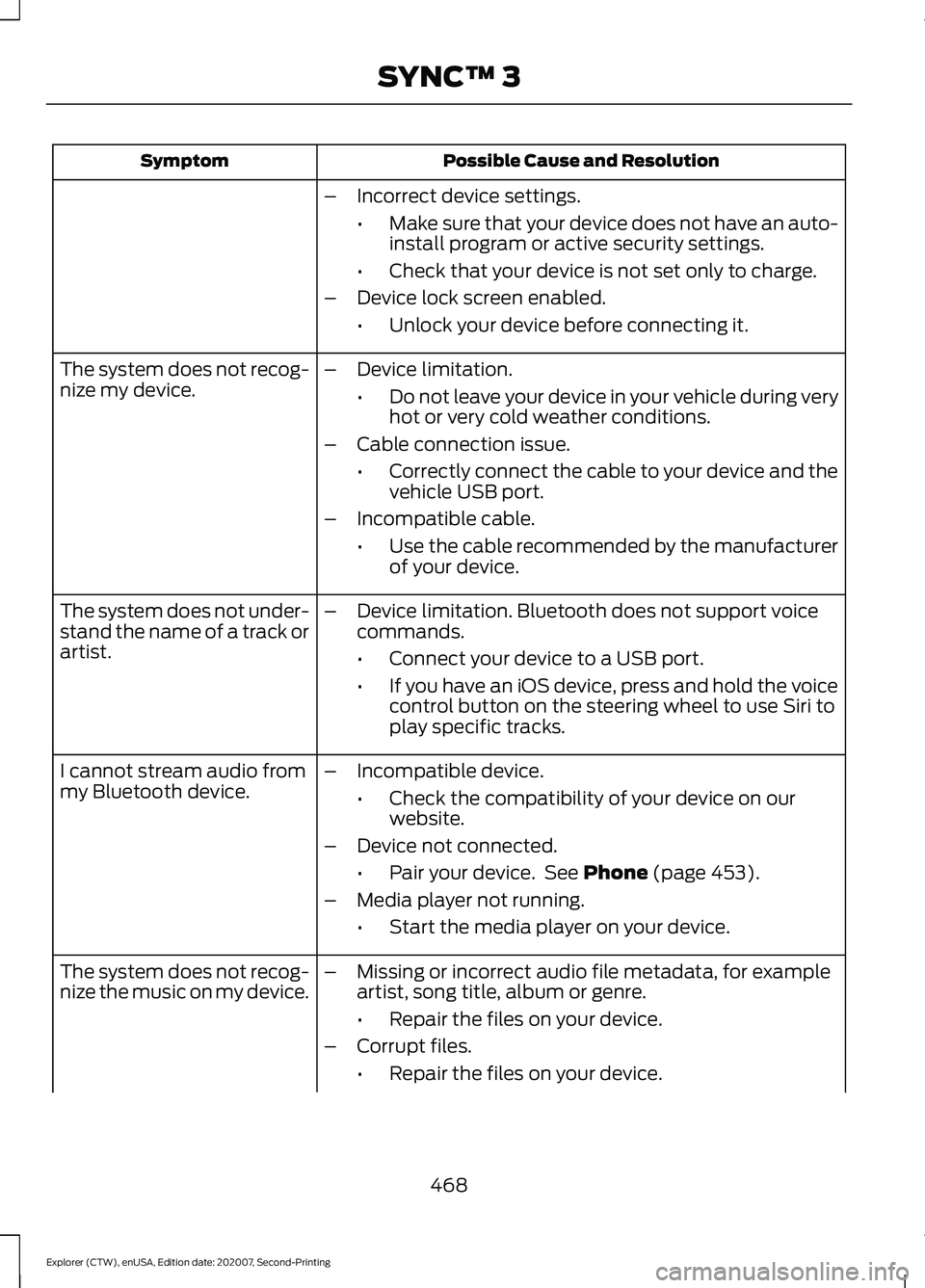
Possible Cause and Resolution
Symptom
–Incorrect device settings.
•Make sure that your device does not have an auto-
install program or active security settings.
• Check that your device is not set only to charge.
– Device lock screen enabled.
•Unlock your device before connecting it.
The system does not recog-
nize my device. –
Device limitation.
•Do not leave your device in your vehicle during very
hot or very cold weather conditions.
– Cable connection issue.
•Correctly connect the cable to your device and the
vehicle USB port.
– Incompatible cable.
•Use the cable recommended by the manufacturer
of your device.
The system does not under-
stand the name of a track or
artist. –
Device limitation. Bluetooth does not support voice
commands.
•Connect your device to a USB port.
• If you have an iOS device, press and hold the voice
control button on the steering wheel to use Siri to
play specific tracks.
I cannot stream audio from
my Bluetooth device. –
Incompatible device.
•Check the compatibility of your device on our
website.
– Device not connected.
•Pair your device. See Phone (page 453).
– Media player not running.
•Start the media player on your device.
The system does not recog-
nize the music on my device. –
Missing or incorrect audio file metadata, for example
artist, song title, album or genre.
•Repair the files on your device.
– Corrupt files.
•Repair the files on your device.
468
Explorer (CTW), enUSA, Edition date: 202007, Second-Printing SYNC™ 3