2021 FORD BRONCO SPORT reset
[x] Cancel search: resetPage 298 of 471
Engine
•
Change the engine oil and filter prior to
storage because used engine oil
contains contaminates which may
cause engine damage.
• Start the engine every 15 days for a
minimum of 15 minutes. Run at fast
idle with the climate controls set to
defrost until the engine reaches normal
operating temperature.
• With your foot on the brake, shift
through all the gears while the engine
is running.
• We recommend that you change the
engine oil before you use your vehicle
again.
Fuel system
• Fill the fuel tank with high-quality fuel
until the first automatic shutoff of the
fuel pump nozzle.
Cooling system
• Protect against freezing temperatures.
• When removing your vehicle from
storage, check coolant fluid level.
Confirm that there are no cooling
system leaks and that fluid is at the
recommended level.
Disconnecting Your 12 Volt Battery
• Check and recharge as necessary. Keep
connections clean.
• If storing your vehicle for more than 30
days without recharging the battery,
we recommend that you disconnect
the battery cables to maintain battery
charge for quick starting.
Note: It is necessary to reset memory
features if you disconnect the battery
cables. Brakes
•
Make sure the brakes and parking brake
release fully.
Tires
• Maintain recommended air pressure.
Miscellaneous
• Make sure all linkages, cables, levers
and pins under your vehicle are covered
with grease to prevent rust.
• Move vehicles at least 25 ft (7.5 m)
every 15 days to lubricate working parts
and prevent corrosion.
Removing Vehicle From Storage
When your vehicle is ready to come out of
storage, do the following:
• Wash your vehicle to remove any dirt
or grease film build-up on window
surfaces.
• Check windshield wipers for any
deterioration.
• Check under the hood for any foreign
material that may have collected
during storage such as mice or squirrel
nests.
• Check the exhaust for any foreign
material that may have collected
during storage.
• Check tire pressures and set tire
inflation per the Tire Label.
• Check brake pedal operation. Drive
your vehicle
15 ft (4.5 m) back and
forth to remove rust build-up.
• Check fluid levels (including coolant,
oil and gas) to make sure there are no
leaks, and fluids are at recommended
levels.
• If you remove the battery, clean the
battery cable ends and check for
damage.
295
Bronco Sport (CHD) Canada/United States of America, enUSA, Edition date: 202007, Second-Printing Vehicle Care
Page 344 of 471
CREATING A VEHICLE WI-FI
HOTSPOT
You can create a Wi-Fi hotspot in your
vehicle and allow devices to connect to it
for access to the Internet.
Select the settings option on the
feature bar.
1. Press FordPass Connect.
2. Press
Vehicle Hotspot.
Note: The vehicle hotspot default setting
is on.
3. Press
Settings.
4. Press
Wi-Fi visibility.
Note: The Wi-Fi Visibility default setting is
on.
Finding the Wi-Fi Hotspot Name
and Password Select the settings option on the
feature bar.
1. Press
FordPass Connect.
2. Press
Vehicle Hotspot.
3. Press
Settings.
Note: The SSID is the hotspot name.
4. Press
View Password.
Connecting a Device to the Wi-Fi
Hotspot
1. On your device, switch Wi-Fi on and select the hotspot from the list of
available Wi-Fi networks.
2. When prompted, enter the password.
Purchasing a Data Plan
1. Connect a device to the hotspot.
Note: The vehicle network carrier ’s portal
opens on your device. 2. If the portal does not open on your
device, open a website and it redirects
to the vehicle network carrier ’s portal.
Note: Secure websites do not redirect.
3. Follow the instructions on the carrier portal to purchase a plan.
Note: If you have an active plan, the system
does not redirect to the vehicle network
carrier ’s portal when you connect a device.
Visit the vehicle network carrier ’s website
to purchase more data.
Note: If data usage information is available
in the vehicle hotspot menu, it is
approximate.
Note: If you carry out a master reset, the
system does not remove your vehicle from
your vehicle network carrier ’s account. To
remove your vehicle from the account,
contact your vehicle network carrier.
Note: The vehicle network carrier provides
Vehicle Hotspot services, subject to your
vehicle network carrier agreement, coverage
and availability.
CHANGING THE VEHICLE WI-
FI HOTSPOT NAME OR
PASSWORD Select the settings option on the
feature bar.
1. Press
FordPass Connect.
2. Press
Vehicle Hotspot.
3. Press
Settings.
4. Press
Edit.
5. Press
Change SSID Name.
6. Enter your required SSID.
7. Press
Done.
8. Press
Change Password.
9. Enter your required password.
10. Press
Done.
341
Bronco Sport (CHD) Canada/United States of America, enUSA, Edition date: 202007, Second-Printing Vehicle Wi-Fi HotspotE280315 E280315 E280315
Page 347 of 471
In satellite radio mode, press and release
to select the next or previous satellite radio
station. If you select a specific category,
such as jazz, rock or news, press to find the
next or previous station in the category you
select.
DIGITAL RADIO (IF EQUIPPED)
Note: HD Radio broadcasts are not
available in all markets.
HD Radio technology is the digital
evolution of analog AM/FM radio. Your
system has a special receiver that allows
it to receive digital broadcasts, where
available, in addition to the analog
broadcasts, it already receives. Digital
broadcasts provide a better sound quality
than analog broadcasts with free,
crystal-clear audio and no static or
distortion. For more information, and a
guide to available stations and
programming, please visit
www.hdradio.com.
When HD Radio is on and you tune to a
station broadcasting HD Radio technology,
you may notice the HD Radio logo on your
screen. When this logo is available, you
may also see Title and Artist fields
on-screen. The multicast indicator appears in FM
mode, only, if the current station is
broadcasting multiple digital broadcasts.
The highlighted numbers signify available
digital channels where new or different
content is available. HD1 signifies the main
programming status and is available in
analog and digital broadcasts. Other
multicast stations, HD2 through HD7, are
only available digitally.
When HD Radio broadcasts are active, you
can access the following functions:
•
Memory presets
allow you to save an
active channel as a memory preset.
Touch and hold a memory preset slot
until the sound returns. There is a brief
mute while the radio saves the station.
Sound returns when finished. When
switching to an HD2 or HD3 memory
preset, the sound mutes before the
digital audio plays, because the system
has to reacquire the digital signal.
Note: As with any saved radio station, you
cannot access the saved station if your
vehicle is outside the station ’s reception
area.
344
Bronco Sport (CHD) Canada/United States of America, enUSA, Edition date: 202007, Second-Printing Audio System
Page 349 of 471
Potential station issues
Action
Cause
Issues
No action required. This is a
broadcast issue.
This is poor time alignment
by the radio broadcaster.
Echo, stutter, skip or repeat
in audio.
Increase or decrease in
audio volume.
No action required. The
reception issue may clear up
as you continue to drive.
The radio is shifting between
analog and digital audio.
Sound fading or blending in
and out.
No action required. This is
normal behavior. Wait until
the audio is available.
The digital multicast is not
available until the HD Radio
broadcast is decoded. Once
decoded, the audio is avail-
able.
There is an audio mute
delay when selecting HD2 or
HD3, multicast preset or
Direct Tune.
No action required. The
station is not available in
your current location.
The previously stored
multicast preset or direct
tune is not available in your
current reception area.
Cannot access HD2 or HD3
multicast channel when
recalling a preset or from a
direct tune.
Fill out the station issue
form at website listed
below.1
Data service issue by the
radio broadcaster.
Text information does not
match currently playing
audio.
Fill out the station issue
form at website listed
below.1
Data service issue by the
radio broadcaster.
There is no text information
shown for currently selected
frequency.
1 http://hdradio.com/stations/feedback
HD Radio Technology manufactured under
license from iBiquity Digital Corporation
and foreign patents. HD Radio and the HD
and HD Radio logos are proprietary
trademarks of DTS Ford Motor Company
and DTS are not responsible for the
content sent using HD Radio technology.
Content may be changed, added or deleted
at any time at the station owner's
discretion. SATELLITE RADIO
(IF EQUIPPED)
SiriusXM® Satellite Radio broadcasts a
variety of music, news, sports, weather,
traffic and entertainment satellite radio
channels. For more information and a
complete list of SiriusXM satellite radio
channels, visit www.siriusxm.com in the
United States, www.siriusxm.ca in Canada,
or call SiriusXM at 1-888-539-7474.
346
Bronco Sport (CHD) Canada/United States of America, enUSA, Edition date: 202007, Second-Printing Audio System
Page 351 of 471
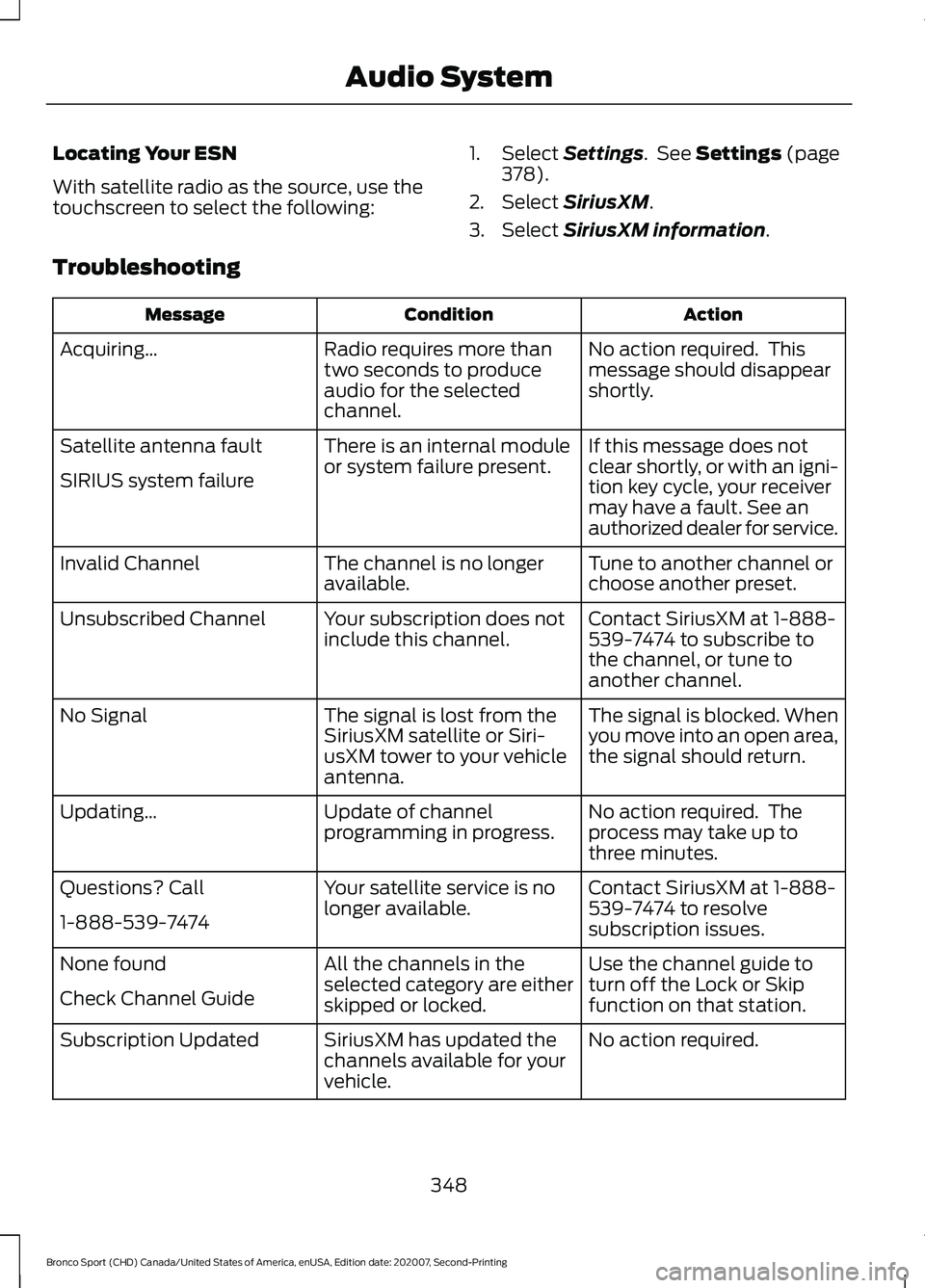
Locating Your ESN
With satellite radio as the source, use the
touchscreen to select the following:
1. Select Settings. See Settings (page
378).
2. Select
SiriusXM.
3. Select
SiriusXM information.
Troubleshooting Action
Condition
Message
No action required. This
message should disappear
shortly.
Radio requires more than
two seconds to produce
audio for the selected
channel.
Acquiring…
If this message does not
clear shortly, or with an igni-
tion key cycle, your receiver
may have a fault. See an
authorized dealer for service.
There is an internal module
or system failure present.
Satellite antenna fault
SIRIUS system failure
Tune to another channel or
choose another preset.
The channel is no longer
available.
Invalid Channel
Contact SiriusXM at 1-888-
539-7474 to subscribe to
the channel, or tune to
another channel.
Your subscription does not
include this channel.
Unsubscribed Channel
The signal is blocked. When
you move into an open area,
the signal should return.
The signal is lost from the
SiriusXM satellite or Siri-
usXM tower to your vehicle
antenna.
No Signal
No action required. The
process may take up to
three minutes.
Update of channel
programming in progress.
Updating…
Contact SiriusXM at 1-888-
539-7474 to resolve
subscription issues.
Your satellite service is no
longer available.
Questions? Call
1-888-539-7474
Use the channel guide to
turn off the Lock or Skip
function on that station.
All the channels in the
selected category are either
skipped or locked.
None found
Check Channel Guide
No action required.
SiriusXM has updated the
channels available for your
vehicle.
Subscription Updated
348
Bronco Sport (CHD) Canada/United States of America, enUSA, Edition date: 202007, Second-Printing Audio System
Page 362 of 471
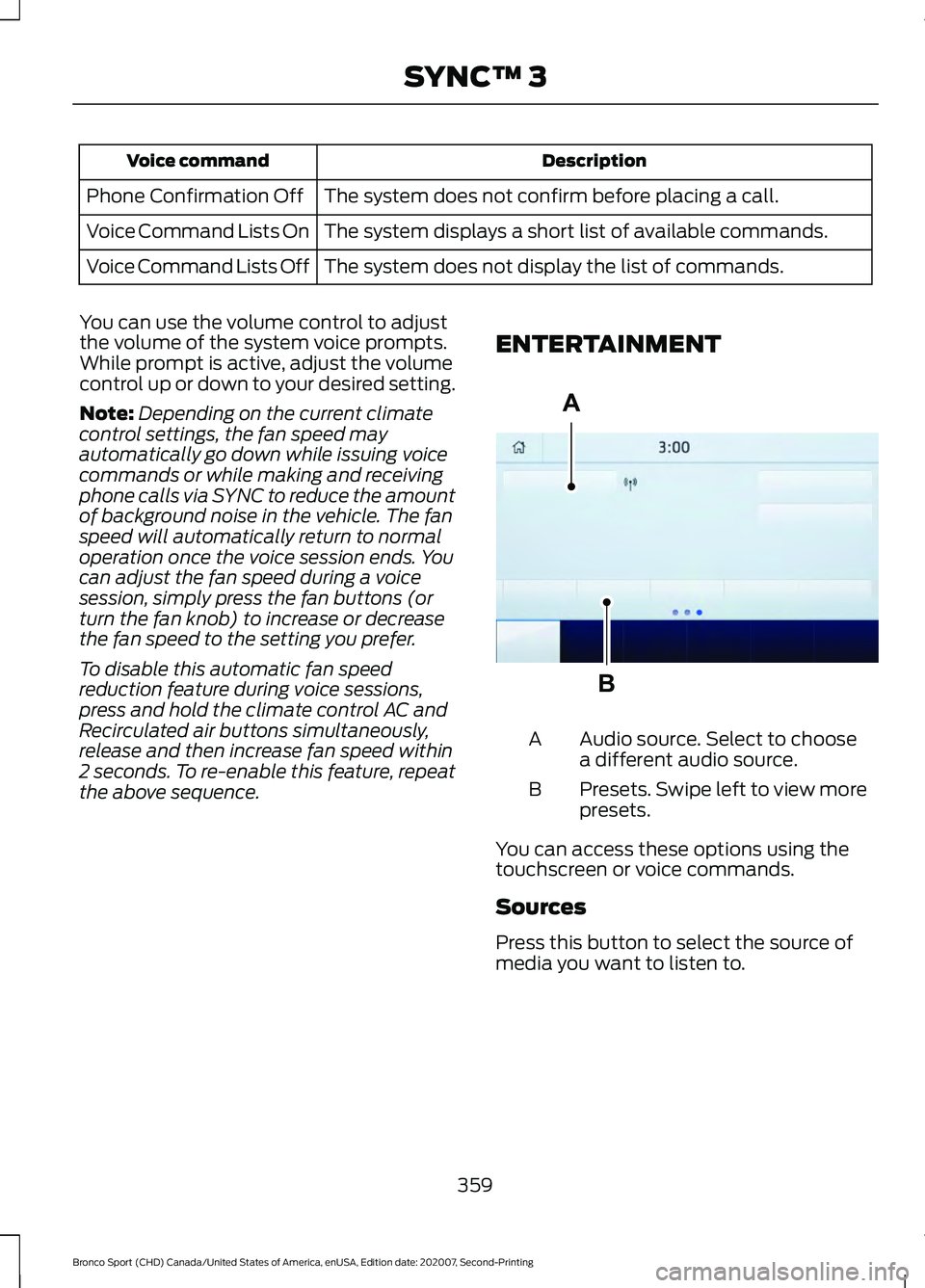
Description
Voice command
The system does not confirm before placing a call.
Phone Confirmation Off
The system displays a short list of available commands.
Voice Command Lists On
The system does not display the list of commands.
Voice Command Lists Off
You can use the volume control to adjust
the volume of the system voice prompts.
While prompt is active, adjust the volume
control up or down to your desired setting.
Note: Depending on the current climate
control settings, the fan speed may
automatically go down while issuing voice
commands or while making and receiving
phone calls via SYNC to reduce the amount
of background noise in the vehicle. The fan
speed will automatically return to normal
operation once the voice session ends. You
can adjust the fan speed during a voice
session, simply press the fan buttons (or
turn the fan knob) to increase or decrease
the fan speed to the setting you prefer.
To disable this automatic fan speed
reduction feature during voice sessions,
press and hold the climate control AC and
Recirculated air buttons simultaneously,
release and then increase fan speed within
2 seconds. To re-enable this feature, repeat
the above sequence. ENTERTAINMENT Audio source. Select to choose
a different audio source.
A
Presets. Swipe left to view more
presets.
B
You can access these options using the
touchscreen or voice commands.
Sources
Press this button to select the source of
media you want to listen to.
359
Bronco Sport (CHD) Canada/United States of America, enUSA, Edition date: 202007, Second-Printing SYNC™ 3A
BE293491
Page 363 of 471
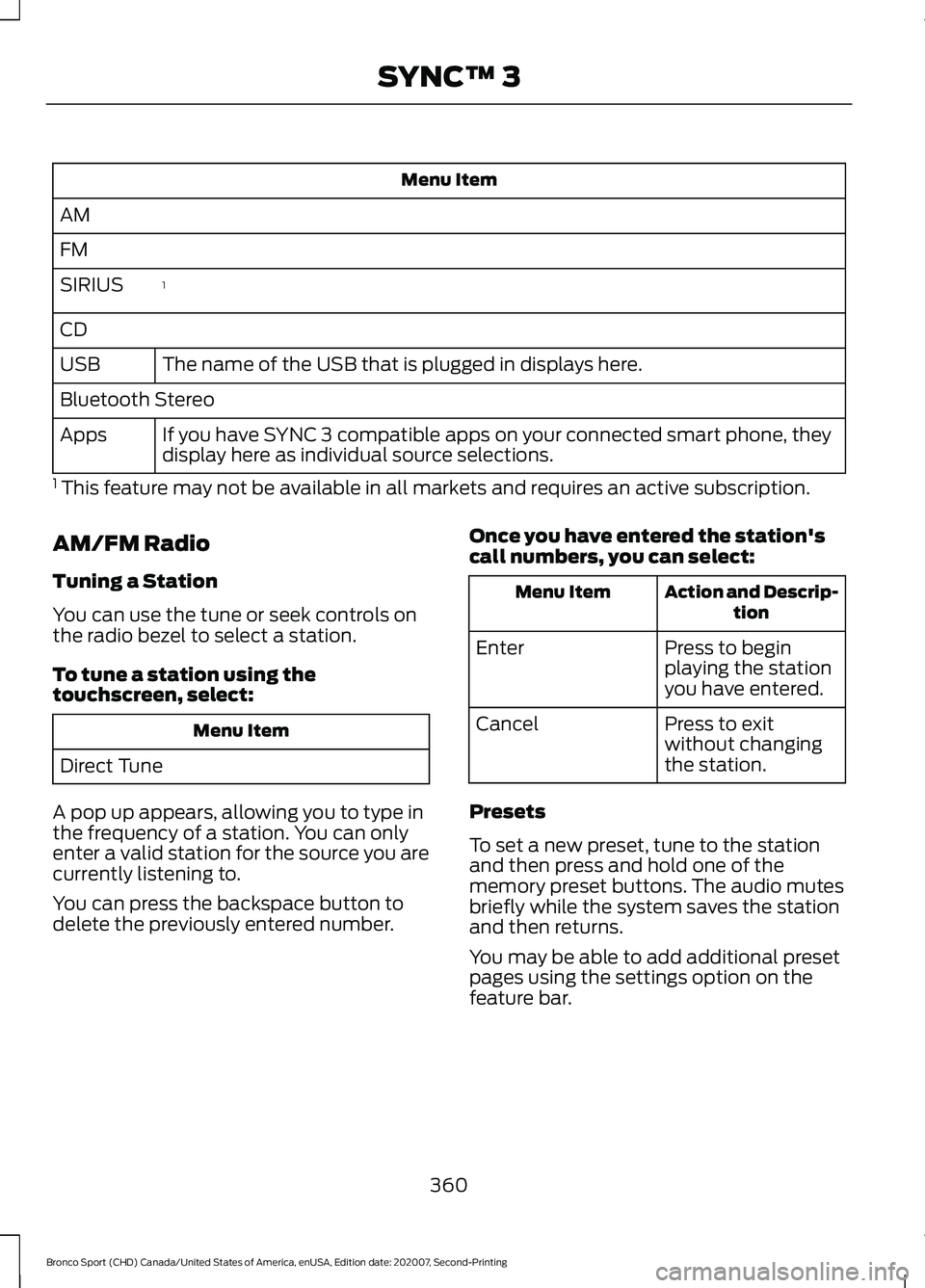
Menu Item
AM
FM 1
SIRIUS
CD
The name of the USB that is plugged in displays here.
USB
Bluetooth Stereo
If you have SYNC 3 compatible apps on your connected smart phone, they
display here as individual source selections.
Apps
1 This feature may not be available in all markets and requires an active subscription.
AM/FM Radio
Tuning a Station
You can use the tune or seek controls on
the radio bezel to select a station.
To tune a station using the
touchscreen, select: Menu Item
Direct Tune
A pop up appears, allowing you to type in
the frequency of a station. You can only
enter a valid station for the source you are
currently listening to.
You can press the backspace button to
delete the previously entered number. Once you have entered the station's
call numbers, you can select: Action and Descrip-
tion
Menu Item
Press to begin
playing the station
you have entered.
Enter
Press to exit
without changing
the station.
Cancel
Presets
To set a new preset, tune to the station
and then press and hold one of the
memory preset buttons. The audio mutes
briefly while the system saves the station
and then returns.
You may be able to add additional preset
pages using the settings option on the
feature bar.
360
Bronco Sport (CHD) Canada/United States of America, enUSA, Edition date: 202007, Second-Printing SYNC™ 3
Page 365 of 471
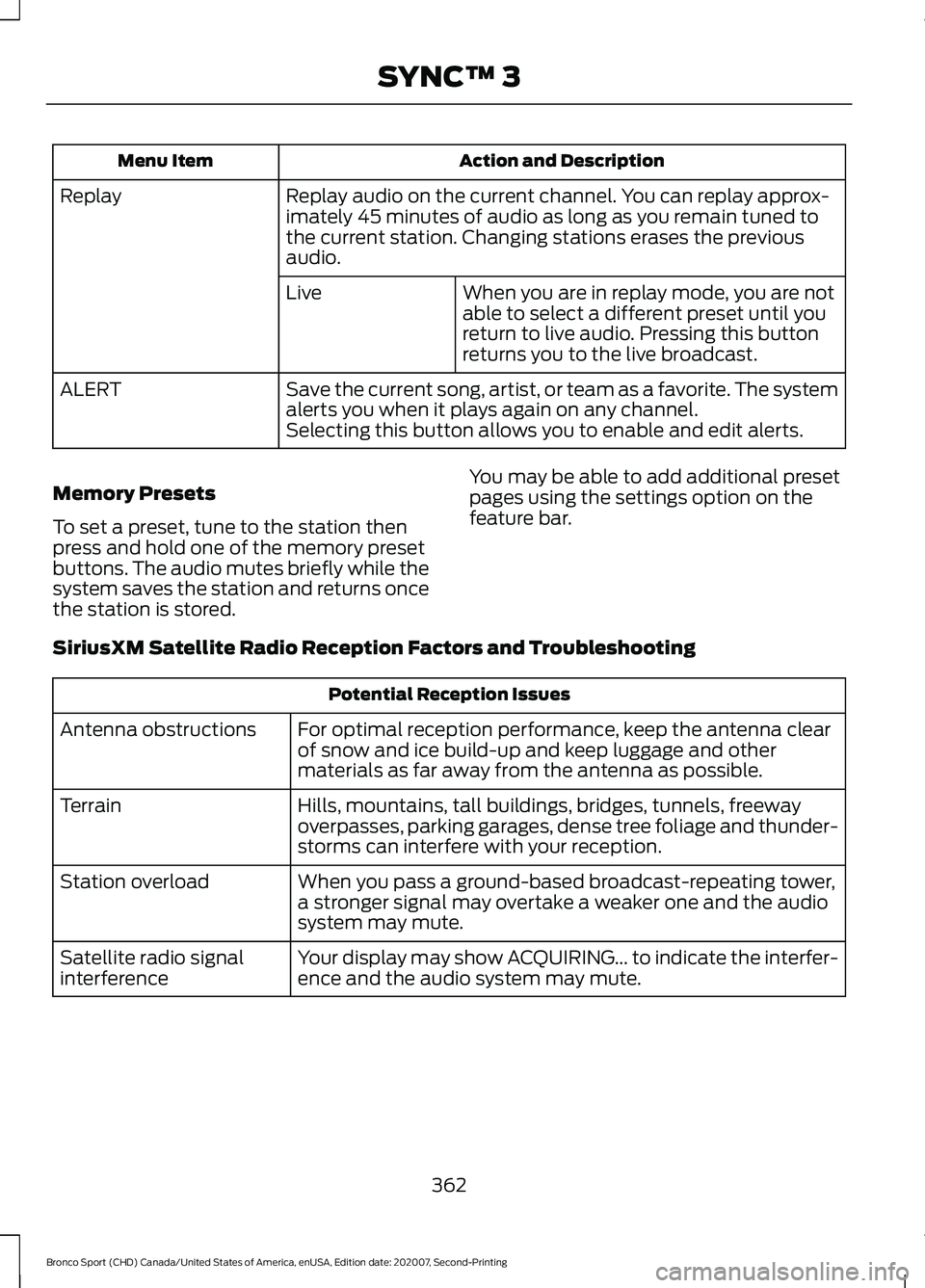
Action and Description
Menu Item
Replay audio on the current channel. You can replay approx-
imately 45 minutes of audio as long as you remain tuned to
the current station. Changing stations erases the previous
audio.
Replay
When you are in replay mode, you are not
able to select a different preset until you
return to live audio. Pressing this button
returns you to the live broadcast.
Live
Save the current song, artist, or team as a favorite. The system
alerts you when it plays again on any channel.
ALERT
Selecting this button allows you to enable and edit alerts.
Memory Presets
To set a preset, tune to the station then
press and hold one of the memory preset
buttons. The audio mutes briefly while the
system saves the station and returns once
the station is stored. You may be able to add additional preset
pages using the settings option on the
feature bar.
SiriusXM Satellite Radio Reception Factors and Troubleshooting Potential Reception Issues
For optimal reception performance, keep the antenna clear
of snow and ice build-up and keep luggage and other
materials as far away from the antenna as possible.
Antenna obstructions
Hills, mountains, tall buildings, bridges, tunnels, freeway
overpasses, parking garages, dense tree foliage and thunder-
storms can interfere with your reception.
Terrain
When you pass a ground-based broadcast-repeating tower,
a stronger signal may overtake a weaker one and the audio
system may mute.
Station overload
Your display may show ACQUIRING... to indicate the interfer-
ence and the audio system may mute.
Satellite radio signal
interference
362
Bronco Sport (CHD) Canada/United States of America, enUSA, Edition date: 202007, Second-Printing SYNC™ 3