2021 FORD BRONCO SPORT lock
[x] Cancel search: lockPage 322 of 471
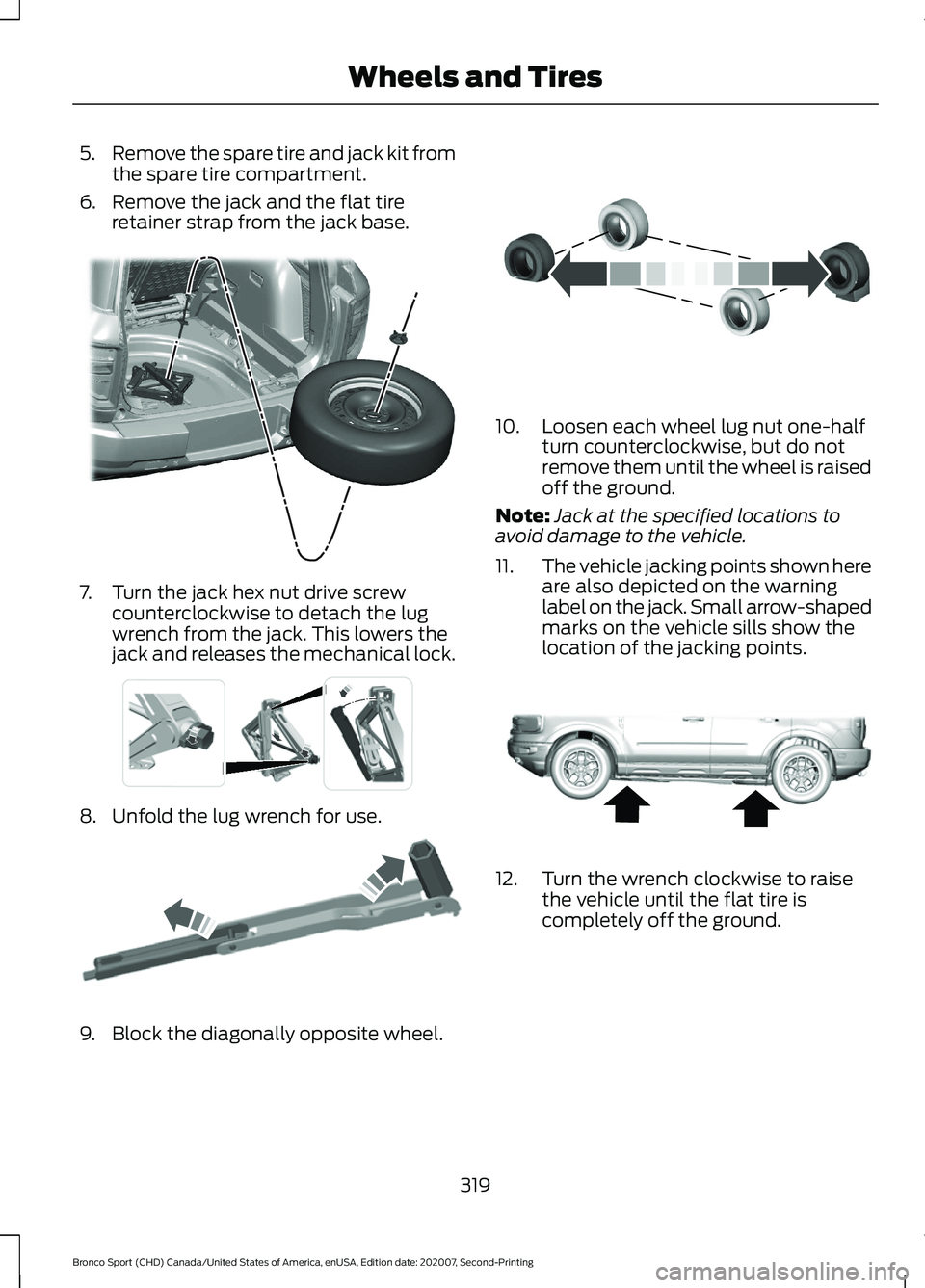
5.
Remove the spare tire and jack kit from
the spare tire compartment.
6. Remove the jack and the flat tire retainer strap from the jack base. 7. Turn the jack hex nut drive screw
counterclockwise to detach the lug
wrench from the jack. This lowers the
jack and releases the mechanical lock. 8. Unfold the lug wrench for use.
9. Block the diagonally opposite wheel. 10. Loosen each wheel lug nut one-half
turn counterclockwise, but do not
remove them until the wheel is raised
off the ground.
Note: Jack at the specified locations to
avoid damage to the vehicle.
11. The vehicle jacking points shown here
are also depicted on the warning
label on the jack. Small arrow-shaped
marks on the vehicle sills show the
location of the jacking points. 12. Turn the wrench clockwise to raise
the vehicle until the flat tire is
completely off the ground.
319
Bronco Sport (CHD) Canada/United States of America, enUSA, Edition date: 202007, Second-Printing Wheels and TiresE323462 E337330 E181744 E142551 E322803
Page 323 of 471
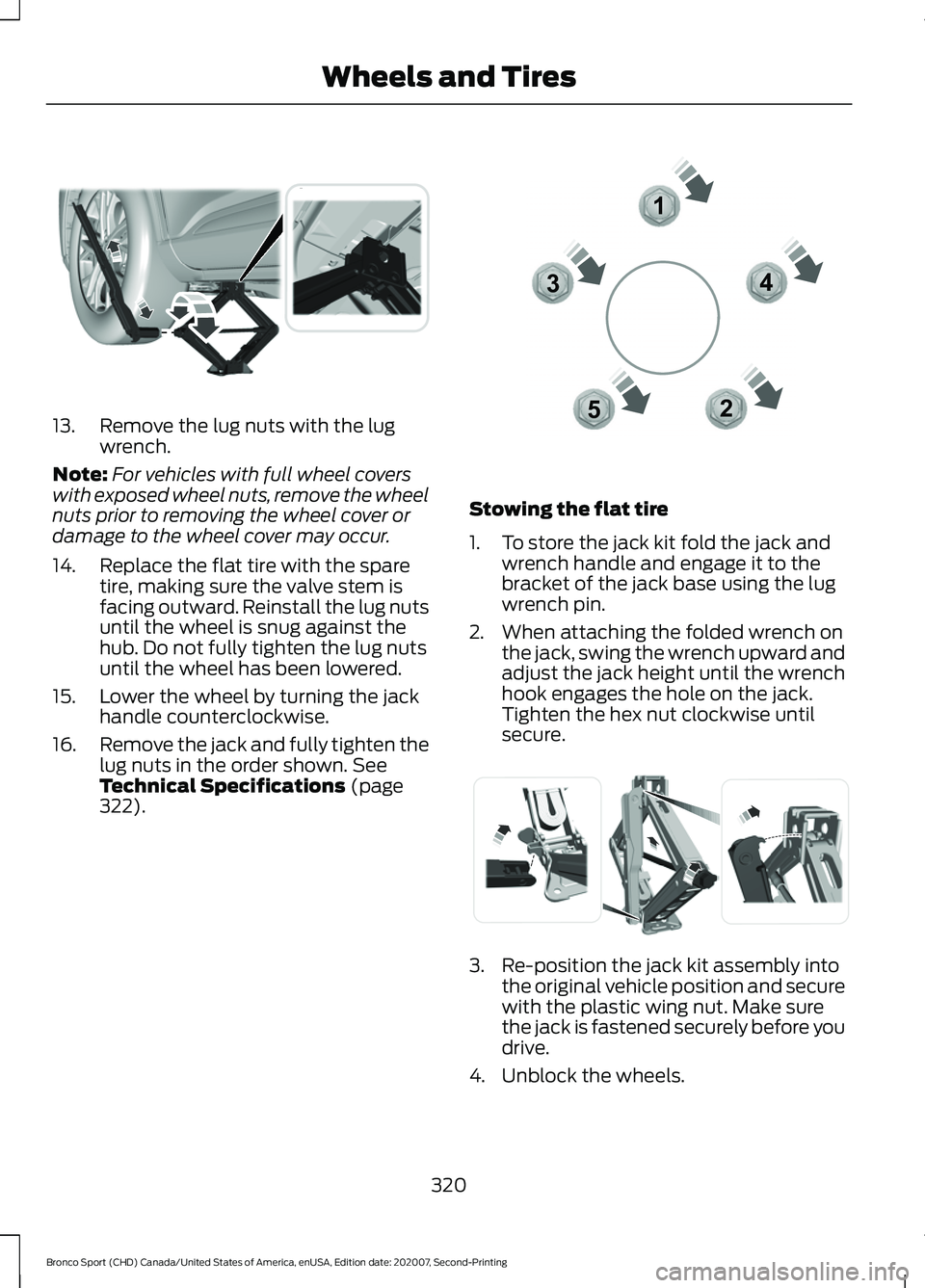
13. Remove the lug nuts with the lug
wrench.
Note: For vehicles with full wheel covers
with exposed wheel nuts, remove the wheel
nuts prior to removing the wheel cover or
damage to the wheel cover may occur.
14. Replace the flat tire with the spare tire, making sure the valve stem is
facing outward. Reinstall the lug nuts
until the wheel is snug against the
hub. Do not fully tighten the lug nuts
until the wheel has been lowered.
15. Lower the wheel by turning the jack handle counterclockwise.
16. Remove the jack and fully tighten the
lug nuts in the order shown. See
Technical Specifications (page
322). Stowing the flat tire
1. To store the jack kit fold the jack and
wrench handle and engage it to the
bracket of the jack base using the lug
wrench pin.
2. When attaching the folded wrench on the jack, swing the wrench upward and
adjust the jack height until the wrench
hook engages the hole on the jack.
Tighten the hex nut clockwise until
secure. 3. Re-position the jack kit assembly into
the original vehicle position and secure
with the plastic wing nut. Make sure
the jack is fastened securely before you
drive.
4. Unblock the wheels.
320
Bronco Sport (CHD) Canada/United States of America, enUSA, Edition date: 202007, Second-Printing Wheels and TiresE294119 12
3
4
5E306781 E294121
Page 351 of 471
Locating Your ESN
With satellite radio as the source, use the
touchscreen to select the following:
1. Select Settings. See Settings (page
378).
2. Select
SiriusXM.
3. Select
SiriusXM information.
Troubleshooting Action
Condition
Message
No action required. This
message should disappear
shortly.
Radio requires more than
two seconds to produce
audio for the selected
channel.
Acquiring…
If this message does not
clear shortly, or with an igni-
tion key cycle, your receiver
may have a fault. See an
authorized dealer for service.
There is an internal module
or system failure present.
Satellite antenna fault
SIRIUS system failure
Tune to another channel or
choose another preset.
The channel is no longer
available.
Invalid Channel
Contact SiriusXM at 1-888-
539-7474 to subscribe to
the channel, or tune to
another channel.
Your subscription does not
include this channel.
Unsubscribed Channel
The signal is blocked. When
you move into an open area,
the signal should return.
The signal is lost from the
SiriusXM satellite or Siri-
usXM tower to your vehicle
antenna.
No Signal
No action required. The
process may take up to
three minutes.
Update of channel
programming in progress.
Updating…
Contact SiriusXM at 1-888-
539-7474 to resolve
subscription issues.
Your satellite service is no
longer available.
Questions? Call
1-888-539-7474
Use the channel guide to
turn off the Lock or Skip
function on that station.
All the channels in the
selected category are either
skipped or locked.
None found
Check Channel Guide
No action required.
SiriusXM has updated the
channels available for your
vehicle.
Subscription Updated
348
Bronco Sport (CHD) Canada/United States of America, enUSA, Edition date: 202007, Second-Printing Audio System
Page 353 of 471
GENERAL INFORMATION
WARNING: Driving while distracted
can result in loss of vehicle control, crash
and injury. We strongly recommend that
you use extreme caution when using any
device that may take your focus off the
road. Your primary responsibility is the
safe operation of your vehicle. We
recommend against the use of any
hand-held device while driving and
encourage the use of voice-operated
systems when possible. Make sure you
are aware of all applicable local laws
that may affect the use of electronic
devices while driving.
About SYNC
The system allows you to interact with the
entertainment, information and
communication systems on your vehicle
using voice commands and a touchscreen.
The system provides easy interaction with
audio, phone, navigation, mobile apps and
settings.
Note: You can switch the system on and
use it for up to an hour without switching
the ignition on.
Note: You can use the system after you
switch the ignition off for up to 10 minutes
or until you open a door.
Note: For your safety, some features are
speed-dependent. Their use is limited to
when your vehicle speed is less than 3 mph
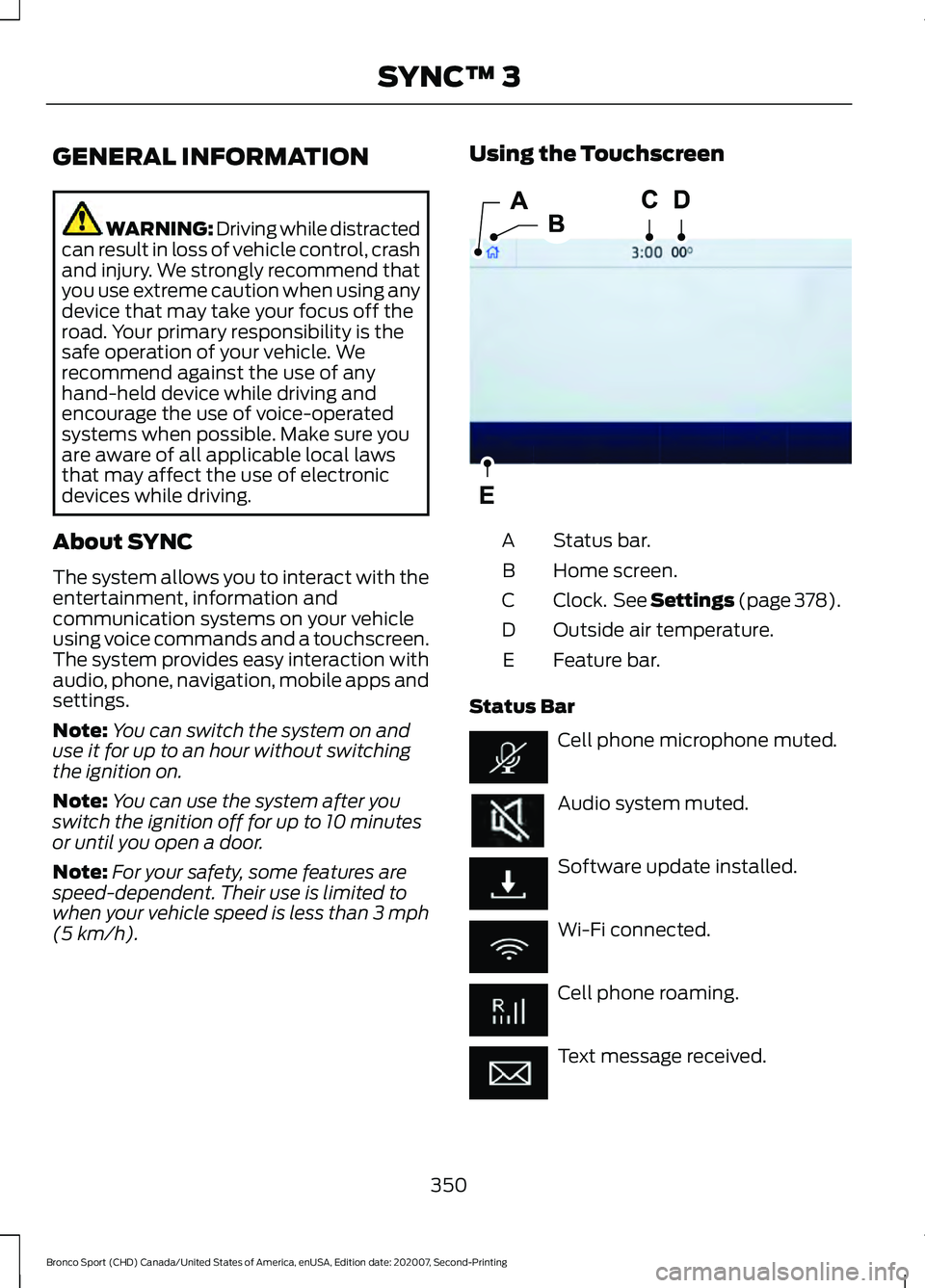
(5 km/h). Using the Touchscreen
Status bar.
A
Home screen.
B
Clock. See Settings (page 378).
C
Outside air temperature.
D
Feature bar.
E
Status Bar Cell phone microphone muted.
Audio system muted.
Software update installed.
Wi-Fi connected.
Cell phone roaming.
Text message received.
350
Bronco Sport (CHD) Canada/United States of America, enUSA, Edition date: 202007, Second-Printing SYNC™ 3E293823
Page 358 of 471
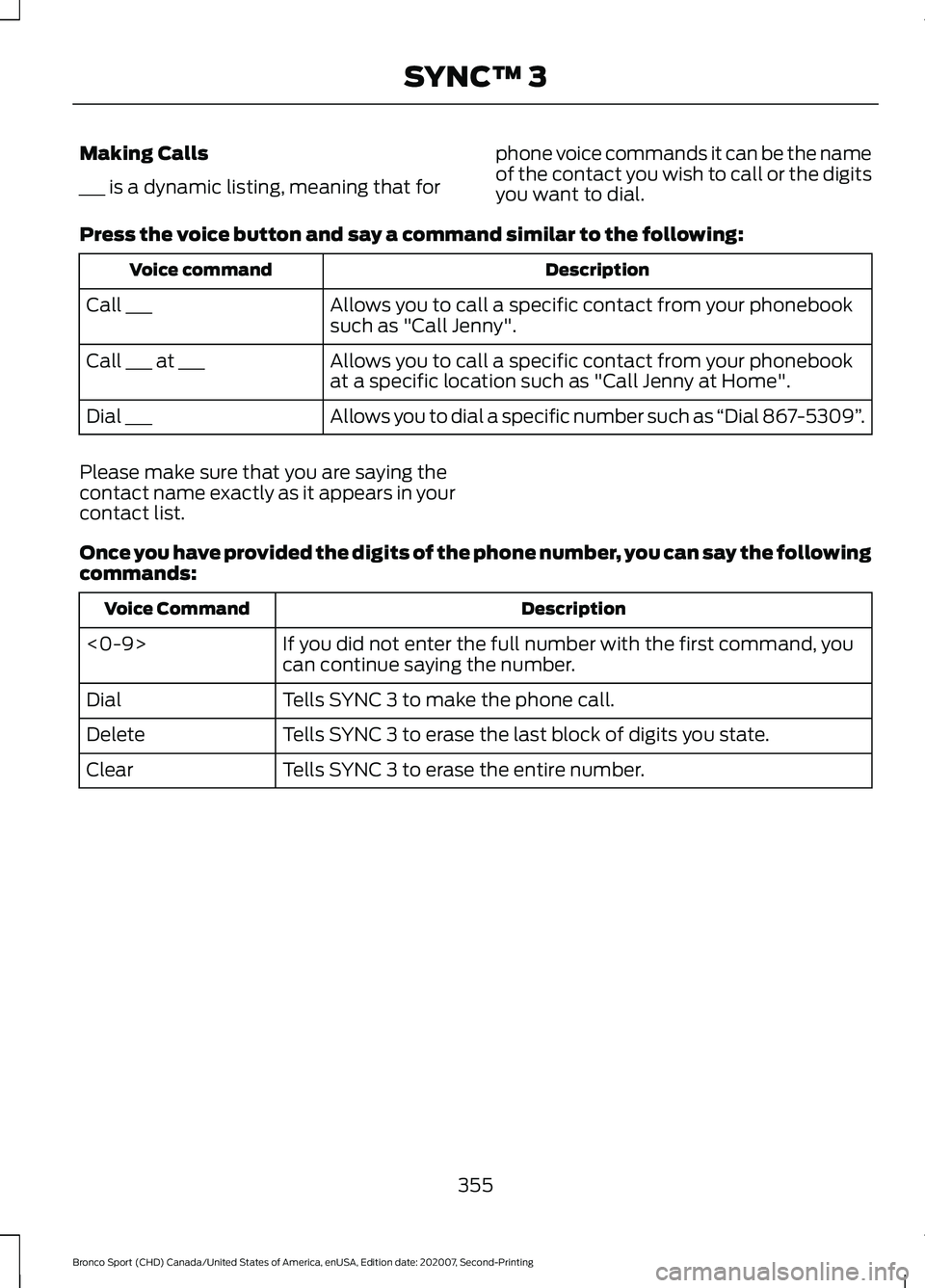
Making Calls
___ is a dynamic listing, meaning that for
phone voice commands it can be the name
of the contact you wish to call or the digits
you want to dial.
Press the voice button and say a command similar to the following: Description
Voice command
Allows you to call a specific contact from your phonebook
such as "Call Jenny".
Call ___
Allows you to call a specific contact from your phonebook
at a specific location such as "Call Jenny at Home".
Call ___ at ___
Allows you to dial a specific number such as “Dial 867-5309”.
Dial ___
Please make sure that you are saying the
contact name exactly as it appears in your
contact list.
Once you have provided the digits of the phone number, you can say the following
commands: Description
Voice Command
If you did not enter the full number with the first command, you
can continue saying the number.
<0-9>
Tells SYNC 3 to make the phone call.
Dial
Tells SYNC 3 to erase the last block of digits you state.
Delete
Tells SYNC 3 to erase the entire number.
Clear
355
Bronco Sport (CHD) Canada/United States of America, enUSA, Edition date: 202007, Second-Printing SYNC™ 3
Page 366 of 471
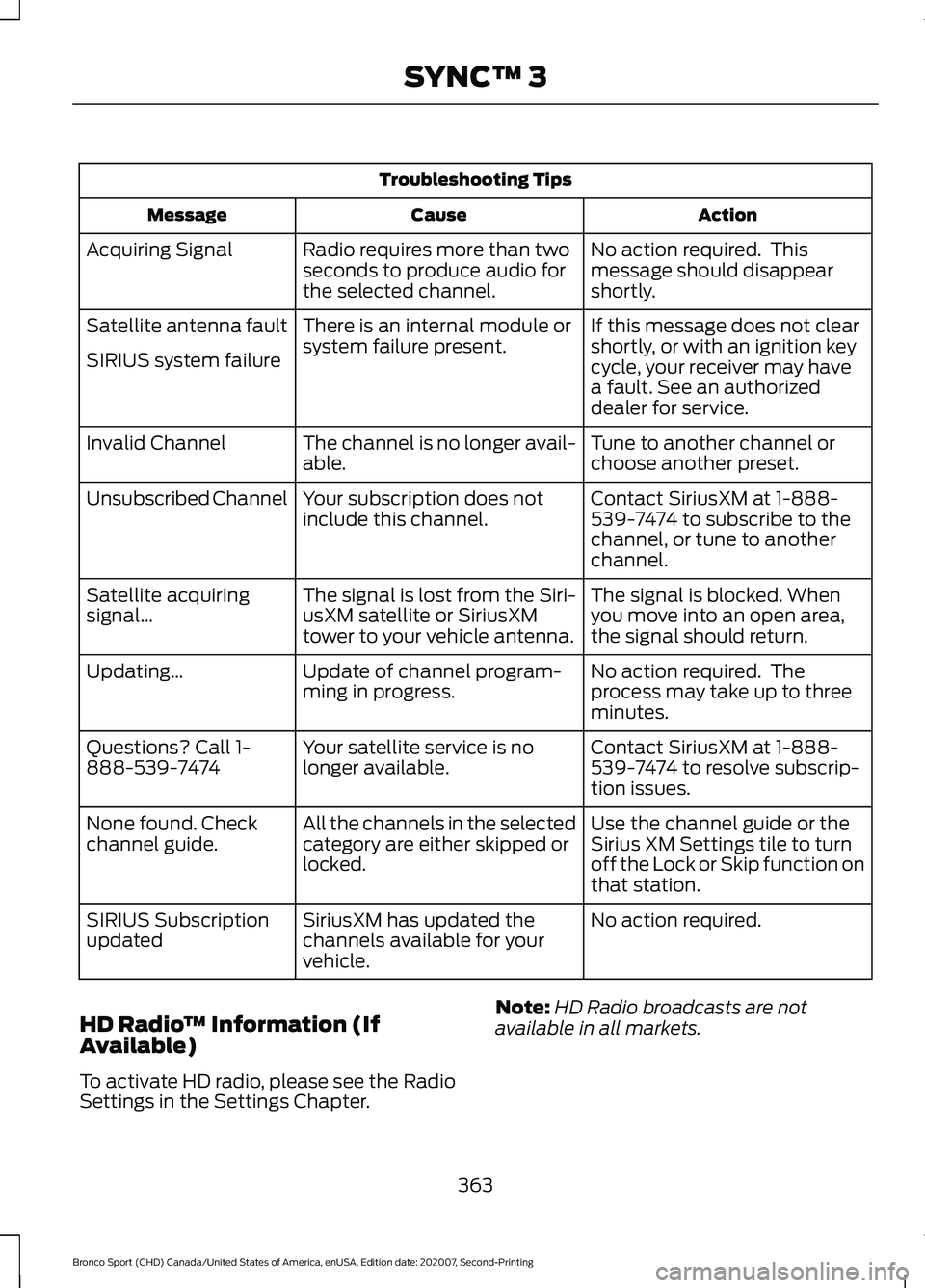
Troubleshooting Tips
Action
Cause
Message
No action required. This
message should disappear
shortly.
Radio requires more than two
seconds to produce audio for
the selected channel.
Acquiring Signal
If this message does not clear
shortly, or with an ignition key
cycle, your receiver may have
a fault. See an authorized
dealer for service.
There is an internal module or
system failure present.
Satellite antenna fault
SIRIUS system failure
Tune to another channel or
choose another preset.
The channel is no longer avail-
able.
Invalid Channel
Contact SiriusXM at 1-888-
539-7474 to subscribe to the
channel, or tune to another
channel.
Your subscription does not
include this channel.
Unsubscribed Channel
The signal is blocked. When
you move into an open area,
the signal should return.
The signal is lost from the Siri-
usXM satellite or SiriusXM
tower to your vehicle antenna.
Satellite acquiring
signal…
No action required. The
process may take up to three
minutes.
Update of channel program-
ming in progress.
Updating…
Contact SiriusXM at 1-888-
539-7474 to resolve subscrip-
tion issues.
Your satellite service is no
longer available.
Questions? Call 1-
888-539-7474
Use the channel guide or the
Sirius XM Settings tile to turn
off the Lock or Skip function on
that station.
All the channels in the selected
category are either skipped or
locked.
None found. Check
channel guide.
No action required.
SiriusXM has updated the
channels available for your
vehicle.
SIRIUS Subscription
updated
HD Radio ™ Information (If
Available)
To activate HD radio, please see the Radio
Settings in the Settings Chapter. Note:
HD Radio broadcasts are not
available in all markets.
363
Bronco Sport (CHD) Canada/United States of America, enUSA, Edition date: 202007, Second-Printing SYNC™ 3
Page 380 of 471
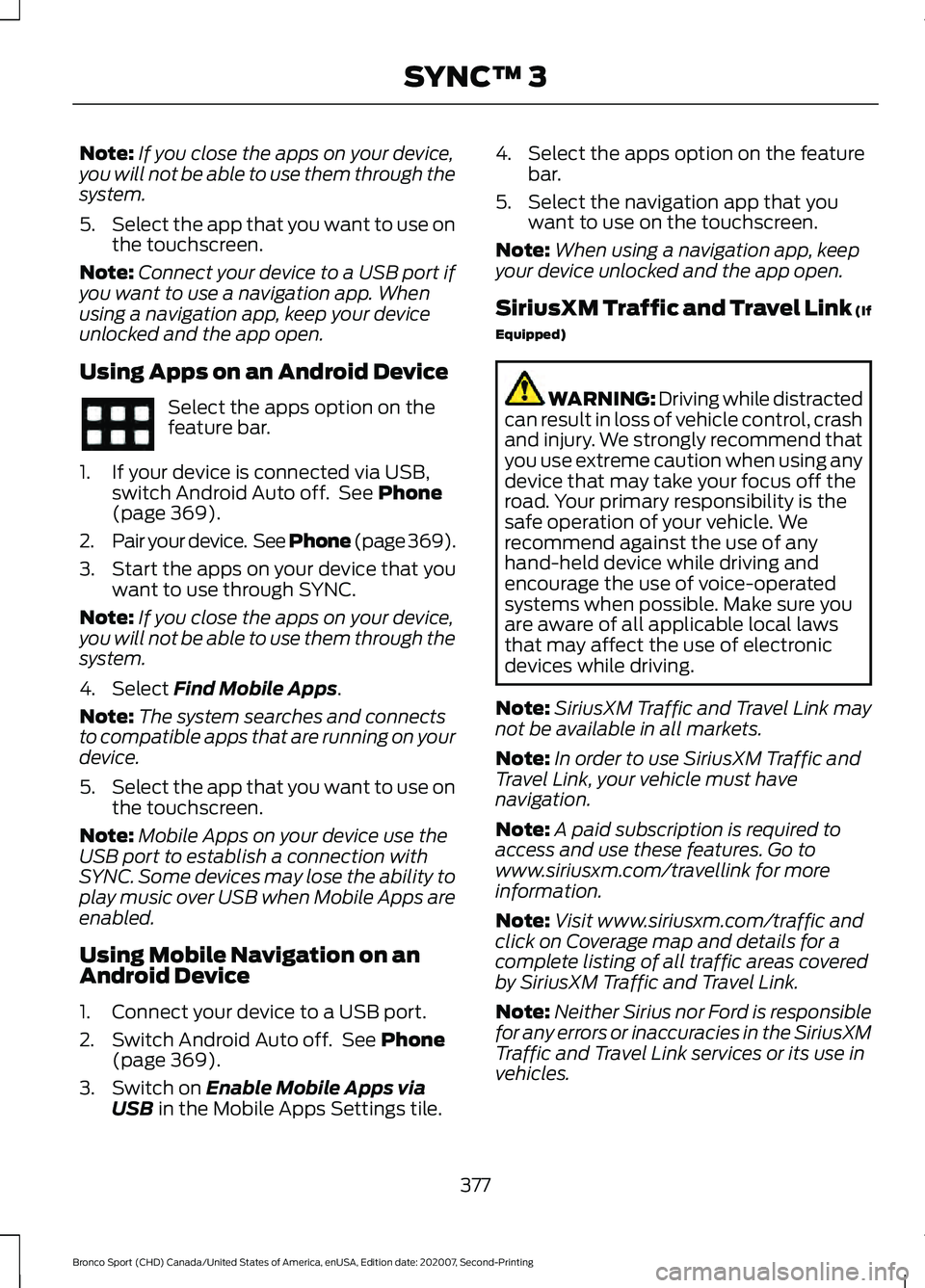
Note:
If you close the apps on your device,
you will not be able to use them through the
system.
5. Select the app that you want to use on
the touchscreen.
Note: Connect your device to a USB port if
you want to use a navigation app. When
using a navigation app, keep your device
unlocked and the app open.
Using Apps on an Android Device Select the apps option on the
feature bar.
1. If your device is connected via USB, switch Android Auto off. See Phone
(page 369).
2. Pair your device. See Phone (page 369).
3. Start the apps on your device that you want to use through SYNC.
Note: If you close the apps on your device,
you will not be able to use them through the
system.
4. Select
Find Mobile Apps.
Note: The system searches and connects
to compatible apps that are running on your
device.
5. Select the app that you want to use on
the touchscreen.
Note: Mobile Apps on your device use the
USB port to establish a connection with
SYNC. Some devices may lose the ability to
play music over USB when Mobile Apps are
enabled.
Using Mobile Navigation on an
Android Device
1. Connect your device to a USB port.
2. Switch Android Auto off. See
Phone
(page 369).
3. Switch on
Enable Mobile Apps via
USB in the Mobile Apps Settings tile. 4. Select the apps option on the feature
bar.
5. Select the navigation app that you want to use on the touchscreen.
Note: When using a navigation app, keep
your device unlocked and the app open.
SiriusXM Traffic and Travel Link (If
Equipped) WARNING: Driving while distracted
can result in loss of vehicle control, crash
and injury. We strongly recommend that
you use extreme caution when using any
device that may take your focus off the
road. Your primary responsibility is the
safe operation of your vehicle. We
recommend against the use of any
hand-held device while driving and
encourage the use of voice-operated
systems when possible. Make sure you
are aware of all applicable local laws
that may affect the use of electronic
devices while driving.
Note: SiriusXM Traffic and Travel Link may
not be available in all markets.
Note: In order to use SiriusXM Traffic and
Travel Link, your vehicle must have
navigation.
Note: A paid subscription is required to
access and use these features. Go to
www.siriusxm.com/travellink for more
information.
Note: Visit www.siriusxm.com/traffic and
click on Coverage map and details for a
complete listing of all traffic areas covered
by SiriusXM Traffic and Travel Link.
Note: Neither Sirius nor Ford is responsible
for any errors or inaccuracies in the SiriusXM
Traffic and Travel Link services or its use in
vehicles.
377
Bronco Sport (CHD) Canada/United States of America, enUSA, Edition date: 202007, Second-Printing SYNC™ 3
Page 381 of 471
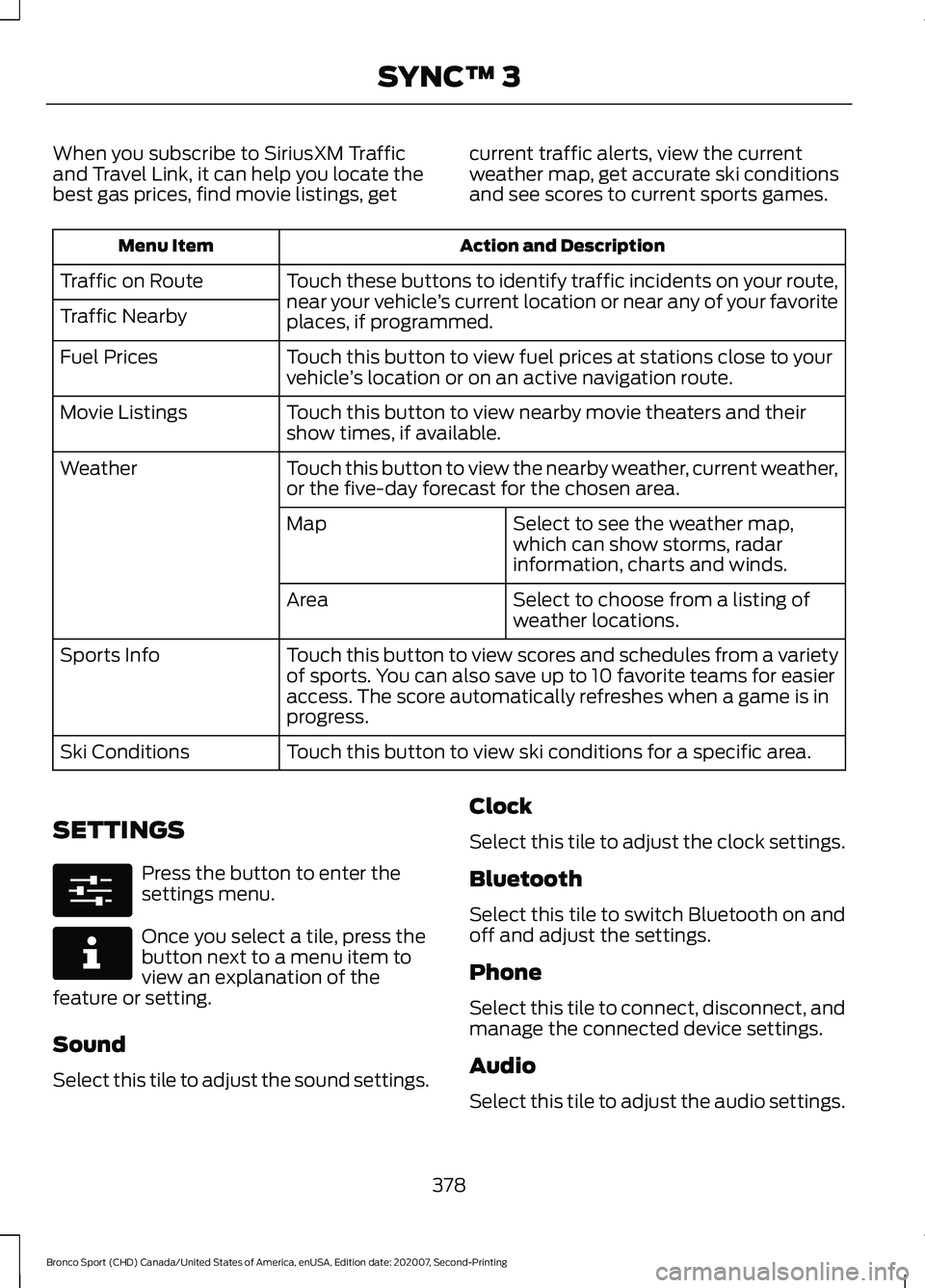
When you subscribe to SiriusXM Traffic
and Travel Link, it can help you locate the
best gas prices, find movie listings, get
current traffic alerts, view the current
weather map, get accurate ski conditions
and see scores to current sports games. Action and Description
Menu Item
Touch these buttons to identify traffic incidents on your route,
near your vehicle’s current location or near any of your favorite
places, if programmed.
Traffic on Route
Traffic Nearby
Touch this button to view fuel prices at stations close to your
vehicle’s location or on an active navigation route.
Fuel Prices
Touch this button to view nearby movie theaters and their
show times, if available.
Movie Listings
Touch this button to view the nearby weather, current weather,
or the five-day forecast for the chosen area.
Weather
Select to see the weather map,
which can show storms, radar
information, charts and winds.
Map
Select to choose from a listing of
weather locations.
Area
Touch this button to view scores and schedules from a variety
of sports. You can also save up to 10 favorite teams for easier
access. The score automatically refreshes when a game is in
progress.
Sports Info
Touch this button to view ski conditions for a specific area.
Ski Conditions
SETTINGS Press the button to enter the
settings menu.
Once you select a tile, press the
button next to a menu item to
view an explanation of the
feature or setting.
Sound
Select this tile to adjust the sound settings. Clock
Select this tile to adjust the clock settings.
Bluetooth
Select this tile to switch Bluetooth on and
off and adjust the settings.
Phone
Select this tile to connect, disconnect, and
manage the connected device settings.
Audio
Select this tile to adjust the audio settings.
378
Bronco Sport (CHD) Canada/United States of America, enUSA, Edition date: 202007, Second-Printing SYNC™ 3E280315 E268570