2021 DODGE CHALLENGER uconnect
[x] Cancel search: uconnectPage 166 of 328

164MULTIMEDIA
Once Apple CarPlay® is up and running on your
Uconnect system, the following features can be
utilized using your iPhone® data plan:
Phone
Music
Messages
Maps
Phone
With Apple CarPlay®, push and hold the
VR button on the steering wheel to
activate a Siri voice recognition session.
You can also press and hold the Home
button within Apple CarPlay® to start talking to Siri.
This allows you to make calls or listen to voicemail
as you normally would using Siri on your iPhone®.
NOTE:Only temporarily pushing the VR button on the
steering wheel launches a built-in Uconnect VR
session, not a Siri session, and it will not function
with Apple CarPlay®.
Music
Apple CarPlay® allows you to access all
your artists, playlists, and music from
iTunes® or any third party application
installed on your device. Using your
iPhone® data plan, you can also use select third
party audio apps including music, news, sports,
podcasts, and more.
Messages
Push and hold the VR button on the
steering wheel to activate a Siri voice
recognition session. Apple CarPlay®
allows you to use Siri to send or reply to
text messages. Siri can also read incoming text
messages, but drivers will not be able to read
messages, as everything is done via voice.
Maps
Push and hold the VR button on the
steering wheel until the beep or tap the
Microphone icon to ask Apple® Siri to
take you to a desired destination by
voice. You can also touch the Navigation icon in
Apple CarPlay® to access Apple® Maps.
Apps
The Apple CarPlay® App plays all compatible apps
that are available to use, every time it is launched.
You must have the compatible app downloaded,
and you must be signed in to the app through your
mobile device for it to work with Apple CarPlay®.
Refer to
http://www.apple.com/ios/carplay/
(US) or https://www.apple.com/ca/ios/carplay/
(Canada) to see the latest list of available apps for
Apple CarPlay®.
Apple CarPlay® Voice Command
NOTE:Feature availability depends on your carrier and
mobile phone maker. Some Apple CarPlay®
features may not be available in every region and/
or language.
Apple CarPlay® allows you to use your voice to
interact with Siri through your vehicle’s voice
recognition system, and use your smartphone’s
data plan to project your iPhone® and a number of
its apps onto your Uconnect touchscreen. Connect
your iPhone® 5 or higher to one of the media USB
ports, using the factory-provided Lightning cable,
and press the new Apple CarPlay® icon that
replaces your Phone icon on the main menu bar to
begin Apple CarPlay®. Push and hold the VR
button on the steering wheel, or press and hold the
Home button within Apple CarPlay®, to activate
Siri, which recognizes natural voice commands to
use a list of your iPhone® features:
Phone
Music
Messages
Maps — If Equipped
Additional Apps — If Equipped
21_LA_OM_EN_USC_t.book Page 164
Page 167 of 328

MULTIMEDIA165
NOTE:Apple CarPlay® is a trademark of Apple® Inc.
iPhone® is a trademark of Apple® Inc., registered
in the US and other countries. Apple® terms of use
and privacy statements apply.
ANDROID AUTO™ AND APPLE
C
ARPLAY® TIPS AND TRICKS
Android Auto™ And Apple CarPlay® Automatic
Bluetooth® Pairing
After connecting to Android Auto™ or Apple
CarPlay® for the first time and undergoing the
setup procedure, the smartphone pairs to the
Uconnect system via Bluetooth® without any setup
required every time it is within range, if Bluetooth®
is turned on.
NOTE:Apple CarPlay® uses a USB connection while
Android Auto™ uses both USB and Bluetooth®
connections to function. The connected device is
unavailable to other devices when connected
using Android Auto™ or Apple CarPlay®. Multiple Devices Connecting To The Uconnect
System — If Equipped
It is possible to have multiple devices connected to
the Uconnect system. For example, if using Android
Auto™/Apple CarPlay®, the connected device will
be used to place hands-free phone calls or send
hands-free text messages. However, another
device can also be paired to the Uconnect system,
via Bluetooth®, as an audio source, so the
passenger can stream music.
NOTE:Apple CarPlay® and Android Auto™ can only be
launched from the front and center console USB
ports.
PERFORMANCE PAGES
Performance Pages is an application that provides
a display for performance indicators, as received
from the instrument cluster, that will help you gain
familiarity with the capabilities of your vehicle in
real-time.
To access the Performance Pages, press the Apps
button on the touchscreen then press the
Performance Pages button on the touchscreen.
Press the desired button on the touchscreen to
access that specific Performance Page.
WARNING!
Measurement of vehicle statistics with the
Performance Pages is intended for off-highway
or off-road use only and should not be done on
any public roadways. It is recommended that
these features be used in a controlled
environment and within the limits of the law. The
capabilities of the vehicle as measured by the
Performance Pages must never be exploited in a
reckless or dangerous manner, which can
jeopardize the user’s safety or the safety of
others. Only a safe, attentive, and skillful driver
can prevent accidents.
5
21_LA_OM_EN_USC_t.book Page 165
Page 171 of 328

MULTIMEDIA169
When the Timers Page is selected, you will be able
to select the Drag or Accel & Braking tabs. The
following will be displayed:
Recent
The most recent successful run of performance
timers. If a run does not complete within the
timers limit, or is aborted, the values shown will
revert to the most recent valid run.
Last
The last recorded successful run of perfor -
mance timers.
Best
The best recorded run of performance timers,
except for braking data.
Save
Pressing the Save button will let you save the
visible page, Recent/Last/Best. Any saved run
over 10 will overwrite the last saved run for
Uconnect system storage. The operation of the
Save feature is listed below:
NOTE:Pressing the Camera icon in the upper right corner
of the screen at any time will save a screenshot of
the screen currently being viewed to the connected
USB device.
Performance Pages — Save
With a USB jump drive installed, press the USB
button to save to the jump drive.
Press the Uconnect button to save the runs to
the Owner web page.
NOTE:Uconnect option will be grayed out or missing if the
vehicle does not have a valid Uconnect account
associated with it.
Press the Cancel button to return to the Timers
page.The tabs on the Timers page contain the timers
listed below:
Reaction Time
Measures the driver's reaction time for
launching the vehicle against a simulated drag
strip timing light (behavior modeled after 500
Sportsman Tree) displayed in the instrument
cluster display.
NOTE:Drag timers (RT, 60 ft [20 m], 330 ft [100 m],
1/8 mile [200 m], 1000 ft [300 m], and 1/4 mile
[400 m]).
NOTE:Accel & Braking timers (0-60 mph [0-100 km/h],
0-100 mph [0-160 km/h], Brake from mph
[km/h], and Brake Distance ft [meters]).
0-60 mph (0-100 km/h)
Displays the time it takes for the vehicle to go
from 0 to 60 mph (0 to 100 km/h).
0-100 mph (0-160 km/h)
Displays the time it takes for the vehicle to go
from 0 to 100 mph (0 to 160 km/h).
60 ft (20 m) ET
Displays the time it takes the vehicle to go 60
feet (20 m).
5
21_LA_OM_EN_USC_t.book Page 169
Page 175 of 328

MULTIMEDIA173
DODGE DRIVE MODES — IF EQUIPPED
PERFORMANCE CONTROL — IF
E
QUIPPED
Your vehicle may be equipped with a Performance
Control feature which allows for coordinating the
operation of various vehicle systems depending
upon the type of driving behavior desired. The
Performance Control feature is controlled through
the Uconnect system and may be accessed by
performing any of the following:
Pushing the Super Track Pack button on the
instrument panel switch bank.
Selecting “Performance Control” from the
“Apps” menu.
Selecting “Performance Control” from within the
Performance Pages menu.
You will be able to enable, disable, and customize
the functionality of the Launch Control and
Performance Control Set-Up features within
Performance Control. Descriptions of these features are provided below.
To access information about the functionality of
these features through the Uconnect system,
press the Info button on the touchscreen.
NOTE:Dodge vehicles equipped with a 6.4L engine,
except for R/T Scat Pack 1320 6.4L non-widebody
vehicles, will use SRT Drive Modes rather than the
Dodge Performance Control Pages. Please refer to
the following sections for further information on
the SRT Drive Modes.
Drive Mode Set-Up
Performance Control Set-Up
Pressing the Drive Mode Set-Up button on the
touchscreen within the Performance Control
screen indicates the real-time status of the various
systems. Pressing the Sport Mode Set-Up, Drag
Mode Set-Up (1320 only), or Default Mode Set-Up
buttons on the touchscreen allows the driver to
configure their individual performance control and
see how those configurations affect the
performance of the vehicle.
NOTE:Not all of the options listed in this manual are
available on every vehicle. Below is a chart with all
available Performance Control vehicle configura
-
tions.
5
21_LA_OM_EN_USC_t.book Page 173
Page 179 of 328

MULTIMEDIA177
SPORT
Press the Sport button on the touchscreen to
turn off traction control and reduce stability
control.
NORMAL
Press the Normal button on the touchscreen to
provide full traction control and full stability
control.
STEERING — IF EQUIPPED
Steering
SPORT
Press the Sport button on the touchscreen to
provide an increased amount of steering feel,
requiring a higher amount of steering effort.
NORMAL
Press the Normal button on the touchscreen to
provide a balanced steering feel and steering
effort. This is also your vehicle’s preset steering
setting.
COMFORT
Press the Comfort button on the touchscreen to
provide a lower steering effort.
RADIO OPERATION AND MOBILE PHONES
Under certain conditions, the mobile phone being
on in your vehicle can cause erratic or noisy
performance from your radio. This condition may
be lessened or eliminated by repositioning the
mobile phone within the vehicle. This condition is
not harmful to the radio. If your radio performance
does not satisfactorily improve from repositioning
the mobile phone, it is recommended that the
volume be turned down or off during mobile phone
operation when not using the Uconnect system.
REGULATORY AND SAFETY
I
NFORMATION
US/CANADA
Exposure to Radio Frequency Radiation
The radiated output power of the internal wireless
radio is far below the FCC and IC radio frequency
exposure limits. Nevertheless, the wireless radio
will be used in such a manner that the radio is 8 in
(20 cm) or further from the human body.
The internal wireless radio operates within
guidelines found in radio frequency safety
standards and recommendations, which reflect
the consensus of the scientific community.
The radio manufacturer believes the internal
wireless radio is safe for use by consumers. The
level of energy emitted is far less than the
electromagnetic energy emitted by wireless
devices such as mobile phones. However, the use
of wireless radios may be restricted in some
situations or environments, such as aboard
airplanes. If you are unsure of restrictions, you are
encouraged to ask for authorization before turning
on the wireless radio Ú page 311.
5
21_LA_OM_EN_USC_t.book Page 177
Page 185 of 328

SAFETY183
Disabling And Enabling HSA
This feature can be turned on or turned off. To
change the current setting, proceed as follows:
If disabling HSA using Uconnect Settings, see
Úpage 120.
Towing With HSA
HSA will also provide assistance to mitigate roll
back while towing a trailer.
Rain Brake Support (RBS)
RBS may improve braking performance in wet
conditions. It will periodically apply a small amount
of brake pressure to remove any water buildup on
the front brake rotors. It functions when the
windshield wipers are in LO or HI speed. When RBS
is active, there is no notification to the driver and
no driver interaction is required.
Ready Alert Braking (RAB)
RAB may reduce the time required to reach full
braking during emergency braking situations. It
anticipates when an emergency braking situation
may occur by monitoring how fast the throttle is
released by the driver. The Electronic Brake
Controller (EBC) will prepare the brake system for
a panic stop.
Traction Control System (TCS)
The TCS monitors the amount of wheel spin of
each of the driven wheels. If wheel spin is
detected, the TCS may apply brake pressure to the
spinning wheel(s) and/or reduce engine power to
provide enhanced acceleration and stability. A
feature of the TCS, Brake Limited Differential (BLD)
functions similarly to a limited slip differential and
controls the wheel spin across a driven axle. If one
wheel on a driven axle is spinning faster than the
other, the system will apply the brake of the
spinning wheel. This will allow more engine power
to be applied to the wheel that is not spinning. BLD
may remain enabled even if TCS and ESC are in
reduced modes.
WARNING!
There may be situations where the Hill Start
Assist (HSA) will not activate and slight rolling
may occur, such as on minor hills or with a
loaded vehicle, or while pulling a trailer. HSA is
not a substitute for active driving involvement. It
is always the driver’s responsibility to be
attentive to distance to other vehicles, people,
and objects, and most importantly brake
operation to ensure safe operation of the vehicle
under all road conditions. Your complete
attention is always required while driving to
maintain safe control of your vehicle. Failure to
follow these warnings can result in a collision or
serious personal injury.
WARNING!
If you use a trailer brake controller with your
trailer, the trailer brakes may be activated and
deactivated with the brake switch. If so, there
may not be enough brake pressure to hold
both the vehicle and the trailer on a hill when
the brake pedal is released. In order to avoid
rolling down an incline while resuming accel -
eration, manually activate the trailer brake or
apply more vehicle brake pressure prior to
releasing the brake pedal.
HSA is not a parking brake. Always apply the
parking brake fully when exiting your vehicle.
Also, be certain to place the transmission in
PARK.
Failure to follow these warnings can result in a
collision or serious personal injury.
6
21_LA_OM_EN_USC_t.book Page 183
Page 189 of 328
SAFETY187
Modes Of Operation
Blind Spot has three selectable modes of
operation that are available in the Uconnect
system.
Blind Spot Alert Lights Only
When operating in Blind Spot Alert mode, the BSM
system will provide a visual alert in the appropriate
side view mirror based on a detected object.
However, when the system is operating in RCP
mode, the system will respond with both visual and
audible alerts when a detected object is present.
Whenever an audible alert is requested, the radio
volume is reduced so that the alert can be better
heard. Blind Spot Alert Lights/Chime
When operating in Blind Spot Alert Lights/Chime
mode, the BSM system will provide a visual alert in
the appropriate side view mirror based on a
detected object. If the turn signal is then activated,
and it corresponds to an alert present on that side
of the vehicle, an audible chime will also be
sounded. Whenever a turn signal and detected
object are present on the same side at the same
time, both the visual and audio alerts will be
issued. In addition to the audible alert the radio (if
on) volume will be reduced so that the alert can be
better heard.
When the system is in RCP, the system shall
respond with both visual and audible alerts when a
detected object is present. Whenever an audible
alert is requested, the radio volume is reduced so
that the alert can be better heard.
Blind Spot Alert Off
When the BSM system is turned off there will be no
visual or audible alerts from either the BSM or RCP
systems.
NOTE:The BSM system will store the current operating
mode when the vehicle is shut off. Each time the
vehicle is started the previously stored mode will
be recalled and used.
FORWARD COLLISION WARNING (FCW)
O
PERATION — IF EQUIPPED
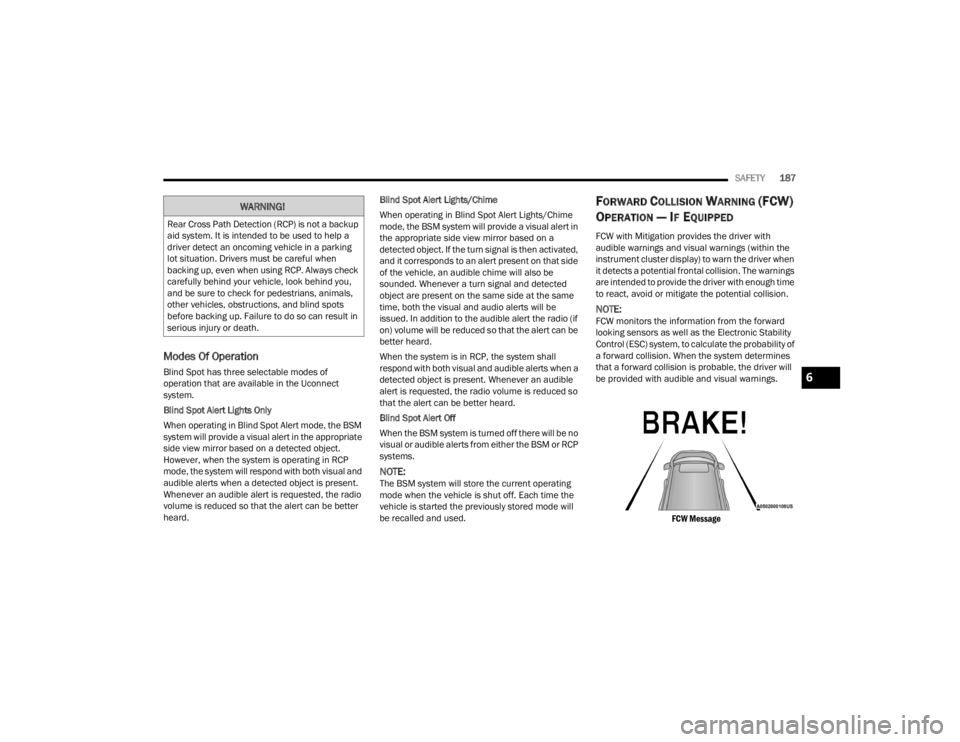
FCW with Mitigation provides the driver with
audible warnings and visual warnings (within the
instrument cluster display) to warn the driver when
it detects a potential frontal collision. The warnings
are intended to provide the driver with enough time
to react, avoid or mitigate the potential collision.
NOTE:FCW monitors the information from the forward
looking sensors as well as the Electronic Stability
Control (ESC) system, to calculate the probability of
a forward collision. When the system determines
that a forward collision is probable, the driver will
be provided with audible and visual warnings.
FCW Message
WARNING!
Rear Cross Path Detection (RCP) is not a backup
aid system. It is intended to be used to help a
driver detect an oncoming vehicle in a parking
lot situation. Drivers must be careful when
backing up, even when using RCP. Always check
carefully behind your vehicle, look behind you,
and be sure to check for pedestrians, animals,
other vehicles, obstructions, and blind spots
before backing up. Failure to do so can result in
serious injury or death.
6
21_LA_OM_EN_USC_t.book Page 187
Page 190 of 328
188SAFETY
When the system determines a collision with the
vehicle in front of you is no longer probable, the
warning message will be deactivated Úpage 311.
NOTE:
The minimum speed for FCW activation is
5 mph (10 km/h).
The FCW alerts may be triggered on objects
other than vehicles such as guardrails or sign
posts based on the course prediction. This is
expected and is a part of normal FCW activation
and functionality.
The FCW system is intended for on-road use
only. If the vehicle is taken off-road, the FCW
system should be deactivated to prevent unnec -
essary warnings to the surroundings.
Turning FCW On Or Off
NOTE:The default status of FCW is on; this allows the
system to warn you of a possible collision with the
vehicle in front of you.
The Forward Collision activation/deactivation is
located in "Uconnect Settings" under "Safety And
Driving Assistance". Forward Collision can be
checked or unchecked.
When FCW is selected off, there will be an "FCW OFF"
icon that appears in the instrument cluster display.
Changing the FCW status to off prevents the
system from warning you of a possible collision
with the vehicle in front of you.
NOTE:The FCW system’s default state is on. The FCW
system state is kept in memory from one ignition
cycle to the next. If the system is turned off, it will
remain off when the vehicle is restarted.
Changing FCW Status
The FCW Sensitivity settings are programmable
through the Uconnect system Ú page 120.
The default status of FCW is the “Far” setting in the
“On” setting. This allows the system to warn you of
a possible collision with the vehicle in front of you
when you are farther away and it applies limited
braking. This gives you the most reaction time to
avoid a possible collision. Changing the FCW status to the “Near” setting,
allows the system to warn you of a possible
collision with the vehicle in front of you when you
are much closer. This setting provides less
reaction time than the “Far” setting, which allows
for a more dynamic driving experience.
NOTE:
The system will retain the last setting selected
by the driver after ignition shut down.
FCW may not react to irrelevant objects such as
overhead objects, ground reflections, objects
not in the path of the vehicle, stationary objects
that are far away, oncoming traffic, or leading
vehicles with the same or higher rate of speed.
FCW will be disabled like ACC, with the unavail
-
able screens.
Service FCW Warning
If the system turns off, and the instrument cluster
display reads:
ACC/FCW Unavailable Service Required
Cruise/FCW Unavailable Service Required
This indicates there is an internal system fault.
Although the vehicle is still drivable under normal
conditions, have the system checked by an
authorized dealer.
WARNING!
Forward Collision Warning (FCW) is not intended
to avoid a collision on its own, nor can FCW
detect every type of potential collision. The driver
has the responsibility to avoid a collision by
controlling the vehicle via braking and steering.
Failure to follow this warning could lead to
serious injury or death.
21_LA_OM_EN_USC_t.book Page 188