Page 46 of 450

44
Touch screen
The touch screen gives access to:
- t he heating/air conditioning controls,
-
m
enus for adjusting settings for vehicle
functions and systems,
-
a
udio system and telephone controls and
the display of associated information,
For safety reasons, the driver
should only carr y out operations
that require close attention with the
vehicle stationary.
Some functions are not accessible
when driving.General operation
Recommendations
Use is possible in all temperatures.
Do not use pointed objects on the touch
screen.
Do not touch the touch screen with wet hands.
Uses a soft clean cloth to clean the touch
screen.
Use this button to confirm.
Use this button to return to the
previous page.
Principles
Use the buttons on either side of the touch
screen for access to the menus, then press the
virtual buttons in the touch screen.
Certain functions may be displayed over 1 or
2 pages.
To deactivate/activate a function, press OFF/
ON.
To modify a setting (lighting duration, etc.) or
access additional information, press the symbol
for the function.After a few moments with no action on
the secondary page, the primary page
is displayed automatically.
and, depending on equipment, allows:
-
t
he display of alert messages and the
visual parking sensors information,
-
t
he permanent display of the time and the
exterior temperature (a blue warning lamp
appears when there is a risk of ice),
-
a
ccess to the controls for the navigation
system and Internet services, and the
display of associated information.
Instruments
Page 116 of 450
114
B618_en_Chap04_Eclairage-et-visibilite_ed01-2016
Rear wiper
Park.
Intermittent wipe (proportional to the
vehicle speed).
Wash-wipe (set duration).
Rear wiper selection ring:
Reverse gear
When reverse gear is engaged, the rear wiper
will come into operation automatically if the
windscreen wipers are operating.
Activation or deactivation of this automatic
function can only
be set via the touch screen.
Windscreen wash
Pull the wiper stalk towards you. The
windscreen wash, then the windscreen wipers,
operate for a pre-determined time.
The screenwash jets are not adjustable.
Do not try to move them (risk of
damage).
F
I
n the Driving
menu, select the
" Vehicle settings " tab.
F
Sel
ect "
Comfort " then "Rear
wiper in reverse ".
This function is activated by default.
If a significant accumulation of snow or
ice is present, or when using a bicycle
carrier on the boot, deactivate the
automatic rear wiper.
Lighting and visibility
Page 190 of 450

188
B618_en_Chap06_conduite_ed01-2016
Deactivation or activation of the system is done
via the vehicle configuration menu.The system will be deactivated
automatically if a trailer is being
towed or a bicycle carrier is fitted on
a towbar (vehicle fitted with a towbar
installed in line with the manufacturer's
recommendations). In bad or wintry weather, ensure that
the sensors are not covered with mud,
ice or snow. When reverse gear is
engaged, an audible signal (long beep)
indicates that the sensors may be dirty.
Certain sound sources (motorcycle,
lorry, pneumatic drill, etc.) may trigger
the audible signals of the parking
sensor system.High pressure jet wash
When washing your vehicle, do not
direct the lance within 30 cm of the
sensors.
Deactivation / Activation
In the event of a fault, when reverse
gear is engaged, this warning lamp
lights up in the instrument panel,
accompanied by a message and an
audible signal.
Operating fault
Contact a CITROËN dealer or a qualified
workshop to have the system checked.
Driving
Page 280 of 450
6
12:13
18,5 21,5
23 °C
21,518,5
12:1323 °C12:13
18,5 21,5
23 °C
12:13
18,5 21,5
23 °C
Audio and Telematics
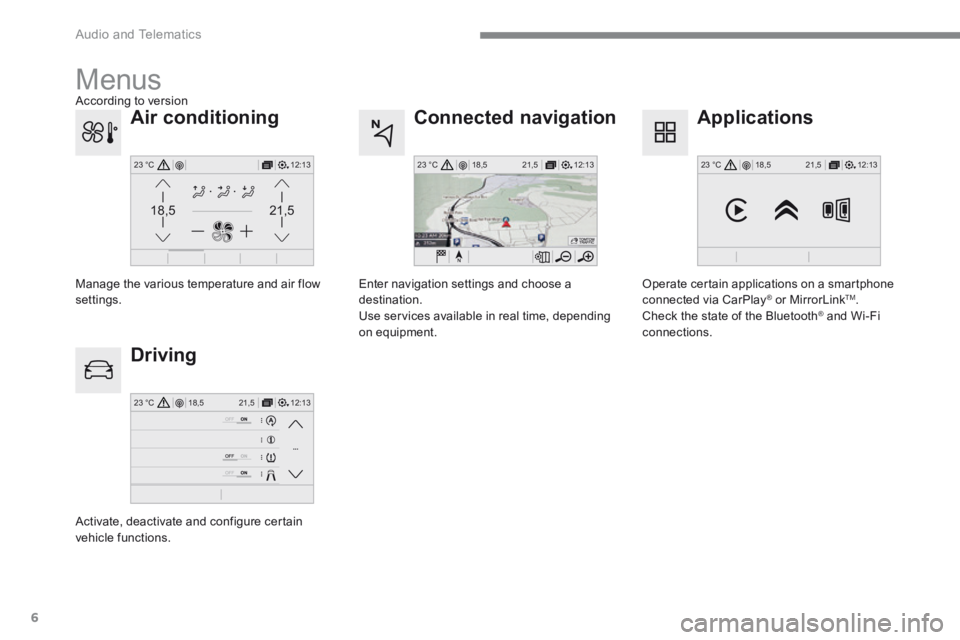
Connected navigation
Driving
Applications
Enter navigation settings and choose a destination. Use services available in real time, depending on equipment.
Activate, deactivate and configure certain vehicle functions.
Operate certain applications on a smartphone connected via CarPlay ® or MirrorLink ® or MirrorLink ®TM . Check the state of the Bluetooth ® and Wi-Fi ® and Wi-Fi ®
connections.
Menus
Air conditioning
Manage the various temperature and air flow settings.
A c c o r d i n g t o v e r s i o n
Page 287 of 450

13
.
Audio and Telematics
"Voice command"Help message
Send text to <...>
To hear your messages, you can say "listen to most recent message". When you want to send a text, there's a set of quick messages ready for you to use. Just use the quick message name and say something like "send quick message to Bill Carter, I'll be late". Check the phone menu for the names of the supported messages.
Please say "call" or "send quick message to", and then select a line from the list. To move around a list shown on the display, you can say "go to start", "go to end", "next page" or "previous page". To undo your selection, say "undo". To cancel the current action and start again, say "cancel". Listen to most recent message *
"Test message" voice commands
If a telephone is connected to the system these voice commands can be issued from any main screen page after pressing the "Telephone" button on the steering wheel, as long as there is no telephone call in progress. If no telephone has been connected by Bluetooth, a voice message announces: "Please first connect a telephone" and the voice session will be closed.
* This function is only available if the telephone connected to the system supports downloading of contacts and recent calls and if the download has
been done.
The system only sends pre-recorded "Quick messages".
Page 321 of 450
47
.
Audio and Telematics
Level 1Level 2Level 3Comments
Applications
MirrorLinkTM
Go to or return to the applications already downloaded to your smartphone and adapted to MirrorLink TM technology.
Go to a menu list depending on the application chosen. "Back": abandon the current operation, go up one level. "Home": go to or return to the "Car mode" page on your smartphone.
Go to the primary page of the "Applications" menu.
Page 335 of 450

61
.
1
2
2
2
Audio and Telematics
Press Radio Media to display the menu.
Press the " OPTIONS " button to go to the secondary page.
Press " Frequency ".
Press " Frequency ".
Enter the values using the virtual keypad. First enter the units then click on the decimals zone to enter the figures after the decimal point. Press one of the buttons for an automatic search for radio stations.
Press Radio Media to display the primary page.
Radio
Selecting a station
Radio reception may be affected by the use of electrical equipment not approved by the Brand, such as a USB
charger connected to the 12 V socket. The exterior environment (hills, buildings, tunnel, car park, below ground...) may prevent reception, even in RDS station tracking mode. This phenomenon is normal in the propagation of radio waves and is in no way indicative of a fault with the audio system. Select " Radio stations " in the secondary page.
Or
Or
Move the cursor for a manual search for frequencies up or down.
Select a radio station or frequency. (refer to the corresponding section)
Press " Presets ".
Make a long press on one of the buttons to preset the station.
Preset a station
Press " OK " to confirm.
Page 364 of 450

90
Audio and Telematics
Radio
QUESTIONANSWERSOLUTION
The quality of reception of the radio station listened to gradually deteriorates or the stored stations do not function (no sound, 87.5 Mhz is displayed...).
The vehicle is too far from the transmitter used by the station listened to or there is no transmitter in the geographical area through which the vehicle is travelling.
Activate the "RDS" function by means of the short-cut menu to enable the system to check whether there is a more power ful transmitter in the geographical area.
The environment (hills, buildings, tunnels, basement car parks...) block reception, including in RDS mode. This phenomenon is normal and does not indicate a fault with the audio system.
The aerial is absent or has been damaged (for example when going through a car wash or into an underground car park). Have the aerial checked by a franchised dealer.
I cannot find some radio stations in the list of stations received.
The station is not received or its name has changed in the list. Press on the "Update list" button in the "Radio stations" secondary menu.
Some radio stations send other information in place of their name (the title of the song for example). The system interprets this information as the name of the station. The name of the radio station changes.