2021 CHEVROLET MALIBU Page 5
[x] Cancel search: Page 5Page 3 of 351

Chevrolet Malibu Owner Manual (GMNA-Localizing-U.S./Canada-
14584249) - 2021 - CRC - 11/9/20
2 Introduction
Using this Manual
To quickly locate information about the
vehicle, use the Index in the back of the
manual. It is an alphabetical list of what is
in the manual and the page number where
it can be found.
Danger, Warning, and Caution
Warning messages found on vehicle labels
and in this manual describe hazards and
what to do to avoid or reduce them.
{Danger
Danger indicates a hazard with a high
level of risk which will result in serious
injury or death.
{Warning
Warning indicates a hazard that could
result in injury or death.
Caution
Caution indicates a hazard that could
result in property or vehicle damage.
A circle with a slash through it is a safety
symbol which means“Do not,” “Do not do
this,” or“Do not let this happen.”
Symbols
The vehicle has components and labels that
use symbols instead of text. Symbols are
shown along with the text describing the
operation or information relating to a
specific component, control, message, gauge,
or indicator.
M:Shown when the owner’s manual has
additional instructions or information.
*: Shown when the service manual has
additional instructions or information.
0: Shown when there is more information
on another page — “see page.” Vehicle Symbol Chart
Here are some additional symbols that may
be found on the vehicle and what they
mean. See the features in this manual for
information.
u:
Air Conditioning System
G:Air Conditioning Refrigerant Oil
9:Airbag Readiness Light
!:Antilock Brake System (ABS)
$:Brake System Warning Light
9:Dispose of Used Components Properly
P:Do Not Apply High Pressure Water
B:Engine Coolant Temperature
_:Flame/Fire Prohibited
H: Flammable
[:Forward Collision Alert
R:Fuse Block Cover Lock Location
+:Fuses
j:ISOFIX/LATCH System Child Restraints
Page 83 of 351
Chevrolet Malibu Owner Manual (GMNA-Localizing-U.S./Canada-
14584249) - 2021 - CRC - 11/9/20
82 Instruments and Controls
.Options
Audio
In the main view of the Audio app, press
w
orxto scroll through radio stations or
move to the next/previous track of a CD/
USB/Bluetooth device that is connected to
the vehicle. Press
Vto select the Audio app,
then press
pto enter the Audio menu. In
the Audio menu browse for music, select
from the favorites, or change the audio
source.
Phone
Press
Vto select the Phone app, then press
pto enter the Phone menu. In the Phone
menu, if there is no active phone call, view
recent calls, scroll through contacts, or select
from the favorites. If there is an active call,
mute or unmute the phone or switch to
handset or handsfree operation.
Navigation
Press
Vto select the Navigation app, then
press
pto enter the Navigation menu.
If there is an active route, press
Vto cancel
or resume route guidance or turn the voice
prompts on/off. Options
Press
Vto select the Options app. Usew
orxto scroll through the items in the
Options menu.
Units : Press
pwhile Units is displayed to
enter the Units menu. Choose U.S. or metric
units by pressing
Vwhile the desired item
is highlighted.
Display Themes : Press
pwhile Display
Themes is displayed to enter the menu.
Choose Sport or Touring by pressing
V
while the desired item is highlighted.
Pocket Gauges : Press
pwhile Pocket
Gauges is displayed to enter the menu and
select gauges that can be displayed on the
left or right of the display area. If equipped,
choose oil temperature, battery voltage, fuel
range, or fuel economy.
Info Pages : Press
pwhile Info Pages is
displayed to enter the Info Pages menu and
select the items to be displayed in the Info
app. See Driver Information Center (DIC)
(Base Level) 094 or
Driver Information Center (DIC) (Uplevel)
0 96. Speed Warning :
The Speed Warning display
allows the driver to set a speed that they
do not want to exceed. To set the Speed
Warning, press
pwhen Speed Warning is
displayed. Press
worxto adjust the
value. Press
Vto set the speed. Once the
speed is set, this feature can be turned off
by pressing
Vwhile viewing this page.
If the selected speed limit is exceeded, a
pop-up warning is displayed with a chime.
Speedometer
The speedometer shows the vehicle's speed
in either kilometers per hour (km/h) or
miles per hour (mph).
Odometer
The odometer shows how far the vehicle has
been driven, in either kilometers or miles.
Trip Odometer
The trip odometer shows how far the
vehicle has been driven since the trip
odometer was last reset.
The trip odometer is accessed and reset
through the Driver Information Center (DIC).
Page 97 of 351
Chevrolet Malibu Owner Manual (GMNA-Localizing-U.S./Canada-
14584249) - 2021 - CRC - 11/9/20
96 Instruments and Controls
Tire Pressure :Displays a vehicle with the
approximate pressures of all four tires. Tire
pressure is displayed in either
kilopascal (kPa) or in pounds per square
inch (psi). See Tire Pressure Monitor System
0 268 and
Tire Pressure Monitor Operation 0269.
Battery Voltage : Displays the current
battery voltage, if equipped. Battery voltage
changes are normal while driving. See
Charging System Light 086. If there is a
problem with the battery charging system,
the DIC will display a message.
Coolant Temperature : Shows the engine
coolant temperature in either degrees
Celsius (°C) or degrees Fahrenheit (°F).
Speed Warning : This display is used to set
the vehicle speed at which the speed
warning chime sounds and the alert is
displayed. The speed can be set by pressing
Vwhile the speed warning display is
showing.
Units : Move
worxto change between
Metric or US when the Unit display is active.
Press
Vto confirm the setting. This will
change the displays on the DIC to the type
of measurements you select.
ECO Drive Assist Menu (ECO) Items
Useworxto scroll through the menu
items. Not all items are available on every
vehicle.
Best Average Fuel Economy : The bottom
displays the best average fuel economy
(AFE) that is achieved for a selected
distance. The top displays a running average
of fuel economy for the most recently
traveled selected distance. The center bar
graph displays the instantaneous fuel
economy. Quickly press
Vto change the
settings for the distance options.
When viewing best AFE, a several second
press and hold of
Vwill reset the best
value. The best value will show “- - -“until
the selected distance has been traveled.
The display provides feedback on how
current driving behavior in the bar graph
affects the running average in the top
display and how well recent driving
compares to the best that has been
achieved.
Driver Information Center (DIC)
(Uplevel)
The DIC displays are shown in the center of
the instrument cluster in the Info app. See
Instrument Cluster 080. The displays show
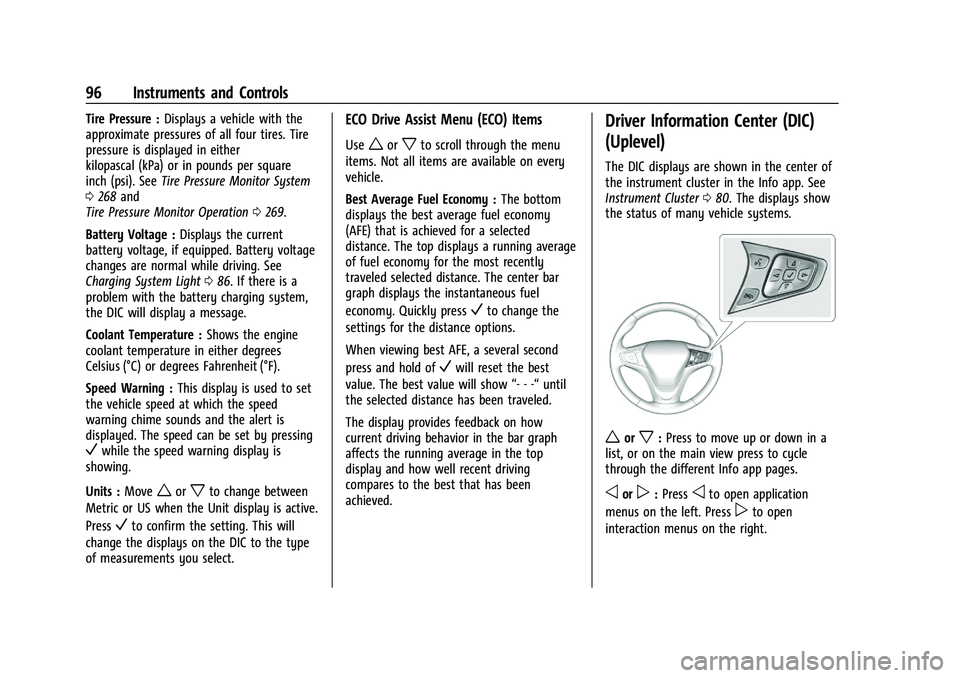
the status of many vehicle systems.
worx: Press to move up or down in a
list, or on the main view press to cycle
through the different Info app pages.
oorp: Pressoto open application
menus on the left. Press
pto open
interaction menus on the right.
Page 98 of 351

Chevrolet Malibu Owner Manual (GMNA-Localizing-U.S./Canada-
14584249) - 2021 - CRC - 11/9/20
Instruments and Controls 97
V:Press to select a menu item. Press and
hold to reset values on certain screens,
or on the main view reset info pages to the
original setting.
DIC Info Page Options
The info pages on the DIC can be turned on
or off through the Settings menu.
1. Press
oto access the cluster
applications.
2. Press
worxto scroll to the Settings
application.
3. Press
Vto enter the Settings menu.
4. Scroll to Info Pages and press
p.
5. Press
worxto move through the list
of possible information displays.
6. Press
Vwhile an item is highlighted to
select or deselect that item. When an
item is selected, a checkmark will appear
next to it.
DIC Info Pages
The following is the list of all possible DIC
info page displays. Some may not be
available for your particular vehicle. Some
items may not be turned on by default but can be turned on through the Settings app.
See
“DIC Info Page Options” earlier in this
section.
Speed : Shows the vehicle speed in either
kilometers per hour (km/h) or miles per
hour (mph).
Trip A or Trip B : Shows the current distance
traveled, in either kilometers (km) or
miles (mi), since the trip odometer was last
reset.
This also shows the approximate average
liters per 100 kilometers (L/100 km) or miles
per gallon (mpg). This number is calculated
based on the number of L/100 km (mpg)
recorded since the last time this menu item
was reset. This number reflects only the
approximate average fuel economy that the
vehicle has right now, and will change as
driving conditions change.
Press and hold
Vwhile this display is active
to reset the trip odometer and the average
fuel economy. Trip A and Trip B can also be
reset by pressing
pand choosing reset.
Fuel Range : Shows the approximate
distance the vehicle can be driven without
refueling. LOW will be displayed when the
vehicle is low on fuel. The fuel range
estimate is based on an average of the vehicle's fuel economy over recent driving
history and the amount of fuel remaining in
the fuel tank.
Instantaneous Fuel Economy :
Displays the
current fuel economy in liters per
100 kilometers (L/100 km) or miles per
gallon (mpg). This number reflects only the
approximate fuel economy that the vehicle
has right now and changes frequently as
driving conditions change. This display
cannot be reset.
Oil Life : Shows an estimate of the oil's
remaining useful life. If REMAINING OIL LIFE
99% is displayed, that means 99% of the
current oil life remains.
When the remaining oil life is low, the
CHANGE ENGINE OIL SOON message will
appear on the display. The oil should be
changed as soon as possible. See Engine Oil
0 234. In addition to the engine oil life
system monitoring the oil life, additional
maintenance is recommended in the
Maintenance Schedule. See Maintenance
Schedule 0304.
The Oil Life display must be reset after each
oil change. It will not reset itself. Do not to
reset the Oil Life display at any time other
than when the oil has just been changed.
Page 99 of 351
Chevrolet Malibu Owner Manual (GMNA-Localizing-U.S./Canada-
14584249) - 2021 - CRC - 11/9/20
98 Instruments and Controls
It cannot be reset accurately until the next
oil change. To reset, seeEngine Oil Life
System 0236.
Air Filter Life : Shows an estimate of the
engine air filter’s remaining useful life and
the state of the system. Engine Air Filter Life
95% means 95% of the current air filter life
remains. Messages will display based on the
engine air filter life and the state of the
system. When the REPLACE AT NEXT OIL
CHANGE message displays, the engine air
filter should be replaced at the time of the
next oil change. When the REPLACE NOW
message displays, the engine air filter
should be replaced as soon as possible.
The Air Filter Life display must be reset after
the engine air filter replacement. To reset,
see Engine Air Filter Life System 0237.
Tire Pressure : Shows the approximate
pressures of all four tires. Tire pressure is
displayed in either kilopascal (kPa) or in
pounds per square inch (psi). If the pressure
is low, the value for that tire is shown in
amber. See Tire Pressure Monitor System
0 268 and
Tire Pressure Monitor Operation 0269.
Average Vehicle Speed : Displays the
average vehicle speed of the vehicle in
kilometers per hour (km/h) or miles per hour (mph). This average is based on the
various vehicle speeds recorded since the
last reset. Reset the average speed by
pressing
Vwhen it is displayed.
Fuel Economy : The center displays the
approximate instantaneous fuel economy as
a number and bar graph. Displayed above
the bar graph is a running average of fuel
economy for the most recently traveled
selected distance. Displayed below the bar
graph is the best average fuel economy that
has been achieved for the selected distance.
The selected distance is displayed at the top
of the page as “last xxx mi/km.”
Press
pto select the distance or reset best
value. Use
wandxto choose the
distance and press
V. Presswandxto
select “Reset Best Score.” Press
Vto reset
the best average fuel economy. After reset,
the best value displays “-,-”until the
selected distance has been traveled.
The display provides information on how
current driving behavior affects the running
average and how well recent driving
compares to the best that has been
achieved for the selected distance. Timer :
This display can be used as a timer.
To start the timer, press
Vwhile this
display is active. The display will show the
amount of time that has passed since the
timer was last reset. To stop the timer,
press
Vbriefly while this display is active
and the timer is running. To reset the timer
to zero, press and hold
Vwhile this display
is active, or press
pand select reset.
Speed Limit : Shows the current speed limit
on vehicles with the navigation system. The
information for this page comes from a
roadway database.
Follow Distance : When Adaptive Cruise
Control (ACC) is not engaged, the current
follow time to the vehicle ahead is displayed
as a time value on this page. When ACC has
been engaged, the display switches to the
gap setting page. This page shows the
current gap setting along with the vehicle
ahead indicator.
Battery Voltage : Displays the current
battery voltage, if equipped. Battery voltage
changes are normal while driving. See
Charging System Light 086. If there is a
problem with the battery charging system,
the DIC will display a message.
Page 100 of 351
Chevrolet Malibu Owner Manual (GMNA-Localizing-U.S./Canada-
14584249) - 2021 - CRC - 11/9/20
Instruments and Controls 99
Coolant Temperature :Shows the engine
coolant temperature in either degrees
Celsius (°C) or degrees Fahrenheit (°F).
Oil Pressure : Oil pressure is displayed in
either kilopascal (kPa) or in pounds per
square inch (psi).
Oil pressure can vary with engine speed,
outside temperature, and oil viscosity. On
some models, the oil pump will vary engine
oil pressure according to engine needs. Oil
pressure may change quickly as the engine
speed or load varies. This is normal. If the
oil pressure warning light or Driver
Information Center (DIC) message indicates
oil pressure outside the normal operating
range, check the vehicle's oil as soon as
possible.
Blank Page : Shows no information.
Vehicle Messages
Messages displayed on the DIC indicate the
status of the vehicle or some action that
may be needed to correct a condition.
Multiple messages may appear one after
another. The messages that do not require
immediate action can be acknowledged and
cleared by pressing
V. The messages that
require immediate action cannot be cleared
until that action is performed.
All messages should be taken seriously;
clearing the message does not correct the
problem.
If a SERVICE message appears, see your
dealer.
Follow the instructions given in the
messages. The system displays messages
regarding the following topics:
.Service Messages
.Fluid Levels
.Vehicle Security
.Brakes
.Steering
.Ride Control Systems
.Driver Assistance Systems
.Cruise Control
.Lighting and Bulb Replacement
.Wiper/Washer Systems
.Doors and Windows
.Seat Belts
.Airbag Systems
.Engine and Transmission
.Tire Pressure
.Battery
Engine Power Messages
ENGINE POWER IS REDUCED
This message displays when the vehicle's
propulsion power is reduced. A reduction in
propulsion power can affect the vehicle's
ability to accelerate. If this message is on,
but there is no observed reduction in
performance, proceed to your destination.
Under certain conditions the performance
may be reduced the next time the vehicle is
driven. The vehicle may be driven while this
message is on, but maximum acceleration
and speed may be reduced. Anytime this
message stays on, or displays repeatedly,
the vehicle should be taken to your dealer
for service as soon as possible.
Under certain operating conditions,
propulsion will be disabled. Try restarting
after the ignition has been off for
30 seconds.
Page 101 of 351
Chevrolet Malibu Owner Manual (GMNA-Localizing-U.S./Canada-
14584249) - 2021 - CRC - 11/9/20
100 Instruments and Controls
Vehicle Speed Messages
SPEED LIMITED TO XXX KM/H (MPH)
This message shows that the vehicle speed
has been limited to the speed displayed. The
limited speed is a protection for various
propulsion and vehicle systems, such as
lubrication, thermal, brakes, suspension,
Teen Driver if equipped, or tires.
Vehicle Personalization
The following are all possible vehicle
personalization features. Depending on the
vehicle, some may not be available.
For System, Apps, and Personal features and
functions, seeSettings0147.
To access the vehicle personalization menu: 1. Touch the Settings icon on the Home Page of the infotainment display.
2. Touch Vehicle to display a list of available options.
3. Touch to select the desired feature setting.
4. Touch
9orRto turn a feature off or on.
5. Touch
zto go to the top level of the
Settings menu. The menu may contain the following:
Rear Seat Reminder
This allows for a chime and a message when
the rear door has been opened before or
during operation of the vehicle.
Touch Off or On.
Buckle to Drive
This feature can prevent shifting out of Park
when the driver, and if applicable the front
passenger, seat belt is not buckled. See
Buckle To Drive
039.
Touch Off or On.
Climate and Air Quality
Touch and the following may display:
.Auto Fan Speed
.Auto Heated Seats
.Auto Defog
.Auto Rear Defog
Auto Fan Speed
This feature will set the auto fan speed.
Touch Low, Medium, or High. Auto Heated Seats
When enabled, this feature will
automatically activate the heated seats at
the level required by the interior
temperature. The auto heated seats can be
turned off by using the heated seat buttons
on the center stack. See
Heated and
Ventilated Front Seats 034.
Touch Off or On.
Auto Defog
When turned on and high humidity is
detected, the climate control system may
adjust to outside air supply and turn on the
air conditioner or the heater. The fan speed
may slightly increase to help prevent
fogging. When high humidity is no longer
detected, the system will return to its prior
operation.
Touch Off or On.
Auto Rear Defog
When on, this feature turns on the rear
defogger at vehicle start when the interior
temperature is cold and fog is likely. The
auto rear defog function can be disabled by
pressing
K. When off, the feature can be
Page 111 of 351
Chevrolet Malibu Owner Manual (GMNA-Localizing-U.S./Canada-
14584249) - 2021 - CRC - 11/9/20
110 Infotainment System
Infotainment System
Introduction
Introduction . . . . . . . . . . . . . . . . . . . . . . . . . . . 110
Overview . . . . . . . . . . . . . . . . . . . . . . . . . . . . . . . 111
Steering Wheel Controls . . . . . . . . . . . . . . . 112
Using the System . . . . . . . . . . . . . . . . . . . . . . 113
Software Updates . . . . . . . . . . . . . . . . . . . . . . 116
Radio
AM-FM Radio . . . . . . . . . . . . . . . . . . . . . . . . . . 116
HD Radio Technology . . . . . . . . . . . . . . . . . . 117
Radio Data System (RDS) . . . . . . . . . . . . . . 118
Satellite Radio . . . . . . . . . . . . . . . . . . . . . . . . . 118
Radio Reception . . . . . . . . . . . . . . . . . . . . . . . . 119
Backglass Antenna . . . . . . . . . . . . . . . . . . . . . 119
Multi-Band Antenna . . . . . . . . . . . . . . . . . . . 120
Audio Players
Avoiding Untrusted Media Devices . . . . 120
USB Port . . . . . . . . . . . . . . . . . . . . . . . . . . . . . . 120
Auxiliary Jack . . . . . . . . . . . . . . . . . . . . . . . . . . 123
Bluetooth Audio . . . . . . . . . . . . . . . . . . . . . . . 123
OnStar System
OnStar System . . . . . . . . . . . . . . . . . . . . . . . . 124
Navigation
Using the Navigation System . . . . . . . . . . 124
Maps . . . . . . . . . . . . . . . . . . . . . . . . . . . . . . . . . . 127
Navigation Symbols . . . . . . . . . . . . . . . . . . . 128Destination . . . . . . . . . . . . . . . . . . . . . . . . . . . . 129
OnStar System . . . . . . . . . . . . . . . . . . . . . . . . 134
Global Positioning System (GPS) . . . . . . . 135
Vehicle Positioning . . . . . . . . . . . . . . . . . . . . . 135
Problems with Route Guidance . . . . . . . . 135
If the System Needs Service . . . . . . . . . . . 136
Map Data Updates . . . . . . . . . . . . . . . . . . . . 136
Database Coverage Explanations . . . . . . . 136
Voice Recognition
Voice Recognition . . . . . . . . . . . . . . . . . . . . . . 136
Phone
Bluetooth (Overview) . . . . . . . . . . . . . . . . . . 141
Bluetooth (Pairing and Using a
Phone) . . . . . . . . . . . . . . . . . . . . . . . . . . . . . . . 142
Apple CarPlay and Android Auto . . . . . . 146
Settings
Settings . . . . . . . . . . . . . . . . . . . . . . . . . . . . . . . 147
Teen Driver . . . . . . . . . . . . . . . . . . . . . . . . . . . . 153
Trademarks and License Agreements
Trademarks and License Agreements . . . . . . . . . . . . . . . . . . . . . . . . . . 156
Introduction
Read the following pages to become familiar
with the features.
{Warning
Taking your eyes off the road for too
long or too often while using any
infotainment feature can cause a crash.
You or others could be injured or killed.
Do not give extended attention to
infotainment tasks while driving. Limit
your glances at the vehicle displays and
focus your attention on driving. Use voice
commands whenever possible.
The infotainment system has built-in
features intended to help avoid distraction
by disabling some features when driving.
These features may gray out when they are
unavailable. Many infotainment features are
also available through the instrument cluster
and steering wheel controls.