2021 CHEVROLET EQUINOX All wheel drive control
[x] Cancel search: All wheel drive controlPage 6 of 369

Chevrolet Equinox Owner Manual (GMNA-Localizing-U.S./Canada/Mexico-
14420010) - 2021 - CRC - 11/10/20
Introduction 5
1.Air Vents 0181.
2. Turn Signal Lever. See Turn and
Lane-Change Signals 0119.
IntelliBeam
®System Button (If Equipped).
See Exterior Lamp Controls 0116.
3. Instrument Cluster (Base and Midlevel)
085 or
Instrument Cluster (Uplevel) 088.
Driver Information Center (DIC) Display.
See Driver Information Center (DIC) (Base
and Midlevel) 0101 or
Driver Information Center (DIC) (Uplevel)
0 105.
4. Windshield Wiper/Washer 079.
5. Infotainment Controls. See Overview
0 124.
6. Light Sensor. See Automatic Headlamp
System 0118.
7. Hazard Warning Flashers 0119.
8. Climate Control Systems 0177 (If
Equipped).
Dual Automatic Climate Control System
0 179 (If Equipped).
9. Heated and Ventilated Front Seats 035
(If Equipped).
10. Power Outlets 081.
11. Wireless Charging 083 (If Equipped). 12.
USB Port 0132.
13. All-Wheel Drive 0209 (If Equipped).
Tow/Haul Mode 0208.
14. Electric Parking Brake 0210.
15. Shift Lever. See Automatic Transmission
0 206.
Manual Mode 0208.
16. ENGINE START/STOP Button. See Ignition
Positions 0198.
17. Steering Wheel Controls 079.
Traction Control/Electronic Stability
Control 0211.
18. Horn 079.
19. Steering Wheel Adjustment 079 (Out
of View).
20. Cruise Control 0215.
Adaptive Cruise Control (Camera) 0217
(If Equipped).
Heated Steering Wheel 079 (If
Equipped).
Forward Collision Alert (FCA) System
0 230 (If Equipped).
Lane Keep Assist (LKA) 0237 (If
Equipped).
21. Hood Release. See Hood0252. 22.
Fog Lamps 0119 (If Equipped).
23. Exterior Lamp Controls 0116.
24. Data Link Connector (DLC) (Out of View). SeeMalfunction Indicator Lamp (Check
Engine Light) 094.
25. Instrument Panel Illumination Control
0120.
Page 48 of 369
Chevrolet Equinox Owner Manual (GMNA-Localizing-U.S./Canada/Mexico-
14420010) - 2021 - CRC - 11/10/20
Seats and Restraints 47
.A roof-rail airbag for the driver and the
passenger seated directly behind the
driver
.A roof-rail airbag for the front outboard
passenger and the passenger seated
directly behind the front outboard
passenger
All vehicle airbags have the word AIRBAG on
the trim or on a label near the deployment
opening.
For frontal airbags, the word AIRBAG is on
the center of the steering wheel for the
driver and on the instrument panel for the
front outboard passenger.
For seat-mounted side impact airbags, the
word AIRBAG is on the side of the seatback
or side of the seat closest to the door.
For roof-rail airbags, the word AIRBAG is on
the ceiling or trim.
Airbags are designed to supplement the
protection provided by seat belts. Even
though today's airbags are also designed to
help reduce the risk of injury from the force
of an inflating bag, all airbags must inflate
very quickly to do their job. Here are the most important things to know
about the airbag system:{Warning
You can be severely injured or killed in a
crash if you are not wearing your seat
belt, even with airbags. Airbags are
designed to work with seat belts, not
replace them. Also, airbags are not
designed to inflate in every crash. In
some crashes seat belts are the only
restraint. See
When Should an Airbag
Inflate? 049.
Wearing your seat belt during a crash
helps reduce your chance of hitting
things inside the vehicle or being ejected
from it. Airbags are “supplemental
restraints” to the seat belts. Everyone in
the vehicle should wear a seat belt
properly, whether or not there is an
airbag for that person.
{Warning
Because airbags inflate with great force
and faster than the blink of an eye,
anyone who is up against, or very close
to, any airbag when it inflates can be
seriously injured or killed. Do not sit
unnecessarily close to any airbag, as you
would be if sitting on the edge of the
seat or leaning forward. Seat belts help
keep you in position before and during a
crash. Always wear a seat belt, even with
airbags. The driver should sit as far back
as possible while still maintaining control
of the vehicle. The seat belts and the
front outboard passenger airbags are
most effective when you are sitting well
back and upright in the seat with both
feet on the floor.
Occupants should not lean on or sleep
against the door or side windows in
seating positions with seat-mounted side
impact airbags and/or roof-rail airbags.
Page 89 of 369
Chevrolet Equinox Owner Manual (GMNA-Localizing-U.S./Canada/Mexico-
14420010) - 2021 - CRC - 11/12/20
88 Instruments and Controls
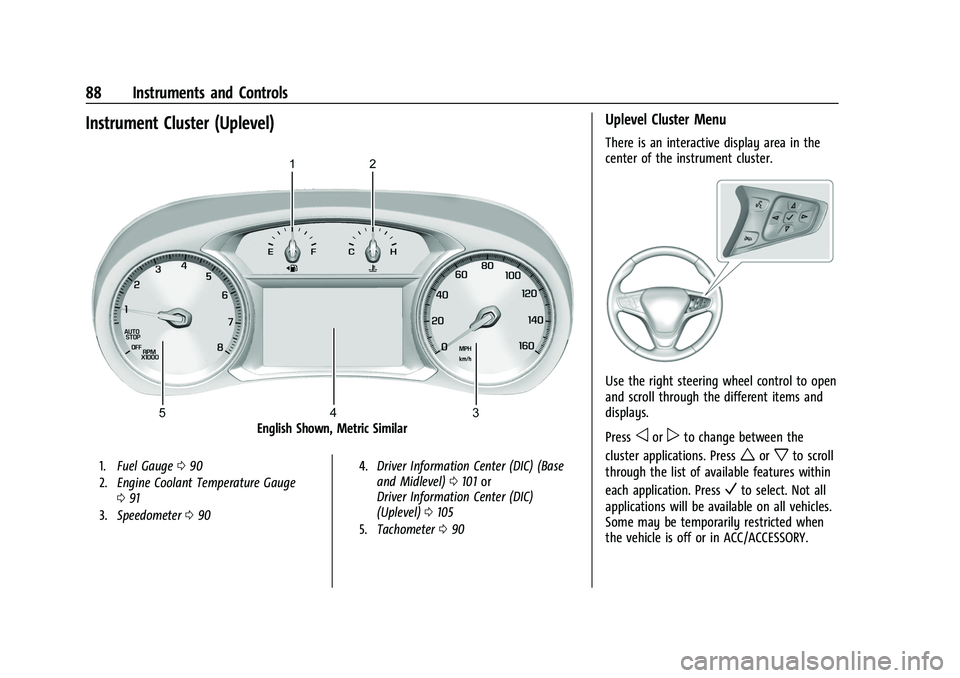
Instrument Cluster (Uplevel)
English Shown, Metric Similar
1.Fuel Gauge 090
2. Engine Coolant Temperature Gauge
091
3. Speedometer 090 4.
Driver Information Center (DIC) (Base
and Midlevel) 0101 or
Driver Information Center (DIC)
(Uplevel) 0105
5. Tachometer 090
Uplevel Cluster Menu
There is an interactive display area in the
center of the instrument cluster.
Use the right steering wheel control to open
and scroll through the different items and
displays.
Press
oorpto change between the
cluster applications. Press
worxto scroll
through the list of available features within
each application. Press
Vto select. Not all
applications will be available on all vehicles.
Some may be temporarily restricted when
the vehicle is off or in ACC/ACCESSORY.
Page 90 of 369
Chevrolet Equinox Owner Manual (GMNA-Localizing-U.S./Canada/Mexico-
14420010) - 2021 - CRC - 11/12/20
Instruments and Controls 89
.Home Page
.Info App. This is where the selected Driver
Information Center (DIC) displays can be
viewed. SeeDriver Information Center
(DIC) (Base and Midlevel) 0101 or
Driver Information Center (DIC) (Uplevel)
0 105.
.Audio
.Navigation
.Phone
.Options
Home
Information displayed here can be
customized from the Options menu.
Speedometer : Displays how fast the vehicle
is moving in either kilometers per hour
(km/h) or miles per hour (mph).
Speed Sign : Shows sign information, which
comes from a roadway database in the
onboard navigation, if equipped.
Time : Displays the current time.
Fuel Range : Displays the approximate
distance the vehicle can be driven without
refueling. The fuel range estimate is based
on an average of the vehicle’s fuel economy over recent driving history and the amount
of fuel remaining in the fuel tank. Fuel
range cannot be reset.
Audio
Pressworxto scroll through options,
browse for music, select from favorites,
or change the audio source. In the main
view, scroll to change the station or go to
the next or previous track.
Navigation
In the Navigation menu, if there is no active
route, press
Vto access Recents or
Favorites. If there is an active route, press
the thumbwheel to cancel or resume route
guidance, mute or unmute voice guidance,
or access Recents or Favorites.
Phone
In the Phone menu, if there is no active
phone call, view recent calls, scroll through
contacts, select from the favorites, or change
the phone source. If there is an active call,
mute the phone or switch to handset
operation.
Options
Pressworxto scroll through items in
the Options menu. Press
Vto select the
item. Press
oto exit the item.
Units : Choose US or Metric units. A selected
mark will be displayed next to the
selected item.
Info Page Options : Select the items to be
displayed in the Info app. A selected mark
will be displayed next to the selected item.
Home Page Options : Select the available
elements to display. Not all elements will be
available on all vehicles: Speedometer,
Active Safety, Speed Sign, Time, and Fuel
Range.
Speed Warning : Allows the driver to set a
speed that they do not want to exceed. To
set the Speed Warning, press
Vwhen
Speed Warning is displayed. Use
worx
to adjust the value. PressVto set the
speed. Once the speed is set, this feature
can be turned off by pressing the
thumbwheel while viewing this page. If the
selected speed limit is exceeded, a pop-up
warning is displayed with a chime.
Page 98 of 369
Chevrolet Equinox Owner Manual (GMNA-Localizing-U.S./Canada/Mexico-
14420010) - 2021 - CRC - 11/12/20
Instruments and Controls 97
SeeTow/Haul Mode 0208.
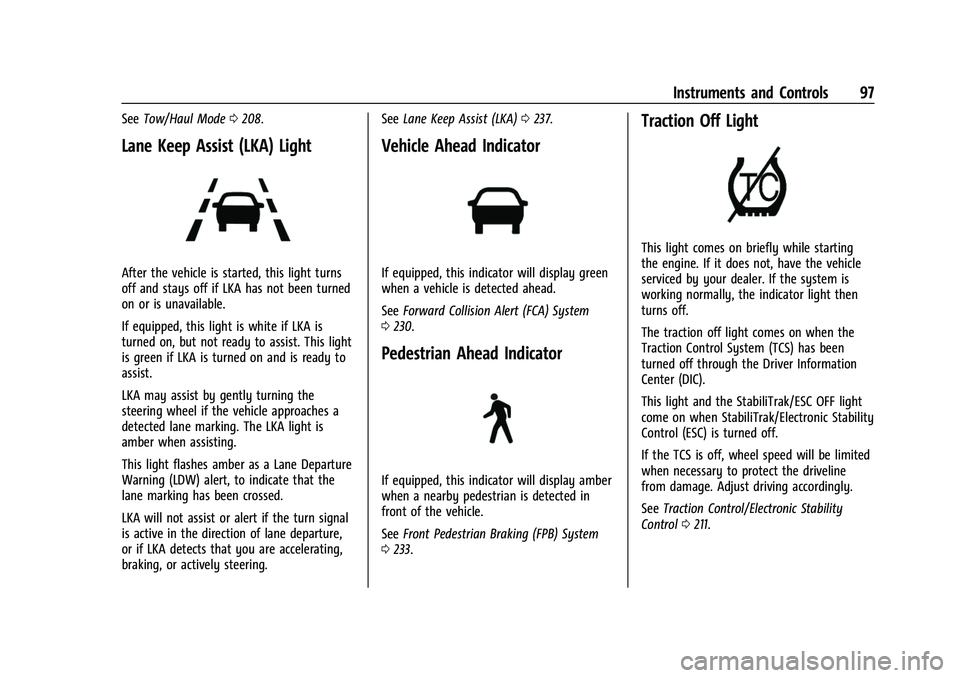
Lane Keep Assist (LKA) Light
After the vehicle is started, this light turns
off and stays off if LKA has not been turned
on or is unavailable.
If equipped, this light is white if LKA is
turned on, but not ready to assist. This light
is green if LKA is turned on and is ready to
assist.
LKA may assist by gently turning the
steering wheel if the vehicle approaches a
detected lane marking. The LKA light is
amber when assisting.
This light flashes amber as a Lane Departure
Warning (LDW) alert, to indicate that the
lane marking has been crossed.
LKA will not assist or alert if the turn signal
is active in the direction of lane departure,
or if LKA detects that you are accelerating,
braking, or actively steering. See
Lane Keep Assist (LKA) 0237.
Vehicle Ahead Indicator
If equipped, this indicator will display green
when a vehicle is detected ahead.
See Forward Collision Alert (FCA) System
0 230.
Pedestrian Ahead Indicator
If equipped, this indicator will display amber
when a nearby pedestrian is detected in
front of the vehicle.
See Front Pedestrian Braking (FPB) System
0 233.
Traction Off Light
This light comes on briefly while starting
the engine. If it does not, have the vehicle
serviced by your dealer. If the system is
working normally, the indicator light then
turns off.
The traction off light comes on when the
Traction Control System (TCS) has been
turned off through the Driver Information
Center (DIC).
This light and the StabiliTrak/ESC OFF light
come on when StabiliTrak/Electronic Stability
Control (ESC) is turned off.
If the TCS is off, wheel speed will be limited
when necessary to protect the driveline
from damage. Adjust driving accordingly.
See Traction Control/Electronic Stability
Control 0211.
Page 111 of 369
Chevrolet Equinox Owner Manual (GMNA-Localizing-U.S./Canada/Mexico-
14420010) - 2021 - CRC - 11/12/20
110 Instruments and Controls
Touch Off, Alert, or Alert and Brake.
Front Pedestrian Detection
This feature may help avoid or reduce the
harm caused by front-end crashes with
nearby pedestrians.
SeeFront Pedestrian Braking (FPB) System
0 233.
Select Off, Alert, or Alert and Brake.
Adaptive Cruise Go Notifier
This setting determines if an alert will
appear when Adaptive Cruise Control brings
the vehicle to a complete stop and the
vehicle ahead of you starts moving again.
See Adaptive Cruise Control (Camera) 0217.
Touch Off or On.
Lane Change Alert
The LCA system is a lane-changing aid that
assists drivers with avoiding lane change
crashes. See Lane Change Alert (LCA) 0235.
When Lane Change Alert is disabled, Side
Blind Zone Alert is also disabled.
Touch Off or On. Park Assist
If equipped, this allows the feature to be
turned on or off. See
Assistance Systems for
Parking or Backing 0227.
Touch Off or On.
Rear Camera Park Assist Symbols
This setting enables the Rear Camera Park
Assist Symbols. See Assistance Systems for
Parking or Backing 0227.
Touch Off or On.
Rear Cross Traffic Alert
This allows the Rear Cross Traffic Alert
feature to be turned on or off. See
Assistance Systems for Parking or Backing
0 227.
Touch Off or On.
Comfort and Convenience
Touch and the following may display:
.Chime Volume
.Hands Free Liftgate Control
.Reverse Tilt Mirror
.Auto Wipe in Reverse Gear
.Extended Hill Start Assist Chime Volume
This determines the chime volume level.
Touch the controls on the infotainment
display to adjust the volume.
Hands Free Liftgate Control
The liftgate may be operated with a kicking
motion under the rear bumper between the
left exhaust pipe and the license plate. See
Liftgate
018.
Touch Off, On-Open and Close,
or On-Open Only.
Reverse Tilt Mirror
When on, the driver, passenger, or both
driver and passenger outside mirrors will tilt
downward when the vehicle is shifted into
R (Reverse) to improve visibility of the
ground near the rear wheels. They may
move from their tilted position when the
vehicle is shifted out of R (Reverse) or
turned off. See Reverse Tilt Mirrors 025.
Touch Off, On - Driver and Passenger, On -
Driver, or On - Passenger.
Auto Wipe in Reverse Gear
When on and the front wiper is on, the rear
wiper will automatically activate when the
vehicle is shifted to R (Reverse).
Page 113 of 369
Chevrolet Equinox Owner Manual (GMNA-Localizing-U.S./Canada/Mexico-
14420010) - 2021 - CRC - 11/12/20
112 Instruments and Controls
Remote Start Auto Cool Seats
If equipped and turned on, this feature will
turn on the ventilated seats when using
remote start on warm days. SeeHeated and
Ventilated Front Seats 035 and
Remote Vehicle Start 013.
Touch Off or On.
Remote Start Auto Heat Seats
If equipped and turned on, this feature will
turn on the heated seats when using remote
start on cold days. See Heated and
Ventilated Front Seats 035 and
Remote Vehicle Start 013.
Touch Off or On.
Remote Window Operation
This allows the windows to be opened when
pressing and holding
Kon the RKE
transmitter. See Remote Keyless Entry (RKE)
System Operation 07.
Touch Off or On.
Passive Door Unlock
This allows the selection of what doors will
unlock when using the button on the driver
door to unlock the vehicle.
Touch All Doors or Driver Door Only. Passive Door Lock
This allows passive locking to be turned on
or off and selects feedback. See
Remote
Keyless Entry (RKE) System Operation 07.
Touch Off, On with Horn Chirp, or On.
Remote Left in Vehicle Alert
This feature sounds an alert when the RKE
transmitter is left in the vehicle. This menu
also enables the Remote No Longer In
Vehicle Alert.
Touch Off or On.
Seating Position
Touch and the following may display:
.Seat Entry Memory
.Seat Exit Memory
Seat Entry Memory
This feature automatically recalls the current
driver’s previously stored 1 or 2 button
positions when the ignition is changed from
off to on or ACC/ACCESSORY. See Memory
Seats 033.
Touch On or Off. Seat Exit Memory
This feature automatically recalls the
previously stored
B(Exit) button position
when exiting the vehicle. See Memory Seats
0 33.
Touch Off or On.
Teen Driver
See Teen Driver 0165.
Valet Mode
This will lock the infotainment system and
steering wheel controls. It may also limit
access to vehicle storage locations,
if equipped.
To enable valet mode:
1. Enter a four-digit code on the keypad.
2. Select Enter to go to the confirmation screen.
3. Re-enter the four-digit code.
Touch Lock or Unlock to lock or unlock the
system. Touch Back to go back to the
previous menu.
Page 140 of 369
Chevrolet Equinox Owner Manual (GMNA-Localizing-U.S./Canada/Mexico-
14420010) - 2021 - CRC - 11/10/20
Infotainment System 139
Show Terrain in 3D (Default is Off) :
If equipped, touch On or Off. When turned
on, the system will display terrain
information on the map in 3D view.
Auto-Zoom (Default is On) :Touch On or
Off. When turned on, the system will
automatically adjust the zoom level when
the vehicle is approaching a turn. After the
turn is completed, the system automatically
brings the zoom back to the originally set
level. If the vehicle is approaching a turn
with the next turn occurring shortly after,
the Auto-Zoom will remain on until both
turns are completed.
Route Preferences
Touch to access the Route Preferences. The
choices are:
.Preferred Route –Choose from two
different route options: Fastest or
Eco-Friendly.
‐ Fastest would be the route with the
shortest drive time.
‐ Eco-Friendly would be the most
fuel-efficient route.
.Avoid on Current Route –Choose any of
the road features to avoid while on route:
‐ Highways ‐
Unpaved Roads
‐ Ferries
‐ Carpool Lanes
‐ Toll Roads
‐ Tunnels
‐ Country Borders
Range Projection (Electric Vehicles)
Range Projection allows the vehicle’s electric
driving range to be checked at that moment.
Touch the Range Projection icon to display
the map screen with a range indicator.
Navigation Voice Control
Touch to access the voice control setting
display.
.Navigation Volume –To adjust the
volume level, touch the up and down
arrows. If the voice guidance prompt is
being heard, volume can also be adjusted
using the knob on the center stack or the
volume switch on the steering wheel.
.Navigation Voice Prompt Level during a
Call. Options available are:
‐ Full Prompt (Selected by default)
‐ Tone Only
‐ None Traffic Events (If Equipped)
This feature provides a list of events that
are on the route or nearby. Touch
Aand
then select Traffic Events. An OnStar
connected Navigation service plan is
required.
Traffic Preferences (If Equipped)
While in Map View, touch
A, then Settings
and then Map and Navigation Settings to
access Traffic Preferences. When Show
Traffic on Map is turned on, the feature
provides an overview of the traffic flow
using different coded colors. The following
options are available for rerouting:
.Auto Reroute to Better Route –The
system will automatically reroute if the
system detects there is a traffic issue
ahead.
.Ask Before Rerouting (Default) –If the
system detects there is a traffic issue
ahead, it will display a pop-up with
details about the issue. Choose to reroute
or cancel the alert.
.Never Search for Better Route –The
system will not check for a better route
until one of the above options is selected.