2021 CHEVROLET CORVETTE instrument cluster
[x] Cancel search: instrument clusterPage 112 of 338

Chevrolet Corvette Owner Manual (GMNA-Localizing-U.S./Canada/Mexico-
14622938) - 2021 - CRC - 2/10/21
Infotainment System 111
Infotainment System
Introduction
Introduction . . . . . . . . . . . . . . . . . . . . . . . . . . . . 111
Overview . . . . . . . . . . . . . . . . . . . . . . . . . . . . . . . 112
Steering Wheel Controls . . . . . . . . . . . . . . . 114
Using the System . . . . . . . . . . . . . . . . . . . . . . 115
Software Updates . . . . . . . . . . . . . . . . . . . . . . 117
Radio
AM-FM Radio . . . . . . . . . . . . . . . . . . . . . . . . . . . 117
HD Radio Technology . . . . . . . . . . . . . . . . . . 119
Radio Data System (RDS) . . . . . . . . . . . . . . 120
Satellite Radio . . . . . . . . . . . . . . . . . . . . . . . . . 120
Radio Reception . . . . . . . . . . . . . . . . . . . . . . . 120
Diversity Antenna System . . . . . . . . . . . . . . 121
Audio Players
Avoiding Untrusted Media Devices . . . . . 121
USB Port . . . . . . . . . . . . . . . . . . . . . . . . . . . . . . . 121
Auxiliary Jack . . . . . . . . . . . . . . . . . . . . . . . . . . 124
Bluetooth Audio . . . . . . . . . . . . . . . . . . . . . . . 124
OnStar System
OnStar System . . . . . . . . . . . . . . . . . . . . . . . . . 125
Navigation
Using the Navigation System . . . . . . . . . . 126
Maps . . . . . . . . . . . . . . . . . . . . . . . . . . . . . . . . . . 129
Navigation Symbols . . . . . . . . . . . . . . . . . . . 129
Destination . . . . . . . . . . . . . . . . . . . . . . . . . . . . 130OnStar System . . . . . . . . . . . . . . . . . . . . . . . . . 135
Global Positioning System (GPS) . . . . . . . 136
Vehicle Positioning . . . . . . . . . . . . . . . . . . . . 136
Problems with Route Guidance . . . . . . . . 137
If the System Needs Service . . . . . . . . . . . 137
Map Data Updates . . . . . . . . . . . . . . . . . . . . . 137
Database Coverage Explanations . . . . . . . 137
Voice Recognition
Voice Recognition . . . . . . . . . . . . . . . . . . . . . . 138
Performance Data Recorder (PDR)
Performance Data Recorder (PDR) . . . . . . 143
Phone
Bluetooth (Overview) . . . . . . . . . . . . . . . . . . 148
Bluetooth (Pairing and Using a
Phone) . . . . . . . . . . . . . . . . . . . . . . . . . . . . . . . 148
Apple CarPlay and Android Auto . . . . . . . 152
Settings
Settings . . . . . . . . . . . . . . . . . . . . . . . . . . . . . . . 154
Teen Driver . . . . . . . . . . . . . . . . . . . . . . . . . . . . 160
Trademarks and License Agreements
Trademarks and License Agreements . . . . . . . . . . . . . . . . . . . . . . . . . . 162
Introduction
Read the following pages to become familiar
with the features.
{Warning
Taking your eyes off the road for too
long or too often while using any
infotainment feature can cause a crash.
You or others could be injured or killed.
Do not give extended attention to
infotainment tasks while driving. Limit
your glances at the vehicle displays and
focus your attention on driving. Use voice
commands whenever possible.
The infotainment system has built-in
features intended to help avoid distraction
by disabling some features when driving.
These features may gray out when they are
unavailable. Many infotainment features are
also available through the instrument cluster
and steering wheel controls.
Before driving:
.Become familiar with the operation,
center stack controls, steering wheel
controls, and infotainment display.
Page 139 of 338
Chevrolet Corvette Owner Manual (GMNA-Localizing-U.S./Canada/Mexico-
14622938) - 2021 - CRC - 2/10/21
138 Infotainment System
Voice Recognition
If equipped, voice recognition allows for
hands-free operation within the navigation,
audio, phone, and weather applications. This
feature can be started by pressing
gon the
steering wheel or touching
gon the
infotainment display.
However, not all features within these areas
are supported by voice commands.
Generally, only complex tasks that require
multiple manual interactions to complete
are supported by voice commands.
For example, tasks that take more than one
or two touches, such as a song or artist to
play from a media device, would be
supported by voice commands. Other tasks,
like adjusting the volume or seeking up or
down, are audio features that are easily
performed by touching one or two options,
and are not supported by voice commands.
In general there are flexible ways to speak
commands for completing the tasks.
If your language supports it, try stating a
One-Shot command, such as “Directions to
address
while stating the address during the command. Another example of a One-Shot
Destination Entry command is,
“Directions to
Place of Interest at
commands do not work, try saying, “Take
me to Place of Interest” or“Find address”
and the system will walk you through by
asking additional questions.
Hybrid Speech Recognition
If equipped, this feature helps distinguish
words by using Internet-based information
along with the system’s voice recognition
database. This allows you to speak more
naturally when using voice recognition.
Using Voice Recognition
Voice recognition becomes available once
the system has been initialized. This begins
when the ignition is turned on. Initialization
may take a few moments.
1. Press
gon the steering wheel controls
to activate voice recognition.
2. The audio system mutes and the system plays a prompt.
3. Clearly speak one of the commands described in this section.
A voice recognition system prompt can
be interrupted while it is playing by
pressing
gagain. Once voice recognition is started, both the
infotainment display and instrument cluster
show the selections and visual dialog
content. These displays can be turned on or
off in the Tutorial Mode under
Settings
0 154.
There are three voice prompt modes
supported:
.Informative verbal prompts: This type of
prompt will provide more information
regarding the supported actions.
.Short prompts: This type of prompt will
provide simple instructions about what
can be stated.
.Auto informative prompts: This type of
prompt plays during the first few speech
sessions, then automatically switches to
the short prompt after some experience
has been gained through using the
system.
If a command is not spoken, the voice
recognition system says a help prompt.
Prompts and Infotainment Displays
While a voice recognition session is active,
there may be corresponding options
showing on the displays. A selection can be
made by manually touching the option,
or by speaking the number for the option to
Page 160 of 338

Chevrolet Corvette Owner Manual (GMNA-Localizing-U.S./Canada/Mexico-
14622938) - 2021 - CRC - 2/10/21
Infotainment System 159
Nav
Touch and the following may display:
.Set Up My Places
.Map Preferences
.Route Preferences
.Navigation Voice Control
.Traffic Preferences
.Alert Preferences
.Manage History
.About
See Using the Navigation System 0126.
Phone
Touch and the following may display:
.My Number: Displays the cell phone
number of the Bluetooth connected
device.
.Active Call View: Shows active call display
when answering a call.
Touch the controls on the infotainment
display to disable or enable.
.Privacy: Only show call alerts in the
instrument cluster.
Touch Off or On.
.Sort Contacts: Touch to sort by first or
last name.
.Re-sync Device Contacts:
This allows the device contacts to re-sync
if you are having difficulty accessing all of
the contacts on your cell phone.
.Delete All Vehicle Contacts: Touch to
delete all vehicle stored contacts.
.OnStar Phone TTY Mode: This enables
OnStar cell phone TTY mode.
Touch Disable or Enable.
Vehicle
This menu allows adjustment of different
vehicle features. See Vehicle Personalization
0 98.
Personal
If equipped, this menu allows adjustment of
different user profile settings. See “Users”in
Using the System 0115 for information on
setting up user profiles.
The menu may contain the following:
Name
Touch to edit your user name that will be
displayed in the vehicle. Vehicle Account Information
Touch to view the vehicle account
information and to change the account
password.
An
“unverified user account” pop-up will
display until the account information
verification process has been completed on
the Internet. Check your registered e-mail
account for an activation e-mail to complete
the verification process.
Profile Picture
Touch to choose or change your profile
picture.
Profile Identifiers
Touch to have the vehicle recognize the
identifier you choose.
Touch Vehicle Key 1 and/or Vehicle Key 2.
If the remote key is lost or stolen, see your
dealer.
Security
Touch to have your profile secured with
a PIN.
Touch No or Yes.
Vehicle Name
Touch to edit your vehicle name.
Page 162 of 338
Chevrolet Corvette Owner Manual (GMNA-Localizing-U.S./Canada/Mexico-
14622938) - 2021 - CRC - 2/10/21
Infotainment System 161
Manage Settings
Buckle To Drive :When turned ON, Buckle
to Drive prevents the driver from shifting
out of P (Park) for a period of time if driver
seat belt, and on some vehicles, the
passenger seat belt, is not buckled. See
Buckle To Drive 046 and
Vehicle Personalization 098.
Audio Volume Limit : Allows the audio
volume limit to be turned on or off. Touch
Set Audio Volume Limit to choose the
maximum allowable audio volume level.
Set Audio Volume Limit : Allows a
maximum radio volume to be set. Use the
arrows to choose the maximum allowable
level for the audio volume.
Teen Driver Speed Limiter : Limits the
maximum speed of the vehicle. When the
speed limiter is turned on and the vehicle is
started with a Teen Driver key, the DIC
displays a message that the top speed is
limited.
On certain vehicles, when the Speed Limiter
is turned ON, the vehicle’s maximum
acceleration will be limited. The DIC will
display a message that the acceleration is
limited. Teen Driver Speed Warning :
Allows the
speed warning to be turned on or off. Touch
Set Teen Driver Speed Warning to set the
warning speed.
Set Teen Driver Speed Warning : Displays a
warning in the DIC when exceeding a
selectable speed. Choose the desired speed
warning level. The speed warning does not
limit the speed of the vehicle.
SiriusXM Explicit Content Filter (if
equipped) : Allows the SiriusXM Explicit
Content Filter to be turned ON or OFF.
When ON, the teen driver will not be able
to listen to SiriusXM stations that contain
explicit content, and the Explicit Content
Filter selection in the Audio Settings will be
unavailable for change.
When Teen Driver is Active:
.The radio will mute when the driver, or in
some vehicles, the front passenger seat
belt, is not buckled. The audio from any
device paired to the vehicle will also be
muted.
.If an object, such as a briefcase, handbag,
grocery bag, laptop, or other electronic
device, is on the front passenger seat, it
could cause the radio to mute. If this
happens, remove the object from the
seat. See Passenger Sensing System 057.
.Some safety systems, such as Forward
Collision Alert, if equipped, cannot be
turned off.
.The gap setting for the Forward Collision
Alert and Adaptive Cruise Control,
if equipped, cannot be changed.
.When trying to change a safety feature
that is not configurable in Teen Driver,
the DIC displays a message indicating
that Teen Driver is active and the action
is not available.
.Super Cruise, if equipped, is not available.
.Enhanced Low Fuel Warning (if equipped)
–When the vehicle is low on fuel, the
low fuel light on the instrument cluster
flashes and the DIC low fuel warning
cannot be dismissed.
.Do not tow a trailer.
Report Card
The vehicle owner must secure the driver’s
consent to record certain vehicle data when
the vehicle is driven with a registered Teen
Driver key. There is one Report Card per
vehicle. Data is only recorded when a
registered Teen Driver key is used to
operate the vehicle.
Page 202 of 338

Chevrolet Corvette Owner Manual (GMNA-Localizing-U.S./Canada/Mexico-
14622938) - 2021 - CRC - 2/10/21
Driving and Operating 201
Caution
Spinning the tires or holding the vehicle
in one place on a hill using only the
accelerator pedal may damage the
transmission. The repair will not be
covered by the vehicle warranty. If the
vehicle is stuck, do not spin the tires.
When stopping on a hill, use the brakes
to hold the vehicle in place.
Manual Mode
Manual Paddle Shift
With the transmission in D (Drive), press the
M (Manual Mode) switch on the center
console to enter Manual Mode. Use thepaddles on the steering wheel to manually
upshift or downshift the transmission. The
right + (plus) paddle upshifts, and the left
−
(minus) paddle downshifts.
When using the Manual Paddle Shift
feature, the current gear will be displayed in
the instrument cluster or the Head-Up
Display (HUD), if equipped. See Head-Up
Display (HUD) 094.
When accelerating the vehicle from a stop in
snowy and icy conditions, shifting to
2 (Second) gear, when available, will allow
the vehicle to gain more traction.
The Manual Paddle Shift system can be
deactivated by pulling the D (Drive) switch
on the center console.
With the transmission in D (Drive), pull the
right + paddle or the left −paddle to place
the transmission in Temporary Manual
Paddle Shift mode.
To exit Temporary Manual Paddle Shift
mode do one of the following:
.Hold the + paddle for more than
one second.
.Drive at a steady speed without manual
shifts or aggressive cornering for more
than six seconds.
.Bring the vehicle to a stop.
While the Manual Paddle Shift feature is
active, the transmission will automatically
downshift through the gears as the vehicle
slows. The transmission will select 1 (First)
gear as the vehicle stops. From a stop, the
vehicle will start from and hold 1 (First) gear
unless Manual Paddle Shifts are used to
shift into a different gear, or D (Drive) is
selected.
To cause the transmission to downshift to
the lowest gear possible for the vehicle
speed, in Manual Paddle Shift or Temporary
Manual Paddle Shift mode:
.Pull and briefly hold the −paddle. If the
paddle continues to be held as the vehicle
slows, downshifts will continue as vehicle
speed allows.
The Manual Paddle Shift system will not
allow an upshift or a downshift if vehicle
speed is too fast or too slow, nor will it
allow a start from any gear other than
1 (First) gear.
When in Manual Paddle Shift mode,
if upshifting does not occur when needed,
vehicle speed will be limited to protect the
engine. When in Temporary Manual Paddle
Page 208 of 338

Chevrolet Corvette Owner Manual (GMNA-Localizing-U.S./Canada/Mexico-
14622938) - 2021 - CRC - 2/10/21
Driving and Operating 207
If cruise control is being used when TCS
begins to limit wheel spin, the cruise control
will automatically disengage. Cruise control
may be reengaged when road conditions
allow. SeeCruise Control 0218.
If the driver disables TCS, cruise control will
disengage. Cruise control will also be
disabled if Performance Traction
Management (PTM) is selected, or if
StabiliTrak is turned off.
Both systems come on automatically when
the vehicle is started and begins to move.
The systems may be heard or felt while
they are operating or while performing
diagnostic checks. This is normal and does
not mean there is a problem with the
vehicle.
It is recommended to leave both systems on
for normal driving conditions, but it may be
necessary to turn TCS off if the vehicle gets
stuck in sand, mud, ice, or snow. See If the
Vehicle Is Stuck 0189 and “Turning the
Systems Off and On” later in this section.
The indicator light for both systems is in the
instrument cluster. This light will:
.Flash when TCS is limiting wheel spin
.Flash when StabiliTrak/ESC is activated
.Flash when ABS is active
.Turn on and stay on when either system
is not working
If either system fails to turn on or to
activate, a message displays in the Driver
Information Center (DIC), and
=comes on
and stays on to indicate that the system is
inactive and is not assisting the driver in
maintaining control. The vehicle is safe to
drive, but driving should be adjusted
accordingly.
If
=comes on and stays on:
1. Stop the vehicle.
2. Turn the engine off and wait 15 seconds.
3. Start the engine. Drive the vehicle. If
=comes on and
stays on, the vehicle may need more time
to diagnose the problem. If the condition
persists, see your dealer.
Turning the Systems Off and On
The TCS/StabiliTrak/ESC button is on the
center console.
Caution
Do not repeatedly brake or accelerate
heavily when TCS is off. The vehicle
driveline could be damaged.
Page 209 of 338

Chevrolet Corvette Owner Manual (GMNA-Localizing-U.S./Canada/Mexico-
14622938) - 2021 - CRC - 2/10/21
208 Driving and Operating
To turn off only TCS, press and release@.
The Traction Off light
iilluminates in the
instrument cluster. To turn TCS on again,
press and release
@. The Traction Off light
idisplayed in the instrument cluster will
turn off.
If TCS is limiting wheel spin when
@is
pressed, the system will not turn off until
the wheels stop spinning.
To turn off both TCS and StabiliTrak/ESC,
press and hold
@until the Traction Off
light
iand StabiliTrak/ESC OFF light@
illuminate and stay on in the instrument
cluster.
To turn TCS and StabiliTrak/ESC on again,
press and release
@. The Traction Off light
iand StabiliTrak/ESC OFF light@in the
instrument cluster turn off.
If the Tire Pressure Monitor System (TPMS)
system is malfunctioning and the DIC
displays SERVICE TIRE MONITOR SYSTEM,
StabiliTrak/ESC will be affected as follows:
.StabiliTrak/ESC cannot be turned off by
the driver.
.If StabiliTrak/ESC is off, it will be turned
on automatically.
.Competitive Driving Mode or Performance
Traction Management is unavailable.
.StabiliTrak/ESC will feel different in aiding
and maintaining directional control.
Adding accessories can affect the vehicle
performance. See Accessories and
Modifications 0231.
Hill Rollback Control
If the vehicle is in gear and inadvertently
rolls backwards, Hill Rollback Control helps
limit the rollback to a very low speed.
A noise may be heard while the vehicle
speed is actively being controlled. A Driver
Information Center (DIC) message displays
when active.
Driver Mode Control
Driver Mode Control (DMC) allows the driver
to adjust the overall driving experience to
better suit preference by selecting different
modes.
Drive mode availability and affected driver
systems are dependent upon vehicle trim
level, region, and optional features. Driver
modes may include: Weather, Tour, Sport,
and Track, along with two customizable
modes: My Mode and Z-Mode. If the vehicle is in Tour or My Mode it will
stay in that mode through future ignition
cycles. If the vehicle is in any other mode, it
will return to Tour when the vehicle is
restarted. When each mode is selected, an
indicator will come on in the instrument
cluster and stay on.
Mode Activation
To activate My Mode, Weather, Tour, Sport
and Track Mode, turn the Driver Mode
Control (DMC) knob on the center console to
make a mode selection. When a mode is
selected, an indicator will come on in the
instrument cluster and stay on.
Page 220 of 338
Chevrolet Corvette Owner Manual (GMNA-Localizing-U.S./Canada/Mexico-
14622938) - 2021 - CRC - 2/10/21
Driving and Operating 219
Warning (Continued)
excessive wheel slip, and you could lose
control. Do not use cruise control on
slippery roads.
If the Traction Control System (TCS) begins
to limit wheel spin while you are using
cruise control, the cruise control
automatically disengages. See Traction
Control/Electronic Stability Control 0206.
When road conditions allow for using safely
again, cruise control can be turned back on.
If the brakes are applied, cruise control
disengages.
Cruise control will disengage if either TCS or
StabiliTrak/Electronic Stability Control (ESC)
is turned off.
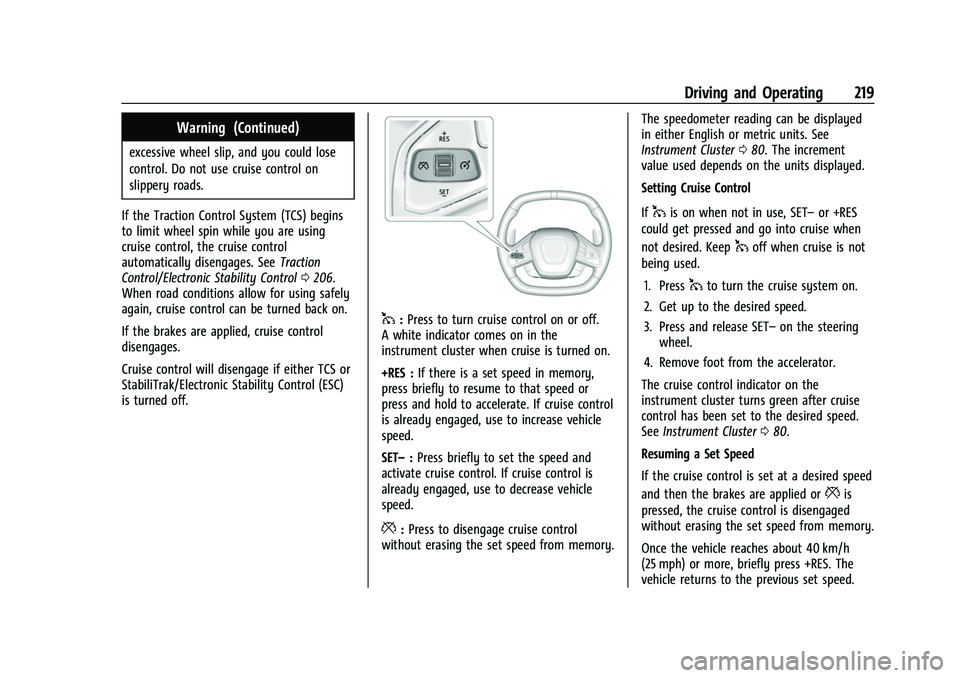
1: Press to turn cruise control on or off.
A white indicator comes on in the
instrument cluster when cruise is turned on.
+RES : If there is a set speed in memory,
press briefly to resume to that speed or
press and hold to accelerate. If cruise control
is already engaged, use to increase vehicle
speed.
SET– :Press briefly to set the speed and
activate cruise control. If cruise control is
already engaged, use to decrease vehicle
speed.
*: Press to disengage cruise control
without erasing the set speed from memory. The speedometer reading can be displayed
in either English or metric units. See
Instrument Cluster
080. The increment
value used depends on the units displayed.
Setting Cruise Control
If
1is on when not in use, SET– or +RES
could get pressed and go into cruise when
not desired. Keep
1off when cruise is not
being used.
1. Press
1to turn the cruise system on.
2. Get up to the desired speed.
3. Press and release SET– on the steering
wheel.
4. Remove foot from the accelerator.
The cruise control indicator on the
instrument cluster turns green after cruise
control has been set to the desired speed.
See Instrument Cluster 080.
Resuming a Set Speed
If the cruise control is set at a desired speed
and then the brakes are applied or
*is
pressed, the cruise control is disengaged
without erasing the set speed from memory.
Once the vehicle reaches about 40 km/h
(25 mph) or more, briefly press +RES. The
vehicle returns to the previous set speed.