2021 CHEVROLET BLAZER ESC
[x] Cancel search: ESCPage 155 of 380

Chevrolet Blazer Owner Manual (GMNA-Localizing-U.S./Canada/Mexico-
14608203) - 2021 - CRC - 10/29/20
154 Infotainment System
Voice Recognition
If equipped, voice recognition allows for
hands-free operation within the navigation,
audio, phone, and weather applications. This
feature can be started by pressing
gon the
steering wheel or touching
gon the
infotainment display.
However, not all features within these areas
are supported by voice commands.
Generally, only complex tasks that require
multiple manual interactions to complete
are supported by voice commands.
For example, tasks that take more than one
or two touches, such as a song or artist to
play from a media device, would be
supported by voice commands. Other tasks,
like adjusting the volume or seeking up or
down, are audio features that are easily
performed by touching one or two options,
and are not supported by voice commands.
In general there are flexible ways to speak
commands for completing the tasks.
If your language supports it, try stating a
one-shot command, such as “Directions to
address
while stating the address during the command. Another example of a one-shot
Destination Entry command is,
“Directions to
Place of Interest at
commands do not work, try saying, “Take
me to Place of Interest” or“Find address”
and the system will walk you through by
asking additional questions.
Hybrid Speech Recognition
If equipped, this feature helps distinguish
words by using Internet-based information
along with the system’s voice recognition
database. This allows you to speak more
naturally when using voice recognition.
Using Voice Recognition
Voice recognition becomes available once
the system has been initialized. This begins
when the ignition is turned on. Initialization
may take a few moments.
1. Press
gon the steering wheel controls
to activate voice recognition.
2. The audio system mutes and the system plays a prompt.
3. Clearly speak one of the commands described in this section.
A voice recognition system prompt can
be interrupted while it is playing by
pressing
gagain. Once voice recognition is started, both the
infotainment display and instrument cluster
show the selections and visual dialog
content. These displays can be turned on or
off in the Tutorial Mode under
Settings
0 164.
There are three voice prompt modes
supported:
.Informative verbal prompts: This type of
prompt will provide more information
regarding the supported actions.
.Short prompts: This type of prompt will
provide simple instructions about what
can be stated.
.Auto informative prompts: This type of
prompt plays during the first few speech
sessions, then automatically switches to
the short prompt after some experience
has been gained through using the
system.
If a command is not spoken, the voice
recognition system says a help prompt.
Prompts and Infotainment Displays
While a voice recognition session is active,
there may be corresponding options
showing on the displays. A selection can be
made by manually touching the option,
or by speaking the number for the option to
Page 182 of 380
Chevrolet Blazer Owner Manual (GMNA-Localizing-U.S./Canada/Mexico-
14608203) - 2021 - CRC - 10/29/20
Infotainment System 181
OTHER COMMERCIAL DAMAGES OR LOSSES),
EVEN IF QSSC, ITS AFFILIATES OR THEIR
LICENSORS HAVE BEEN ADVISED OF THE
POSSIBILITY OF SUCH DAMAGES.
WMA
This product is protected by certain
intellectual property rights of Microsoft. Use
or distribution of such technology outside of
this product is prohibited without a license
from Microsoft.
For more information on the Software,
including any open source software license
terms (and available source code) as well as
copyright attributions applicable to the
Runtime Configuration indicated above,
please contact the Manufacturer or contact
QSSC at 175 Terence Matthews Crescent,
Kanata, Ontario, Canada K2M 1W8
([email protected]).
Linotype
Helvetica is a trademark of Linotype Corp.
registered in the U.S. Patent and Trademark
Office and may be registered in certain
other jurisdictions in the name of Linotype
Corp. or its licensee Linotype GmbH.
Usage in text form of each of the Licensed
Trademarks is:The trademark attribution requirements for
the Licensed Trademarks may be viewed at
http://www.linotype.com/2061-19414/
trademarks.html.
END USER NOTICE
The marks of companies displayed by this
product to indicate business locations are
the marks of their respective owners. The
use of such marks in this product does not
imply any sponsorship, approval,
or endorsement by such companies of this
product.
Page 194 of 380

Chevrolet Blazer Owner Manual (GMNA-Localizing-U.S./Canada/Mexico-
14608203) - 2021 - CRC - 10/29/20
Driving and Operating 193
{Warning
Heavy braking when going down a hill
can cause your brakes to overheat and
fade. This could cause loss of control and
you or others could be injured or killed.
Apply the brakes lightly when descending
a hill and use a low gear to keep vehicle
speed under control.
If the vehicle stalls on a hill: 1. Apply the brakes to stop the vehicle, and then apply the parking brake.
2. Shift into P (Park) and then restart the engine.
.If driving uphill when the vehicle
stalls, shift to R (Reverse), release the
parking brake, and back
straight down.
.Never try to turn the vehicle around.
If the hill is steep enough to stall the
vehicle, it is steep enough to cause it
to roll over.
.If you cannot make it up the hill,
back straight down the hill.
.Never back down a hill in N (Neutral)
using only the brake.
.The vehicle can roll backward quickly
and you could lose control.
.If driving downhill when the vehicle
stalls, shift to a lower gear, release
the parking brake, and drive straight
down the hill.
3. If the vehicle cannot be restarted after stalling, set the parking brake, shift into
P (Park), and turn the vehicle off.
3.1. Leave the vehicle and seek help.
3.2. Stay clear of the path the vehicle
would take if it rolled downhill.
.Avoid turns that take the vehicle across
the incline of the hill. A hill that can be
driven straight up or down might be too
steep to drive across. Driving across an
incline puts more weight on the downhill
wheels which could cause a downhill slide
or a rollover.
.Surface conditions can be a problem.
Loose gravel, muddy spots, or even wet
grass can cause the tires to slip sideways,
downhill. If the vehicle slips sideways, it
can hit something that will trip it —a
rock, a rut, etc. —and roll over.
.Hidden obstacles can make the steepness
of the incline more severe. If a rock is
driven across with the uphill wheels, or if
the downhill wheels drop into a rut or
depression, the vehicle can tilt even more.
.If an incline must be driven across, and
the vehicle starts to slide, turn downhill.
This should help straighten out the
vehicle and prevent the side slipping.
{Warning
Getting out of the vehicle on the
downhill side when stopped across an
incline is dangerous. If the vehicle rolls
over, you could be crushed or killed.
Always get out on the uphill side of the
vehicle and stay well clear of the
rollover path.
Driving in Mud, Sand, Snow, or Ice
Use a low gear when driving in mud —the
deeper the mud, the lower the gear. Keep
the vehicle moving to avoid getting stuck.
Traction changes when driving on sand. On
loose sand, such as on beaches or sand
dunes, the tires tend to sink into the sand.
Page 214 of 380

Chevrolet Blazer Owner Manual (GMNA-Localizing-U.S./Canada/Mexico-
14608203) - 2021 - CRC - 10/29/20
Driving and Operating 213
HSA is available when the vehicle is facing
uphill in a forward gear, or when facing
downhill in R (Reverse). The vehicle must
come to a complete stop on a grade for HSA
to activate.
Ride Control Systems
Traction Control/Electronic
Stability Control
System Operation
The vehicle has a Traction Control System
(TCS) and StabiliTrak/Electronic Stability
Control (ESC). These systems help limit
wheel spin and assist the driver in
maintaining control, especially on slippery
road conditions.
TCS activates if it senses that any of the
drive wheels are spinning or beginning to
lose traction. When this happens, TCS
applies the brakes to the spinning wheels
and reduces engine power to limit wheel
spin. TCS also applies torque to the
non-spinning wheel to increase traction and
acceleration.
StabiliTrak/ESC activates when the vehicle
senses a difference between the intended
path and the direction the vehicle is actuallytraveling. StabiliTrak/ESC selectively applies
braking pressure to any one of the vehicle
wheel brakes to assist the driver in keeping
the vehicle on the intended path.
If cruise control is being used and TCS or
StabiliTrak/ESC begins to limit wheel spin,
cruise control will disengage. Cruise control
may be turned back on when road
conditions allow. TCS and StabiliTrak/ESC will
automatically turn on when cruise control
is set.
Both systems come on automatically when
the vehicle is started and begins to move.
The systems may be heard or felt while
they are operating or while performing
diagnostic checks. This is normal and does
not mean there is a problem with the
vehicle.
It is recommended to leave both systems on
for normal driving conditions, but it may be
necessary to turn TCS off if the vehicle gets
stuck in sand, mud, ice, or snow. See
If the
Vehicle Is Stuck 0196 and “Turning the
Systems Off and On” later in this section.
The indicator light for both systems is in the
instrument cluster. This light will:
.Flash when TCS is limiting wheel spin
.Flash when StabiliTrak/ESC is activated
.Turn on and stay on when either system
is not working
If either system fails to turn on or to
activate, a message may display in the
Driver Information Center (DIC), and
d
comes on and stays on to indicate that the
system is inactive and is not assisting the
driver in maintaining control. The vehicle is
safe to drive, but driving should be adjusted
accordingly.
If
dcomes on and stays on:
1. Stop the vehicle.
2. Turn the engine off and wait 15 seconds.
3. Start the engine.
4. Drive the vehicle.
Page 215 of 380

Chevrolet Blazer Owner Manual (GMNA-Localizing-U.S./Canada/Mexico-
14608203) - 2021 - CRC - 10/29/20
214 Driving and Operating
Ifdcomes on and stays on, the vehicle
may need more time to diagnose the
problem. If the condition persists, see your
dealer.
Turning the Systems Off and On
Caution
Do not repeatedly brake or accelerate
heavily when TCS is off. The vehicle
driveline could be damaged.
To turn off only TCS, press and release
g.
The Traction Off light
idisplays in the
instrument cluster and a DIC message may
display. To turn TCS on again, press and release
g.
The Traction Off light
idisplayed in the
instrument cluster will turn off.
If TCS is limiting wheel spin when
gis
pressed, the system will not turn off until
the wheels stop spinning.
To turn off both TCS and StabiliTrak/ESC,
press and hold
guntil the Traction Off light
iand StabiliTrak/ESC OFF lightgcome on
and stay on in the instrument cluster. A DIC
message may display.
To turn TCS and StabiliTrak/ESC on again,
press and release
g. The Traction Off light
iand StabiliTrak/ESC OFF lightgin the
instrument cluster turn off.
StabiliTrak/ESC will automatically turn on if
the vehicle exceeds 56 km/h (35 mph).
Traction control will remain off.
Adding accessories can affect the vehicle
performance. See Accessories and
Modifications 0254.
Driver Mode Control
If equipped, the Driver Mode Control has the
following Modes: Tour (FWD), Sport,
All-Wheel Drive (AWD), Snow/Ice, Tow/Haul, and Off-Road. Rotate the Driver Mode
Control knob on the center console to make
a mode selection. Continue turning the knob
through the available modes. The selected
mode’s icon will light up on the knob.
If the vehicle is in Tour (FWD) or AWD, it
will stay in that mode through future
ignition cycles. If the vehicle is in any other
mode, it will revert back to Tour (FWD)
when the vehicle is restarted.
Driver Mode Control Knob
5orqTour :
Vehicle is in Tour (FWD)
Mode. Use this mode during normal driving
Page 216 of 380

Chevrolet Blazer Owner Manual (GMNA-Localizing-U.S./Canada/Mexico-
14608203) - 2021 - CRC - 10/29/20
Driving and Operating 215
conditions. SeeDriving for Better Fuel
Economy 0188. Tour (FWD) Mode operates
in Front-Wheel Drive to improve fuel
economy.
8Sport : Sport Mode improves vehicle
handling and acceleration on dry pavement.
When active, Sport Mode modifies steering
efforts, transmission shifting, AWD torque,
suspension tuning (when properly equipped),
and StabiliTrak/Electronic Stability Control
(ESC) settings. For vehicles equipped with
AWD, choosing Sport Mode also
engages AWD.
4AWD (AWD Only) : AWD Mode
provides drive torque to all four wheels.
Select AWD to improve traction and control
on slippery road surfaces, such as gravel,
sand, wet pavement, snow, and ice. When in
AWD Mode, the AWD Mode indicator will
be on.
AWD is active in AWD, Sport, Tow/Haul, and
Off-Road Modes.
When using a compact spare tire on an
AWD vehicle, the system automatically
detects the compact spare and reduces AWD
performance to protect the system. To
restore full AWD operation and prevent excessive wear on the system, replace the
compact spare with a full-size tire as soon as
possible. See
Compact Spare Tire 0317.
6Snow/Ice (FWD Only) : Snow/Ice Mode
improves vehicle acceleration on snow and
ice covered roads by changing accelerator
pedal response.
_Tow/Haul : This feature can assist
when towing or hauling a heavy load. Use
this mode to assist in maintaining desired
vehicle speeds when driving on downhill
grades by using the engine and
transmission. When active, Tow/Haul Mode
modifies transmission shifting, steering
effort, and Trailer Sway Control. For AWD
vehicles, choosing Tow/Haul Mode also
engages AWD. See Driving Characteristics
and Towing Tips 0242.
Automatic Engine Grade Braking
Automatic Engine Grade Braking assists
when driving downhill. It maintains vehicle
speed by automatically implementing a shift
pattern that uses the engine and the
transmission to slow the vehicle. The system
will automatically command downshifts to
reduce vehicle speed. The normal shift pattern will return once the vehicle is on a
low grade or when the accelerator pedal is
pressed.
While in the Electronic Range Select (ERS)
mode, grade braking is deactivated, allowing
the driver to select a range and limiting the
highest gear available. Grade braking is
available for normal driving and in Tow/
Haul Mode.
See
Automatic Transmission 0207.
7Off-Road (AWD Only) : Use this mode
for off-road recreational driving. When
active, Off-Road Mode modifies accelerator
pedal response, ABS, TCS, and the
StabiliTrak/ESC system. Choosing Off-Road
Mode also engages AWD. For more
information on Off-Road Mode, see Off-Road
Driving 0191.
Cruise Control
{
Warning
Cruise control can be dangerous where
you cannot drive safely at a steady
speed. Do not use cruise control on
winding roads or in heavy traffic. (Continued)
Page 217 of 380
Chevrolet Blazer Owner Manual (GMNA-Localizing-U.S./Canada/Mexico-
14608203) - 2021 - CRC - 10/29/20
216 Driving and Operating
Warning (Continued)
Cruise control can be dangerous on
slippery roads. On such roads, fast
changes in tire traction can cause
excessive wheel slip, and you could lose
control. Do not use cruise control on
slippery roads.
With cruise control, a speed of about
40 km/h (25 mph) or more can be
maintained without keeping your foot on
the accelerator. Cruise control does not work
at speeds below about 40 km/h (25 mph).
If the Traction Control System (TCS) or
StabiliTrak/Electronic Stability Control (ESC)
system begins to limit wheel spin while
using cruise control, the cruise control
automatically disengages. See Traction
Control/Electronic Stability Control 0213. If a
collision alert occurs when cruise control is
activated, cruise control is disengaged. See
Forward Collision Alert (FCA) System 0230.
When road conditions allow the cruise
control to be safely used, cruise control can
be turned back on.
Turning off the TCS or StabiliTrak/ESC
system will disengage the cruise control. If the brakes are applied, cruise control
disengages.
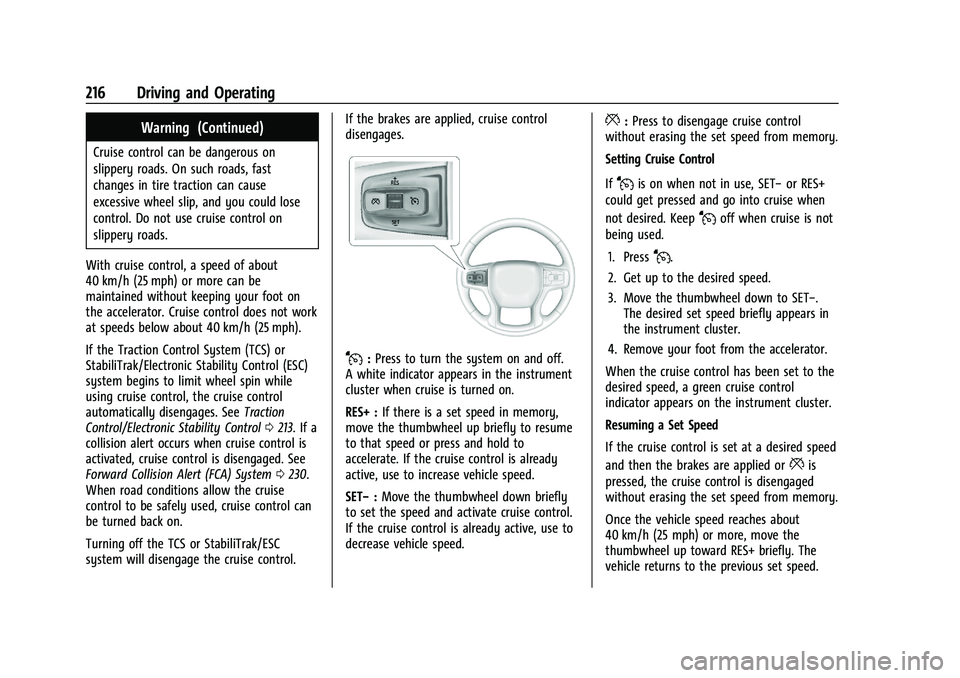
J:
Press to turn the system on and off.
A white indicator appears in the instrument
cluster when cruise is turned on.
RES+ : If there is a set speed in memory,
move the thumbwheel up briefly to resume
to that speed or press and hold to
accelerate. If the cruise control is already
active, use to increase vehicle speed.
SET− :Move the thumbwheel down briefly
to set the speed and activate cruise control.
If the cruise control is already active, use to
decrease vehicle speed.
*: Press to disengage cruise control
without erasing the set speed from memory.
Setting Cruise Control
If
Jis on when not in use, SET− or RES+
could get pressed and go into cruise when
not desired. Keep
Joff when cruise is not
being used.
1. Press
J.
2. Get up to the desired speed.
3. Move the thumbwheel down to SET−. The desired set speed briefly appears in
the instrument cluster.
4. Remove your foot from the accelerator.
When the cruise control has been set to the
desired speed, a green cruise control
indicator appears on the instrument cluster.
Resuming a Set Speed
If the cruise control is set at a desired speed
and then the brakes are applied or
*is
pressed, the cruise control is disengaged
without erasing the set speed from memory.
Once the vehicle speed reaches about
40 km/h (25 mph) or more, move the
thumbwheel up toward RES+ briefly. The
vehicle returns to the previous set speed.
Page 219 of 380

Chevrolet Blazer Owner Manual (GMNA-Localizing-U.S./Canada/Mexico-
14608203) - 2021 - CRC - 10/29/20
218 Driving and Operating
gap. To disengage ACC, apply the brake
pedal. If ACC is controlling your vehicle
speed when the Traction Control System
(TCS) or StabiliTrak/Electronic Stability
Control (ESC) system activates, the ACC may
automatically disengage. SeeTraction
Control/Electronic Stability Control 0213.
When road conditions allow ACC to be
safely used, the ACC can be turned back on.
Turning off the TCS or StabiliTrak/ESC
system will disengage the cruise control.
ACC can reduce the need for you to
frequently brake and accelerate, especially
when used on expressways, freeways, and
interstate highways. When used on other
roads, you may need to take over the
control of braking or acceleration more
often.
{Warning
ACC has limited braking ability and may
not have time to slow the vehicle down
enough to avoid a collision with another
vehicle you are following. This can occur
when vehicles suddenly slow or stop
ahead, or enter your lane. Also see
“Alerting the Driver” in this section.
(Continued)
Warning (Continued)
Complete attention is always required
while driving and you should be ready to
take action and apply the brakes. See
Defensive Driving 0188.
{Warning
ACC will not detect or brake for children,
pedestrians, animals, or other objects.
Do not use ACC when:
.On winding and hilly roads or when
the sensors are blocked by snow, ice,
or dirt. The system may not detect a
vehicle ahead. Keep the entire front of
the vehicle clean.
.Visibility is low, such as in fog, rain,
or snow conditions. ACC performance
is limited under these conditions.
.On slippery roads where fast changes
in tire traction can cause excessive
wheel slip.
J:Press to turn the system on or off. The
indicator turns white on the instrument
cluster when ACC is turned on.
RES+ : Press briefly to resume the previous
set speed or to increase vehicle speed if ACC
is already activated. To increase speed by
about 1 km/h (1 mph), press RES+ briefly. To
increase speed to the next 5 km/h (5 mph)
mark on the speedometer, hold RES+.
SET– :Press briefly to set the speed and
activate ACC or to decrease vehicle speed if
ACC is already activated. To decrease speed
by about 1 km/h (1 mph), press SET– briefly.
To decrease speed to the next 5 km/h
(5 mph) mark on the speedometer, hold
SET– .