2021 AUDI TT home
[x] Cancel search: homePage 127 of 280
8S1012721BE
Voice recognition system
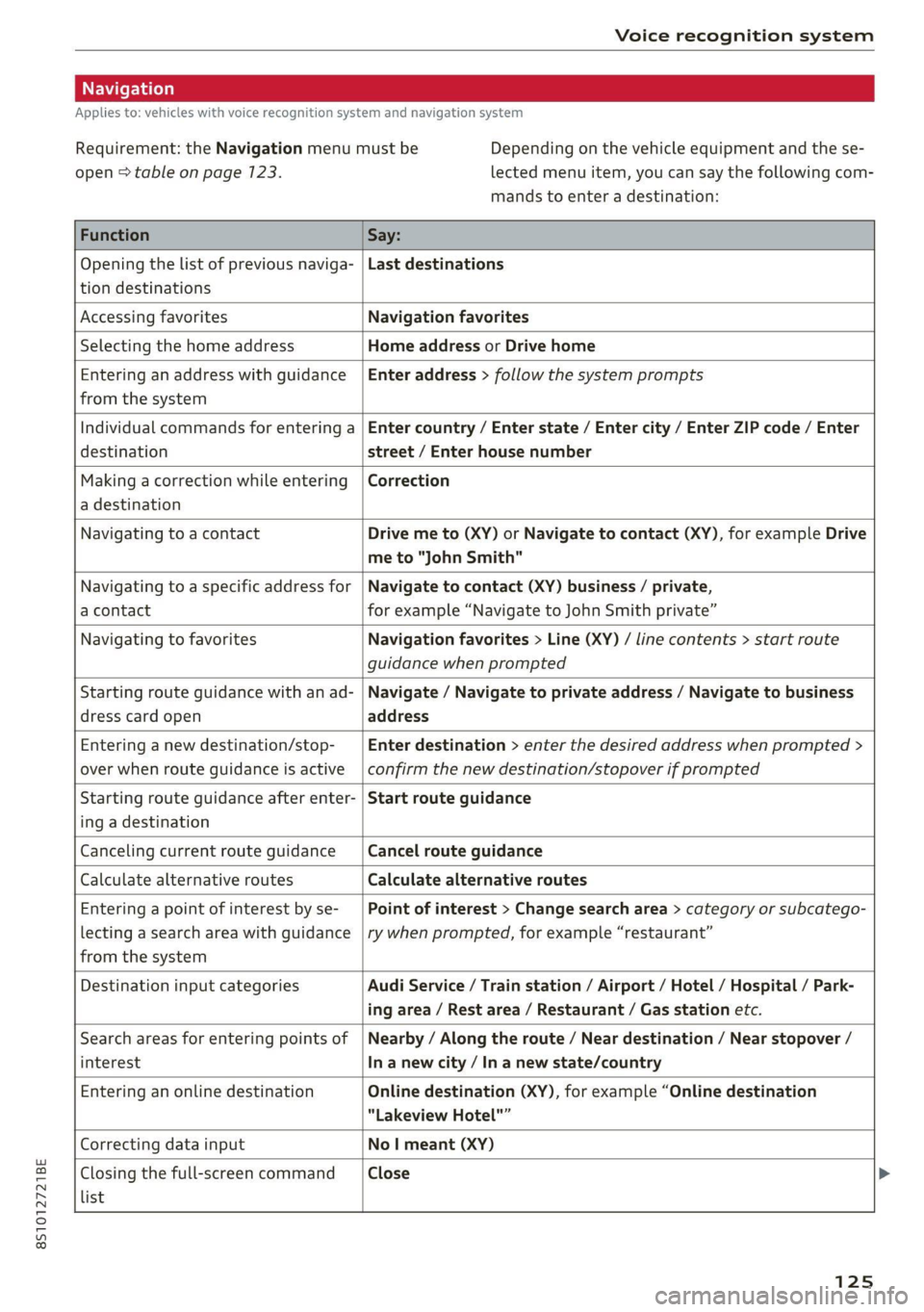
Applies to: vehicles with voice recognition system and navigation system
Requirement: the Navigation menu must be
open > table on page 123.
Depending on the vehicle equipment and the se-
lected menu item, you can say the following com-
mands to enter a destination:
Function Say:
Opening the list of previous naviga-
tion destinations
Last destinations
Accessing favorites Navigation favorites
Selecting the home address Home address or Drive home
Entering an address with guidance
from the system
Enter address > follow the system prompts
Individual commands for entering a
destination
Enter country / Enter state / Enter city / Enter ZIP code / Enter
street / Enter house number
Making a correction while entering
a destination
Correction
Navigating to a contact Drive me to (XY) or Navigate to contact (XY), for example Drive
me to "John Smith"
Navigating to a specific address for
a contact
Navigate to contact (XY) business / private,
for example “Navigate to John Smith private”
Navigating to favorites Navigation favorites > Line (XY) / line contents > start route
guidance when prompted
Starting route guidance with an ad-
dress card open
Navigate / Navigate to private address / Navigate to business
address
Entering a new destination/stop-
over when route guidance is active
Enter destination > enter the desired address when prompted >
confirm the new destination/stopover if prompted
Starting route guidance after enter-
ing a destination
Start route guidance
Canceling current route guidance Cancel route guidance
Calculate alternative routes Calculate alternative routes
Entering a point of interest by se-
lecting a search area with guidance
from the system
Point of interest > Change search area > category or subcatego-
ry when prompted, for example “restaurant”
Destination input categories Audi Service / Train station / Airport / Hotel / Hospital / Park-
ing area / Rest area / Restaurant / Gas station etc.
Search areas for entering points of
interest
Nearby / Along the route / Near destination / Near stopover /
In a new city / In a new state/country
Entering an online destination Online destination (XY), for example “Online destination
“Lakeview Hotel"”
Correcting data input No I meant (XY)
Closing the full-screen command
list
Close
125
Page 146 of 280
Audi connect
— Some Audi connect Infotainment services
must be activated at my.audi.com.
— To make logging in easier in the vehicle, you
will receive an 8-digit myAudi PIN as an al-
ternative to your myAudi password after you
have created a myAudi account.
— Depending on the country, you may be able
to use the myAudi app or my.audi.com.
— For detailed information on configuration,
visit my.audi.com.
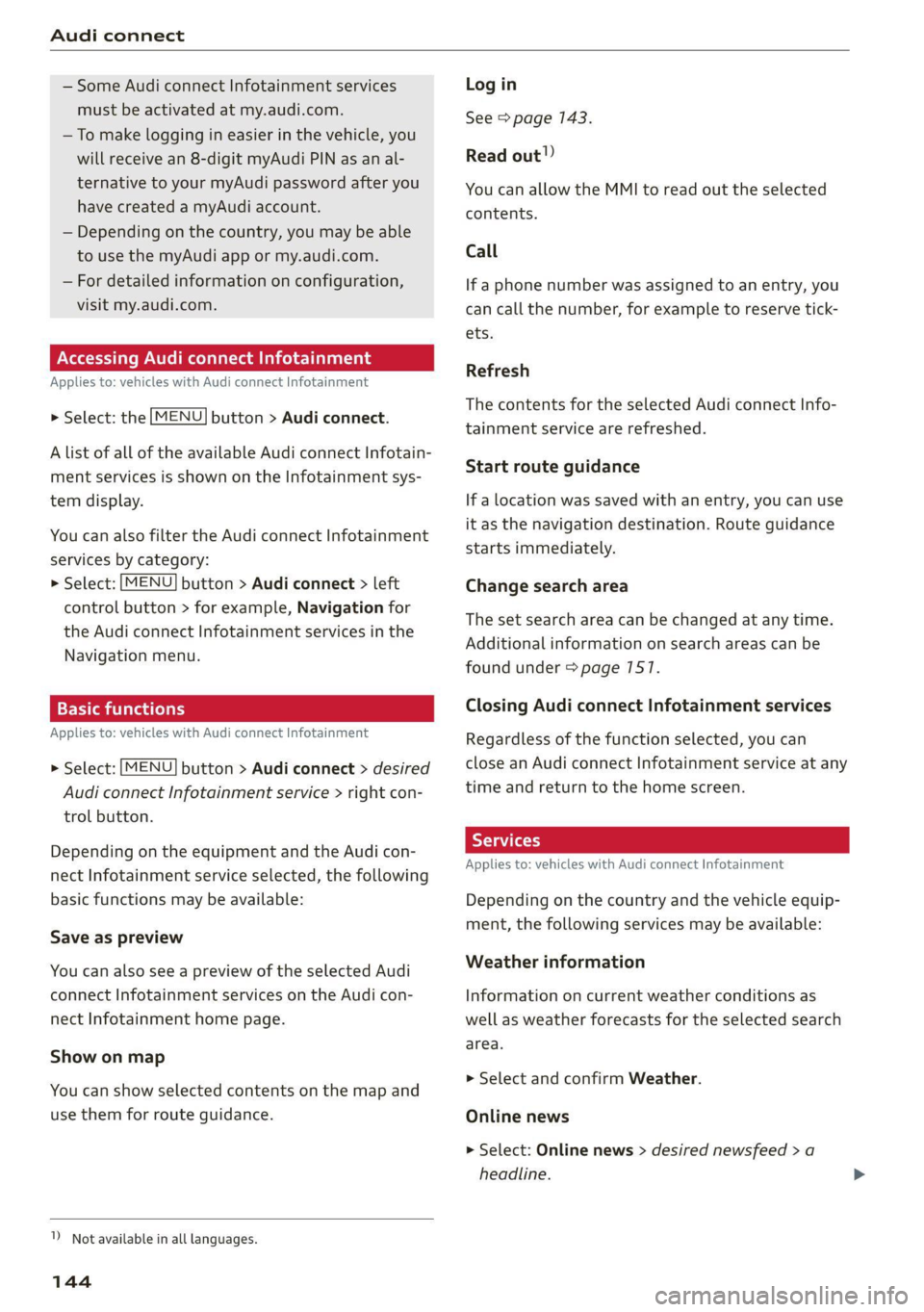
Accessing Audi connect Infotainment
Applies to: vehicles with Audi connect Infotainment
> Select: the [MENU] button > Audi connect.
A list of all of the available Audi connect Infotain-
ment services is shown on the Infotainment sys-
tem display.
You can also filter the Audi connect Infotainment
services by category:
> Select: [MENU] button > Audi connect > left
control button > for example, Navigation for
the Audi connect Infotainment services in the
Navigation menu.
Applies to: vehicles with Audi connect Infotainment
> Select: [MENU] button > Audi connect > desired
Audi connect Infotainment service > right con-
trol button.
Depending on the equipment and the Audi con-
nect Infotainment service selected, the following
basic functions may be available:
Save as preview
You can also see a preview of the selected Audi
connect Infotainment services on the Audi con-
nect Infotainment home page.
Show on map
You can show selected contents on the map and
use them for route guidance.
1) Not available in all languages.
144
Log in
See > page 143.
Read out!)
You can allow the MMI to read out the selected
contents.
Call
If a phone number was assigned to an entry, you
can call the number, for example to reserve tick-
ets.
Refresh
The contents for the selected Audi connect Info-
tainment service are refreshed.
Start route guidance
If a location was saved with an entry, you can use
it as the navigation destination. Route guidance
starts immediately.
Change search area
The set search area can be changed at any time.
Additional information on search areas can be
found under > page 7517.
Closing Audi connect Infotainment services
Regardless of the function selected, you can
close an Audi connect Infotainment service at any
time and return to the home screen.
Services
Applies
to: vehicles with Audi connect Infotainment
Depending on the country and the vehicle equip-
ment, the following services may be available:
Weather information
Information on current weather conditions as
well as weather forecasts for the selected search
area.
> Select and confirm Weather.
Online news
> Select: Online news > desired newsfeed > a
headline.
Page 150 of 280
Navigation
Navigation
Opening navigation
Applies to: vehicles with navigation system
aay
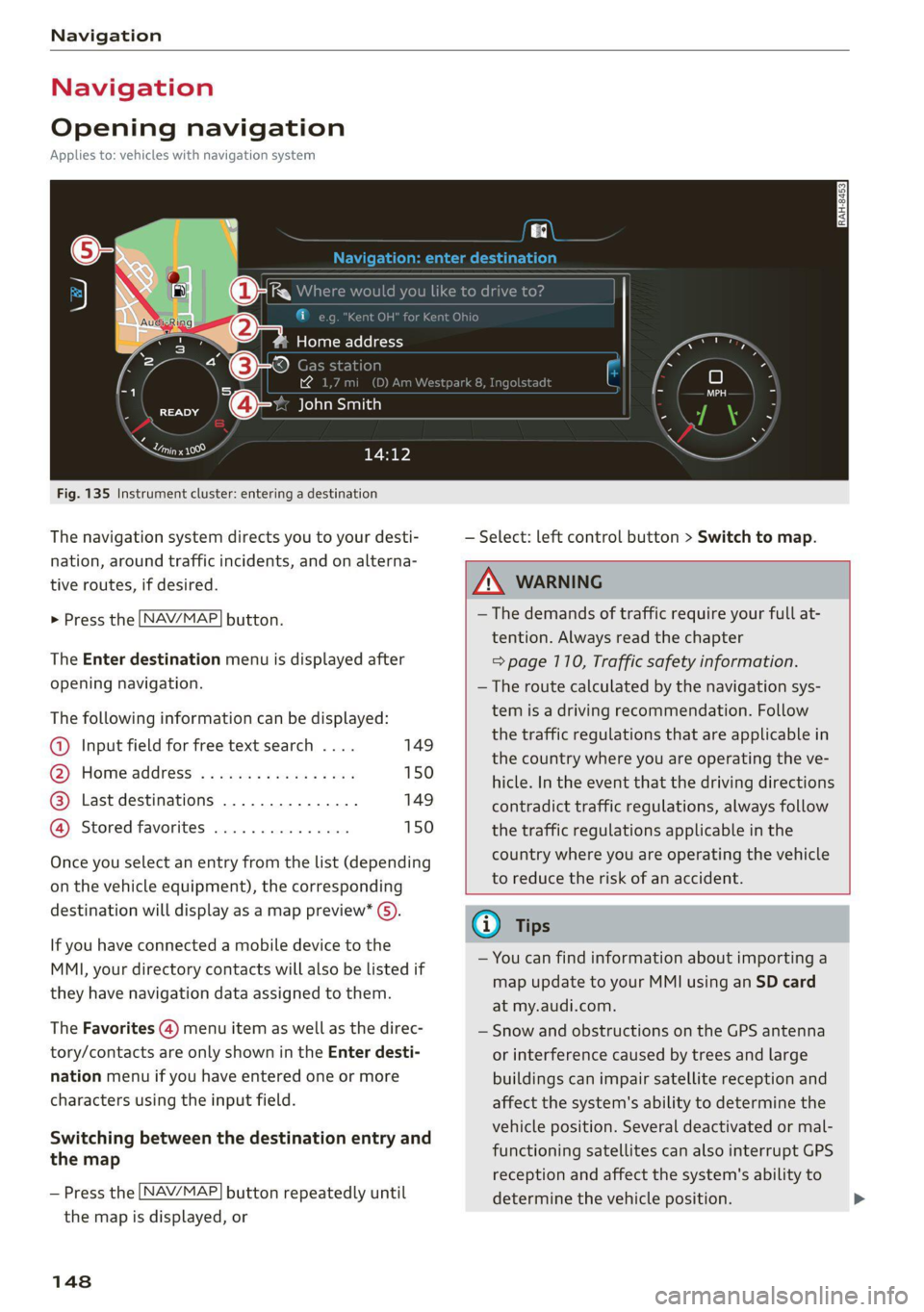
Fig. 135 Instrument cluster: entering a destination
The navigation system directs you to your desti-
nation, around traffic incidents, and on alterna-
tive routes, if desired.
> Press the [NAV/MAP] button.
The Enter destination menu is displayed after
opening navigation.
The following information can be displayed:
@ Input field for free text search .... 149
@ Home address ................. 150
@® Last destinations ............... 149
@ Stored favorites ............... 150
Once you select an entry from the list (depending
on the vehicle equipment), the corresponding
destination will display as a map preview* ).
If you have connected a mobile device to the
MMI, your directory contacts will also be listed if
they have navigation data assigned to them.
The Favorites (4) menu item as well as the direc-
tory/contacts are only shown in the Enter desti-
nation menu if you have entered one or more
characters using the input field.
Switching between the destination entry and
the map
— Press the [NAV/MAP] button repeatedly until
the map is displayed, or
148
— Select: left control button > Switch to map.
ZA\ WARNING
— The demands of traffic require your full at-
tention. Always read the chapter
=> page 110, Traffic safety information.
— The route calculated by the navigation sys-
tem is a driving recommendation. Follow
the traffic regulations that are applicable in
the country where you are operating the ve-
hicle. In the event that the driving directions
contradict traffic regulations, always follow
the traffic regulations applicable in the
country where you are operating the vehicle
to reduce the risk of an accident.
(i) Tips
— You can find information about importing a
map update to your MMI using an SD card
at my.audi.com.
— Snow and obstructions on the GPS antenna
or interference caused by trees and large
buildings can impair satellite reception and
affect the system's ability to determine the
vehicle position. Several deactivated or mal-
functioning satellites can also interrupt GPS
reception and affect the system's ability to
determine the vehicle position.
Page 151 of 280
8S1012721BE
Navigation
— Because street names sometimes change,
the names stored in the MMI may in rare
cases differ from the actual street name.
Entering a destination
aia eee mid Lela
Applies to: vehicles with navigation system
Using the MMI touch control pad, you can enter
the data for a navigation destination all at once
in any order (for example, Los Angeles,
20 Main St.). Likewise, you can search for points
of interest, contacts, previous destinations or fa-
vorites to navigate to the desired address.
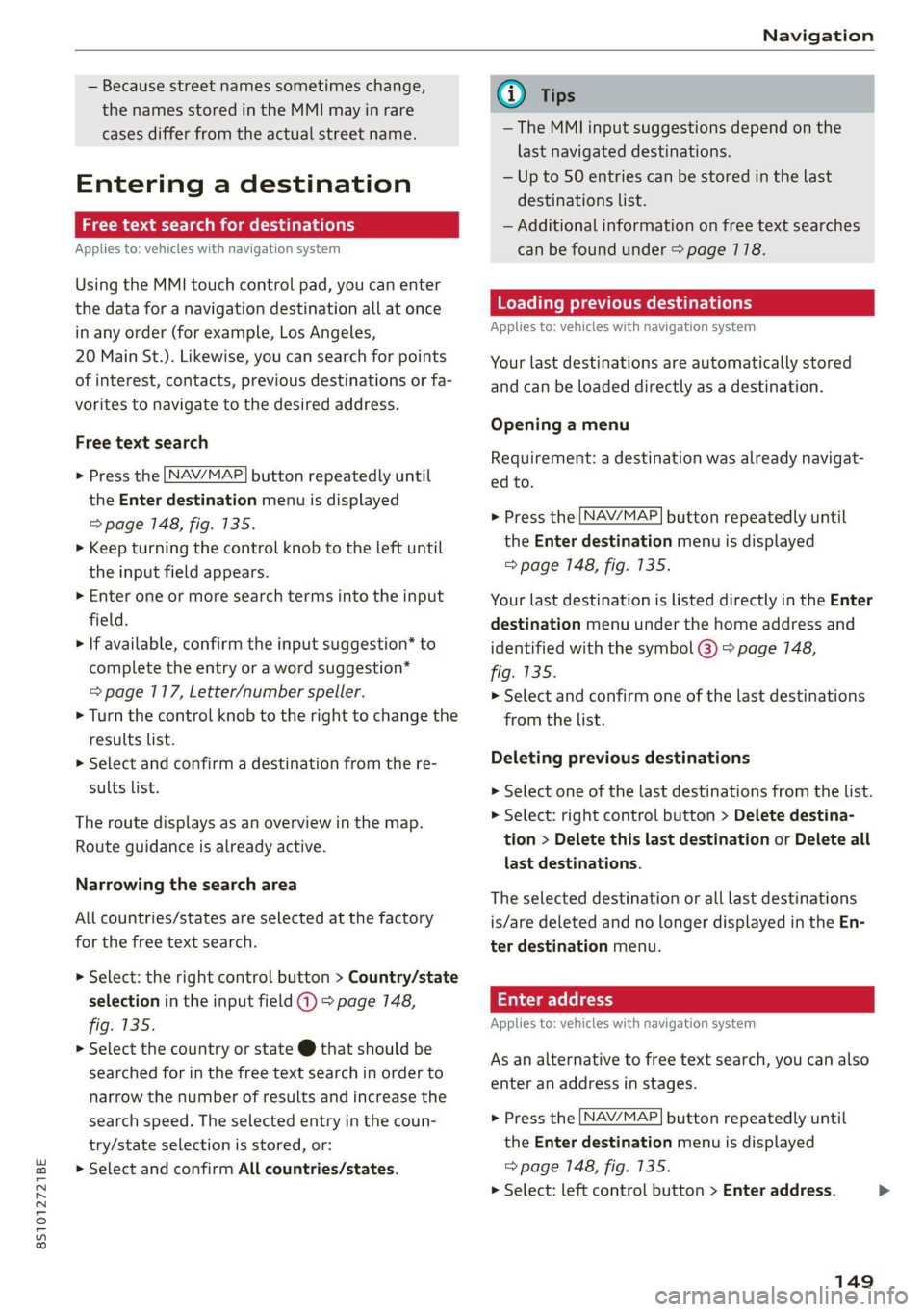
Free text search
> Press the [NAV/MAP] button repeatedly until
the Enter destination menu is displayed
=> page 148, fig. 135.
> Keep turning the control knob to the left until
the input field appears.
> Enter one or more search terms into the input
field.
> If available, confirm the input suggestion” to
complete the entry or a word suggestion*
= page 117, Letter/number speller.
> Turn the control knob to the right to change the
results list.
> Select and confirm a destination from the re-
sults list.
The route displays as an overview in the map.
Route guidance is already active.
Narrowing the search area
All countries/states are selected at the factory
for the free text search.
> Select: the right control button > Country/state
selection in the input field @ > page 148,
fig. 135.
> Select the country or state @ that should be
searched for in the free text search in order to
narrow the number of results and increase the
search speed. The selected entry in the coun-
try/state selection is stored, or:
> Select and confirm All countries/states.
@) Tips
— The MMI input suggestions depend on the
last navigated destinations.
— Up to 50 entries can be stored in the last
destinations list.
— Additional information on free text searches
can be found under = page 118.
Loading previous destinations
Applies to: vehicles with navigation system
Your last destinations are automatically stored
and can be loaded directly as a destination.
Opening a menu
Requirement: a destination was already navigat-
ed to.
> Press the [NAV/MAP] button repeatedly until
the Enter destination menu is displayed
=> page 148, fig. 135.
Your last destination is listed directly in the Enter
destination menu under the home address and
identified with the symbol @) > page 148,
fig. 135.
> Select and confirm one of the last destinations
from the list.
Deleting previous destinations
> Select one of the last destinations from the list.
> Select: right control button > Delete destina-
tion > Delete this last destination or Delete all
last destinations.
The selected destination or all last destinations
is/are deleted and no longer displayed in the En-
ter destination menu.
Enter address
Applies to: vehicles with navigation system
As an alternative to free text search, you can also
enter an address in stages.
> Press the [NAV/MAP] button repeatedly until
the Enter destination menu is displayed
=> page 148, fig. 135.
> Select: left control button > Enter address.
149
>
Page 152 of 280
Navigation
> Select and confirm a line (such as Street, House
number or Country/state) and enter the de-
sired information.
> Select and confirm Start route guidance.
Stee mie RRL)
Applies to: vehicles with navigation system
A point on the map can be used as the destina-
tion.
Opening the map
> Press the [NAV/MAP] button repeatedly until
the map is displayed.
Adjusting the scale
> Turn the control knob to the left or to the right.
Activating the crosshairs
> Press the control knob. The crosshairs are
shown on the map.
Moving the crosshairs
> Move the crosshairs to the destination using
the MMI touch control pad > page 174.
Selecting the destination
> Press the control knob when the crosshairs are
shown.
> Select and confirm Start route guidance.
Hiding the crosshairs
> Press the [BACK] button.
Additional information about the location of
the crosshairs: when you select map content us-
ing
the crosshairs, a display of available informa-
tion appears (such as street name, address or
points of interest) ©) > page 157, fig. 140.
Setting a home address/favorite as the
destination
Applies to: vehicles with navigation system
You can quickly and easily start route guidance to
your home address using the home address func-
tion. Favorites allow easier access to frequently
used destinations.
150
Opening a menu
> Press the [NAV/MAP] button repeatedly until
the Enter destination menu is displayed
=> page 148, fig. 135.
Setting a home address as the destination
Requirement: a home address must be stored
=> page 154.
Your Home address is shown directly in the Enter
destination menu @) > page 7148, fig. 135.
> Select and confirm Home address.
Setting a favorite as the destination
Requirement: a favorite must be stored as a des-
tination > page 154.
> Enter one or more letters into the free text
search input field. The favorites found are
shown in the Infotainment system display @)
=> page 148, fig. 135.
> Select and confirm the desired entry.
G) Tips
— Additional settings for the home address
can be found under > page 154.
— Additional settings for the favorites can be
found under > page 754.
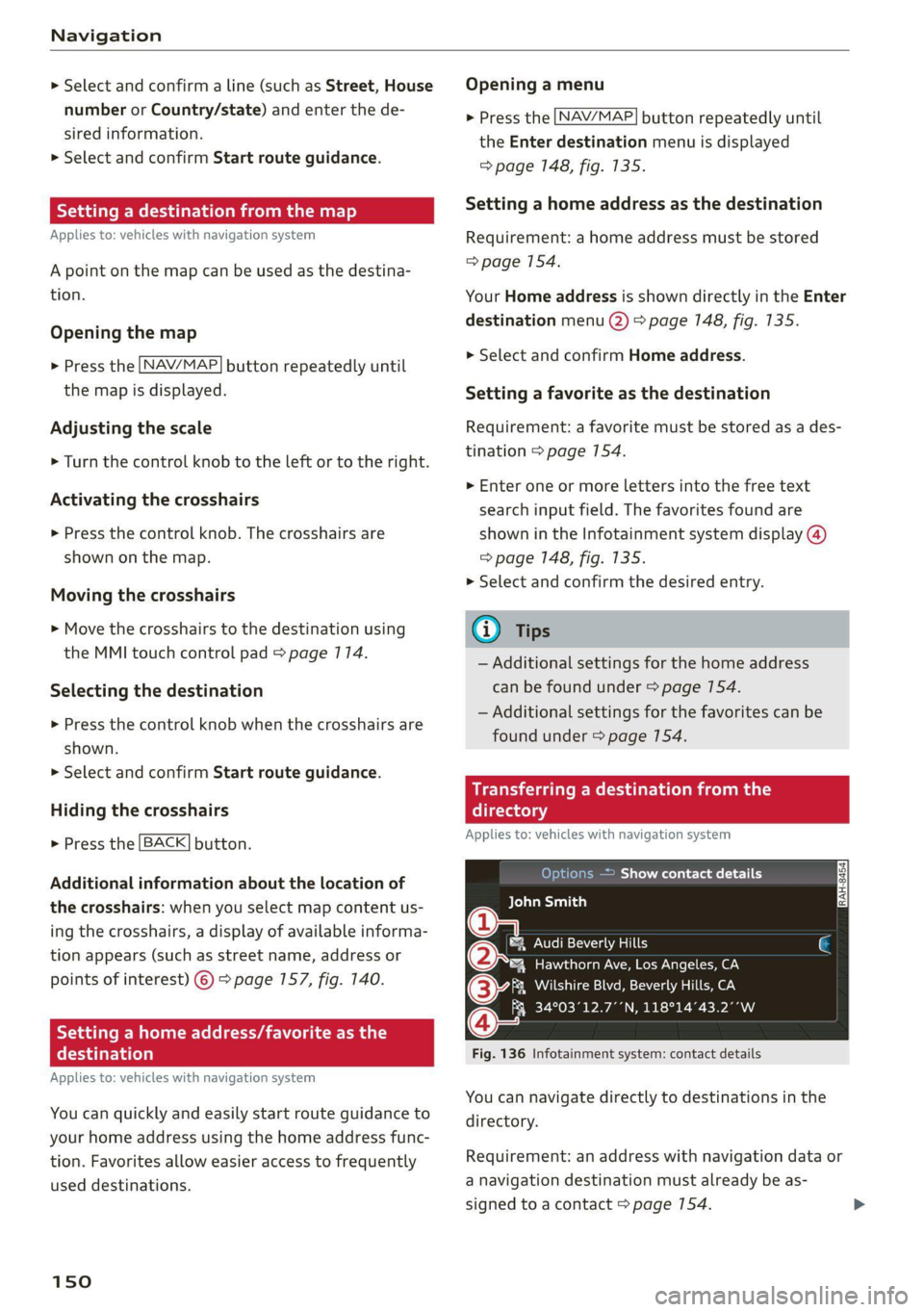
Transferring a dest!
ectory
Applies to: vehicles with navigation system
10) )e(e] a eee Asie Cy
BCT Dian)
a
®&% Audi Beverly Hills
4 Hawthorn Ave, Los Angeles, CA
(3 aia NTSC NeIN Mea aan oe
Q FR 34°03°12.7°’N, 118°14°43.2°°W
Fig. 136 Infotainment system: contact details
You can navigate directly to destinations in the
directory.
Requirement: an address with navigation data or
a navigation destination must already be as-
signed to a contact > page 154.
Page 156 of 280

Navigation
Online traffic data*: receiving online traffic infor-
mation > page 767 can be switched on or off.
Country/state selection > page 149.
Store as favorite > page 154.
Home address
Applies to: vehicles with navigation system
Opening a menu
> Press the [NAV/MAP] button repeatedly until
the Enter destination menu is displayed
=> page 148, fig. 135.
Storing a home address
> Select and confirm Home address (2)
=> page 148, fig. 135. After opening the home
address for the first time, you will be asked to
create a home address.
> Select and confirm Create now.
> Enter a destination, or
>» Select and confirm a destination from the list.
Editing the home address
> Select the Home address (2) > page 148,
fig. 135.
> Select: right control button > Edit home ad-
dress.
> Select and confirm a new destination as the
home address.
The selected destination is stored as the new
home address.
Favorites
Applies to: vehicles with navigation system
Opening a menu
> Press the [NAV/MAP] button repeatedly until
the Enter destination menu is displayed
=> page 148, fig. 135.
Saving a destination as a favorite
> Search for the desired destination in the input
field, or:
> Select a destination from the list.
> Select: right control button > Store as favorite.
154
Renaming a favorite
> Select: left control button > Favorites > select a
favorite from the list > right control button >
Rename favorite.
Moving a favorite
> Select a favorite from the list > right control
button > Move favorite.
> Select and confirm the location of the selected
favorite.
Deleting a favorite
> Select a favorite from the list > right control
button > Delete favorite > Delete this favorite
or Delete all favorites.
Directory contacts
Applies to: vehicles with navigation system
Two addresses (private/business) can be assigned
as destinations for each contact in the directory.
Opening a menu
> Press the [NAV/MAP] button repeatedly until
the Enter destination menu is displayed
=> page 148, fig. 135.
Storing a destination as a contact in the
directory
Requirement: a mobile device must be connected
to the MMI > page 128.
> Select: a destination > right control button >
Add destination to contact.
> Enter the first letters of the desired contact in
the free text search input field > page 148,
fig. 135 and then select a contact from the list.
> Select and confirm Add business destination or
Add private destination.
Page 269 of 280

8S1012721BE
Index
COMING HOME «2 esc = 2 crews =o weaves ov eres 38
Command (voice recognition system) ...... 122
Compartments: « s scsu ¢ ¢ ewe ay ewe ov eee 64
Compass: ithe Mirtor’s « esas < eae s 3 pew ss 43
Compliance: « swe = i ees s i Sows ¥ BoE es 261
Conference call... ..... cee eee eee eee 133
CONNECE. 6. Lee eee 141
Datta Privacy'os + « meen s x easy s wee s ee 257
Infotainment: seis oo sane oe coven a comme 2 141
Infotainment services............-0005 143
Connection manager...............005 190
Connections
refer to Media.............000005 169, 177
Connection settingS............0... eee 190
Consumer information.................% 258
Consumption
Reducing............. cece eee 74
Consumption (fuel) ................0000 15
COMEAGES smccoce 4 0 sxenens «mise om suanmce © oxenens 6 137
Additional directory................0- 191
Importing/exporting...............0.. 138
Memiorycapacityins. 2 6 ceca uo ncien © 6 omen © 139:
Searching... ......cc cece eee eee e ee eee 138
Showing details 5 osc. = s enya se eee se eee 138
Storing as destination................. 154
Gontrol: DuttOnstes « o sxsces 2 « semen ws were oo we 13
Control buttons (operating the MMI)...... 111
Control knob with joystick function....... 115
Convenience key.........---0 eee eee eee ee 19
Indicator ilighttics 5 & suse « x ina & 0 cone @ wane 76
Unlocking and locking............-...0. 22
Convenience opening and closing
Setting... ccc eee ee eee 27
WINDOWS ¢ sme + ¢ soyee x 2 gee 2 x cee oa 27
Cooling MOdGs: s escew s wewe s seems ee VERS 70
Cooling system
Adding
coolant 2 i: 6 scene 2 cen ee eee 208
Checking the coolant level............. 208
Coolant.................0.00 0c eee eee 207
Coolant temperature indicator........... 10
Crank (power top emergency operation) .... . 34
GrosshiairS:: = smax 2 s seme zs some : 2 ae Ee
Cruise control system
Cup holders........ 0... cee eee eee eee eee
Current fuel consumption................ 15
D
Data Privacy.................. 0000000. 257
Date... cece eee eee 189
Date display.................000200 08 189
Daytime running lights.................. 36
Declaration of compliance............... 261
Defrosting (windows) ................000 71
DEF (instrument cluster) s sewea ss veus a x owas 10
Deluxe automatic climate control.......... 70
Demo mode
refer to Presentation mode............ 155
Determining correct load limit........... 228
Digital: COMPASS saws ss oes ss ees Ge ewe ae 43
Digital Rights Management.............. 169
Dimensions............0.00 00 eee ee eee 263
Dimming the rearview mirror............. 40
Directory
refer to ContactS.......... cee eee eee 137
Display
Cleaning’: ¢ ¢ 2s ¢ 2 sees 2s wees es eewn 2 239
DiSpOSaliss » + saeas x = aces & 5 SGcas es Be Ee 258
Distance driven........... 0.0. e cece eee Is
Doors
Mechanically unlocking and locking....... 24
Driver information system................ 12
ENergyCOnsUINIels saves ¢ « wewn 2 » mown oo mew 15
On-board computer................-00. 15
Switching Views ........... eee e eee eee 13
Drives
Fefer to Mediates « e esas < ween + nee 169, 177
DiiVESOLECE’s = sags x x mere ee seuwe 5b aaron 3 2 ae 96
Driving through water...............200- 74
Driving time... 1.6... cece eee 15
Driving tips
Driving through water..............00-. 74
Efficient:driving « mcs se ace sa mwa se mere 74
Driving track secs = = secs se oes = + sows ee oes 81
Dust filter
refer to Pollutant filter. ............00.. 69
DVD drive (media drives) ................ 170
Dynamic volume
refer to System volume..............-. 193
E
Stiles & : ssonane v ceceimaes 2 amowems ev aneiios a x seinem 136
Page 271 of 280

8S1012721BE
Index
Free text'searchicccs . 2 cece ee emer ve mee ve 118
Media... .... cece eee eee eee eee 179
NaVigationts s ¢ ems « 4 zeus 5 2 sees § 2 meee 149
RadiOtes. ce scene e ae vv omnes © Hetero ww oe 165
Telephone.......... 0. cece eee eee 138
Freeze protection
Coolant.......... cece eee eee eee 207
Frequency band................... 164, 166
also refer to Frequency band........... 164
EUGL » sens ¢ 5 seme y © ees fe weee ts een 2 oe 196
AGdIRIVES « sce @ sires ¥ 0 oneneon 2 8 rere 3 8 oe 197
Current fuel consumption............... 15
Fue@ldisSplay sacs s s acu = ¢ eins 3 ¢ eaves Gg ee 10
FURL QaUGC Hii. 5 wise 2s wae es wee oe eer 2 12
Fuelstank capacity’. « sive oo snore x eee 6 « 264
Gasoline... 2.2... ee eee eee eee 196
Reducing fuel consumption............. 74
Saving fuel... 0.0... 2... eee eee eee eee 96
Fueling
Fuel filler door manual release.......... 200
FUCL GAUGE cs s sccm ss news 2s peee eo Bee 12
Fuel:tank. capacity’. « css ov een ex new oe 264
Opening the fuel filler door............ 197
With reserve canister (emergency fueling) . 199
Fuses
ASSIQNMENE's soso se cece 5 & sei s ¥ cere vs 254
Replacing ........ 0. cee eee eee ee eee 253
G
Garage:door Opener ais + 6 sven + 6 see © 6 saeco © 28
Garment hookS:sis 3 6 eva 3s ees ov oma vv oe 64
GasOlin@rs: owes ev ween 2 seems 2 mee ees 196
Additives ...... 0.0.0... eee eee eee 197
Gasoline mixture..............00--00. 196
GAWR
refer to Gross Axle Weight Rating (GAWR) . 264
Global commands (voice recognition sys-
HOM) cao a x seas wo samen aH catmans ww cK & Bae 123
Glossary of tire and loading terminology... 217
GIOVE COMPATEMENE wen s s wees ss waren ss ee 64
G meter
refer to Sport displays.................. 15
Gross Axle Weight Rating (GAWR)........ 264
Gross Vehicle Weight Rating (GVWR)...... 264
GVWR
refer to Gross Vehicle Weight
Rating (GVWR) « « esss 2 x wens 2 ean 2 Hen 264
H
HanaSTrGG: ¢ s aus 5 s sees sc ee Fo eee eae 129
Hands Free Profile.............00eee eee 129
Headlight range control system........... 36
Headlights............ 0.0... e eee eee eee 37
ClOANING « < s swan so sees ye ees gs wees eo: 237
Headlight range control system.......... 36
Washer system. ...... 0.0.0 cee eee eae 41
Heated
Exterior mirrors... 20... cee cece eee ee 39
REAP WINdOWen»: = s aoe « x wou 2 eee a ee 71
SeatSiene s wuss a x aan 2 aie © ¥ arene © w areine 5 71
Washer nozzles..........-.00--000 eee 41
Heating........... 0.002. ee 69
Hex socket ..... 0.0.0... cece eee ee eee 242
HFP
refer to Hands Free Profile............. 128
Hill descent control...............-.000- 85
Hill hold assist... 0.2.2... eee eee eee eee 80
also refer to Hill hold assist............. 80
Home address...........-00 000 e ee 150, 154
HomeLink
refer to Garage door opener............. 28
HOM... eee eee 6
Hotspot
refer to Wi-Fi vc ¢ = een 2 gees sv ees 146, 173
I
Ignition (indicator light)................. 16
Imbalance (wheels) ...........--..00005 223
Immobilizer
refer to Electronic immobilizer........... 19
Importing and exporting (contacts) ....... 138
Indicator lights. ..... 2.0.0... cee eee eee eee 7
Input
Using the MMI touch...............--. 112
Using theispelleticcis « « sane 6 3 sews o smenes 117
Input level (media) ..............0000005 180
Inspection interval owas « same + supe + 2 sem 212
269