2021 AUDI Q8 steering
[x] Cancel search: steeringPage 162 of 332

Parking and maneuvering
General information
The parking aid assists when parking and maneu-
vering by providing warnings about obstacles. If
the ultrasonic sensors on the vehicle > page 122,
fig. 88 detect an obstacle, the system will pro-
vide audio and visual warnings.
Activating and deactivating
Requirement: the vehicle speed must be under
approximately 6 mph (10 km/h).
> Press the Put or & button @ in the center con-
sole. When activating, a brief tone will sound
and the LED in the button will turn on.
Automatic activation
> The system activates automatically when re-
verse gear is engaged while the engine is run-
ning. A brief tone will sound.
> If Automatic activation is switched on in the
MMI and if the vehicle approaches an obstacle
at speeds below approximately 6 mph (10
km/h), the parking aid will switch on automati-
cally. Audible signals will sound once the obsta-
cle is within the sensor detection area.
» Applies to: MMI: To switch Automatic activa-
tion on or off, select on the home screen: VEHI-
CLE > Parking aid > Automatic activation.
Automatic deactivation
The distance indicator for the parking aid plus
will deactivate automatically when driving for-
ward faster than 6 mph (10 km/h).
ZA\ WARNING
Observe the safety precautions and note the
limits of the assist systems, sensors, and
cameras > page 121.
@) Note
Keep enough distance from the curb to avoid
damage to the rims.
G) Tips
— If the parking aid is deactivated, it can only
be reactivated automatically when one of
the following conditions is met:
160
— The vehicle speed exceeds 6 mph
(10 km/h)
— The ignition is switched off and back on
again
— The parking brake is set and then released
— The “P” gear is engaged and released
again
Applies to: vehicles with parking aid plus
Fig. 118 Upper display: distance indicator
If the sensors detect an obstacle, audible and vis-
ual signals will warn you.
Visual warnings
The visual warnings in the upper display help you
to detect the critical vehicle area and to estimate
the distance to an obstacle.
Red segments (2) show detected obstacles that
are in your vehicle's path. The red lines @) mark
the expected direction of travel based on the
steering angle. A white segment (8) indicates a
detected obstacle that is outside of the vehicle's
path. The closer your vehicle comes to the obsta-
cle, the closer the segments will move to the ve-
hicle. The collision area has been reached when
the next to last segment is displayed. Obstacles
in the collision area, including those outside of
the vehicle's path, are shown in red. Do not con-
tinue driving farther.
Audio signals
The closer your vehicle gets to a detected obsta-
cle, the shorter the time between the audible sig-
nals. A continuous tone sounds when an obstacle
is less than approximately 1 foot (0.30 m) away
from the front or rear of the vehicle. A continu-
ous tone sounds when an obstacle is less than
approximately 0.7 feet (0.20 m) away from the >
Page 165 of 332

4M8012721BF
Parking and maneuvering
> Move the window wiper lever S7 into the posi-
tion for cleaning the rear window & & page 57.
ZA WARNING
Observe the safety precautions and note the
limits of the assist systems, sensors, and
cameras > page 121.
Warnings
Applies to: vehicles with rearview camera/peripheral cameras
Applies to: vehicles with trailer view
Fig. 122 Upper display: trailer view
When parking with the rearview camera or pe-
ripheral camera, the parking system plus audio
and visual warnings* will also assist you
=> page 160.
Visual orientation lines
@ The orange orientation lines show the vehi-
cle's direction of travel >@. Turn the steer-
ing wheel until the orange orientation lines
align with the parking space.
@ Use the blue markings to help you estimate
the distance to an obstacle. Each marking
represents approximately 3 feet (1 meter).
The blue area represents an extension of the
vehicle's outline by approximately 16 feet (5
meters) to the rear.
@® You can recognize the rear bumper in the
lower display.
@ You should stop driving in reverse when the
red orientation line touches the edge of an
object, at the latest.
Trailer view
Applies to: vehicles with trailer view
The trailer view > fig. 122 assists you in position-
ing the vehicle in front of a trailer.
— Applies to: vehicles with peripheral cameras:
Switch to the Rear view > page 164, fig. 123.
— Select |---| > Trailer view in the upper display
when the parking aid is active.
Now you can position your vehicle in front of the
trailer. The orange orientation line ©) > fig. 122
indicates the expected path toward the trailer
hitch. Use the blue markings © to help you esti-
mate the distance to the trailer hitch. Each mark-
ing represents approximately 1 foot (0.30 me-
ters). The width of the blue surface represents
the maximum steering wheel angle.
Symbols
If $2/&9/< is displayed and the display area
represented by that symbol is not available, then
the camera on the that side is not available. The
power exterior mirrors may have been folded in
or a door or the luggage compartment lid may
have been opened.
If # is displayed, there is a system malfunction
and the display area represented by that symbol
is not available. The camera is not working in this
area.
If Avis displayed, the respective ultrasonic sensor
is icy or dirty. Clean the area in front of the sen-
sors > page 123.
If one of the symbols continues to be displayed,
drive immediately to an authorized Audi dealer or
authorized Audi Service Facility to have the mal-
function repaired.
A WARNING
— Observe the safety precautions and note the
limits of the assist systems, sensors, and
cameras > page 121.
— Sensors and cameras have spots in which
the surrounding area cannot be detected. >
163
Page 166 of 332

Parking and maneuvering
Objects, animals, and people may only be
detected with limitations may not be detect-
ed at all. Always monitor the traffic and the
vehicle's surroundings directly and do not
become distracted.
@) Note
— The orange orientation lines @) show the di-
rection the rear of the vehicle will be travel-
ing, based on the steering wheel angle. The
front of the vehicle swings out more than
the rear of the vehicle. Maintain plenty of
distance so that an exterior mirror or a cor-
ner of the vehicle does not collide with any
obstacles.
— Keep enough distance from the curb to
avoid damage to the rims.
— Only use the images provided by the camera
on the rear of the vehicle when the luggage
compartment lid is completely closed. Make
sure any objects you may have mounted on
the luggage compartment lid do not block
the rearview camera.
G) Tips
— Applies to vehicles with air suspension: The
accuracy of the orientation lines and blue
surfaces on the camera display decreases
when the vehicle is raised or lowered with
the air suspension.
— There is no distance warning for the rear
and the sides* when trailer towing mode is
detected. The front sensors remain activat-
ed. The visual display switches to trailer
mode. There is no guarantee the functions
will be deactivated when using a retrofitted
trailer hitch.
Operating the peripheral cameras
Applies to: vehicles with peripheral cameras
E
3
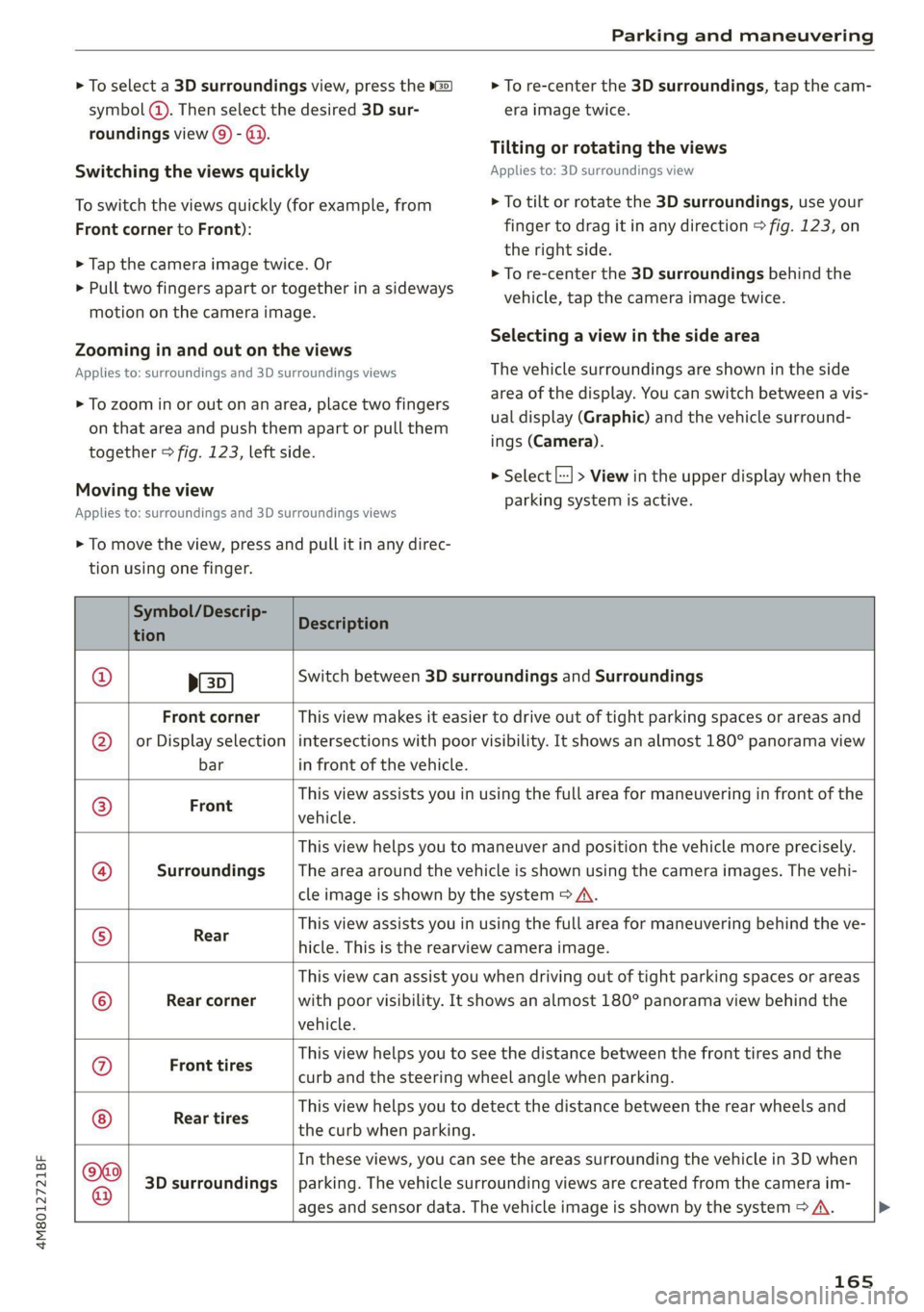
Fig. 123 Upper display: left side: surrounding area. Right side: 3D surroundings.
On vehicles with peripheral cameras, you can se- Selecting the views
lect among different views. > To display the entire selection bar, tap the cur-
The camera views can be controlled with the rent view (2) or swipe at the edge of the selec-
touch display. In certain views, you can zoom in tion bar from left to right.
or out on the displayed area, and move, tilt, or > To select a view, press (2)- @) or tap in an area
rotate the 3D surroundings. to show the vehicle in the side view )). >
2 Requirement: The vehicle surroundings (Camera) must be
selected in the View in the side area.
164
Page 167 of 332
4M8012721BF
Parking and maneuvering
> To select a 3D surroundings view, press the »@)
symbol @). Then select the desired 3D sur-
roundings view () - @.
Switching the views quickly
To switch the views quickly (for example, from
Front corner to Front):
> Tap the camera image twice. Or
> Pull two fingers apart or together in a sideways
> To re-center the 3D surroundings, tap the cam-
era image twice.
Tilting or rotating the views
Applies to: 3D surroundings view
> To tilt or rotate the 3D surroundings, use your
finger to drag it in any direction > fig. 123, on
the right side.
> To re-center the 3D surroundings behind the
vehicle, tap the camera image twice.
motion on the camera image.
Selecting a view in the side area
Zooming in and out on the views
Applies to: surroundings and 3D surroundings views
> To zoom in or out on an area, place two fingers
on that area and push them apart or pull them
together > fig. 123, left side.
Moving the view
Applies to: surroundings and 3D surroundings views
The vehicle surroundings are shown in the side
area of the display. You can switch between a vis-
ual display (Graphic) and the vehicle surround-
ings (Camera).
> Select |--] > View in the upper display when the
parking system is active.
> To move the view, press and pull it in any direc-
tion using one finger.
Symbol/Descrip-
tion
Description
ED)
Switch between 3D surroundings and Surroundings
Front corner
or Display selection
bar
This view makes it easier to drive out of tight parking spaces or areas and
intersections with poor visibility. It shows an almost 180° panorama view
in front of the vehicle.
Front
This view assists you in using the full area for maneuvering in front of the
vehicle.
Surroundings
This view helps you to maneuver and position the vehicle more precisely.
The area around the vehicle is shown using the camera images. The vehi-
cle image is shown by the system > A\.
Rear
This view assists you in using the full area for maneuvering behind the ve-
hicle. This is the rearview camera image.
Rear corner
This view can assist you when driving out of tight parking spaces or areas
with poor visibility. It shows an almost 180° panorama view behind the
vehicle.
Front tires
This view helps you to see the distance between the front tires and the
curb and the steering wheel angle when parking.
Rear tires
This view helps you to detect the distance between the rear wheels and
the curb when parking.
©e$|e@|e|
©
|o|/
©
|e]
©
|e
3D surroundings
In these views, you can see the areas surrounding the vehicle in 3D when
parking. The vehicle surrounding views are created from the camera im-
ages and sensor data. The vehicle image is shown by the system > A\.
165
Page 172 of 332

Parking and maneuvering
@) Tips
— If you did not drive past a suitable parking
space too quickly, the system can also be ac-
tivated afterward by pressing Pe.
— The Electronic Stabilization Control (ESC)
must not be switched off during the parking
process. If the ESC intervenes, the parking
process will be canceled.
— You can also drive into a perpendicular park-
ing space yourself and then activate the sys-
tem. If this is the case, the front of the vehi-
cle should already be in the space (4)
=> page 168, fig. 126 so that the sensors
can measure the space.
— You cannot park with the parking assist sys-
tems when you are towing a trailer or have
the connector inserted in the trailer socket.
— The system is not available when certain as-
sist systems are switched on.
— If there are suitable parking spaces on both
sides of the street, for example, on a one-
way street, you can change the side where
the system is searching for parking spaces
by activating the turn signal for the other
side or by pressing on that side in the upper
display.
— The park systems do not provide support for
assisted parking on tight curves.
Park assist plus!)2)
General information
Applies to: vehicles with park assist plus
Park assist plus parks the vehicle after the park-
ing space search and also exits the parking space.
While the driver presses and holds the [>>P] but-
ton and monitors the vehicle's surroundings, park
assist plus controls the steering, gear selection,
acceleration, and braking.
)_ system availability may be limited depending on the mar-
ket.
2) In preparation at the time of printing.
170
ZA WARNING
— Observe the safety precautions and note the
limits of the assist systems, sensors, and
cameras > page 121.
— The driver is always responsible when enter-
ing or exiting a parking space and during
similar maneuvers.
— Do not use this function if the vehicle cannot
move freely, for example when on a vehicle
jack.
— Sensors and cameras have spots in which
the surrounding area cannot be detected.
Objects, animals, and people may only be
detected with limitations may not be detect-
ed at all. Always monitor the traffic and the
vehicle's surroundings directly and do not
become distracted.
@) Note
— Do not use park assist plus when transport-
ing cargo that extends outside of the vehicle
or when snow chains are mounted.
— Park assist plus and remote controlled park-
ing guides the vehicle either away from
curbs or onto them if other vehicles are
parked on the curb. Make sure that your ve-
hicle's tires and rims are not damaged. Re-
sume control of the vehicle in time or stop
the parking process if needed to prevent
damage.
— In parking spaces without curbs, maintain a
distance of at least 19 inches (50 cm) from
walls and buildings in order to reduce the
risk of vehicle damage.
G) Tips
Follow the legal regulations in the country
where you are operating the vehicle when us-
ing park assist plus. Park assist plus may be
prohibited in some countries. The system may
be unavailable in countries where it has been
deactivated in order to comply with legal reg-
ulations. Data will not be transmitted to Audi. >
Page 173 of 332

4M8012721BF
Parking and maneuvering
The driver is always responsible for adhering
to the regulations applicable in the country
where the vehicle is being operated.
Parking with park assist plus!)2)
Applies to: vehicles with park assist plus
Fig. 131 Upper display: park assist plus display
Requirement: a suitable parking space must be
found and selected > page 167. The vehicle must
initially be stationary and the brakes must be
pressed.
> Remove your hands from the steering wheel.
> Pay attention to the path of the vehicle. If the
traffic situation permits it, press and hold the
>>P] button @ and release the brakes > /A\.
> Pay attention to the path of the vehicle. In sit-
uations where conditions are unclear, pause the
parking process by releasing the |>>P] button.
For example, this may be necessary if an obsta-
cle appears or the vehicle comes very close to
an obstacle.
> To resume the parking process, press and hold
the 2>P] button again. The rest of the parking
)_ System availability may be limited depending on the mar-
ket.
2) In preparation at the time of printing.
process will be recalculated based on the vehi-
cle position.
LED in the button @)
The LED informs about the availability of park as-
sist plus:
— Blinking white - park assist plus is ready to
control the parking process automatically or to
resume after an interruption.
— Green - park assist plus is active.
— Red - park assist plus was paused or stopped. A
message will appear in the instrument cluster
display > page 173.
Indicator in the upper display
The current driving maneuver and the status of
the park assist plus are shown in the upper dis-
play:
@ Path that the vehicle will travel during the
current parking maneuver
@® End point of the current parking maneuver/
direction change
@ 8 Park assist plus active
© Driving direction display
End of the parking process
The parking process will end automatically once
the vehicle has reached the end point in the park-
ing space. After park assist plus finishes parking
successfully, the parking lock will be engaged
and the parking brake will be set.
Pause park assist plus > page 173.
/\ WARNING
— Observe the safety precautions and note the
limits of the assist systems, sensors, and
cameras > page 121.
— Press and hold the [>>P] button only if you
are sure that there are no obstacles in the
vehicle's path or under the vehicle, and that
no obstacles will move into the vehicle's
path. >
171
Page 174 of 332

Parking and maneuvering
— Park assist plus is an assist system. The driv-
er is still responsible for monitoring the ve-
hicle's surroundings and preventing colli-
sions when using the system.
— When using park assist plus to drive into or
out of a parking space, the steering wheel
turns quickly on its own. Reaching into the
steering wheel spokes while this is happen-
ing can result in injury.
— Sensors and cameras have spots in which
the surrounding area cannot be detected.
Objects, animals, and people may only be
detected with limitations may not be detect-
ed at all. Always monitor the traffic and the
vehicle's surroundings directly and do not
become distracted.
@) Tips
— You can reduce the speed specified by the
system at any time by pressing the brake
pedal.
— The system can incorrectly interpret parking
space barriers (such as parking curbs). Take
over the parking process = page 173 if the
vehicle is not completely inside the parking
space or if the vehicle tries to drive over the
parking space barrier.
— The image in the display is an enlarged and
distorted image. Under certain circumstan-
ces, objects may appear different and un-
clear on the display. This is especially true if
there are objects that do not touch the
ground, such as the bumper of a parked ve-
hicle or the rear of a truck. Drive with spe-
cial care and do not use the image if neces-
sary.
— Applies to vehicles with air suspension: The
accuracy of the orientation lines and green
surfaces in the display decreases when the
vehicle is raised or lowered with the air sus-
pension.
)_ system availability may be limited depending on the mar-
ket.
2) In preparation at the time of printing.
172
Exiting a parking space with park assist
Pye oa)
Applies to: vehicles with park assist plus
If you parked the vehicle in a parallel parking
space, park assist plus can help you drive out of
it.
> Start the engine.
> Press P@ in the lower display.
> Wait until a message appears on the upper dis-
play that requests you to select the direction to
travel in when exiting the parking space.
> Activate the turn signal on the desired side or
press that side next to the vehicle in the upper
display.
> Remove your hands from the steering wheel.
> Pay attention to the path of the vehicle. If the
traffic situation permits it, press and hold the
>>P] button @ > page 171, fig. 130 and re-
lease the brakes > A\.
> Pay attention to the path of the vehicle. If an
obstacle appears, interrupt the parking process
by releasing the [>>P] button. The vehicle re-
mains stopped.
> To resume the parking process, press and hold
the [>>P| button again.
> The process of exiting the parking space has
ended if additional corrective movements are
no longer necessary and the specified steering
wheel angle is sufficient to drive out of the
parking space. Resume control of the steering
wheel >@).
Pause park assist plus > page 173.
Z\ WARNING
— Observe the safety precautions and note the
limits of the assist systems, sensors, and
cameras > page 121.
— Press and hold the [>>P] button only if you
are sure that there are no obstacles in the
vehicle's path or under the vehicle, and that
no obstacles will move into the vehicle's
path. >
Page 175 of 332

4M8012721BF
Parking and maneuvering
— Park assist plus is an assist system. The driv-
er is still responsible for monitoring the ve-
hicle's surroundings and preventing colli-
sions when using the system.
— When using park assist plus to drive into or
out of a parking space, the steering wheel
turns quickly on its own. Reaching into the
steering wheel spokes while this is happen-
ing can result in injury.
@) Note
Resume steering immediately after the last
corrective movement and the takeover
prompt, so that the specified steering wheel
angle is not recentered.
G) Tips
You can reduce the speed selected by the ve-
hicle or stop the vehicle at any time by press-
ing the brake pedal.
Pausing park assist plus))2)
Applies to: vehicles with park assist plus
You can pause park assist plus at any time by re-
leasing the [>>P] button @ > page 171, fig. 130.
To resume the parking process, press and hold
the [>>P] button again.
Canceling automatically
Park assist plus is canceled automatically among
other things, if:
— If you switch off the system
— You take over steering or press the brake pedal,
— If the time limit is exceeded
— If an obstacle is detected
— The ESC intervenes
Resume control of the vehicle, end the parking
process manually, or:
You can resume the parking process in some sit-
uations. Press and hold the brake pedal and press
Pe.
)_ System availability may be limited depending on the mar-
ket.
2) In preparation at the time of printing.
ZA\ WARNING
Observe the safety precautions and note the
limits of the assist systems, sensors, and
cameras > page 121.
Messages
Applies to: vehicles with park assist plus
If the roll or il indicator light turns on, the
park assist is not available or was interrupted.
A message that indicates the cause and possible
solution may appear with some displays. The
weather conditions may be too poor or a sensor
may be covered. Clean the area in front of the
sensors > page 123 and try to turn the system on
again later.
If the malfunction remains, drive to an author-
ized Audi dealer or authorized Audi Service Facili-
ty immediately to have the malfunction correct-
ed.
Remote controlled
parking!)2)
General information
Applies to: vehicles with remote park assist plus
Remote controlled parking is part of park assist
plus/park assist plus with garage function. The
process for parking or exiting a parking space can
be controlled with a mobile device from outside
the vehicle. To do so, the driver must have both
the vehicle key and the mobile device with him or
her. While the driver controls the vehicle remote-
ly and monitors the vehicle's surroundings, the
system controls the steering, gear selection, ac-
celeration, braking, and locking the vehicle.
ZA\ WARNING
— Observe the safety precautions and note the
limits of the assist systems, sensors, and
cameras > page 121. >
173