2021 AUDI Q2 152
[x] Cancel search: 152Page 5 of 364

Table of Contents
CO
< o
rN
r^
rs
t-H
O
<
•H
00
Park assist 139
Settings for parking aid 143
Fault warnings 144
Towing bracket 144
Intelligent technology 145
Electronic stabilisation control (ESC) .... 145
Brakes 147
Electro-mechanical power steering 148
Four-wheel drive (quattro) 148
Power management 149
Information saved in the control units . . . 150
Infotainment 152
Multi
Media Interface 152
Notes on traffic safety 152
Introduction 152
MMI
ON/OFF button with joystick
function 152
Infotainment display 153
How to use the MMI 153
MMI touch 155
Rotary pushbutton with joystick function 157
Speller for letters/numbers 159
Search function 160
Menus and symbols 161
Speech dialogue system 164
How to use the speech dialogue system .. 163
Notes on the overviews of commands ... 164
Commands 165
External speech dialogue system 170
Telephone 172
Introduction 172
Setting up 173
Using the Audi phone box 177
Using the telephone 178
Favourites 181
Messages 182
Listening to voicemail messages 185
Directory 185
Other settings 187
Troubleshooting 189
Audi connect (infotainment) .... 191
Introduction 191
Option 1: Using the embedded SIM card . 191
Option 2: Using your own SIM card 191
Configuring using
myAudi
196
Calling up Audi connect (infotainment) .. 196
Audi connect infotainment services 197
Wi-Fi hotspot 201
Configuring the data connection 203
General notes on Audi connect
(infotainment) 204
Troubleshooting 205
Navigation 207
Introduction 207
Setup 207
Calling up the navigation menu 207
Entering a destination 208
Personal route assist
214
Home address 215
Favourites 216
Directory contacts 216
Alternative routes 216
Other settings 217
Map 219
Google Earth map display 222
Map update 223
myAudi special destinations 224
Calling up traffic information 225
Troubleshooting 227
Radio 228
Calling up the radio menu 228
Radio functions 228
Radio menu 230
Favourites 231
Other settings 231
Troubleshooting 233
Media 234
Introduction 234
Notes 234
Media drives 235
Bluetooth audio player 237
Wi-Fi audio players 238
Online media and Internet radio 239
Multimedia connections 240
Playing media 243
Other settings 246
Supported media and file formats 249
Troubleshooting 250
Page 10 of 364

FAQs
FAQs
Before you set off
- How do I adjust the seats?
^page
58.
- How do I adjust the steering wheel?
^>page
74.
- How does the selector lever for the automatic
gearbox work?
opage
86.
- How does the electro-mechanical parking brake
work?
^>page
82.
- How do I adjust the exterior mirrors?
^>page
53.
- How do I refuel my vehicle?
^>page
290.
- How do I refill the AdBlue tank on my diesel ve
hicle?
•=>
page 293.
- How do I operate the windscreen wipers on
vehicles with rain sensor?
^>page
55.
- Where is the windscreen washer container?
•=>
page 297.
- How can I store the tyre pressures?
•=>
page
311.
- How do I drive with a trailer or caravan?
^>page
96.
Breakdowns and
emergencies
- How do I jump-start the vehicle?
^>page
326.
- Where can I find the warning triangle?
<=>page
318.
- Where can I find the first-aid kit?
•=> pagre
318.
- Where can I find the recommended tyre pres
sures?
•=>
page 307.
- Which airbags are installed in my vehicle?
•=>
page 281.
- Where are the towline anchorages on the
vehi
cle?
tapage
328.
- How can I release the tank flap manually?
•=>
page 291.
Useful functions
- How can I automatically control the distance to
the vehicle in front?
^>page
111,
Audi adap
tive cruise control.
- How can I use the parking aid?
^>page
134.
- How can I have information projected onto the
windscreen?
^>page
25, Head-up display.
- How do I operate the main beam assist for the
headlights?
^>page
50.
- How can I drive off more easily?
opage
84,
Driving off with the hold assist.
- How can I stay in my lane more easily?
cépage
123, Audi active lane assist.
- How can I check the blind spot more easily
when changing lanes?
^>page
127, Audi side
assist.
- How can I adjust the brightness of the instru
ment and display lighting?
^>page
53.
- How can I change the vehicle set-up in different
driving situations depending on my personal
mood and driving style?
^>page
131, Audi
drive select.
Using the infotainment
system
- How do I switch on the infotainment system
and adjust the volume?
^>page
152.
- How do I navigate through the infotainment
menus?
^>page
153,
How
to use the MMI.
- How can I enter letters and numbers by
hand
writing?
^>page
155, MMI touch.
- How do I use the search function on the info
tainment system?
^>page
160, Search func
tion.
- How do I operate the infotainment system by
voice?
^>page
164.
- Which functions can I control using the buttons
on the steering wheel?
^page
15, Multi
function steering wheel plus.
- How do I set the date and time?
^>page
255.
Communication
- How can I connect my mobile phone to the
handsfree telephone system?
opage
173.
- How can I charge my mobile phone battery
without a cable?
^>page
177, Using the Audi
phone box.
- How can I control certain apps on my smart-
phone via the infotainment system?
cépage
253, Audi smartphone interface. •
8
Page 13 of 364

Instruments and controls
CO
<
o
IV
tN
t-H
o <
(D
Doorhandle
(D side assist 127
(D CentraL
locking switch 40
@
Light switch 49
(D Air outlets 66
(?) Control lever for:
- Turn signals and main beam
headlights 50
- Main beam assist 50
- Active lane assist 123
-Trafficjam
assist 117
(7) Multi-function steering wheel
with:
- Horn
- Driver's airbag 282
- Controls for driver information
system 15, 18
- Controls for audio/video, tele
phone,
navigation system and
speech dialogue system 17, 18
-ButtonH
17,18
- Paddle levers 90
(5) Instrument cluster 12
(?) Control lever for windscreen wipers
and washer 55
@
Steering column with optional
equipment:
- Ignition lock 74
- Starting the engine after a
mal
function 79
@
Adjustable steering column 74
@
Control lever for:
- Cruise control 104
- Speed limiter 106
-Adaptive cruise control
Ill
@
Depending on equipment, knob for:
- Headlight range control 49
- Head-up display 25
@
Instrument lighting 53
@
Bonnet lock release 296
@
Boot lid switch 44
@
Electric adjuster for exterior mir
rors 53
@
Electric windows 46
@
Electric child lock 46
@
Infotainment display 153
Deactivating front passenger's air-
bag
Glove box
Drives for CD, DVD and
SIM/SD
cards
Front passenger's airbag
Depending on equipment fitted,
buttons for:
- Drive select
- Start/stop system
- Park assist
- Parking aid
- Hazard warning lights
- Electronic stabilisation control
(ESC)
-Switching infotainment display
on and off
Depending on equipment fitted:
- Heating/ventilation system or
manual air conditioner
- Deluxe automatic air conditioner
Depending on equipment fitted:
- Cigarette lighter
- Electrical socket
Depending on equipment fitted:
- Gear lever (on vehicles with
man
ual gearbox)
- Selector lever (for automatic
gearbox)
Cup holder
On/off button for infotainment sys
tem
Infotainment control console ...
Hold assist
Centre armrest with storage com
partment and the following option
al equipment:
- Audi music interface
- AUX input/USB charging socket
- Audi smartphone interface ....
- Audi phone box
Electro-mechanical parking brake
|START
ENGINE STOP] button
Centre console with ashtray
Audi music interface
288
61
235
282
131
79
139
135
52
145
153
67
69
60
60
85
61
152
152
84
241
242
253
177
82
76
59
241
•
11
Page 154 of 364

Multi
Media Interface
Multi
Media Interface
Notes on traffic safety
You should only use certain infotainment system
functions, e.g.
entera
navigation destination,
while the vehicle is stationary. Always be pre
pared to stop operating the infotainment system
in the interest of your own safety and that of
oth
er road users.
A WARNING
Only operate the infotainment system when
the traffic conditions allow you to do so safely
and when you can maintain proper control of
your vehicLe - risk of accident!
(T)
Note
Certain functions are not available while the
vehicle is in motion.
Introduction
The Multi Media Interface (MMI) combines
dif
ferent communication, navigation* and
enter
tainment systems in your Audi. You can operate
your MMI system via the MMI control console,
the multi-function steering wheel or the speech
dialogue system*.
d>^3
ZLMH®
Fig.
140 MMI control console
Overview of MMI control console
(T)
Rotary pushbutton with joystick
function*
153,
157
© MMI touch
pad*
155
(D
Left controL button 154
0
Right control button 154
(D Buttons for calling up menus di
rectly 154
(6)
IMENU1
button
(7)
IBACKI
button
154
153
MMI ON/OFF button
with joystick function
How to use
Fig.
141 MMI ON/OFF button with joystick function
Switching MMI on/off: The MMI can be switched
on/off manually.
-To switch on manually: Briefly press the ON/
OFF
button
(D^F/g.
141.
Or. Press the
[MENU]
button (6)
^>page
152, Fig. 140 or one of the
buttons for calling up menus directly (J).
- To switch off manually: Press and hold the ON/
OFF
button
®^>F/g.
141 until the MMI
switches off. The MMI system will not be
switched on automatically when the ignition is
switched on if it was turned off manually the
last time it was operated.
Other functions:
- To adjust the volume: Turn the ON/OFF button
Ql^Fig.
141.
- Mute: Briefly press the ON/OFF button
(Î)
*Fig.
141.
- To select the previous/next function (e.g. ra
dio station/track): Briefly press the ON/OFF
button
(i)t>Fig.
141 to the left KM or right
WH.
-To rewind/fast forward (e.g. track): Press and
hold the ON/OFF button
(T)^Fig.
141 to the
left KM
or right»!.
A WARNING
The audio system volume should be set at a
level which enables you to hear external
sig
nals (such as the sirens of police and
152
Page 155 of 364

Multi Media Interface
emergency vehicles) clearly - failure to do so
could result in an accident.
CO
<
o
rN
iv
rN
t-H
o
< 00
©
Note
If the engine is switched off and the vehicle
battery charge level is low, the MMI system
will be switched off automatically.
Infotainment display
Switching on/off
- To switch on/off manually: Press the
^
but
ton
@ tapage
10, Fig. 2.
You can operate certain functions using the MMI
ON/OFF button with joystick function when the
MMI is switched on but the display is switched
off
o
page 152.
Notes on the illustrations of the displays
The
display type depends on the equipment
fit
ted in your vehicle.
87.6 MHz
88./
MHz
90.0 MHz
96.6 MHz
Fig.
142 Display
type
A
87.6 MHz
88.7 MHz
ij
90.0 MHz
r
90.5 MHz
91.5 MHz
96.6 MHz
1
©^
1
FM
L 1
3
i
i
Fig.
143 Display type B
Additional content (e.g. album covers, maps)
may be shown on display type
B®
oF/'g.
143. As
the other content is almost identical for both dis
play types, the illustrations in this Owner's
Man
ual primarily show display type A, depending on
the topic.
How to use the MMI
Selecting and confirming a function
87.6 MHz
88.7 MHz
90.0 MHz
90.5 MHz
91.5 MHz
96.6 MHz
Fig.
144 How to use the rotary pushbutton
Selecting and confirming a function in a
menu/list
• To select a function: Turn the rotary pushbut
ton®
^>Fig.
144 to the desired function (e.g.
setting a frequency).
•
To confirm the selection: Press the rotary
pushbutton
(T)
OFig.
144.
Returning to the previous function level
•
Press the
I
BACK
|
button
® *>page
152,
Fig. 140.
Calling up the main menu/menu
J
x,.
•'.w
•^£j: •
V."
.
F
Fig.
145
Illustrât
E/Car
(TM
Sound
^%
\
* VlKadiol •
*
M
J
Q
Mfedia
II
Telephone
on:
Main menu
• •
.
153
Page 156 of 364
Multi Media Interface
Calling up the main menu
•
Press the button marked
[MENU
|(g)
tapage
152, Fig. 140. The MMI menus (e.g. Ra
dio) will be displayed
of/g.
145. You can then
use the rotary pushbutton to select and
con
firm a function.
Calling up a menu directly
•
Press the corresponding button to call up me
nus
directly (§) ^>page
152, Fig. 140 in the di
rection of the menu you require (e.g.
I
RADIO
|),
You can then use the rotary pushbutton to se
lect and confirm a function.
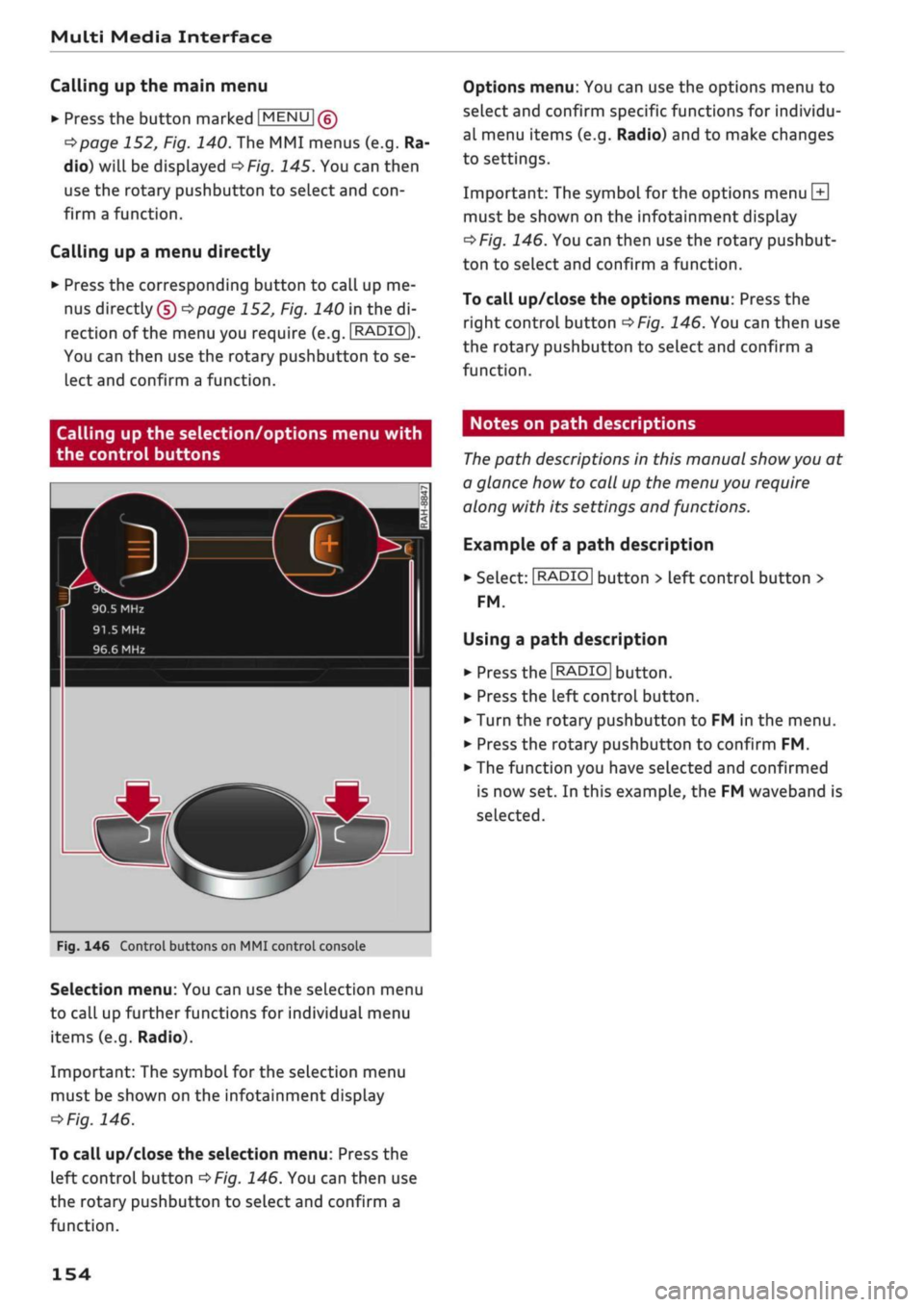
Options menu: You can use the options menu to
select and confirm specific functions for individu
al menu items (e.g. Radio) and to make changes
to settings.
Important: The symbol for the options menu
L±|
must be shown on the infotainment display
^>Fig.
146. You can then use the rotary pushbut
ton to select and confirm a function.
To call up/close the options menu: Press the
right control button
^>Fig.
146. You can then use
the rotary pushbutton to select and confirm a
function.
Calling up the selection/options menu with
the control buttons
90.5 MHz
91.5
MHz
96.6 MHz
r
Fig.
146 Control buttons on MMI control console
Selection menu: You can use the selection menu
to call up further functions for individual menu
items (e.g. Radio).
Important: The symbol for the selection menu
must be shown on the infotainment display
ï>Fig.
146.
To call up/close the selection menu: Press the
left control button
^>Fig.
146. You can then use
the rotary pushbutton to select and confirm a
function.
Notes on path descriptions
The
path descriptions in this manual
show
you at
a glance how to call up the menu you require
along with its settings and functions.
Example of a path description
•
Select:
I
RADIO|
button > left control button >
FM.
Using a path description
• Press the
I
RADIO
I
button.
•
Press the left control button.
•
Turn the rotary pushbutton to FM in the menu.
•
Press the rotary pushbutton to confirm FM.
•
The function you have selected and confirmed
is now set. In this example, the FM waveband is
selected.
154
Page 158 of 364

Multi Media Interface
Moving the crosshairs
Applies to: vehicles with MMI touch
Moving the map
Applies to: vehicles with MMI touch
Strausberg
Potsdam-UJ3
/
101
9l
kenfelde-Mahlow
Fiirstenw
Fig.
149 Moving the crosshairs
Important: A map must be displayed
•=>
page 219.
- To bring up/hide the crosshairs: Press the ro
tary pushbutton to bring up the crosshairs
(Î)
*>Fig.
149. Or: Press the MMI touch pad. To
hide the crosshairs, press the
JBACK|
button
(J)
^>page
152, Fig. 140.
- To move the crosshairs on the map: Move your
finger in the desired direction on the MMI
touch pad while the crosshairs are displayed
^Fig.
149.
To move the crosshairs quickly: Move your finger
quickly in the desired direction on the MMI touch
pad while the crosshairs are displayed
(Î)
^Fig.
149. The crosshairs will only stop moving
again after
a
few seconds.
Briesela Strausberg
avel
PotsHam-na
Furstenw
Blankenfe Ide-Mahlow
L
•J
Fig.
150 Moving the map
Important: A map must be displayed
•=>
page 219.
- To bring up/hide the crosshairs: Press the ro
tary pushbutton to bring up the crosshairs
(T)
•=>F/g.
150. To hide the crosshairs, press the
|BACK| button
® ^>page
152, Fig. 140.
- To move the standard map/Google Earth map:
Move two fingers in the desired direction on the
MMI touch pad while the crosshairs are dis
played
^>Fig.
150.
- To move the map: Move two fingers in the de
sired direction on the MMI touch pad while the
crosshairs are displayed
^>Fig.
150.
- To move the map quickly: Move two fingers in
the desired direction on the MMI touch pad
quickly while the crosshairs are displayed. The
map will only stop moving again after
a
few
seconds.
156
Page 159 of 364

Multi Media Interface
Zooming in/out on map
Applies
to: vehicles with MMI touch
CO
rN
IV
rN
•-i
00
Fig.
151 Zooming in/out on the map
Important: A map must be displayed
^>page
219.
- To zoom in/out on the map: Press the rotary
pushbutton to bring up the crosshairs. Place
two fingers on the MMI touch pad and move
them apart/together
^>Fig.
151.
To hide the crosshairs, press the
I
BACK] button
Q)*>pagel52,
Fig. 140.
Adjusting the sound focus
Applies
to: vehicles with MMI touch
Important: The
Balance/fader*
option must be
selected
•=>page
260.
- To move the crosshairs of the sound focus:
Move your finger in the desired direction on the
MMI touch pad.
-
To
store the location of the crosshairs: Press
the rotary pushbutton twice. Or: Press the
I
BACK|
button
® t>page
152, Fig. 140.
Operating the DVD main menu
Applies
to: vehicles with MMI touch
Important: A video DVD must be playing
o
page 243.
- To select a menu option: Move your finger up/
down
or to
the
Left/right
on the MMI touch
pad.
- To confirm your selection: Press the rotary
pushbutton.
\J
Note
-You can set the volume of the MMI touch
spoken cues according to your own prefer
ences
^>
page 262.
- Please note the direction of writing if the
menu language is set to Arabic.
Rotary pushbutton with
joystick function
Using
Applies
to: vehicles with joystick function
Fig.
152
function
m[
How
to
#
#
use
the rotary pushbuttc
in
m
op
i <
cc
0
n
with joystick
You can push the rotary pushbutton up/down
(T)
^>Fig.
152
or
to the
Left/right©.
Calling up the entertainment drawer
Applies
to: vehicles with MMI touch
To call up the entertainment drawer: Press the
rotary pushbutton downwards to open the enter
tainment drawer®
^>page
161, Fig. 156. You
can then select and confirm a function.
To close the entertainment drawer: Press the ro
tary pushbutton upwards to close the entertain
ment drawer. Or: Press the |BACK| button
@
opage
152, Fig. 140.
Further functions
Applies
to: vehicles with joystick function
Displaying the entry field/switching to the
speller
Push the rotary pushbutton upwards
^>page
157,
Fig. 152 to access the entry field or the begin
ning of
a
list in the central area. If the entry field •
157