2021 AUDI E-TRON audio
[x] Cancel search: audioPage 175 of 308

4KE012721BF
Parking and maneuvering
Rear cross-traffic assist
Applies to: vehicles with rear cross-traffic assist
3 s
&
= st a
Fig. 127 Upper display: rear cross-traffic assist display
General information
The rear cross-traffic assist monitors the area be-
hind and next to the vehicle using radar sensors
at the rear corners of the vehicle. The system can
detect moving objects that are approaching, such
as vehicles > fig. 126. A display in the MMI and
various warnings provide assistance when exiting
a parking space.
Requirements for using the rear cross-traffic
assist:
— The parking system is switched on > page 166.
— Reverse gear must be engaged and the speed
while driving in reverse must not be higher than
6 mph (10 km/h).
Displays, warnings, and braking
— Display: the display @ appears only when the
parking aid is active. In vehicles with peripheral
cameras, the display only appears in the Rear
and Rear corner camera views. Arrows show the
direction from which the cross traffic is ap-
proaching.
— Audible warnings: an audio signal may sound
as an additional warning when driving in re-
verse.
— Automatic brake activation: if you do not react
to a warning, a brief braking by the system can
warn you of a potential collision with an ap-
proaching object.
The audible warning signal and the automatic
brake activation occur only when driving in re-
verse.
Switch rear cross-traffic assist on and off
— Applies to MMI: Select on the home screen: VE-
HICLE > Parking aid > Rear cross-traffic assist.
Or
— Select |--| > Rear cross-traffic assist in the upper
display when the parking aid is active.
Messages
re or >% is displayed when there is a mal-
function, the rear cross traffic assist functions
may be unavailable or may be limited.
A message that indicates the cause and possible
solution may appear with some displays. The
weather conditions may be too poor or a sensor
may be covered. Clean the sensor area in the ve-
hicle rear and try to turn the system on again lat-
er.
If the malfunction remains, drive to an author-
ized Audi dealer or authorized Audi Service Facili-
ty immediately to have the malfunction correct-
— Observe the safety precautions and note the
limits of the assist systems, sensors, and
cameras > page 129.
— The rear cross-traffic assist will not provide
alerts about people and cannot warn you
about every type of approaching objects,
such as cyclists. Always monitor the traffic
as well as the vehicle's surroundings with di-
rect eye contact.
— The system may not react if objects are ap-
proaching very quickly.
— The rear cross-traffic assist will not provide
alerts if your vehicle is parallel parked or if
173
Page 209 of 308
4KE012721BF
Radio
Radio
General information
Selecting the radio
ey
ney) os 2 )
\) ea
102.9 1) 2 FM-HDB
(3) OME 4)
aa
e my 106.7 ama
mee
eo £0010 0—=@)
Saray fa
RAX-0190)
ca
Fig. 143 Upper display: SiriusXM channel list
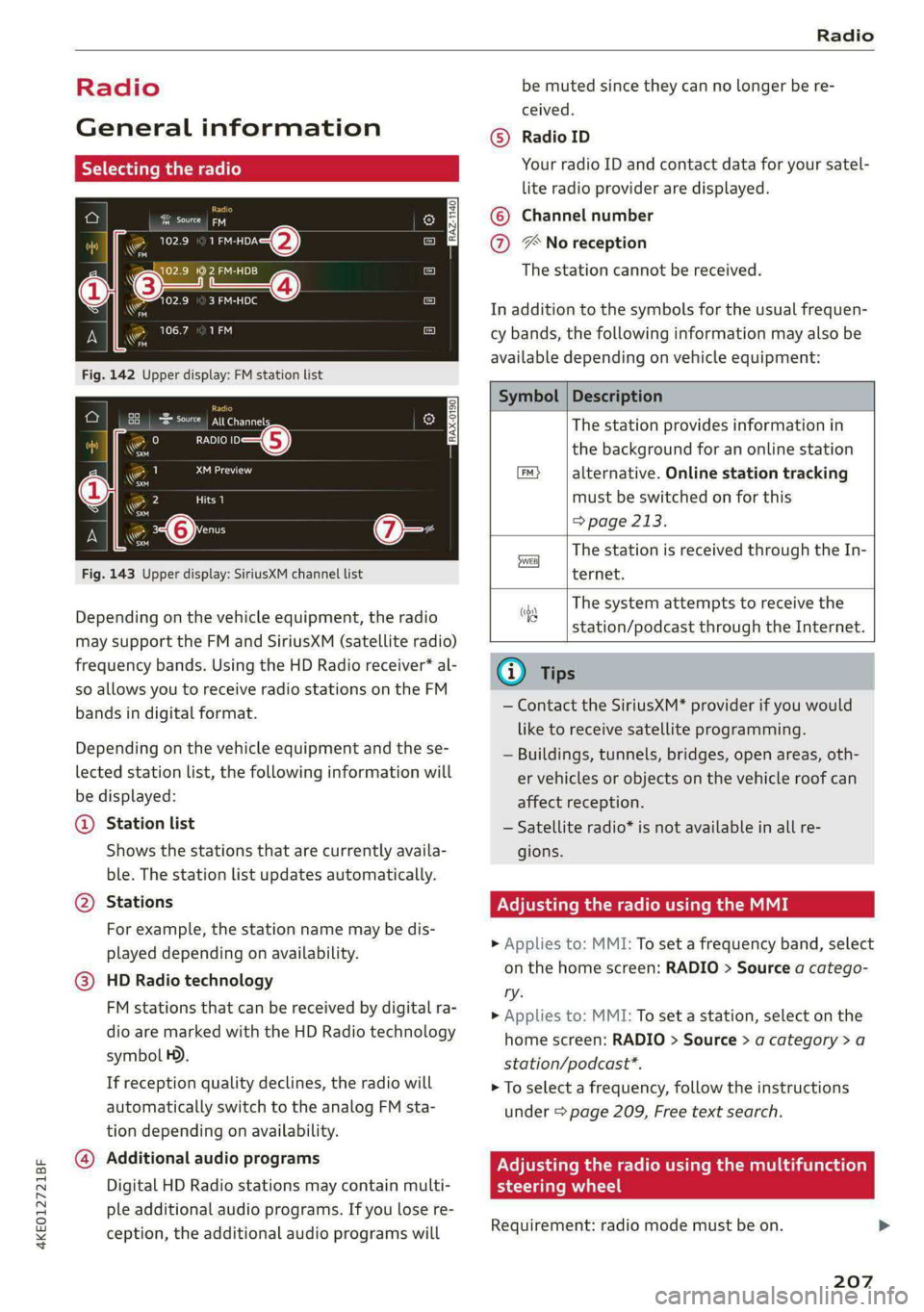
Depending on the vehicle equipment, the radio
may support the FM and SiriusXM (satellite radio)
frequency bands. Using the HD Radio receiver* al-
so allows you to receive radio stations on the FM
bands in digital format.
Depending on the vehicle equipment and the se-
lected station list, the following information will
be displayed:
@ Station list
Shows the stations that are currently availa-
ble. The station list updates automatically.
@ Stations
For example, the station name may be dis-
played depending on availability.
@ HD Radio technology
FM stations that can be received by digital ra-
dio are marked with the HD Radio technology
symbol H).
If reception quality declines, the radio will
automatically switch to the analog FM sta-
tion depending on availability.
@ Additional audio programs
Digital HD Radio stations may contain multi-
ple additional audio programs. If you lose re-
ception, the additional audio programs will
be muted since they can no longer be re-
ceived.
© Radio ID
Your radio ID and contact data for your satel-
lite radio provider are displayed.
Channel number
% No reception e®
The station cannot be received.
In addition to the symbols for the usual frequen-
cy bands, the following information may also be
available depending on vehicle equipment:
Symbol | Description
The station provides information in
the background for an online station
alternative. Online station tracking
must be switched on for this
=> page 213.
The station is received through the In-
ternet.
The system attempts to receive the
station/podcast through the Internet.
G@) Tips
— Contact the SiriusXM* provider if you would
like to receive satellite programming.
— Buildings, tunnels, bridges, open areas, oth-
er vehicles or objects on the vehicle roof can
affect reception.
— Satellite radio* is not available in all re-
gions.
Adjusting the radio using the MMI
> Applies to: MMI: To set a frequency band, select
on the home screen: RADIO > Source a catego-
ry.
> Applies to: MMI: To set a station, select on the
home screen: RADIO > Source > a category >a
station/podcast*.
> To select a frequency, follow the instructions
under > page 209, Free text search.
Adjusting the radio using the multifunction
Tare maa 118
Requirement: radio mode must be on.
207
>
Page 217 of 308
4KE012721BF
Media
Media
General information
There may be different media sources and con-
nections available depending on the vehicle
equipment. For example, you can play media files
using a connected USB drive or connect your mo-
bile devices to the Audi music interface and oper-
ate them through the MMI.
Media and format restrictions: the MMI (includ-
ing the USB storage device connection) was test-
ed with a variety of products and media on the
market. However, there may be cases where indi-
vidual devices or media and audio/video files may
not be recognized, may play only with restric-
tions, or may not play at all.
Restricted functionality: reset the MMI to the
factory default settings if functionality is restrict-
ed > page 229.
Digital Rights Management: please note that
the
audio/video files are subject to copyright pro-
tection.
Files that are protected by DRM and are identi-
fied with the symbol f@ will not play.
Data security: never store important data on
CDs/DVDs or mobile devices. Audi is not responsi-
ble for damaged or lost files and media.
Loading times: the more files/folders/playlists
there are on a storage medium, the longer it will
take to load. To reduce the amount of time it
takes the audio/video files to load, use a storage
medium that only contains audio/video files, and
create subfolders (for example, for each artist or
album).
Additional information: when playing, audio
files are automatically displayed with any addi-
tional information that is stored (such as the ar-
tist, track and album cover). If this information is
not available on the medium, the MMI will revert
to the local Gracenote metadata database or
search online if necessary. See > page 223, On-
line additional data. However, in some cases, the
additional information may not be displayed.
CG) Note
Read the information about Audi connect, and
be sure to note the connectivity costs section
=@ in General information on page 186.
DVD drive
General information
Applies to: vehicles with a DVD drive
The functionality of individual storage mediums
may be limited due to the variety of blank CDs/
DVDs available and the various capacities. Audio
CDs or video DVDs with copy protection, CDs/
DVDs that do not conform to the standard, and
multisession CDs may have limited playback or
may not play at all. Audi recommends finalizing
the recording process when creating multisession
CDs. Multisession DVDs are not supported.
() Note
To reduce the risk of damaging the drive and
data carriers:
— Always store data carriers in a protective
sleeve and do not expose them to direct
sunlight
— Do not use damaged, dirty, or laminated da-
ta carriers
— Do not use single CDs/-DVDs with a 3.1 inch
(8 cm) diameter, non-circular CDs/DVDs
(shaped CDs), cleaning CDs, and protective
rings
— Never force CDs/DVDs into the drive. Discs
are pulled in automatically.
@® Tips
The thermal protection switch stops playback
temporarily when outside temperatures are
too high.
215
Page 218 of 308
![AUDI E-TRON 2021 Owners Manual Media
Applies to: vehicles with a DVD drive
[RAH-9153]
Fig. 145 Glove compartment: DVD drive
Loading a CD/DVD
> Slide the CD/DVD straight into the DVD slot @
with the label faci](/manual-img/6/57622/w960_57622-217.png "AUDI E-TRON 2021 Owners Manual Media
Applies to: vehicles with a DVD drive
[RAH-9153]
Fig. 145 Glove compartment: DVD drive
Loading a CD/DVD
> Slide the CD/DVD straight into the DVD slot @
with the label faci")
Media
Applies to: vehicles with a DVD drive
[RAH-9153]
Fig. 145 Glove compartment: DVD drive
Loading a CD/DVD
> Slide the CD/DVD straight into the DVD slot @
with the label facing up. The CD/DVD will be au-
tomatically pulled in.
Ejecting a CD/DVD
> Press the button @).
The CD/DVD is pulled in again automatically if it
is not removed from the DVD slot within approxi-
mately ten seconds after ejecting it.
The DVD drive is accessed and operated through
the MMI > page 218.
G) Tips
— Playback cannot be guaranteed with media
files that have a high data rate.
— Always read the chapter > page 215, Gener-
al information.
Bluetooth audio player
Applies to: vehicles with Bluetooth audio player
With the Bluetooth audio player, you can play
music wirelessly through the MMI from your
Bluetooth-capable mobile device (such as a cell
phone).
Requirement: the vehicle must be stationary and
the ignition must be switched on. The Bluetooth
settings will open on your mobile device during
the connection setup. The Bluetooth function and
visibility of the MMI > page 229 and mobile de-
vice must be switched on.
216
Connecting a mobile device
> Applies to: MMI: Select on the home screen:
MEDIA > Source > Connect external device >
New connection. The available Bluetooth devi-
ces will be displayed after several seconds.
> Press on the desired mobile device in the list of
displayed Bluetooth devices.
> To update the list, press OQ.
A PIN for a secure Bluetooth connection will be
generated.
> Confirm the PIN on your mobile device.
After connecting successfully, the mobile device
will be displayed in the Connected devices menu
as a Bluetooth audio player.
Playing media > page 218.
(i) Tips
— Check for any connection requests on your
Bluetooth device.
— Multiple Bluetooth audio players can be
paired with the MMI, but only one at a time
can be active as a Bluetooth audio player
=> page 230.
— The supported media functions (such as
shuffle, list view, categories, search, op-
tions) depend on the Bluetooth device being
used.
— Note the volume setting on your Bluetooth
device. Audi recommends setting your mo-
bile device to the maximum volume when
using it as a Bluetooth audio player.
—Aselection of supported Bluetooth devices
can be found in the database for tested mo-
bile devices at www.audi.com/bluetooth.
Amazon Alexa
Applies to: vehicles with Amazon Alexa Integration
You can play various Amazon Alexa content using
the MMI. The voice recognition system is used to
operate it.
Requirement: Amazon Alexa must be activated
=> page 26.
>» Start Amazon Alexa using the voice recognition
system.
Page 220 of 308
Media
Never leave mobile devices in the vehicle in
extremely high or low temperatures.
@) Tips
— Always follow the information found in
=> page 78.
— When you switch the ignition off, the USB
ports are still supplied with power until the
energy management intervenes.
— Do not use an additional adapter cable or
USB extension cable to connect mobile devi-
ces to the Audi music interface that already
have a cable or that must be connected with
a USB adapter cable (> page 217, fig. 146).
Using an additional adapter or US extension
cable may impair functionality.
— Functionality is not guaranteed for mobile
devices that do not conform to the USB 2.0
specification.
— USB hubs are not supported.
— Video playback through the Audi music in-
terface is not supported on Apple devices
and MTP devices (such as smartphones).
— iPod touch or iPhone malfunctions also af-
fect the operation of the MMI. Reset your
mobile device in these situations.
— Audi recommends updating the iPod touch
or iPhone software to the latest version. Re-
fer to your mobile device owner's manual
for more information.
— The USB adapter on the Audi music inter-
face will support iPod touch or iPhone devi-
ces from the 5th generation or newer with
the lightning connector.
—Aselection of supported devices can be
found in the database for tested mobile de-
vices at www.audi.com/mp3.
Playing media
The following sources can be selected depending
on the vehicle equipment:
— Amazon Alexa > page 216.
— USB device > page 217.
— DVD © page 216.
218
— External device: you can connect external devi-
ces via Bluetooth and use the Bluetooth audio
player > page 216, or you can connect an exter-
nal device directly to the Audi music interface
> page 217.
Accessing media
Playing media files using the MMI
> Applies to: MMI: Select on the home screen:
MEDIA > Source > a source. Depending on the
connected device, the symbol for a source may
change. The device name may be displayed (for
example: myPhone).
> Select a track from the categories in the media
center > page 219.
Playing media files using the multifunction
steering wheel
Requirement: a media source must contain me-
dia files > page 218.
> Select the radio/media tab in the instrument
cluster.
> Turn the left thumbwheel to display the play-
list.
> To switch to a different source, press the
button.
> To select a media file or a source, turn and
press the left thumbwheel.
> To switch between radio and media, select in
the instrument cluster: the EE] button > Switch
to radio/Switch to media.
G) Tips
— For safety reasons, the video image is only
displayed when the vehicle is stationary. On-
ly the sound from the video plays while driv-
ing.
— Applies to: multifunction steering wheel:
Depending on the selected function, opera-
tion through the MMI may be required.
Page 221 of 308
![AUDI E-TRON 2021 Owners Manual 4KE012721BF
Media
Cel Me staieig
Teco Re is
a] | 3
| x 2
ES
Fig. 147 Upper display: media center
There are various categories available in the me-
dia center. You can also search for](/manual-img/6/57622/w960_57622-220.png "AUDI E-TRON 2021 Owners Manual 4KE012721BF
Media
Cel Me staieig
Teco Re is
a] | 3
| x 2
ES
Fig. 147 Upper display: media center
There are various categories available in the me-
dia center. You can also search for")
4KE012721BF
Media
Cel Me staieig
Teco Re is
a] | 3
| x 2
ES
Fig. 147 Upper display: media center
There are various categories available in the me-
dia center. You can also search for media files
across sources. The current music track continues
playing while you search the MMI.
Opening the media center
> Applies to: MMI: Select on the home screen:
MEDIA > Source > a source > a category.
@ Source symbol
The symbol for the source that is currently in use
is displayed. Depending on the connected device,
the symbol for the source may change. As an ex-
ample, a USB stick is shown connected to the
Audi music interface.
@ Source device name
The device name of the source that is currently in
use is displayed.
@® Categories
The media center will display categories depend-
ing on the connected device, the selected source
content, and the connection type.
Last played tracks
The last played media file will be played.
Artists
All available artists are displayed.
> Select: an artist > an album > a song.
Playlists
All playlists and smart playlists in the source are
displayed.
> Select: a playlist > a song.
Smart playlists
Last played tracks: the tracks that were dis-
played last are displayed.
Most played tracks: the tracks that are played
most frequently are displayed.
Folders
The folder structure or track/chapter list is dis-
played.
> Select: a folder > a song.
Compilations
You can control your compilations through the
MMI.
> Select: a compilation > a song.
Composers
All available composers are displayed.
> Select: ad composer > an album > a song.
iTunes Radio
>» Press on a radio station.
Audio books
You can control your audio books on the MMI.
> Press on an audio book.
Podcasts
You can control your podcasts through the MMI.
> Select: a podcast > a podcast episode.
Genres
All available genres are displayed.
>» Select: a genre > an artist > an album > a song.
Videos
All available video files are displayed.
> Press on a video.
Tracks
All available tracks are displayed.
> Press ona track.
219
Page 224 of 308
![AUDI E-TRON 2021 Owners Manual
Not all functions are available in every source
and on every touch display.
ct-Me-y4ae tL]
Applies to: vehicles with free text search
You can search across all active sources, for ex-
ample f](/manual-img/6/57622/w960_57622-223.png "AUDI E-TRON 2021 Owners Manual
Not all functions are available in every source
and on every touch display.
ct-Me-y4ae tL]
Applies to: vehicles with free text search
You can search across all active sources, for ex-
ample f")
Not all functions are available in every source
and on every touch display.
ct-Me-y4ae tL]
Applies to: vehicles with free text search
You can search across all active sources, for ex-
ample for tracks and video files.
Opening the search
Requirement: the selected source must support
the search function.
> Applies to: MMI: Select on the home screen:
MEDIA > Search.
Entries that contain the entered search term are
listed in the results list. Each result is marked
with the symbol for a category in the media cen-
ter > page 219.
You can search for the following categories:
— Artists
— Albums
— Tracks
— Genres
— Videos
Options and settings
Context-dependent functions and settings may
be available depending on the selected source,
the connected mobile device, and the connection
type.
Requirement: the playback view must be dis-
played @) > page 220, fig. 148.
> Press More @)..
Play more like this
The track currently playing is quickly analyzed for
features such as artist, genre, mood, and beat,
and a smart playlist with similar tracks will be
shown.
1) Depending on the DVD, this may not be possible during
playback.
222
Language)
You can set the language manually. The availabil-
ity of the language and audio format depend on
the video DVD.
Subtitles)
You can manually select subtitles for playback.
The languages available depend on the DVD.
Aspect ratio
Audi recommends the Auto setting for the pic-
ture format. If you press on an aspect ratio, you
will see a preview of the setting on the screen.
Press OK to apply the selected aspect ratio.
The following table gives an overview of the as-
pect ratios. The possible aspect ratios depend on
the source or video file being played.
pspect te Description
tio
The MMI detects the picture for-
Auto mat of the source and displays the
image in the optimal ratio.
The image is fixed in the corre-
4:3, sponding ratio. Select one of these
16:9, options if the image is distorted or
Cinema a section of the image is cut off or
blurry when Auto is selected.
The image is enlarged to fill the en-
Zoom sss
tire display.
The image is displayed in the ratio
of the source format. Select this
Original option if the image is distorted or a
section of the image is cut off or
blurry when Auto is selected.
Accessing settings
> Applies to: MMI: Select on the home screen:
MEDIA > ©.
Depending on the vehicle equipment, the follow-
ing settings may be available: >
Page 225 of 308
4KE012721BF
Media
Online additional data
Requirement: the MMI must be connected to the
Internet. A data plan must be available
=> page 190.
When the function is switched on, additional in-
formation (such as album cover, artist, track) will
be loaded depending on the availability from the
different providers.
DVD playback parental cntrl.
Playback of video DVDs can be restricted based
on age restrictions using parental control.
Displaying the DVD parental control menu
> Applies to: MMI: Select on the home screen:
MEDIA > ©} > DVD playback parental cntrl..
> Enter the PIN for parental control. The PIN set
at the factory is 1234.
> Press OK.
Switching the rating level on and off
Requirement: the DVD parental control menu
must be displayed.
> Select: Set rating level > select a rating level
(for example, level 5) > *2, or:
> To remove all restrictions, press Off.
Eight different protection levels can be set for
parental control. If you set the parental control
level at level 5, all DVDs from levels 1 - 5 can be
played. Video DVDs with a higher level will not
play.
Changing the PIN
Requirement: the DVD parental control menu
must be displayed.
> Select: Change PIN > enter a new PIN for pa-
rental control > OK.
> Repeat the entry and press OK.
@) Tips
— Not all video DVDs have parental control.
— The protection levels for the parental con-
trol are based on the US standards from the
Motion Picture Association of America
(MPAA). Note that the age levels for video
DVDs in European countries may differ.
— PIN entry for parental control will be locked
for approximately one minute if you enter
the incorrect PIN three times in a row. The
PIN can only be reset by an authorized Audi
dealer.
Supported media and file formats
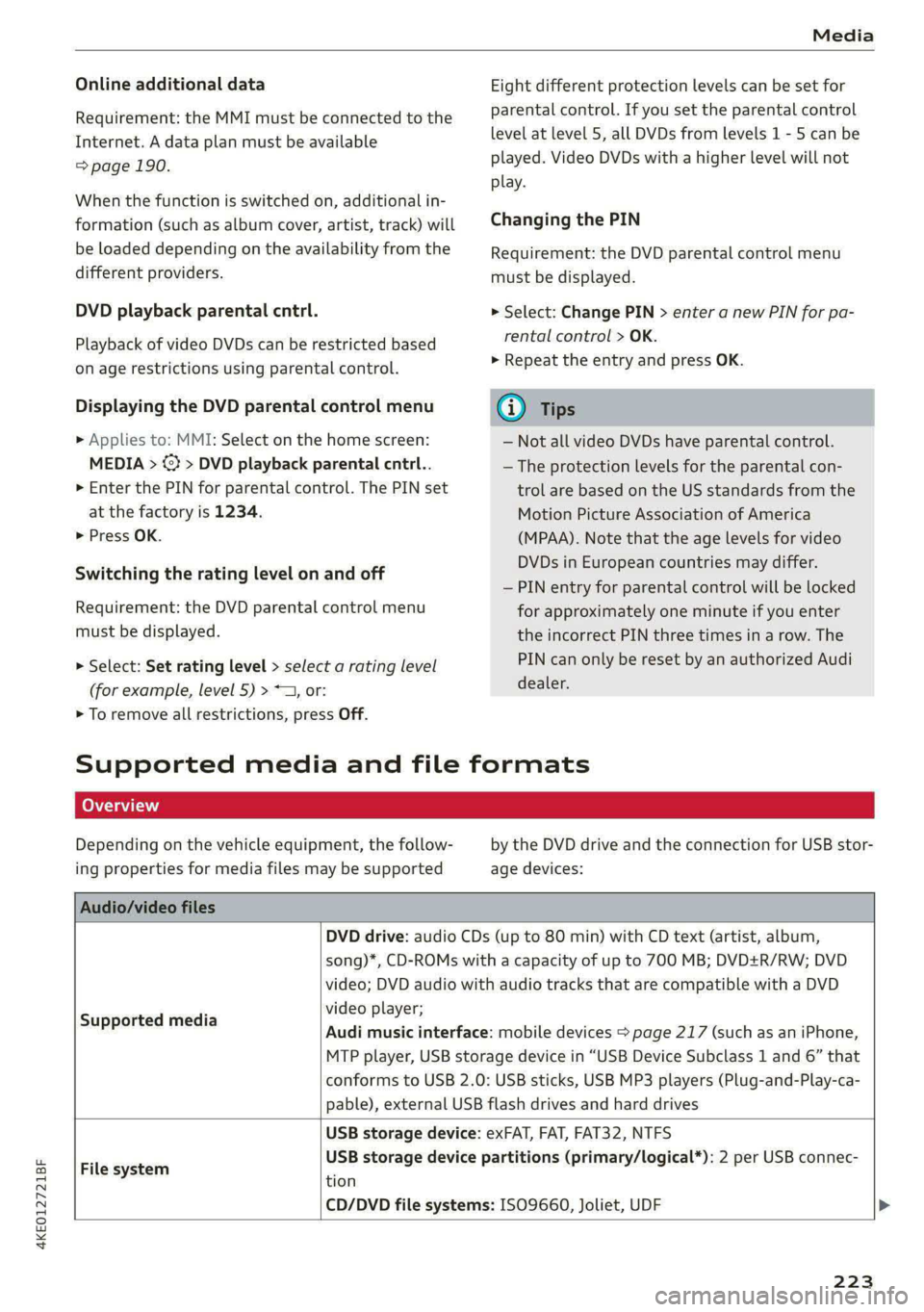
Depending on the vehicle equipment, the follow-
ing properties for media files may be supported
by the DVD drive and the connection for USB stor-
age devices:
Audio/video files
DVD drive: audio CDs (up to 80 min) with CD text (artist, album,
song)*, CD-ROMs with a capacity of up to 700 MB; DVD+R/RW; DVD
video; DVD audio with audio tracks that are compatible with a DVD
video player;
Audi music interface: mobile devices > page 217 (such as an iPhone,
MTP player, USB storage device in “USB Device Subclass 1 and 6” that
conforms to USB 2.0: USB sticks, USB MP3 players (Plug-and-Play-ca-
pable), external USB flash drives and hard drives
Supported media
USB storage device: exFAT, FAT, FAT32, NTFS
USB storage device partitions (primary/logical*): 2 per USB connec-
File system .
tion
CD/DVD file systems: ISO9660, Joliet, UDF >
223